How to Create an Indent Manually
An Indent is a necessary step before creating an RFQ, PO, or Work Order. It serves as the approval request for procurement, which ensures that a user gets permission from the approver before proceeding to create any of these documents.
Step 1: Access the Client Details
Click on the client name to view their details.
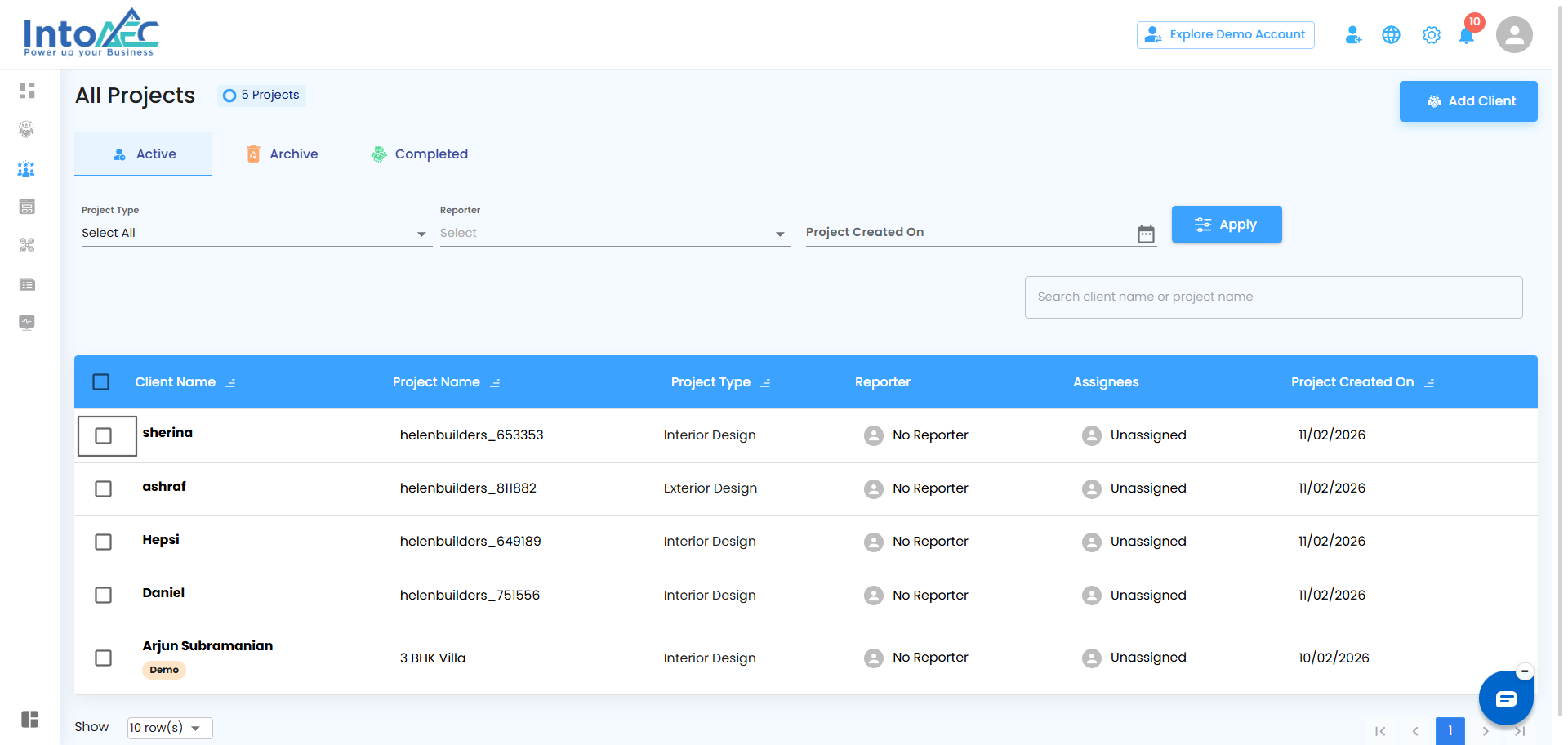
You will see multiple cards displayed in the client’s workspace. From these, choose the Procurement card.
Step 2: Choose the Indent Option
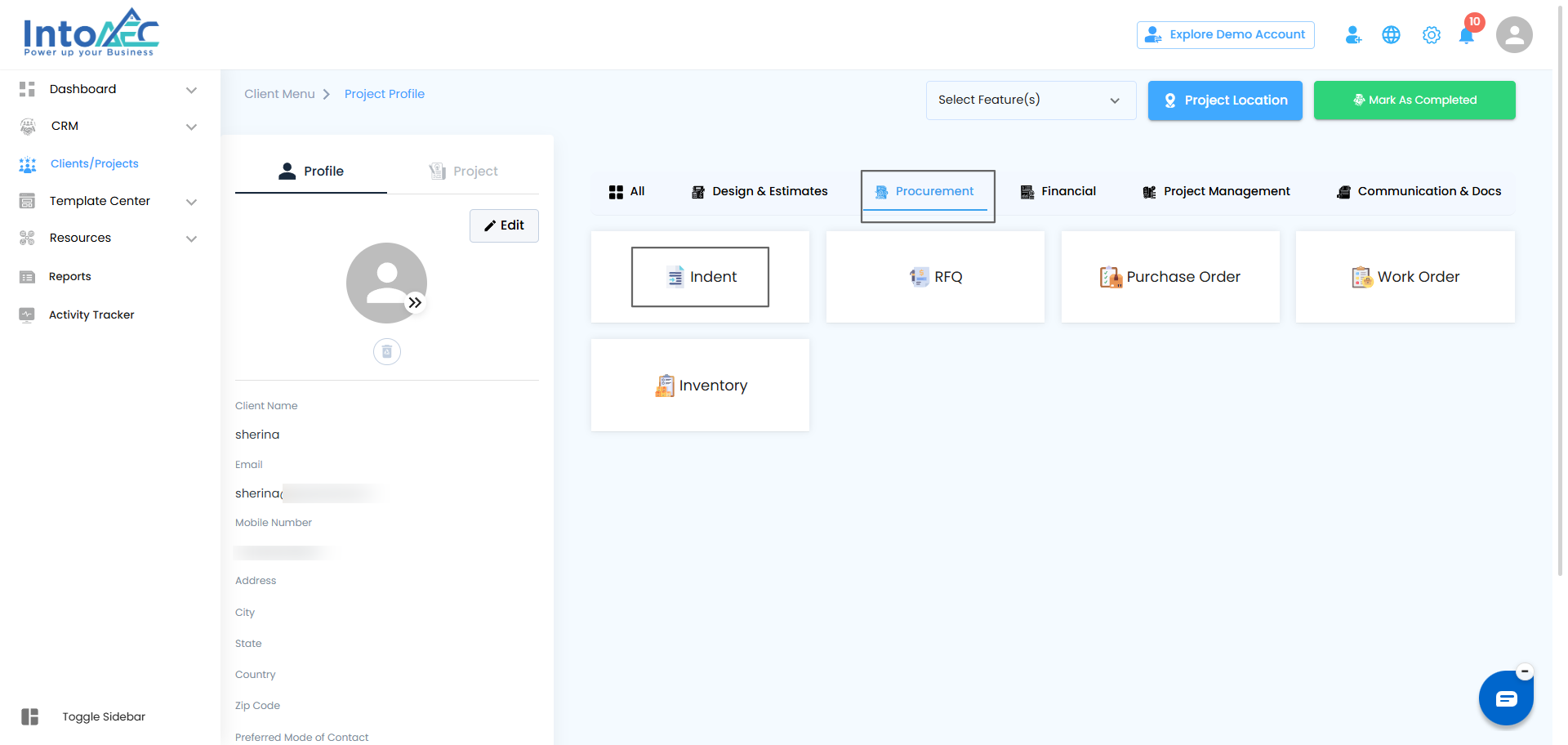
In the Procurement section, you will find the following options:
Indent
RFQ
PO
Work Order
Click on the Indent tab to proceed with creating an Indent.
Step 3: Create an Indent
After clicking the Indent tab, you will see an option to Create Indent.
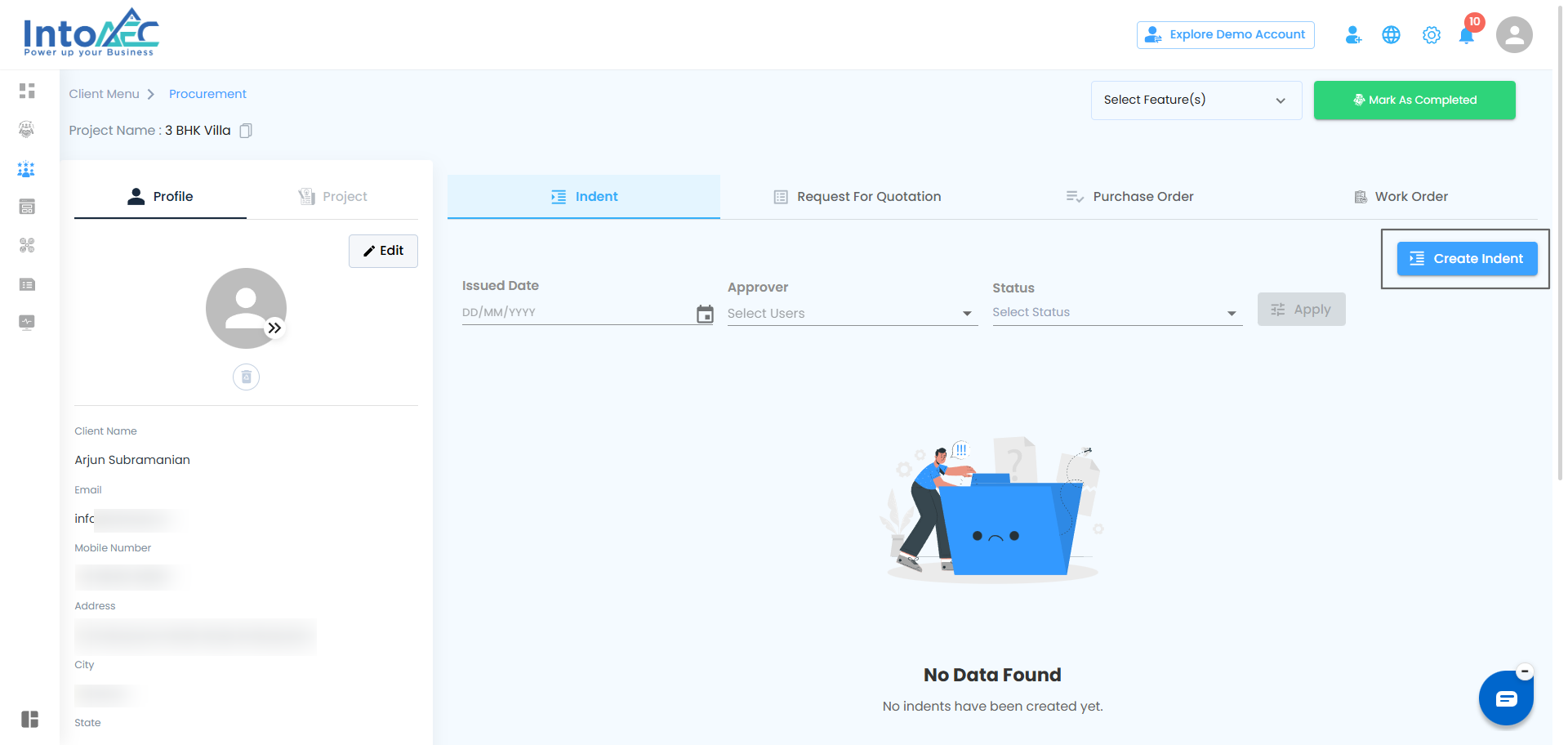
Click on the “Create Indent” button. This will open a popup where you can choose between two types of Indents:
Material Indent
Work Indent
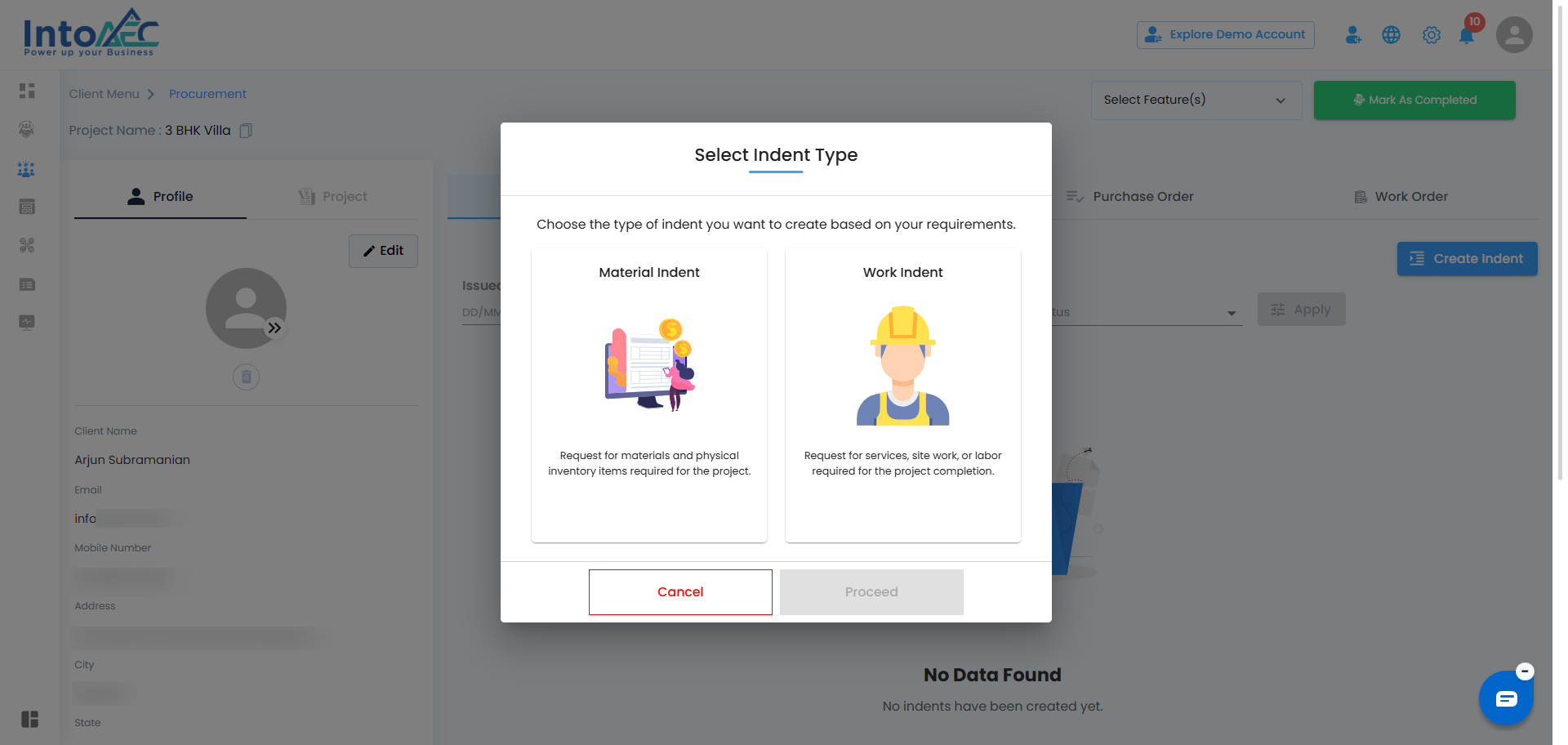
Step 4: Select Material or Work Indent
Choose either Material Indent or Work Indent, depending on your requirement.
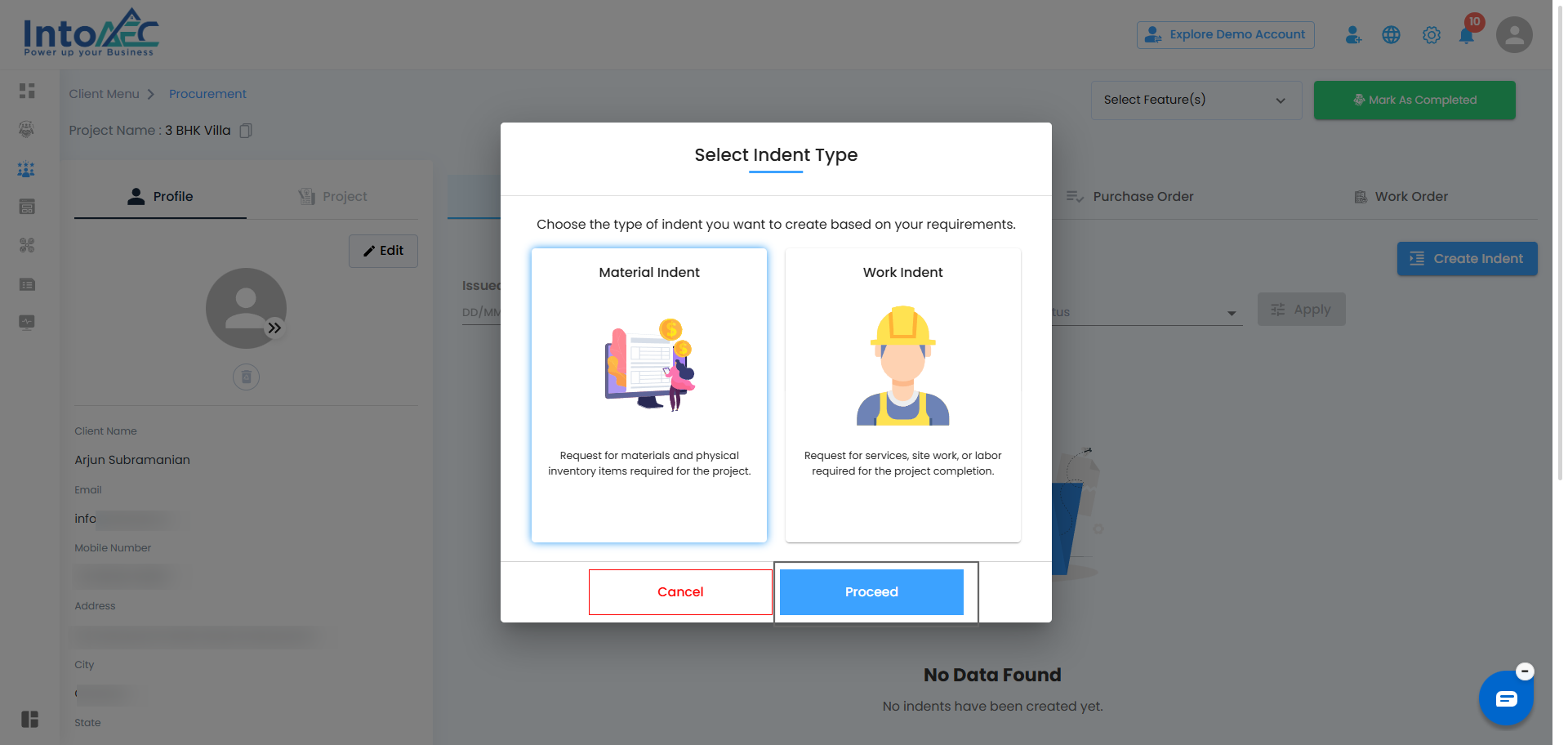
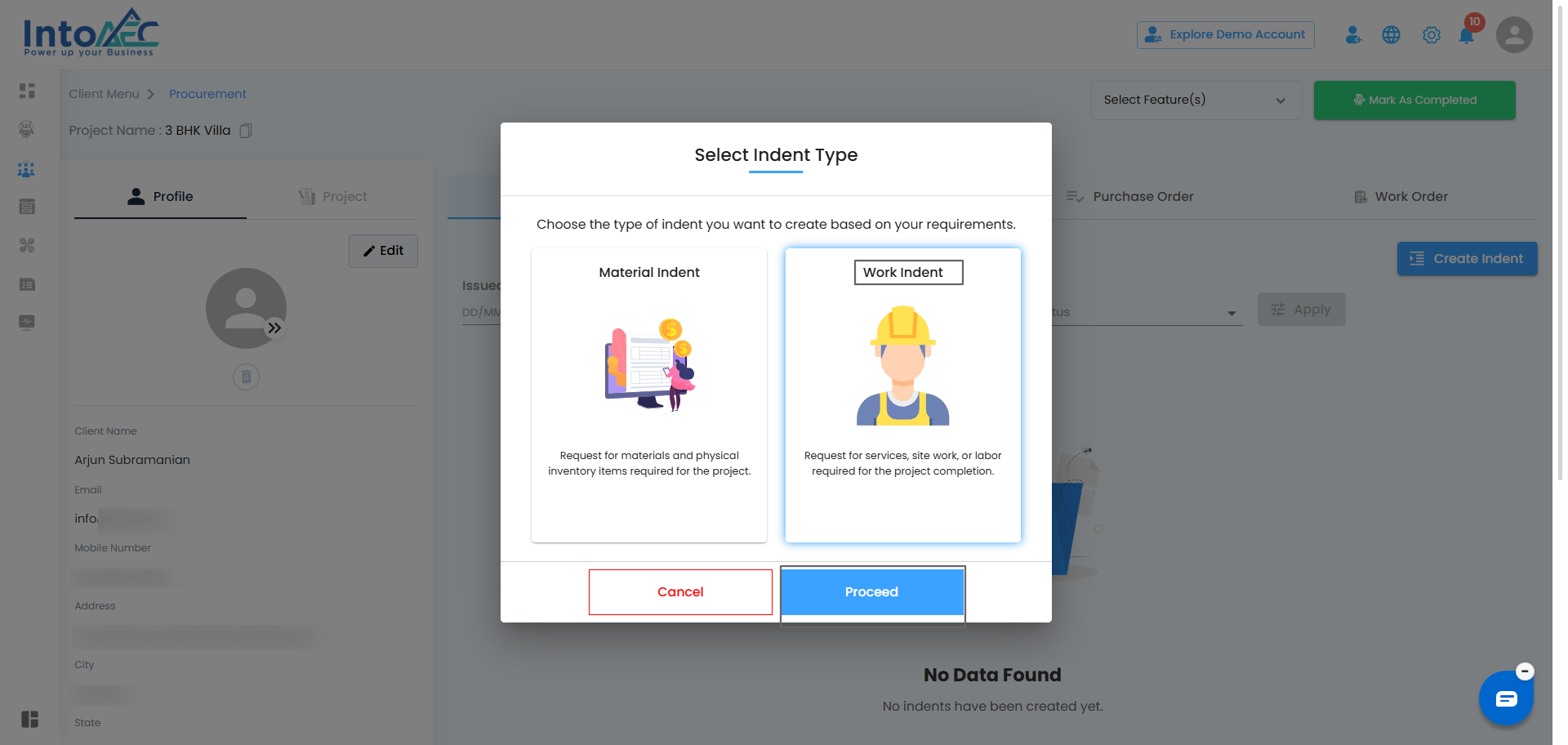
Once selected, it will navigate to the Create Indent page.
Step 5: Enter Indent Details (For Material Indent)
In the Create Material Indent page, you will see the following fields:
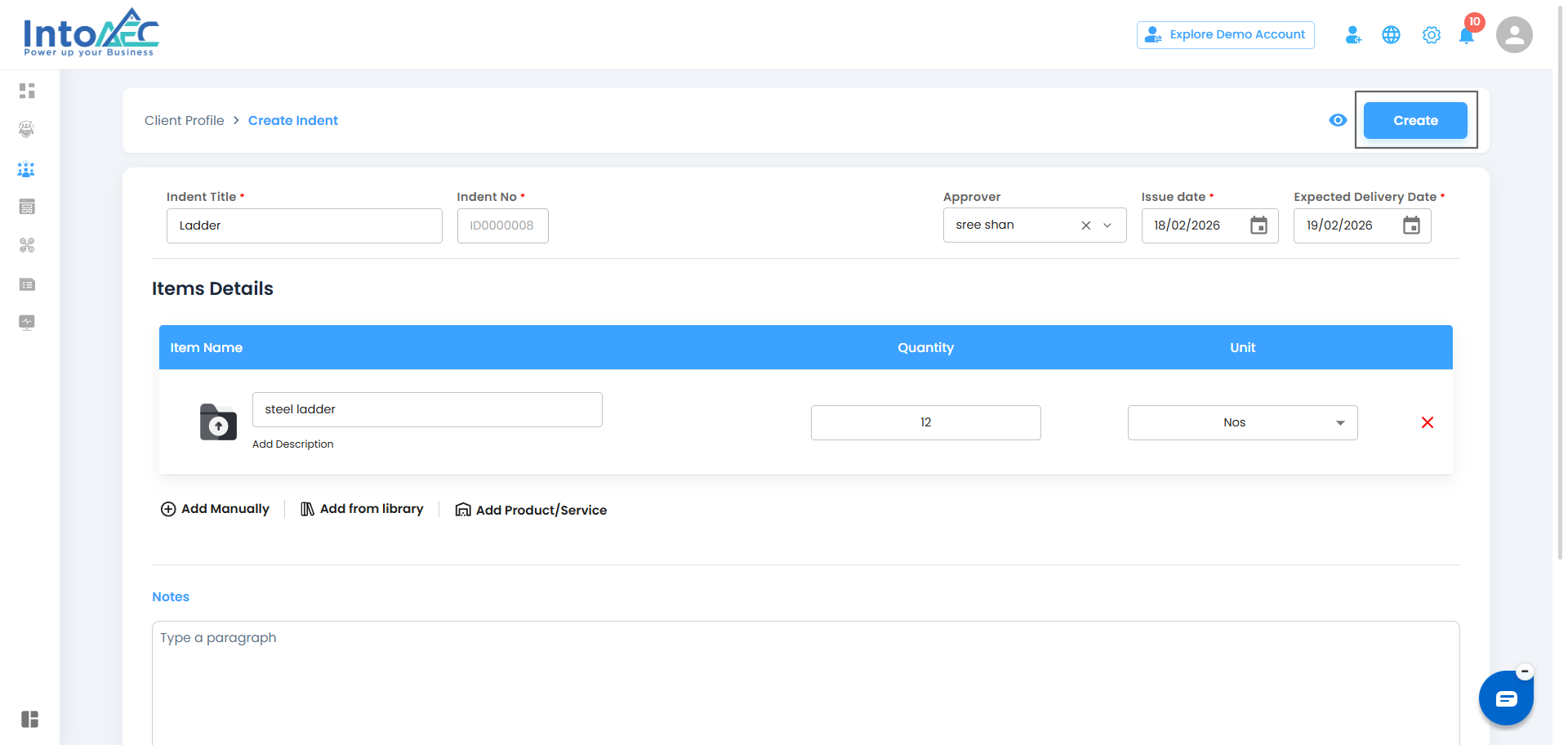
Indent Title: Enter a title for the Indent.
Indent Serial No: This will be auto-generated for you.
Approver Dropdown: Only users with approver permission will be listed in this dropdown. Select the approver.
Issue Date: Select the issue date for the Indent.
Expected Delivery Date: Enter the expected date for delivery.
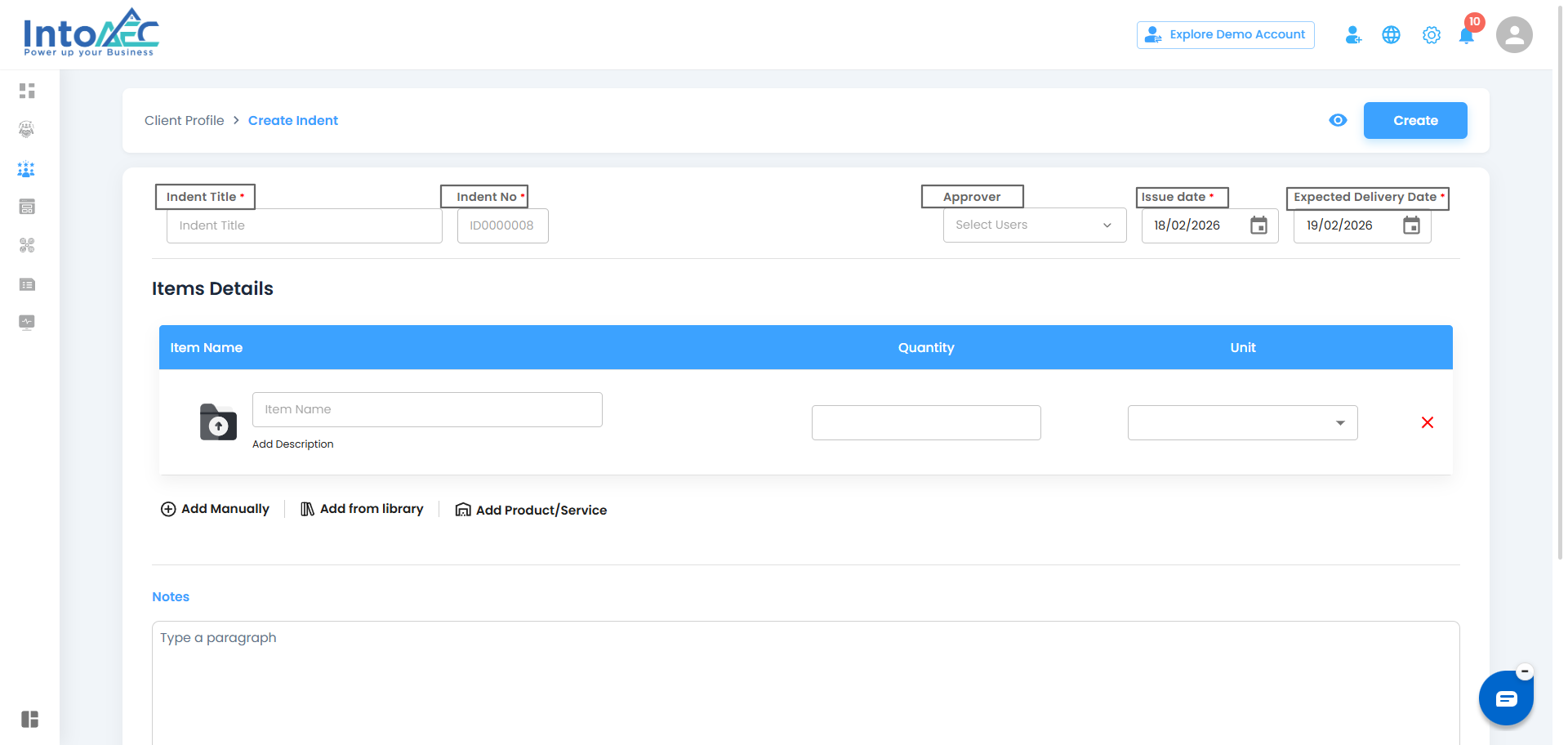
These fields will be displayed at the top of the Items Details section.
Step 6: Add Item Details
Below the indent details, you will see the Item Details section where you can enter the following for each item:
Item Name: Enter the name of the material or service.
Description: (Optional) Add any additional details for the item.
Quantity: Specify the required quantity.
Unit: Choose the unit from the dropdown.
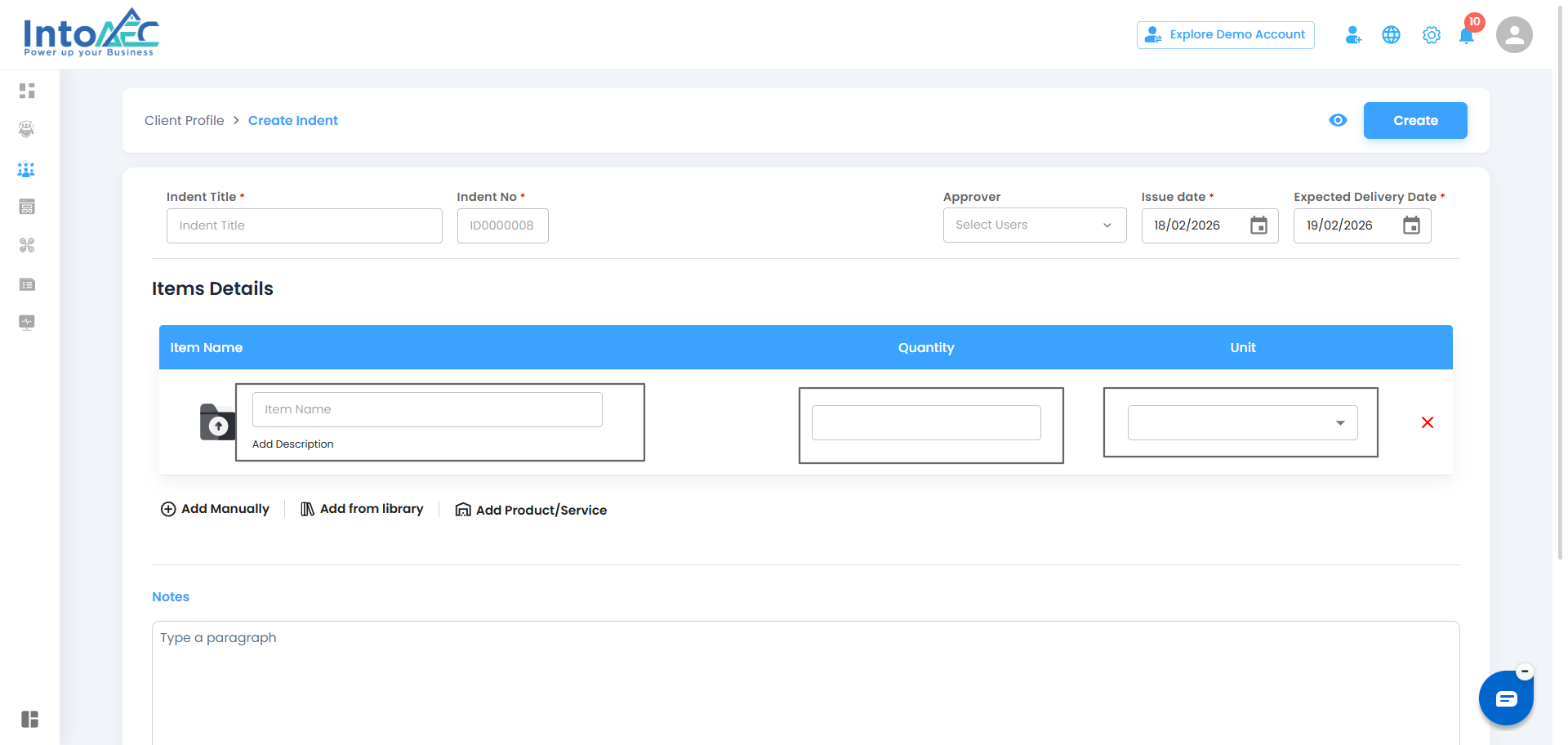
You can also choose to Add Items from Library or Add from Product/Service:
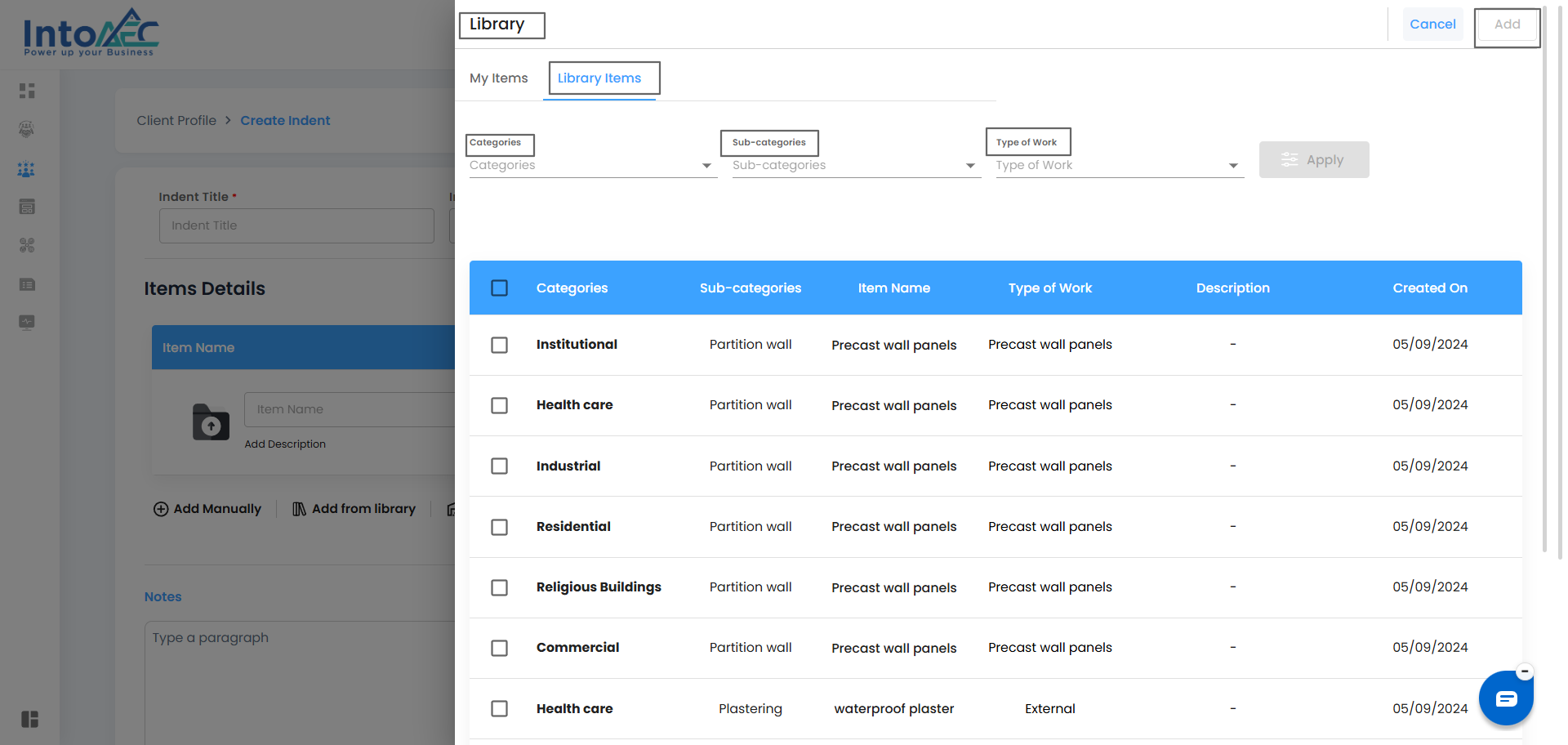
Add from Library: Go to the library and select the item to add to the Indent.
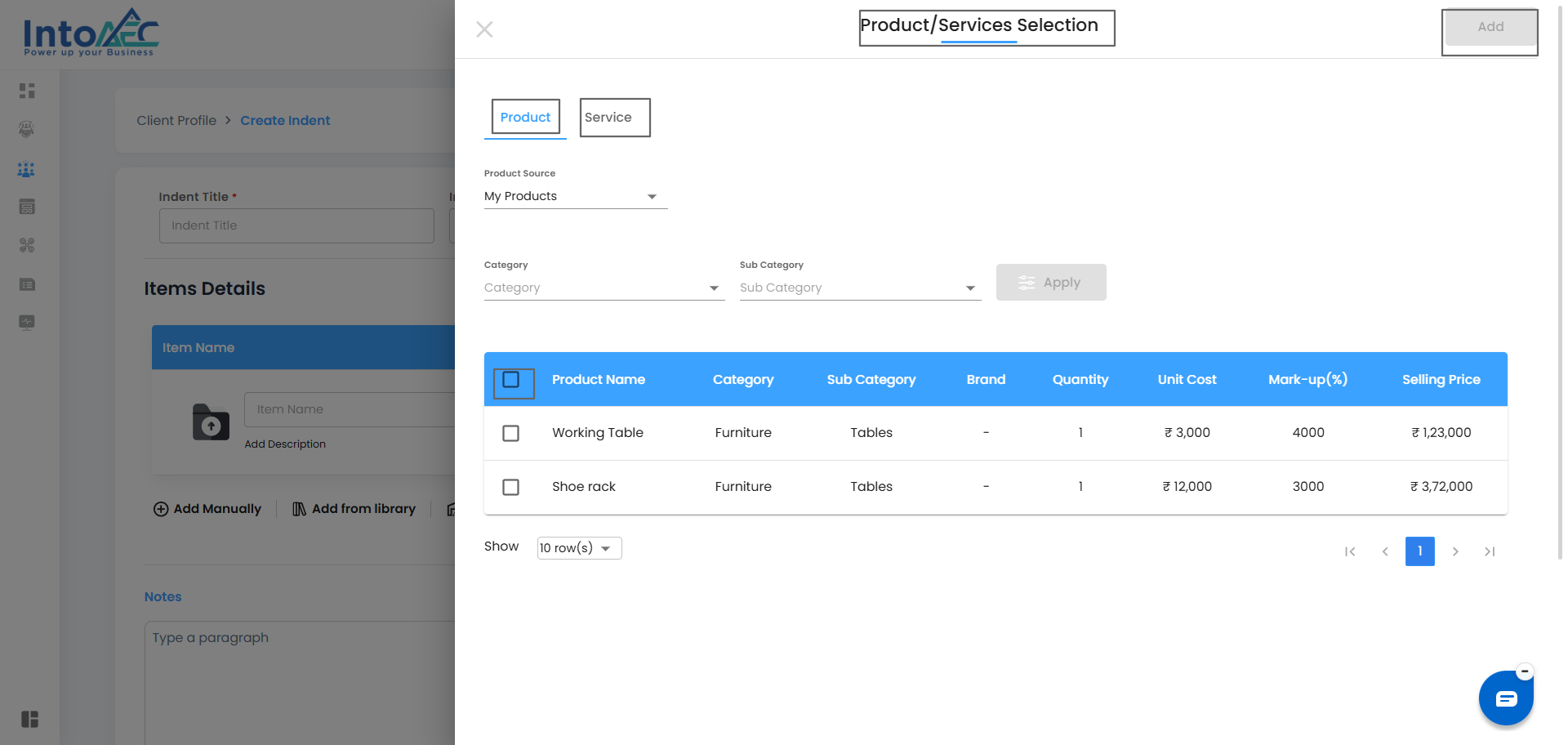
Add from Product/Service: Select and add items from the available products or services.
Step 7: Add Notes (Optional)
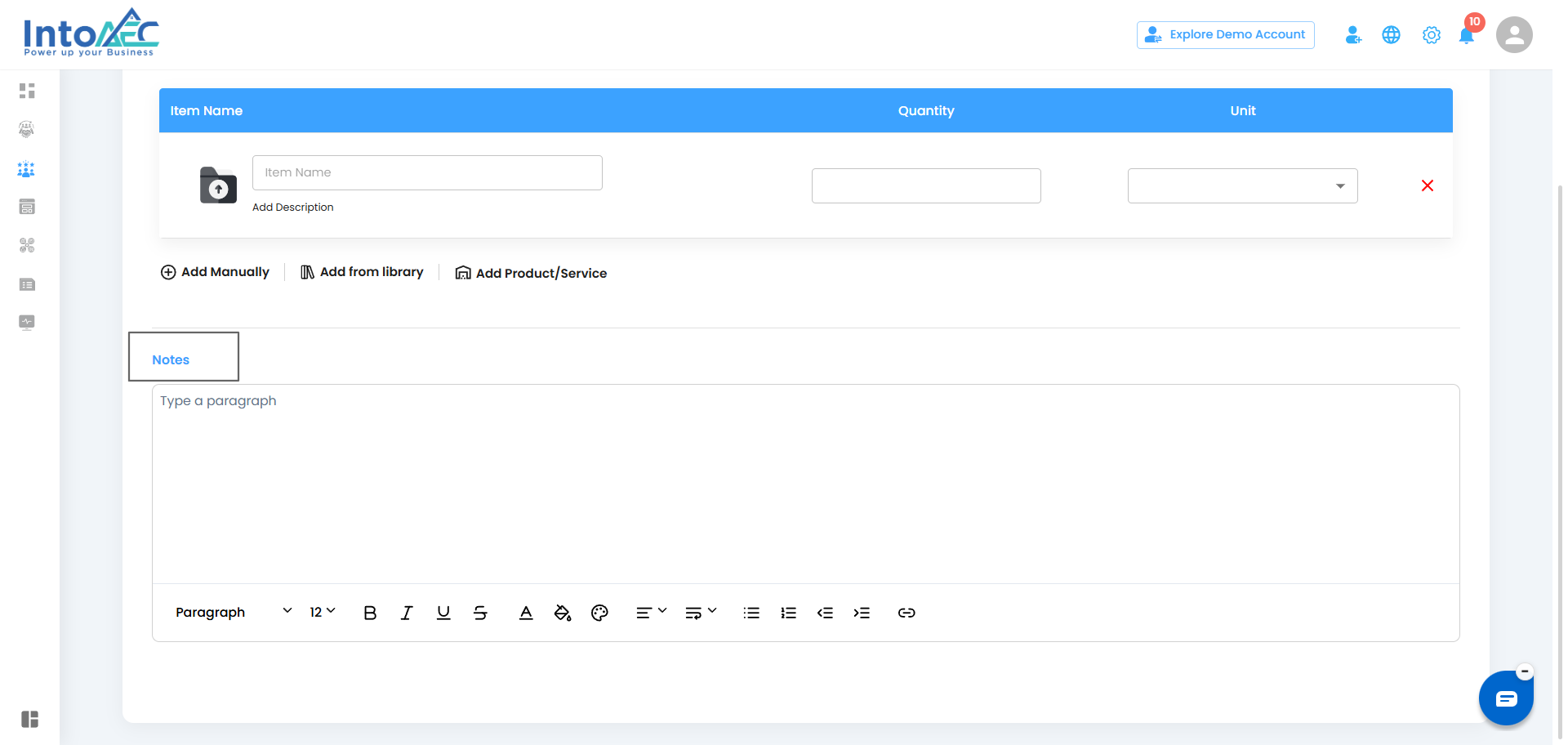
If you want to provide additional information to the vendor, use the Notes text box.
You can type your notes here before proceeding to create the Indent.
Step 8: Create the Indent
After filling in all required details and adding items, click on the “Create” button to create the Indent.
Once the Indent is created, it will be displayed on the main Indent page as a separate card.
Step 9: Convert the Indent
After the Indent is created, you can convert it into an RFQ, PO or Work Order.
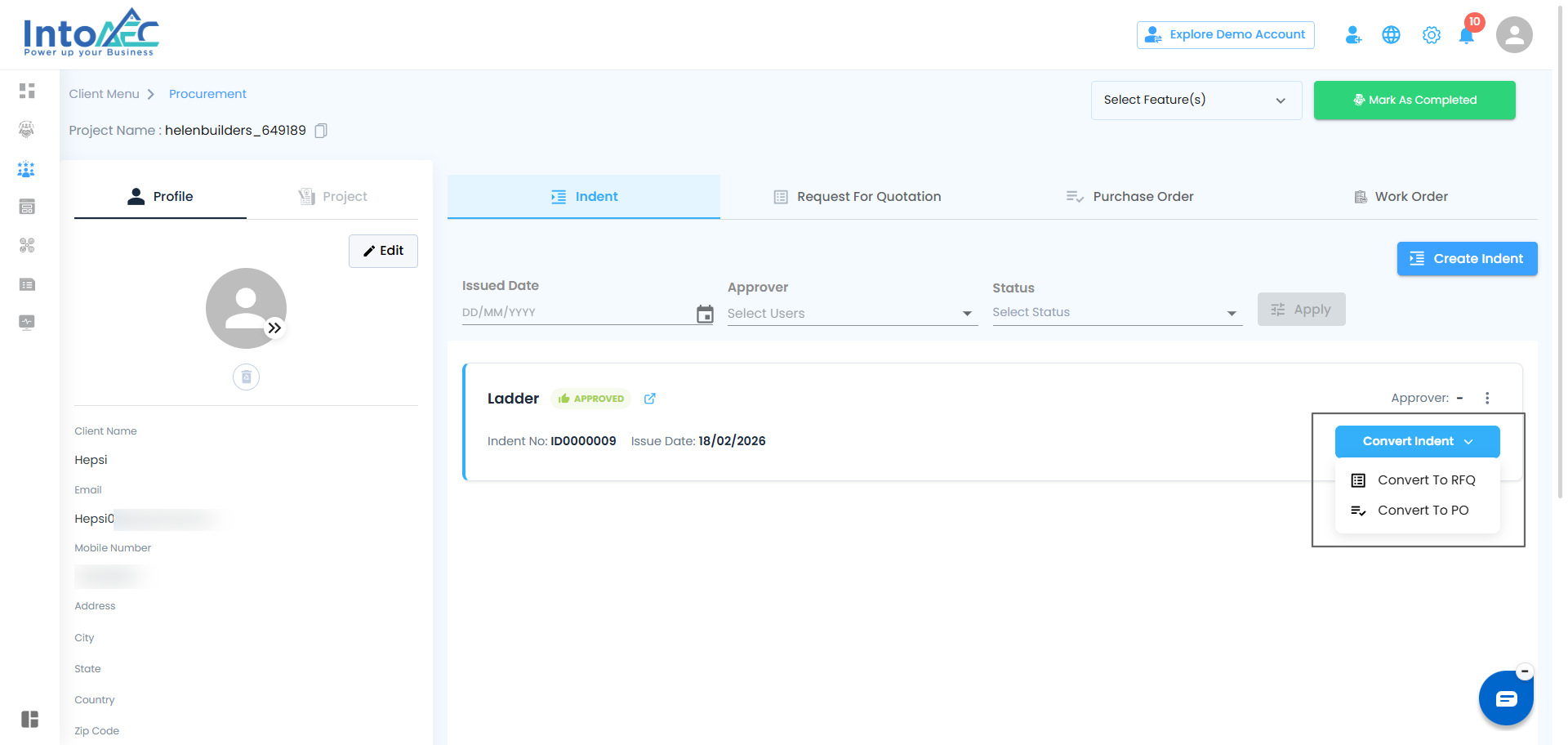
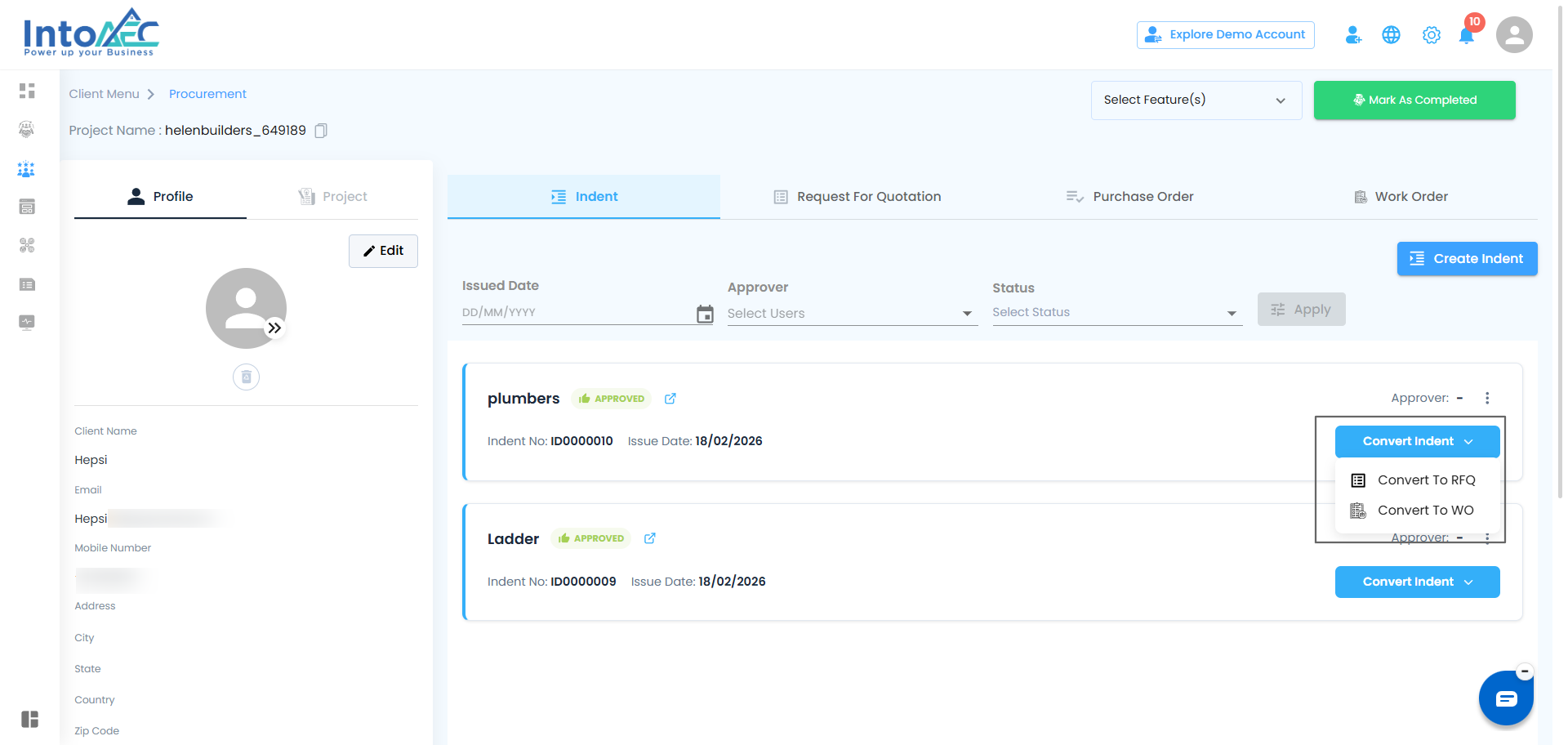
In the main card, you will see the “Convert Indent ” dropdown:
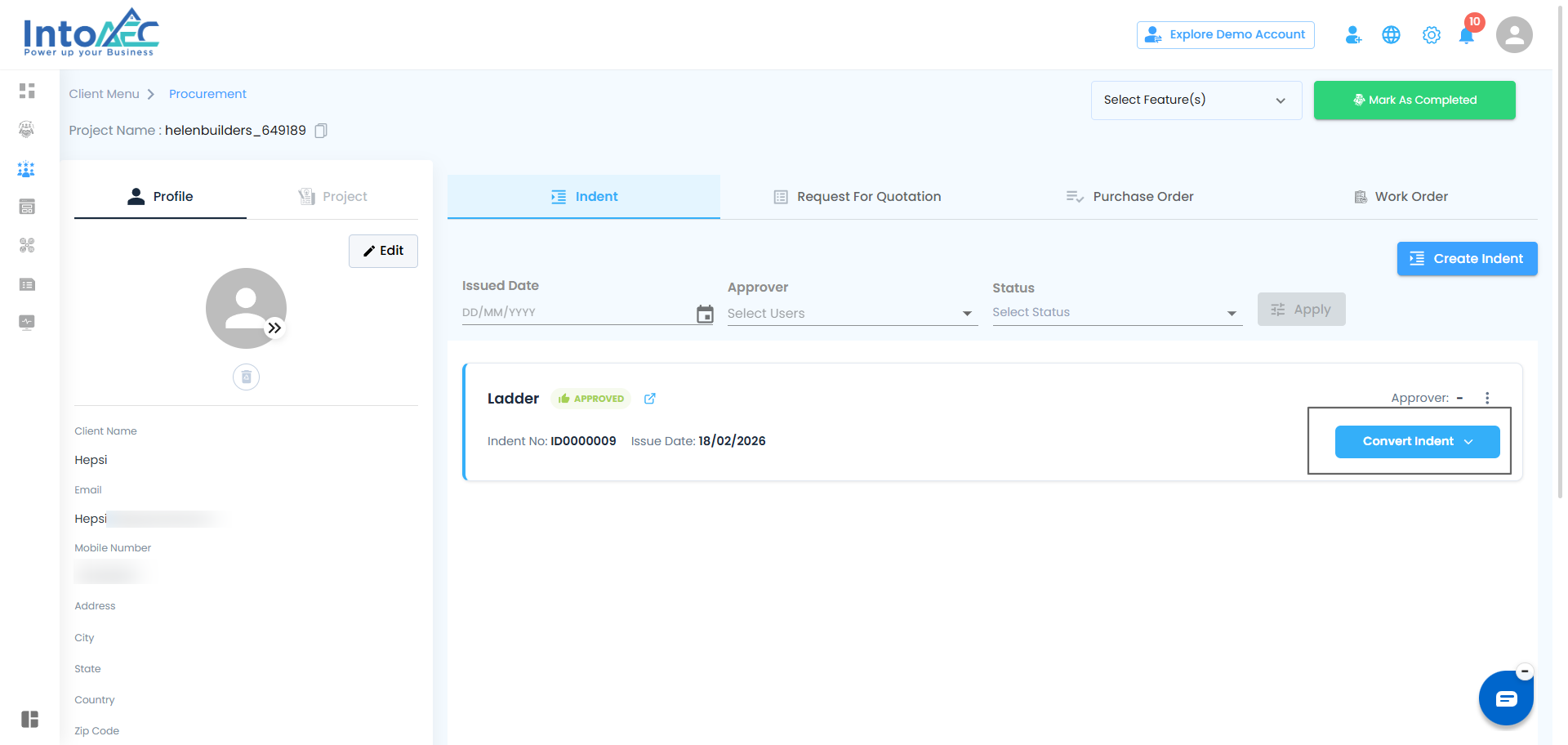
For Material Indent: You can convert it to RFQ or PO.
For Work Indent: You can convert it to RFQ or Work Order.
Select the appropriate option from the dropdown and click on Convert. The status will change to Converted once successfully created.
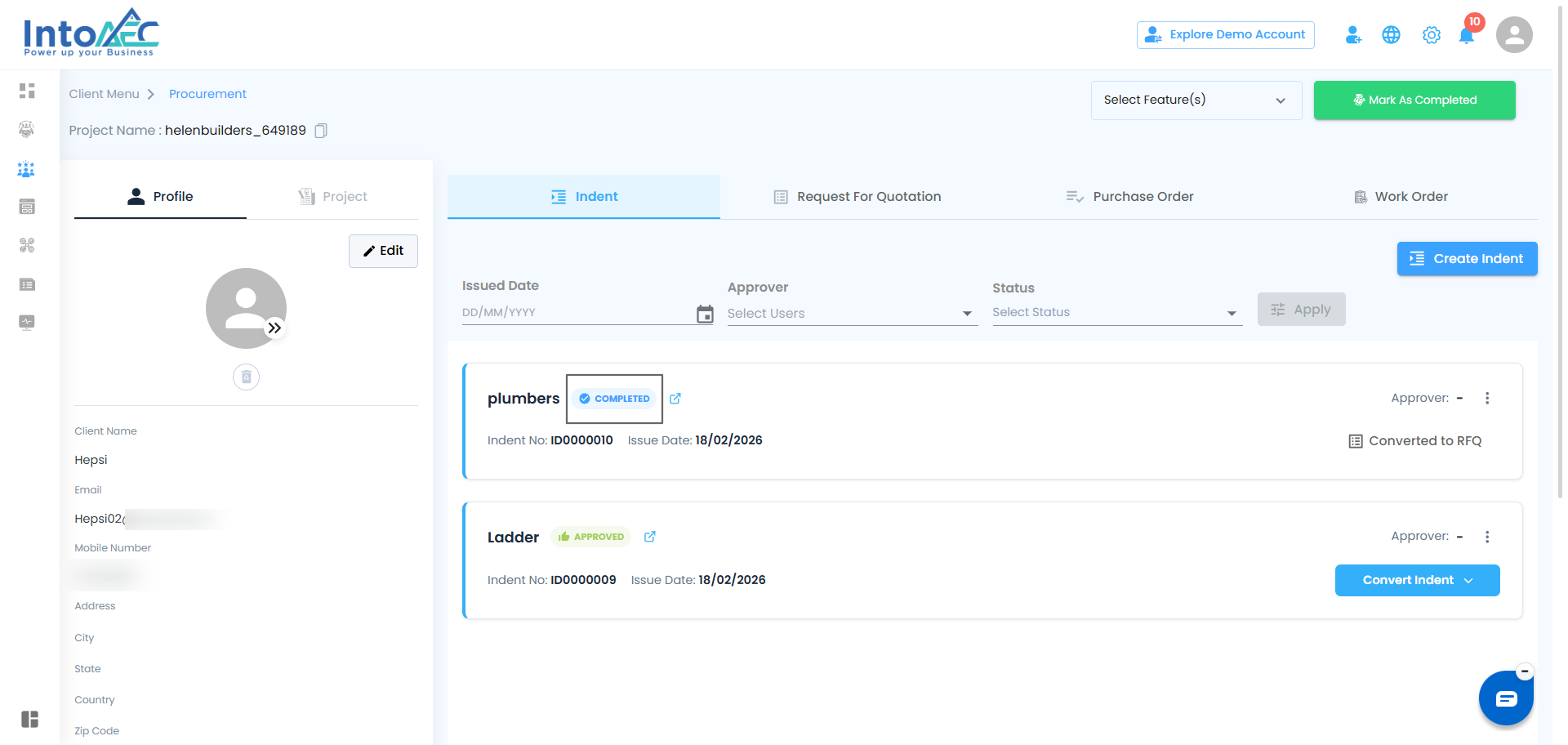
Step 10: Viewing the Indent Status and Options
After the Indent is created and converted:
The main card will display the new status, such as Converted to RFQ, Converted to PO, or Converted to WO.
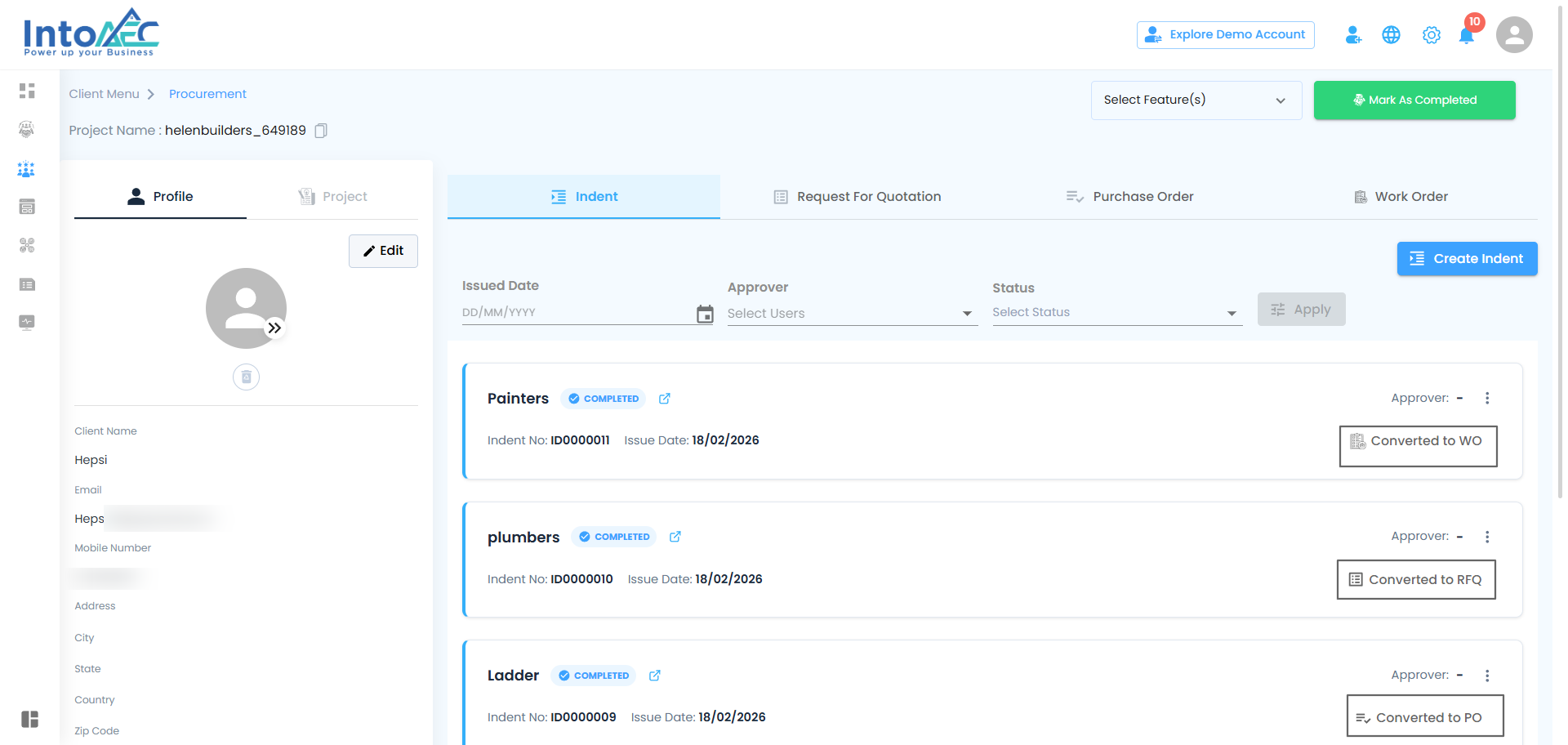
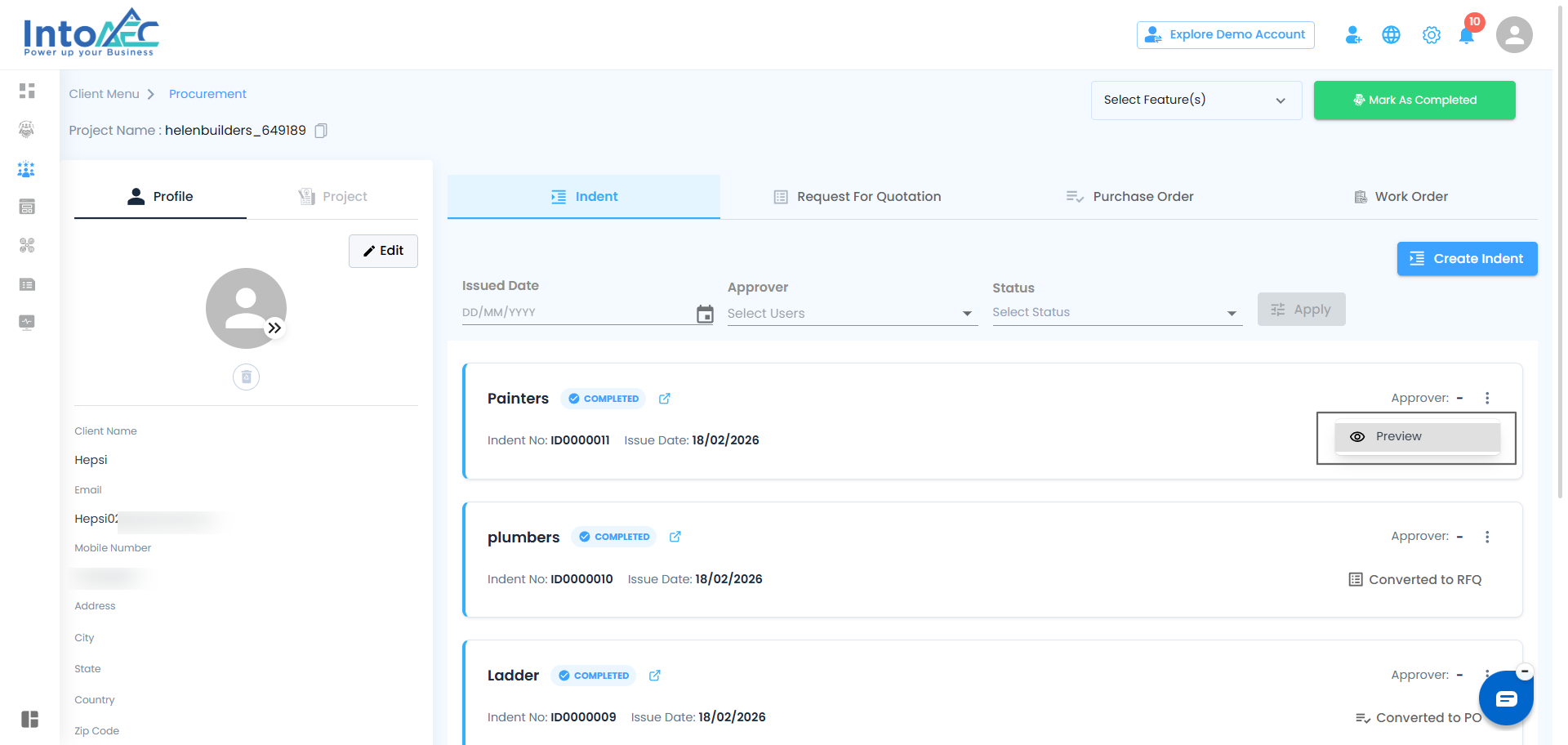
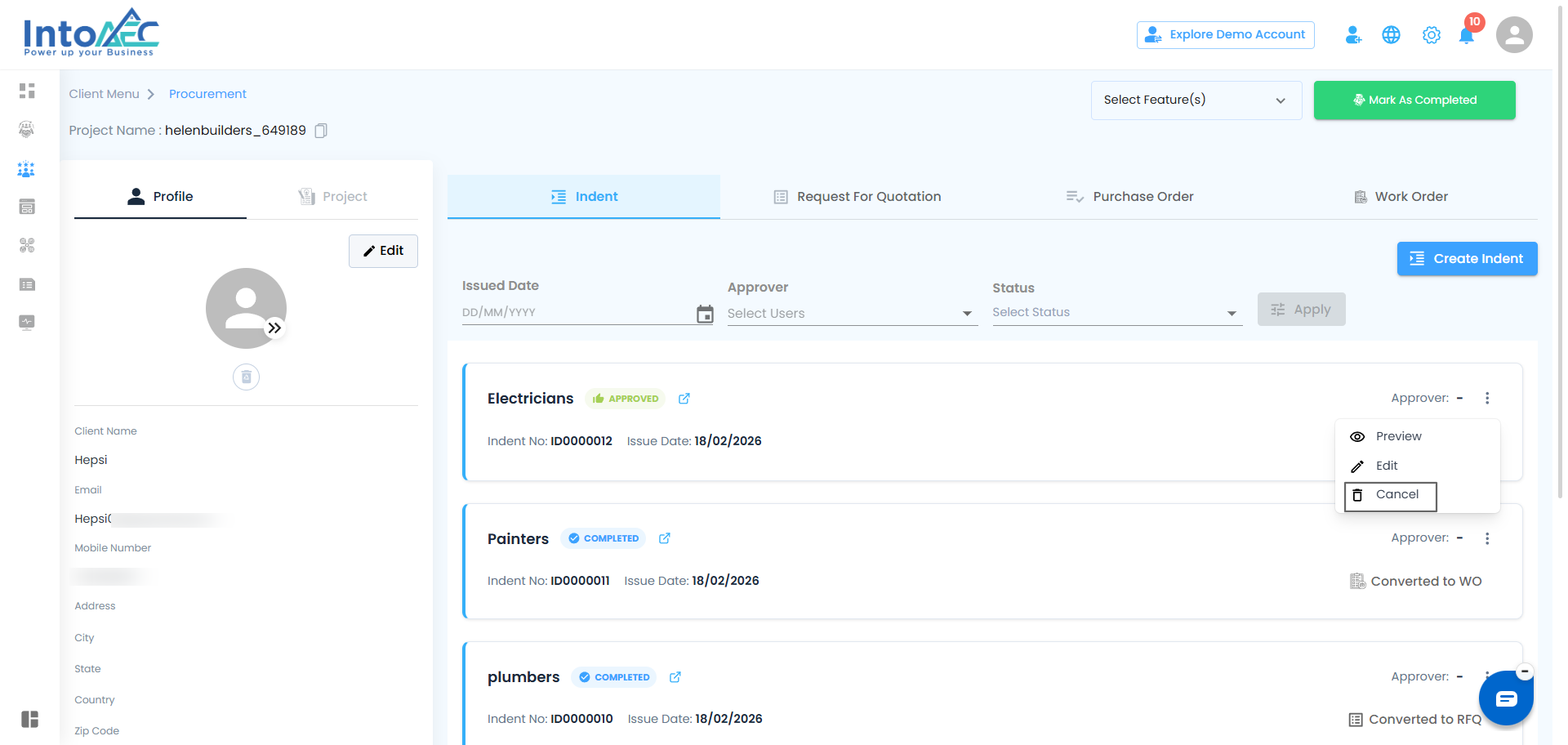
For each Indent, you will see a three-dot menu. The options in this menu depend on the status of the Indent:
Approved Status: Preview, Edit, Cancel, Reject
Pending Status: Preview, Edit, Cancel
Cancelled Status: Preview
Rejected Status: Preview, Edit
Completed Status: Preview
Step 11: Viewing and Downloading the Indent
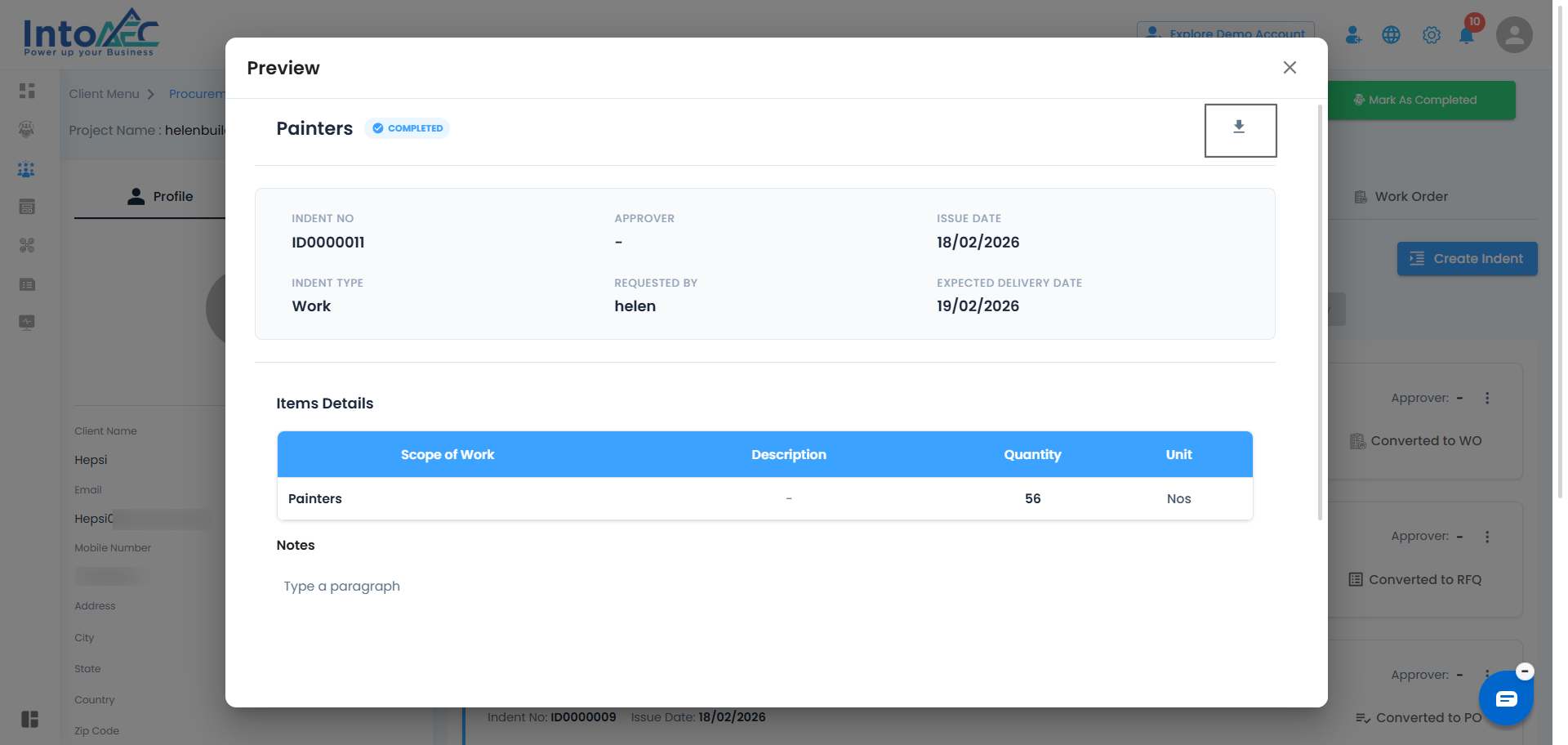
Preview: Click on Preview to view the page you created.
You can also download the PDF of the Indent for reference.
Step 12: Editing or Cancelling the Indent
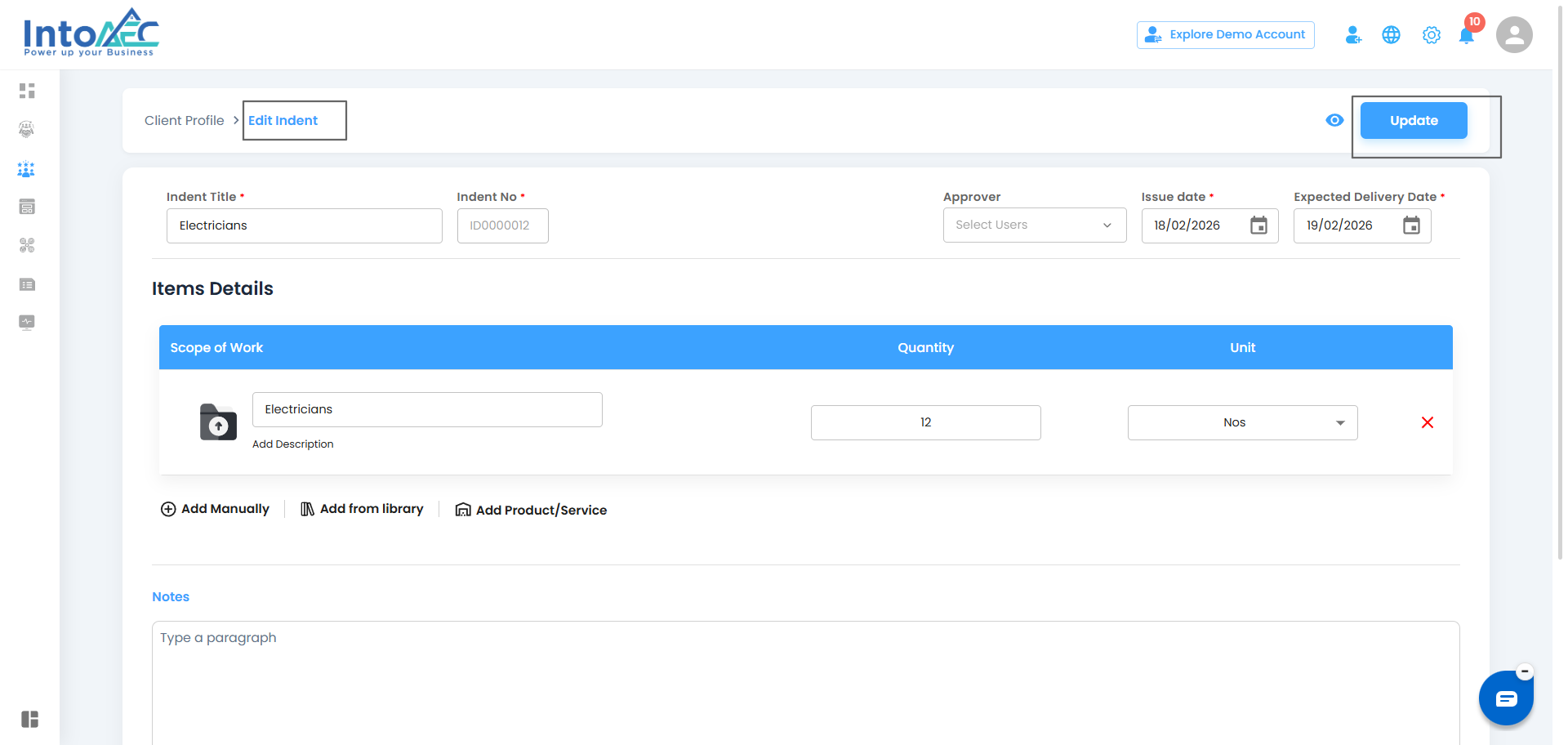
If you need to edit the Indent after it’s created, click on Edit in the three-dot menu.
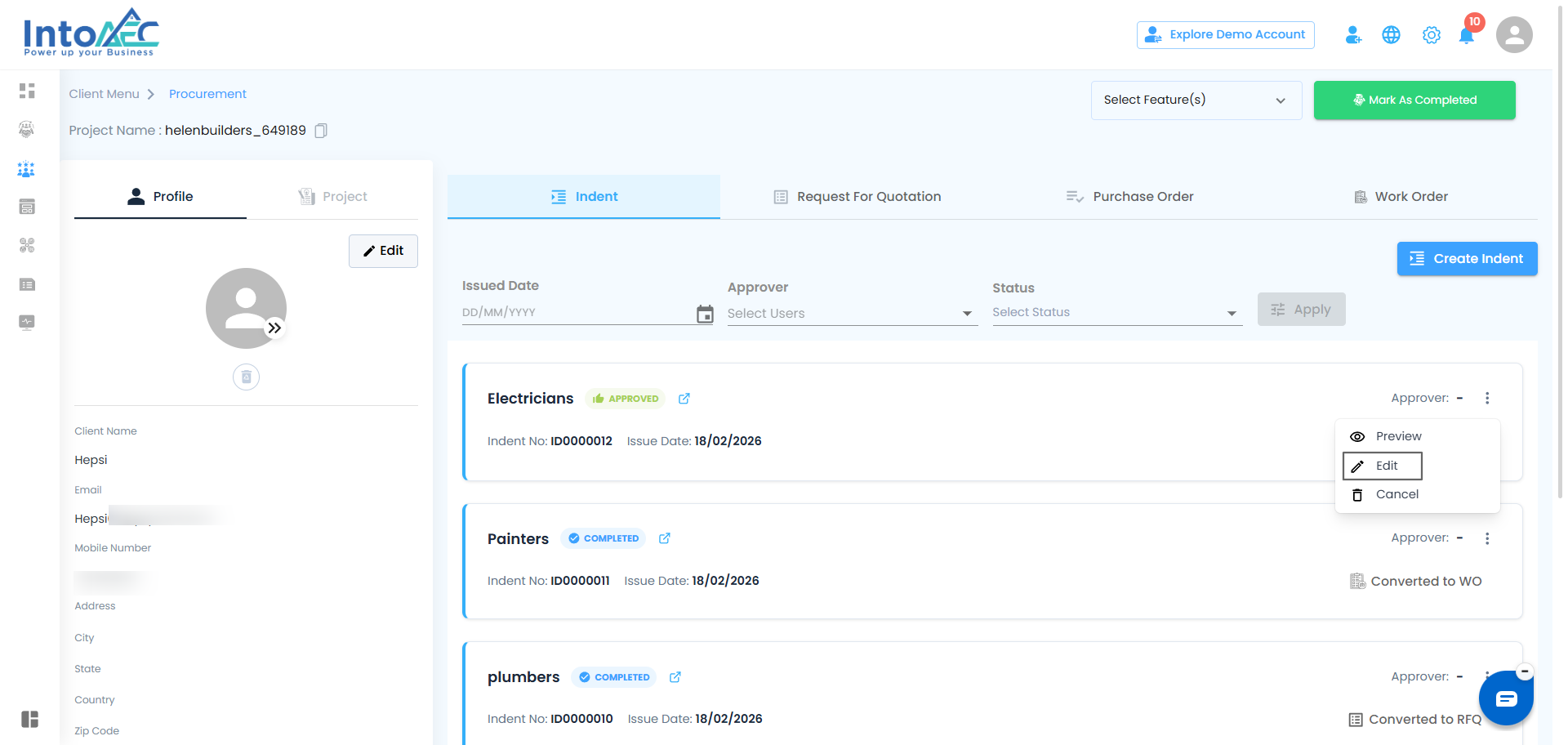
Once edited, click Update to save the changes.
If you want to cancel the Indent, click on Cancel in the three-dot menu.
Step 13: Indent Reflected in Respective Pages
Once the Indent is converted to an RFQ, PO, or Work Order, it will reflect in the respective pages as well. For example:
If you convert the Indent to an RFQ, it will appear in both the Indent and RFQ pages.
If you convert it to a PO, it will show in both the Indent and PO pages.
If you convert it to a WO, it will show in both the Indent and WO pages.
Indent – Creator FlowUsers with Creator permission can create an Indent request but cannot approve it themselves. Approval must be completed by a user with approver permission.
Creator Flow
Users with creator permission can create an Indent.
Creators are not allowed to approve their own Indents.
Approver Selection
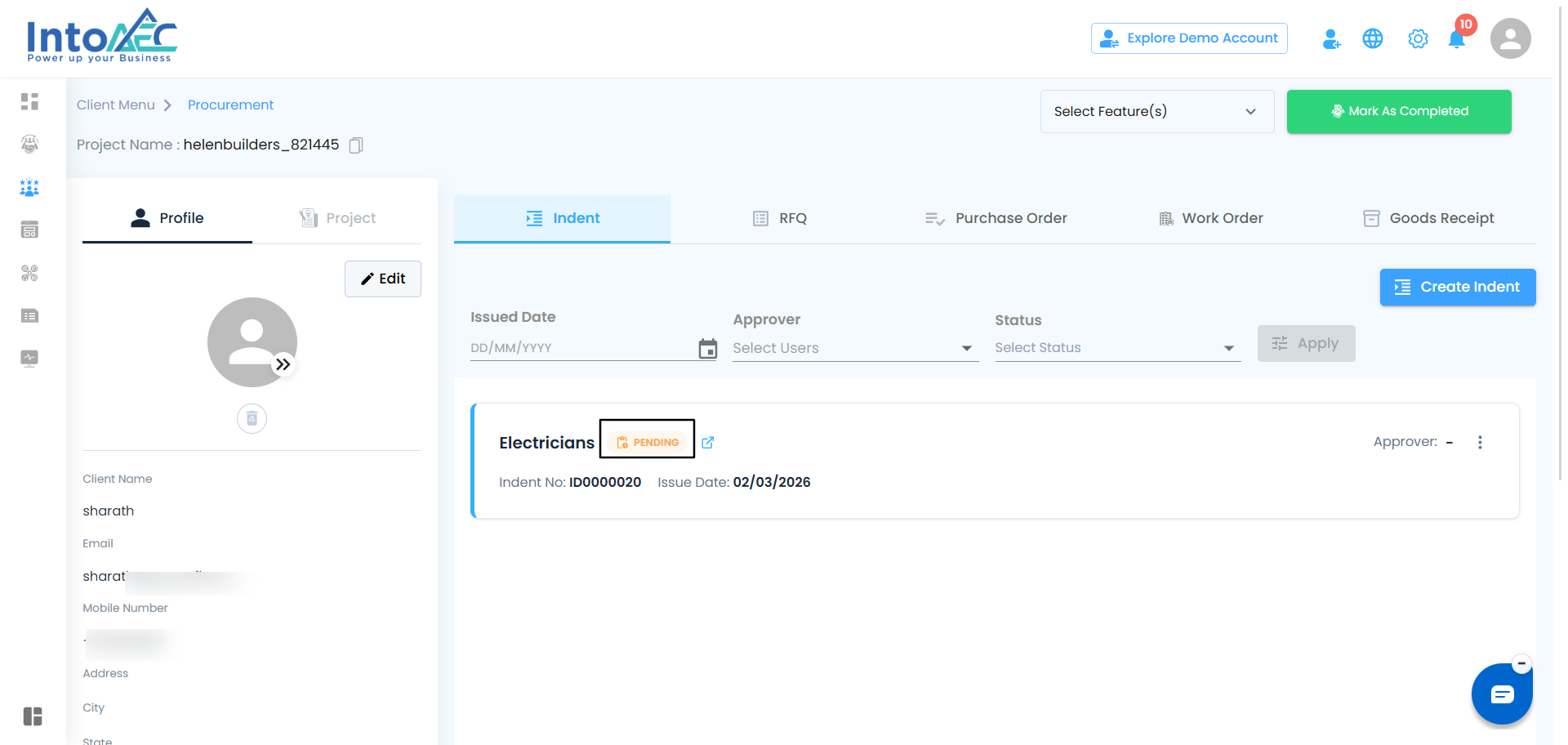
If an approver is selected during Indent creation, the Indent will be created with Pending status.
The selected approver must review and approve the Indent.
If no approver is selected, the Indent will still remain in Pending status.
Any authorized approver can approve the Indent.
Approval Process
After the Indent is created, users with approver permission will see the Mark as Approved option on the Indent card.
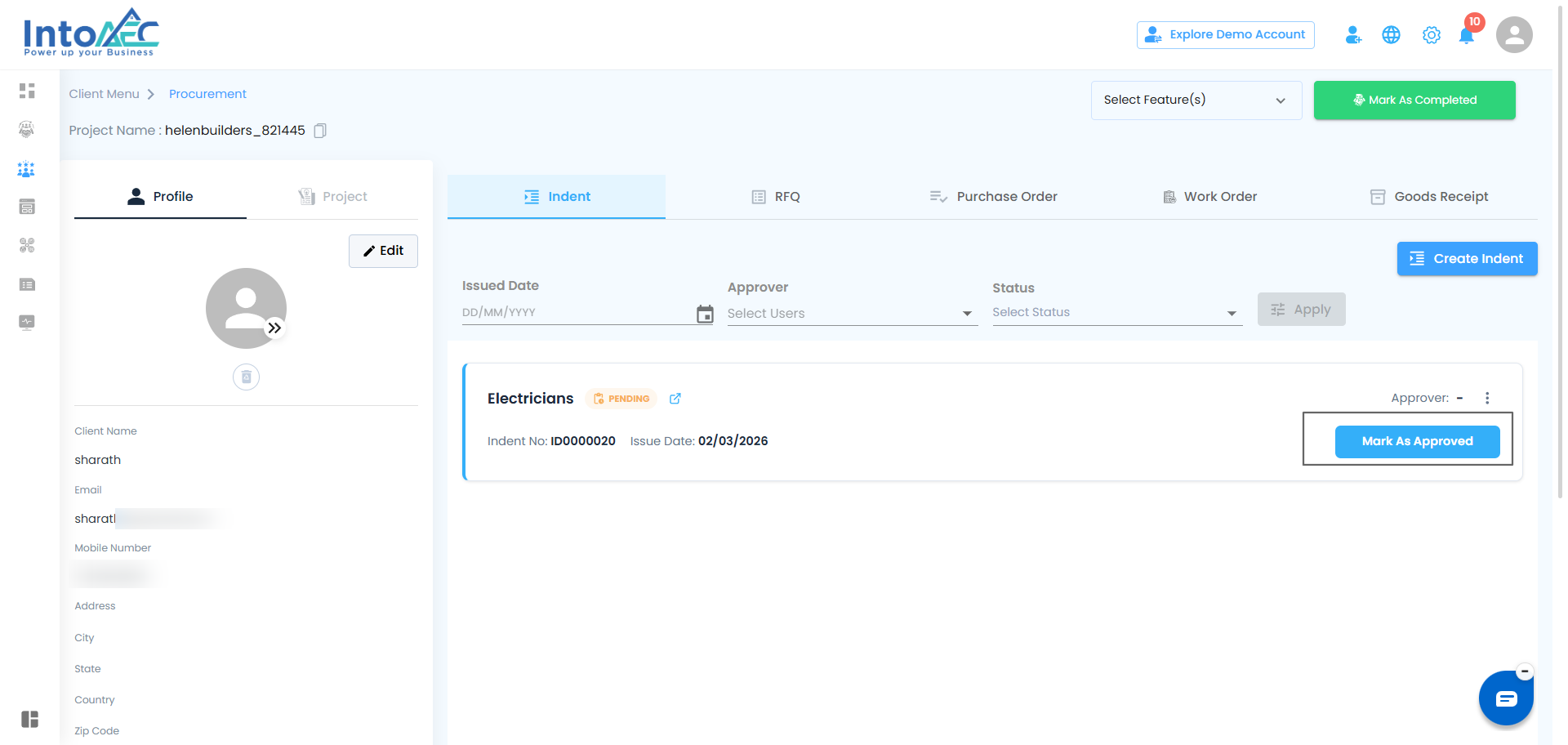
Once approved, the Indent status changes from Pending to Approved.
Conversion Availability
Creator permission users can convert the Indent only after approval.
Available conversion options:
Convert to RFQ
Convert to PO
Convert to Work Order
Conversion options will not be available while the status is Pending.
Was this article helpful?
That’s Great!
Thank you for your feedback
Sorry! We couldn't be helpful
Thank you for your feedback
Feedback sent
We appreciate your effort and will try to fix the article