Indent Report
The Indent Report provides a centralized view of all material requests (indents) across your projects. It allows managers to track the lifecycle of a request from initial creation to final approval or completion, ensuring that project sites receive the materials they need without delays.
What You Can Do Here
- Track Request Status: Monitor whether indents are pending, approved, or rejected in real-time.
- Audit Material Requests: Review specific details of what was requested, by whom, and for which project.
- Streamline Approvals: Quickly identify requests awaiting action to keep procurement moving.
How to Access Indent Reports
- Navigate to the Reports section in the main sidebar menu.
- Select the Indent icon from the reports dashboard to open the specialized view.
Pro Tip: Use Indent Reports during weekly project meetings to ensure that material requests align with the current project phase and budget.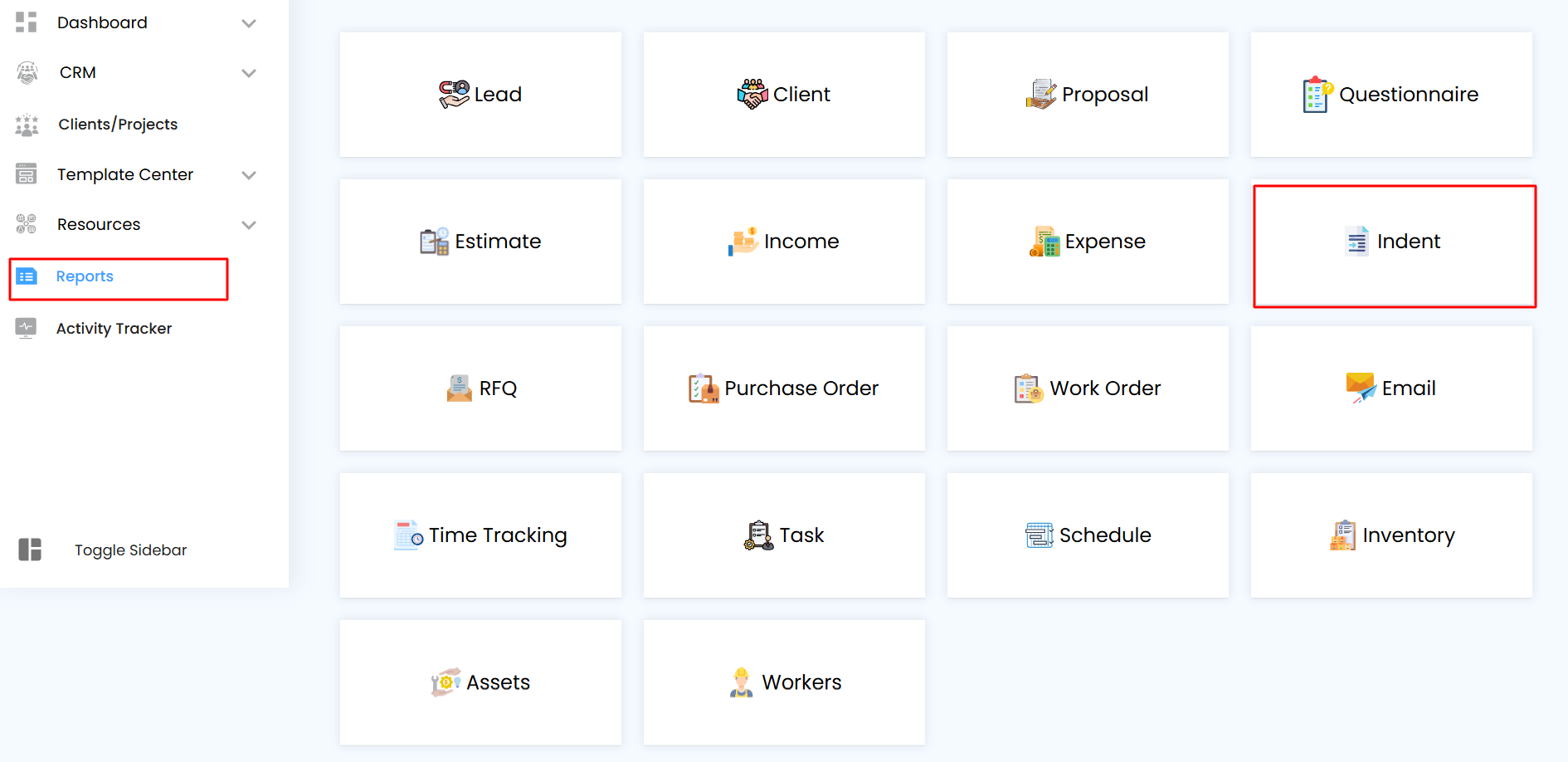
Using Filters to Refine Indent Data
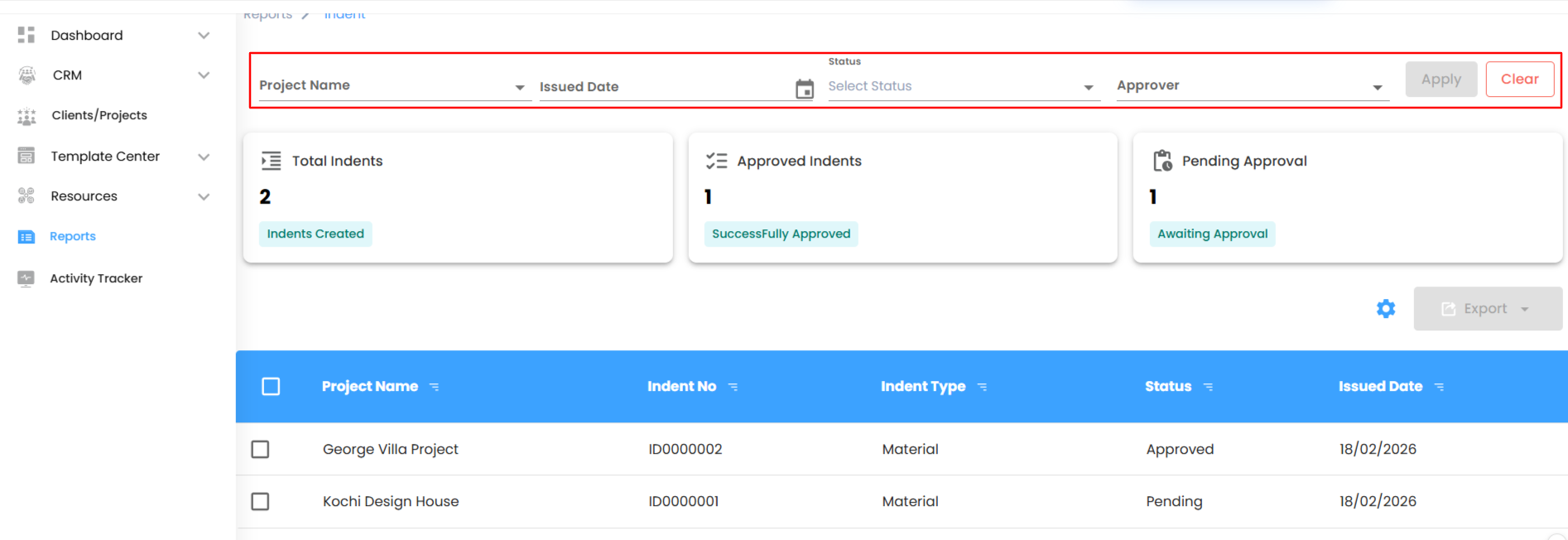
Filters allow you to narrow down hundreds of requests to find exactly what you are looking for.
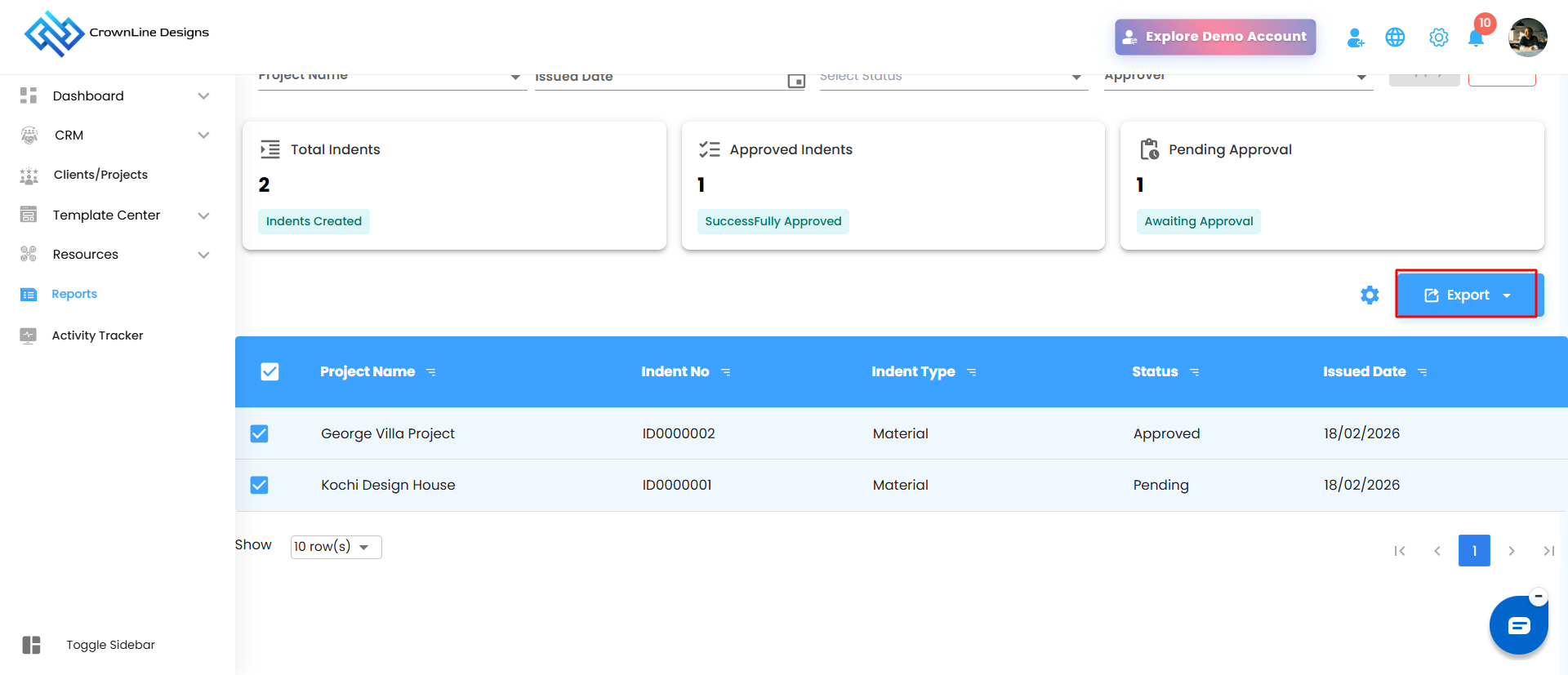
- Project Name: Filter by a specific project to see its unique material requests.
- Issued Date: Look up indents created within a specific timeframe.
- Status: Use the dropdown to filter by Pending, Approved, Rejected, Cancelled, or Completed.
- Approver: Filter by the specific user responsible for authorizing the requests.
- Apply & Clear: Click Apply to run the search or Clear to reset all filters.
Indent Dashboard – Overview
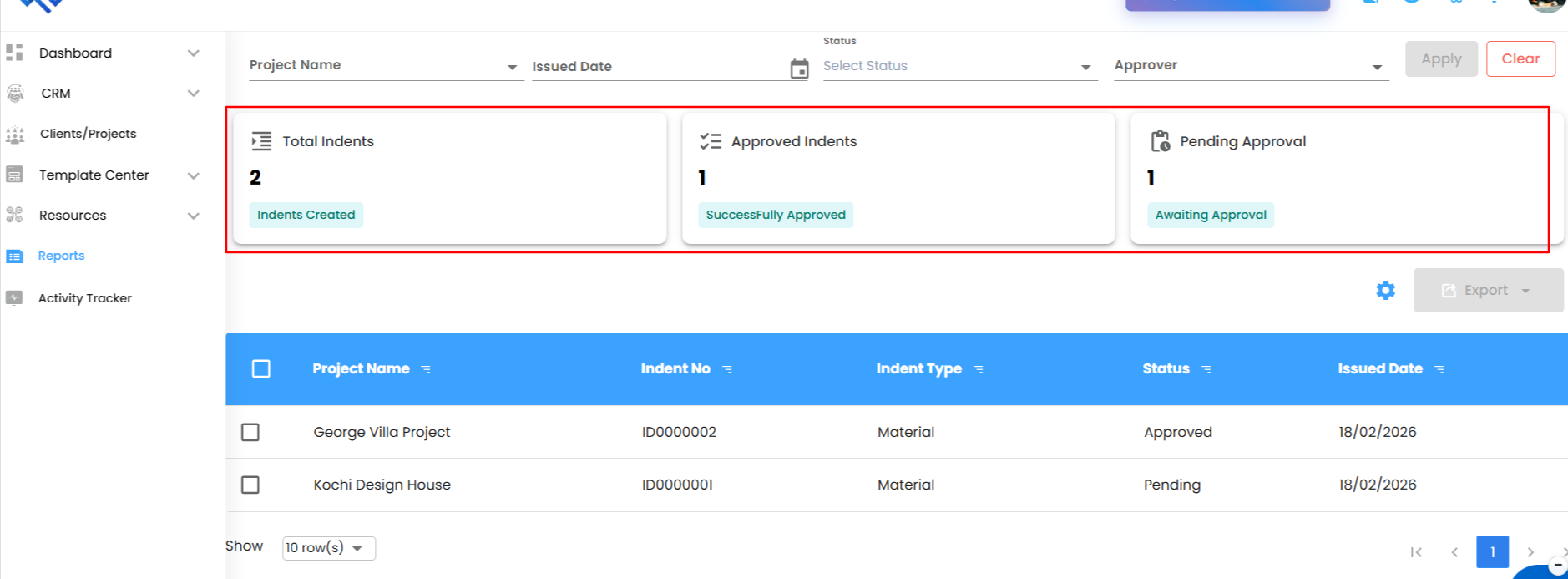
The summary cards at the top of the page provide an immediate pulse check on your request pipeline.
- Total Indents: The cumulative number of material requests created.
- Approved Indents: Requests that have successfully passed the authorization stage.
- Pending Approval: Requests that are currently "Awaiting Approval" and require immediate attention.
Indent Report Table – Detailed View
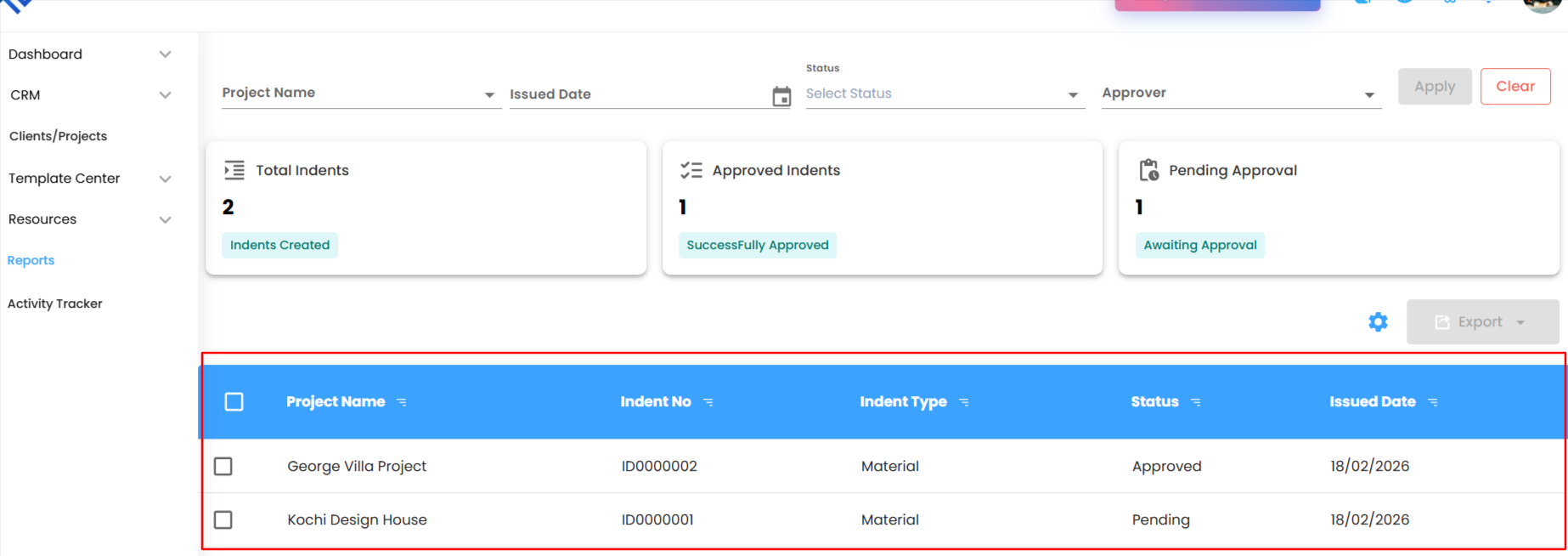
The main table lists every indent with granular detail for thorough tracking.
- Project Name: The site or project for which the materials were requested.
- Indent No: The unique identification number for the request (e.g., ID0000001).
- Indent Type: Categorizes the request, such as Material requests.
- Status: Displays the current stage of the indent (e.g., Pending).
- Issued Date: The date the request was officially submitted.
Bulk Actions & Exporting Data
Efficiently handle large volumes of data for external reporting or auditing.
- Bulk Selection: Use the checkboxes on the left to select specific rows or all rows.
- Export to Excel: Click the Export button to download your filtered indent data into a spreadsheet.
Configuring Indent Report Automation
Save time by having indent summaries delivered directly to your inbox.
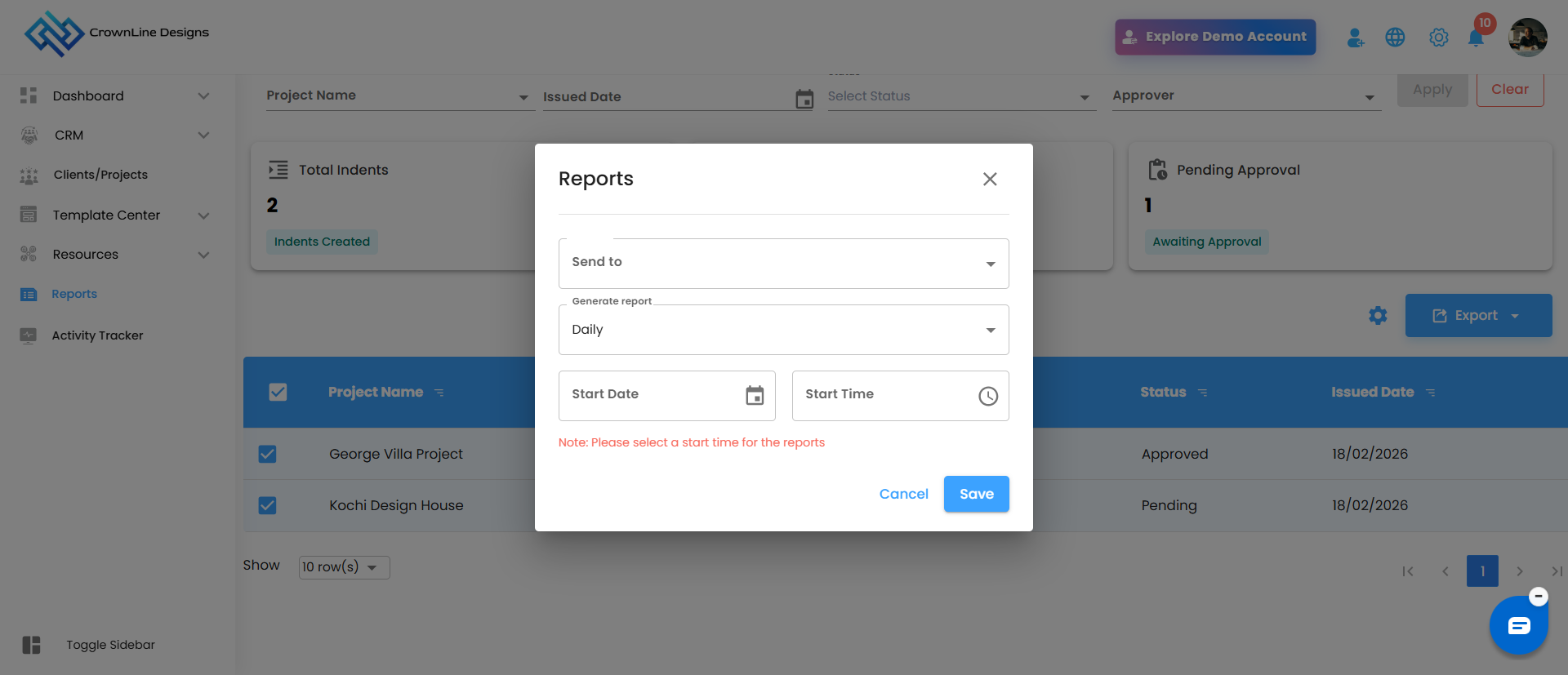
- Open Automation Setup: Click the Gear (Configure reports automation) icon located above the table.
- Select Recipients: Choose which team members (e.g., Project Managers or Admin) should receive the report.
- Set Frequency: Choose between Daily, Weekly, or Monthly delivery schedules.
- Finalize: Set the mandatory Start Date and Time and click Save to activate the schedule.
Was this article helpful?
That’s Great!
Thank you for your feedback
Sorry! We couldn't be helpful
Thank you for your feedback
Feedback sent
We appreciate your effort and will try to fix the article