Every business handles leads differently. Some teams only track client information, while others manage proposals, estimates, invoices, follow-ups, and project conversions directly from the CRM.
The Feature Customization option helps you tailor the Lead Management module based on your organization’s workflow—so you only see and use the features that matter to your team.
Think of it as creating your own personalized CRM experience.
Accessing Feature Customization
To customize features for your Lead Management workflow:
- Click on Preferences from the side menu.
- Navigate to Project & CRM Preferences.
- Select Feature Customization.
Inside this section, you’ll find different feature options that can be enabled or disabled based on your business requirements.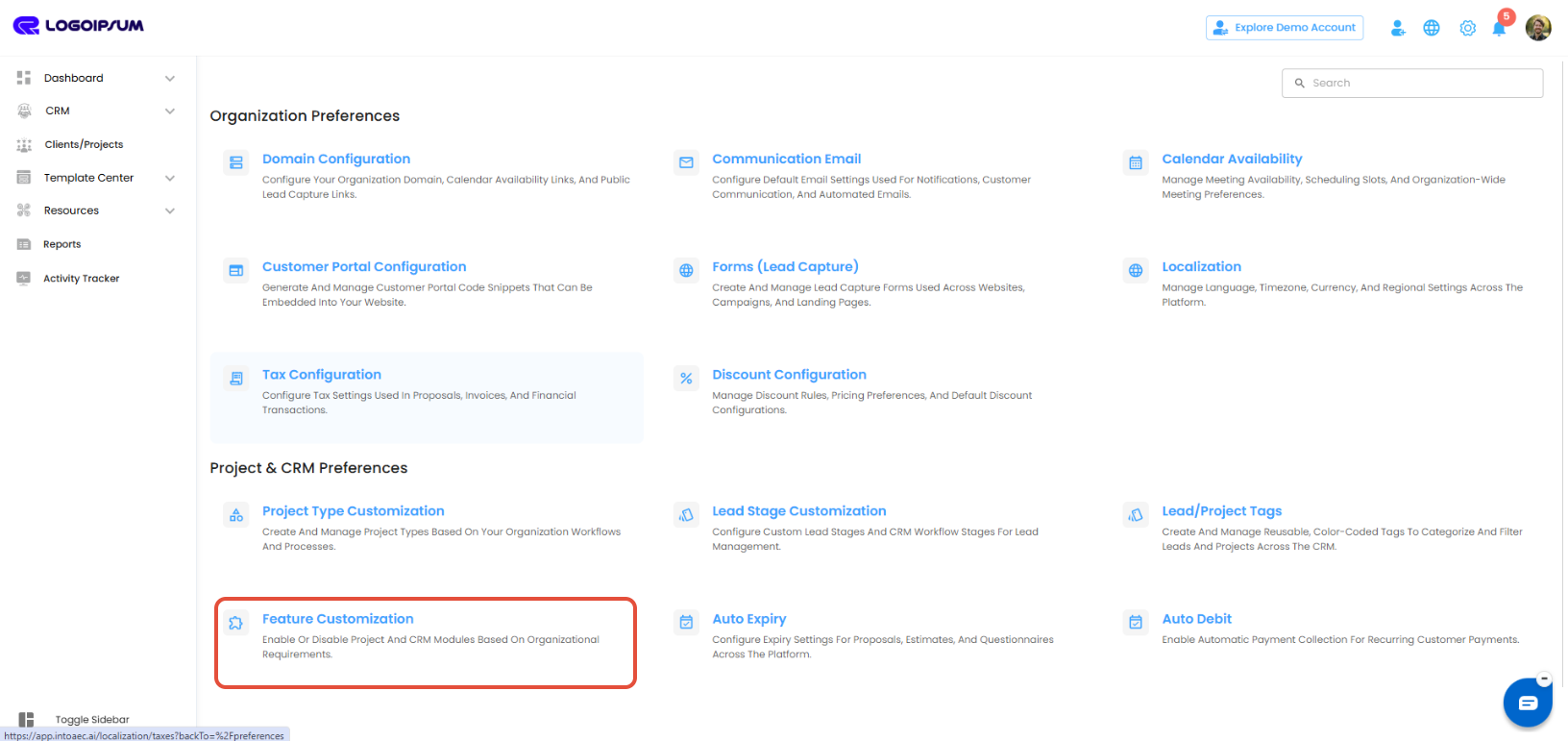
Customizing CRM Features
Your organization may handle leads differently depending on your services and internal workflow.
For example:
- Some businesses may only require basic lead tracking.
- Others may need additional tools like:
- Proposals
- Estimates
- Invoices
- Follow-Ups
- Project Conversion
Using Feature Customization, you can decide which functionalities should appear inside your CRM.
Enabling Required Features
Inside the Feature Customization section:
- Browse through the available CRM features.
- Locate the feature you want to enable.
- Turn ON the toggle for the required functionality.
- Disabled features can be turned OFF anytime based on your workflow needs.
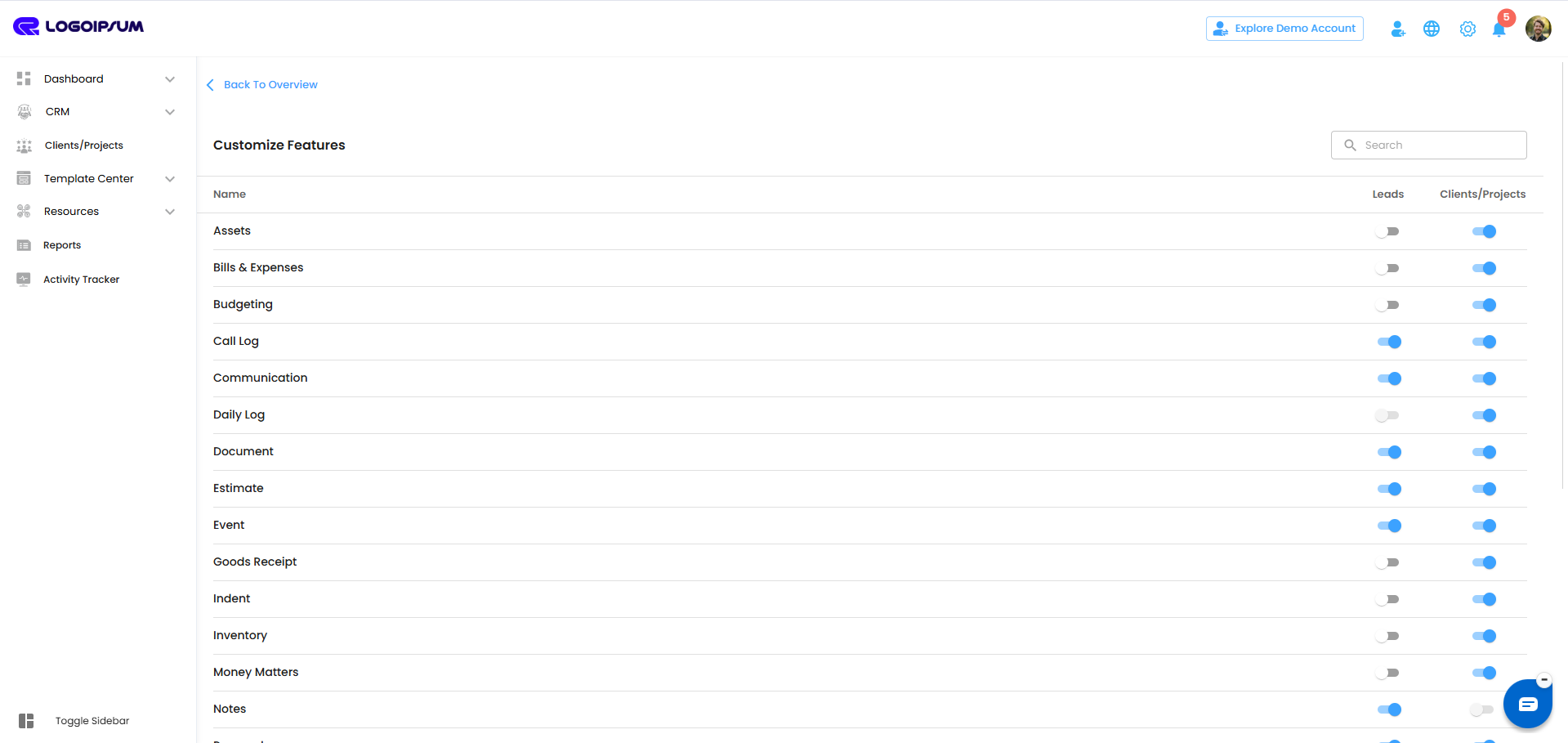 Once enabled, the selected features will start appearing within your Lead Management module.
Example Use Case
Let’s say your organization handles:
- Proposal submissions
- Estimate creation
- Invoice generation
You can simply enable these specific modules using the toggle options so your sales or CRM team can manage everything directly from the Lead section.
This helps keep your workflow organized while avoiding unnecessary tools or screens.
Benefits of Feature Customization
With Feature Customization, you can:
- Personalize your CRM workflow
- Reduce clutter by hiding unused modules
- Enable only the tools your team needs
- Improve lead handling efficiency
- Create a cleaner and more focused user experience
Pro Tip
Start with only the essential features enabled for your team. As your workflow expands, you can always return to Feature Customization and enable additional modules when needed.
Was this article helpful?
That’s Great!
Thank you for your feedback
Sorry! We couldn't be helpful
Thank you for your feedback
Feedback sent
We appreciate your effort and will try to fix the article