CRM Automation lets you build no-code workflows that react to events in your CRM — like a new lead being created — and automatically perform actions such as tagging, routing, or following up. Instead of doing repetitive work by hand, you design a flow once and let it run in the background every time the trigger fires.
1. Opening Automation
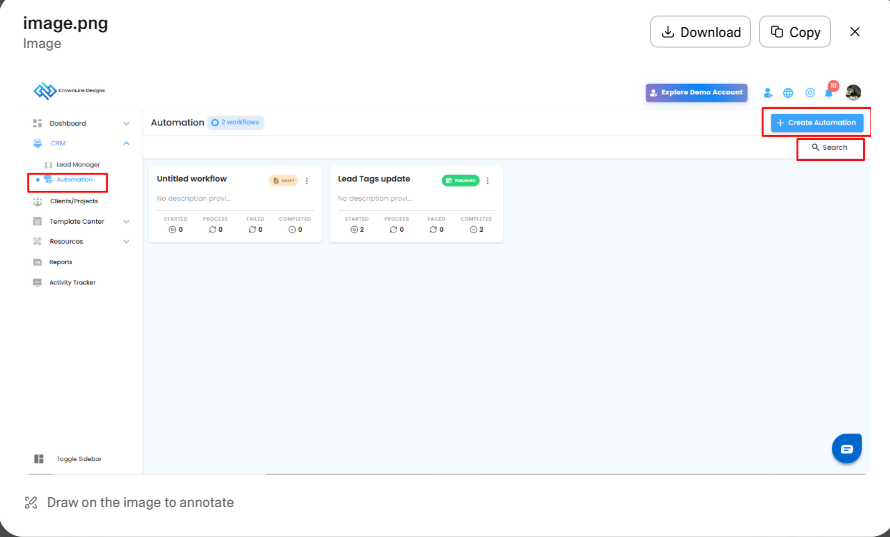
- In the left sidebar, expand CRM.
- Click Automation.
You'll land on the Automation dashboard, which shows:
- Workflow count – a chip next to the title (e.g. 2 workflows) showing how many automations exist.
- Workflow cards – one card per automation, each showing:
- Name (e.g. Untitled workflow, Lead Tags update)
- Status badge – Draft (still being built) or Published (live and running)
- Description preview
- Run stats – Started, Process, Failed, Completed counts so you can monitor health at a glance
- ⋮ menu – rename, duplicate, or delete the workflow
- Search – top-right, to quickly find a workflow by name.
- + Create Automation – top-right button to start a new workflow.
2. Creating an Automation
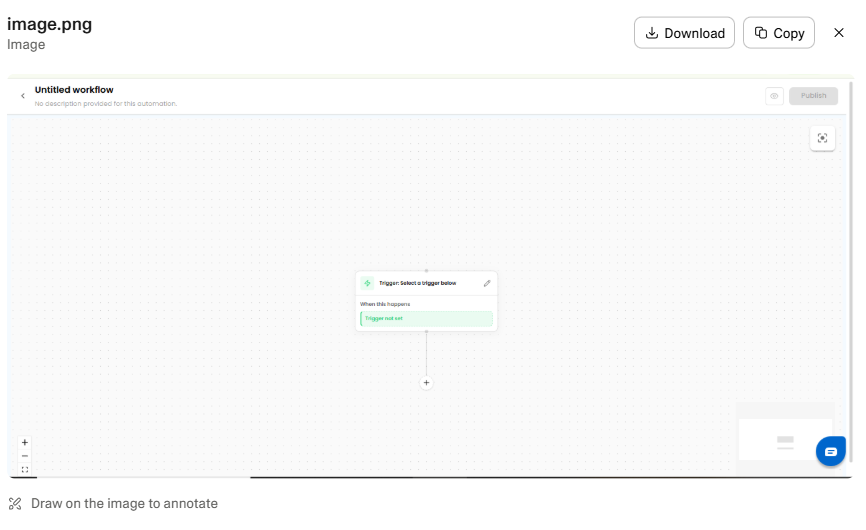
Click + Create Automation. A new blank workflow opens on the canvas with:
- Title bar (top-left) – click the workflow name to rename it and add a description. This is what you'll see on the dashboard.
- Preview (eye) and Publish buttons (top-right) – Publish stays disabled until the workflow is valid (trigger set + at least one action).
- Canvas – a dotted grid where you'll build the flow visually.
- Zoom controls (bottom-left) and Fit-to-screen (top-right) – to navigate larger workflows.
Set the trigger
Every workflow starts with one Trigger node ("When this happens"). It's pre-placed on the canvas and marked Trigger not set.
- Click the trigger card (or the pencil icon).
- Choose a trigger from the list — for example, When a new lead is created.
- Save. The card updates to show the selected trigger.
Add steps
Click the + below any node to add the next step. You can chain:
- Conditions – branch the flow based on a rule (e.g. If Lead Capture: Equals Yes). Conditions create Yes and No paths, and you add different actions under each.
- Actions – what should happen, such as Add tags, assign owner, send notification, update field, etc.
Repeat — add conditions and actions until the flow represents your process. You can edit any node with the pencil icon or remove it with the trash/× icon.
Publish
Once the trigger and at least one action are configured, the Publish button turns active. Click it to make the automation live — from that moment, every matching event will run the workflow.
3. The Created Automation
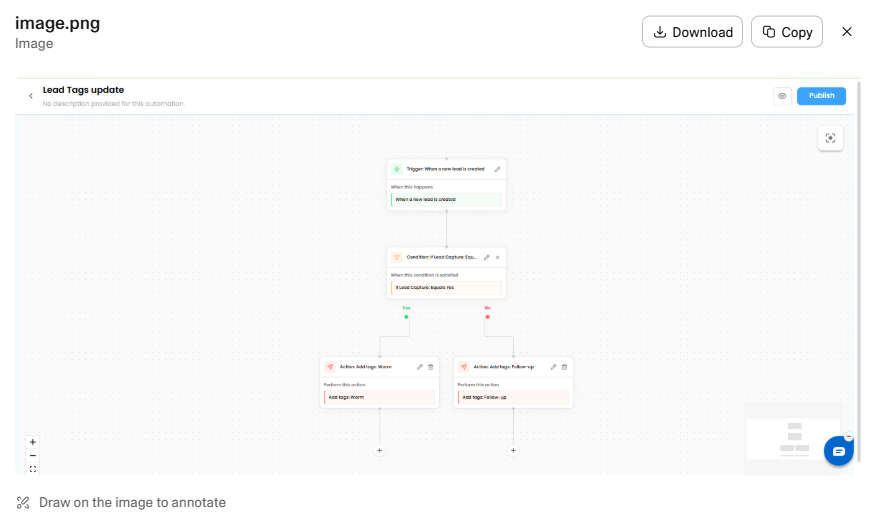
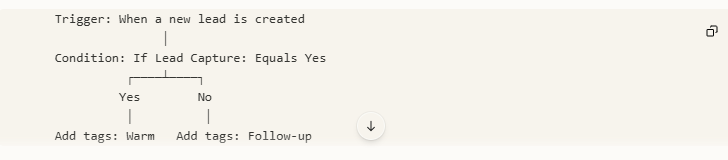
A published workflow (e.g. Lead Tags update) looks like a top-down flow chart:What this example does: whenever a new lead is created, the workflow checks whether Lead Capture = Yes. If yes, it tags the lead Warm; otherwise it tags it Follow-up — so leads are automatically segmented the moment they enter your CRM.
From here you can:
- Preview (eye icon) – review the full flow without editing.
- Edit any node – click the pencil to change trigger/condition/action values.
- Extend – click + under any branch to add more conditions or actions (e.g. send an email after tagging).
- Unpublish / re-publish – pause the automation when you need to change logic, then republish.
- Monitor – go back to the Automation dashboard and watch Started / Process / Failed / Completed counters on the card to confirm it's running as expected.
Automation Trigger – Estimate, Meet & Note
New automation trigger categories have been added for Estimate, Meet, and Note. This allows teams to configure automated workflows based on estimate-related actions, meeting activities, and notes.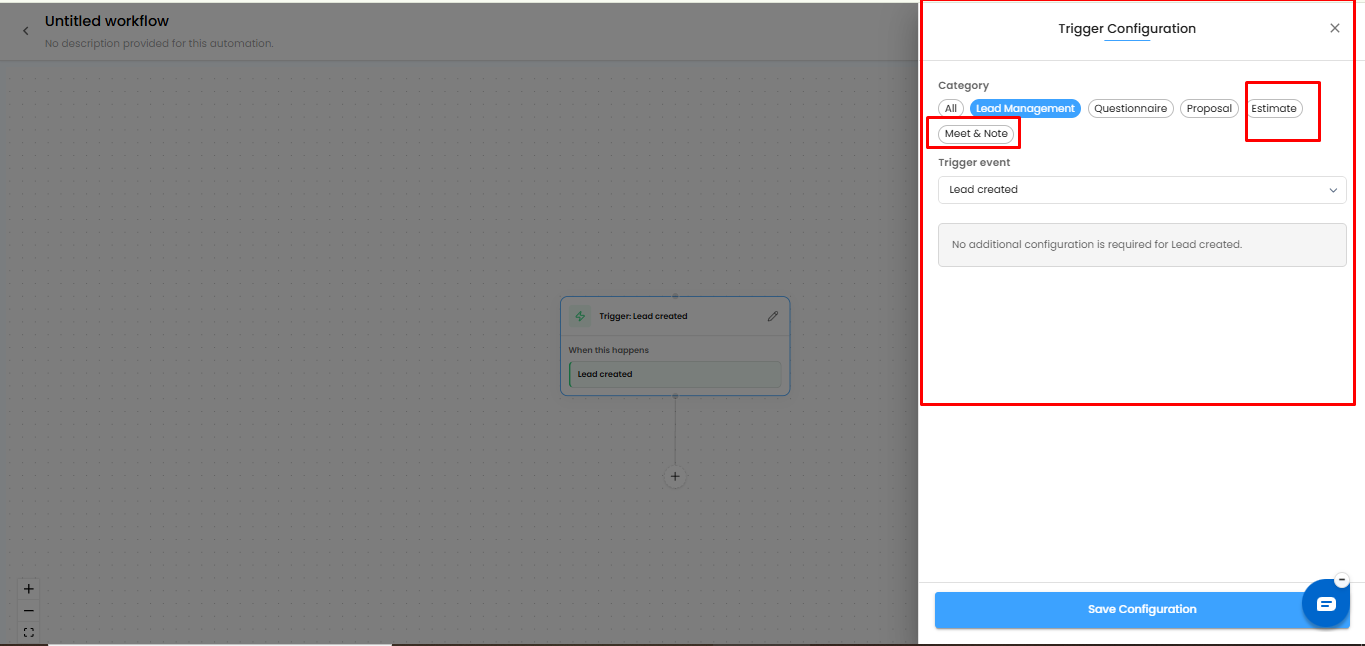
Automation Trigger – Lead Locked
A new Lead Locked trigger has been added in automation. This helps teams automate follow-up actions when a lead is locked, improving control and visibility in the lead management process.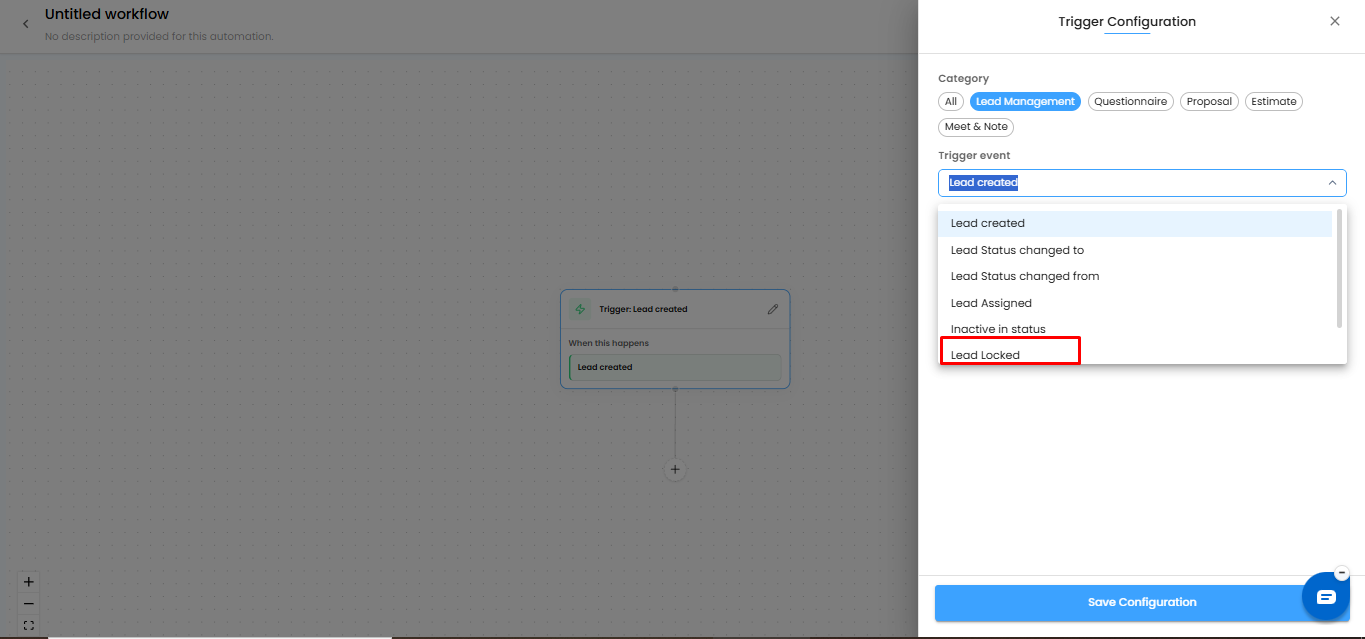
WhatsApp Template Automation with 2-Button Support
WhatsApp template automation now supports 2-button templates. Users can configure WhatsApp automation with supported templates to improve client communication and response handling.
Was this article helpful?
That’s Great!
Thank you for your feedback
Sorry! We couldn't be helpful
Thank you for your feedback
Feedback sent
We appreciate your effort and will try to fix the article