The Client Report feature allows you to create and share project updates with the client for a selected date range. You can include notes, attachments, weather, schedule progress, task progress, workers, and inventory.
How to Open Client Report
Go to Projects, open the required project, and select Communication & Docs → Client Report.
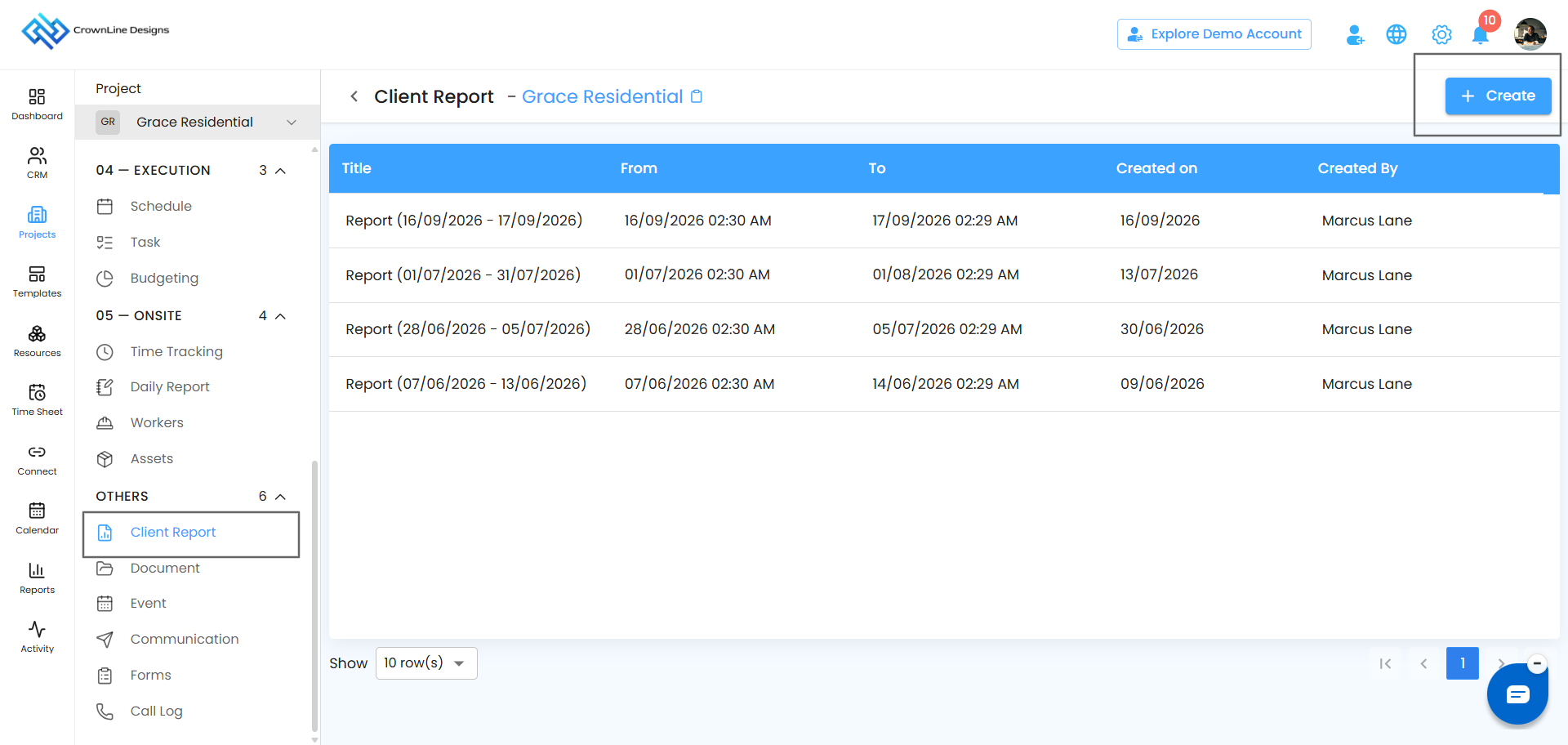
The Client Report page displays the reports already created for the project.
Select Report Date Range
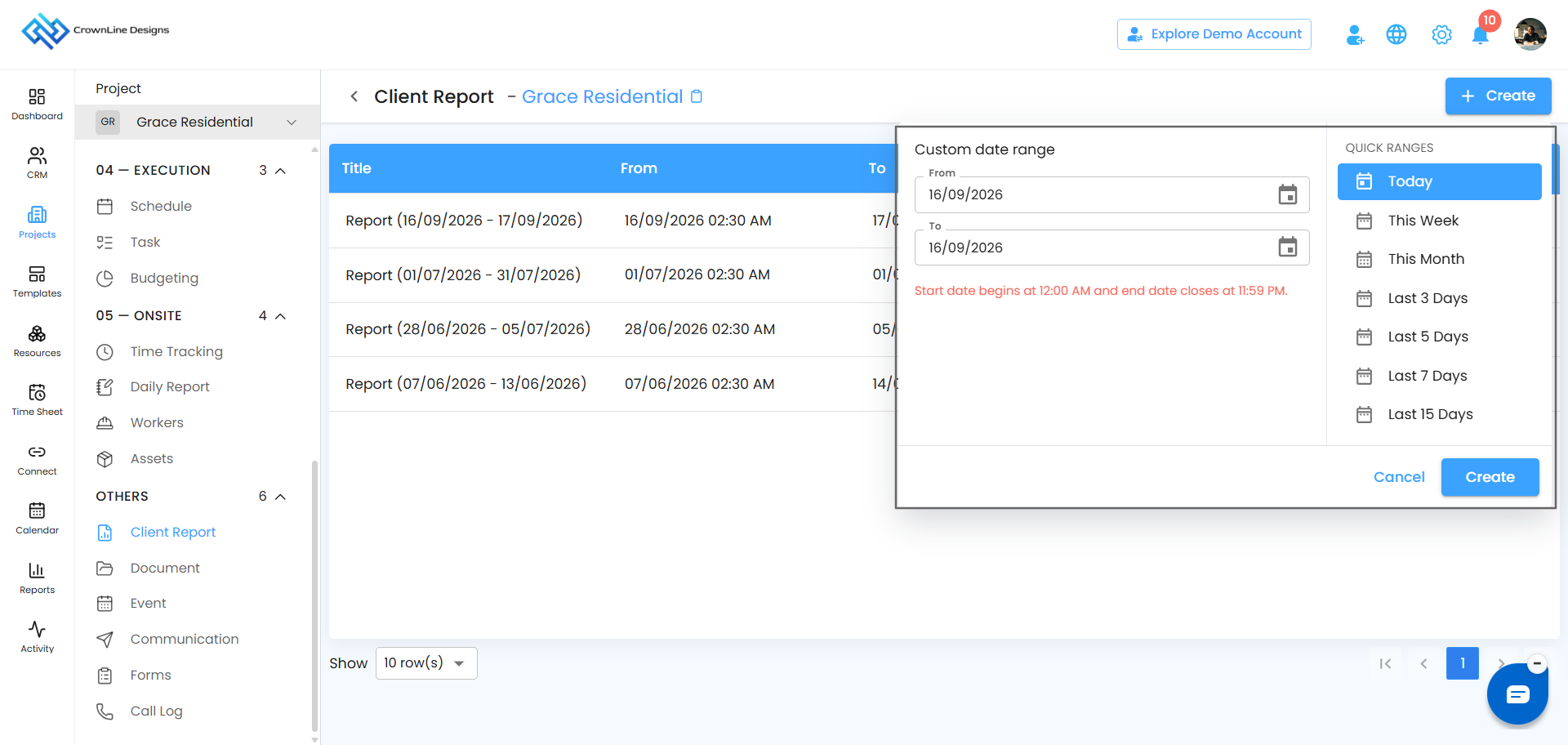
Click + Create to open the date range pop-up.
You can select dates manually using From and To, or choose a Quick Range such as:
Today
This Week
This Month
Last 3 Days
Last 5 Days
Last 7 Days
Last 15 Days
Click Cancel to close the pop-up or click Create to continue.
Create Client Report
After selecting the date range, the Create Client Report page will open.
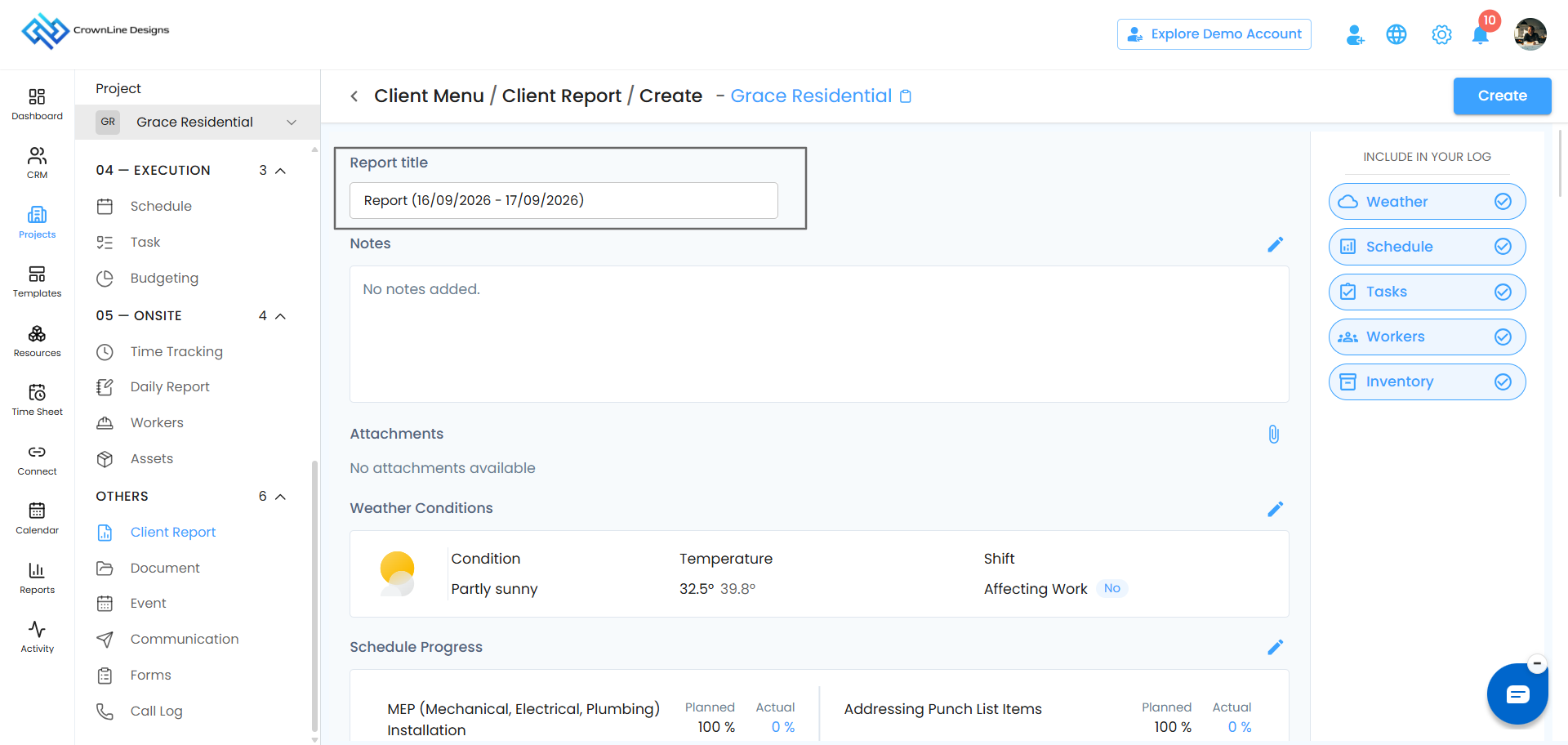
The report title is automatically generated based on the selected dates. You can keep it, edit it, or replace it with your own title.
You can then add the required Notes and Attachments to the report.
Weather Condition
If weather conditions affect the work, enable Affecting Work and add the required details in the notes field.
If the work is not affected, you can leave the option disabled.
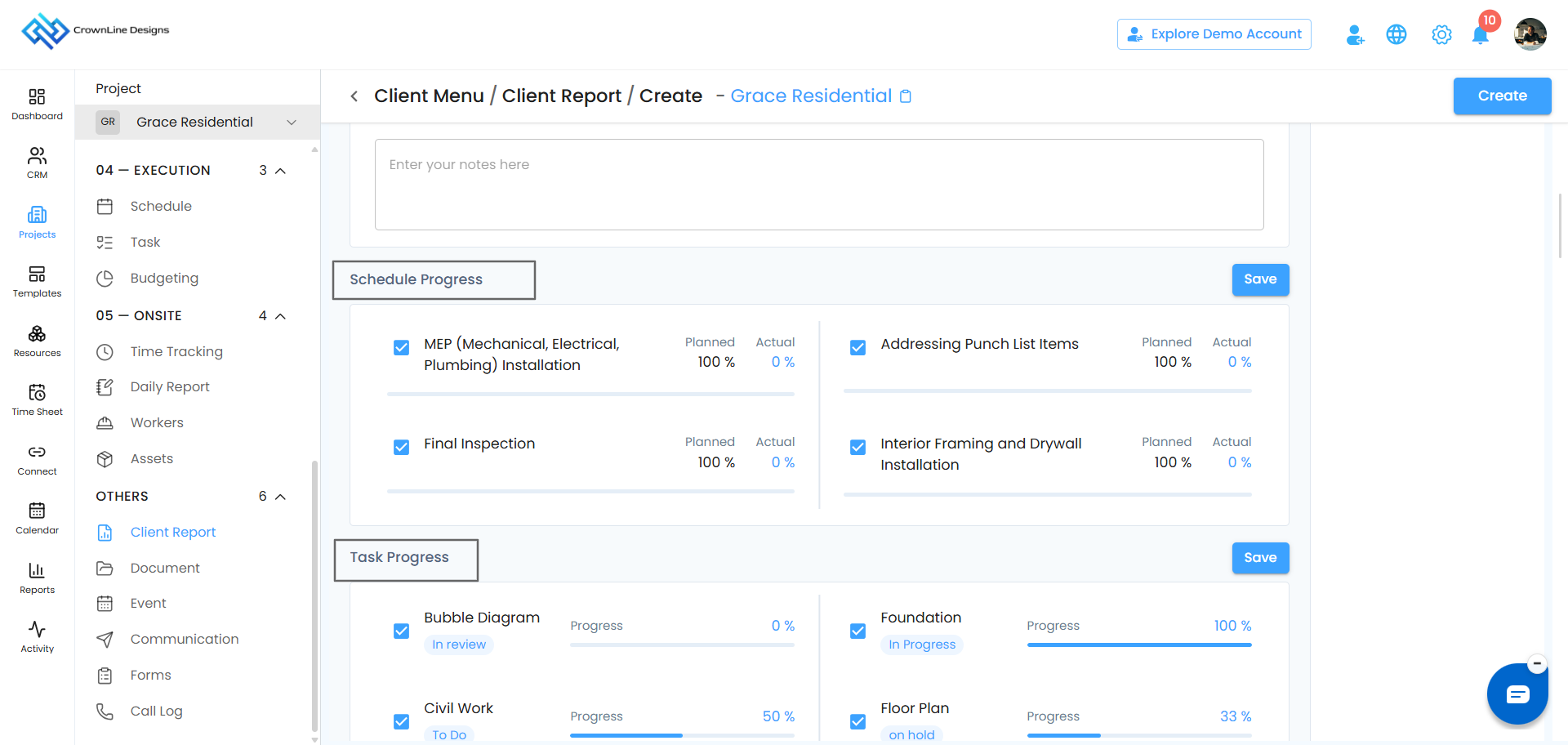
Schedule, Tasks, Workers, and Inventory
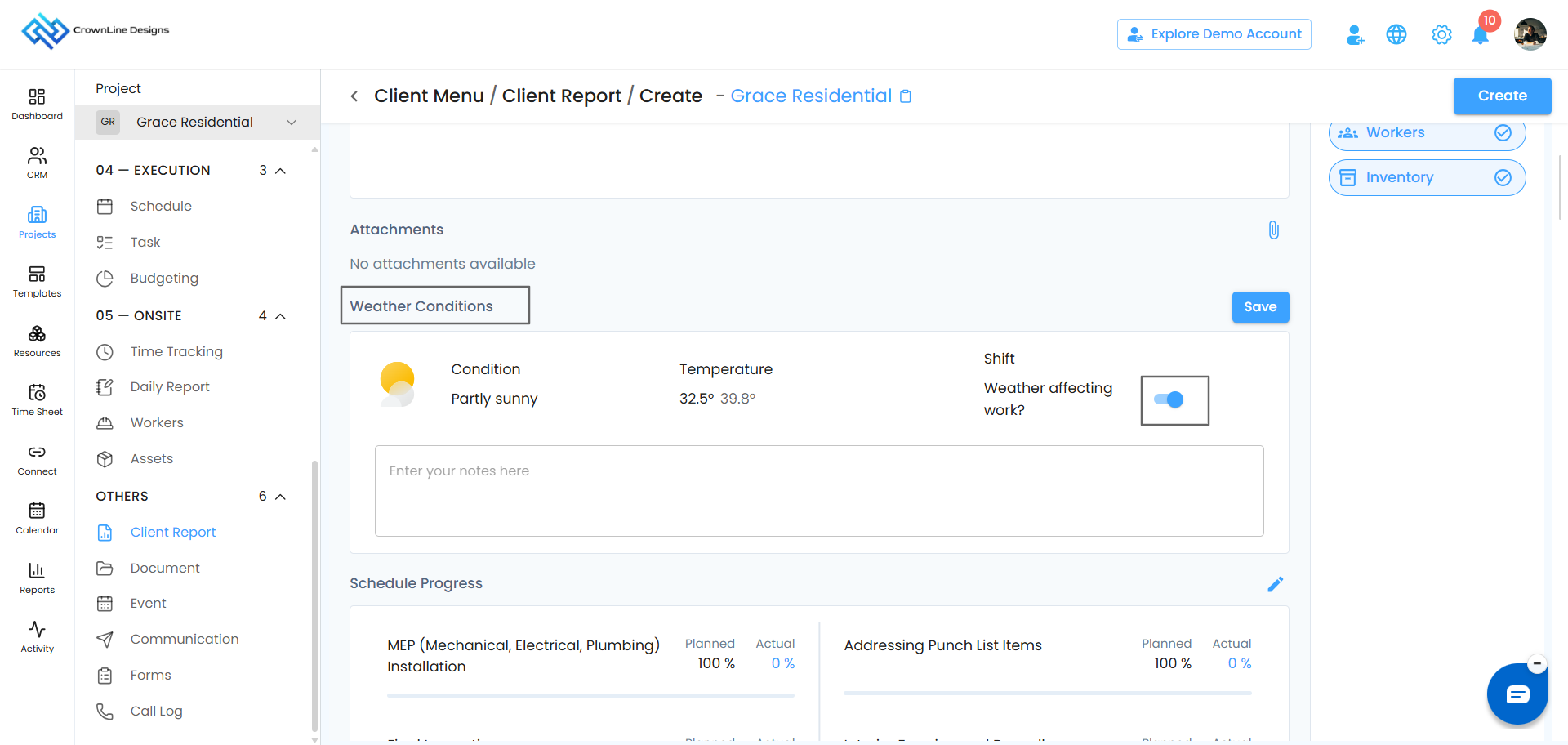
The Schedule Progress, Task Progress, Workers, and Inventory sections work in the same way.
Click the Edit option for the required section to view the available items. Select the items you want to include using the checkboxes, unselect anything you do not need, and click Save.
Only the selected items will be displayed in the client report.
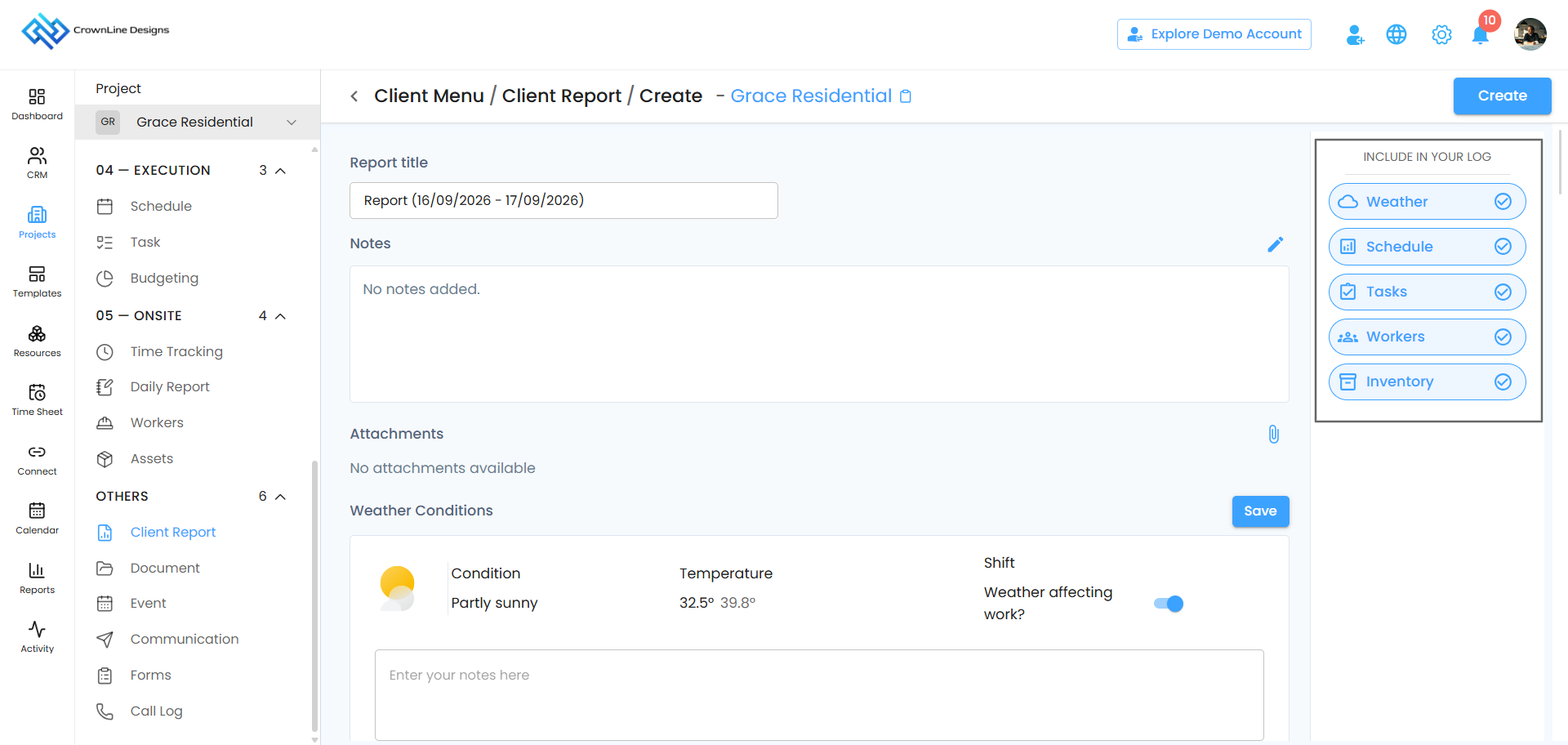
Include in Your Log
The Include in Your Log section allows you to choose which information should appear in the report.
You can enable or disable:
Weather
Schedule
Tasks
Workers
Inventory
Enable the required options and disable anything you do not want to include.
Create the Report
After reviewing the details, click Create at the top-right corner.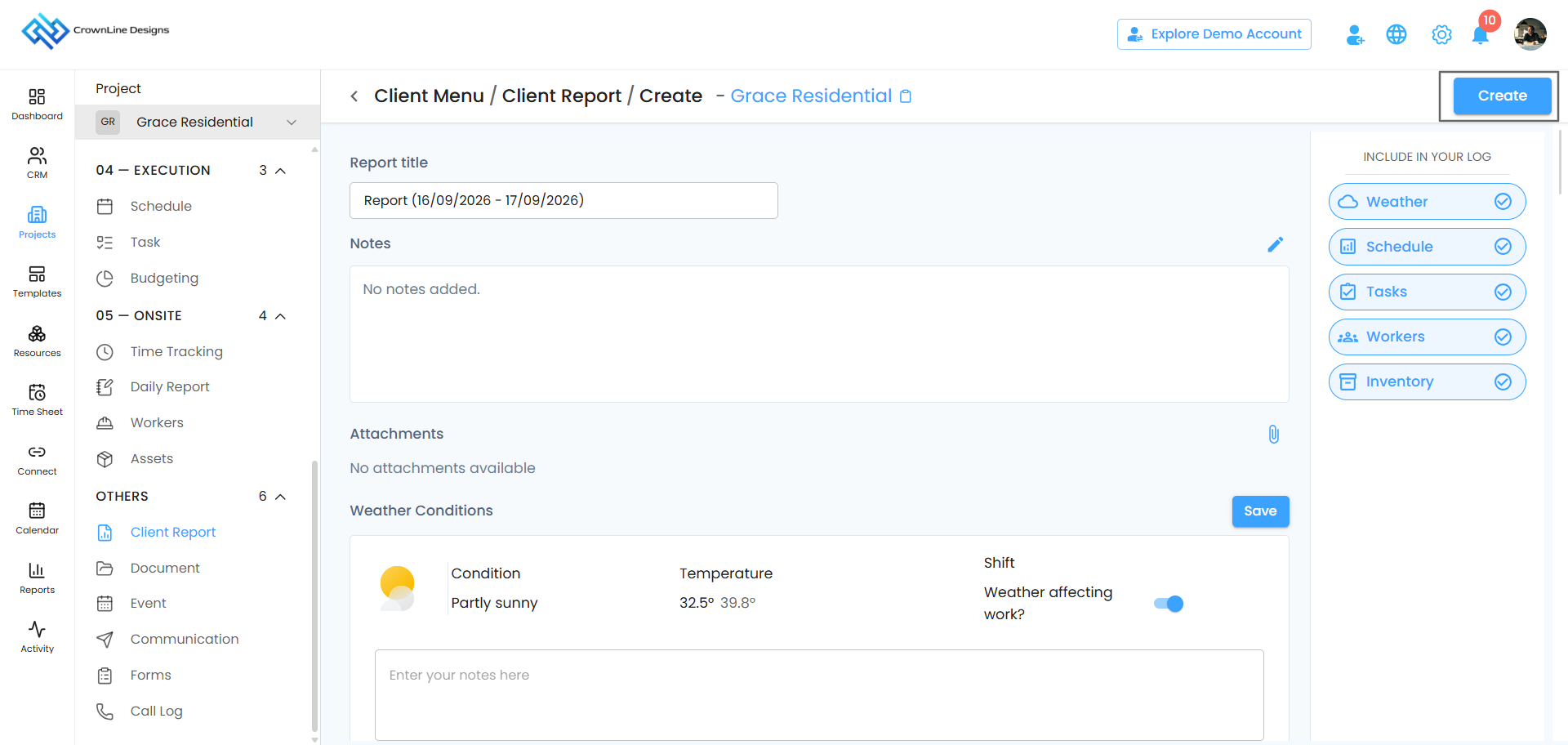
The report will be created and added to the Client Report list.
Client Report Actions
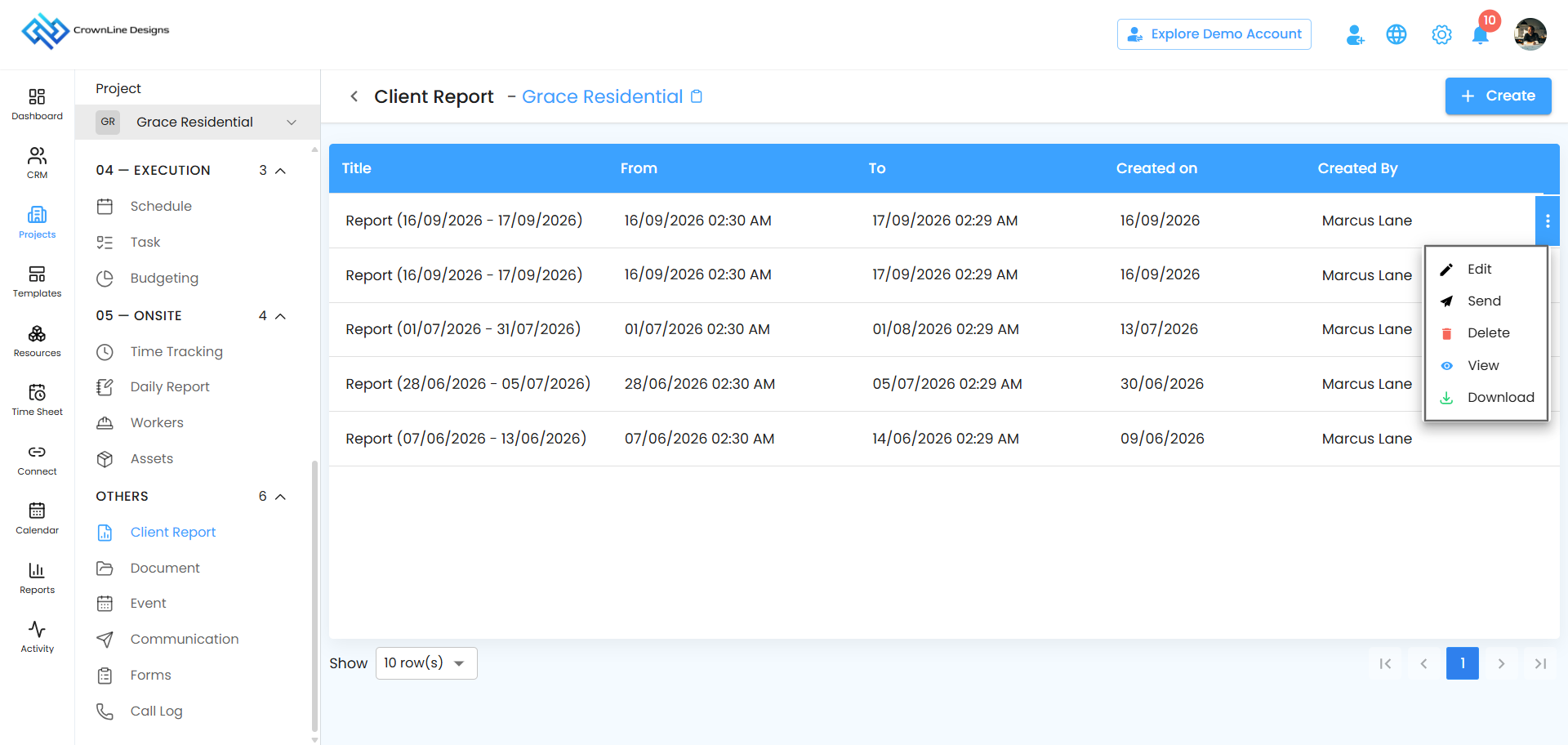
After creating a report, click the three-dot menu to manage it.
The available options are:
Edit – Update the report.
Send – Send the report to the client.
Delete – Remove the report.
View – Preview the report.
Download – Download the report.
Was this article helpful?
That’s Great!
Thank you for your feedback
Sorry! We couldn't be helpful
Thank you for your feedback
Feedback sent
We appreciate your effort and will try to fix the article