The Zoho Books integration allows you to connect your Zoho Books account with IntoAEC so that accounting-related data can be synced securely between both platforms. Once connected, your organization can use the integration for future invoice, payment, and ledger-related sync.
Overview
Through the Zoho Books integration, you can:
- Connect your Zoho Books account to IntoAEC
- Authorize IntoAEC to access your Zoho Books data
- Save the connected organization details securely
- Use the integration for future sync actions
How to Open Zoho Books Integration
- Go to Dashboard.
- Open Integrations from the left-side menu.
- Under All Integrations or Account Software, locate Zoho Books.
- Click Connect on the Zoho Books integration card.
This will open the Configure Zoho Books page.
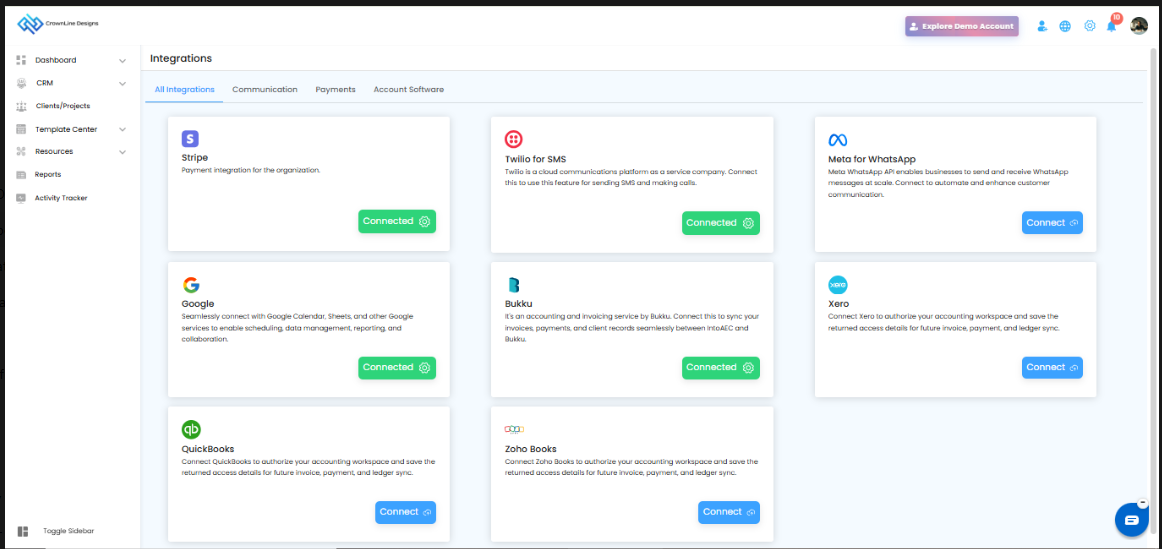
Configure Zoho Books
After clicking Connect, the Configure Zoho Books page will be displayed.
This page provides the steps required to complete the connection.
Steps to Configure
- Click Configure to start the Zoho Books connection.
- A Zoho Books sign-in or authorization window will open.
- Log in using your Zoho Books account credentials, if required.
- Review and approve the requested permissions for your organization.
- Once approval is completed, you will be redirected back to IntoAEC.
- The Zoho Books integration status will then appear as connected.
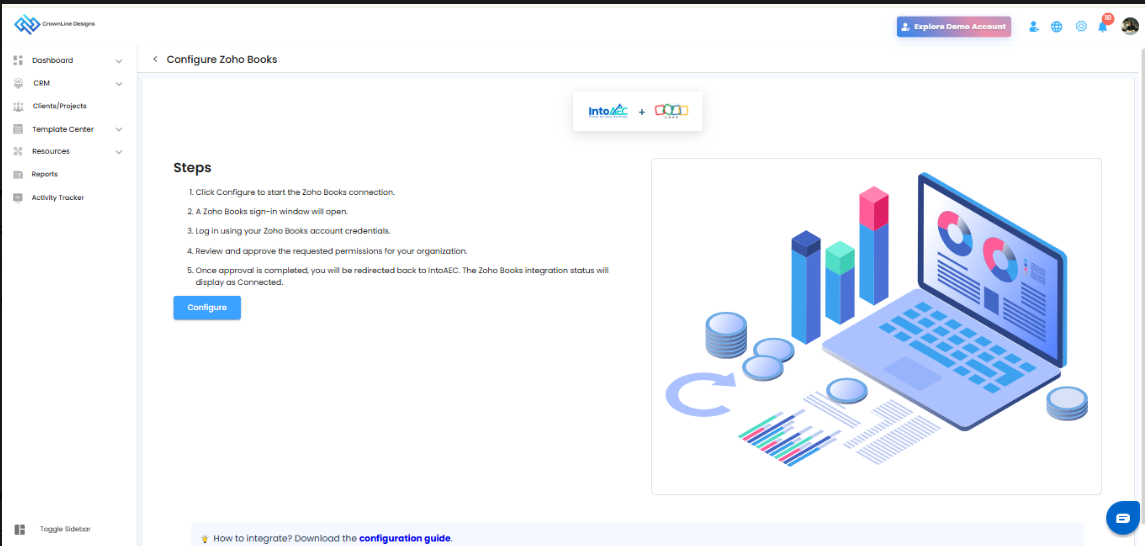
Accept Authorization Request
After clicking Configure, Zoho will open the authorization screen.
On this screen, Zoho displays that the Into AEC server would like access to your Zoho Books data.
What to do on this screen
- Review the access request details.
- Ensure the checkbox is selected to allow access.
- Click Accept to approve the connection.
You can also click Reject if you do not want to continue with the integration.
Authorization Purpose
By accepting the request, you allow IntoAEC to:
- Access and manage the required Zoho Books data
- Store the callback/access details for your organization
- Enable secure accounting data synchronization
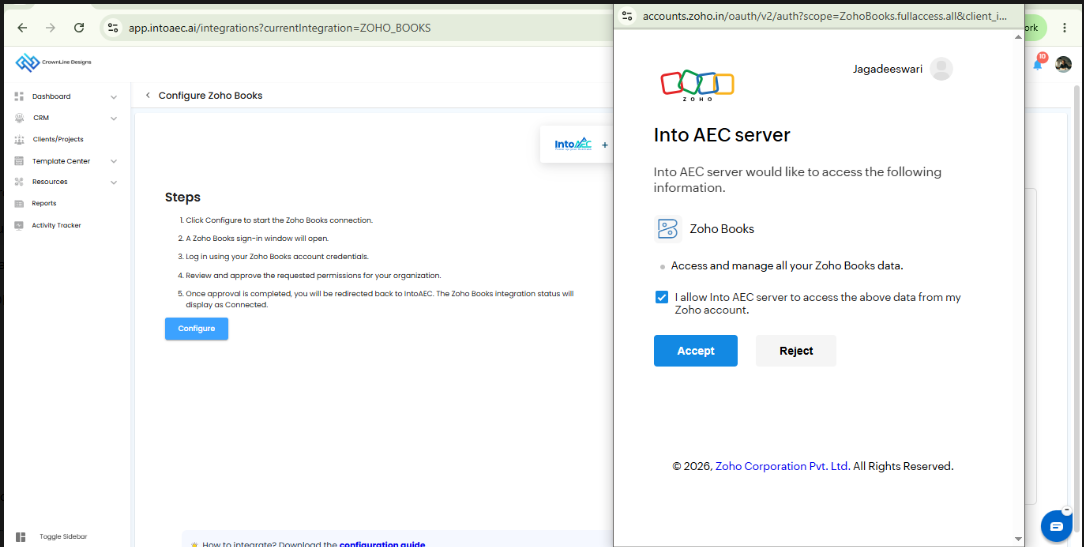
After Successful Connection
Once the connection is completed successfully, the connected screen will be shown.
The screen displays the account connection details, such as:
- Client ID
- Client Secret
- Zoho Organization ID
These values are shown in a masked format for security purposes.
Available Actions After Connection
Deactivate
Use Deactivate if you want to disconnect the Zoho Books integration from IntoAEC.
Copy Webhook URL
Use Copy Webhook URL to copy the webhook URL required for Zoho Books webhook configuration.
Sync
Use the Sync button at the top-right corner to start syncing the connected accounting data.
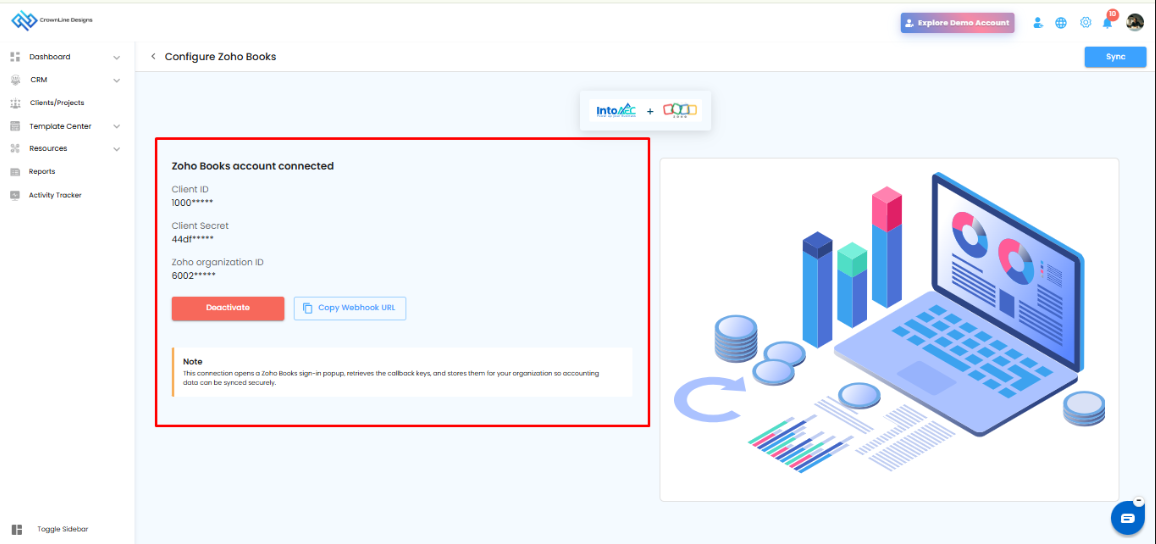
Important Note
A note is displayed on the connected screen explaining that:
- This connection opens a Zoho Books sign-in popup
- It retrieves the callback keys
- It stores them for your organization
- This allows accounting data to be synced securely
End Result
After the setup is completed:
- Zoho Books will be successfully connected to IntoAEC
- Your organization details will be saved
- You can proceed with sync-related actions
- The integration can be managed later using Sync or Deactivate
Was this article helpful?
That’s Great!
Thank you for your feedback
Sorry! We couldn't be helpful
Thank you for your feedback
Feedback sent
We appreciate your effort and will try to fix the article