The Change Order feature helps users manage scope changes after an estimate has been accepted by the client. When a project estimate is already approved or accepted, any further change in scope, quantity, cost, or work item can be handled through a Change Order instead of editing the original estimate.
This helps keep the original estimate baseline unchanged while allowing users to record and manage new revisions separately.
What is a Change Order?
A Change Order is used when there is a change in the accepted estimate after client approval.
For example, if the client requests additional work, removes some items, changes quantities, or updates the project scope after accepting the estimate, users can create a Change Order to capture those changes.
This allows the team to manage updates clearly without affecting the original accepted estimate.
When Can a Change Order Be Created?
A Change Order can be created once an estimate is accepted by the client.
After the estimate is accepted, the user will get options such as:
Create Change Order
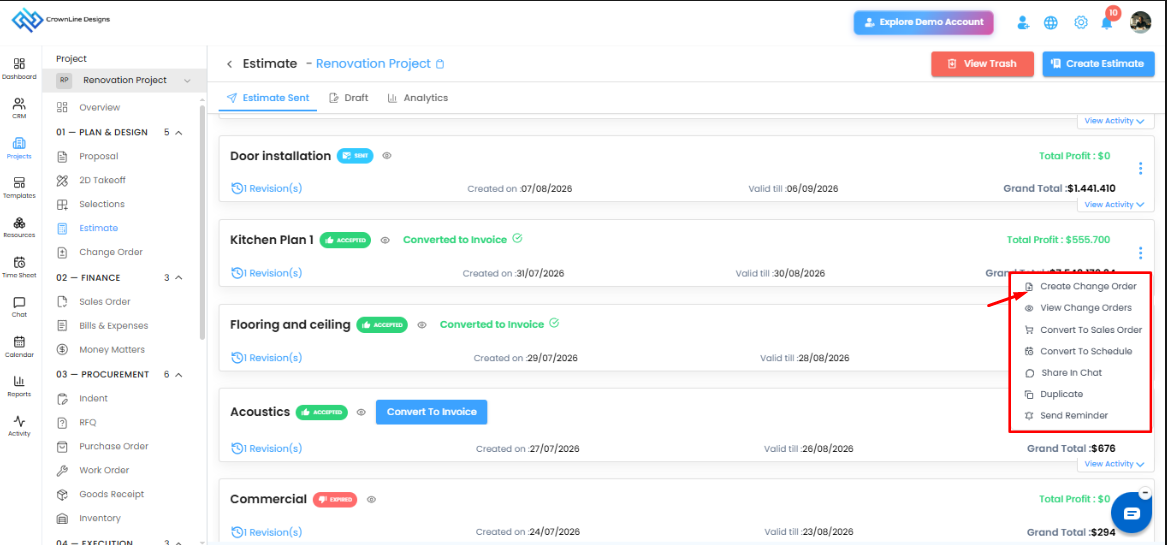
These options allow users to create a new change order or review the existing change orders created for that estimate.
Why Use Change Orders?
Change Orders help users manage project changes in a structured way.
They are useful when:
The client requests additional work
The scope of work changes
Item quantities need to be updated
New materials or services need to be added
Existing work items need to be revised
Project cost changes after estimate approval
The team needs to maintain a clear revision history
How to Create a Change Order
Go to the required project.
Open the Estimate module.
Go to the accepted estimate.
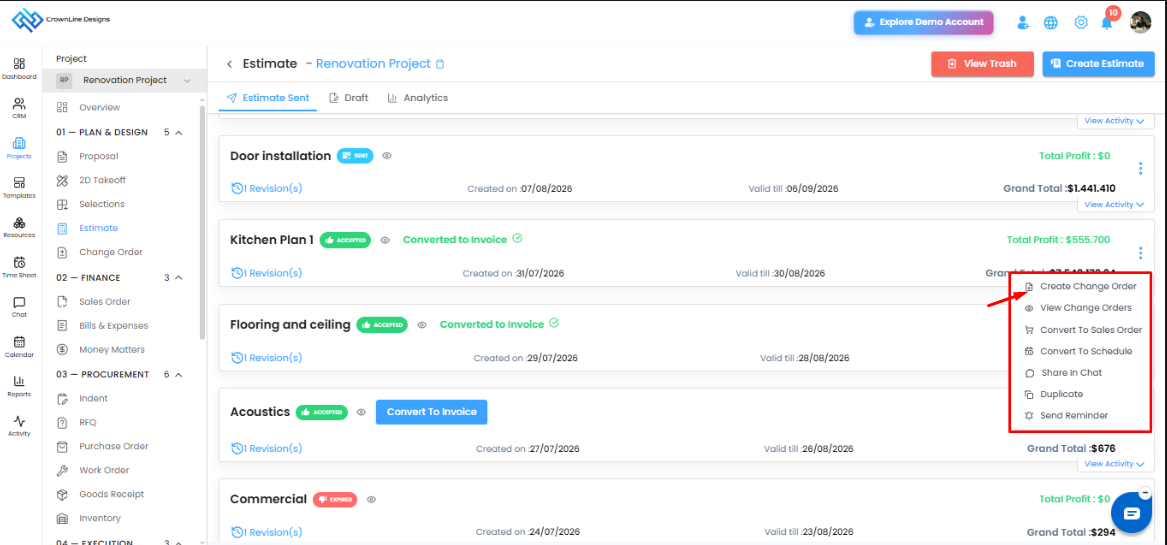
Click the Action menu.
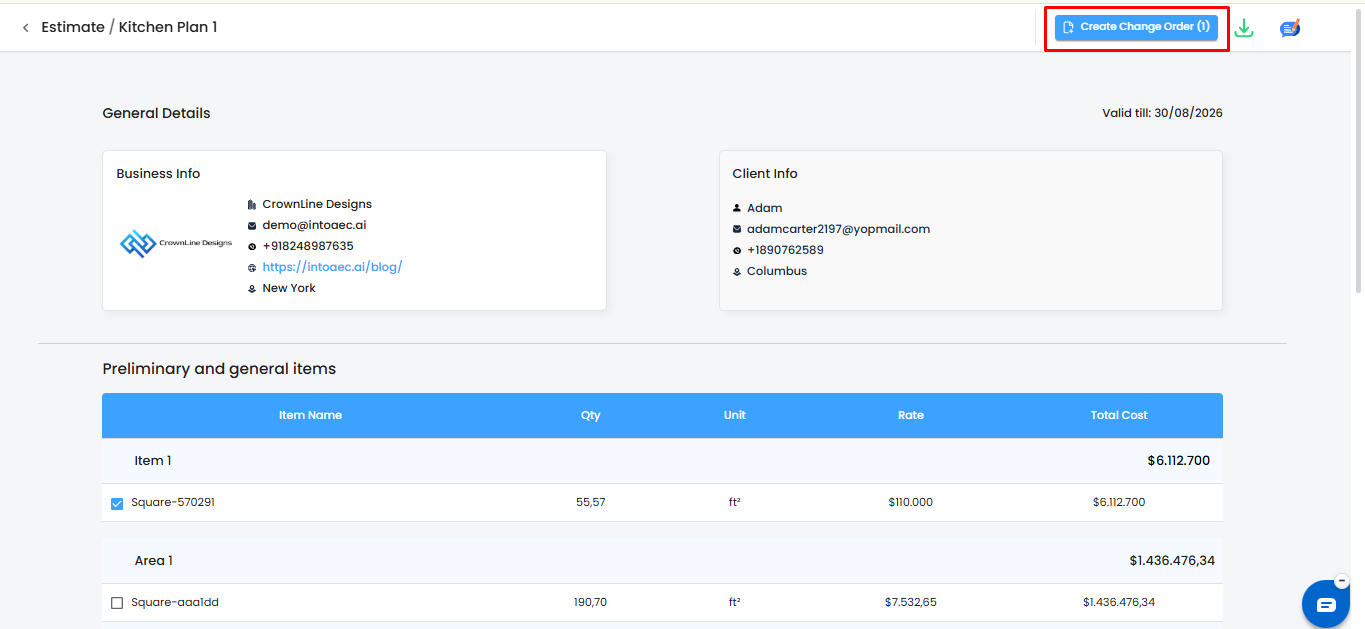
Select Create Change Order.
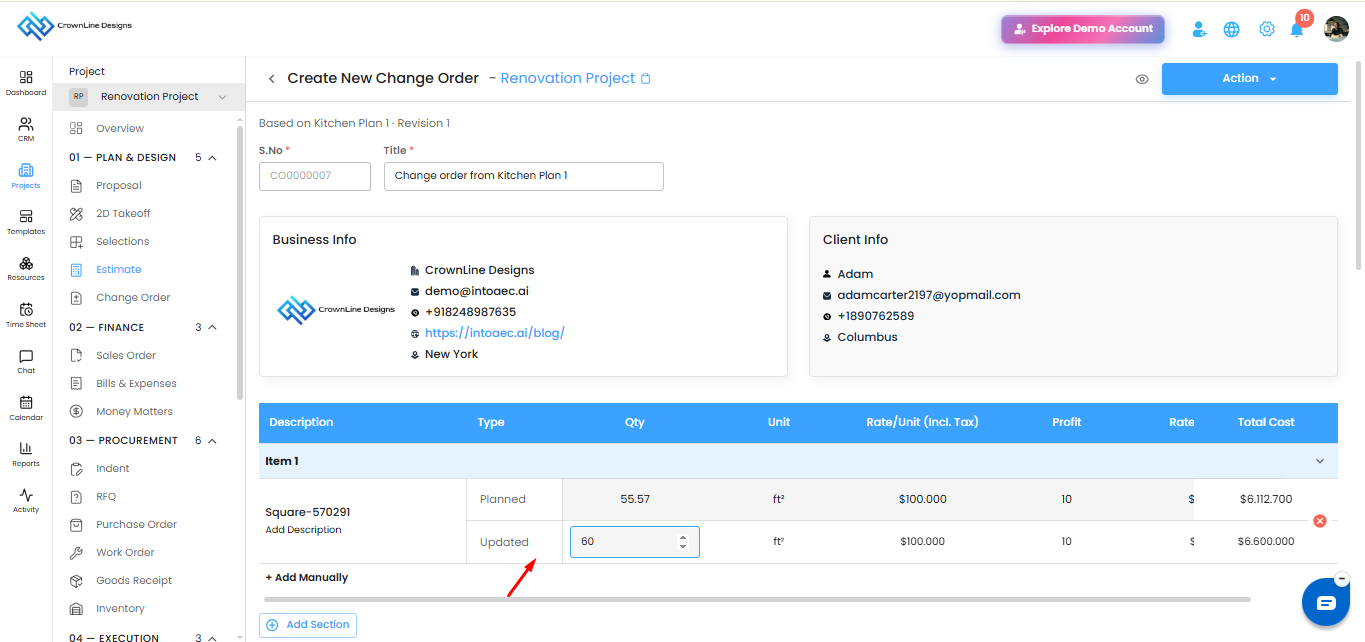
Update the required scope, item, quantity, or cost changes.
Save or send the Change Order based on the workflow.
Once created, the Change Order will be linked to the original estimate.
 View Change Orders
Users can also view the change orders created for an accepted estimate.
To view change orders:
Open the Estimate module.
Select the accepted estimate.
Click the Action menu.
Select View Change Orders.
This allows users to review all change orders linked to the selected estimate.
Multiple Change Orders
Users can create any number of Change Orders for an accepted estimate.
This is useful when the project has multiple changes during execution. Each change can be recorded separately, helping the team maintain a clear history of all revisions.
For example:
Change Order 1: Additional electrical work
Change Order 2: Updated flooring quantity
Change Order 3: Added painting scope
Change Order 4: Revised material cost
Each Change Order can be tracked separately while keeping the original estimate unchanged.
Change Order and Original Estimate
The original accepted estimate remains as the baseline. Change Orders are created as additional revisions on top of the accepted estimate.
This helps users compare planned and updated scope clearly and keeps the estimate history organized.
Key Benefits
Maintains the original accepted estimate without changes
Helps manage scope changes after client approval
Allows multiple change orders for the same estimate
Keeps revision history clear and organized
Helps track updated cost and scope changes
Supports better client approval and project documentation
Summary
The Change Order feature allows users to manage scope and cost changes after an estimate has been accepted by the client. Users can create and view change orders from the accepted estimate and can add multiple change orders whenever project changes occur. This helps keep the original estimate intact while maintaining a clear record of all approved revisions.
Was this article helpful?
That’s Great!
Thank you for your feedback
Sorry! We couldn't be helpful
Thank you for your feedback
Feedback sent
We appreciate your effort and will try to fix the article