The moment your client accepts an estimate, two things happen. The estimate locks, and a set of new options appears. This article covers both: what an accepted estimate can do, and how change orders work when something needs to change after acceptance.
Part 1 — What happens when your client accepts
The estimate is locked
An accepted estimate cannot be edited.
This is on purpose. The accepted estimate is the version your client signed. It stays exactly as it was, so there is never a question later about what was originally agreed.
What opens up instead
Once accepted, the estimate menu gives you:
| Option | What it does |
|---|---|
| Create Change Order | Record a change to the agreed scope or price |
| View Change Orders | See every change order raised against this estimate |
| Convert to Invoice | Start billing |
| Convert to Schedule | Turn line items into a project plan |
| Convert to Sales Order | Raise the sales order |
| Share | Share the estimate |
| Chat | Discuss it with your team |
| Duplicate | Copy it as a starting point for a new estimate |
| Send Reminder | Remind your client about outstanding actions |
Once you create a change order, Create Change Order becomes Update Change Order.
Part 2 — Set your change order behaviour first
Before you create your first change order, there is one setting to decide on. It sits under Preferences, headed:
Accepted change order behaviour — choose how an accepted change order affects the linked estimate.
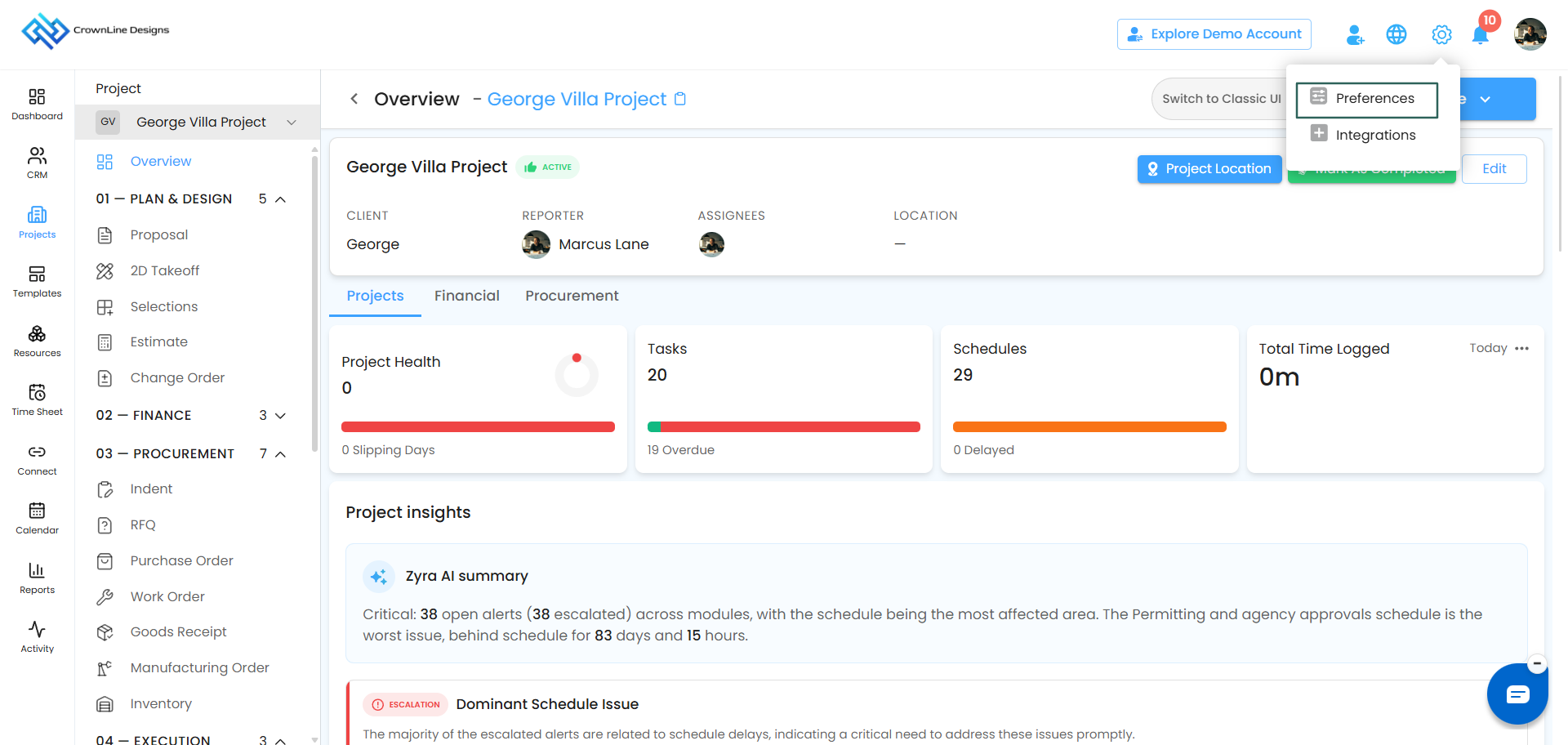
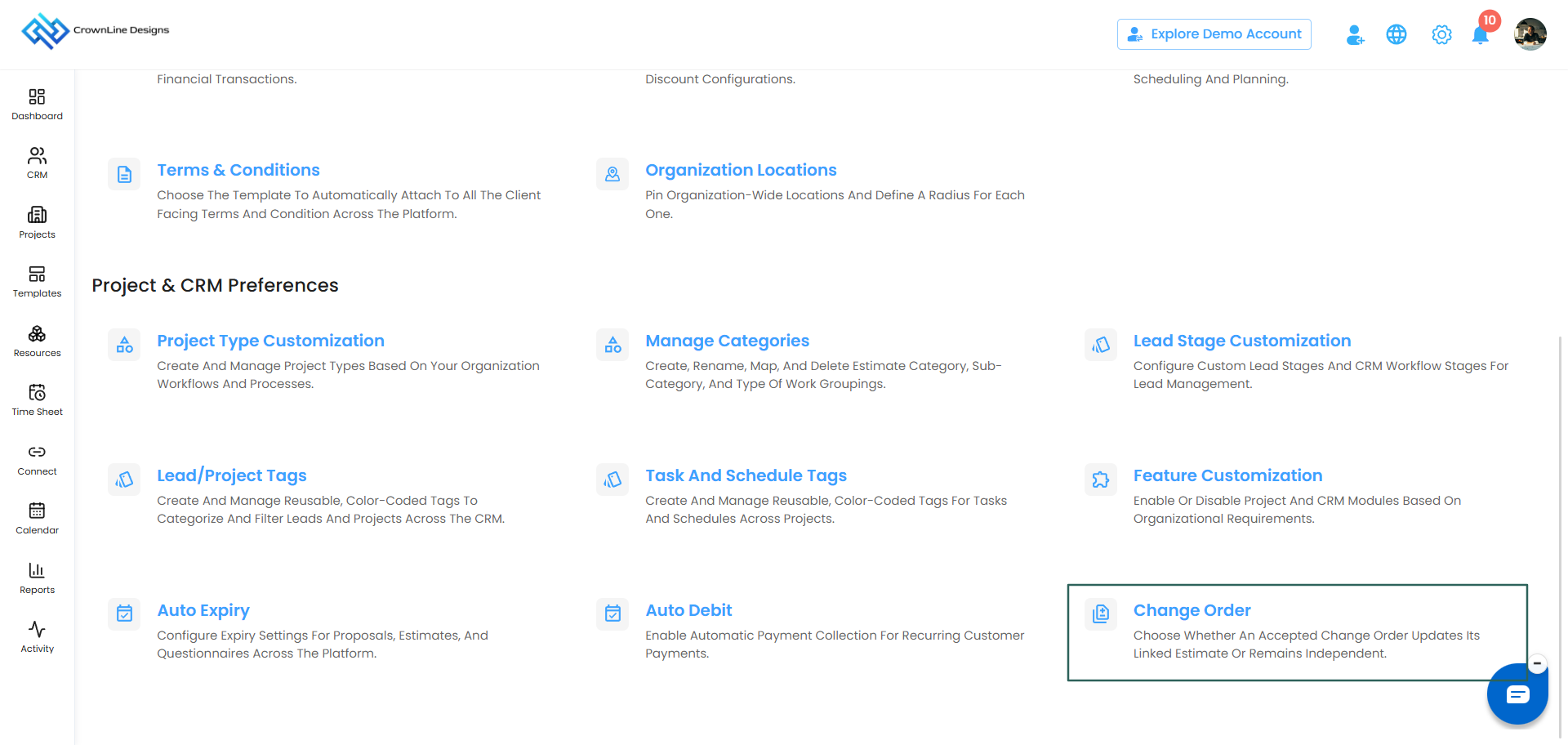
You have two options.
Option 1 — Update Linked Estimate
Everything you change in an accepted change order flows back into the estimate. The estimate value, its payment terms and its line items all update to match.
Choose this when you want one single agreed figure with your client, kept up to date as the job evolves.
Option 2 — Keep Change Order Independent
The change order takes its starting data from the estimate, but nothing you do in it touches the estimate. The estimate stays exactly as it was accepted, and the change is tracked on its own.
Choose this when you want the original contract value preserved and every variation recorded and billed separately.
This choice cannot be undone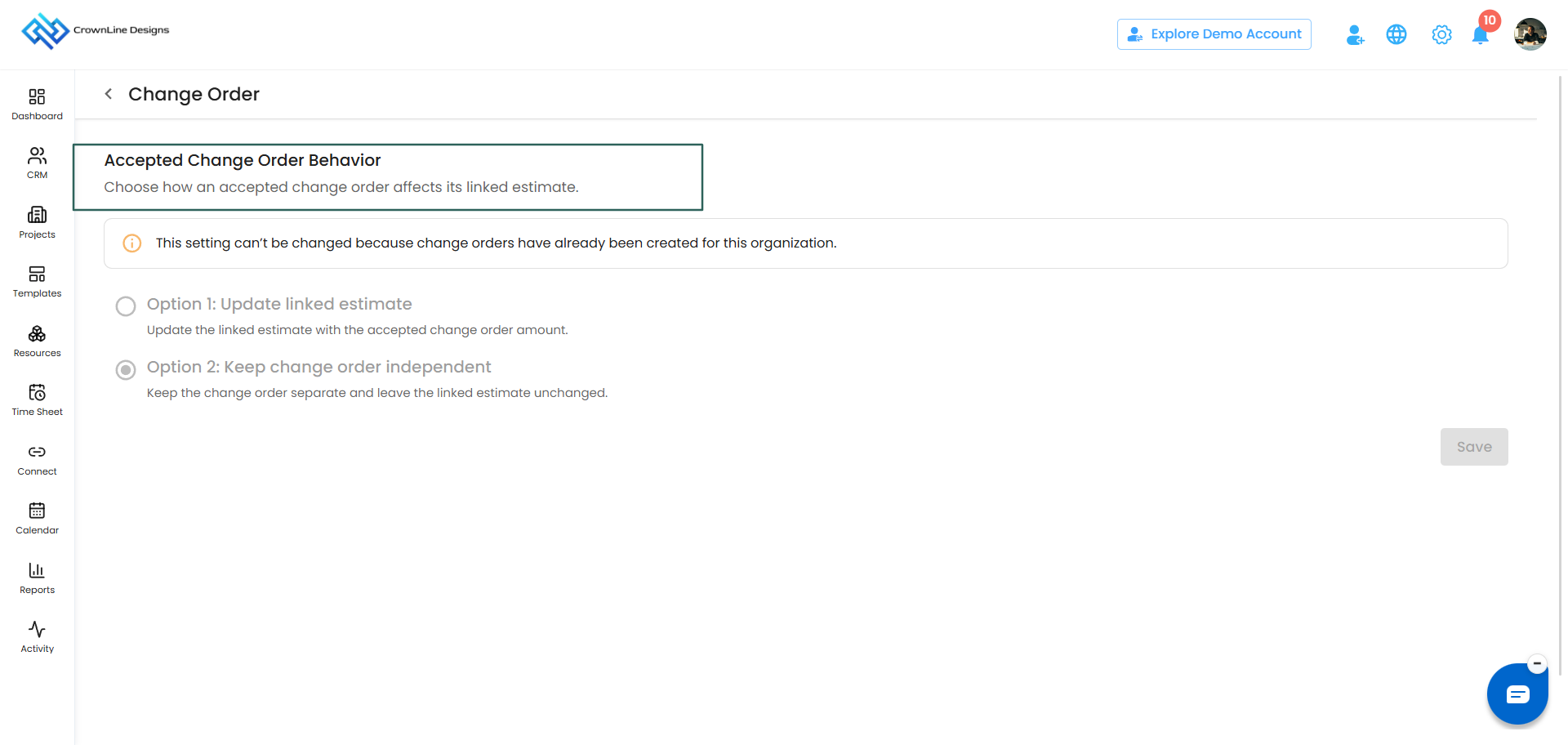
Important: This is an organisation-wide setting. Once you save it and create your first change order, it cannot be changed.
Discuss it with your team before you save it. There is no way back.
Part 3 — Creating a change order
Before you start
A change order can only be created from an accepted estimate. There is no way to start one from scratch.
Step 1 — Open the accepted estimate
Find the accepted estimate and choose Create Change Order from its menu.
You are taken to that estimate's preview page.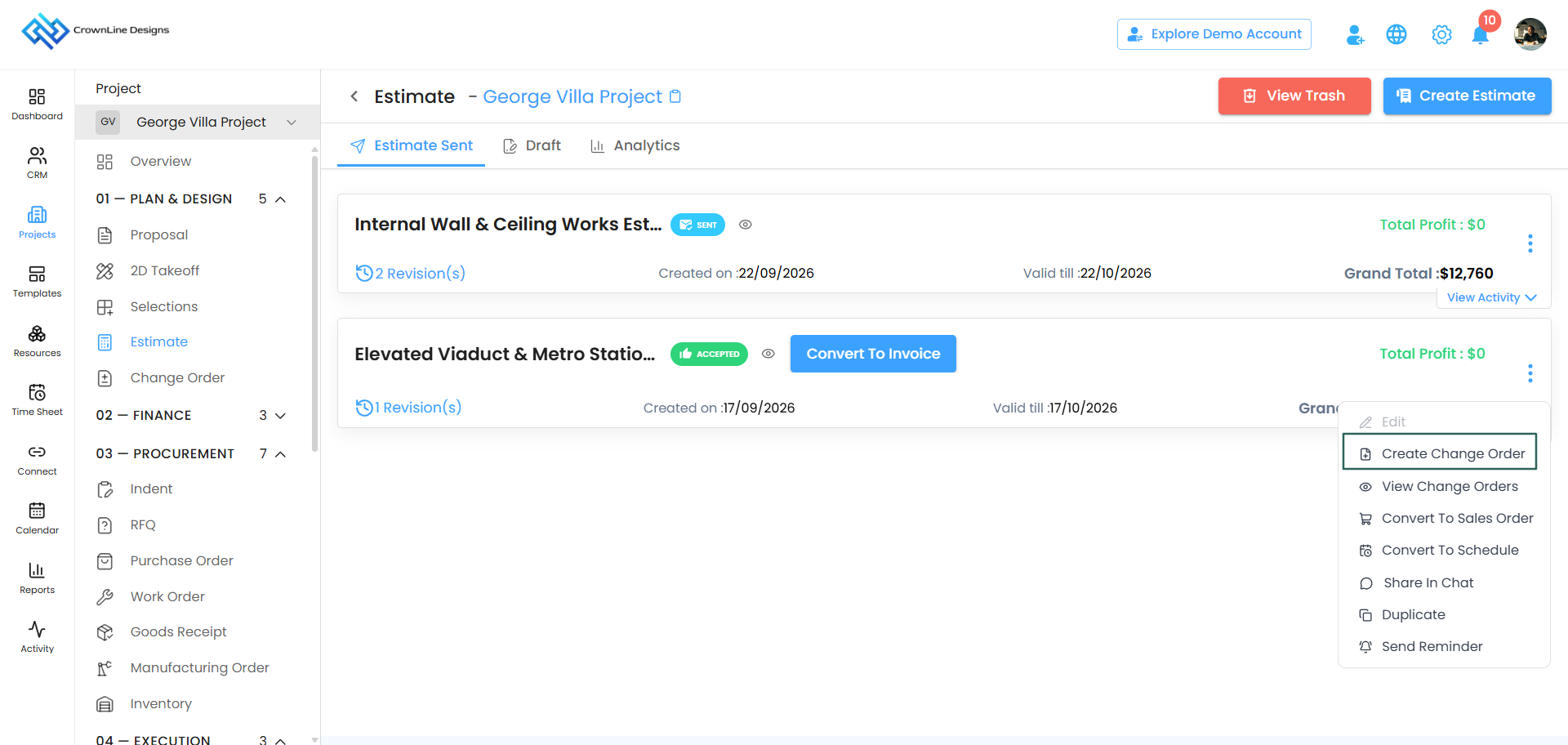
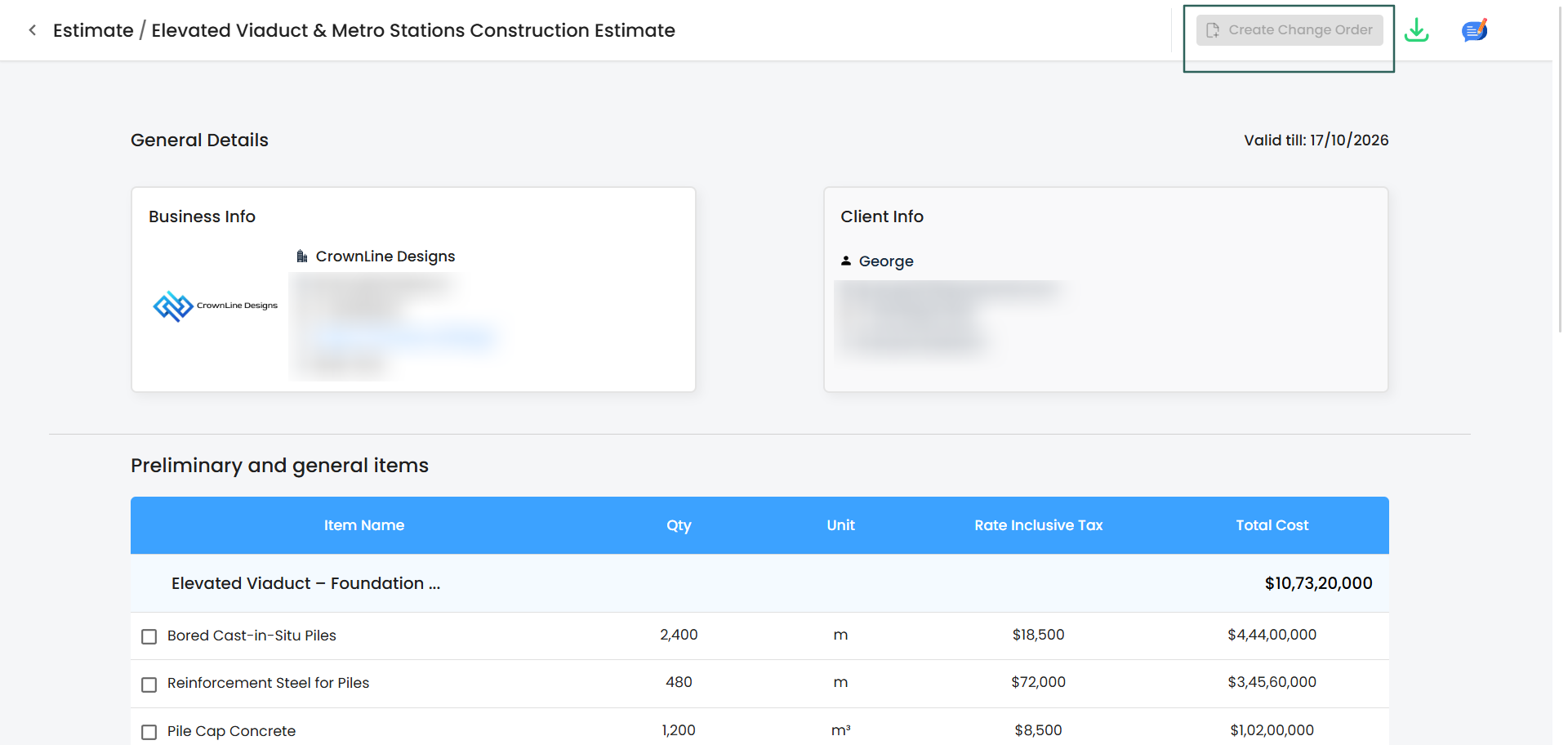
Step 2 — Pick what is changing
On the preview page, a checkbox appears beside every section, line item and material.
Tick only what is actually changing.
Example: your estimate has four line items, but only two of them need a price change. Tick those two and leave the other two alone.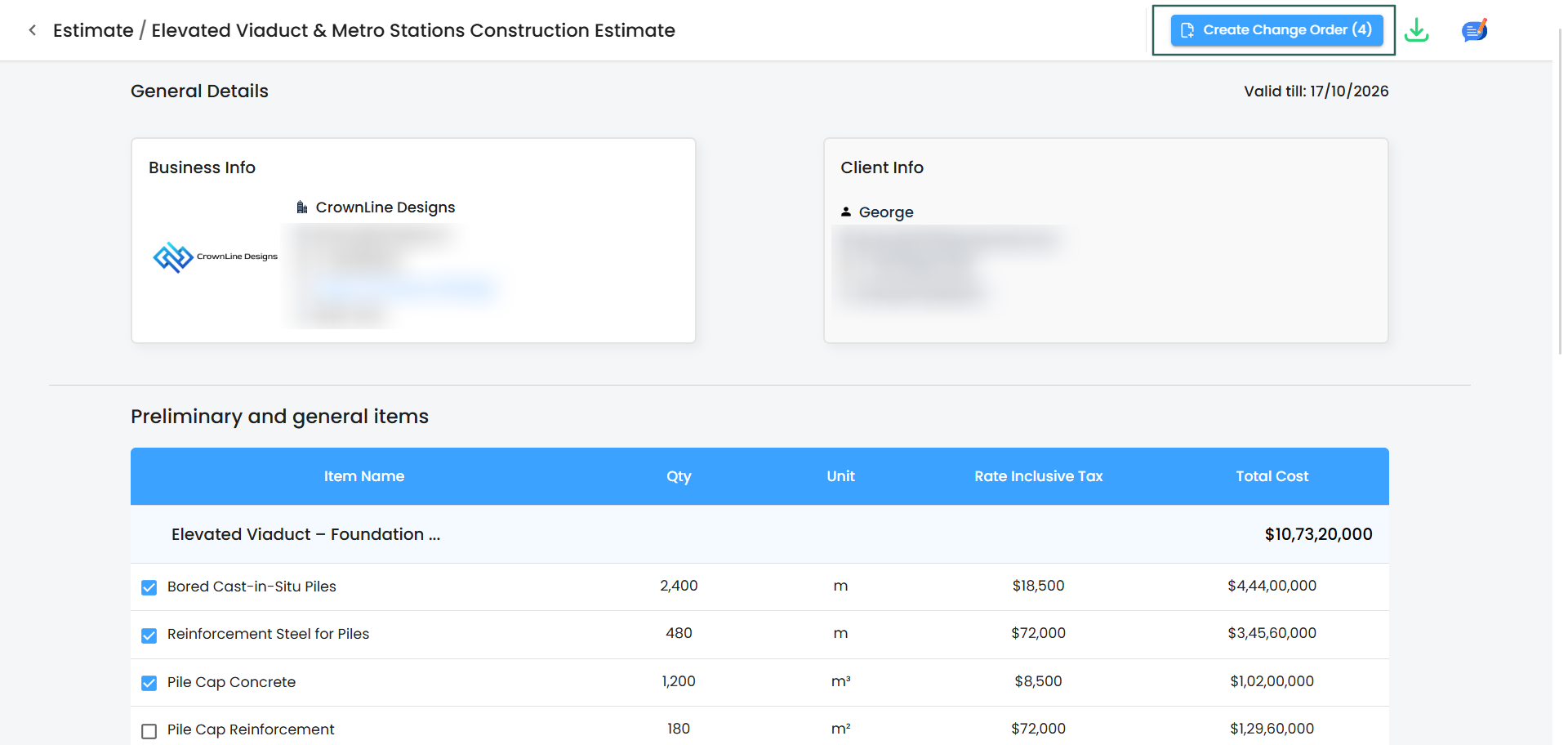
Step 3 — Create it
Click Create Change Order. You land on the Create New Change Order page.
If you are editing an existing change order rather than making a new one, the page is headed Update Change Order instead.
Part 4 — Working on the change order page
The header
- Serial Number — generated automatically
- Title — shows which estimate this change order came from, so you can always trace it back
- Business Info and Client Info
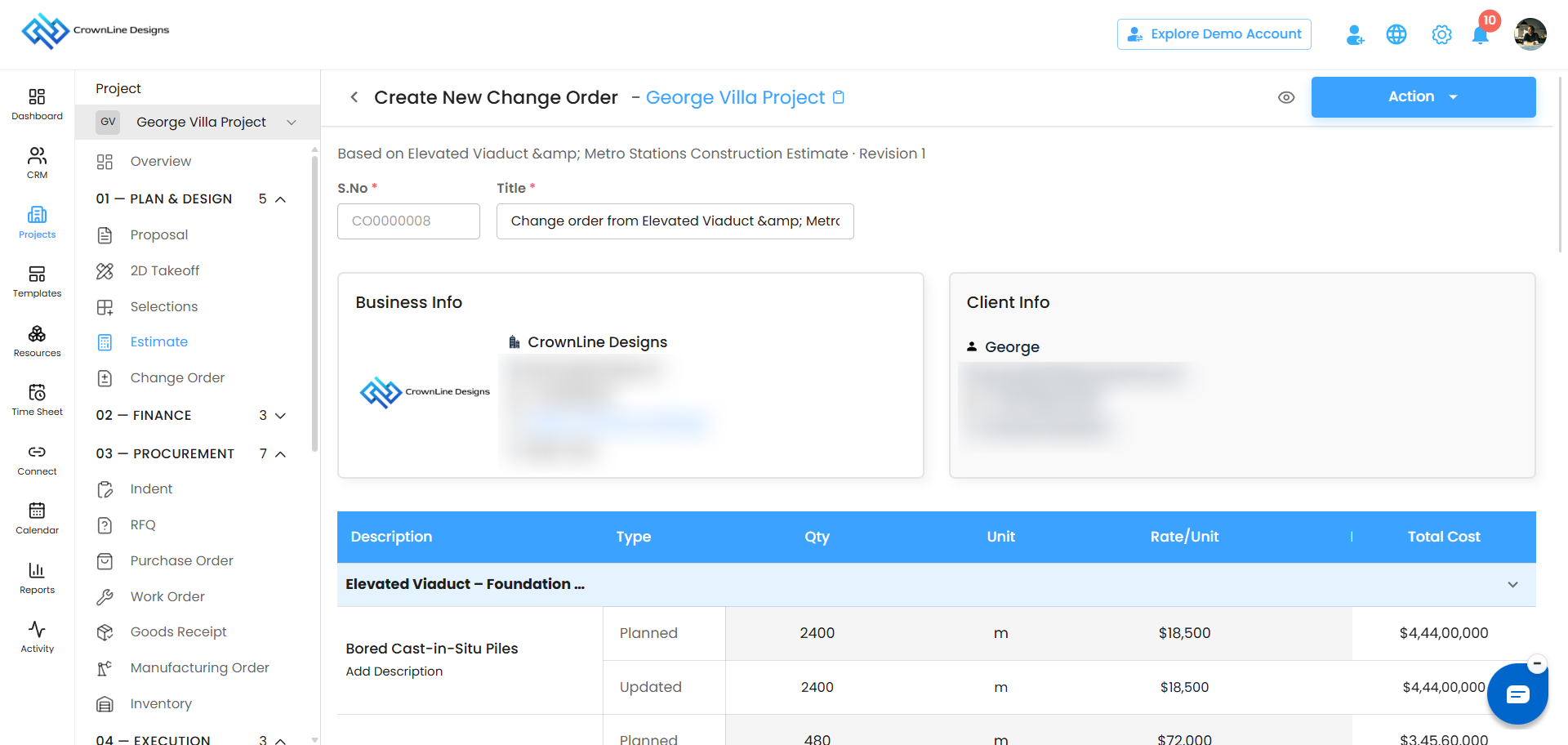
Planned and Updated
Every line item you brought across shows two rows:
| Row | What it holds |
|---|---|
| Planned | The values your client already accepted on the estimate |
| Updated | The new values you are proposing |
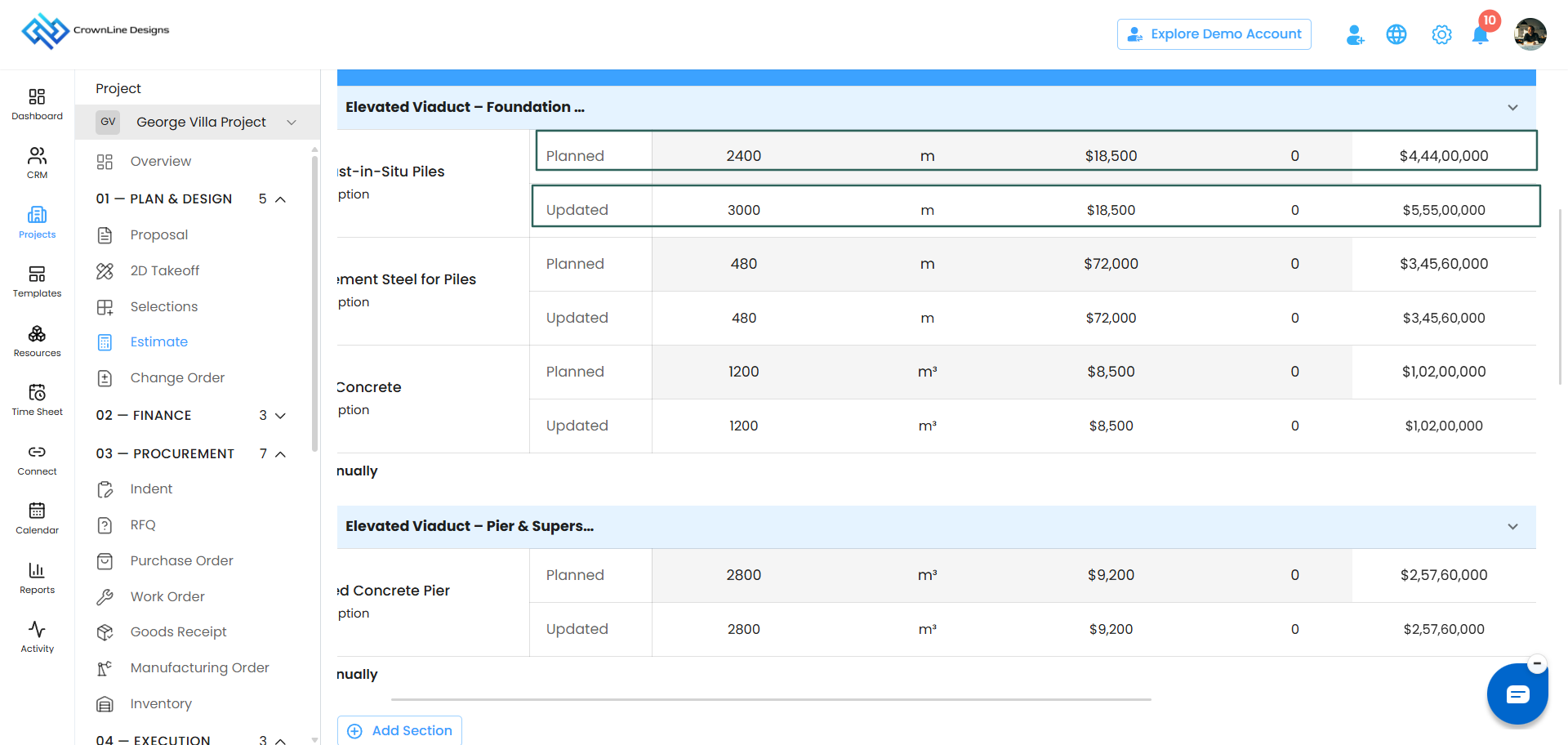
Both rows show quantity, unit, rate per unit, profit, rate excluding tax, tax and rate including tax — so the difference between what was agreed and what you are now proposing is obvious at a glance.
Green and red
The change order colours the difference so you can see the direction of travel immediately:
- Green — the amount has gone up. More money coming in.
- Red — the amount has gone down. Less money than originally agreed.
Example: a line item was agreed at 2,000 and you are changing it to 4,000. That extra 2,000 shows in green.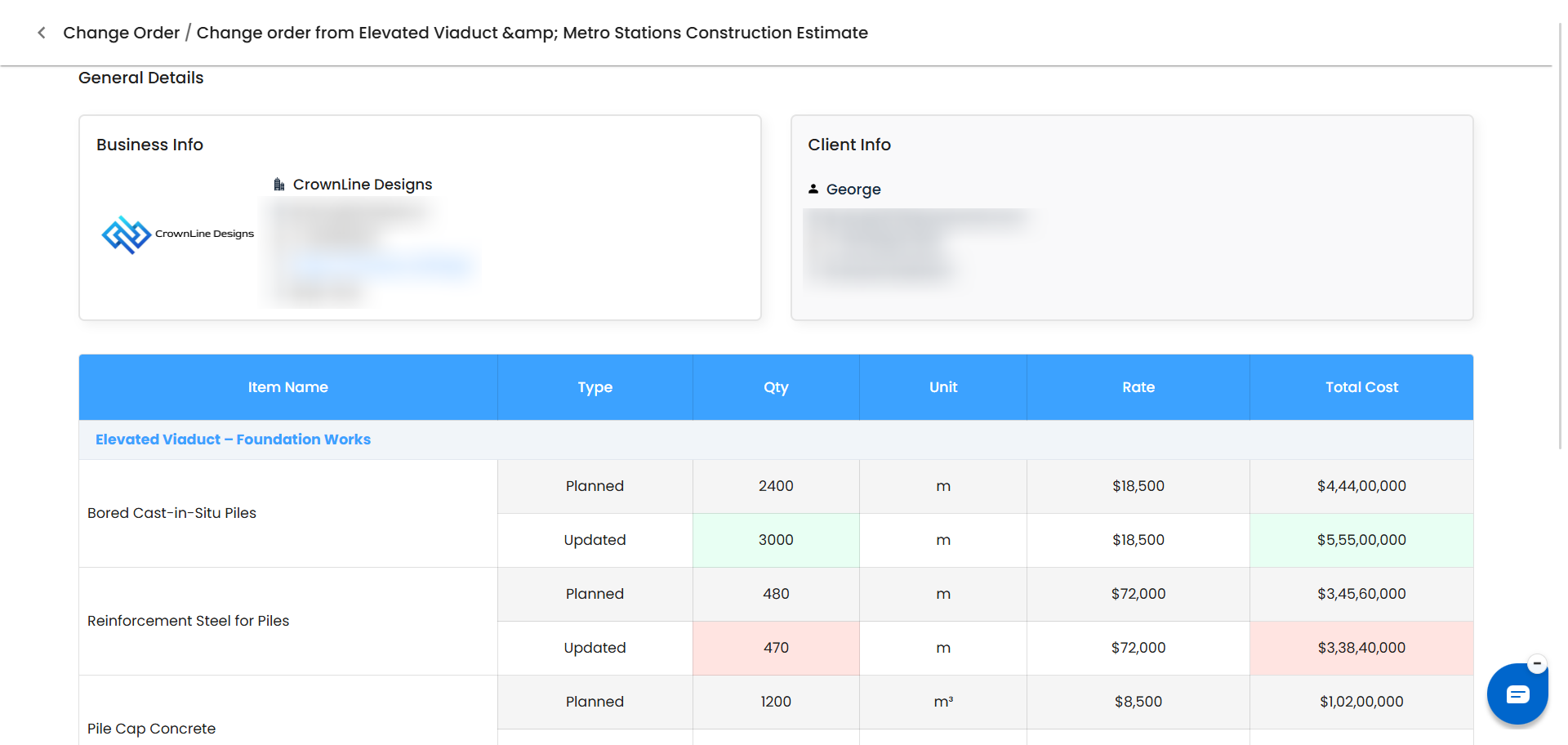
Adding to the change order
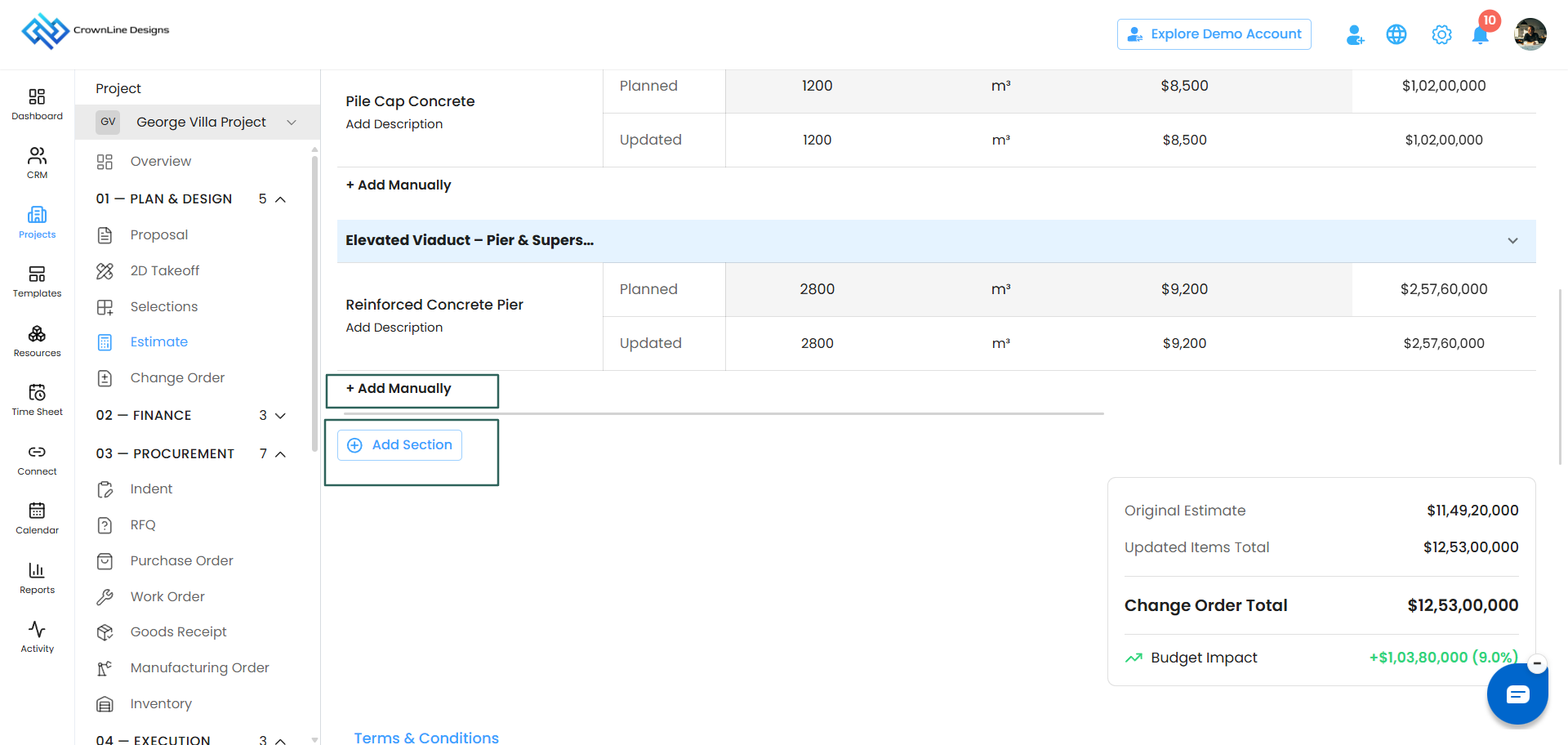
You are not limited to what you brought across from the estimate:
- Add Manually — add a new line item
- Add Section — add a new section
The summary
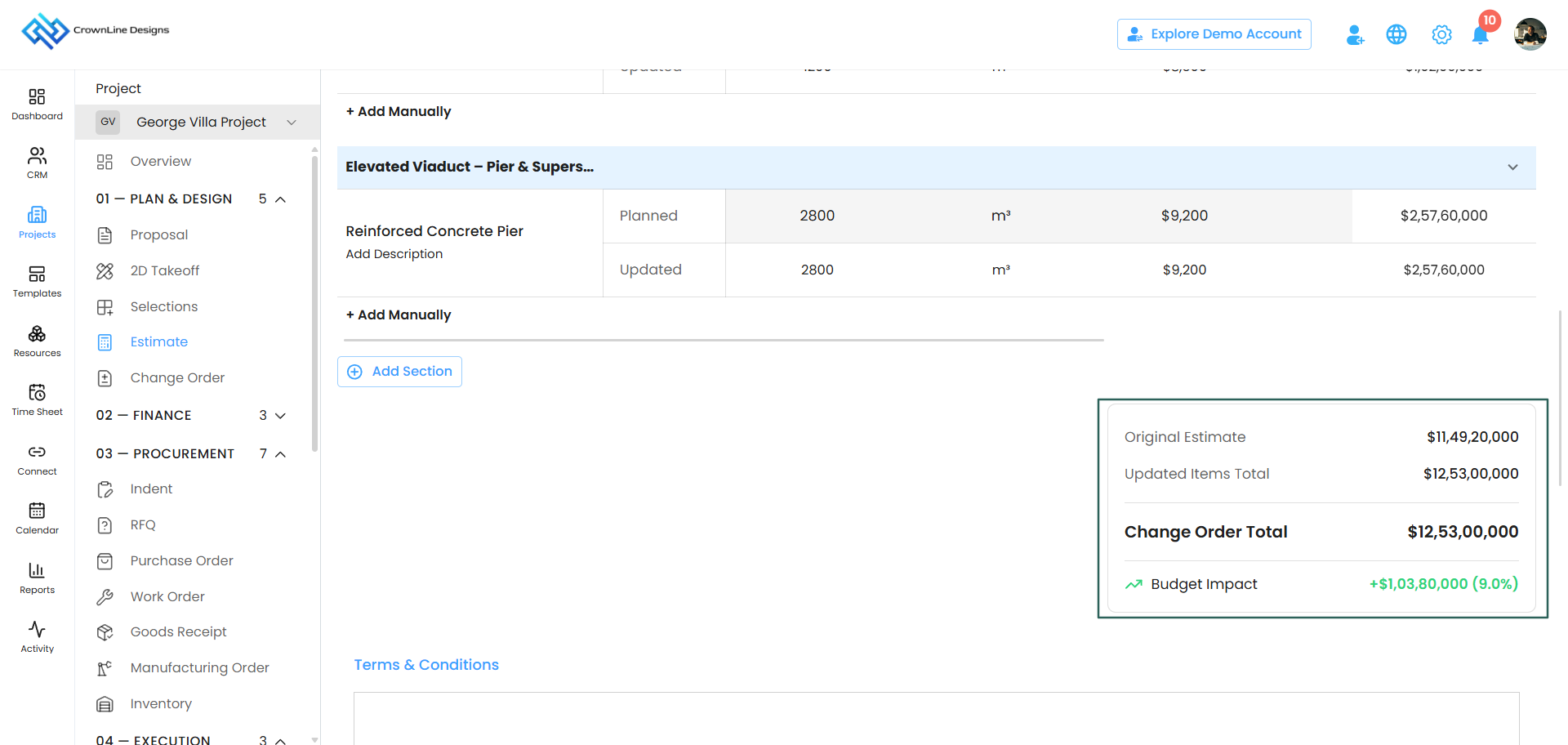
At the bottom you will see:
- Estimate Total
- Change Order Total
- Budget Impact
 Part 5 — What happens to the money
This is where your preference setting matters. The same change produces different results depending on which option you chose.
If you chose "Update Linked Estimate"
Everything flows back into the estimate.
Situation A — the amount goes up
Your estimate was 10,000. Your change order takes it to 12,000.
An additional payment term for 2,000 is created on the estimate.
Situation B — the amount goes down and your client has already paid too much
Your estimate was 10,000. Your client has already paid 8,000 across their payment terms. Your change order brings the total down to 7,000.
Your client has overpaid by 1,000. A credit note for 1,000 is created automatically.
Situation C — the amount goes down and nothing has been paid yet
Your estimate was 10,000 with payment terms set up. Your change order brings it to 7,000.
The 3,000 reduction is applied automatically. Payment terms, line items and totals all adjust themselves to the new figure.
If you chose "Keep Change Order Independent"
The estimate is never touched. The change is handled entirely within the change order.
Situation A — the amount goes up
Your estimate was 10,000. Your change order takes it to 12,000.
The additional payment term for 2,000 is created on the change order itself, not on the estimate. Your estimate still reads 10,000.
Situation B — the amount goes down
Your estimate was 10,000. Your change order brings it to 7,000.
No credit note is created for you automatically. Instead, a Create Credit Note option appears in the change order's menu. Use it when you are ready.
About credit notes
Whether it is created automatically or by you, the credit note is capped at the reduced amount.
If 3,000 came off, the credit note total stays at 3,000. You can add as many line items inside it as you like to explain the breakdown, but the total will not move above that figure.
Part 6 — Approval and sending
Change orders follow the same approval rules as estimates.
- Approvers see Save as Draft, Compose Email, Send via WhatsApp and Send via SMS
- Creators see Save as Draft and Request for Approval
See Estimate Workflow Approval for the full detail.
Part 7 — Managing change orders
The three tabs
Change orders are organised the same way estimates are:
- Sent — change orders you have sent to your client
- Draft — change orders saved to finish later
- Analytics — time spent, edits and downloads for each change order
Editing a change order
- A change order in Sent status can be edited freely.
- An accepted change order cannot be edited.
Change orders do not have revisions
This is the main difference from estimates. Estimates track revision 1, revision 2 and so on. Change orders do not.
Edit a sent change order and it simply updates, with the revised price shown on the card. There is no version history to step back through.
Changing something on an accepted change order
If a change order has already been accepted and something needs to change again, a brand new change order is created. The accepted one stays exactly as it is. Nothing is merged into it.
You can raise as many change orders against one estimate as the job needs.
Viewing all change orders for an estimate
Open the estimate menu and choose View Change Orders. Every change order raised against that estimate is listed.
Each card shows:
- Created on
- Previous price
- Revised price
- The difference
- Its own serial number
- The serial number of the estimate it came from
- A copy link
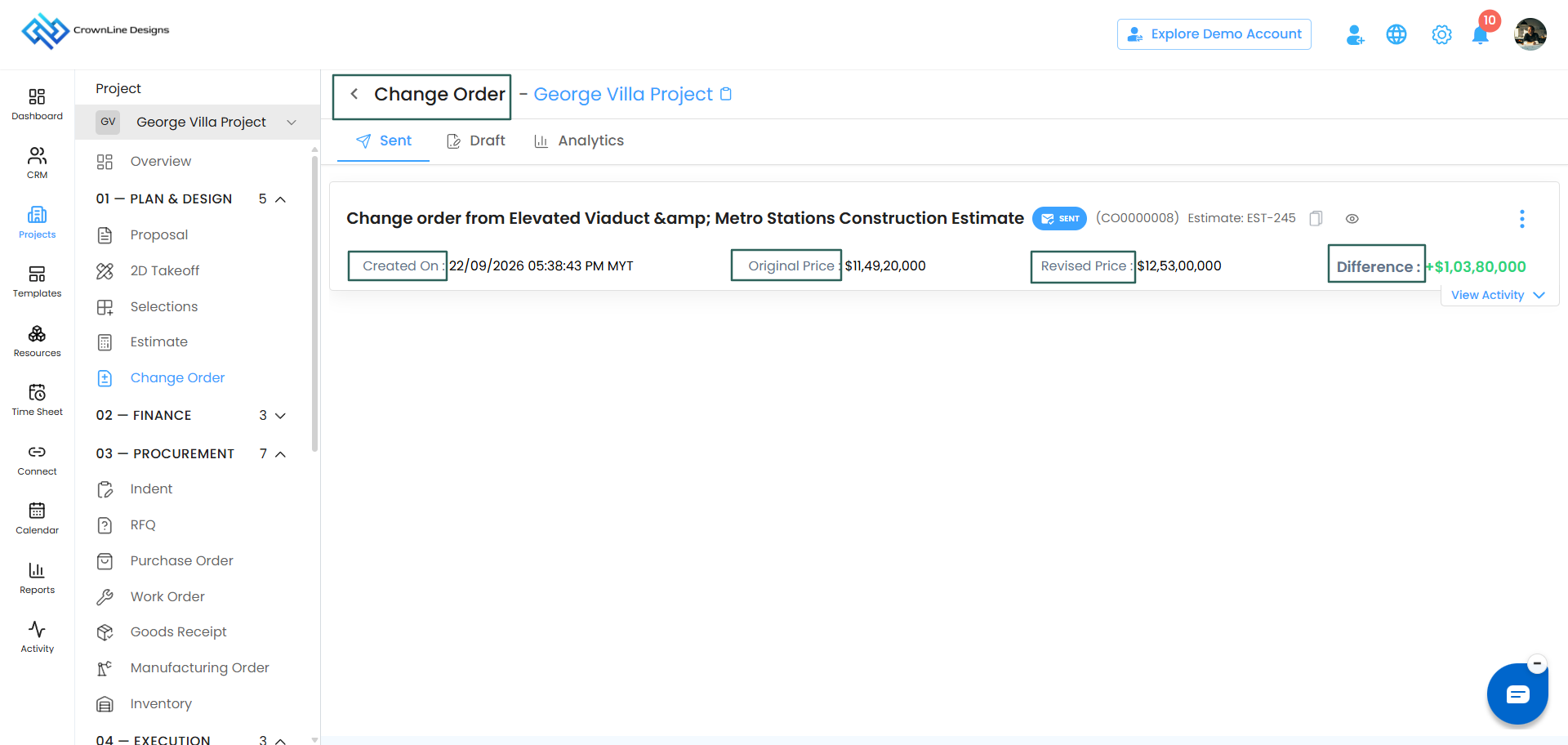
You can preview an accepted change order directly from its card.
Was this article helpful?
That’s Great!
Thank you for your feedback
Sorry! We couldn't be helpful
Thank you for your feedback
Feedback sent
We appreciate your effort and will try to fix the article