Not every estimate gets finished in one sitting. If you are waiting on a price, a measurement or an answer from your client, save what you have and come back to it.
How to save a draft
While you are building your estimate, open the Action button and choose Save as Draft.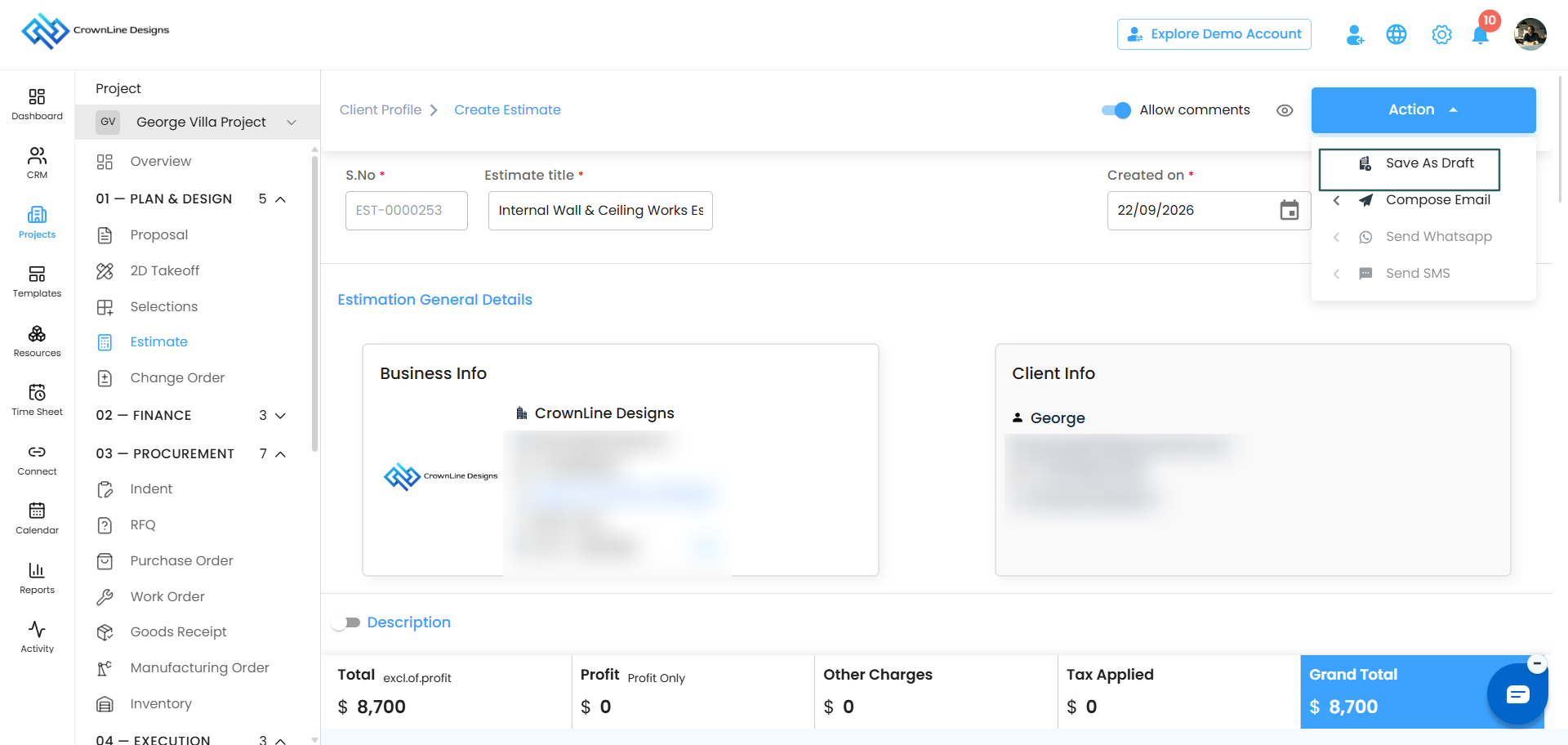
This option is available whether you are a creator or an approver.
Your estimate is saved exactly as it stands. Nothing is sent to your client.
Where your drafts live
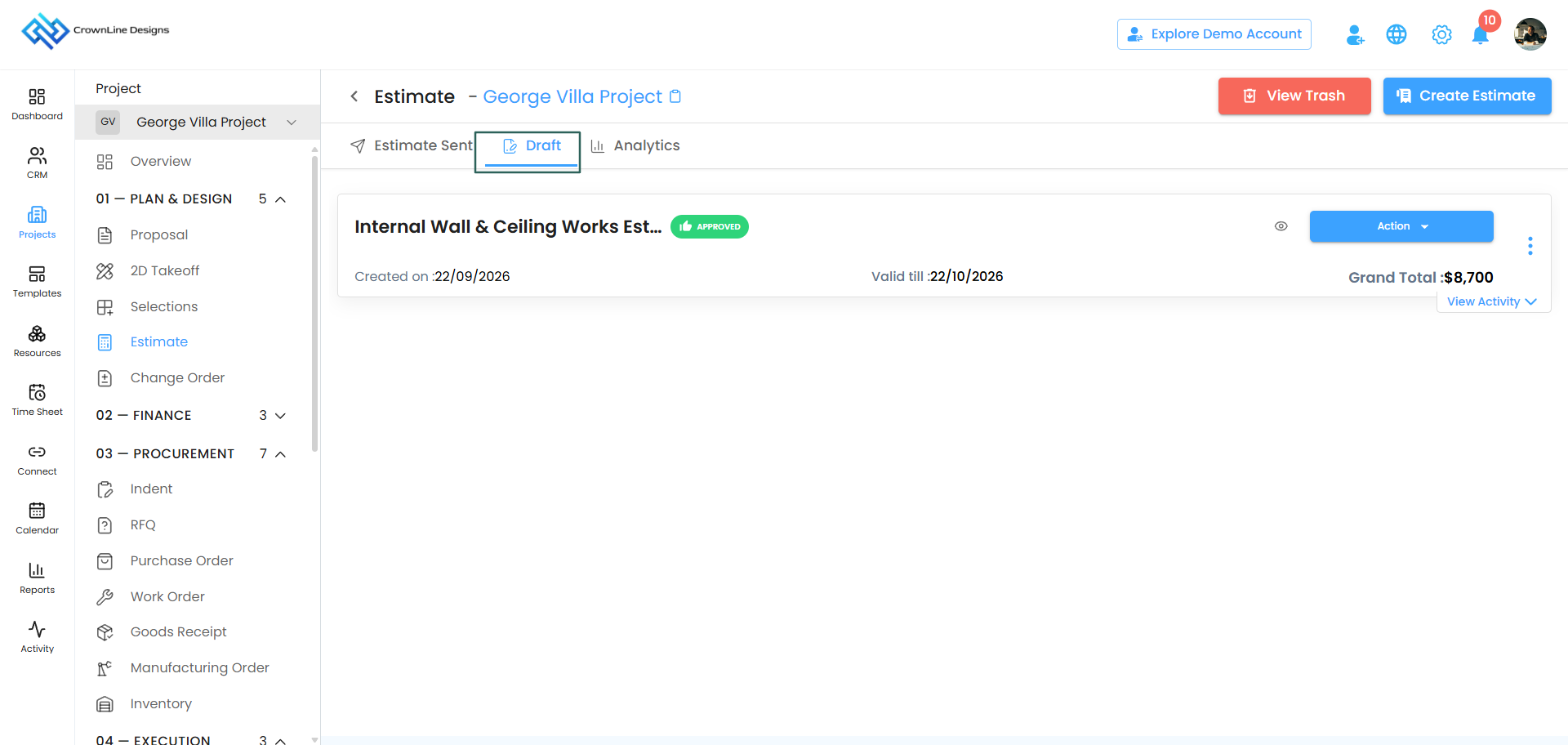
Go to Clients, select your client, open the Estimate card, and click the Draft tab.
Every estimate you have saved without sending sits here.
Picking a draft back up
Open the draft and carry on where you left off. Everything is still editable:
- Add or remove sections and line items
- Pull in more items from the Cost Catalog
- Change quantities, rates, profit, discount or tax
- Adjust your payment terms
- Swap out attachments or terms and conditions
Save it as a draft again as many times as you need.
Sending a draft
When the estimate is ready, open the Action button:
- If you are an approver — choose Compose Email, Send via WhatsApp or Send via SMS.
- If you are a creator — choose Request for Approval, and an approver takes it from there.
Once it goes out, the estimate moves from the Draft tab to the Sent tab.
Good to know
- Drafts have no expiry. They sit in the Draft tab until you send them or delete them.
- A draft is never visible to your client.
- Saving a draft does not create a revision. Revisions only start counting once the estimate has been sent.
Was this article helpful?
That’s Great!
Thank you for your feedback
Sorry! We couldn't be helpful
Thank you for your feedback
Feedback sent
We appreciate your effort and will try to fix the article