The Open Search feature allows users to quickly search and navigate across different IntoAEC modules from one place. Instead of opening each module manually, users can use the global search bar to find and open the required section faster.
To use Open Search:
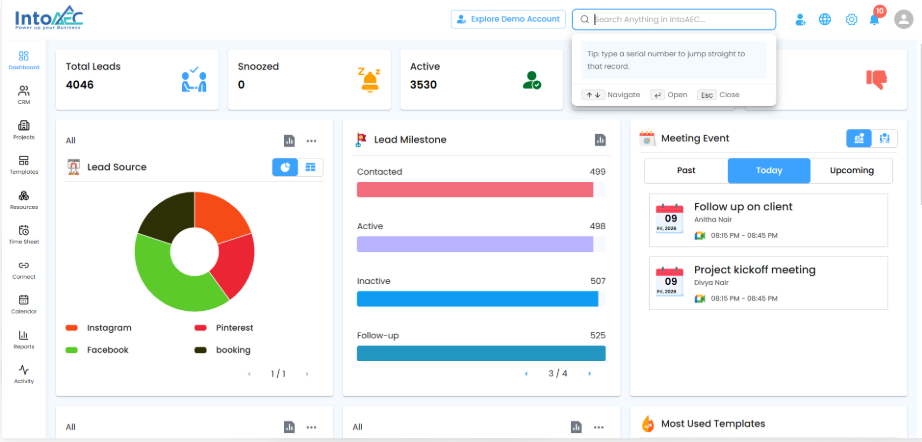
Click the Search Anything in IntoAEC search bar at the top of the screen.
Start typing the module, feature, or record name you want to open.
The system will display matching results based on the entered keyword.
Select the required result and press Enter or click on it to open.
The Open Search bar is available at the top of the application. Users can also see a tip to search using a serial number and jump directly to a record.
Searching for Modules
Users can search for modules such as Project Dashboard, Projects, Project Type Customization, Lead/Project Tags, Manage Categories, Lead Stage Customization, and Location Pool.
When the user searches for “Project,” the system displays related module results under the Go To section.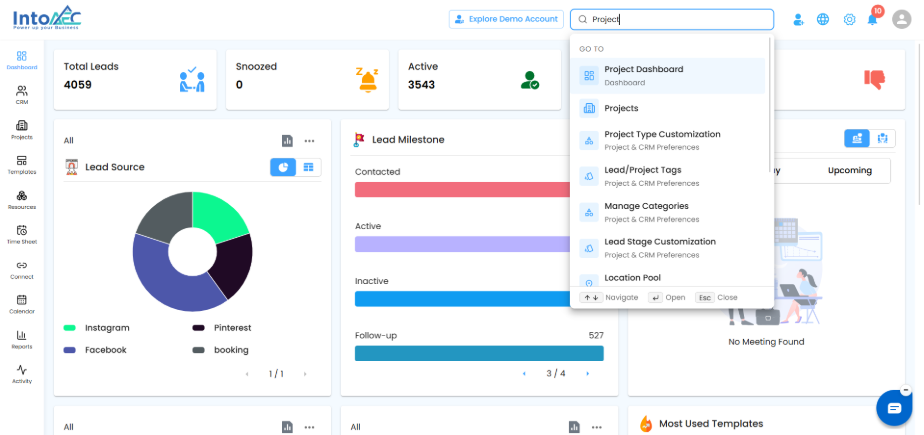
Recent Searches and Recently Opened
Open Search also displays recent searches and recently opened modules. This helps users quickly return to the areas they have accessed recently without searching again.
Recent searches such as Lead and Project are shown, along with recently opened modules like Lead Dashboard and Projects.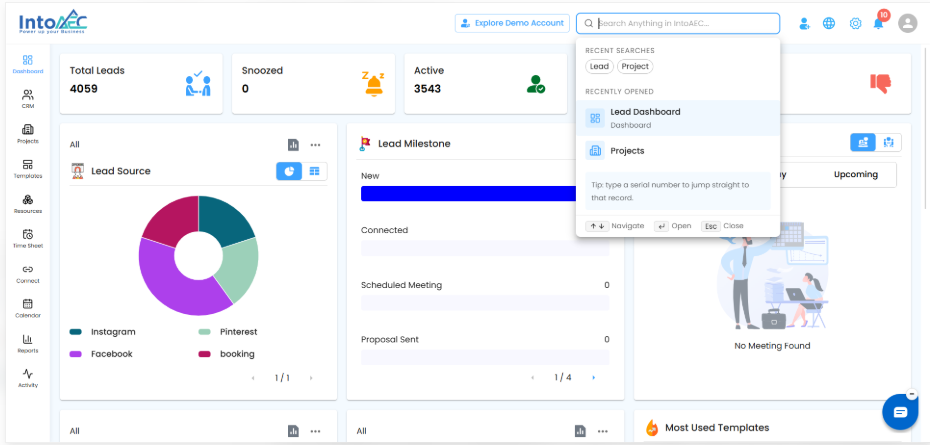
Keyboard Navigation
Users can also use keyboard shortcuts while using Open Search:
Use the Up/Down arrows to navigate between results.
Press Enter to open the selected result.
Press Esc to close the search popup.
Summary
Open Search helps users move faster across IntoAEC by searching modules, records, and recently opened pages from one central search bar. This reduces navigation time and makes it easier to access important areas of the application quickly.
Was this article helpful?
That’s Great!
Thank you for your feedback
Sorry! We couldn't be helpful
Thank you for your feedback
Feedback sent
We appreciate your effort and will try to fix the article