Overview
The Chat System in IntoAEC lets you communicate and collaborate with internal team members, project groups, customers, and vendors — all from one place inside the app. You can send messages, share files, tag people, create tasks, and manage project-related communication directly inside IntoAEC, without switching to email or other messaging apps.
Where to find it: Open the IntoAEC mobile app and tap the Chaticon from the bottom navigation bar.
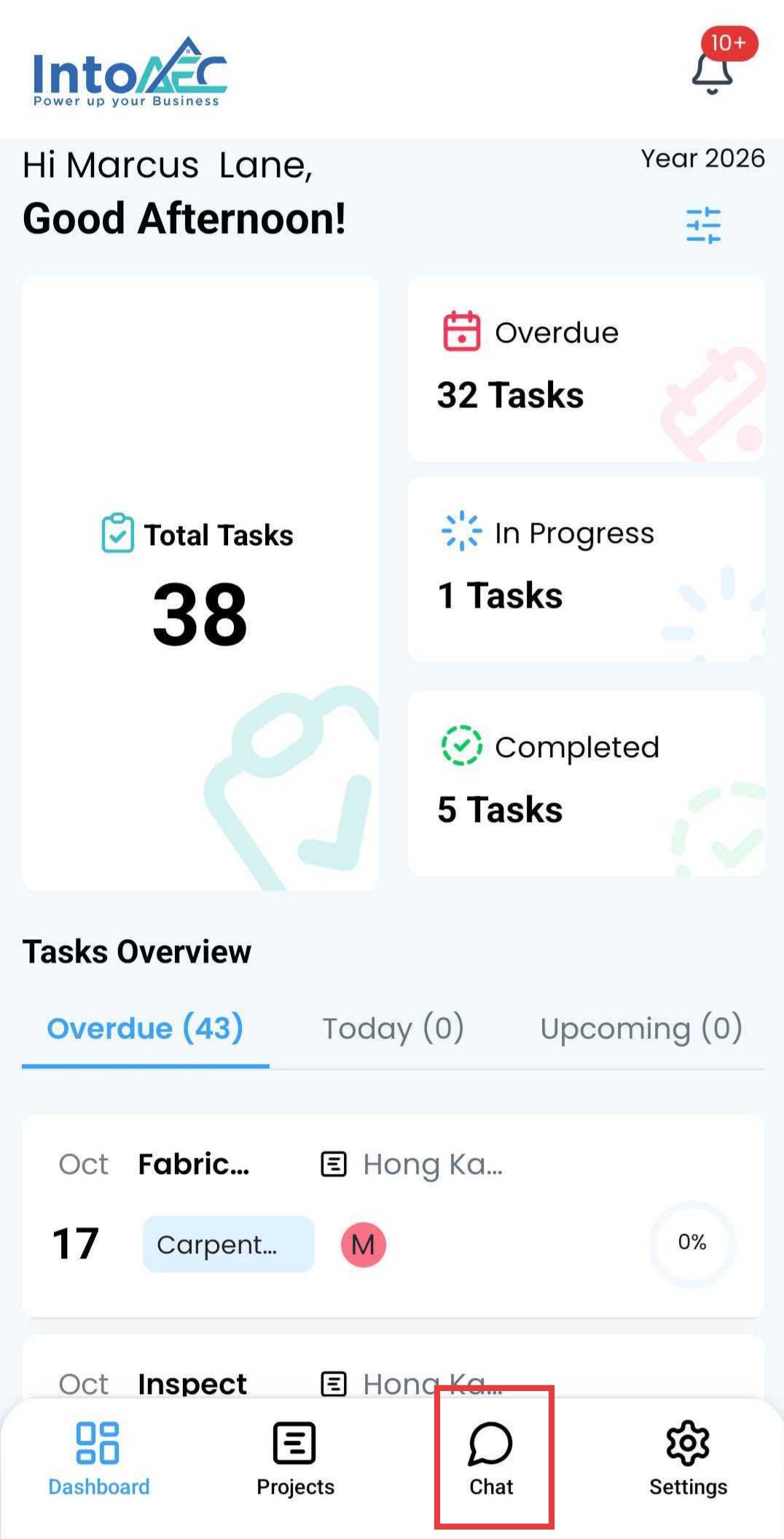
Chat Categories
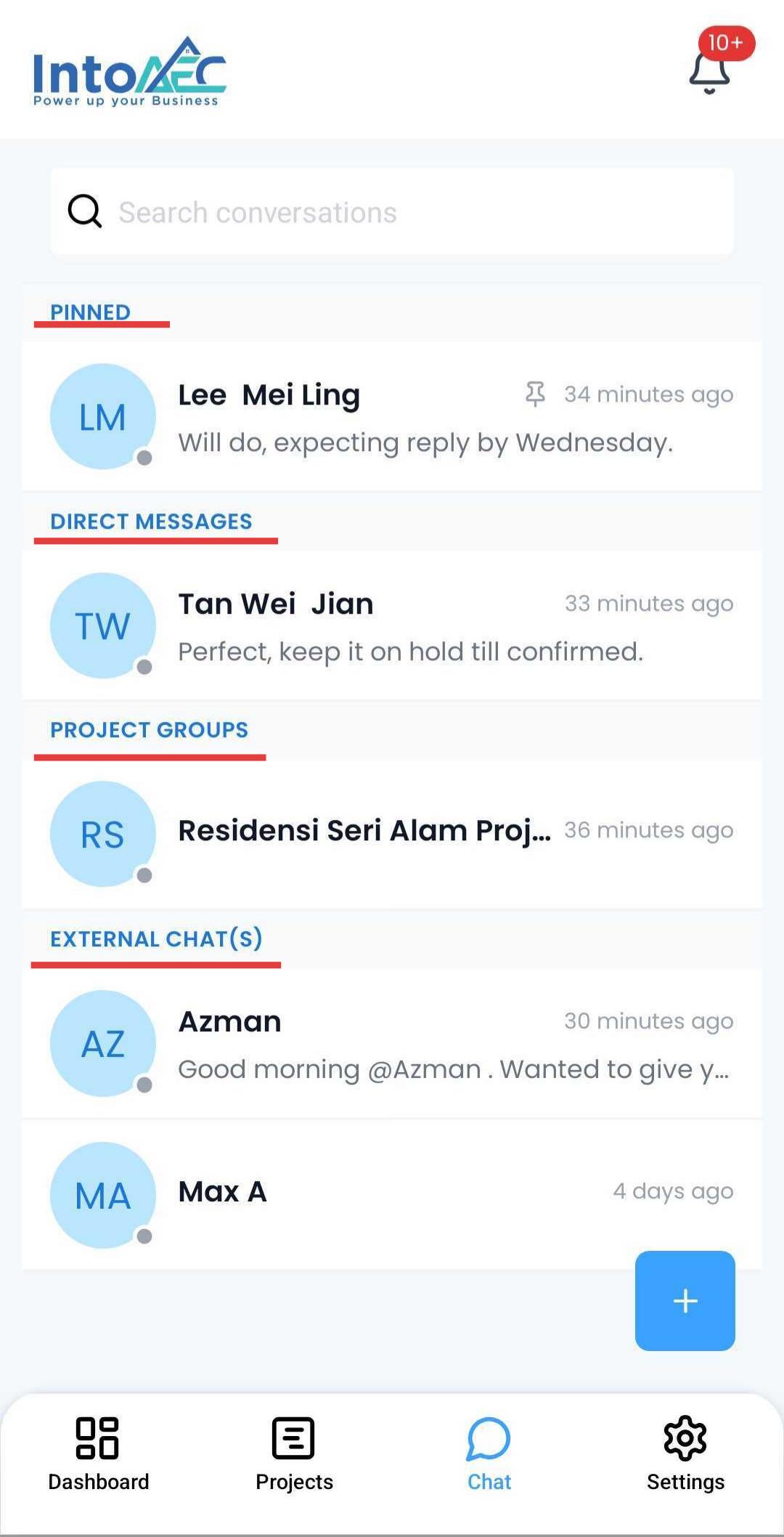
Your chats are automatically organized into sections so you can find the right conversation quickly, without scrolling through one long list.
| Category | What it's for |
|---|---|
| Pinned Chats | Conversations you've marked as important; always shown at the top. |
| Direct Messages | One-to-one chats with users inside your organization. |
| Project Groups | Group chats tied to a specific project, visible only to members connected to that project. |
| External Chats | Conversations with vendors, clients, or other external contacts. |
To switch between categories:
- Open the Chat tab.
- Use the category tabs/filters at the top of the screen to move between Pinned, Direct Messages, Project Groups, and External Chats.
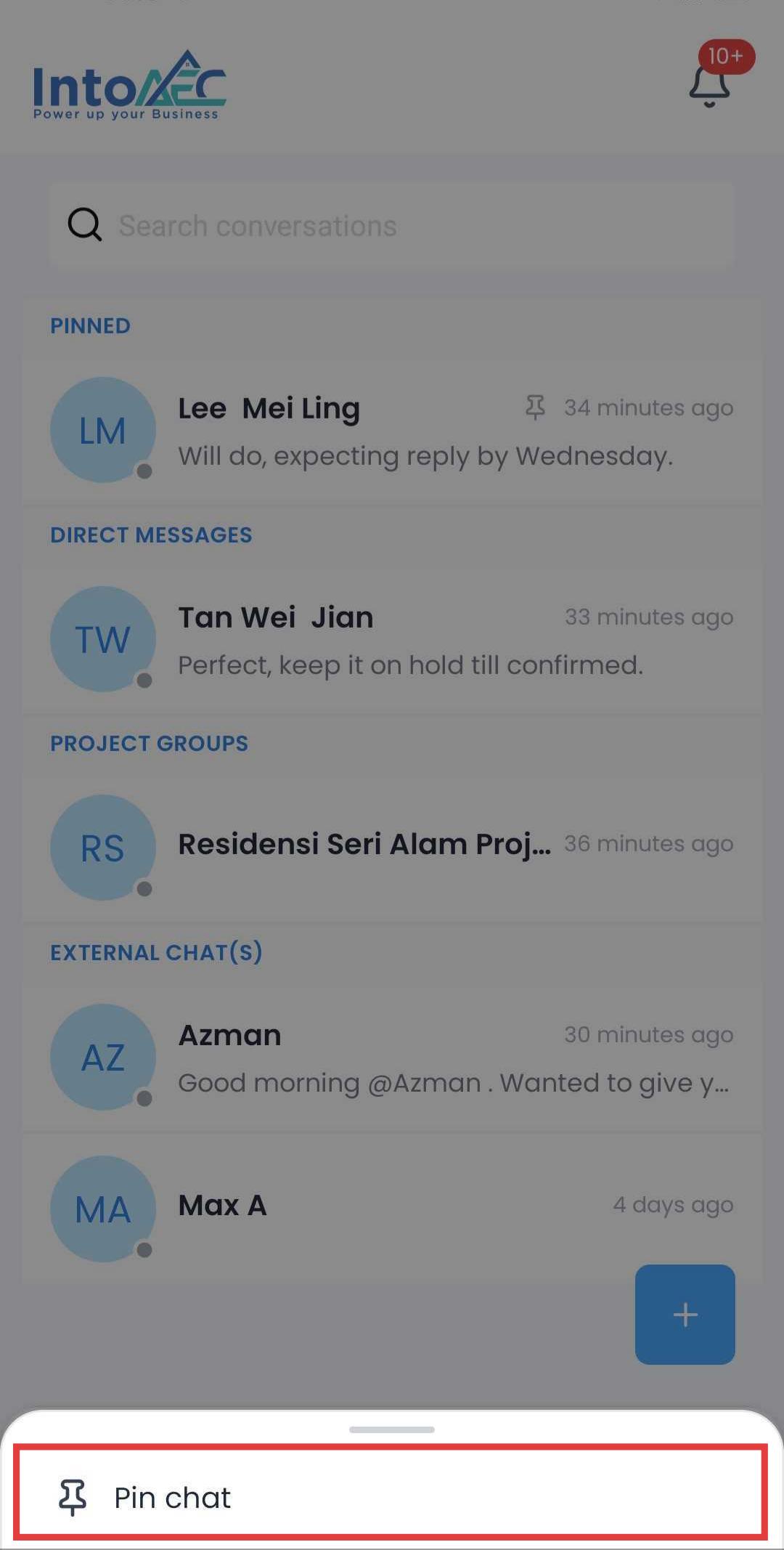
How to Pin a Chat
Pinning keeps your most-used conversations at the top of your list so you don't have to scroll to find them.
To pin a chat:
- Open the Chat tab.
- Find the conversation you want to pin.
- Tap and hold the chat (or tap the options icon next to it).
- Select Pin Chat.
- The chat will now appear under Pinned Chats.
To unpin a chat:
- Tap and hold the pinned chat (or tap its options icon).
- Select Unpin.
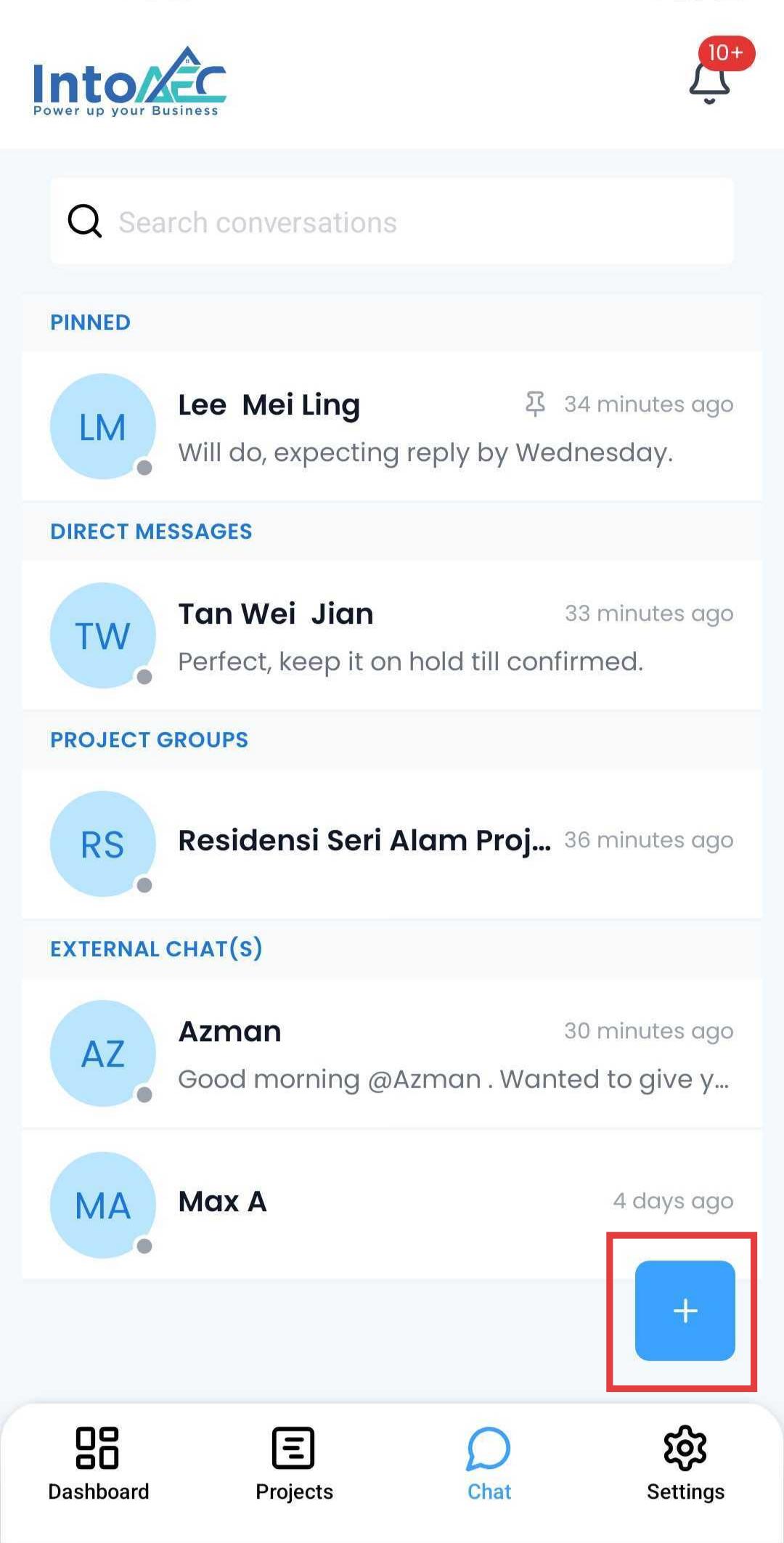
How to Start a New Chat or Group
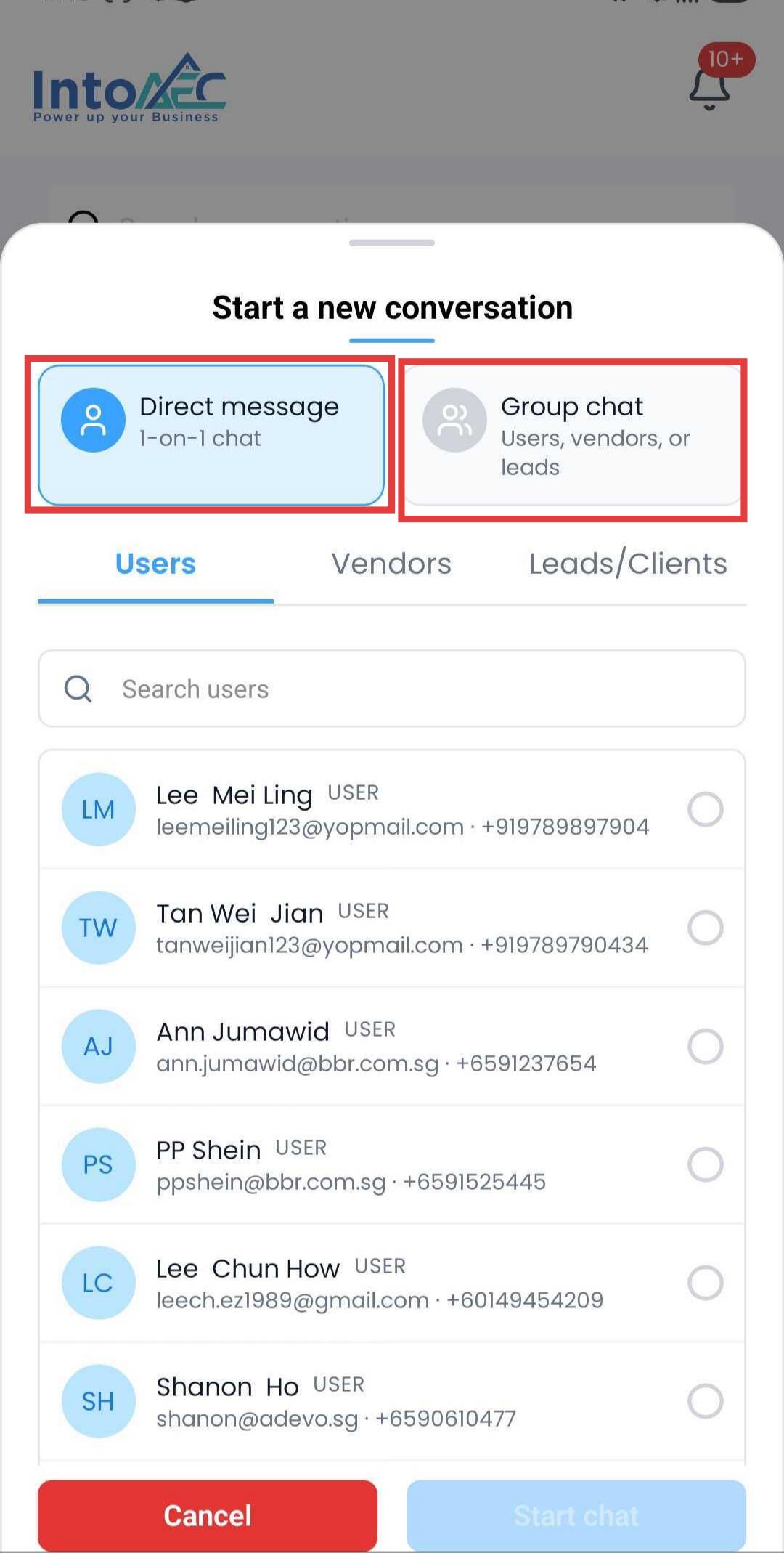
Use this to begin a one-to-one conversation or create a group chat with team members, vendors, or leads/clients.
Starting a Direct Message:
- Open the Chat tab and tap New Chat or Group.
- Select Direct Message.
- Search or scroll to find the person you want to message.
- Tap their name to open a new conversation.
- Type your first message and tap Send.
Creating a Group Chat:
- Tap New Chat or Group.
- Select Group Chat.
- Choose members — internal team members, vendors, and/or leads/clients.
- Enter a Group Name that clearly identifies its purpose (e.g., "Riverside Site – Daily Updates").
- Optional: link the group to a specific project.
- Tap Create to finalize the group.
Adding vendors or clients: When selecting members, switch to the Vendors or Leads/Clients tab in the contact picker and select the relevant contact.
Note: A Direct Message cannot be converted into a Group Chat later — create a new Group Chat instead if you need to add more people.
Sending Messages, Files, Emojis, and Mentions
The chat composer supports more than just text, helping you communicate clearly and notify the right people.
Sending a message:
- Open any conversation.
- Type your message in the composer.
- Tap send.
Adding an emoji:
- Tap the emoji icon in the composer.
- Select an emoji to insert it.
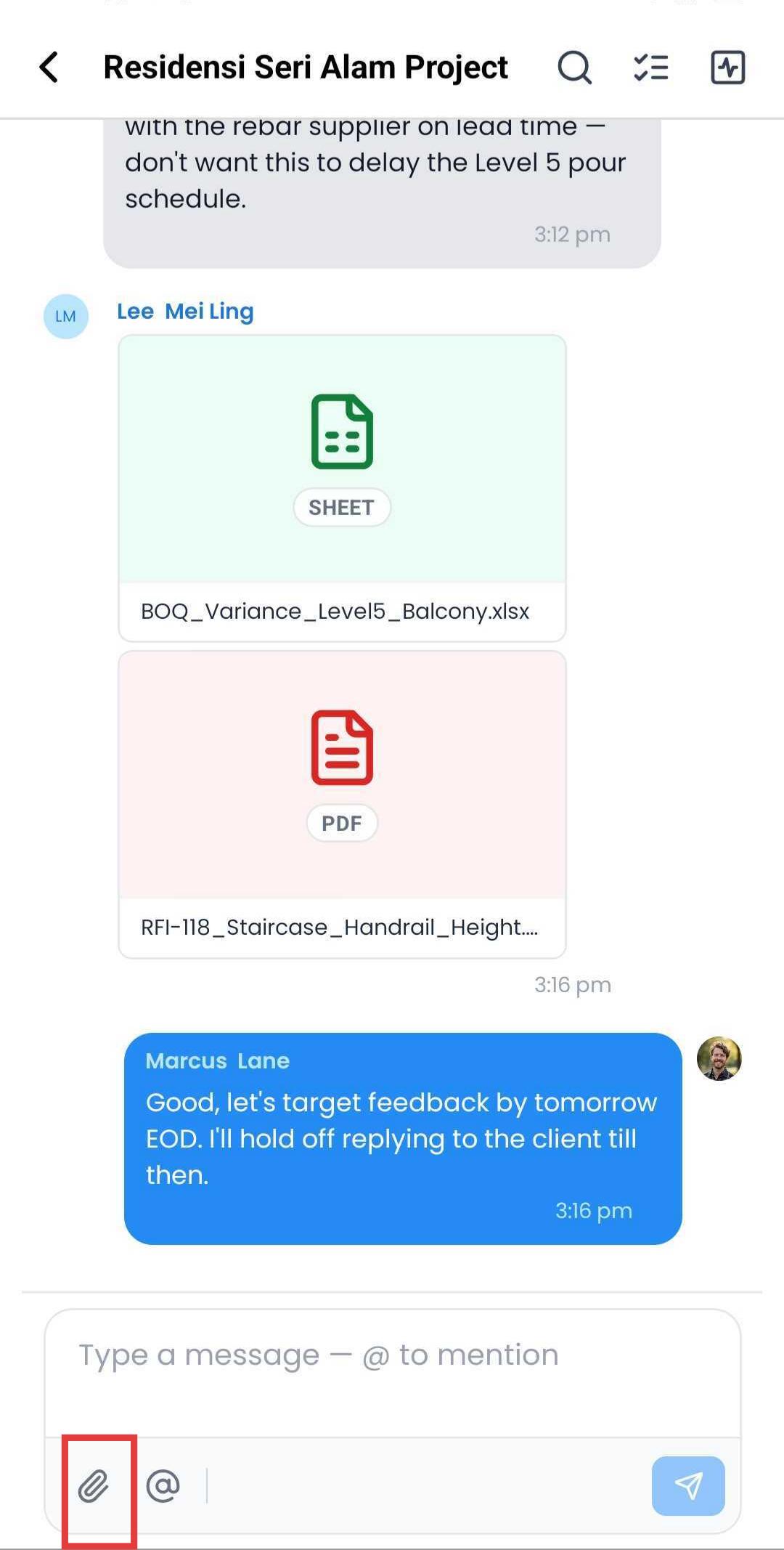
Sharing a file:
- Tap the attachment/file icon in the composer.
- Choose a file from your device.
- Tap send.
Mentioning someone:
- Type @ followed by the person's name.
- Select their name from the suggestions list.
- The mentioned person receives a notification.
How to Create a Task from Chat
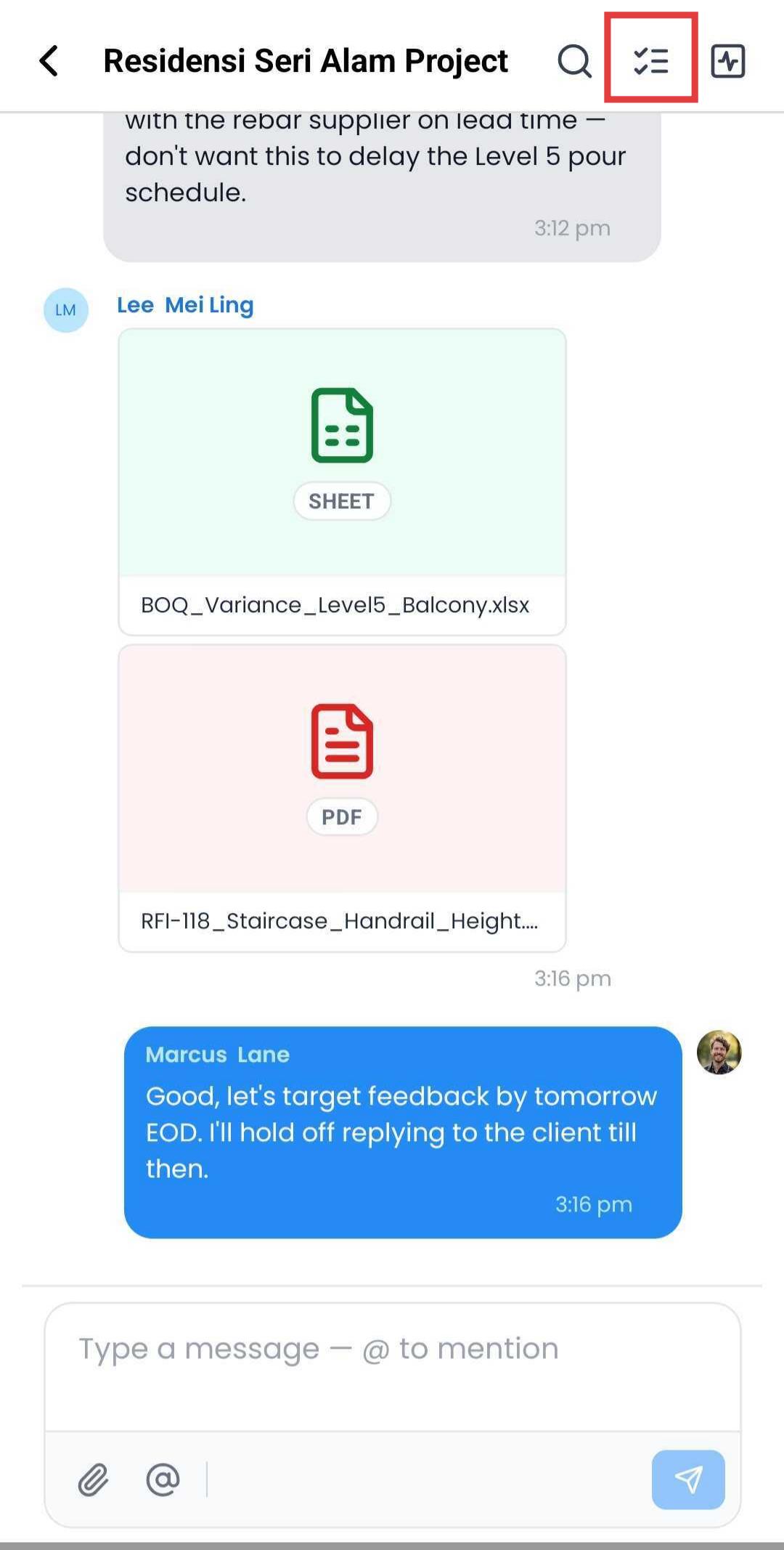
Converts a chat discussion into a trackable task without leaving the conversation. The task automatically syncs with the Task Management module.
Steps:
- Open the relevant chat or group conversation.
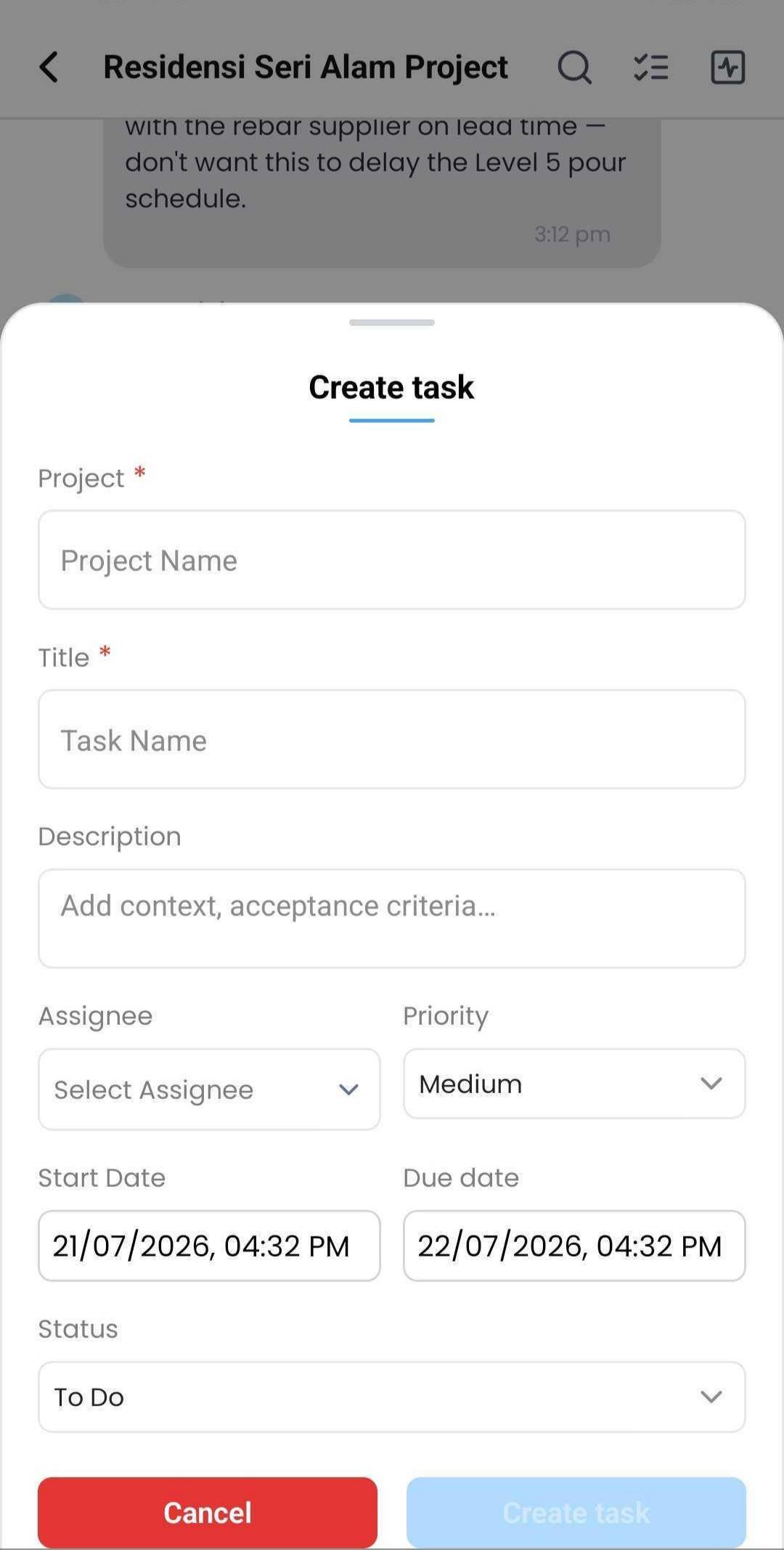
- Tap Create Task (available from the chat menu, or attached to a specific message).
- Fill in the task details:
- Project
- Task title
- Description
- Assignee
- Priority
- Start date
- Due date
- Status
- Tap Save or Create.
- The task now appears in both the chat's linked tasks and the Task Management module.
Search Conversations and Messages
Quickly locate a past conversation, a specific message, or a shared file without scrolling through your entire chat history.
Searching all conversations:
- Open the Chat tab.
- Tap the Search icon at the top of the chat list.
- Enter a name, keyword, or phrase.
- Tap a result to open that conversation.
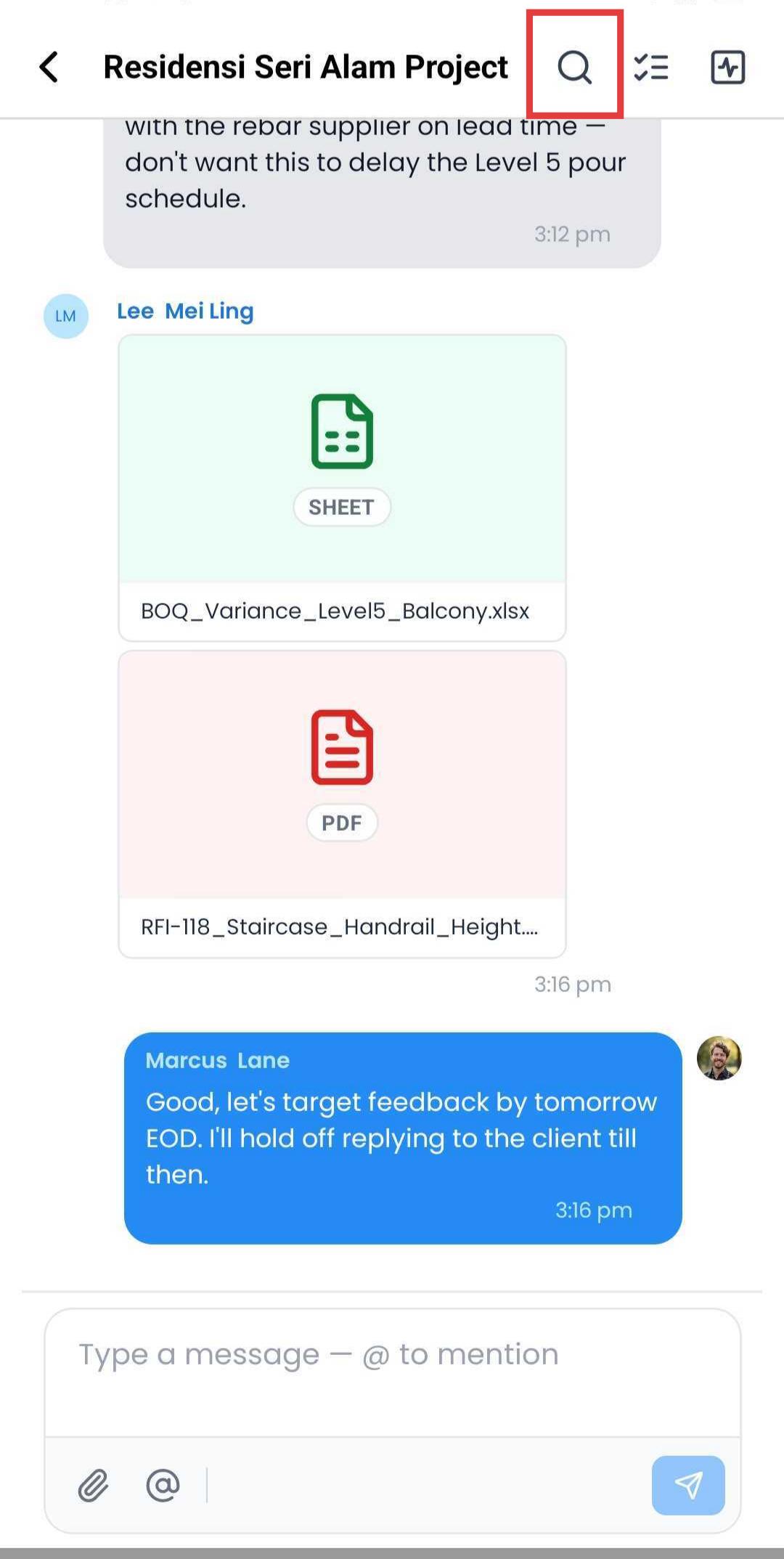
Searching inside a specific chat:
- Open the conversation.
- Tap the Search icon within that chat.
- Enter your keyword to find matching messages or files.
Viewing Chat Details
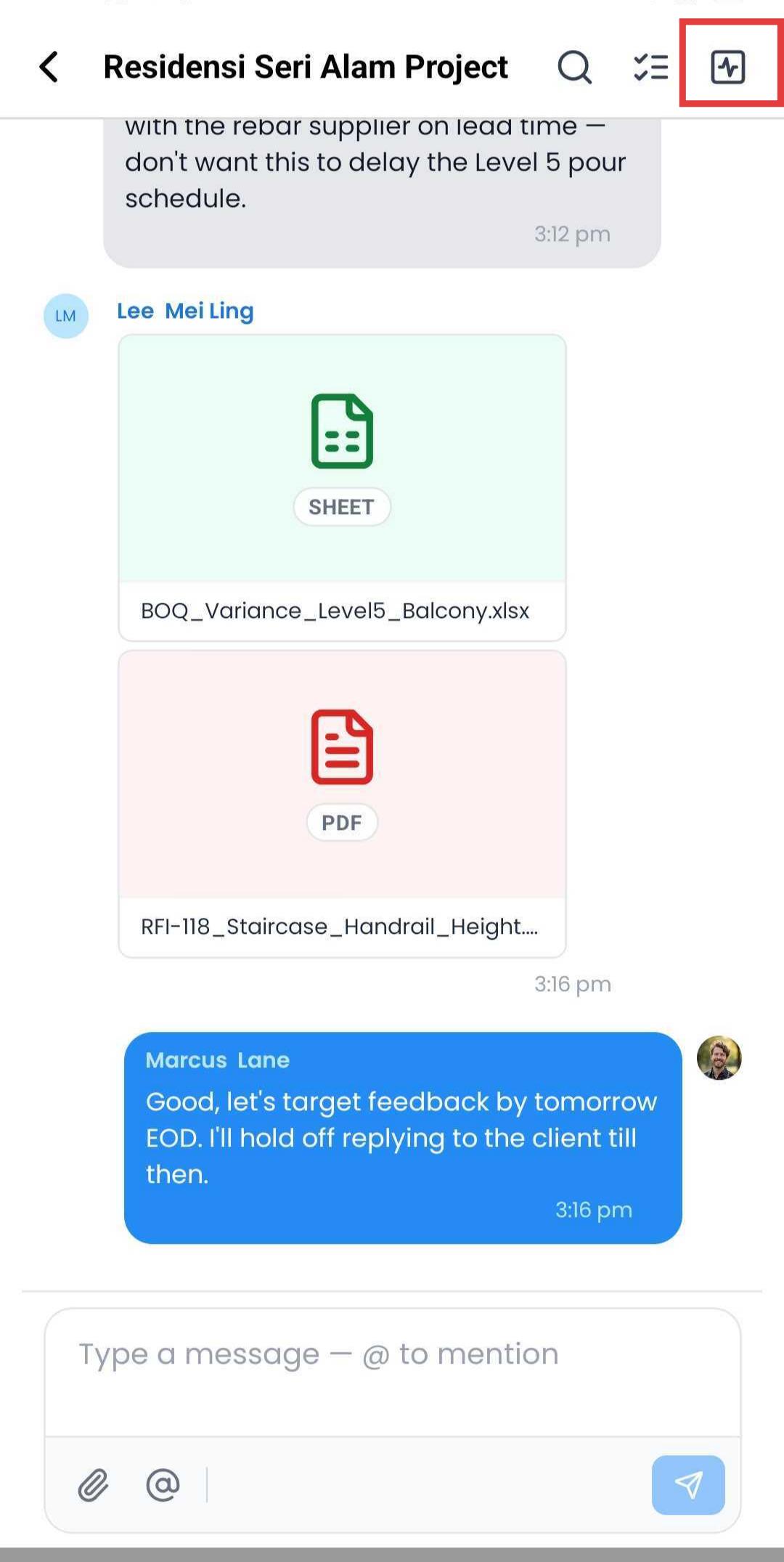
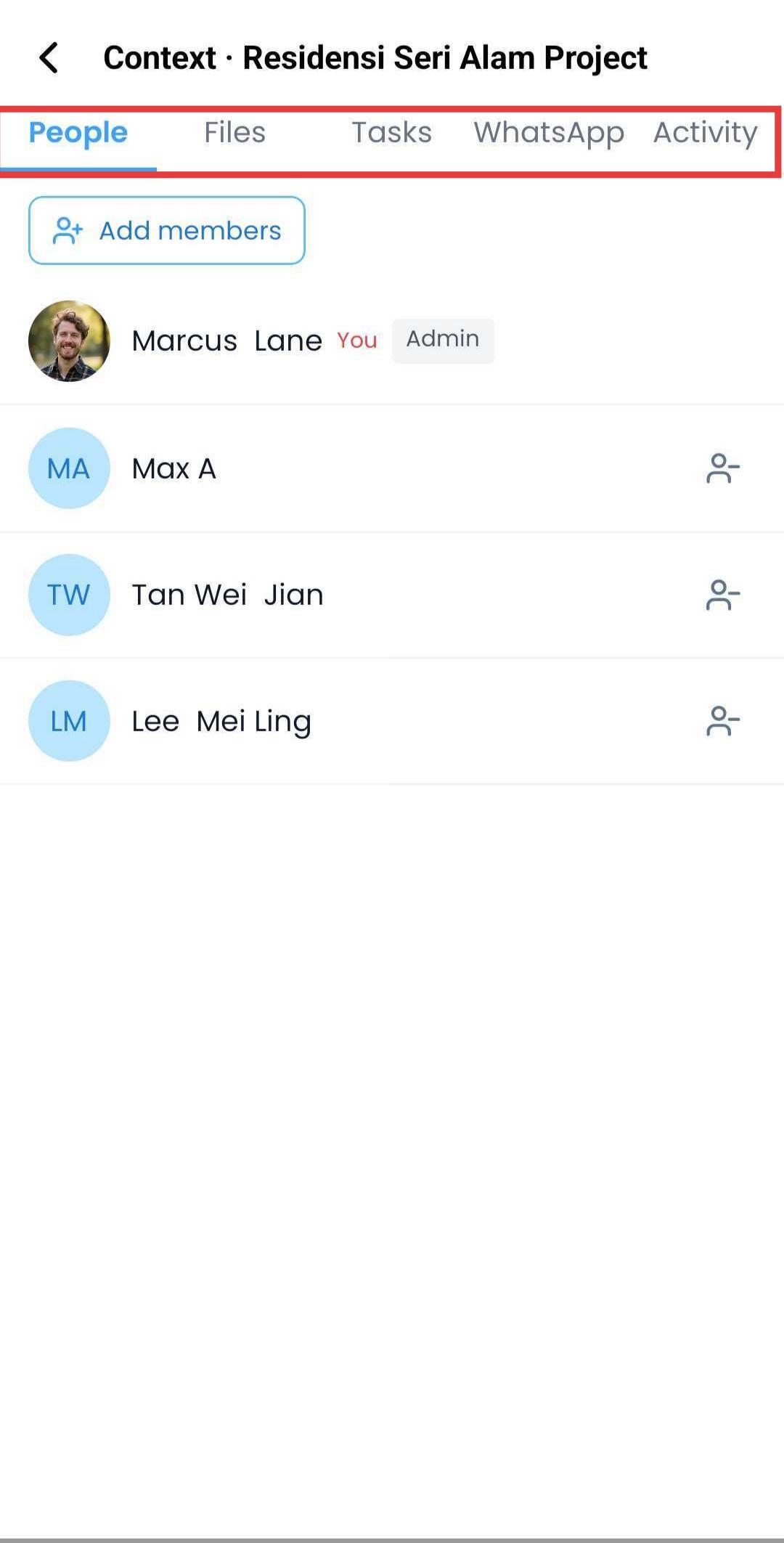
The Chat Details panel gives you a quick overview of everything connected to a group conversation — who's in it, what's been shared, and what tasks have come out of it.
Steps:
- Open a group or project chat.
- Tap the chat name or the info/details icon at the top of the screen.
- The panel shows:
- Members — everyone part of the group
- Shared Files — all files exchanged in the chat
- Linked Tasks — tasks created from that conversation
From this panel, you can also add or remove group members, subject to your permissions.
Sending WhatsApp Messages from IntoAEC
Message clients and vendors on WhatsApp directly from the IntoAEC app, without switching to a separate app.
Steps:
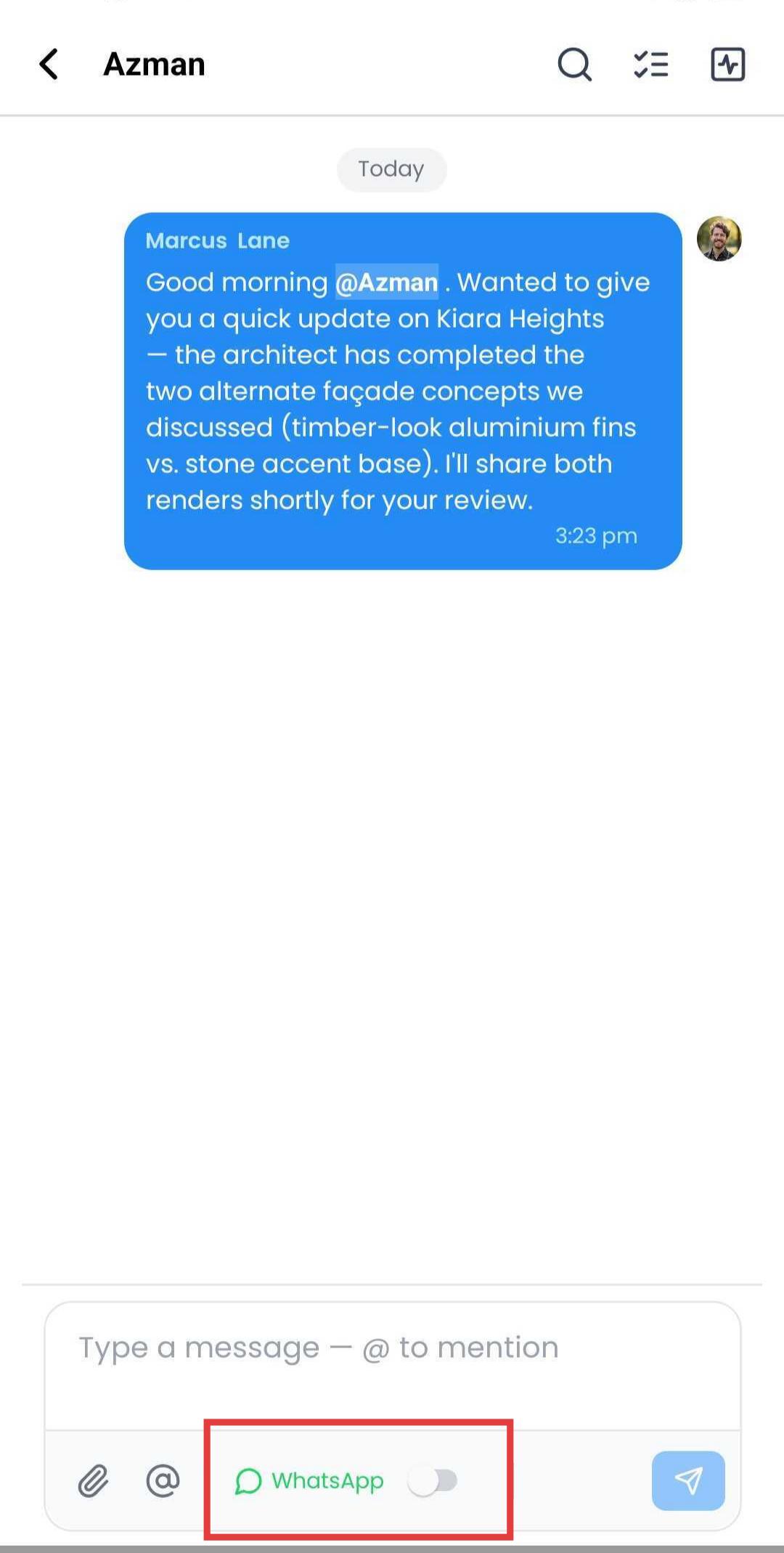
- Open the chat with the client or vendor.
- Tap the WhatsApp icon/option within the conversation.
- Compose and send your message.
- The message is delivered to the contact's WhatsApp directly.
Note: This feature is intended for external contacts — clients and vendors — rather than internal team members. Make sure the contact's WhatsApp number is correctly saved against their profile in IntoAEC.
Was this article helpful?
That’s Great!
Thank you for your feedback
Sorry! We couldn't be helpful
Thank you for your feedback
Feedback sent
We appreciate your effort and will try to fix the article