Overview
IntoAEC lets you import schedules created in Microsoft Project directly into the Schedule module, so you can continue an existing plan without recreating it manually. The imported schedule appears in the Gantt View and is fully editable.
Before You Import
Supported file
| Item | Requirement |
|---|---|
| File type | Microsoft Project file (.MPP) |
| Maximum file size | 5 MB |
Configure working days first
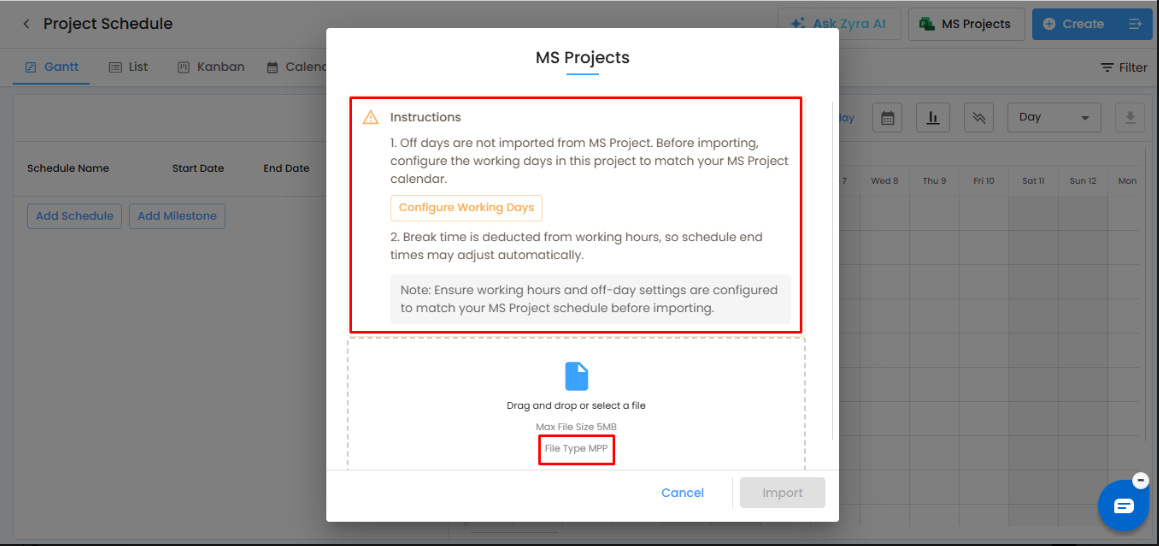
MS Project off-days and calendar settings are not imported automatically. Set up your IntoAEC working calendar to match your MS Project calendar before uploading.
- Open the import window (see below).
- Click Configure Working Days.
- Set working days, define weekends/off-days, and align the project calendar.
Review working hours and breaks
Break times are automatically deducted from working hours in IntoAEC, so end times may shift slightly after import if working hours differ from MS Project. Before importing, review:
- Working hours
- Break durations
- Off-day settings
- Shift timings
Pro Tip: Make sure your IntoAEC working calendar matches the MS Project calendar before import to avoid timeline mismatches.
How to Import a Schedule
- Open the project and go to the Schedule module.
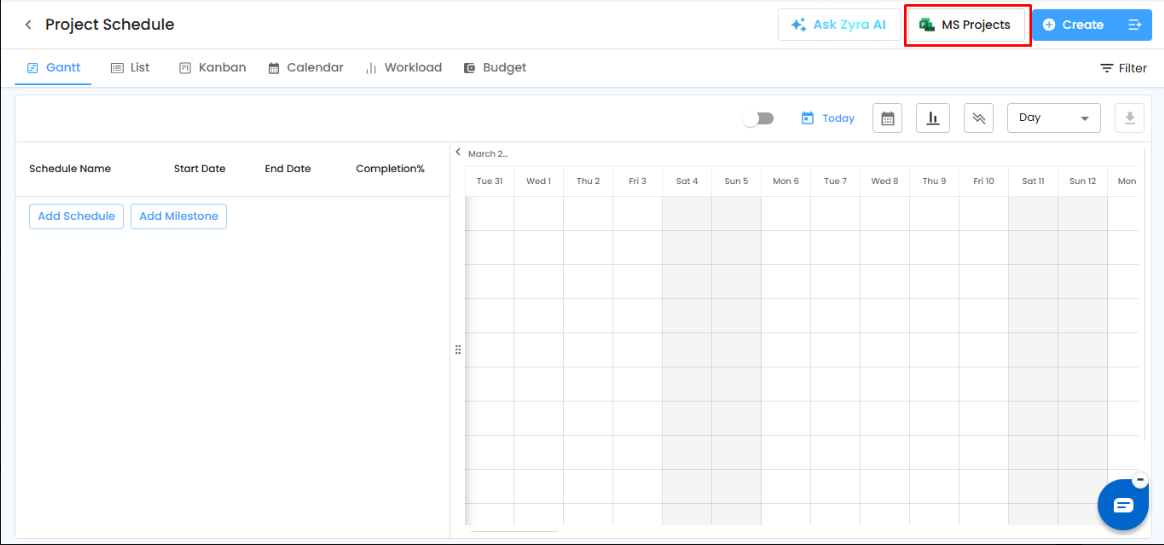
- In the top-right toolbar, click MS Projects.
- Read the instructions shown in the import window and configure working days if needed.
- Drag and drop your .MPP file into the upload area, or click the area to browse.
- Click Import.
What Gets Imported
- Schedule structure
- Phases and sub-phases
- Task timelines, start and end dates
- Dependencies
- Milestones
- Progress information
- Hierarchy levels
After the Import
- Activities appear in the Gantt View with timelines drawn automatically.
- Dependencies and milestones are retained and displayed.
- All imported schedules are editable.
Imported data works with IntoAEC scheduling features including Critical Path, Baselines, Multiple Schedule Views, Progress Tracking, Role-Based Access, and Zyra AI enhancement.
Frequently Asked Questions
Why are my dates different from MS Project?Working days, working hours, or break times in IntoAEC may differ from your MS Project calendar. Review them and align them before importing.
Can I edit the schedule after importing?Yes. Imported schedules behave like any schedule created in IntoAEC.
Related Articles
- Setting Off-Days & Working Hours
- Gantt View
- Schedule Writing with Zyra AI
Need Further Assistance?
Contact your organization administrator or the IntoAEC support team.
Was this article helpful?
That’s Great!
Thank you for your feedback
Sorry! We couldn't be helpful
Thank you for your feedback
Feedback sent
We appreciate your effort and will try to fix the article