What is Scheduling in IntoAEC?
Scheduling in IntoAEC gives your project structure, clarity, and momentum. Instead of only setting dates, you can plan tasks, set deadlines, link financial items, and monitor progress in real time using Gantt charts, list views, and more. Think of it as your project's timeline command center, keeping everyone aligned and on track.
In this article you will learn:
- How to open the Schedule module
- What each scheduling view does and when to use it
- The key scheduling tools available from the schedule workspace
How to Open the Schedule Module
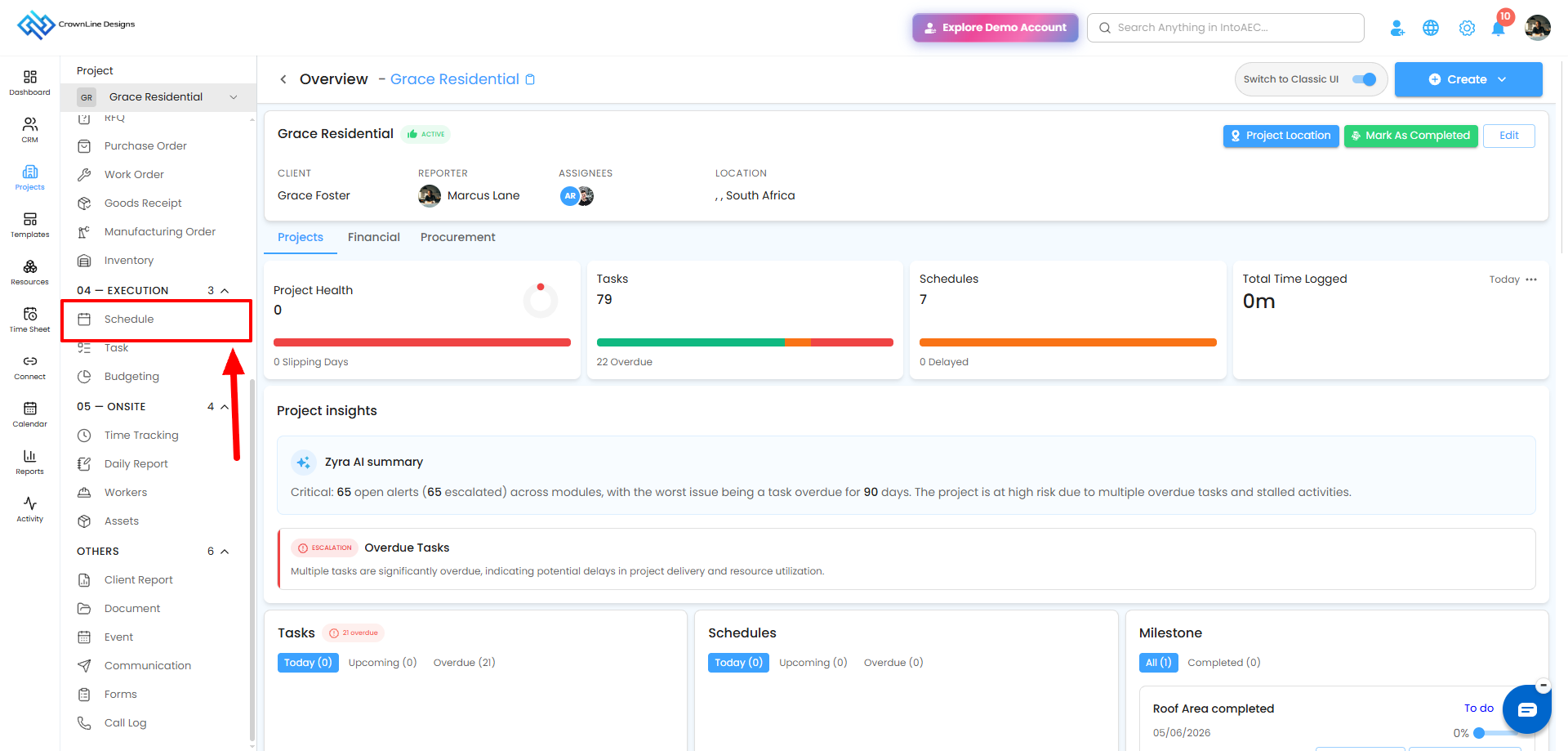
- From the main menu, click Clients/Projects.
- Select the client or project whose schedule you want to manage.
- Inside the client profile, click the Schedule tab.
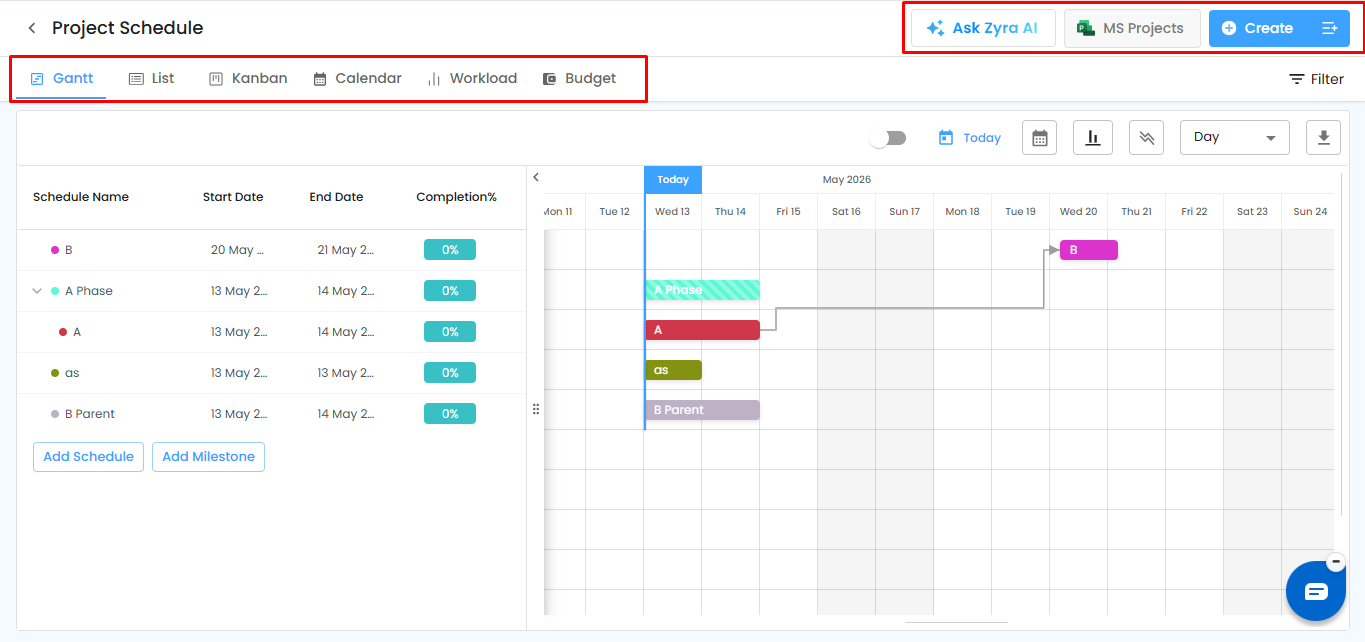
The Gantt View opens by default, showing your project timeline with tasks, durations, and dependencies at a glance.
Pro Tip: Start with the Gantt chart to map out the overall project flow, then fine-tune details in the List View for accuracy.
Schedule Views at a Glance
You can switch between views at any time, all inside one centralized workspace.
| View | What it is for |
|---|---|
| Gantt View | Visualize task timelines, dependencies, milestones, and progress on an interactive chart. Opens by default. |
| List View | See schedules in a table for quick editing, detailed review, and easier data management. |
| Kanban View | Organize and track activities on status-based boards. |
| Calendar View | See scheduled activities by date for daily, weekly, or monthly planning and upcoming deadlines. |
| Workload View | Analyze team capacity and workload distribution across schedules. |
| Planner View | Manage project materials, resources, quantities, and assets across schedules. Appears only when Planner is enabled in Schedule Settings, where it replaces the Workload tab. |
| Budget View | Monitor schedule-related budget and cost information alongside progress. |
For details on every view, see Schedule Multiple Views.
Tools Available in the Schedule Workspace
| Tool | What it does |
|---|---|
| Ask Zyra AI | Generate a schedule and activity recommendations from a project description. |
| MS Projects | Import an existing schedule from Microsoft Project. |
| Create options | Quickly create schedules, milestones, and project activities from one action panel. |
| Off-Days & Working Hours (calendar icon) | Define non-working days, holidays, and working hours so dates calculate correctly. |
| Baseline | Save a snapshot of your schedule to compare against later changes. |
| Critical Path | Highlight the chain of tasks that determines your project finish date. |
Key Scheduling Features
Off-Days & Working Time
Define non-working days for your project so schedules reflect real-world conditions. You can configure organization-wide working days and working time, or customize off-days at the project level, including weekends and public holidays. Once set, tasks automatically adjust to avoid non-working periods.
Baseline
Capture a snapshot of your schedule at any point in time to track progress against the original plan. Baselines make it easier to compare planned vs. actual timelines and spot delays.
Critical Path
Identify the sequence of tasks that directly affects your project's completion date. Any delay to these tasks delays the whole project.
Which View Should I Use?
| If you want to... | Use |
|---|---|
| See the big picture and spot overlaps or bottlenecks | Gantt View |
| Review and edit schedule details in rows and columns | List View |
| Track status of activities by workflow stage | Kanban View |
| Check what is due on a given day or month | Calendar View |
| Balance team capacity | Workload View |
| Plan materials, resources, quantities, and assets | Planner View |
| Compare cost against budget | Budget View |
Pro Tip: Plan timelines in the Gantt chart, track progress in the List View, and stay on top of deadlines with the Calendar View.
Related Articles
- Gantt View
- How to Create a Schedule
- List View
- Schedule Multiple Views
- Setting Off-Days & Working Hours
- Schedule Settings – Configure Your Project
Need Further Assistance?
Contact your organization administrator or the IntoAEC support team.
Was this article helpful?
That’s Great!
Thank you for your feedback
Sorry! We couldn't be helpful
Thank you for your feedback
Feedback sent
We appreciate your effort and will try to fix the article