Overview
Your project work lives in IntoAEC, and your books live in QuickBooks. Connecting the two means your finance team and your project team are always looking at the same numbers, with no double entry and no chasing down which invoice was paid.
Once connected, your contacts, invoices, credit notes, payments, and refunds flow into IntoAEC and stay up to date on their own. Setup happens in two stages:
- Initial Sync (one-time) - brings your existing history from QuickBooks into IntoAEC and assigns each contact to a project.
- Automatic Sync - keeps everything current from then on, with nothing for you to do.
What Gets Synced
- Contacts - the clients and companies you do business with
- Invoices - what you have billed on your projects
- Credit Notes - adjustments and credits issued
- Payments - money received against your invoices
- Refunds - money returned to clients
Connecting Your QuickBooks Account
- Go to Settings > Integrations > Accounting and find QuickBooks Integration.
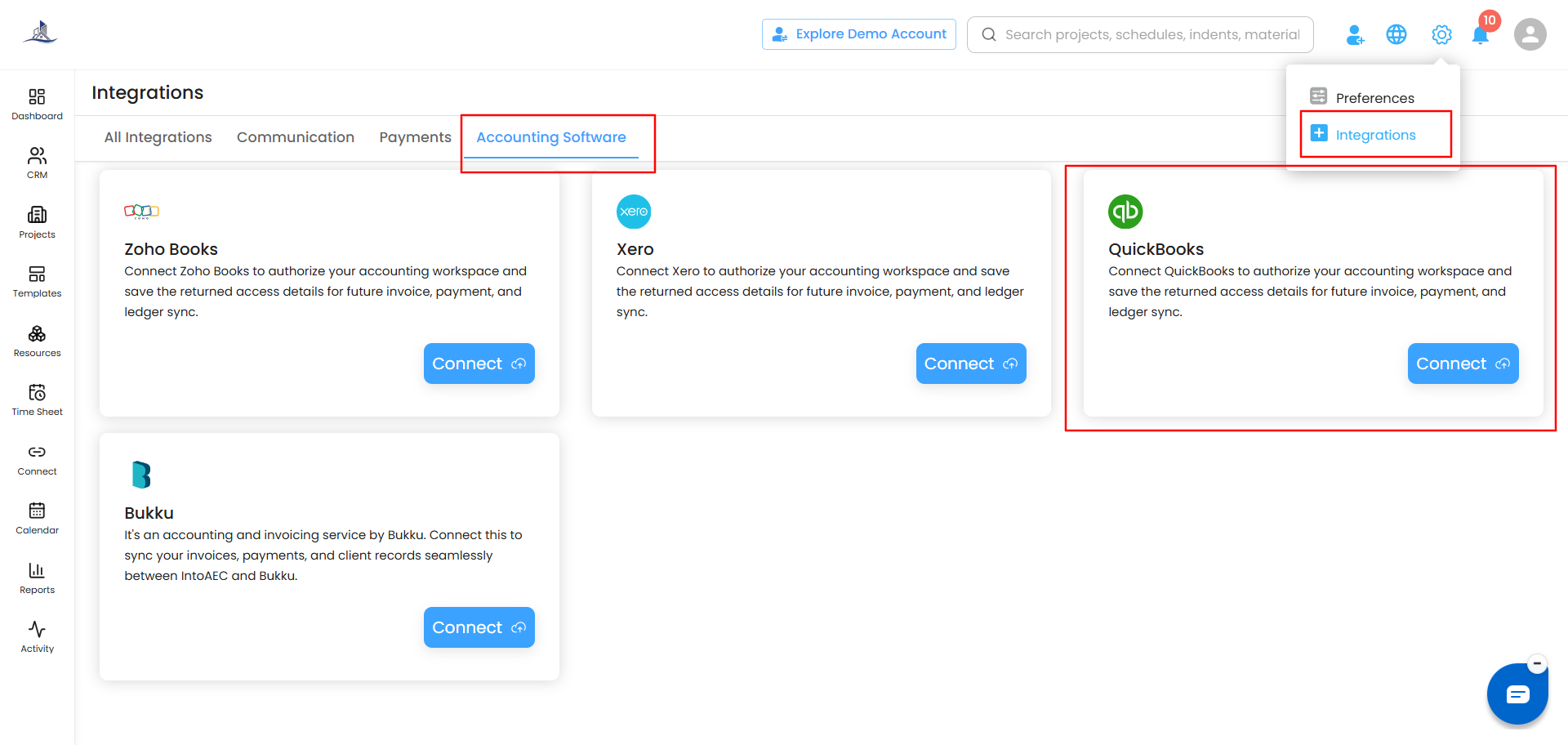
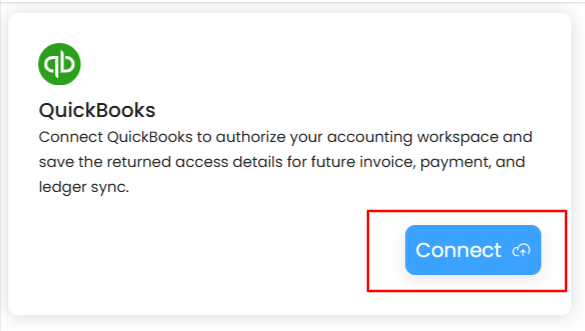
- Click Configure.
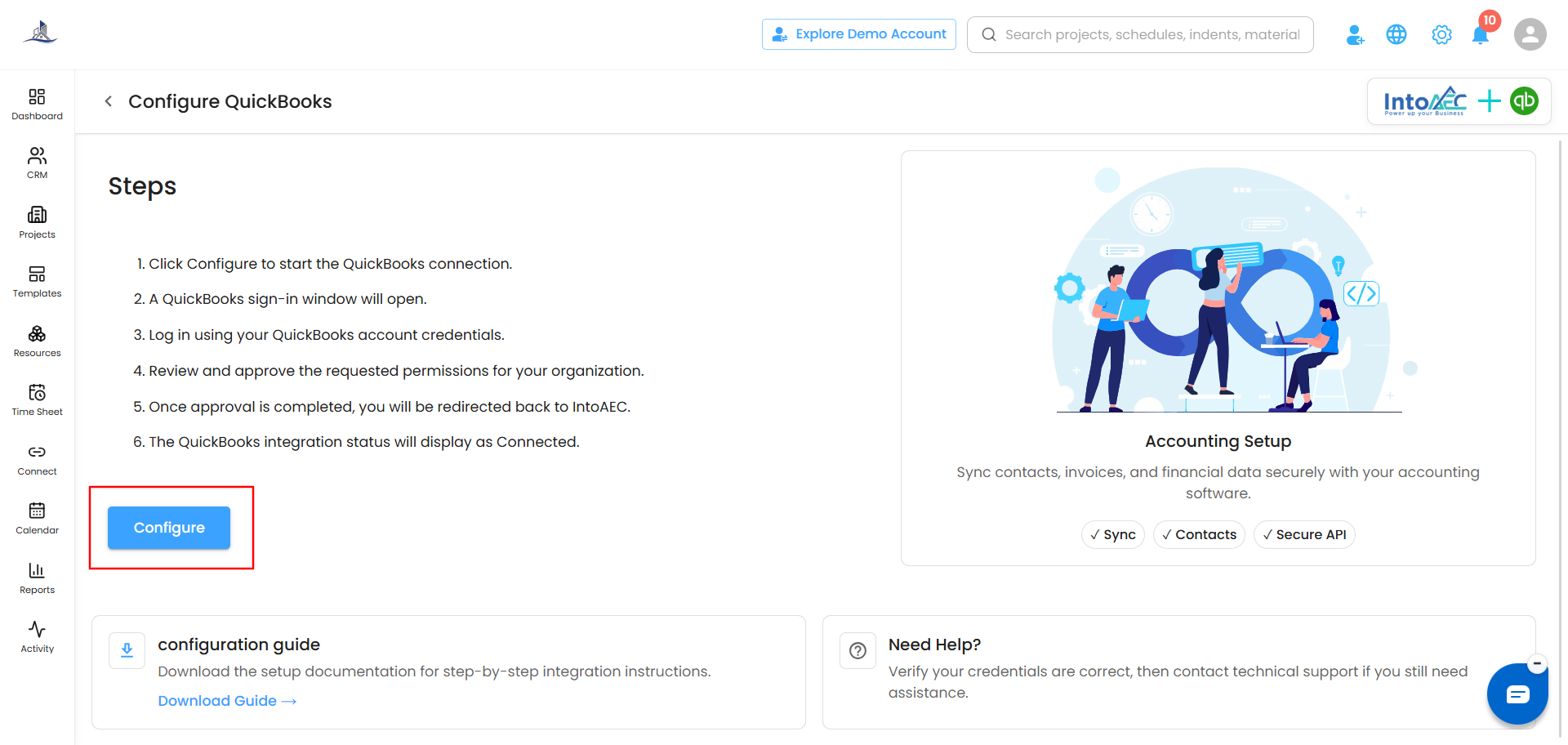
- You are taken to the QuickBooks sign-in page. Sign in with your QuickBooks credentials.
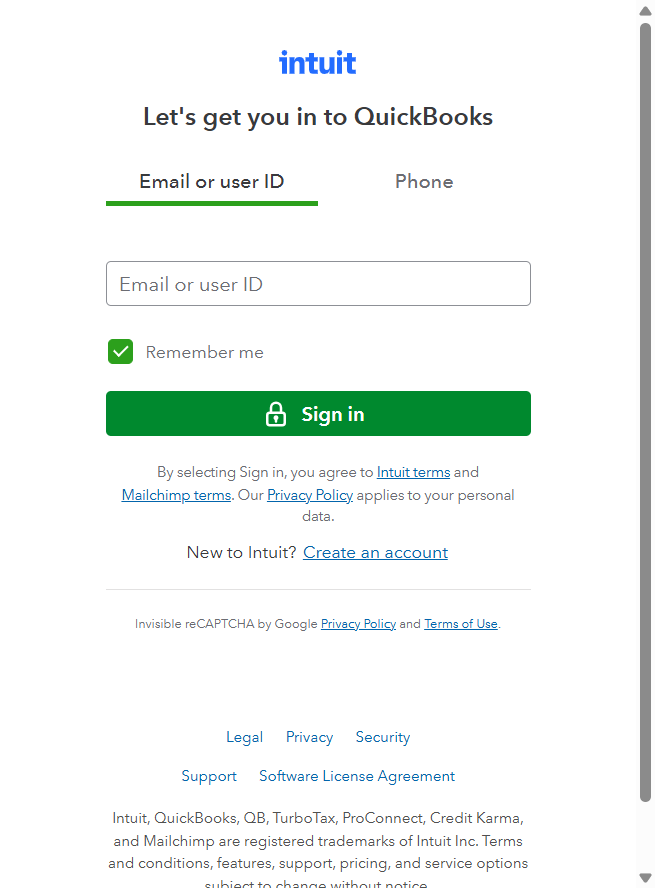
- If you have access to more than one company, select the one you want to connect to IntoAEC.
- Review the permissions being requested.
- Click Allow Access (or the equivalent confirmation button) to authorize the integration.
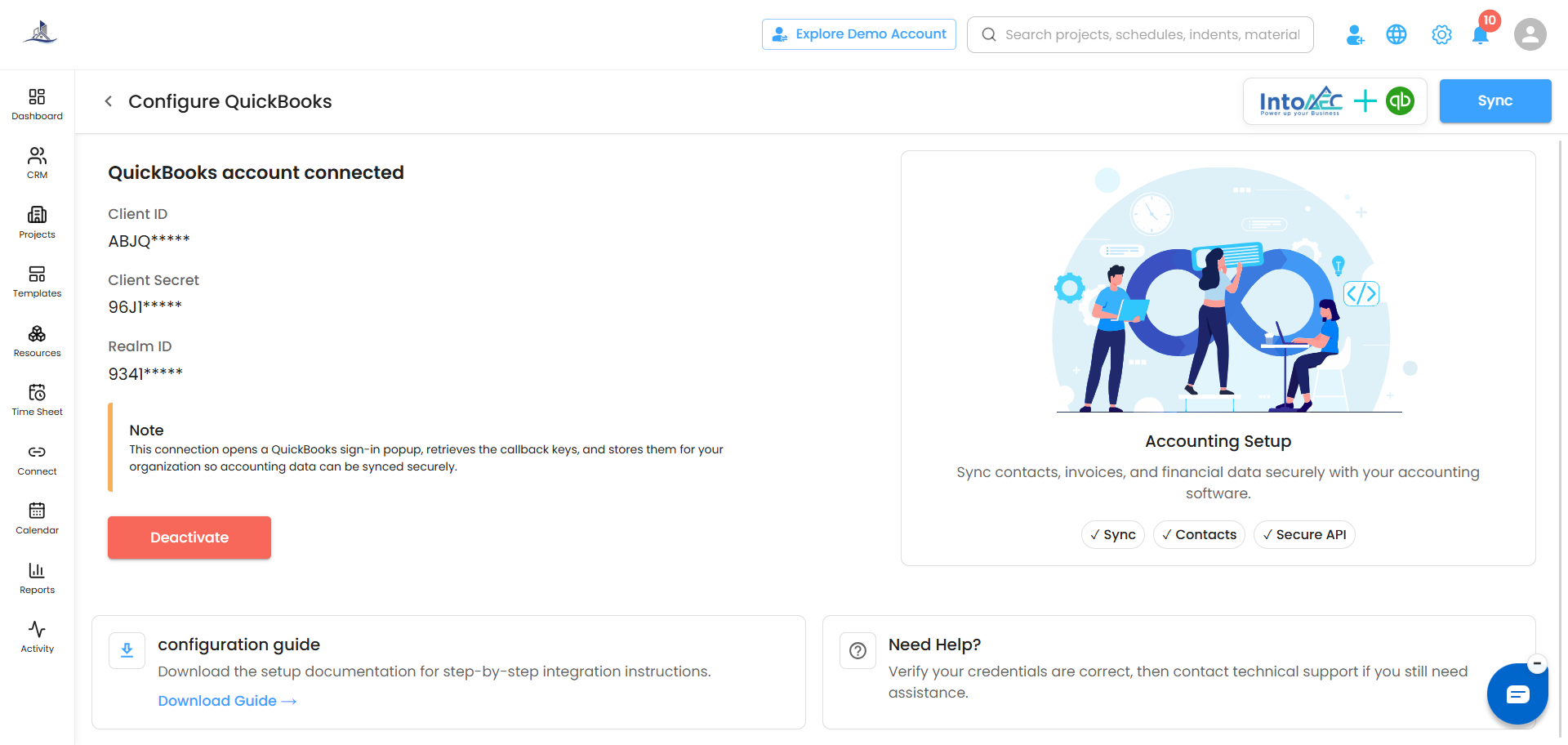
That's it for the connection. You are sent back to IntoAEC, where the QuickBooks integration status now shows Connected.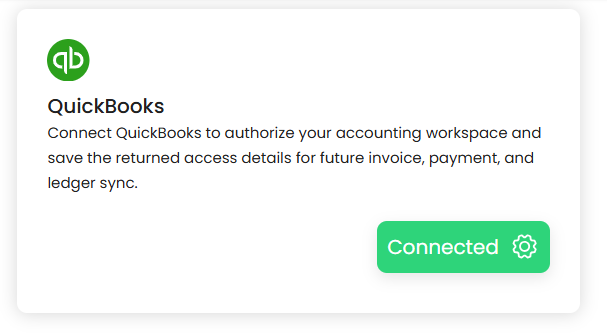
Completing the Initial Sync (One-Time)
Before automatic syncing begins, IntoAEC needs to bring in your existing QuickBooks history and learn which project each contact belongs to. You only do this once.
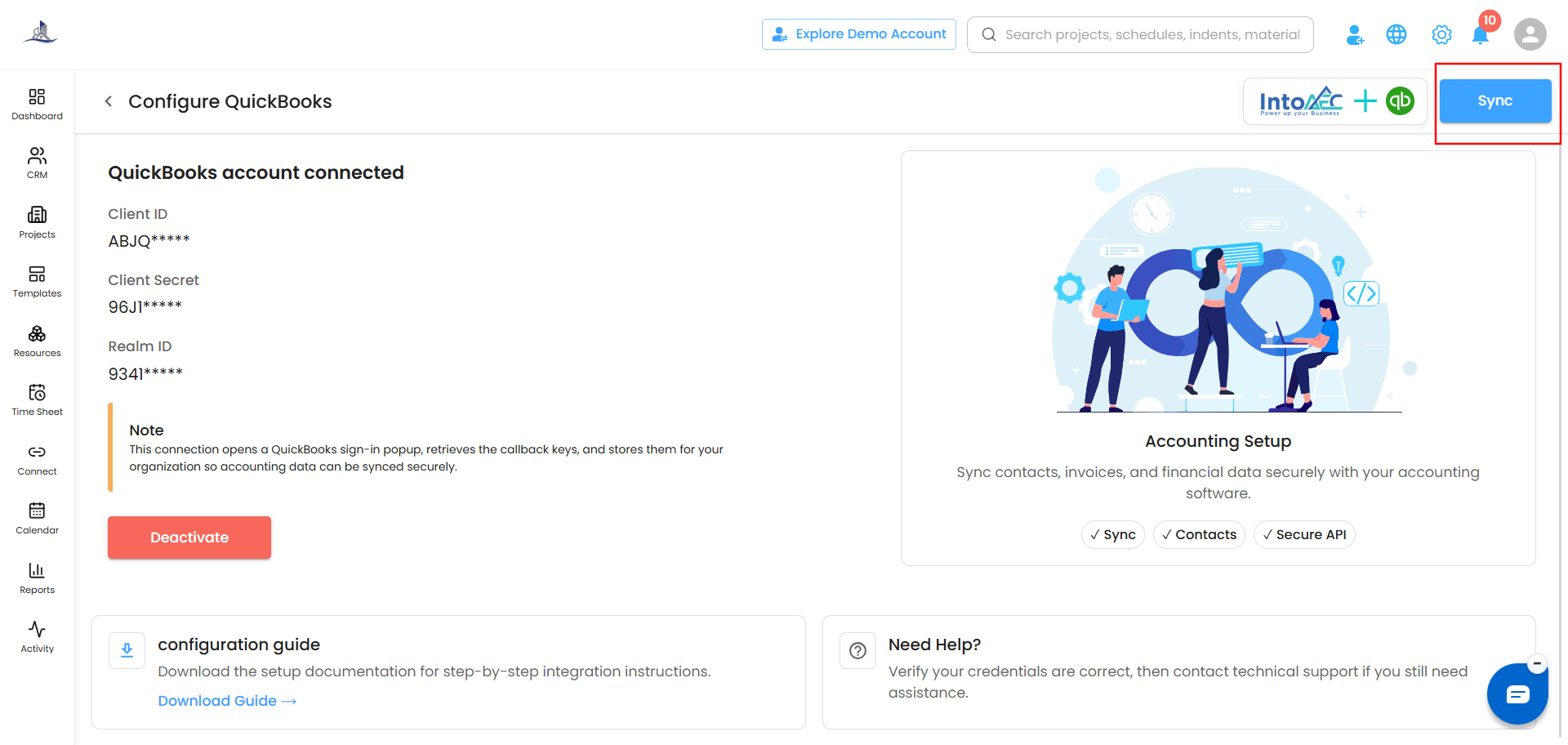
- After the connection is established, click Sync.
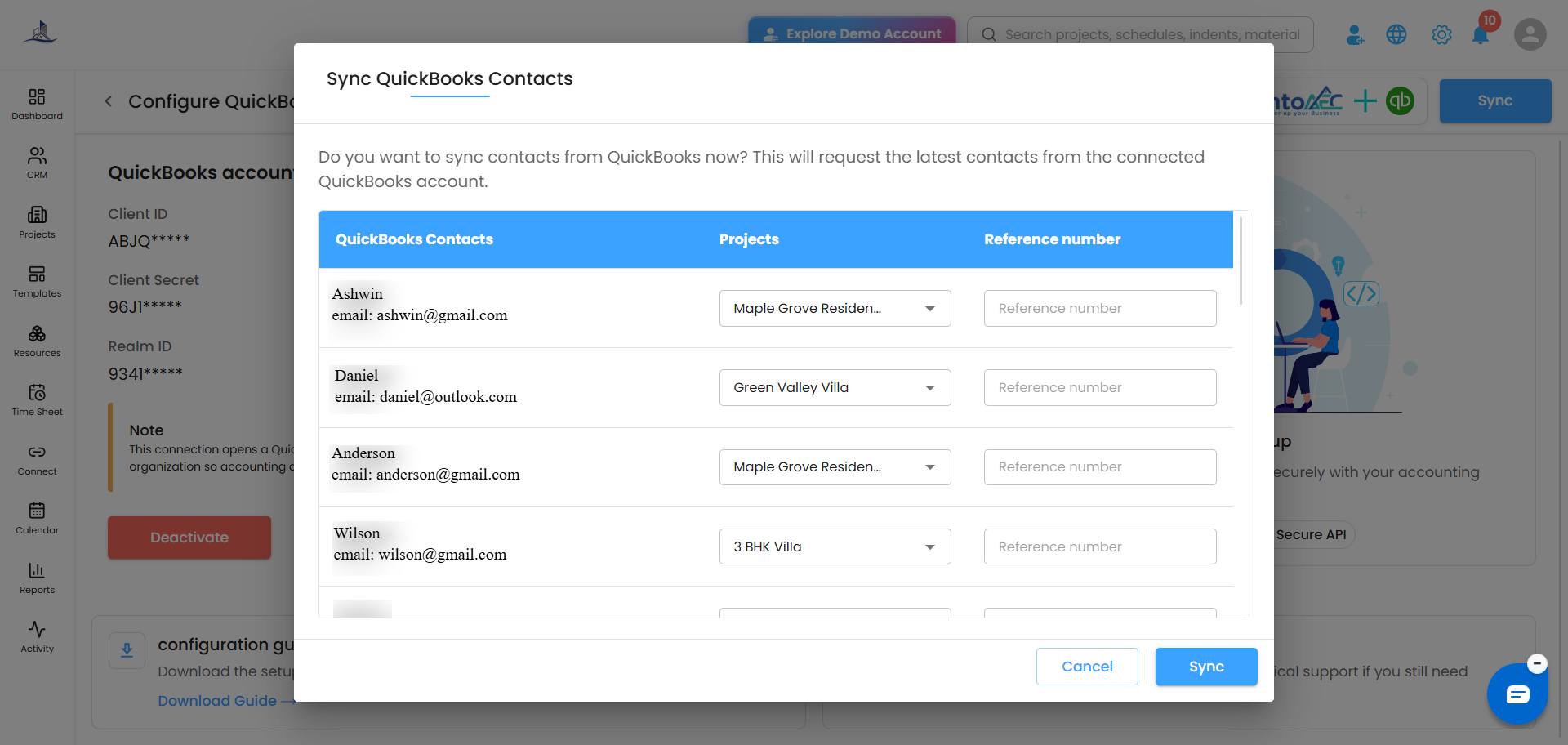
- The Sync Contacts popup opens. For each contact, choose the Project they belong to (required).
- Add a Reference Number (optional, but recommended).
- Click Sync to start the import.
IntoAEC then imports your historical contacts, invoices, credit notes, payments, and refunds from QuickBooks.
How Automatic Sync Works
After the initial sync, you do not need to click Sync or import anything again. Whenever something changes in QuickBooks, IntoAEC is updated automatically, so both systems always show the same information.
These changes in QuickBooks are picked up automatically:
- You create or update an invoice
- You record a payment
- You create a credit note
- You process a refund
- You update a contact
Just keep working in QuickBooks as usual. There is nothing extra to set up or maintain.
Matching QuickBooks Records to Projects
To make sure each record lands on the right project, enter your IntoAEC Project ID in the Reference Number field in QuickBooks. IntoAEC uses it to match every invoice, credit note, and payment to the correct project.
Need Help?
If the connection does not complete or you notice records that are not syncing, please contact the IntoAEC Support Team and we will be happy to help.
Was this article helpful?
That’s Great!
Thank you for your feedback
Sorry! We couldn't be helpful
Thank you for your feedback
Feedback sent
We appreciate your effort and will try to fix the article