Setting Off-Days & Working Hours

Created by Emily A, Modified on Thu, 14 May at 3:06 PM by Emily A

Set your organization’s off-days and working hours to create more accurate project schedules. By marking non-working days and public holidays, the scheduling system automatically skips those dates while calculating task durations and timelines.

This helps teams avoid scheduling conflicts and maintain realistic project deadlines.


How to Access Off-Day Settings

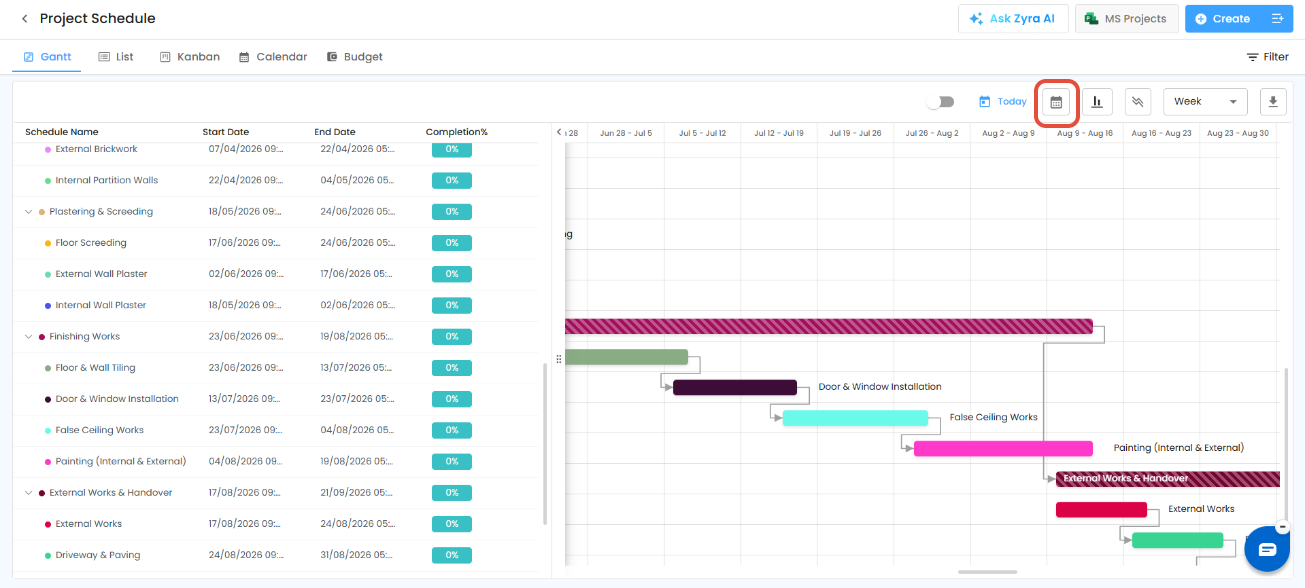
Select your Project.
Go to Schedule.
Click the Calendar icon to open Off-Days & Working Hours settings.


What You Can Do Here

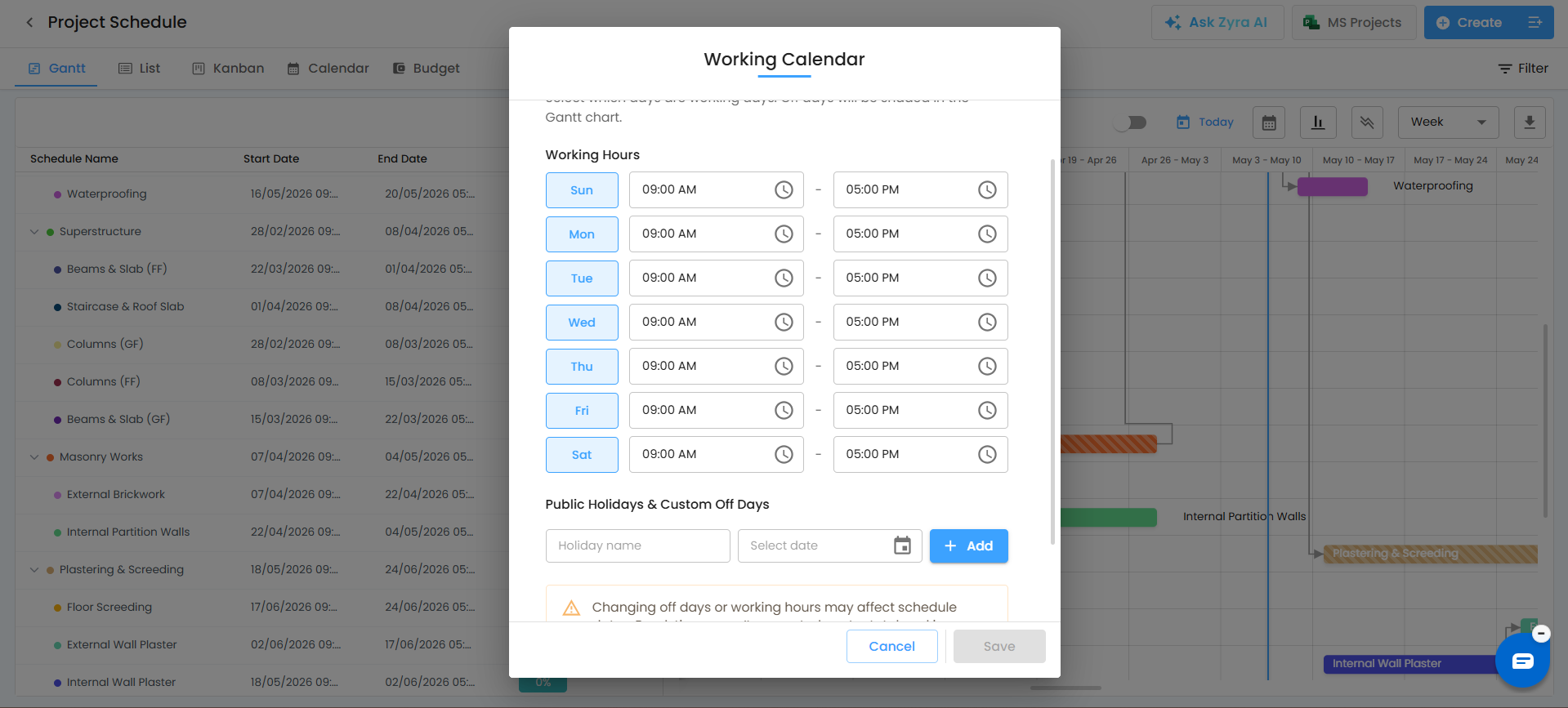
Set weekly off-days and non-working days.
Define organization working hours.
Add public holidays to the calendar.
Automatically exclude off-days from schedule calculations.
Update settings anytime, even after creating schedules.


Configure Off-Days & Working Hours

You can set your working calendar before or after creating a project schedule.


How It Works

Mark non-working days or weekly off-days.
Set standard working hours for your organization.
Add public holidays to ensure schedules skip those dates automatically.
Update or modify holidays and off-days anytime as required.


Why It Matters

Schedules automatically adjust around off-days and holidays.
Project durations become more accurate and realistic.
Teams can avoid assigning work on non-working days.
Improves planning efficiency and deadline tracking.

Pro Tip: Keep your public holidays and weekly off-days updated regularly to ensure project schedules remain accurate throughout the year.

Was this article helpful?

That’s Great!

Thank you for your feedback

Sorry! We couldn't be helpful

Thank you for your feedback

Let us know how can we improve this article!

Select at least one of the reasons
CAPTCHA verification is required.

Feedback sent

We appreciate your effort and will try to fix the article