The Estimate module is where you price a job for your client, send it to them, and track what happens next. Once your client accepts, the same estimate becomes the starting point for your invoice, your schedule, your sales order and any changes that come later.
Where to find it
Go to Clients, select the client you are working with, then open the Estimate card.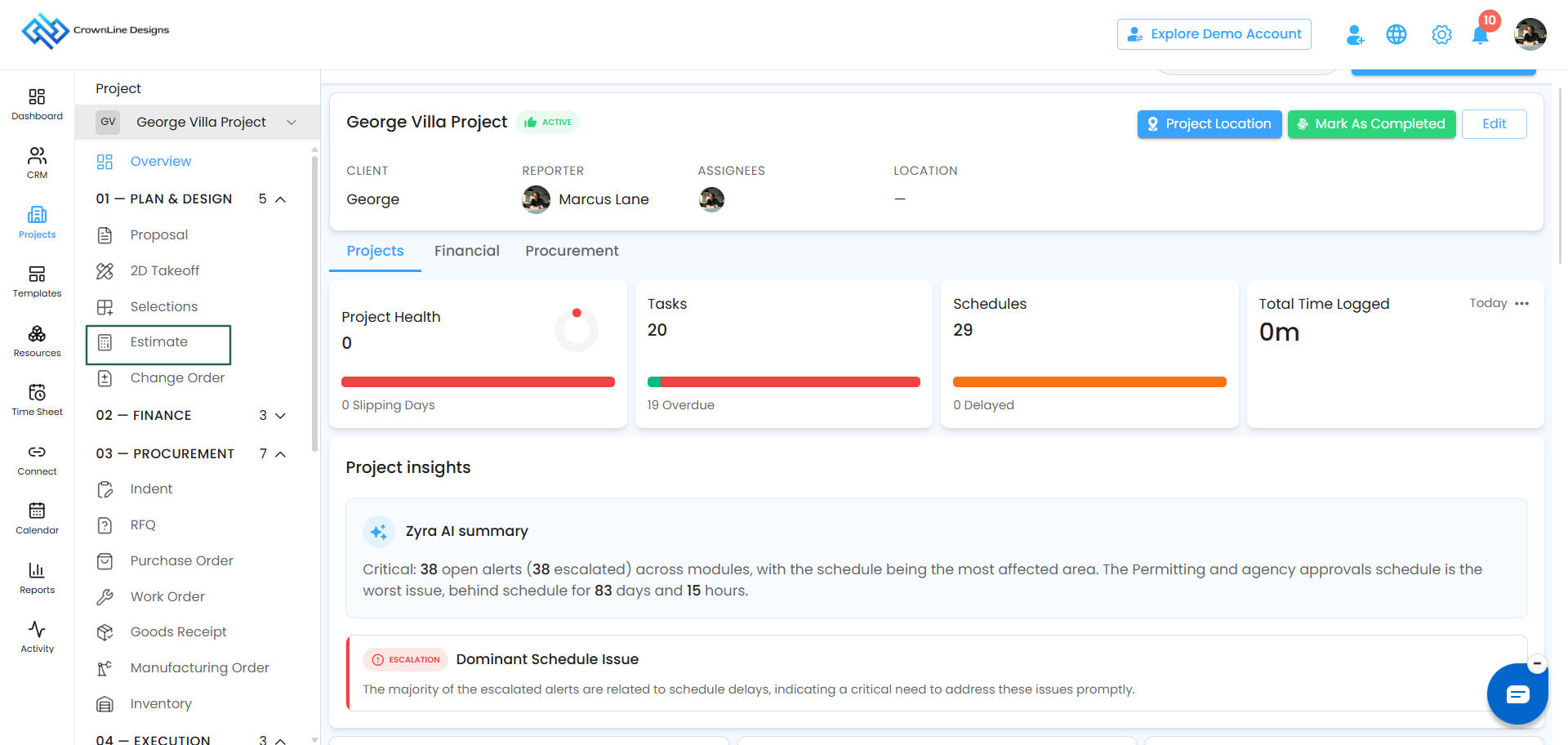
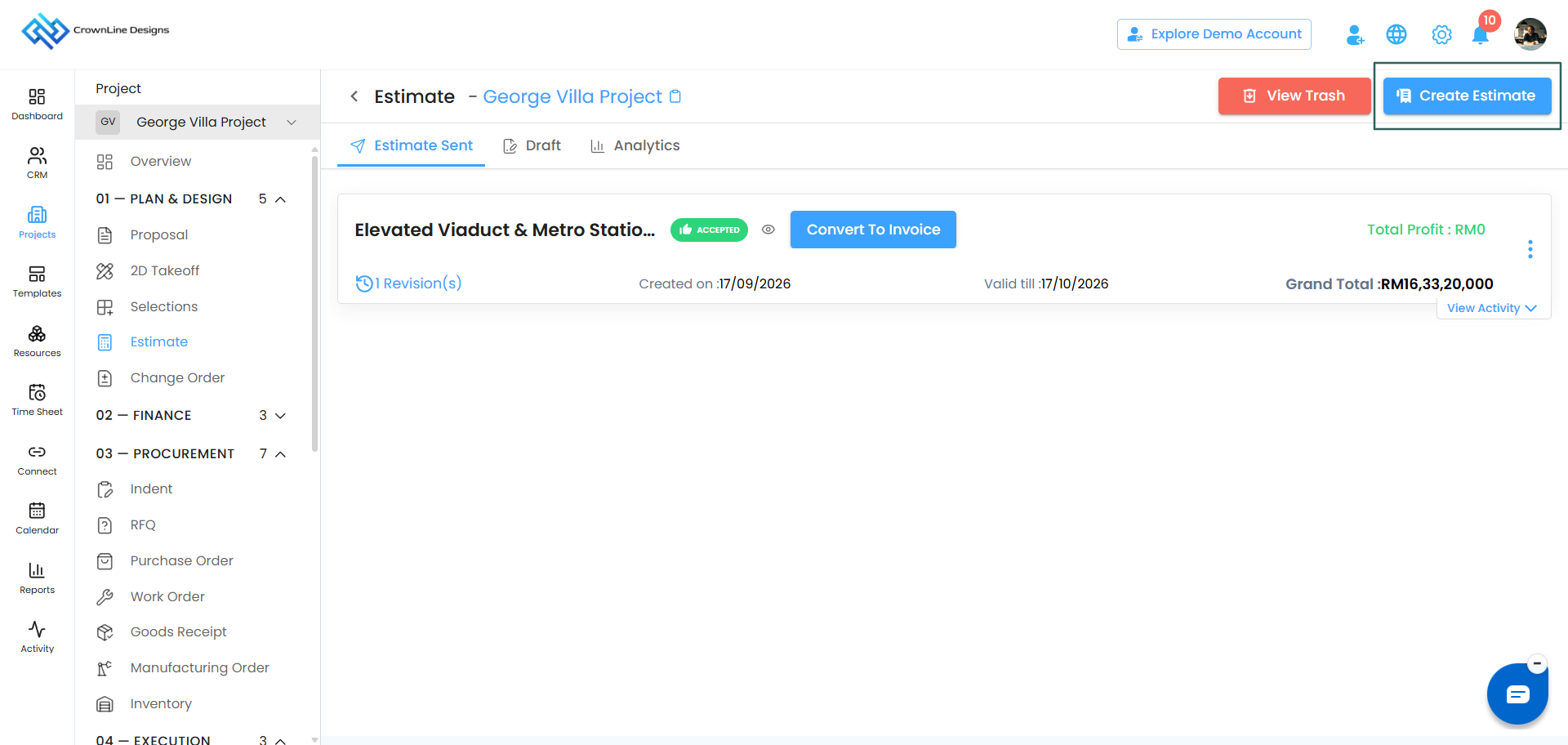
What you see on the Estimate page
At the top of the page you have two buttons:
- Create Estimate — starts a new estimate
- View Trash — holds estimates you have deleted
Below that, your estimates are organised into three tabs:
| Tab | What it holds |
|---|---|
| Sent | Every estimate you have sent to a client |
| Draft | Estimates you saved to finish later |
| Analytics | How each estimate is performing |
The three ways to start an estimate
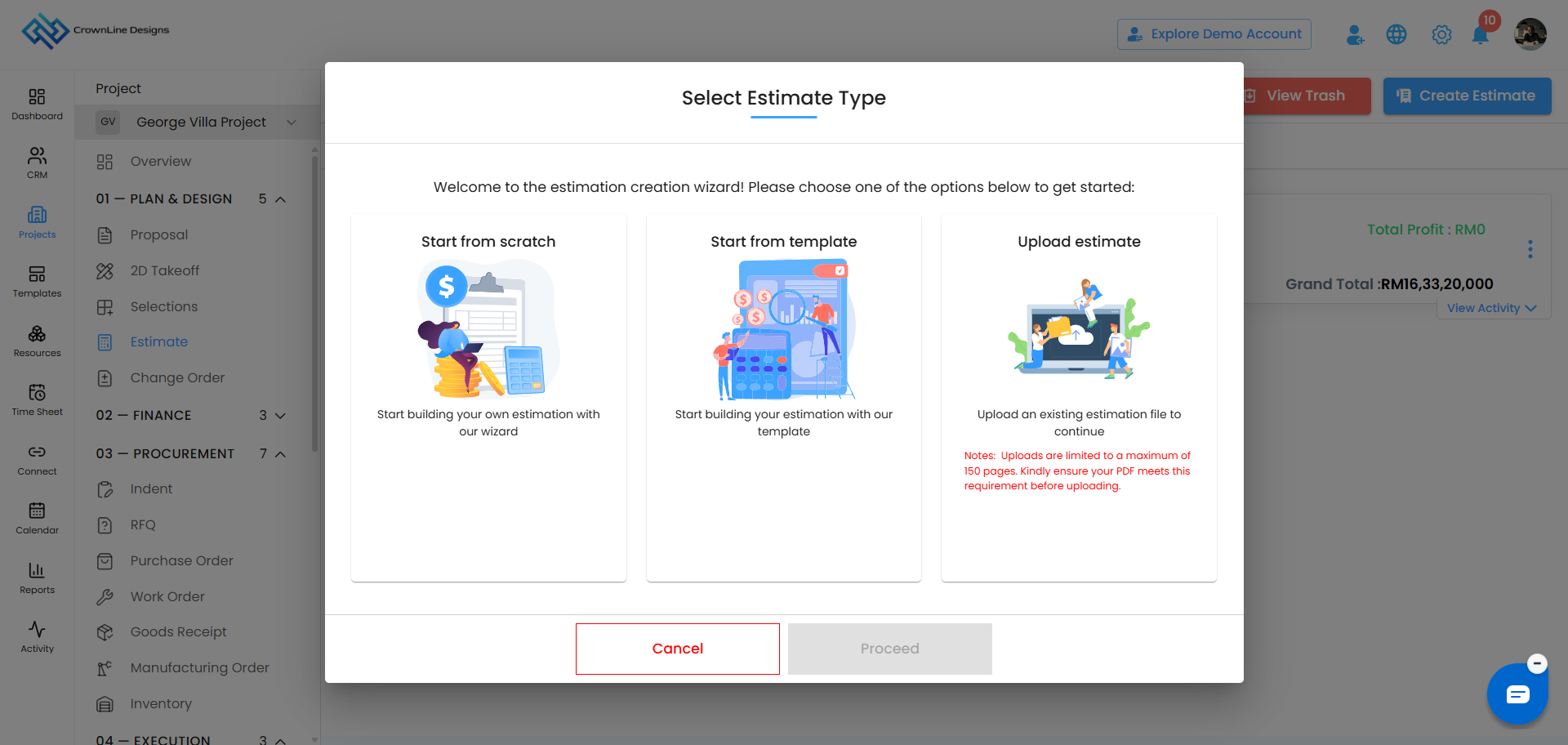
When you click Create Estimate, a popup asks you to choose how you want to begin:
- Start from Scratch — build the estimate line by line
- Start from Template — begin from something your team has already set up
- Upload Estimate — bring in an existing file and let the system read it
Pick one and click Proceed.
The life of an estimate
An estimate moves through a set of stages, and what you are allowed to do changes at each one.
| Stage | What it means | Can you edit it? |
|---|---|---|
| Draft | Saved but not sent | Yes |
| Sent | Delivered to your client | Yes — editing creates a revision |
| Viewed | Your client has opened it | Yes — editing creates a revision |
| Accepted | Your client has signed and approved it | No |
| Rejected | Your client has declined it | Yes — edit and resend |
The one rule to remember
Once your client accepts an estimate, it is locked and cannot be edited.
This is deliberate. The accepted estimate is the version your client agreed to, so it stays exactly as it was. Anything that changes after that is recorded separately as a change order, which gives you a clean record of what was agreed originally and what changed later.
What an accepted estimate unlocks
Accepting an estimate closes the door on editing, but it opens four new ones:
- Convert to Invoice — start billing for the work
- Convert to Schedule — turn your line items into a project plan
- Convert to Sales Order — raise the sales order for the job
- Create Change Order — record any change to the agreed scope or price
Options on each estimate card
Depending on the stage the estimate is in, the menu on each card gives you:
- Edit — available while the estimate is in Draft, Sent or Rejected
- Send Reminder — nudge a client who has not responded
- Share — share the estimate
- Chat — talk about this estimate with your team
- Duplicate — copy it as the starting point for a new one
- Delete — move it to Trash
- Create Change Order / Update Change Order — appears once the estimate is accepted
- View Change Orders — appears once a change order exists
- Convert to Schedule — appears once the estimate is accepted, and disappears after you use it
Was this article helpful?
That’s Great!
Thank you for your feedback
Sorry! We couldn't be helpful
Thank you for your feedback
Feedback sent
We appreciate your effort and will try to fix the article