Scope shifts. Prices move. Clients ask for one more thing. Editing a proposal is normal — losing track of which version the client actually has is not. Every edit you make is captured as a revision, so you always know what changed, when, and which version is live.
What You Can Do Here
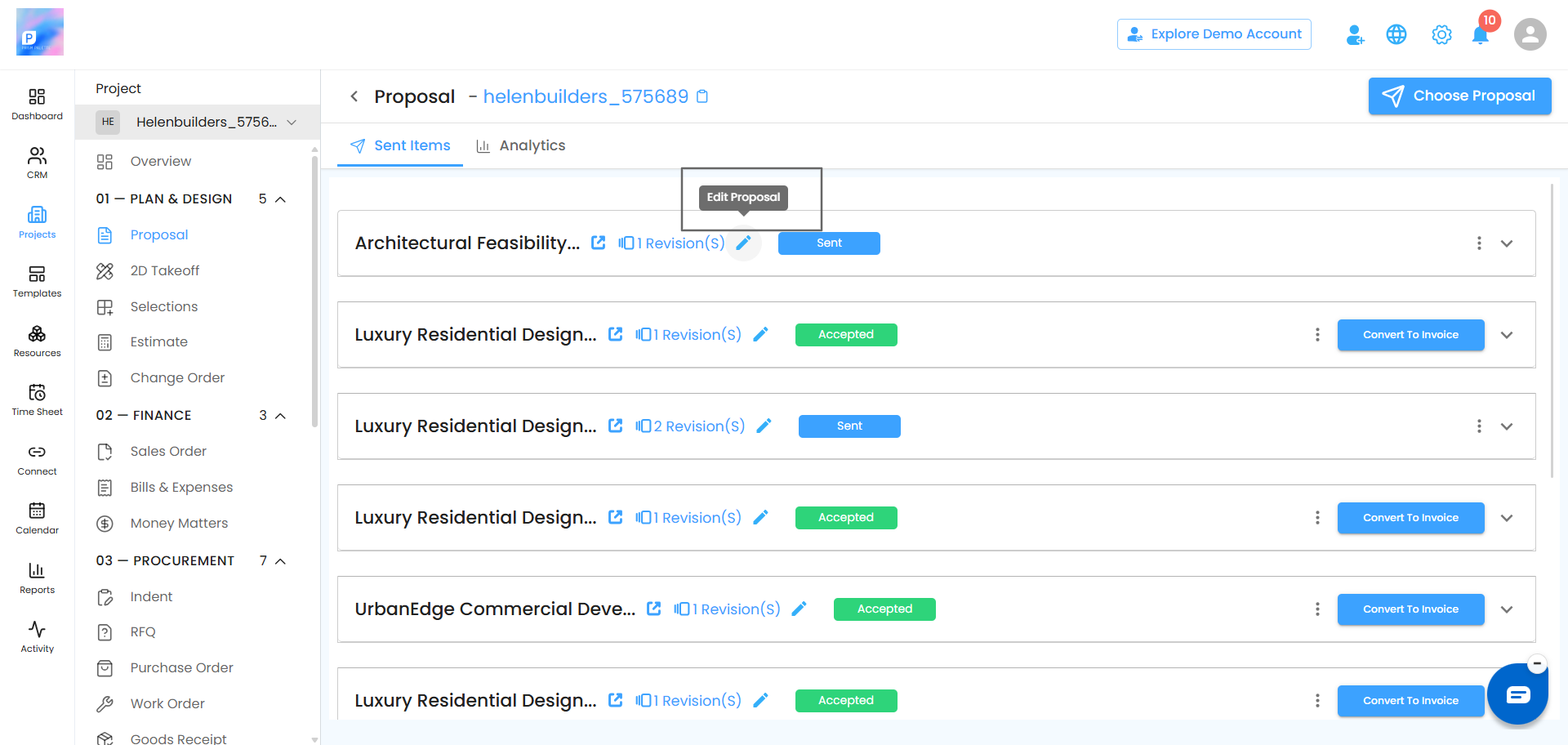
Edit Any Proposal – Draft, pending approval, or already sent — you can go back in and make changes.
Track Every Version – Each edit bumps the revision count, and every earlier version stays available.
Resend Cleanly – When you send a revised proposal, the previous version is disabled automatically. No client ever signs the wrong one.
Convert to Invoice – Once a proposal is accepted, turn it into an invoice without re-entering a thing.
How to Edit a Proposal
Open the proposal – Go to CRM → Lead Manager, select your lead, and open the Proposal tab.
Find the proposal – Look under Sent Items or the Draft section depending on its current status.
Click Edit – You’ll be taken back into the proposal builder with everything as you left it.
Make your changes – Adjust pricing, update scope, add or remove pages — anything you could do when creating it.
Click Next – Choose Update Existing Template, Save as New Template, or Keep & Proceed, then continue to send.
Note: Once a proposal has been accepted by the client, it locks. If something needs to change after acceptance, create a new proposal rather than editing the accepted one.
How Revisions Are Numbered
Revision numbering is simple, and it starts from the moment the proposal exists:
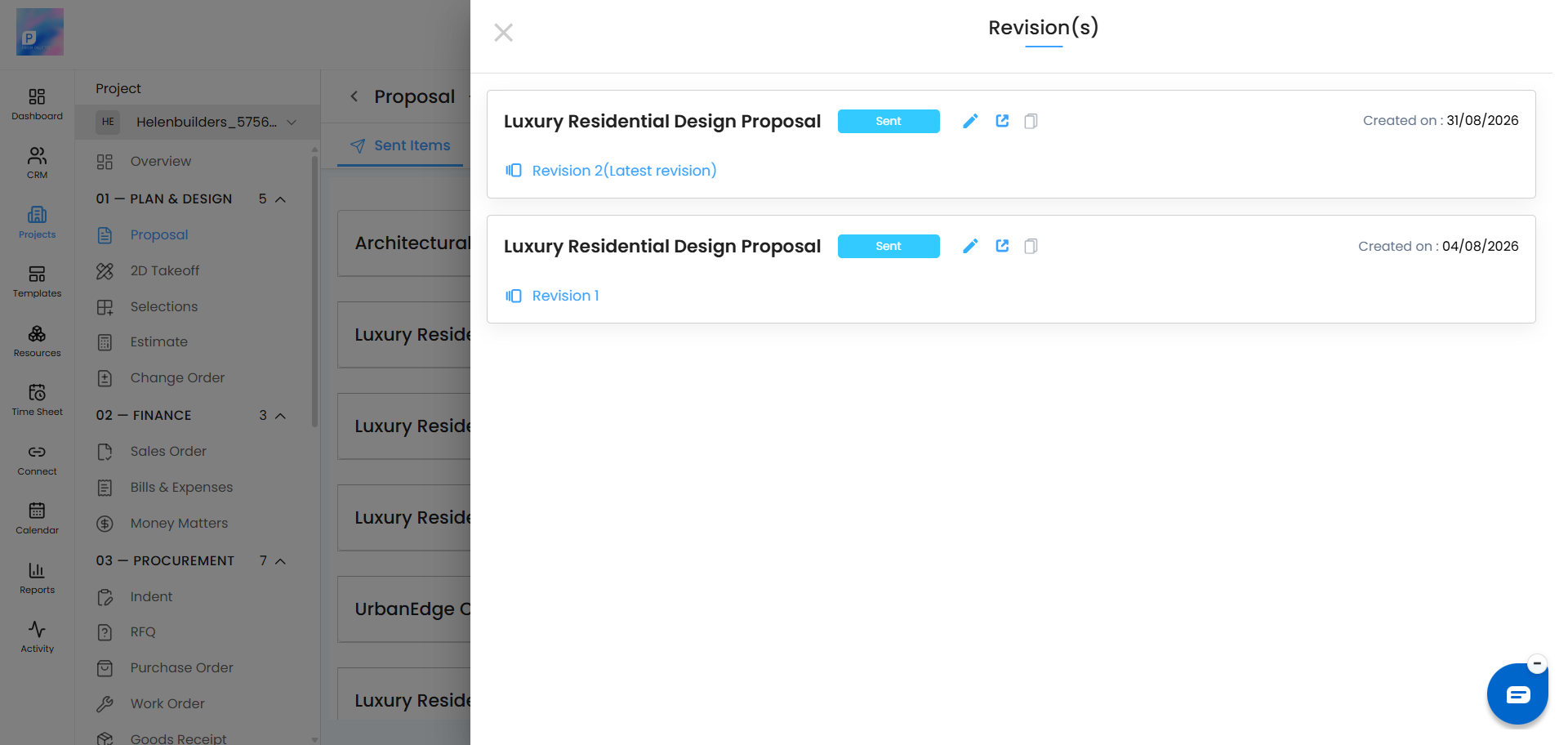
Revision 1 – The proposal as first created and sent.
Revision 2 – You edit that proposal and send it again.
Revision 3, 4, 5… – Every further edit-and-send bumps the count by one.
The revision count is displayed on the proposal itself, so anyone looking at it immediately knows how many times it has moved.
Viewing Revision History
Click the revision count on any proposal and a half-screen panel slides open showing the complete history. For each version you can:
Preview – See exactly what that version looked like.
Edit – Open it up and work from it.
Copy Proposal Link – Grab the shareable link for that version.
Editing a Proposal Awaiting Approval
If your proposal is sitting in Pending Approval and needs changes before the Super Admin signs off:
Open the proposal – Find it under Sent Items with Pending Approval status.
Click Edit – Make your changes as normal.
Request approval again – Click Action → Request for Approval.
It returns to Pending Approval with an increased revision count. Nothing is lost, and the approver can see exactly what moved.
Resending a Revised Proposal
Once the revised proposal is approved:
Click Action – From the proposal page.
Choose your method – Email, SMS or WhatsApp.
Send – The proposal status updates to Sent with the new revision count, and the previous version is disabled automatically.
Was this article helpful?
That’s Great!
Thank you for your feedback
Sorry! We couldn't be helpful
Thank you for your feedback
Feedback sent
We appreciate your effort and will try to fix the article