This article explains how the proposal approval workflow works, including how users can request approval, how super admins approve proposals, and how to edit proposals that are in Pending Approval status.
When Approval Is Required
If you are the creator of the proposal, you must send it for approval to the Super Admin before you can share it with the client.
Steps to Request Approval
1. Navigate to the Client
Go to Clients → select the specific client to whom you want to send the proposal → click on the Proposal tab.
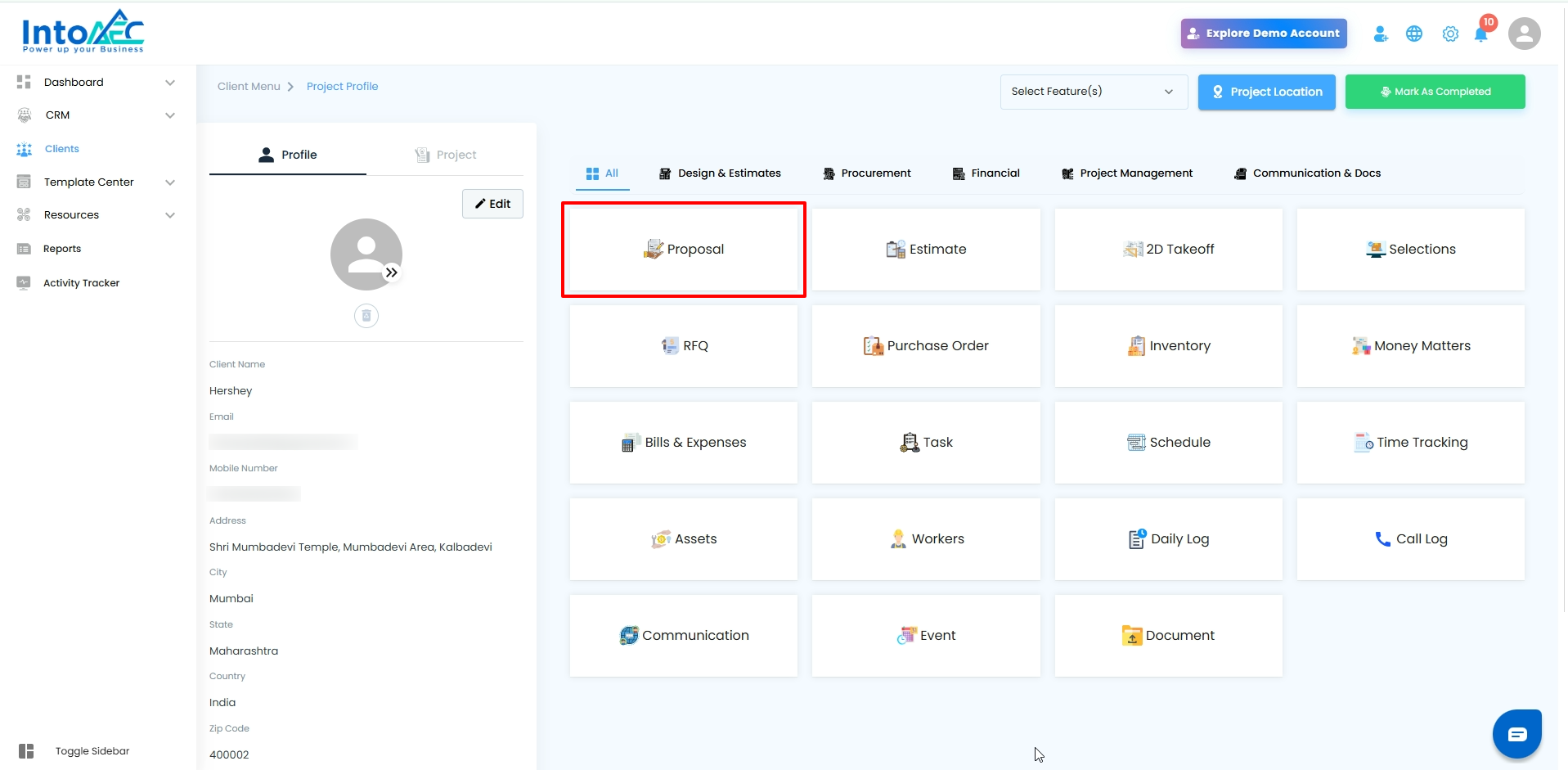
2. Select the Proposal
Choose the proposal you want to send.
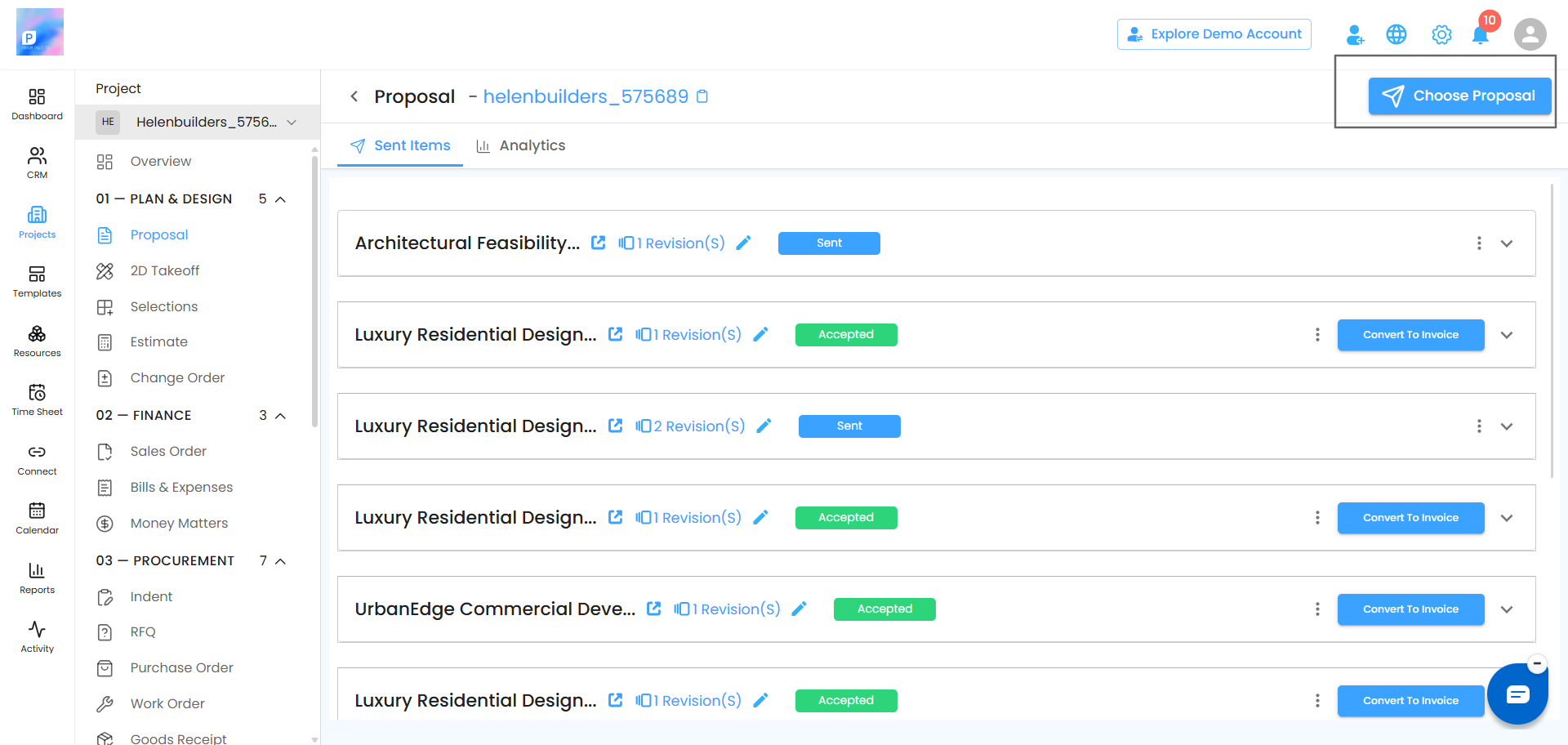
3. Edit and Save
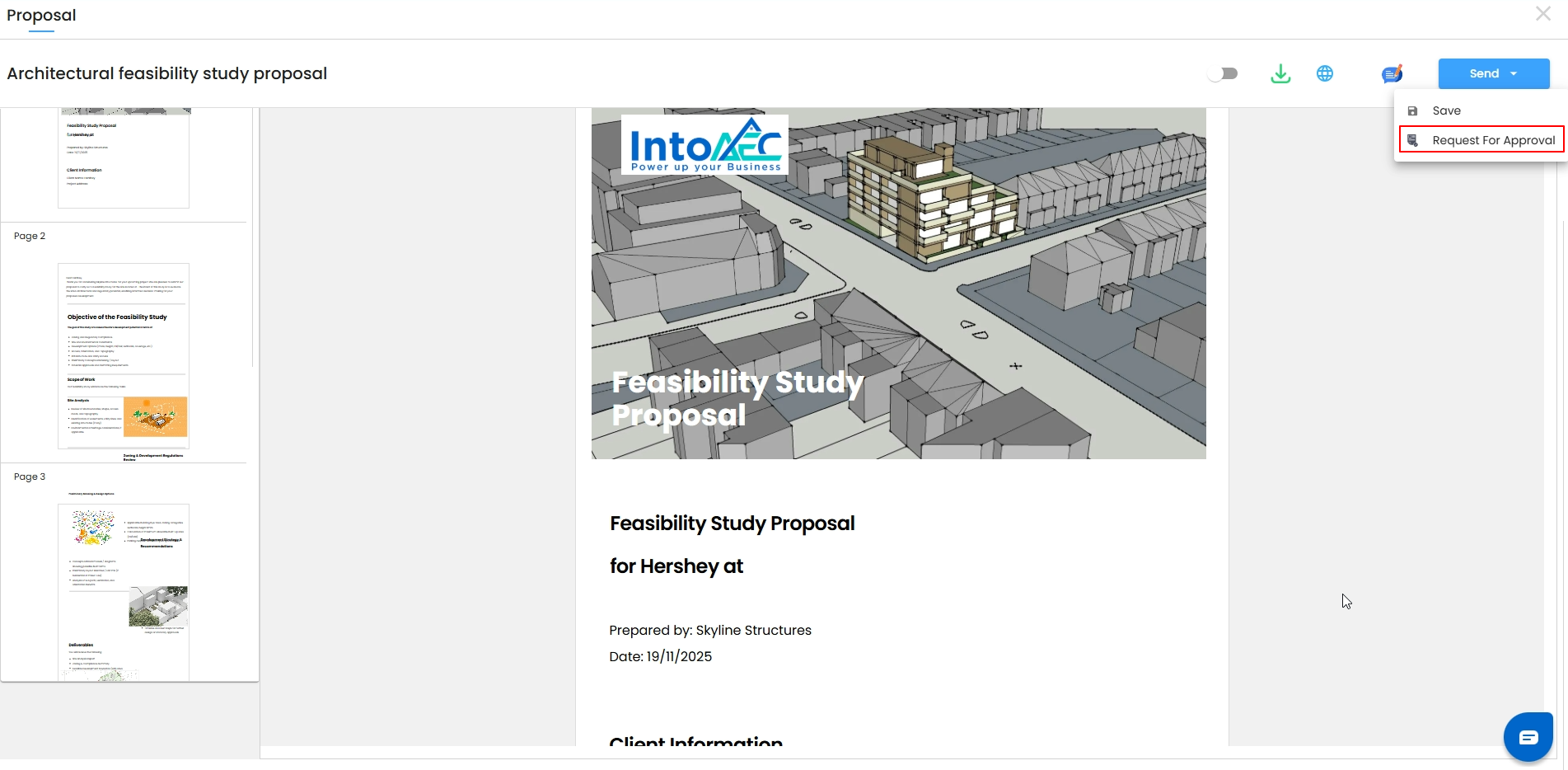
Open the proposal, make the required edits, then click the Action button and select the preferred option.
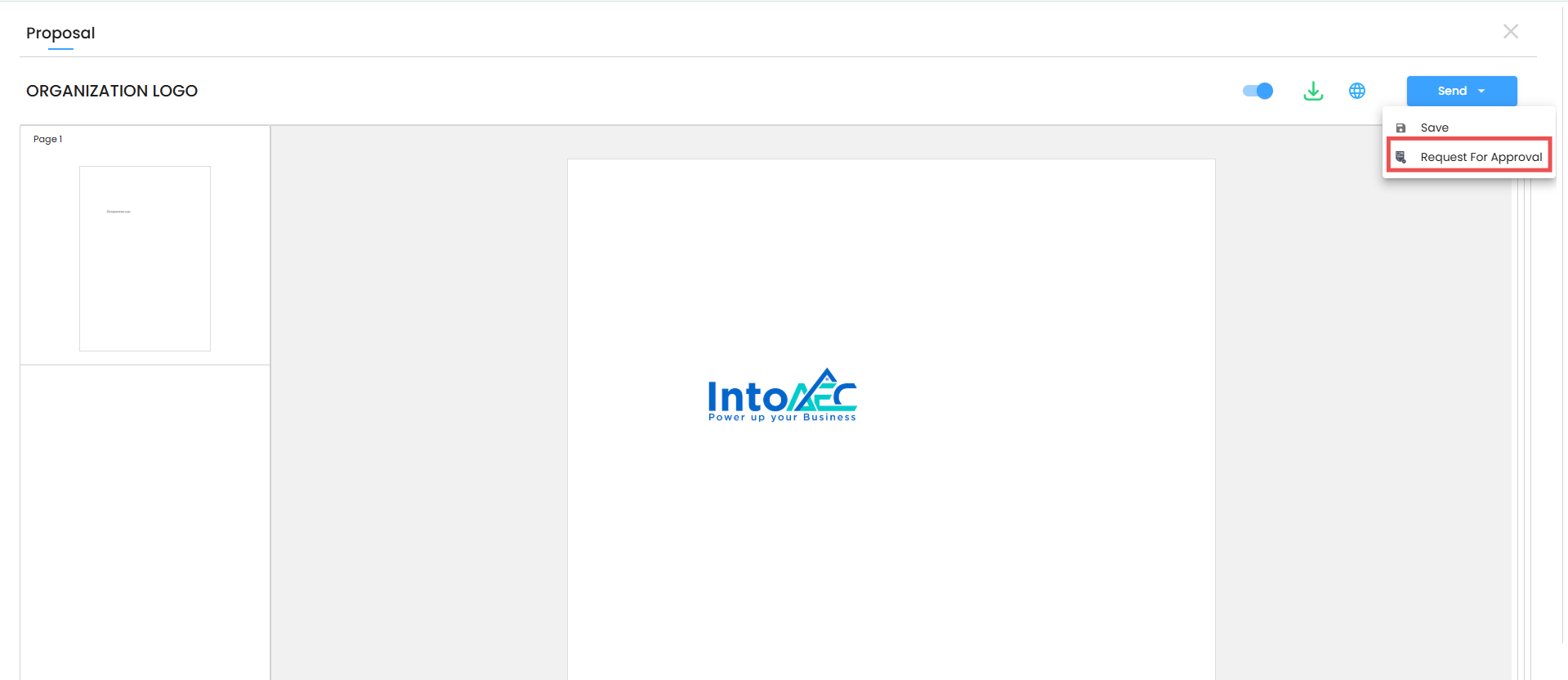
4. Request Approval
From the Action menu, click Request for Approval.
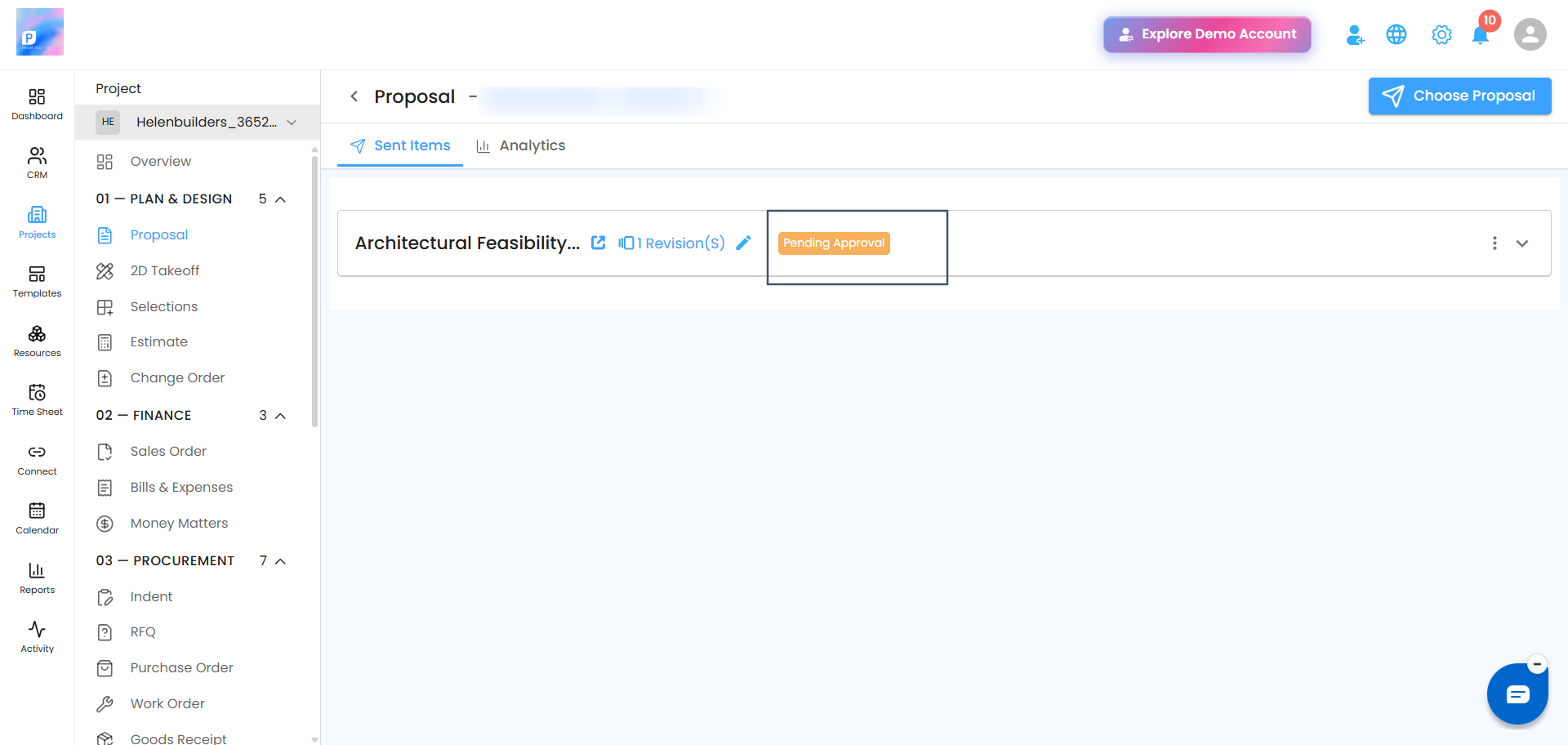
5. Proposal Status
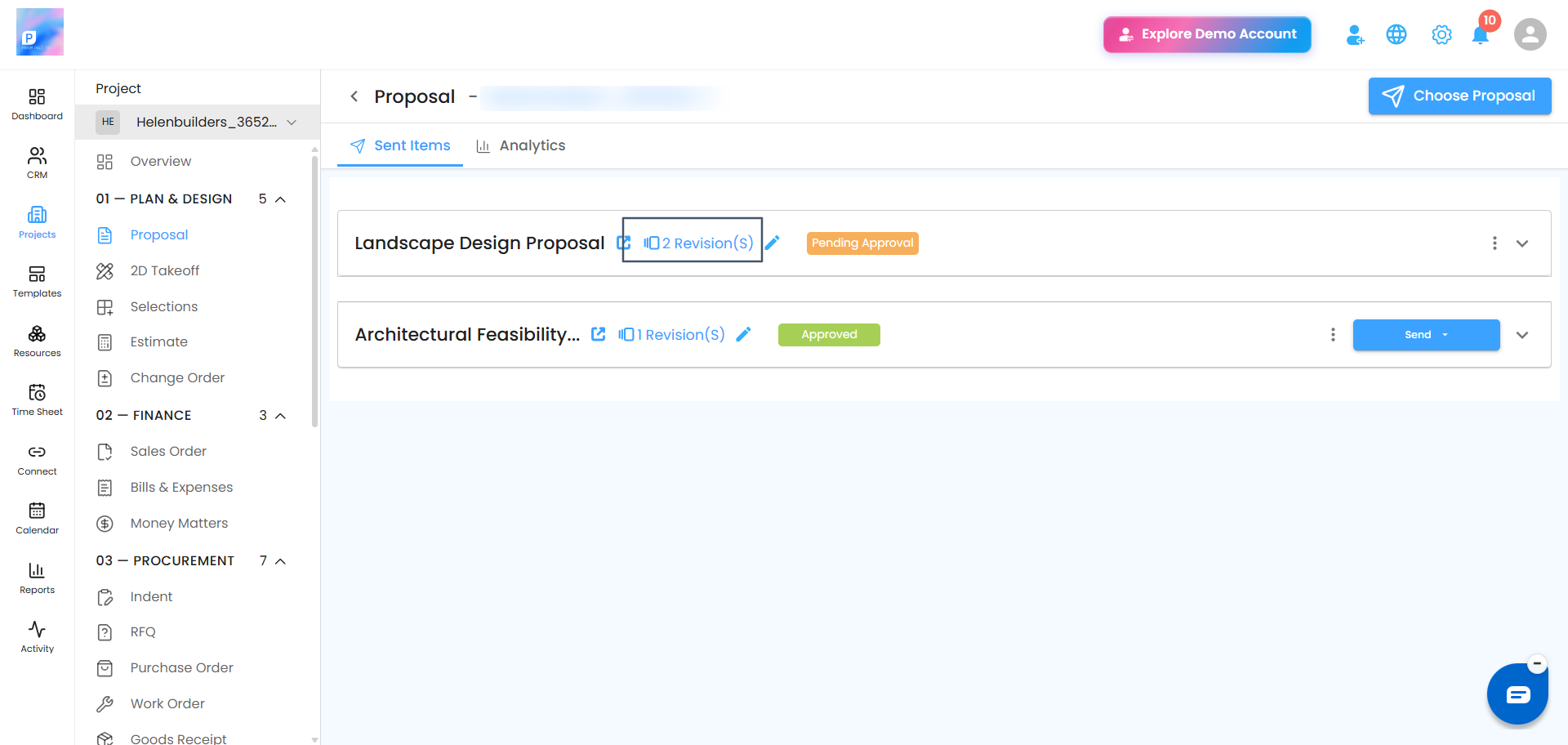
Once submitted, the proposal will move to Pending Approval under Sent Items.
Super Admin Approval
As the Super Admin:
Navigate to the submitted proposal.Click Mark as Approved.In the confirmation pop-up, click Yes to approveOnce approved, the user will be allowed to send the proposal to the client.
Navigate to the submitted proposal.
Click Mark as Approved.In the confirmation pop-up, click Yes to approve
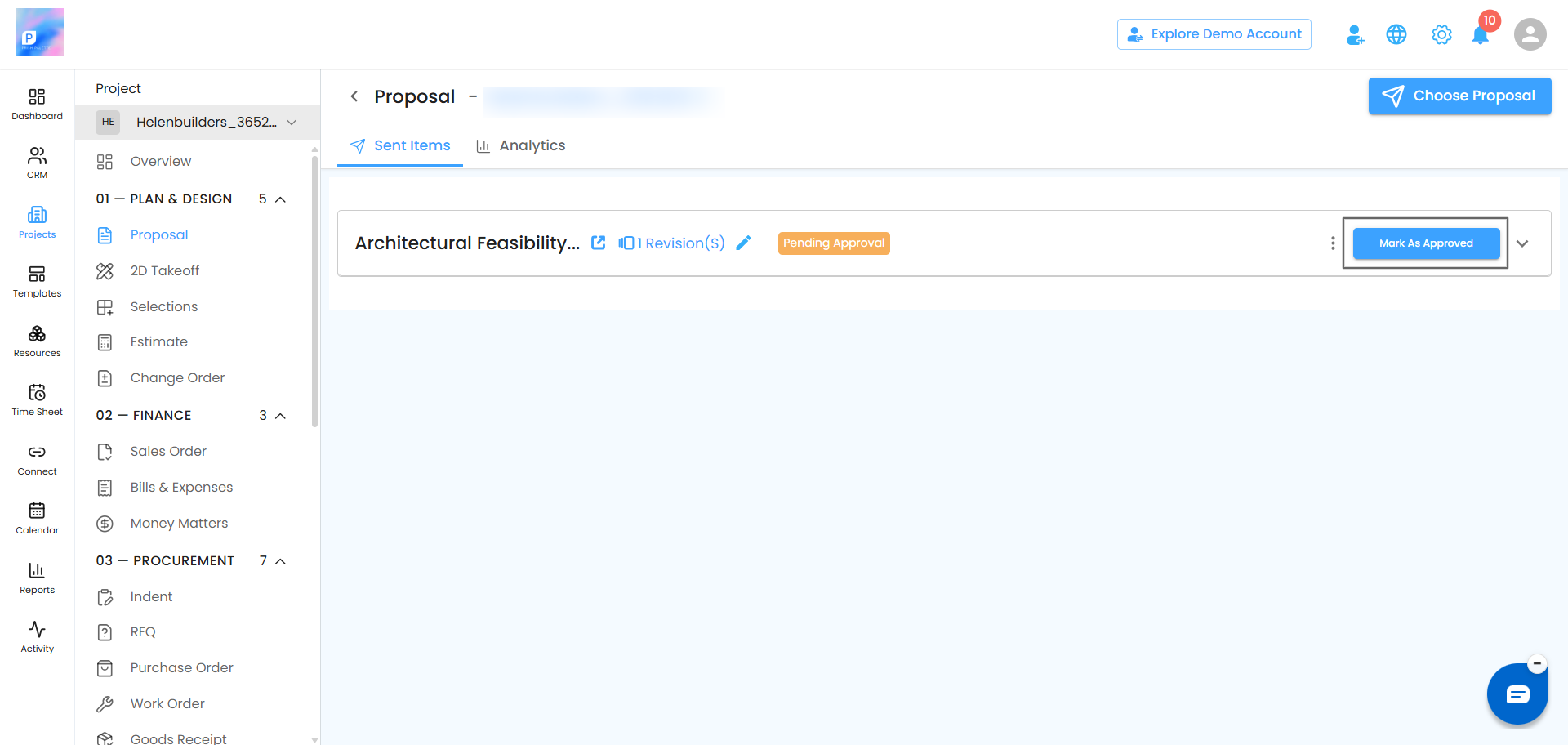
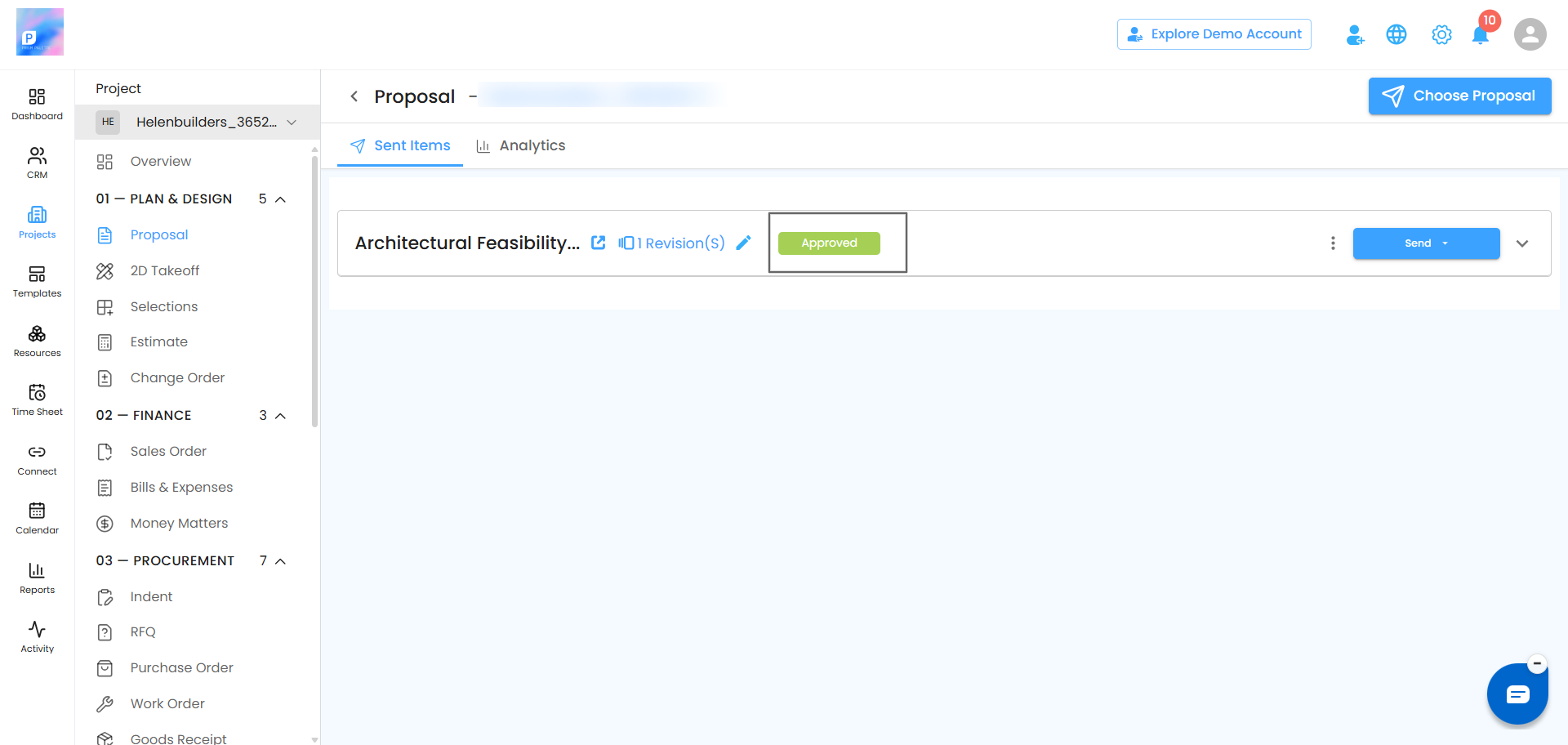
Once approved, the user will be allowed to send the proposal to the client.
Sending the Approved Proposal to the Client
After approval:
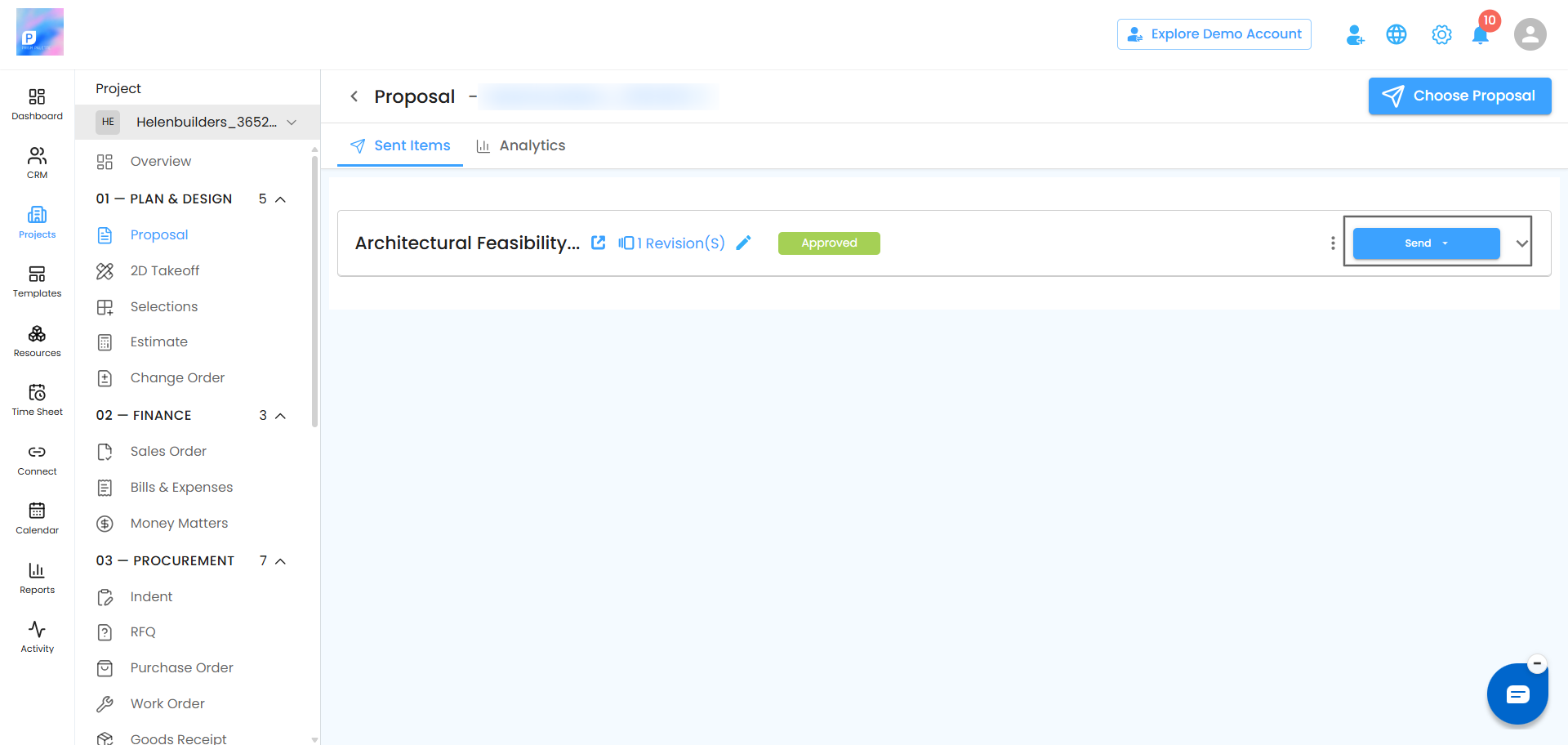
The user can open the proposal.Click Send.Choose the preferred sending method: Email, SMS, WhatsApp.
The user can open the proposal.
Click Send.Choose the preferred sending method: Email, SMS, WhatsApp.
How to Edit a Pending Approval Proposal
If the proposal is already submitted for approval but needs changes, follow these steps:
1. Navigate to the Client
Go to the client whose proposal is in Pending Approval.
2. Edit the Proposal
Click on Edit to make the required changes.
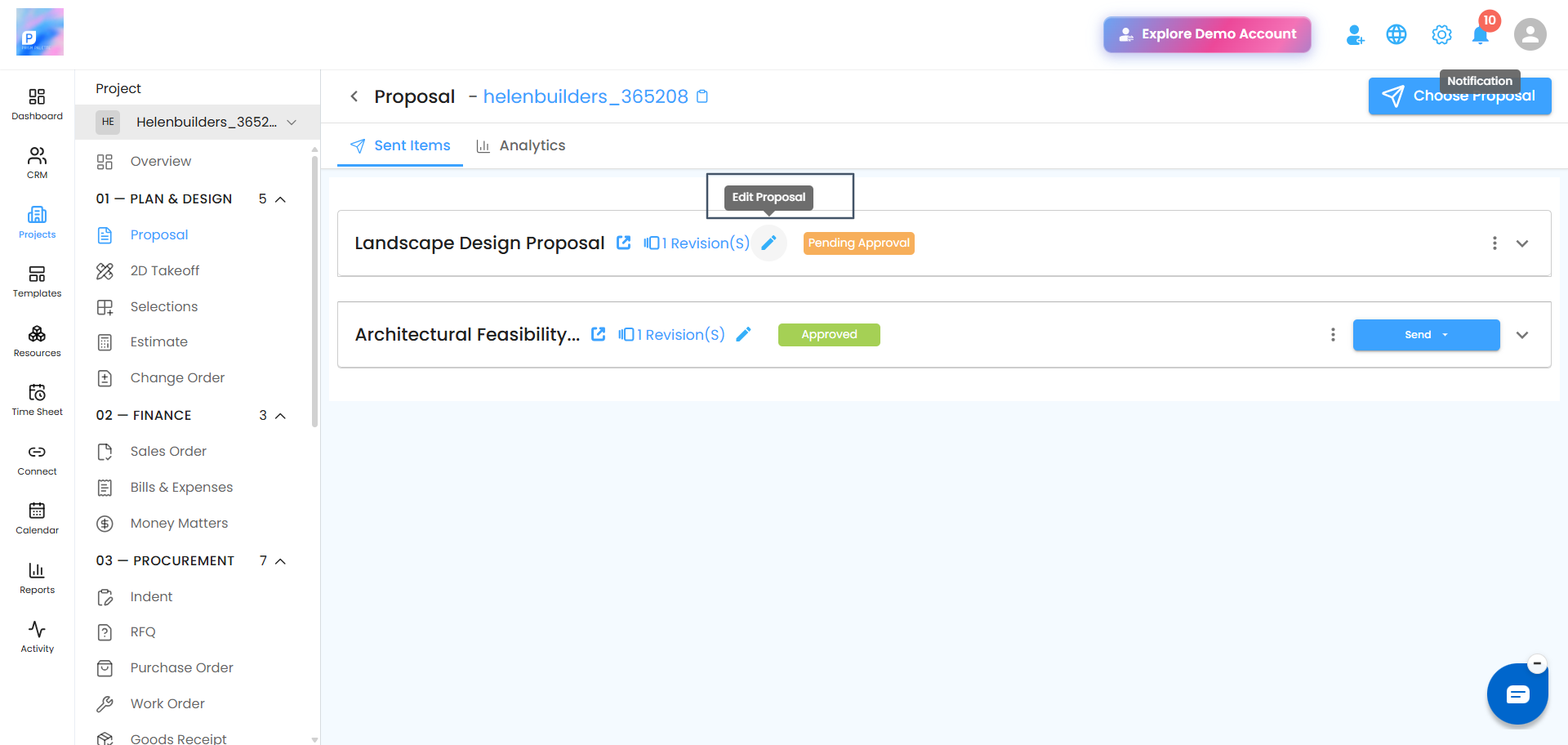
3. Send for Approval Again
After editing:
Click the Action button.Select Request for Approval.
Click the Action button.
Select Request for Approval.
The updated proposal will appear again under Pending Approval in Sent Items, now with an increased Revision Count.
Proposal Signed Email NotificationWhen a proposal is signed and accepted, email notifications will now be sent to the Super Admin, Reporter, and Assignee based on the accepted email addresses. This helps the responsible team members stay updated immediately after client acceptance.
Was this article helpful?
That’s Great!
Thank you for your feedback
Sorry! We couldn't be helpful
Thank you for your feedback
Feedback sent
We appreciate your effort and will try to fix the article