Overview
Every email the system sends on your behalf - proposals, reminders, invitations, follow-ups - leaves a trail. The Email Report is where you follow that trail: who sent what to whom, whether it actually landed, and whether anyone opened it. Instead of wondering if a message got through, you can just check.
What You Can Do Here
- Track senders and recipients - see exactly who sent an email and who received it
- Check templates - identify which template, if any, was used
- Monitor status - follow the journey from Sent → Delivered → Opened → Bounced
- View key dates - timestamps for when each stage happened
Getting There
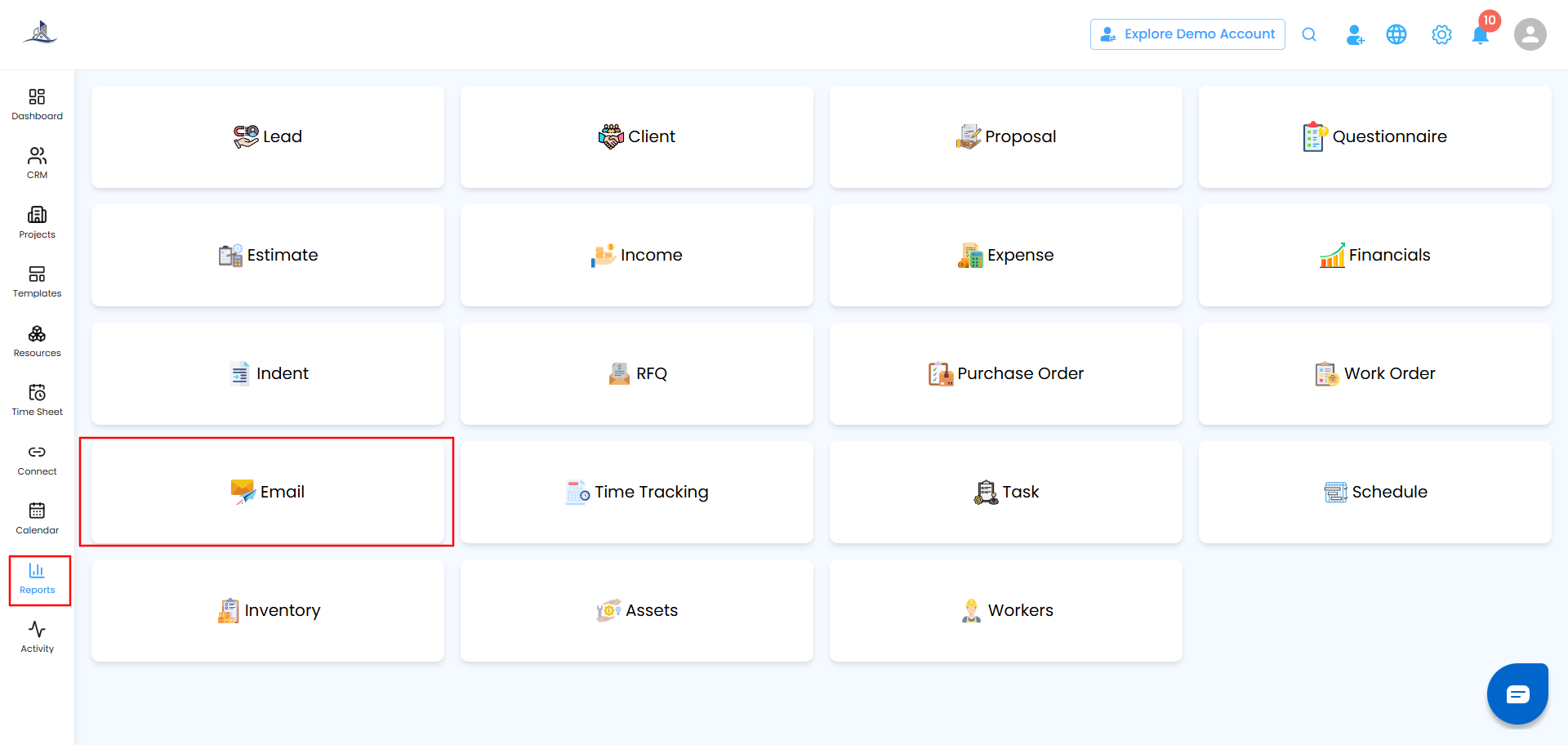
- Go to Reports from the main menu.
- Select Email to open the dashboard.
Dashboard at a Glance
Two numbers give you the overall health of your outbound email:
- Total Emails Sent - everything dispatched through the system
- Delivery Success Rate - the percentage that actually made it to the recipient

Filtering Your Results
Narrow things down with:
- Sent On - a specific date or date range
Click Apply to update the results, or Clear to reset and see everything.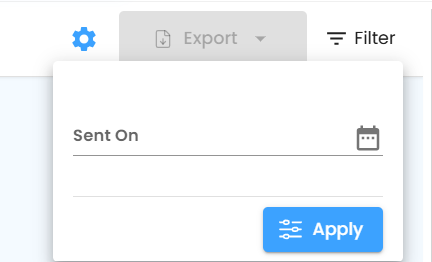
The Email Report Table
Full visibility into every message, tracked status by status:
| Column | What It Tells You |
|---|---|
| Sender | Who sent the email |
| Recipient | Who received it |
| Template | Which template, if any, was used |
| Status | Sent → Delivered → Opened → Bounced |
| Key Dates | Timestamps for when it was sent, delivered, opened, or bounced |

Bulk Selection and Exporting
Select one email or many at once, and export the data as an Excel file for reviews, reporting, or keeping a clean record of your communication history.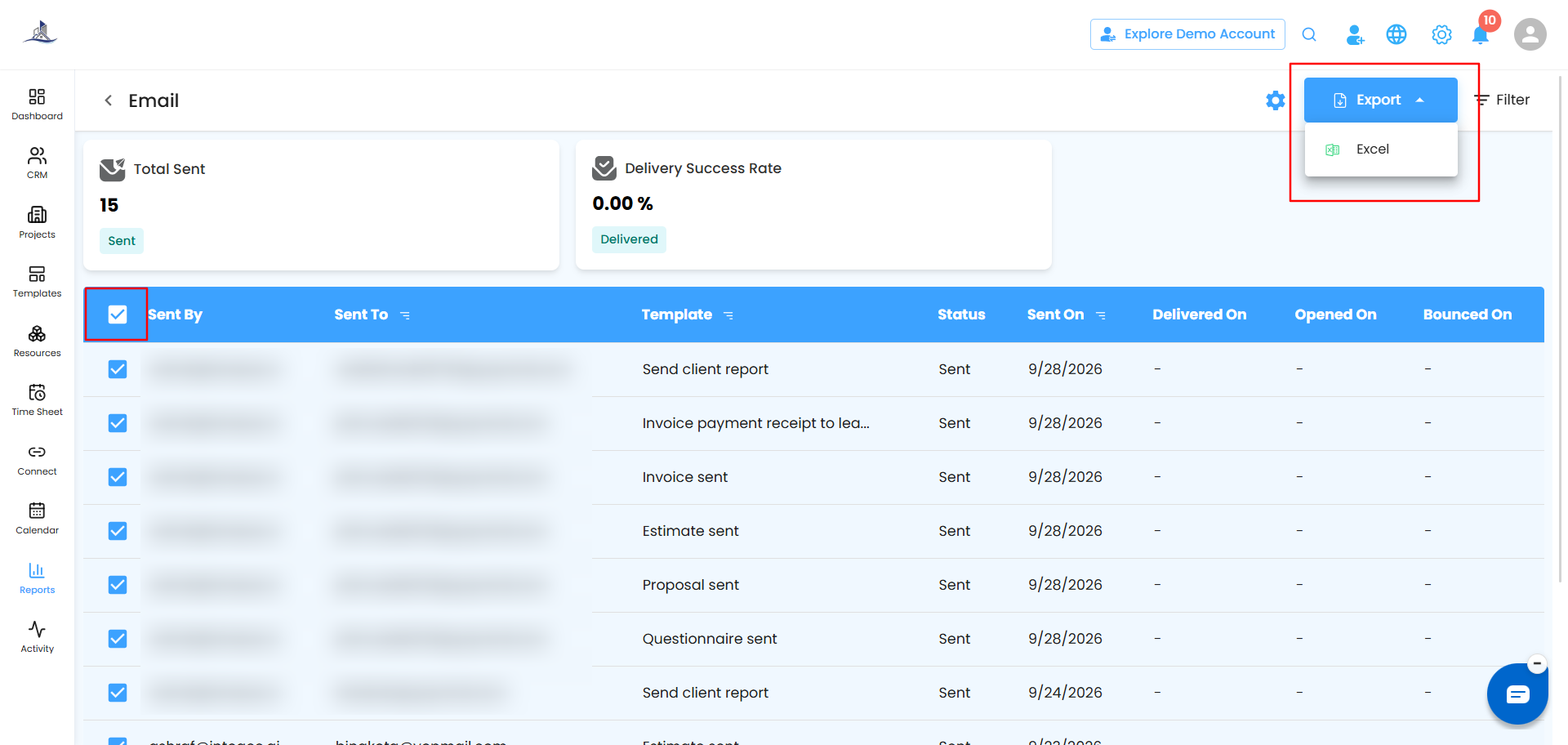
Automating Your Reports
Set it up once, and let email performance come to you on a schedule.
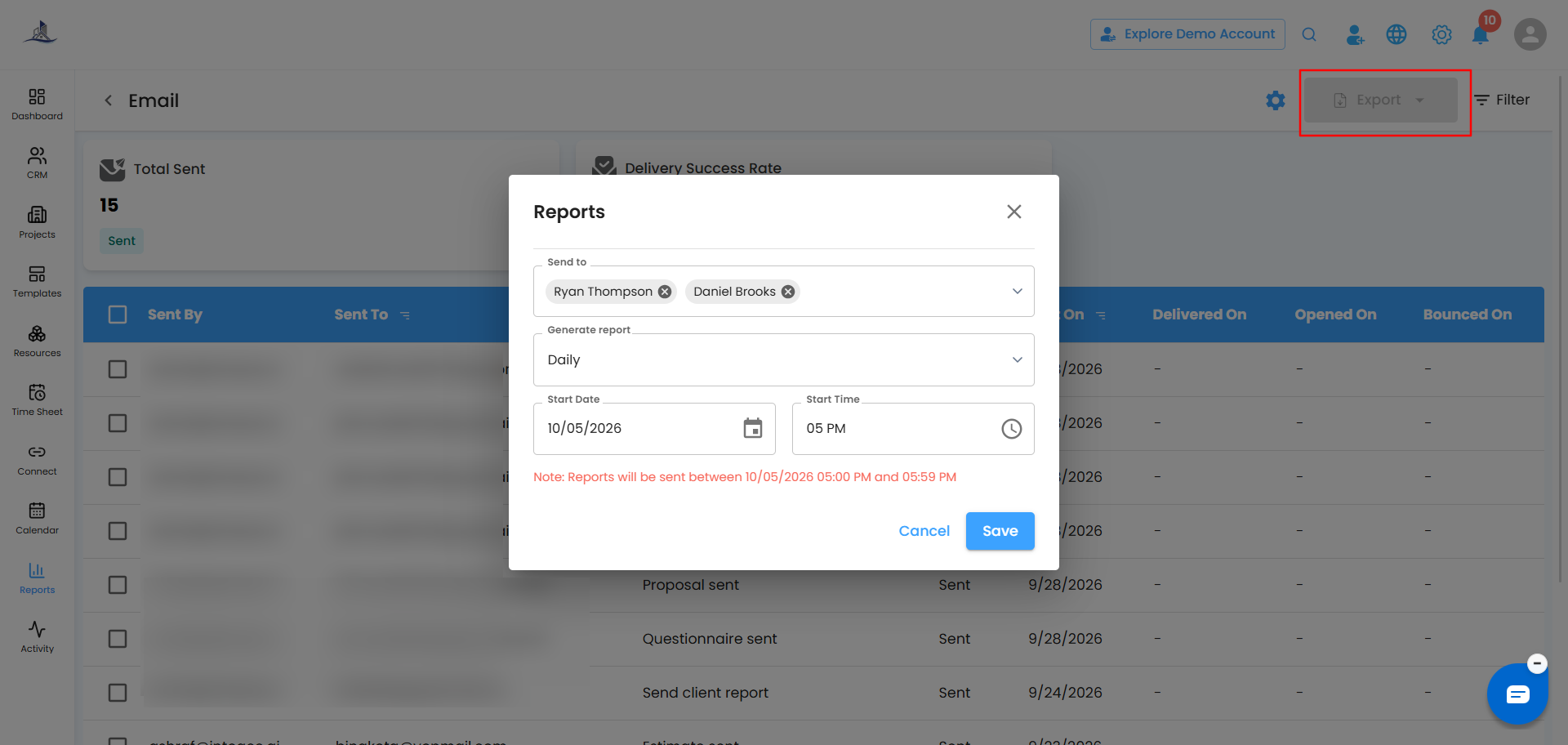
- Click the Configure Report Automation icon to open the popup.
- Under Send To, pick who should receive it.
- Set the Frequency:
- Daily (default) - generated within an hour of your chosen time (set 6:00 PM, and it lands between 6:00–6:59 PM)
- Weekly - a week's summary, same day and time each week
- Monthly - a monthly overview, same day and time each month
- Set the Start Date and Start Time, then click Save - or Cancel to back out.
Was this article helpful?
That’s Great!
Thank you for your feedback
Sorry! We couldn't be helpful
Thank you for your feedback
Feedback sent
We appreciate your effort and will try to fix the article