Applying Discounts in a Proposal – Make Every Deal Count
- Think of the Discounts section in your proposals as your personal savings strategist—always ready to highlight the best deals and make your pricing irresistible. Applying discounts has never been easier or more precise. With a few clicks, your proposals reflect accurate savings, leaving clients impressed and your numbers intact.
What You Can Do Here
Create or Edit a Proposal
- Start by choosing the proposal you want to work on. This is your canvas—customize it freely while keeping pricing clear and professional.
Apply Discounts Instantly
- Select from your saved discounts and watch the proposal totals adjust automatically. No math mistakes, no confusion—just clean, accurate pricing.
Review & Confirm
- Before sending, double-check that the discount matches the client’s agreed terms. This ensures transparency, professionalism, and client trust.
How to Get There
Open the Clients Menu
From the sidebar, click Clients to see your full client list.
Select Your Client
Choose the client whose project proposal you want to work on.
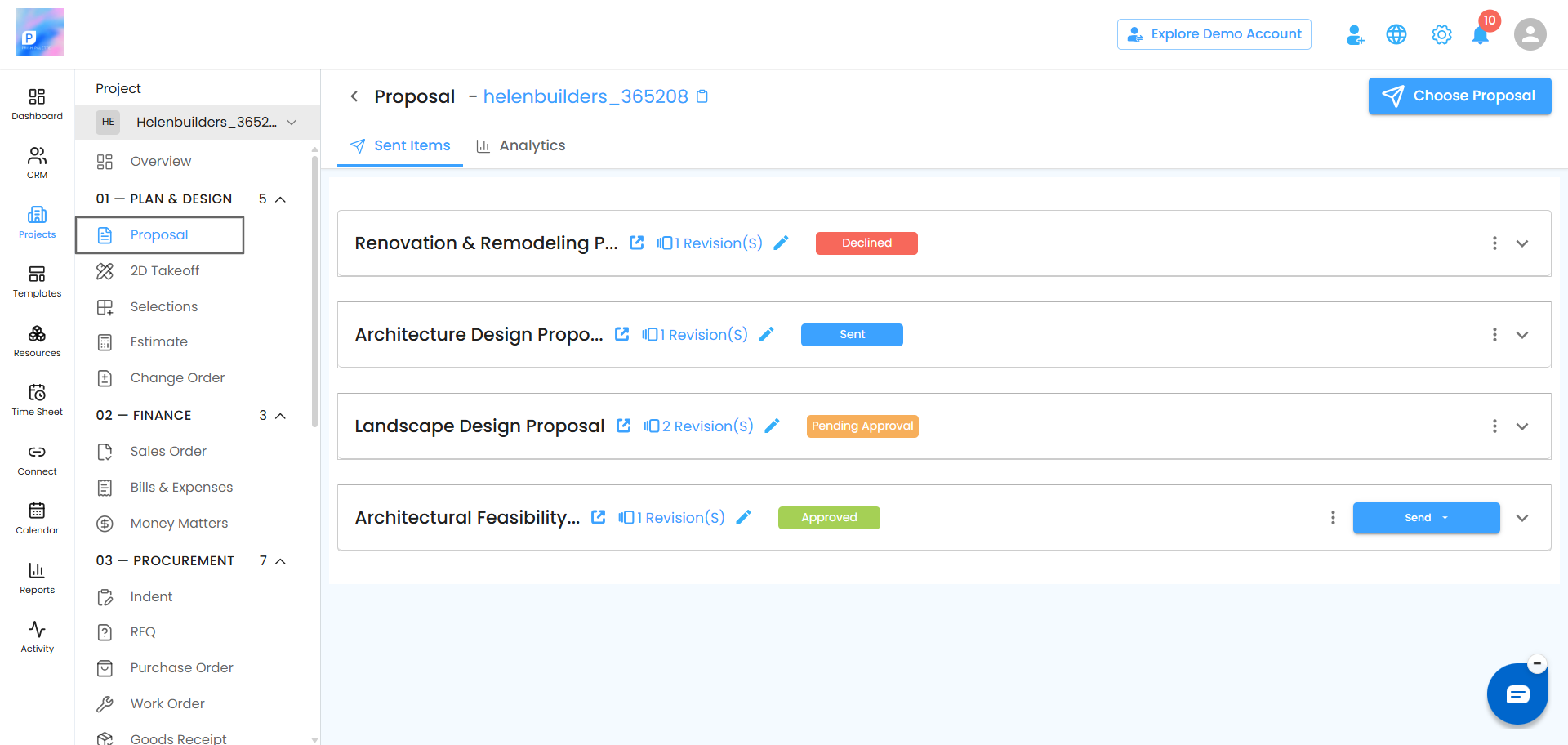
Open the Proposal Tab
Inside the client’s project options, click Proposal to enter the workspace.
Pro Tip
Think of applied discounts as your project’s secret weapon—keep them accurate and visible. A well-applied discount not only strengthens client relationships but also makes your proposals shine.
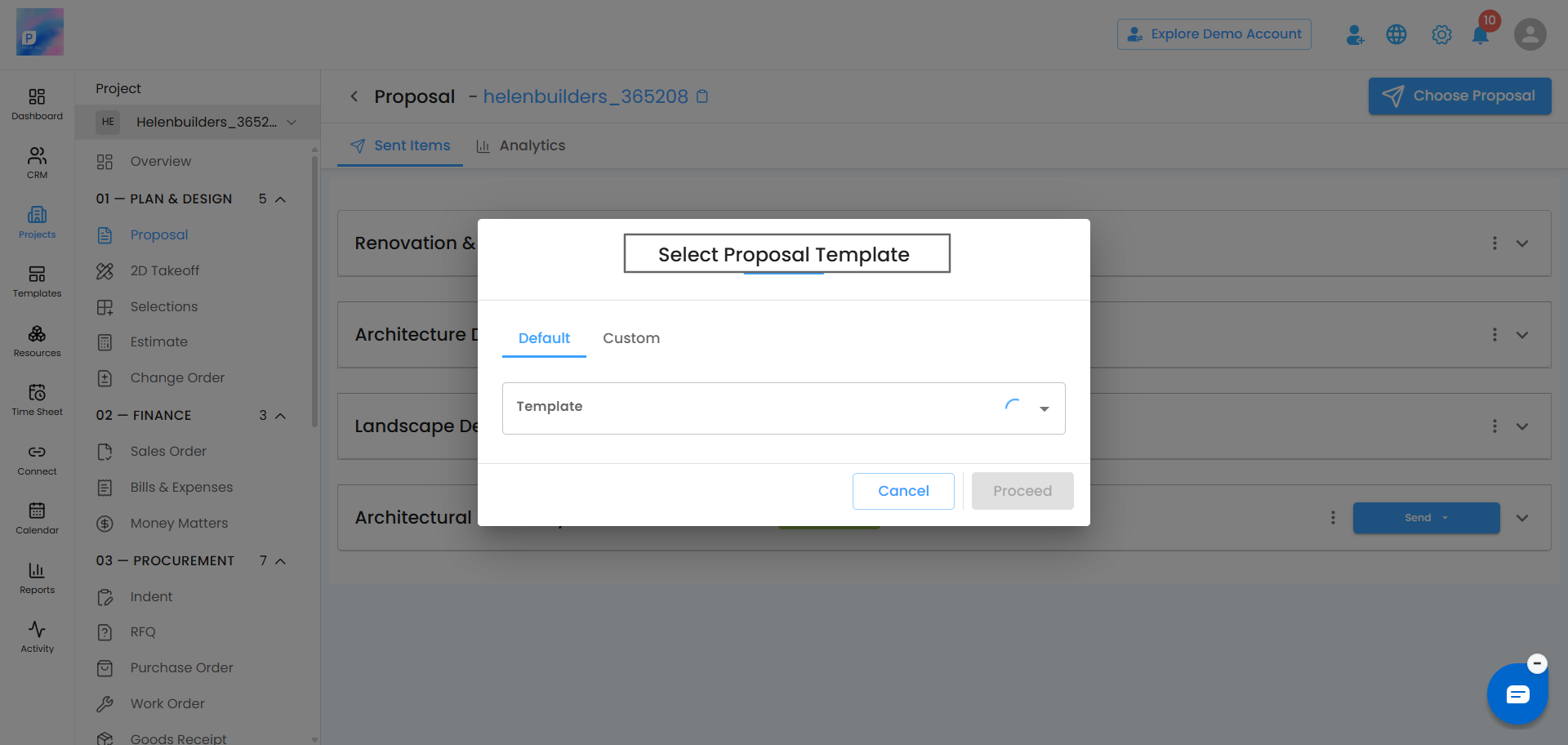
Select a Template
A pop-up appears where you can choose your Proposal Category and Template (for example, proposal.invoice). Click Proceed to move into edit mode.
Edit the Proposal
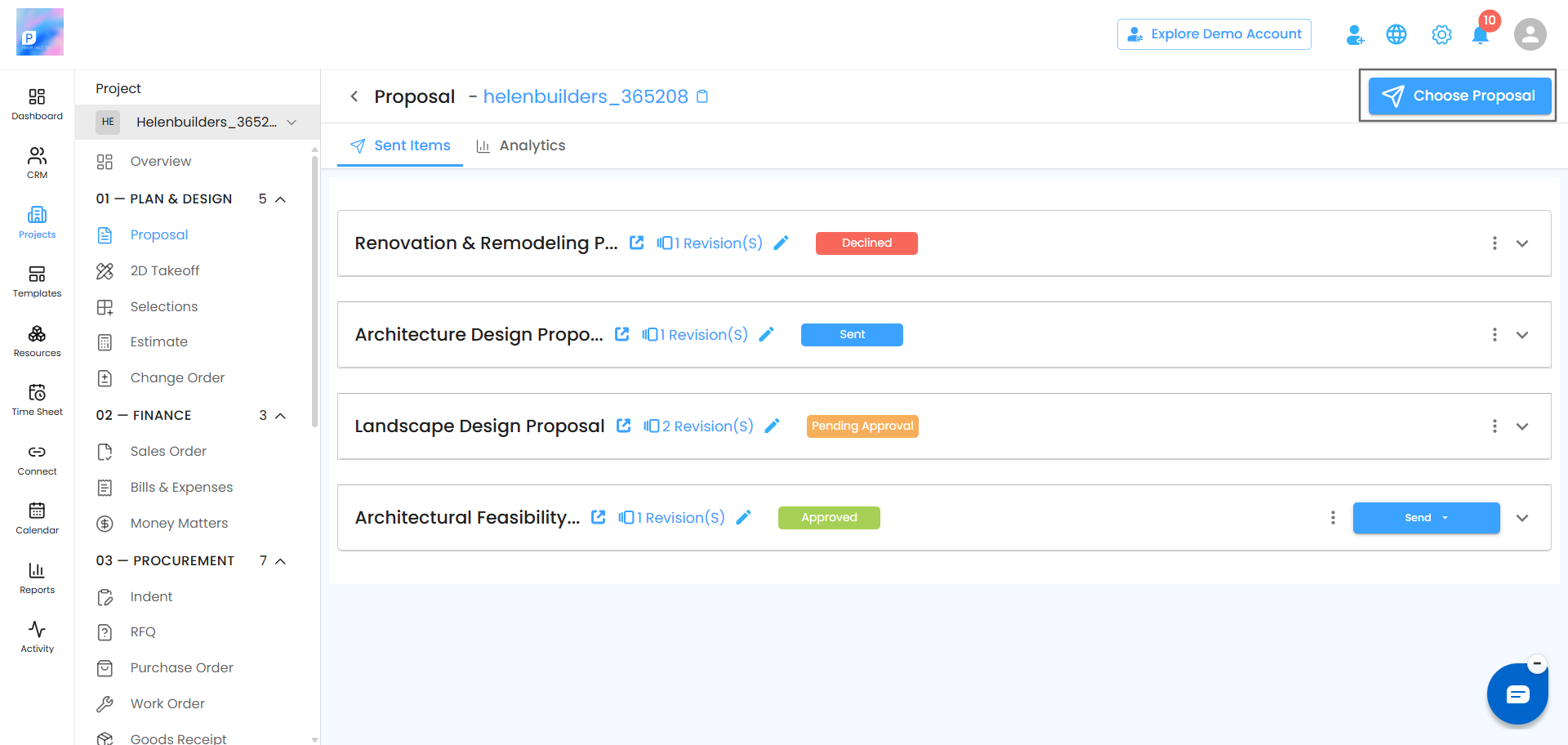
Once open, you can adjust the content, layout, and pricing details to match your project’s needs. To include pricing, open the Blocks panel on the right and insert a Pricing Table — your foundation for clear, organized pricing.
What You Can Do Here
- Customize the proposal layout to match your brand and style
- Add pricing tables for a clear cost breakdown
- Apply discounts or make quick price adjustments
- Preview the proposal before sending to clients
Add Items & Prices
- Enter your item details, unit prices, and quantities directly into the table. The system automatically calculates your Subtotal, ensuring accuracy and saving valuable time.
Pro Tip: Keep your item names concise and your pricing descriptions clear. It not only improves readability but also helps clients understand value at a glance — making your proposals faster to approve and easier to trust.
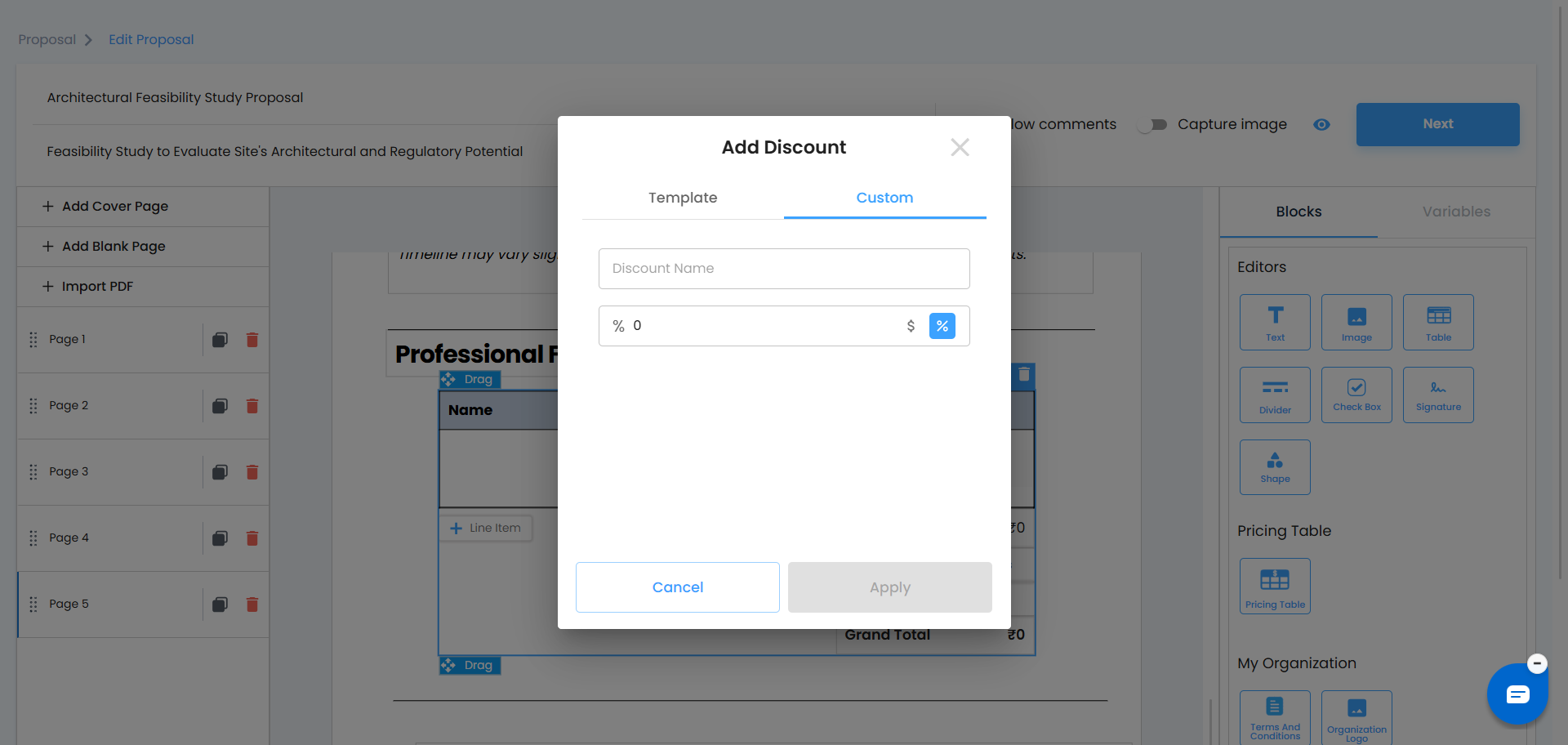
Apply the Discount
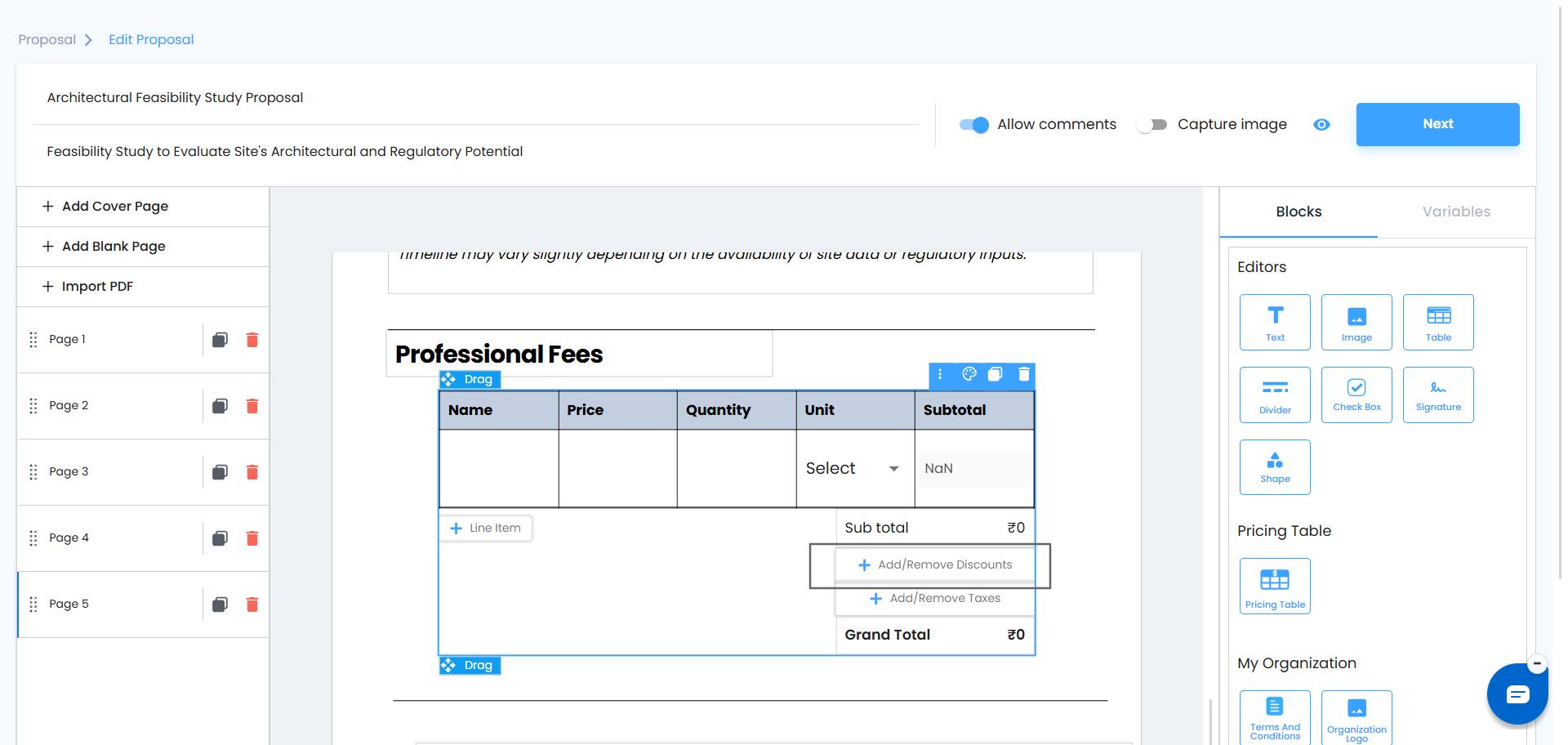
Below the subtotal, click Add/Remove Discounts to open your list of available discount options. Choose the one that fits your proposal and click Add — quick, precise, and effortless.
What You Can Do Here
- Select from fixed or percentage-based discounts
- Apply one or multiple discounts as needed
- Instantly update totals without manual recalculation
- Remove or modify discounts anytime before sending
Verify the Numbers
- Once applied, the discount appears directly below the Subtotal, and the Grand Total updates automatically in real time. You can review every figure at a glance — confident that everything adds up perfectly.
Pro Tip: Always double-check discount details before sending. A quick review ensures accuracy, protects your margins, and keeps every proposal looking professional.
Send Your Proposal
When everything looks perfect and ready to go, click Next in the top-right corner to send your proposal directly to your client. Choose the channel that works best — Email, SMS, or WhatsApp — and share your proposal in just a few clicks.
Was this article helpful?
That’s Great!
Thank you for your feedback
Sorry! We couldn't be helpful
Thank you for your feedback
Feedback sent
We appreciate your effort and will try to fix the article