Material Takeoff – Turn Measurements into Material Quantities
The Material Takeoff panel is where your drawn measurements become actionable quantities. Once you have measured an area on the plan, you can open the Material Takeoff panel for that shape, select a trade and assembly, configure project-specific inputs, and IntoAEC calculates the required materials and labour using predefined formulas based on the measurement.
The Material Takeoff panel also uses measurement values such as Area, Perimeter, Circumference, Height/Width, Pitch, Volume, and Sloped Area as inputs for material calculations.
This is where 2D Takeoff connects directly to estimation — without spreadsheets, manual calculations, or re-entering measurement values.
How to Open the Material Takeoff Panel
Once you have drawn a shape on the plan and it appears in the Takeoff panel on the left:
- Click the Layers icon next to the measured item in the left Takeoff panel, or click directly on the item row.
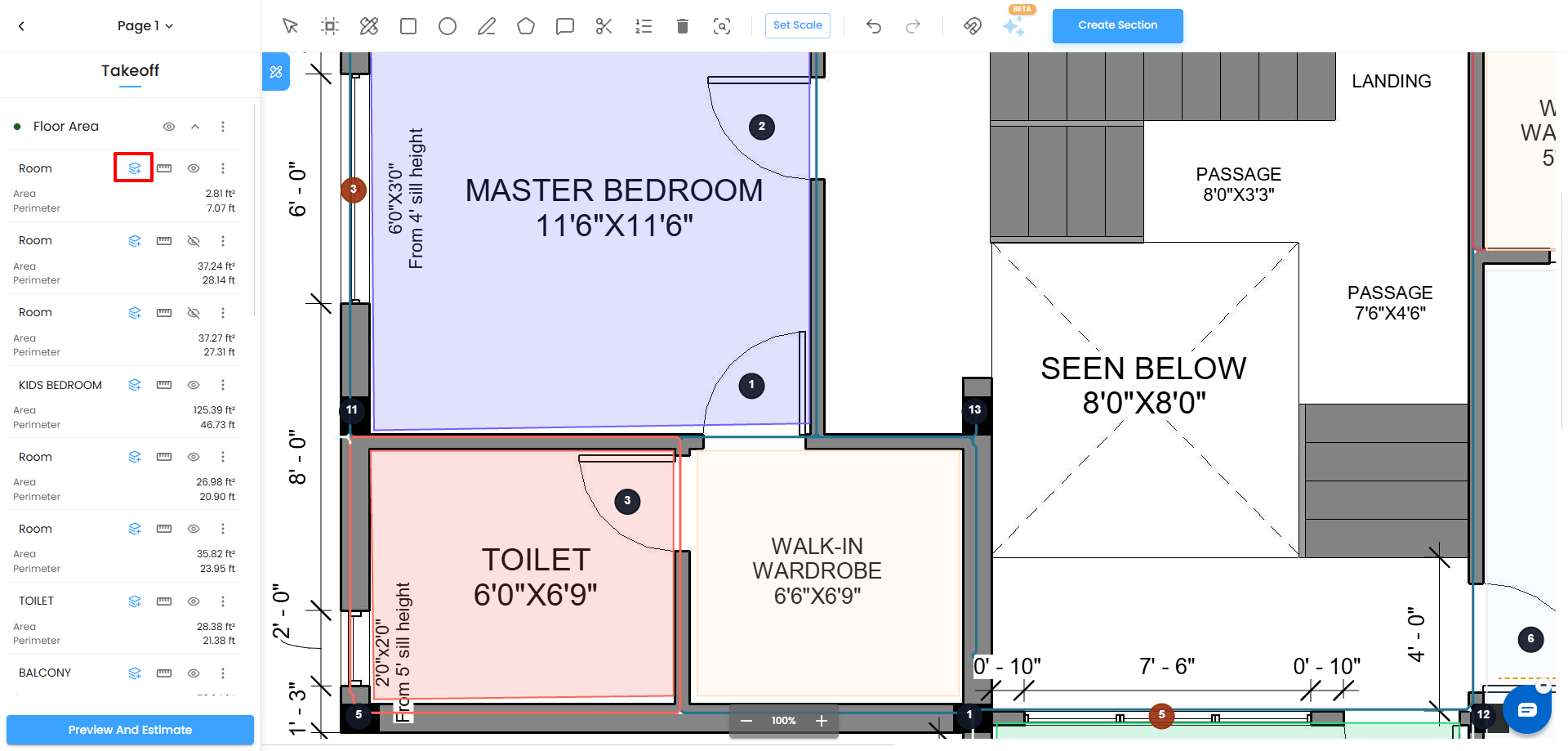
- The Material Takeoff panel slides in from the right side of the canvas.
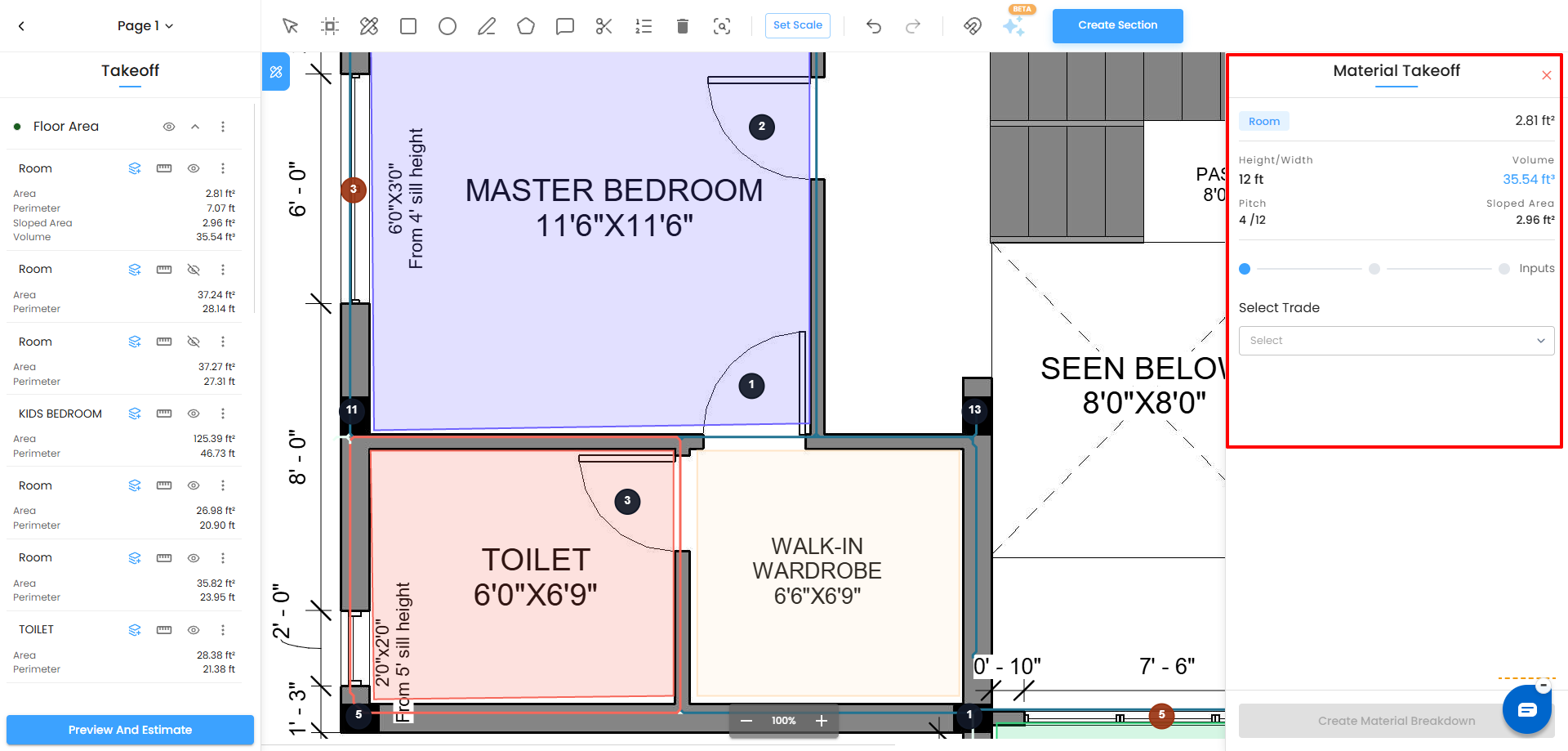
- The panel header shows the area name and the measured values available for the selected shape.
- Depending on the shape and the values configured during measurement, the Material Takeoff panel can show:
- Area
- Perimeter
- Circumference – for circular measurements
- Height / Width
- Pitch
- Volume
- Sloped Area
- A toggle slider at the top of the panel switches between the main view and the User Inputs view. It starts on the main view by default.
- The Select Trade dropdown and Create Material Breakdown button are visible below. The Create Material Breakdown button remains disabled until the required trade and assembly are selected.
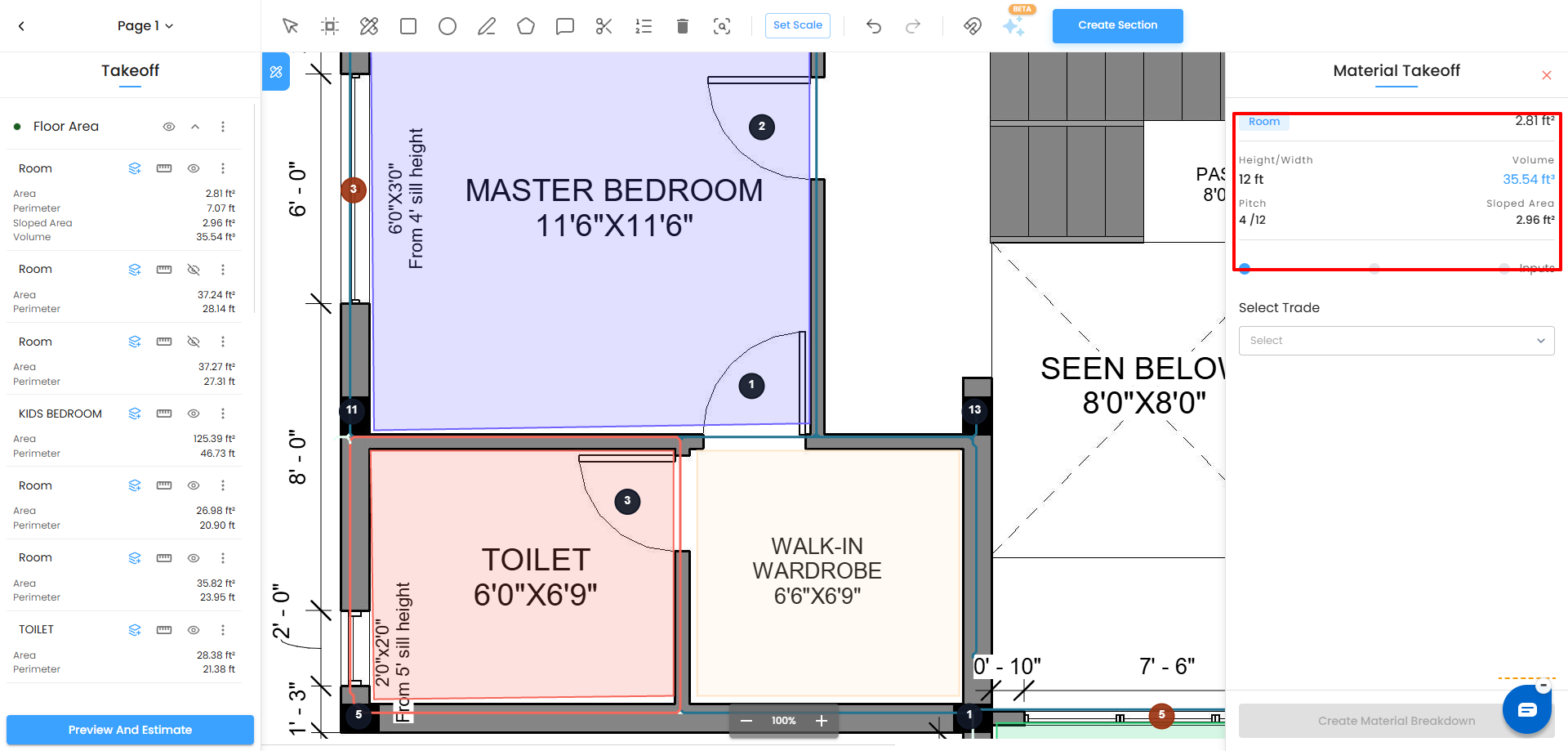
Step 1 — Rename Your Measurement
Before proceeding, make sure the measured item has a meaningful name.
- Double-click the item name in the left Takeoff panel.
- A text field appears. Type the new name, for example Guest Room or Garage.
- Press Enter or click the tick icon to confirm.
- Press the × icon to cancel.
- The name updates immediately in both the Takeoff panel and the Material Takeoff panel header.
Step 2 — Select a Trade
The Select Trade dropdown lists the construction trades configured in IntoAEC. The selected trade determines which assemblies and materials are available for the measured area.
- Click the Select Trade dropdown.
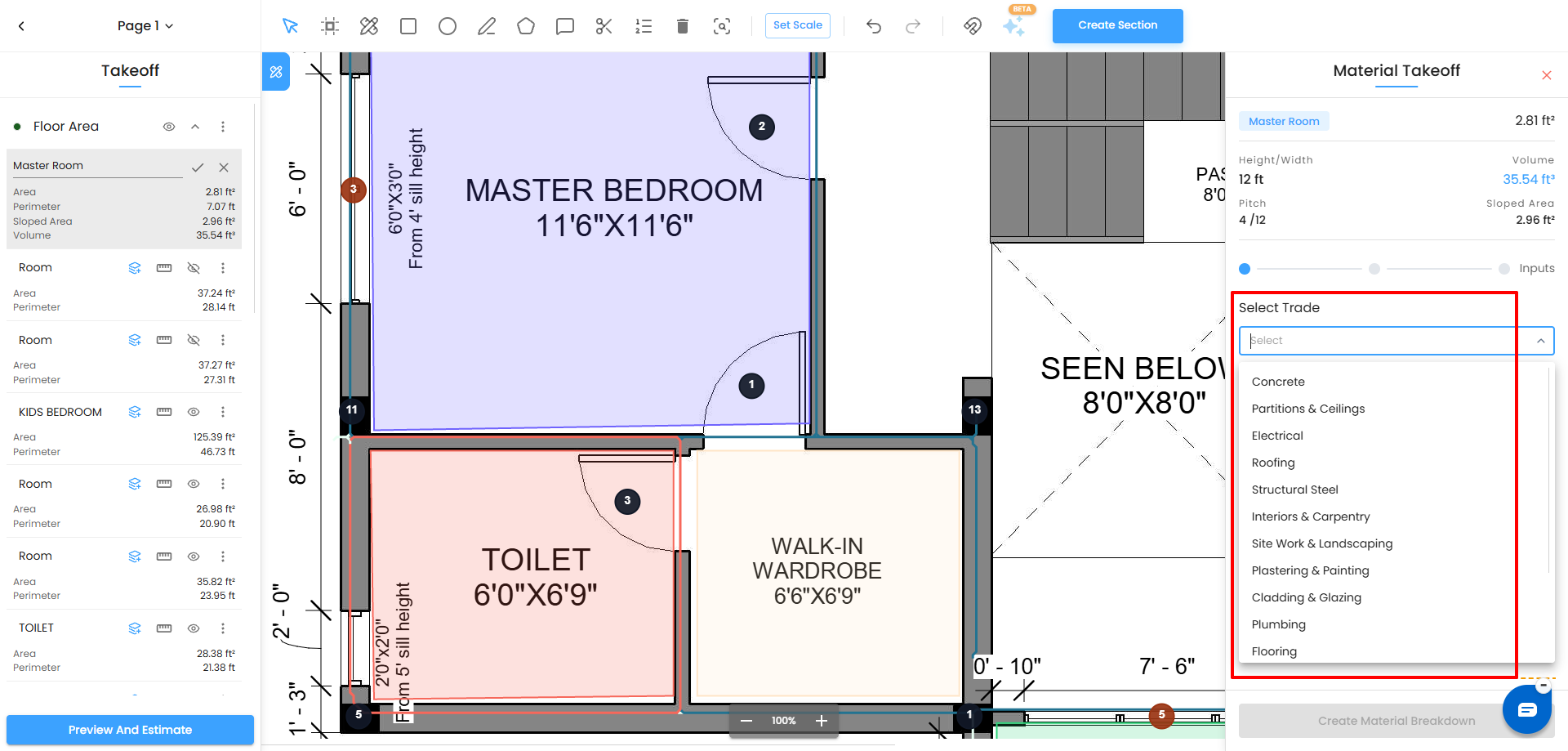
- Type part of the trade name to filter the list, or scroll to find it.
- Click the trade you want — for example Concrete, Plastering & Painting, Roofing, Flooring, Plumbing, or any other available trade.
- Once a trade is selected, a second search field appears below it showing the assemblies available for that trade.
Available trades include:
- Concrete
- Partitions & Ceilings
- Electrical
- Roofing
- Structural Steel
- Interiors & Carpentry
- Site Work & Landscaping
- Plastering & Painting
- Cladding & Glazing
- Plumbing
- Flooring
- Mechanical / HVAC
- Demolition & Dismantling
- Thermal & Acoustic Insulation
- Masonry
Step 3 — Select an Assembly
An assembly is a predefined collection of materials and labour items grouped for a specific type of work.
When you select the Concrete trade, for example, you may see assemblies such as:
- PCC Bedding (Foundation) — plain cement concrete bedding for foundations
- RCC Slab — reinforced cement concrete slab
- Standard RCC Rebar (TMT) — standard steel reinforcement bars
Click the assembly that matches your scope of work for the selected area.
If none of the existing assemblies match your project specification, click + Add Assembly at the bottom of the list to create a custom one.
See the Creating Custom Assemblies and Formulas article for more information.
Step 4 — Review and Configure User Inputs
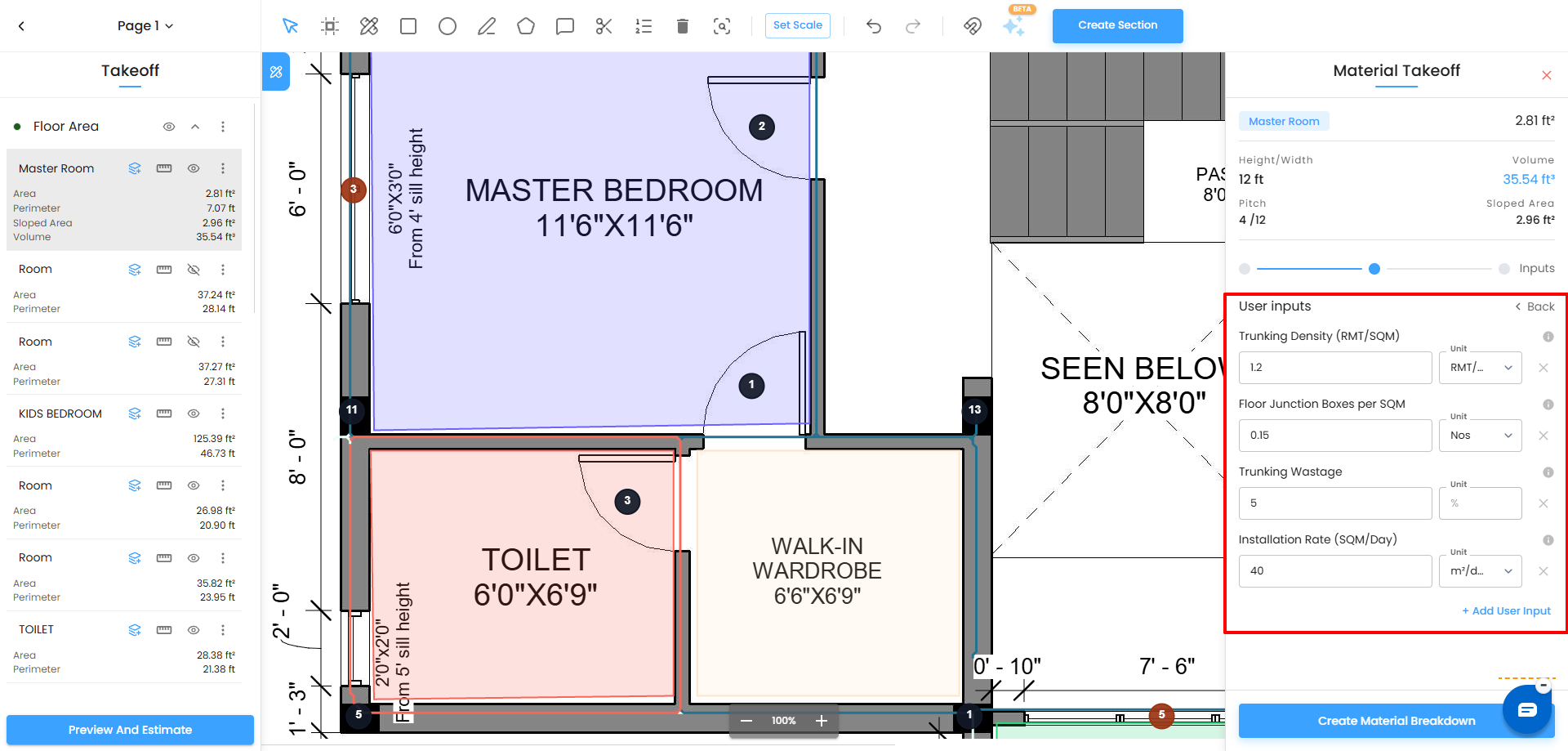
After selecting an assembly, the toggle slides to the right to the User Inputs view. This shows the variable values required by the assembly to calculate quantities accurately.
What Are User Inputs?
User inputs are project-specific values that can vary from site to site — such as concrete thickness, wastage percentage, or productivity rate.
The assembly can contain default user inputs that are already configured for the selected assembly.
You can:
- Change the value of an existing input.
- Change the unit where applicable.
- Rename an input when required.
- Remove a custom input using the × button.
- Add a new input using + Add User Input.
When an input is renamed, the updated name is available when creating formulas.
Example: PCC Bedding (Foundation) Inputs
PCC Thickness
- Depth of the concrete bed
- Default value: 0.1 m
- Unit: m
- Change the value to match the structural specification, such as 0.15 m for a 150 mm bed.
- Hover over the (i) information icon to see a description of the input.
Wastage Allowance
- Percentage added to the calculated quantity to account for spillage, absorption, and uneven ground.
- Default value: 5%
- Unit: %
- Adjust it based on your site conditions and specification.
Pour Rate (M3/Day)
- Volume of concrete that can be poured per day by the crew.
- Default value: 12 M3/Day
- Unit: M3/Day
- Used to calculate labour duration.
- Adjust it according to your crew size and productivity rate.
Changing User Input Values
Click into any value field and enter the correct number for your project.
The unit dropdown next to each input can also be changed where applicable.
The × button on the right of a row removes a custom input.
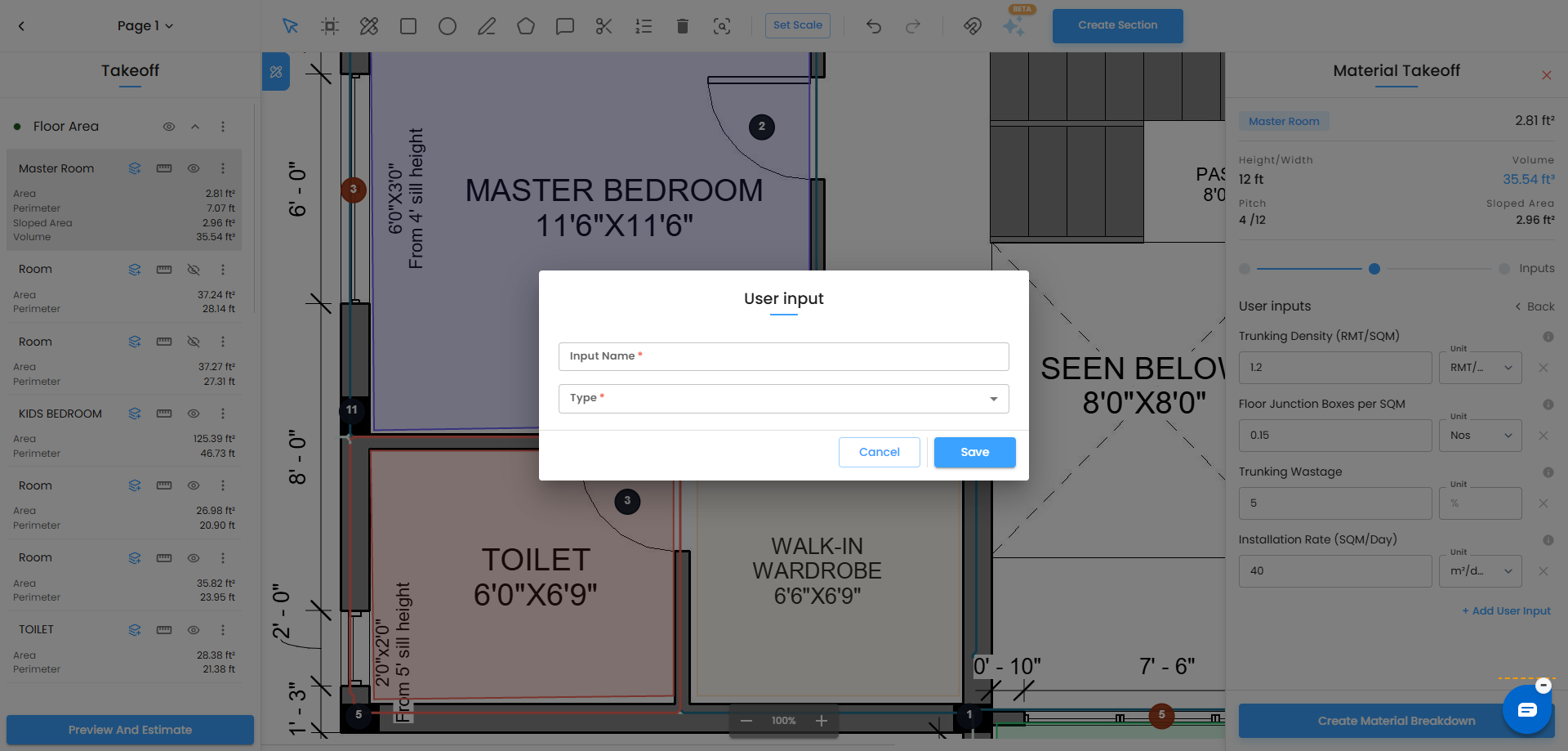
Adding a Custom User Input
If the assembly requires an additional variable that is not included by default:
- Click + Add User Input.
- The input dialog opens.
- Enter the Input Name.
- Select the input Type, such as percentage or number.
- Add the input.
The new input becomes available for use in material formulas.
Step 5 — Create the Material Breakdown
Once the trade, assembly, and required inputs are configured, click Create Material Breakdown.
The button is active when the required information is available and remains disabled if a required field is empty.
IntoAEC applies the assembly formulas against the measured shape and configured inputs.
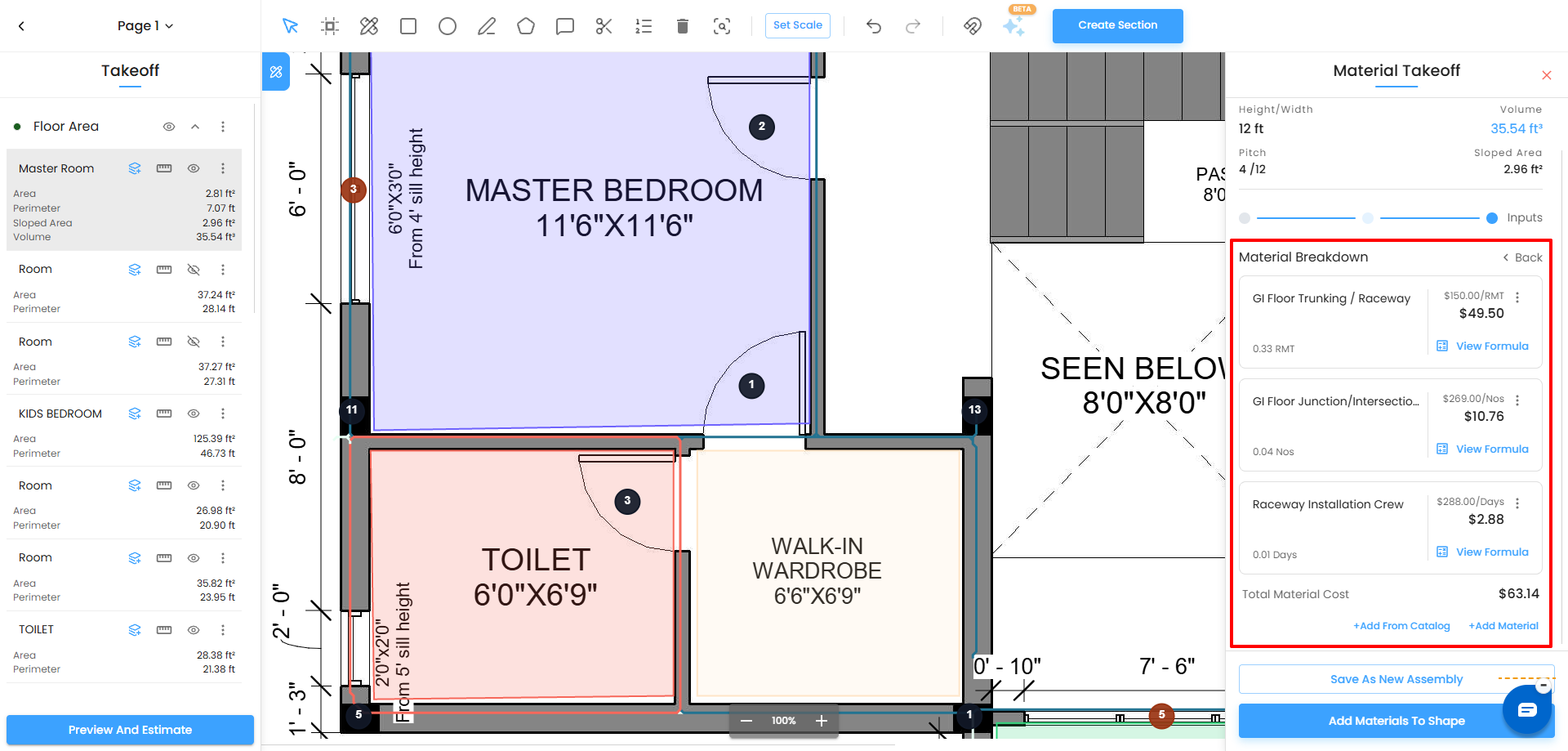
The Material Breakdown view then displays:
- Item Name
- Unit
- Quantity
- Price
- View Formula
Each material line also has a three-dot menu (⋮) for available material actions.
Managing Materials in the Breakdown
For individual materials, you can:
- Rename the material to use a project-specific or clearer name.
- Update the Price for the material.
- Open View Formula to review or configure its calculation.
- Use the three-dot menu (⋮) to manage the material line.
The updated material name and price are reflected in the Material Breakdown.
Step 6 — Create Material Formulas
IntoAEC supports two types of formulas:
- Direct Formula
- Conditional Formula
These formulas can be used to calculate material Quantity or Price.
Direct Formula
A Direct Formula uses one formula expression to calculate the result.
Only one formula can be configured for a Direct Formula.
For example:
Area × PCC Thickness × (1 + Wastage Allowance / 100)
The result is applied according to whether the formula is configured for Quantity or Price.
Conditional Formula
A Conditional Formula allows you to create multiple rules and different results based on conditions.
Each condition contains a rule and its corresponding result.
You can add multiple condition rules.
IntoAEC evaluates the rules in order:
- The system checks Rule 1.
- If the condition is satisfied, it uses the result/formula configured for Rule 1.
- If the condition is not satisfied, it checks Rule 2.
- It continues through the rules in order.
- If none of the conditions are satisfied, the Otherwise result is applied.
This allows the same material to use different calculations depending on the measurement or input values.
Step 7 — Build a Formula Expression
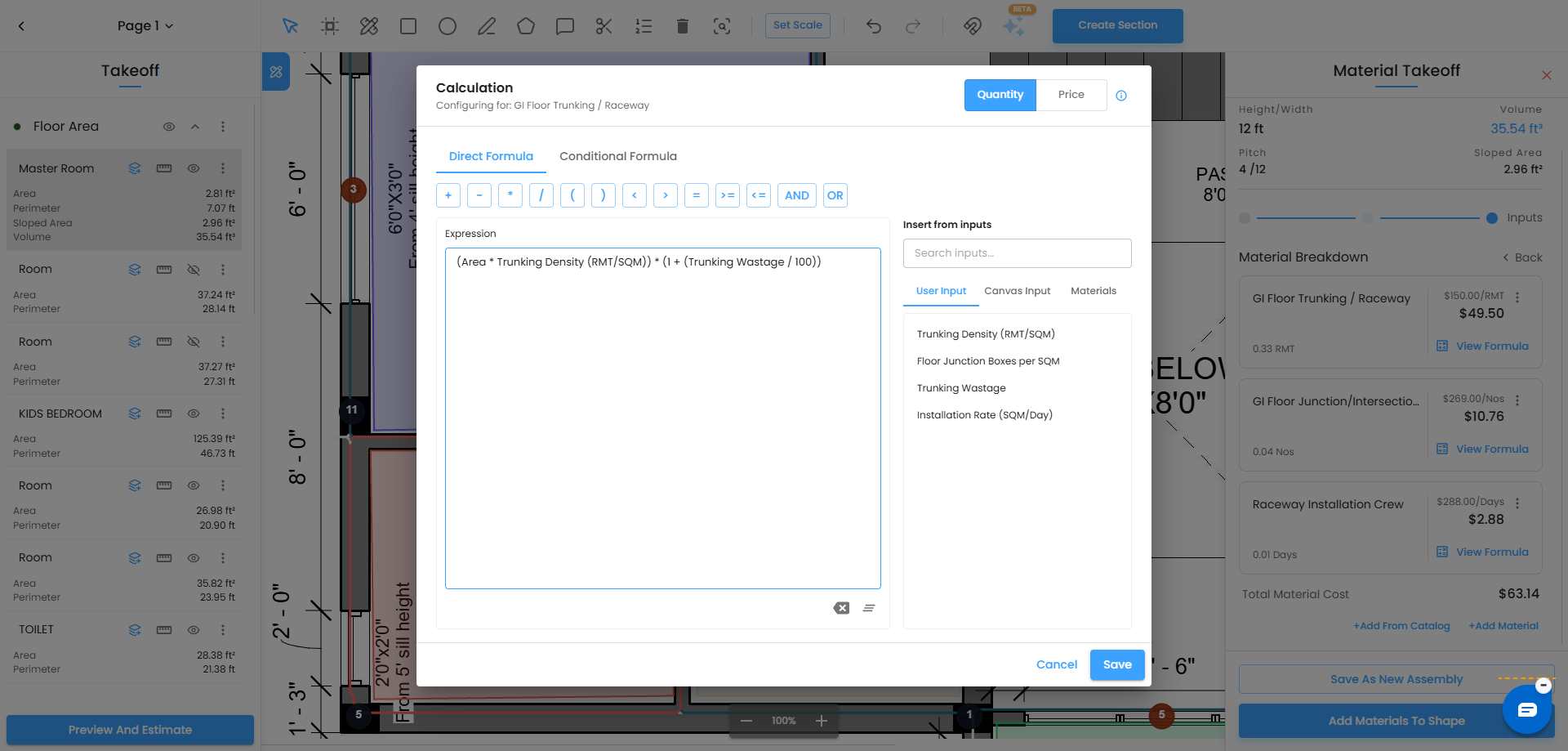
The formula editor provides an Expression field where you can create the calculation using operators and available inputs.
Available Operators
The expression supports mathematical and logical operators such as:
+Addition-Subtraction*Multiplication/Division()Parentheses>Greater than<Less than>=Greater than or equal to<=Less than or equal to==Equal to- AND
- OR
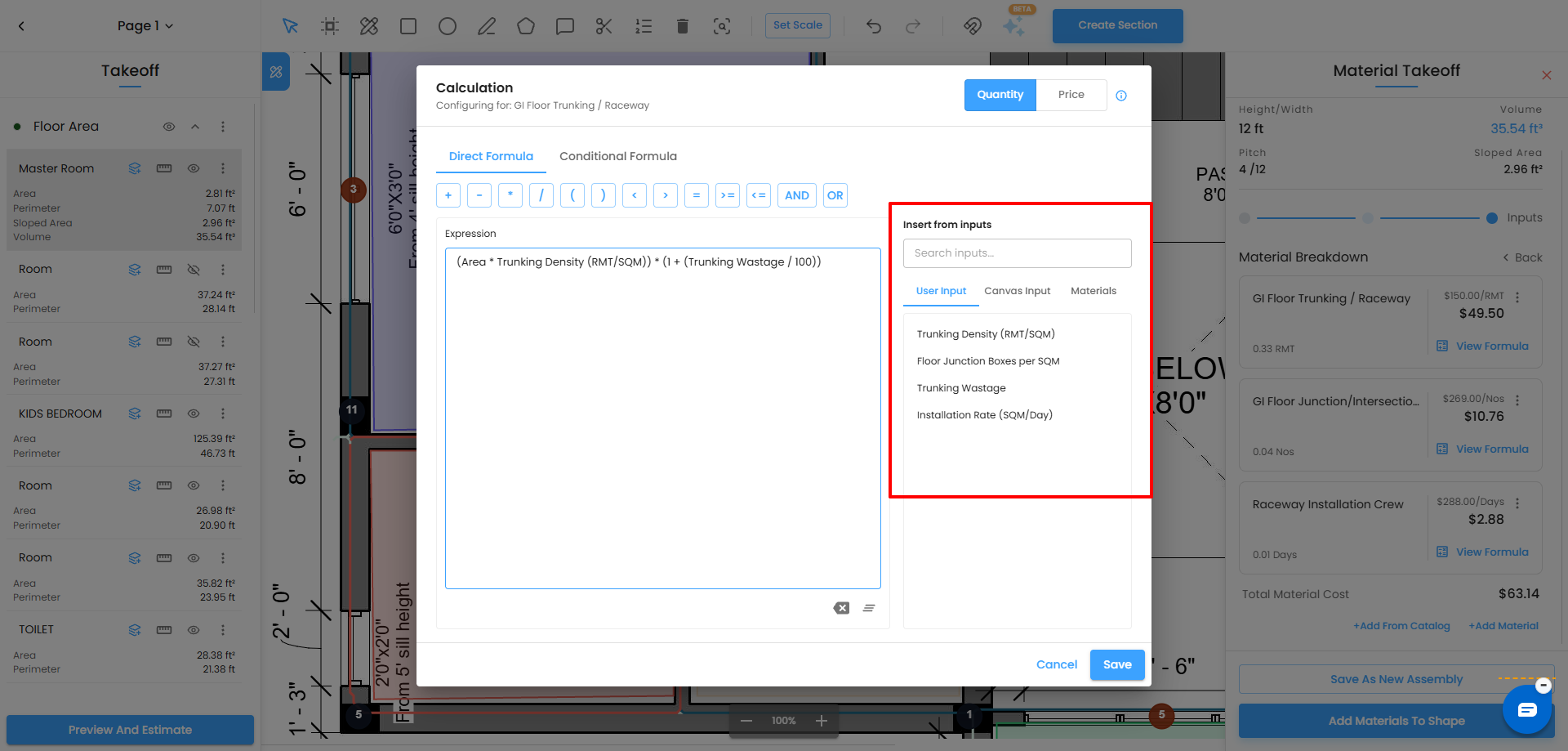
Available Formula Inputs
The formula can use values from three sources.
User Inputs
These are the inputs configured for the assembly, such as:
- PCC Thickness
- Wastage Allowance
- Pour Rate
- Custom user inputs
Canvas Inputs
These are values calculated from the shape on the plan:
- Area
- Perimeter
- Circumference
- Sloped Area
- Volume
Materials
Materials already added to the same shape can also be selected as formula inputs.
This allows one material calculation to reference another material that has already been added to the shape.
Step 8 — Set the Calculation Type
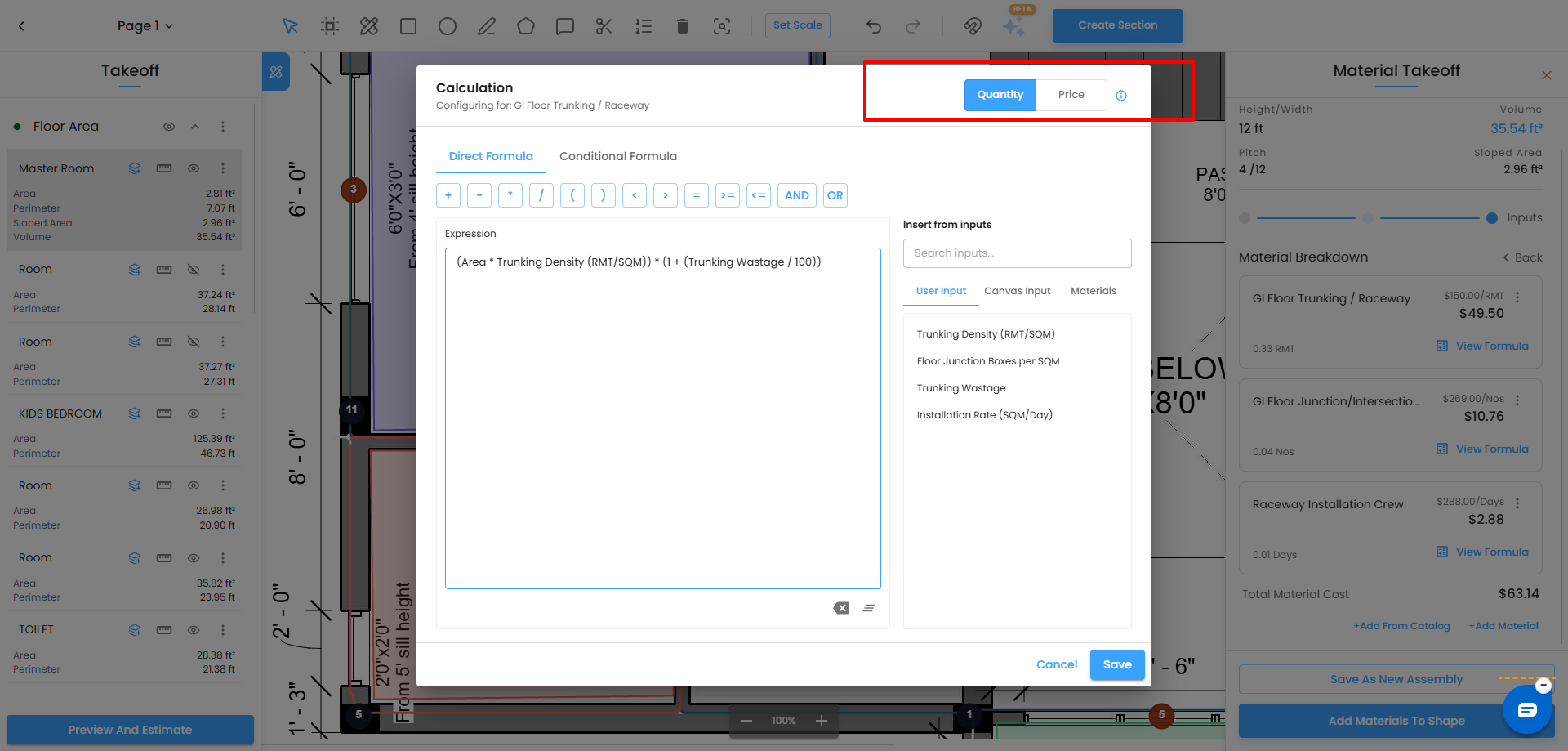
When creating a formula, you can choose whether the formula calculates Quantity or Price.
Quantity
Select Quantity when the formula should calculate the amount of material required.
Use Quantity to calculate the material quantity.
The formula result is reflected in the material's Quantity field.
Price
Select Price when the formula should calculate the total material cost.
Use Price to calculate the total material cost; the unit price is calculated from the quantity.
The formula result is reflected in the material's Price.
Step 9 — Understanding the View Formula Screen
Clicking View Formula on a material line opens the formula editor so you can review or modify how IntoAEC calculates the material.
The formula editor includes:
- Formula Type – Direct Formula or Conditional Formula.
- Expression – The mathematical or logical expression used for the calculation.
- Canvas Inputs – Area, Perimeter, Circumference, Sloped Area, and Volume.
- User Inputs – Inputs configured for the selected assembly.
- Materials – Materials already added to the same shape.
- Operators – Mathematical and logical operators available for the expression.
For a Conditional Formula, the rules are evaluated from top to bottom. The first satisfied condition is used. If no condition is satisfied, the Otherwise result is applied.
Click Cancel to close the formula view without applying changes.
Click Save to save the formula changes.
Step 10 — Add a Custom Material
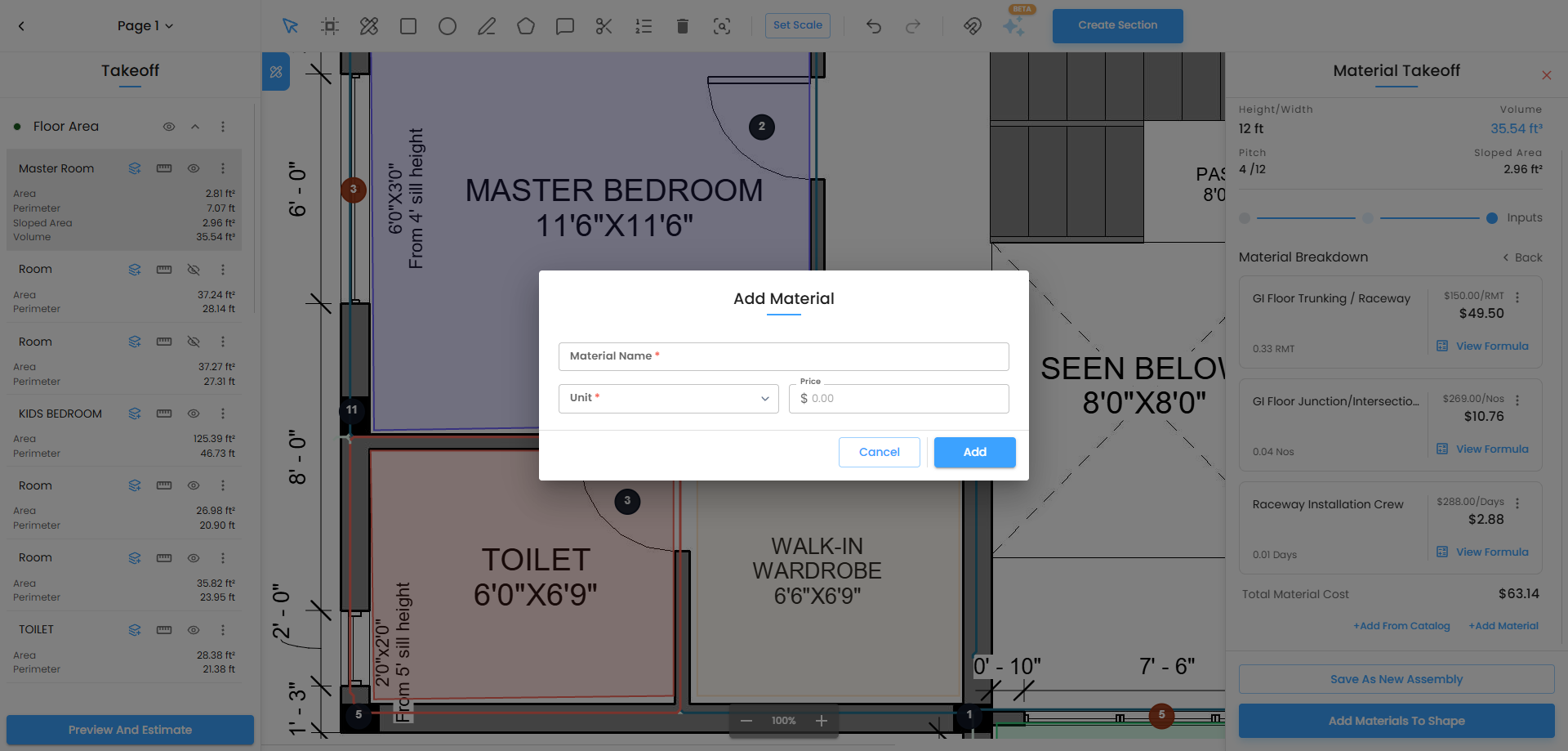
If the assembly is missing a material line you need, click + Add Material in the Material Breakdown panel.
The Add Material dialog opens.
- Enter the Material Name — for example Blinding Sand, Form Work Shuttering, or Curing Compound.
- Select the Unit.
- Click Add.
- The material appears in the Material Breakdown.
- Enter or update the Price for the material when required.
- Click Add Formula next to the material to define how its quantity or price should be calculated.
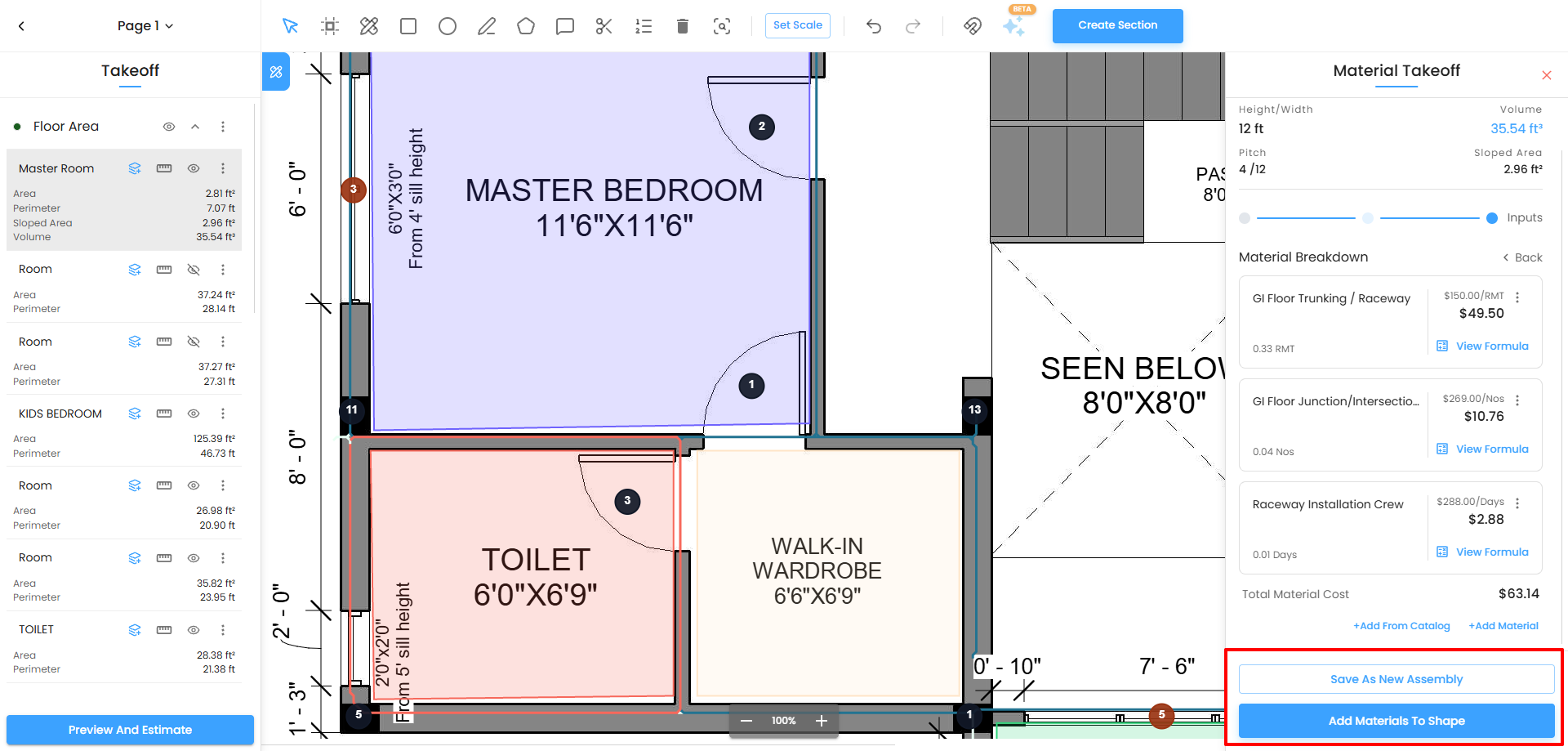
Step 11 — Save as New Assembly
If you have customised an assembly by changing inputs, adding materials, or modifying formulas and want to reuse the same configuration in future takeoffs, click Save As New Assembly.
- Enter a name for the new assembly.
- Click Save.
- The assembly becomes available in the trade's assembly list for future takeoffs.
This allows you to build your firm's own library of project-specific assemblies.
Step 12 — Add Materials to Shape
Once you are satisfied with the Material Breakdown, click Add Materials To Shape at the bottom of the panel.
A green success notification appears:
Materials added to shape successfully
The material quantities are now linked to the selected measurement area inside the project.
The data can then flow into IntoAEC's estimation and reporting workflows.
2D Takeoff Improvements
The 2D Takeoff workflow now includes additional pricing and catalog capabilities, allowing users to manage product pricing and add predefined cost items directly while working on drawings.
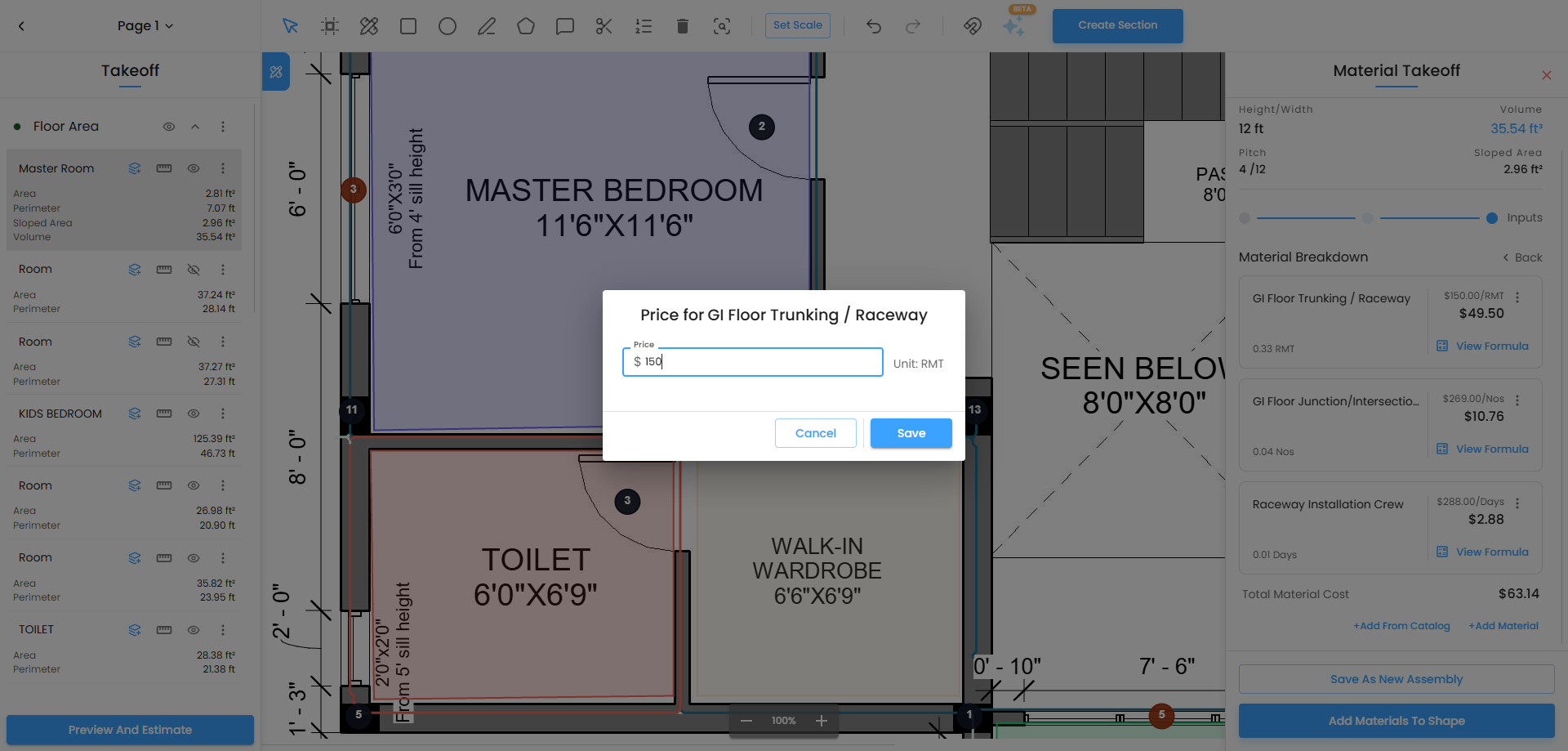
Manual Price Updates in 2D Takeoff
Users can manually update product prices directly from the 2D Takeoff screen.
- Open the product or material in the takeoff workflow.
- Select the Price field.
- Enter the updated price.
- Save the change.
The updated price is reflected in the Material Breakdown and related estimate calculations.
This is useful when:
- Product rates need to be adjusted for a specific project.
- The default catalog price needs to be changed.
- Pricing needs to be updated without leaving 2D Takeoff.
- Estimation needs to remain flexible during the takeoff process.
Add from Cost Catalog in 2D Takeoff
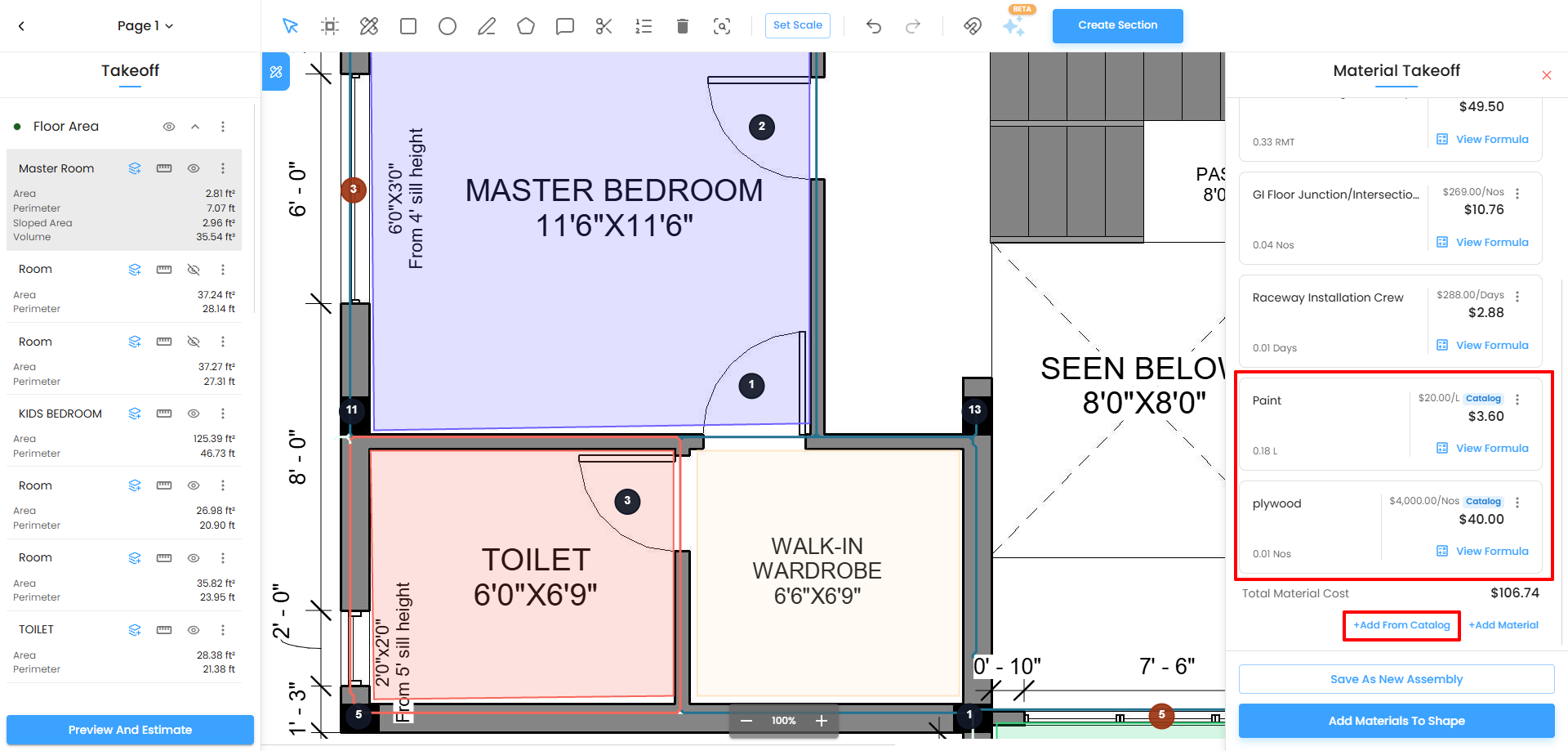
Users can add products directly from the Cost Catalog while working in 2D Takeoff.
The Cost Catalog allows users to search and select predefined cost items and add them to the takeoff workflow.
Available catalog items can include:
- Materials
- Services
- Equipment
- Assemblies
This helps users maintain consistent costing and reduces manual item entry during takeoff.
Repeating the Process for Additional Areas
Once materials are added to one shape, close the Material Takeoff panel using the × icon in the panel header.
You can then:
- Click another measurement item in the left Takeoff panel to open its Material Takeoff.
- Draw a new shape on the canvas and repeat the process.
Each shape can have its own:
- Trade
- Assembly
- User Inputs
- Material Breakdown
- Materials
- Prices
- Formulas
This allows you to cover rooms, zones, floors, and other measured elements using the appropriate material calculations.
Tips
- Review your User Inputs before creating the Material Breakdown. If you change an input after generating the breakdown, create the Material Breakdown again to recalculate the result.
- Use the correct Canvas Input for the calculation. Area, Perimeter, Circumference, Sloped Area, and Volume can be used depending on what the material formula requires.
- Use Pitch when measuring sloped surfaces. The resulting Sloped Area can then be used in material formulas.
- Use Conditional Formulas when different conditions require different calculations. Rules are evaluated from top to bottom, with the first satisfied rule being applied.
- Use Direct Formula when one calculation is sufficient.
- Review formulas using View Formula before relying on the calculated result in an estimate.
- Update material prices when project-specific rates are required.
- Use Cost Catalog when the required material, service, equipment, or assembly is already available as a predefined cost item.
- Save frequently used configurations as new assemblies so they can be reused in future takeoffs.
- Use the toggle slider at the top of the Material Takeoff panel to switch between the main view and User Inputs.
Was this article helpful?
That’s Great!
Thank you for your feedback
Sorry! We couldn't be helpful
Thank you for your feedback
Feedback sent
We appreciate your effort and will try to fix the article