Create a Work Order Manually
Creating a Work Order manually allows you to define and manage work-related tasks from scratch, giving you full control over scope, items, timelines, and the assigned party.
Step 1: Select the Client
This step defines which client or project the Work Order is created for.
How to do it
From the sidebar, navigate to Client
Select the required Client
Open the Procurement section
Pro Tip:
Always ensure the correct client is selected to keep work records accurate and avoid confusion across projects.
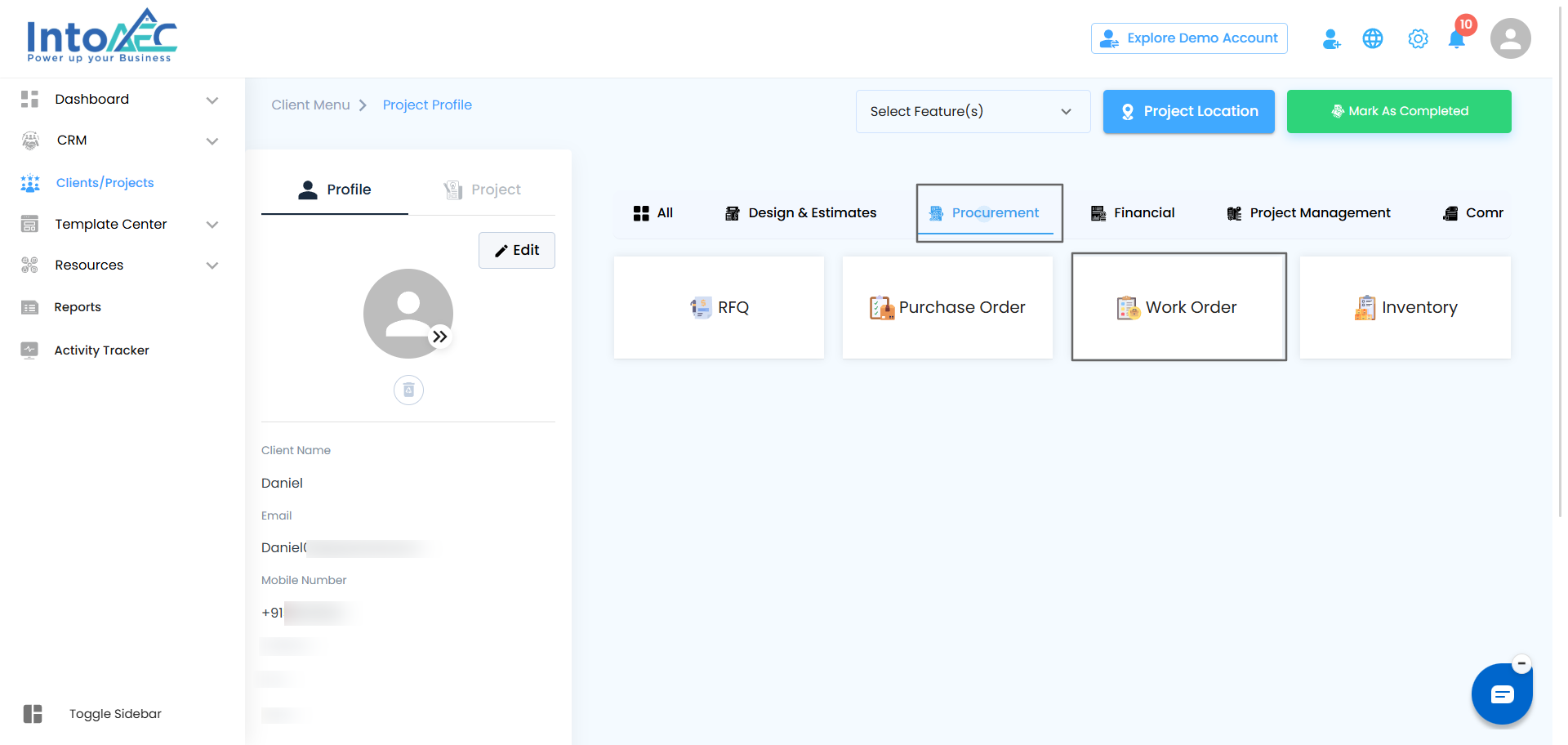
Step 2: Initiate the Work Order
This step opens a new Work Order form.
How to do it
In the Procurement section, click Work Order
Click Create Work Order to open a new, blank Work Order
Pro Tip:
Starting with a blank Work Order gives you flexibility to define work scope, items, and timelines clearly.
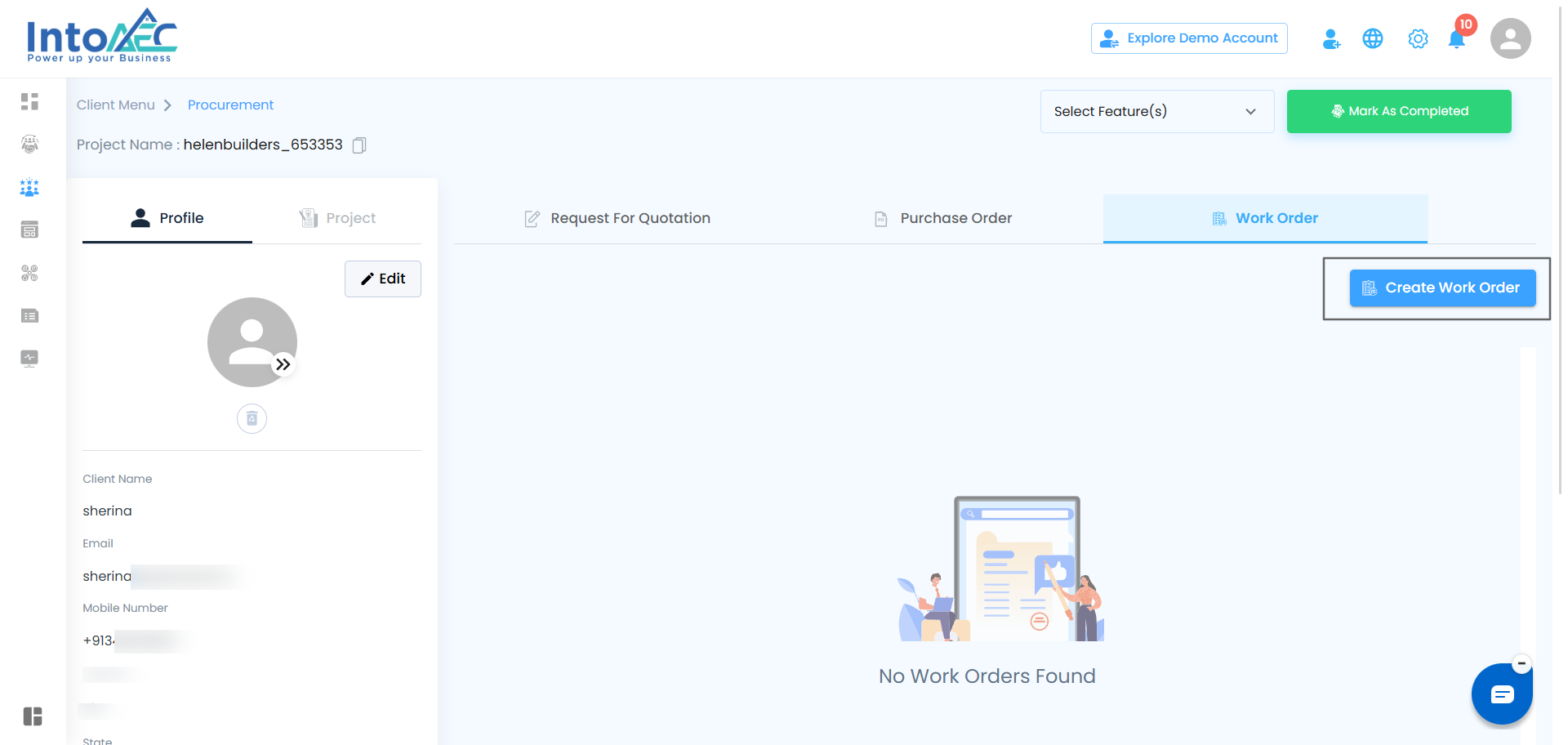
Step 3: Enter Work Order Details
This step captures the basic information for the Work Order.
How to do it
Enter the Title
Select the Issue Date
Select the Due Date
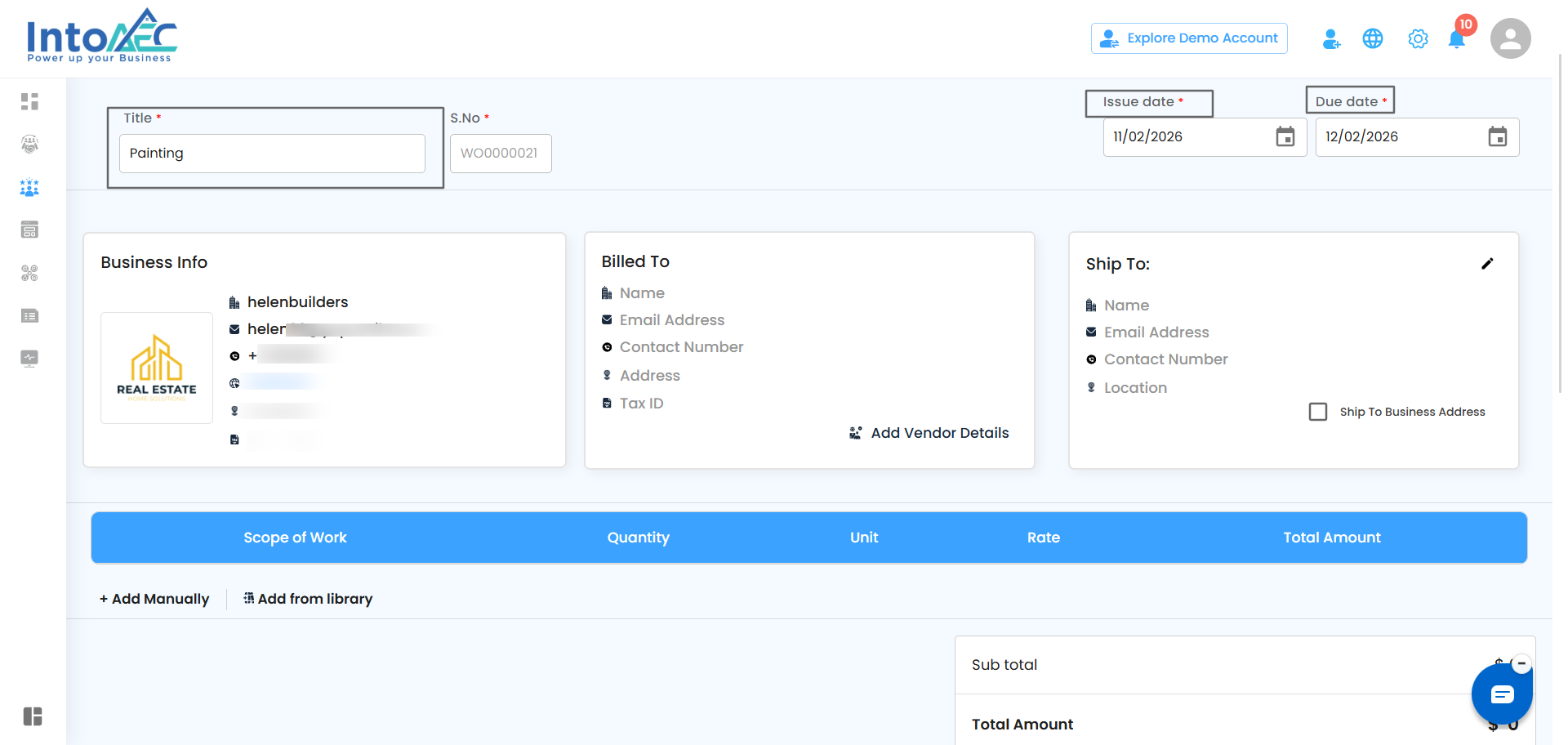
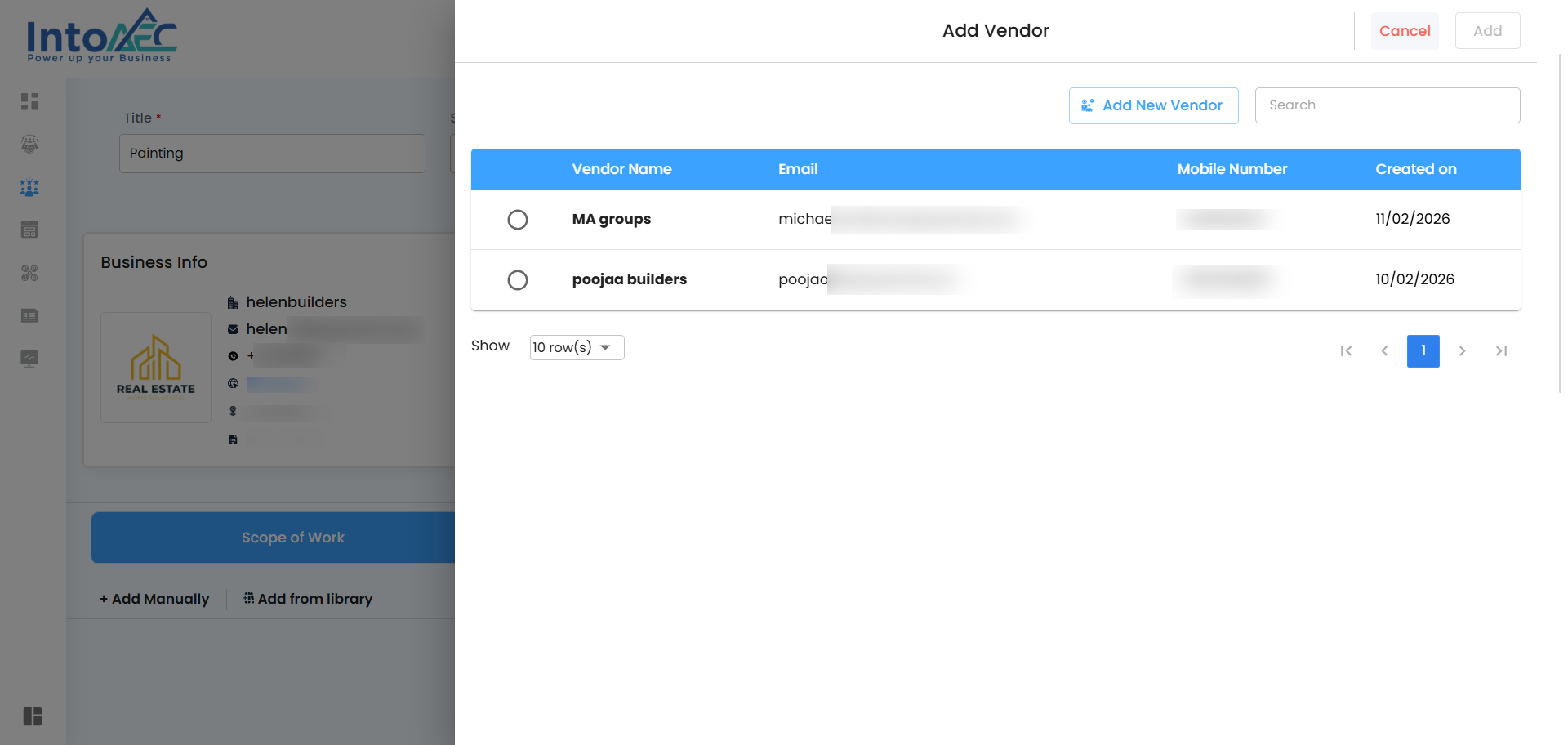
Step 4: Select and Add the Vendor / Contractor
This step assigns the Work Order to the correct party responsible for execution.
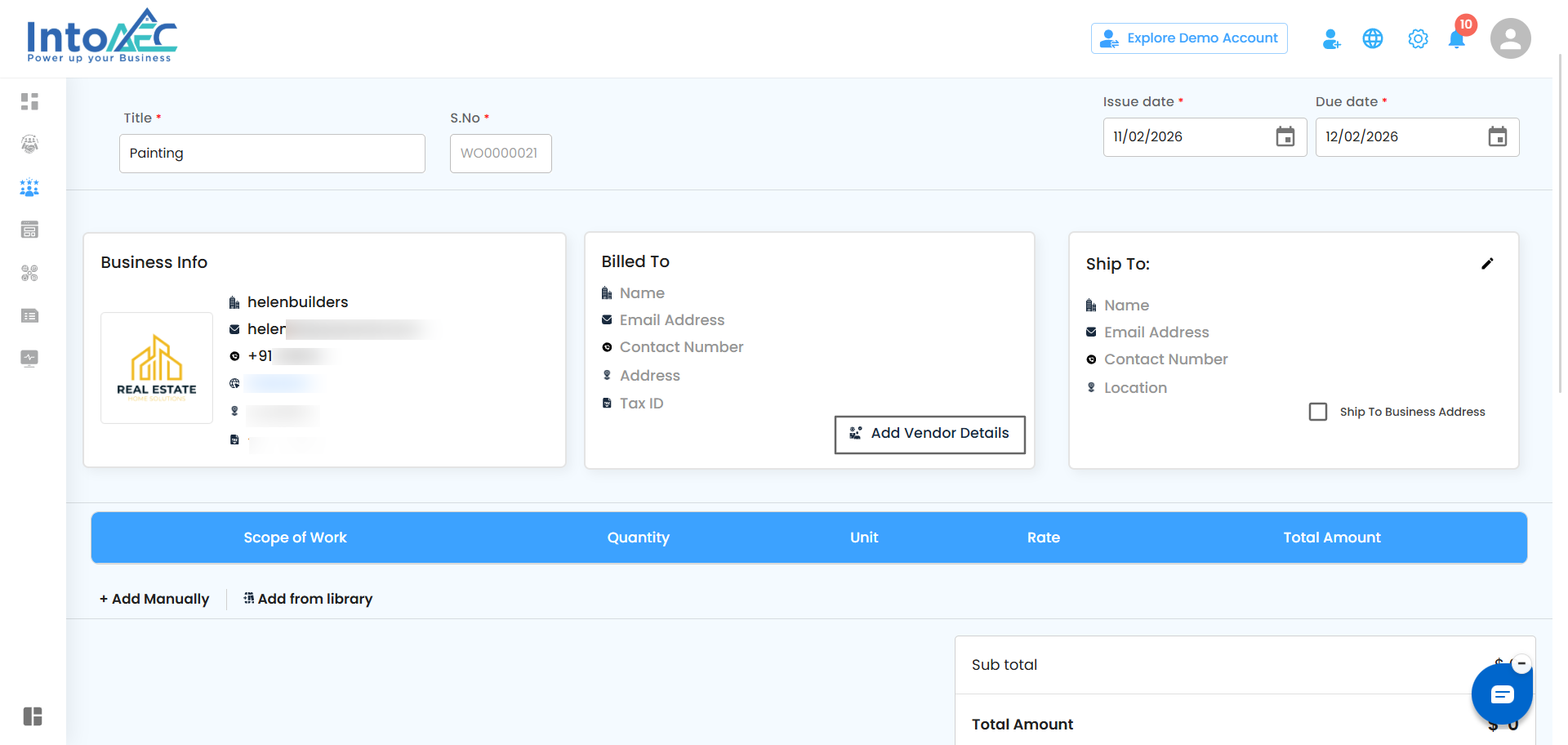
How to do it
Select the Vendor / Contractor from the list
Click Add to include them in the Work Order
Pro Tip:
Double-check the selection to ensure the Work Order is assigned to the correct party.
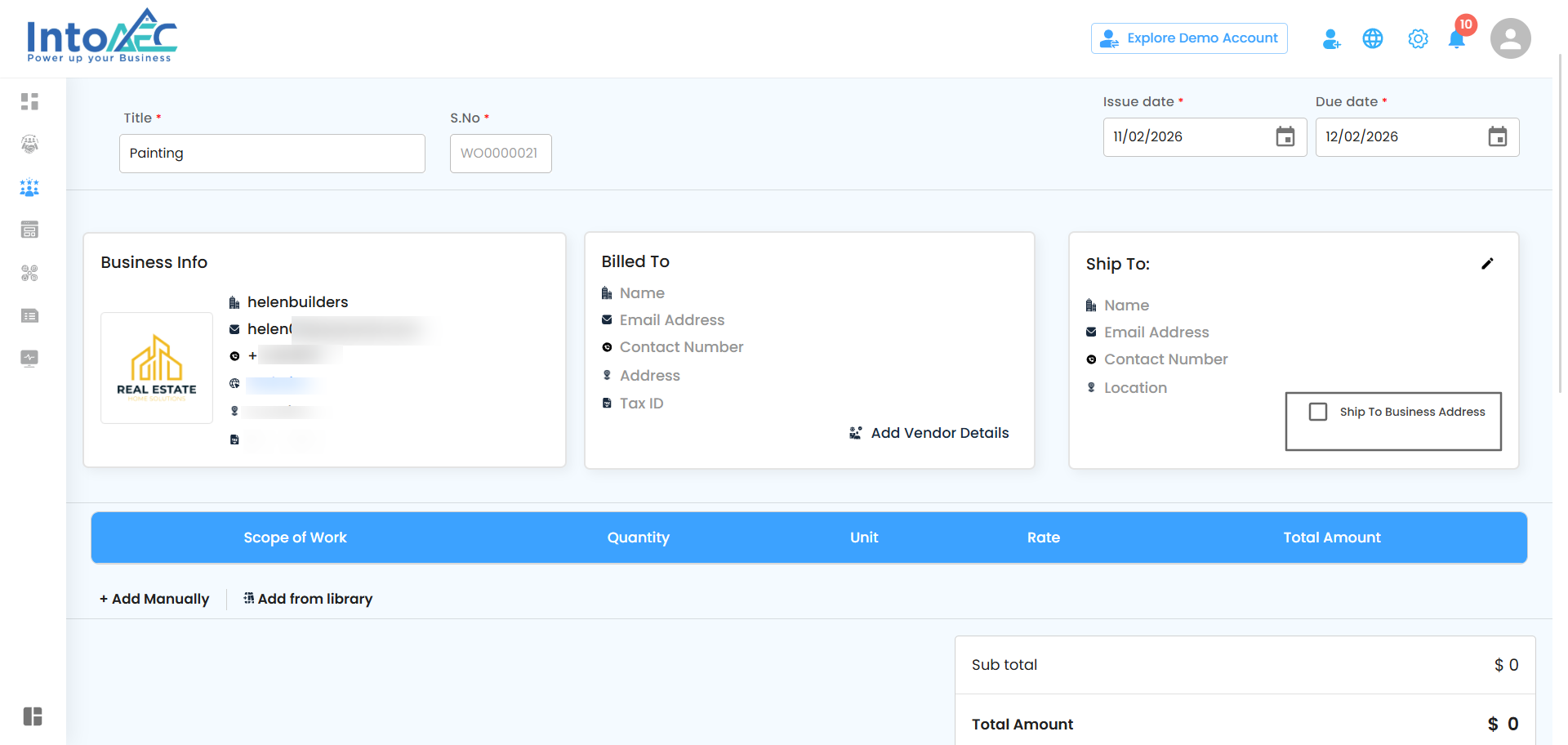
Step 5: Choose the Work Location / Address
This step defines where the work will be carried out.
How to do it
Enable Work at Business Address if applicable
Pro Tip:
Verify the address carefully to ensure smooth execution and coordination.
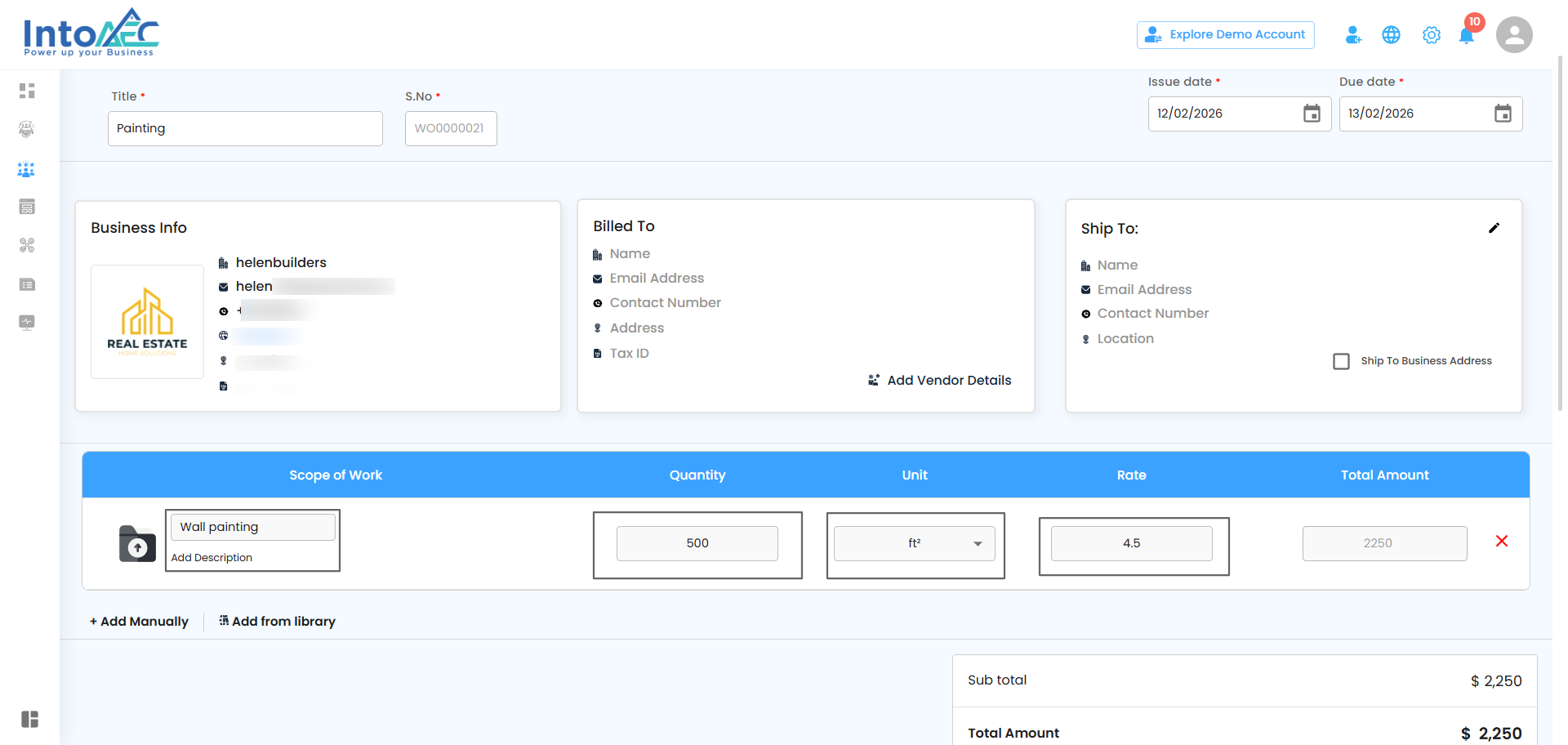
Step 6: Add Items Manually
This step allows you to add custom work items directly to the Work Order.
How to do it
Click Add Manually
Enter item details such as Scope of work, quantity, unit, rate, total amount
Step 7: Add Items from the Library
This option allows you to quickly add predefined work items.
Option 1: Add from My Items
Click Add from Library
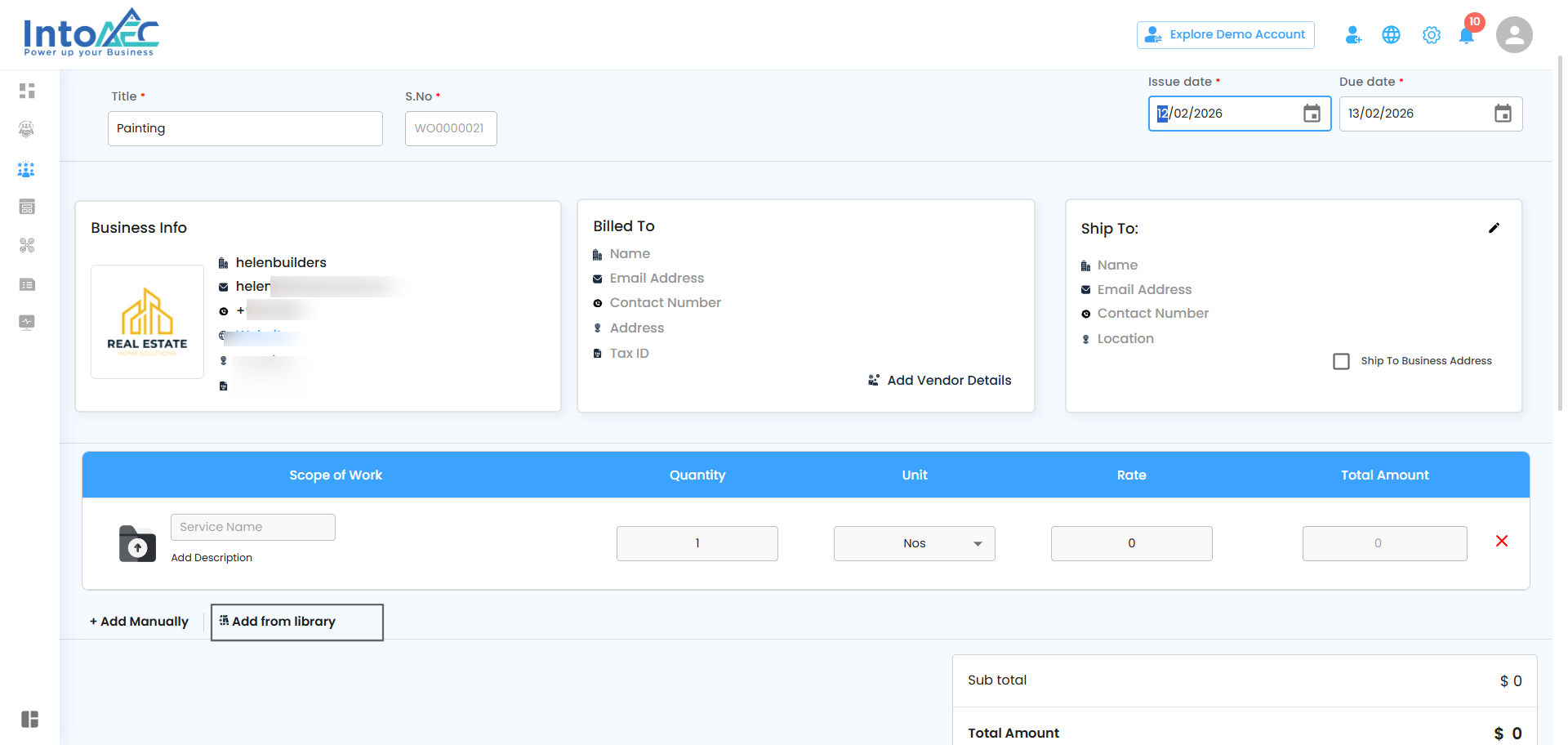
The My Items tab opens by default
Select categories, sub-categories, and type of work
Click Apply
Select the required items and click Add
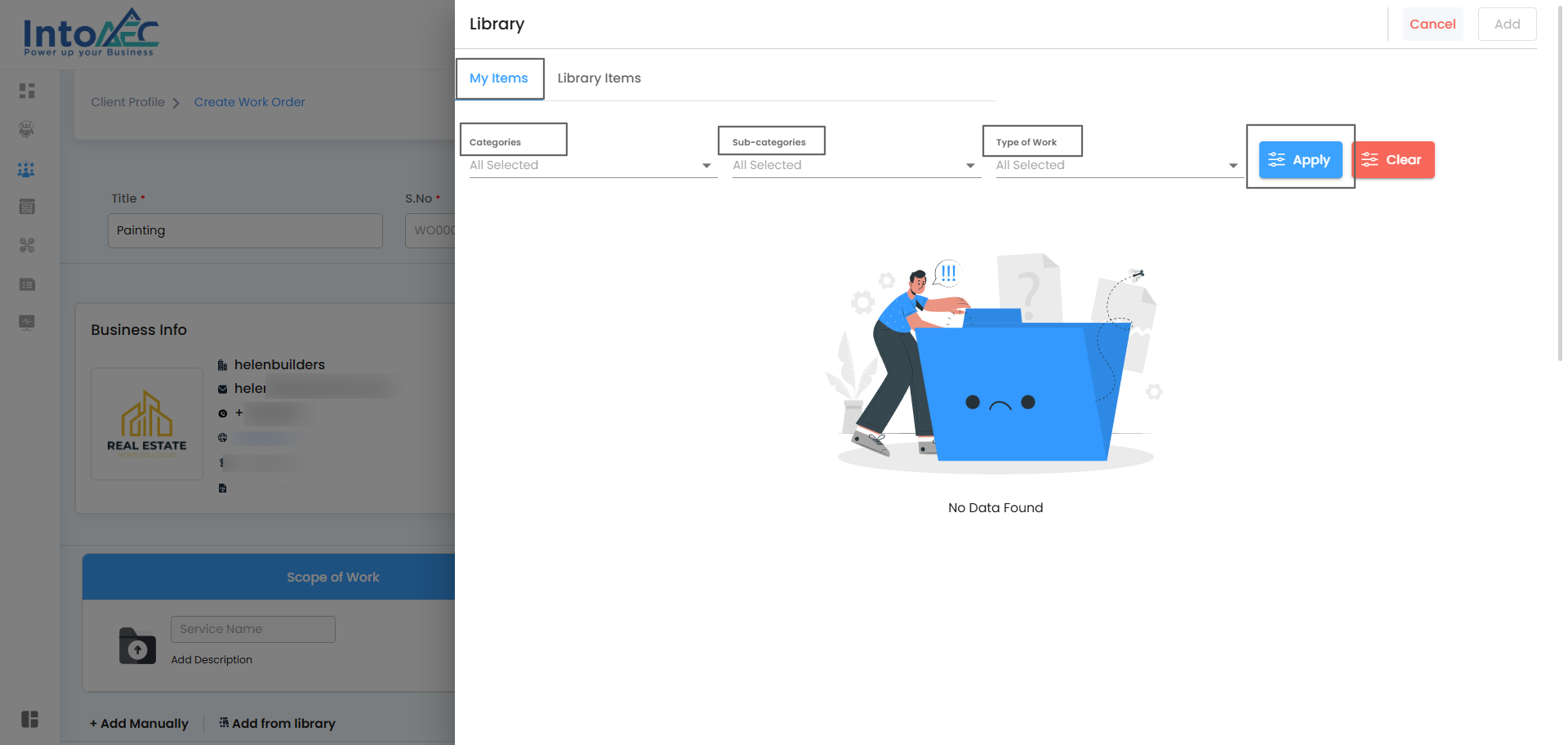
Option 2: Add from Library Items
Switch from My Items to Library Items
Select categories, sub-categories, and type of work
Click Apply
Select the required items and click Add
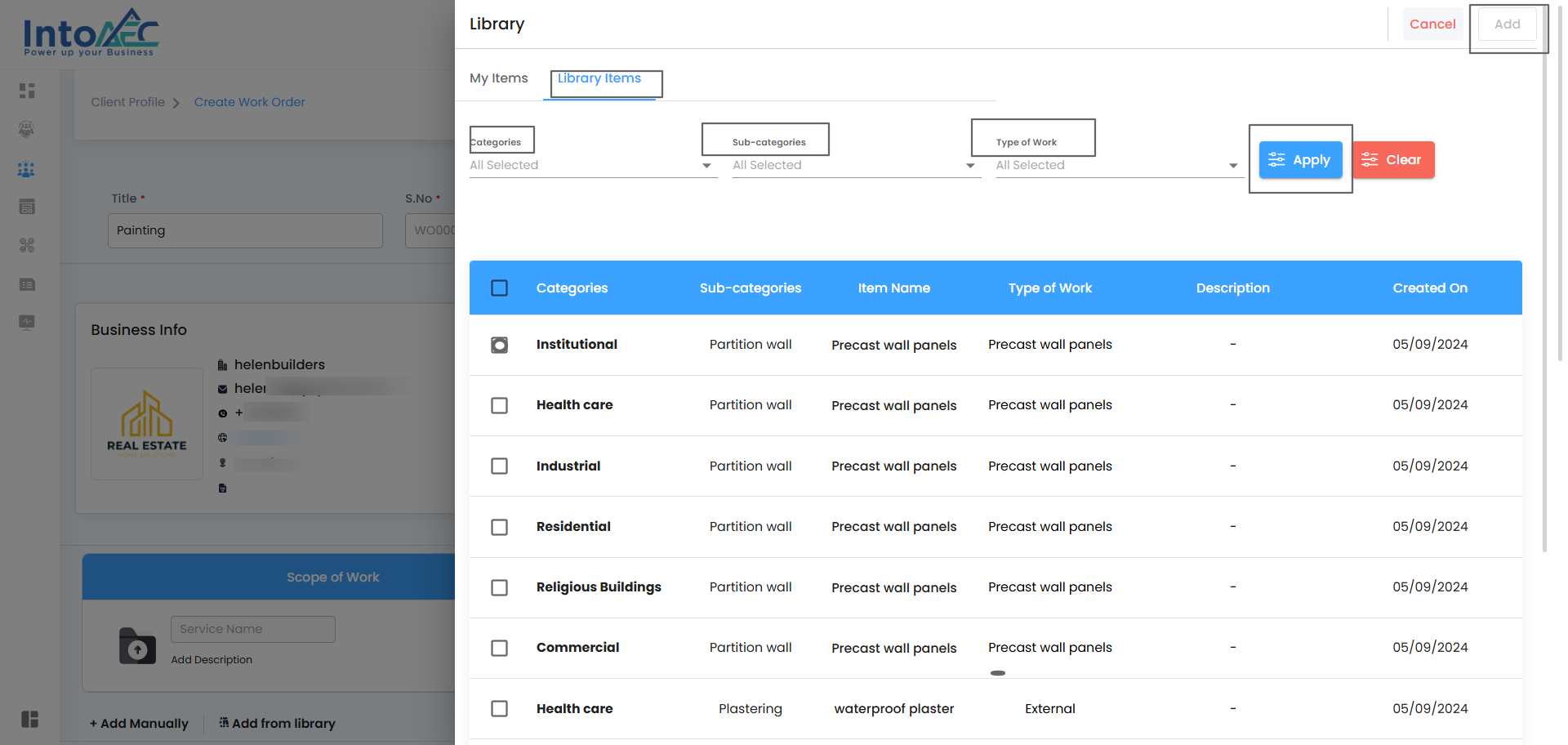
Result:
Selected items are added to the Create Work Order screen.
Pro Tip:
Using library items ensures consistency and saves time for frequently repeated work activities.
Step 8: Take Action on the Work Order
This step moves the Work Order forward in the workflow.
How to do it
Review all items and details
Add attachments if required
Click the Action button
Pro Tip:
Confirm all work details before proceeding to avoid revisions later.
Create Work Order:
The Create option allows you to generate a Work Order without sending it immediately.
Click the Action button after reviewing the Work Order details.
Select the Create option from the available actions.
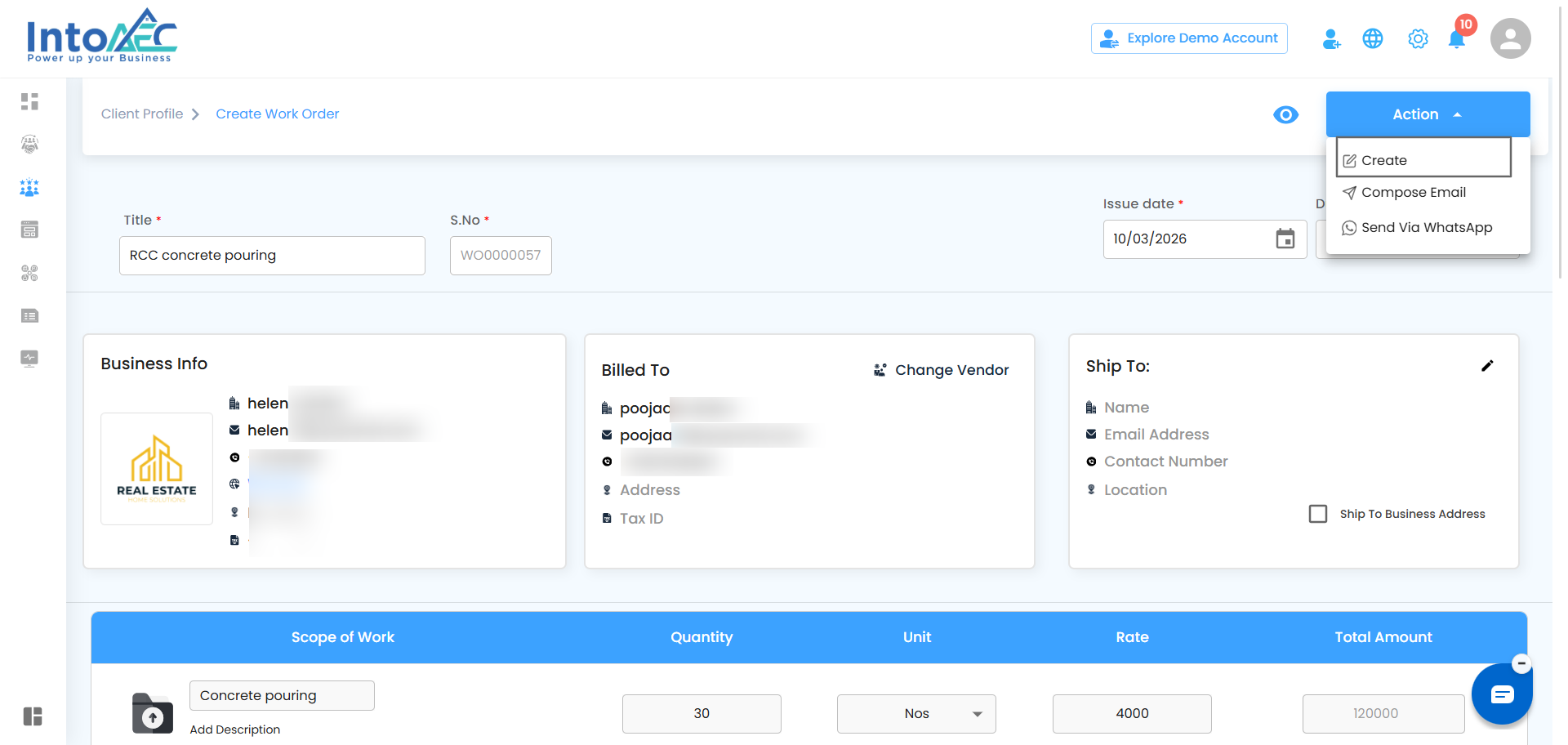
The Work Order will be saved in the system and displayed on the main Work Order page as a card with “Approved” status.
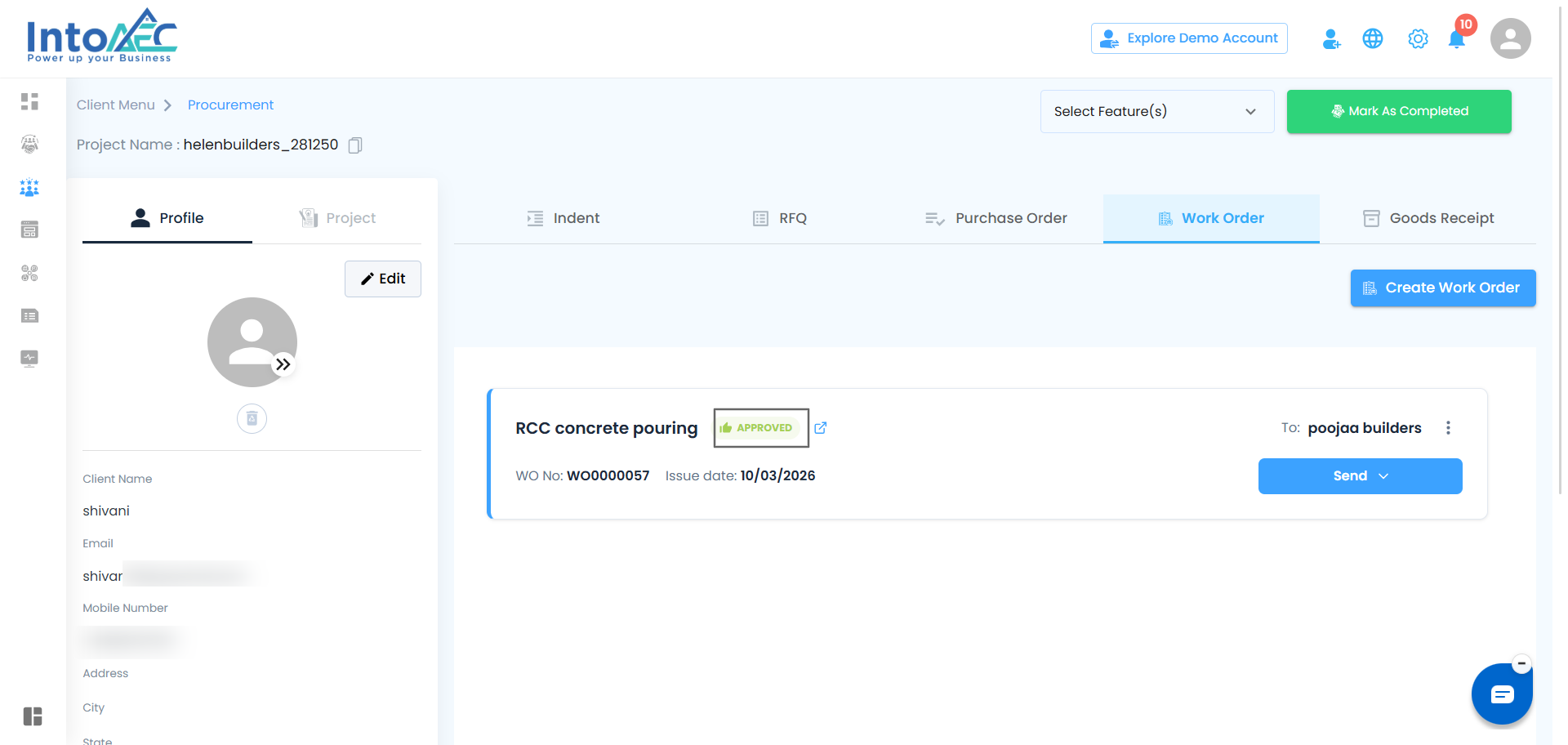
You can later view the created Work Order and take further actions from the main Work Order card whenever required.
Step 9: Compose the Work Order Email
How to do it
Click Compose Email
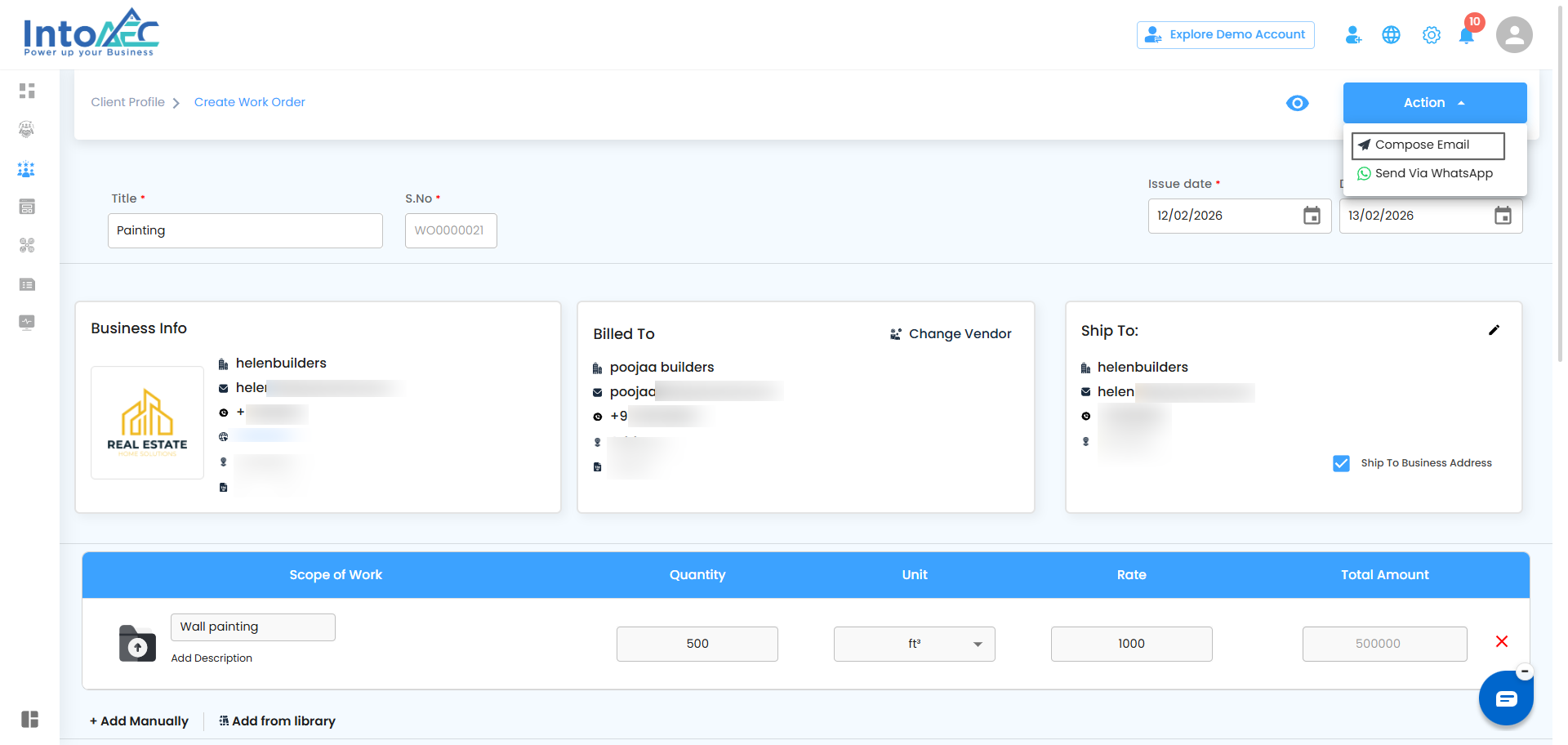
Step 10: Send the Work Order
Click Send Email
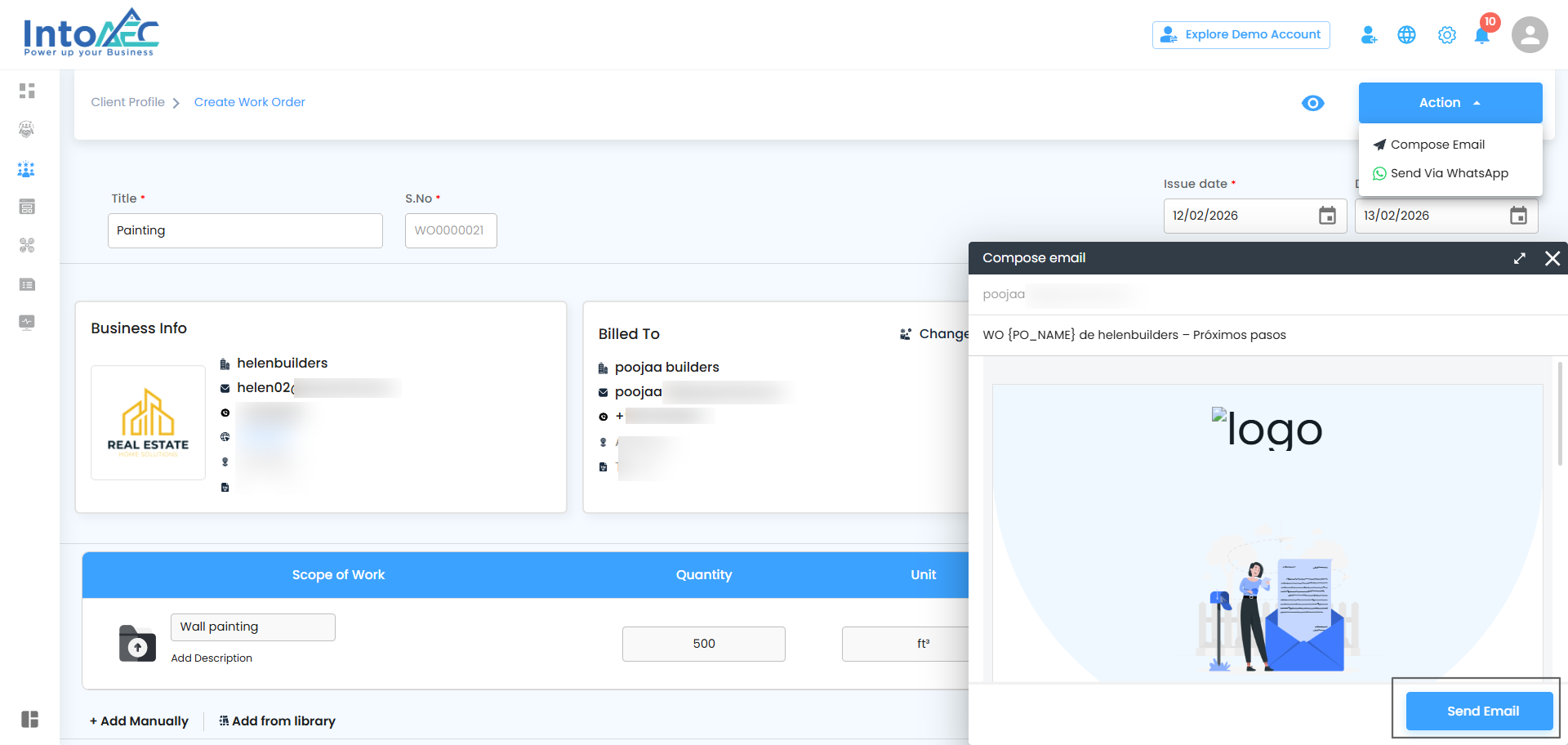
After Sending the Work Order (Organization View)
Once the Work Order is sent, it can be managed and tracked from the Organization’s Work Order page.
Work Order Actions (Three-Dot Menu)
Each Work Order row includes a three-dot (⋮) menu with multiple action options.
Available Options
Preview
Edit
Update Progress
Cancel
Preview Work Order
Steps
Click the three-dot menu of the Work Order
Select Preview
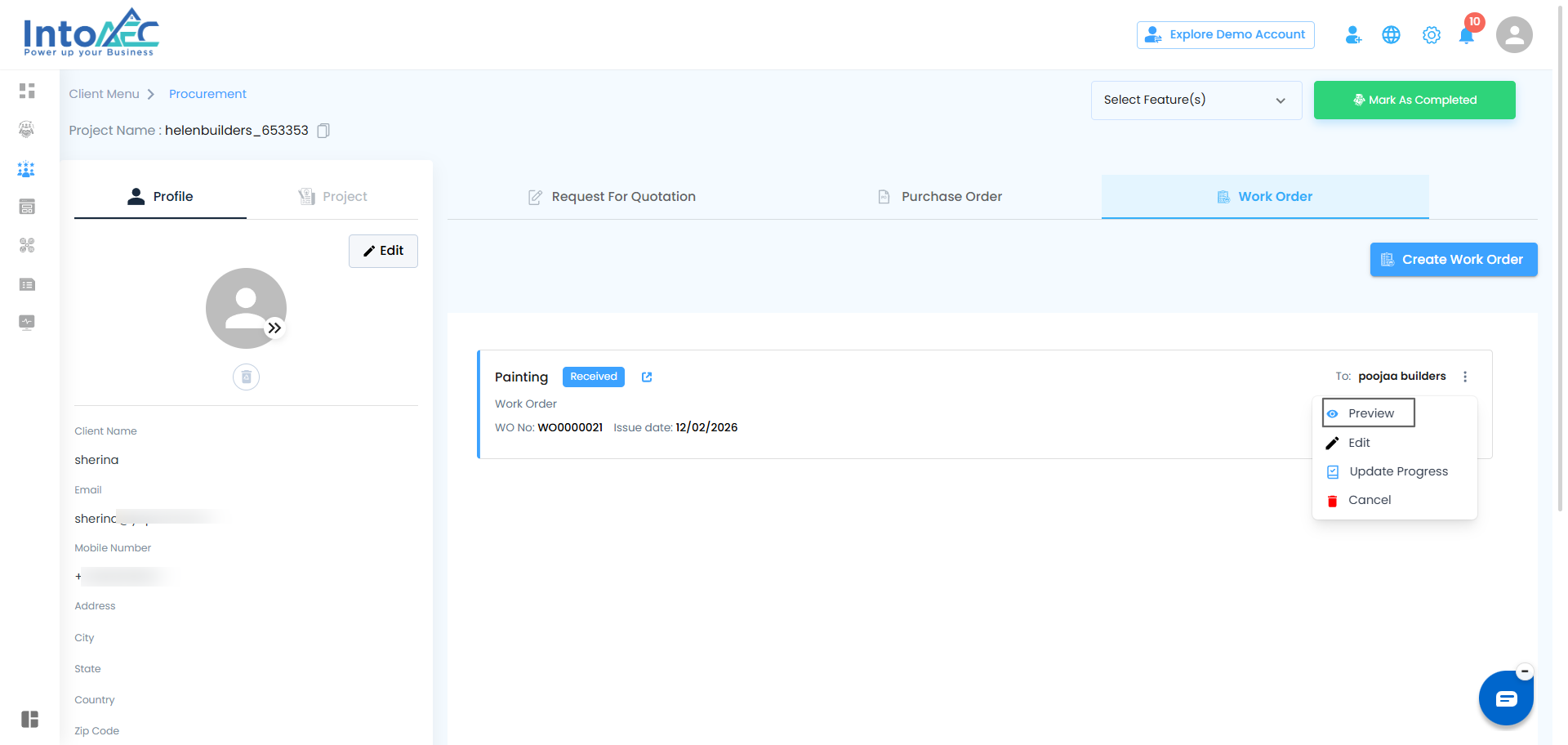
The Work Order Preview page will be displayed
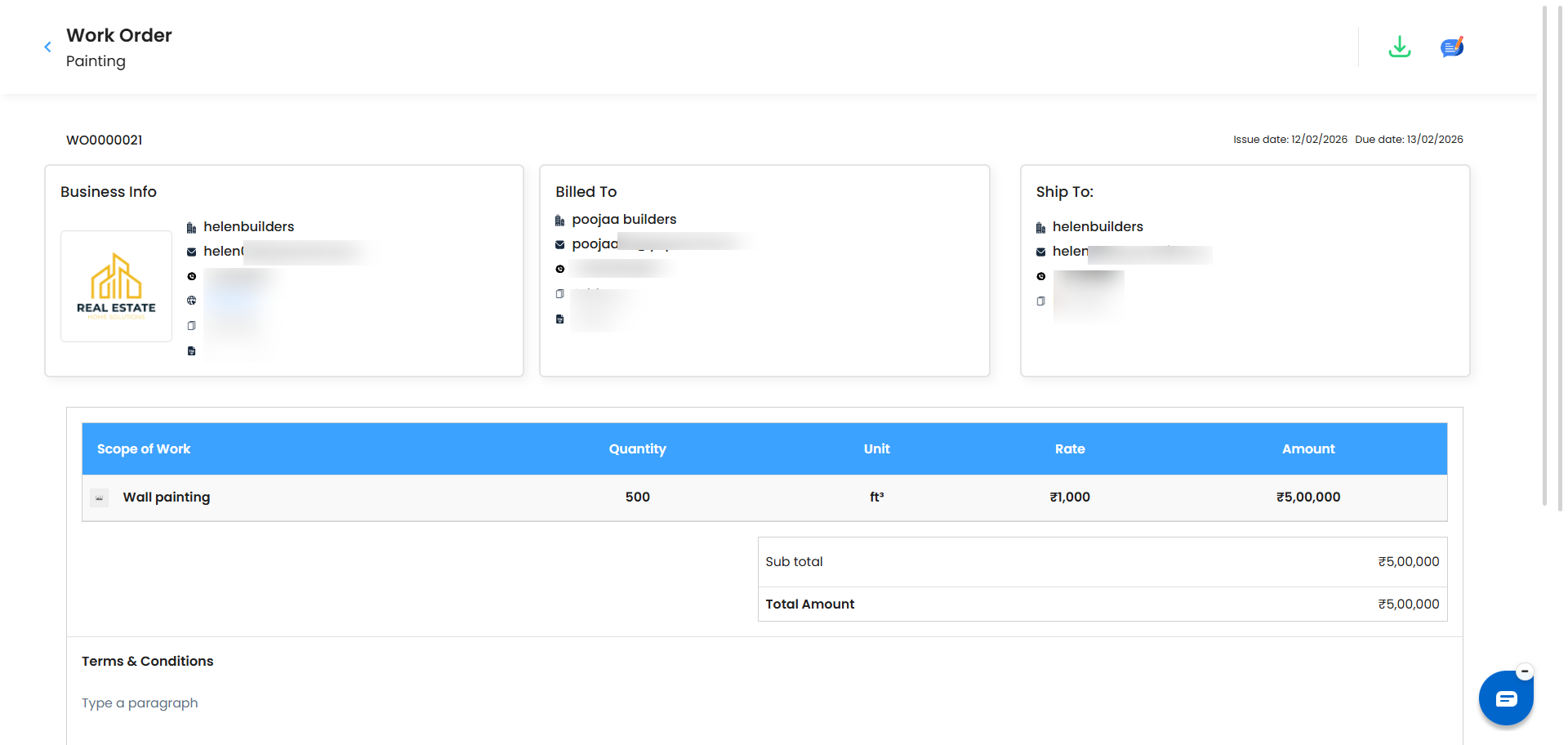
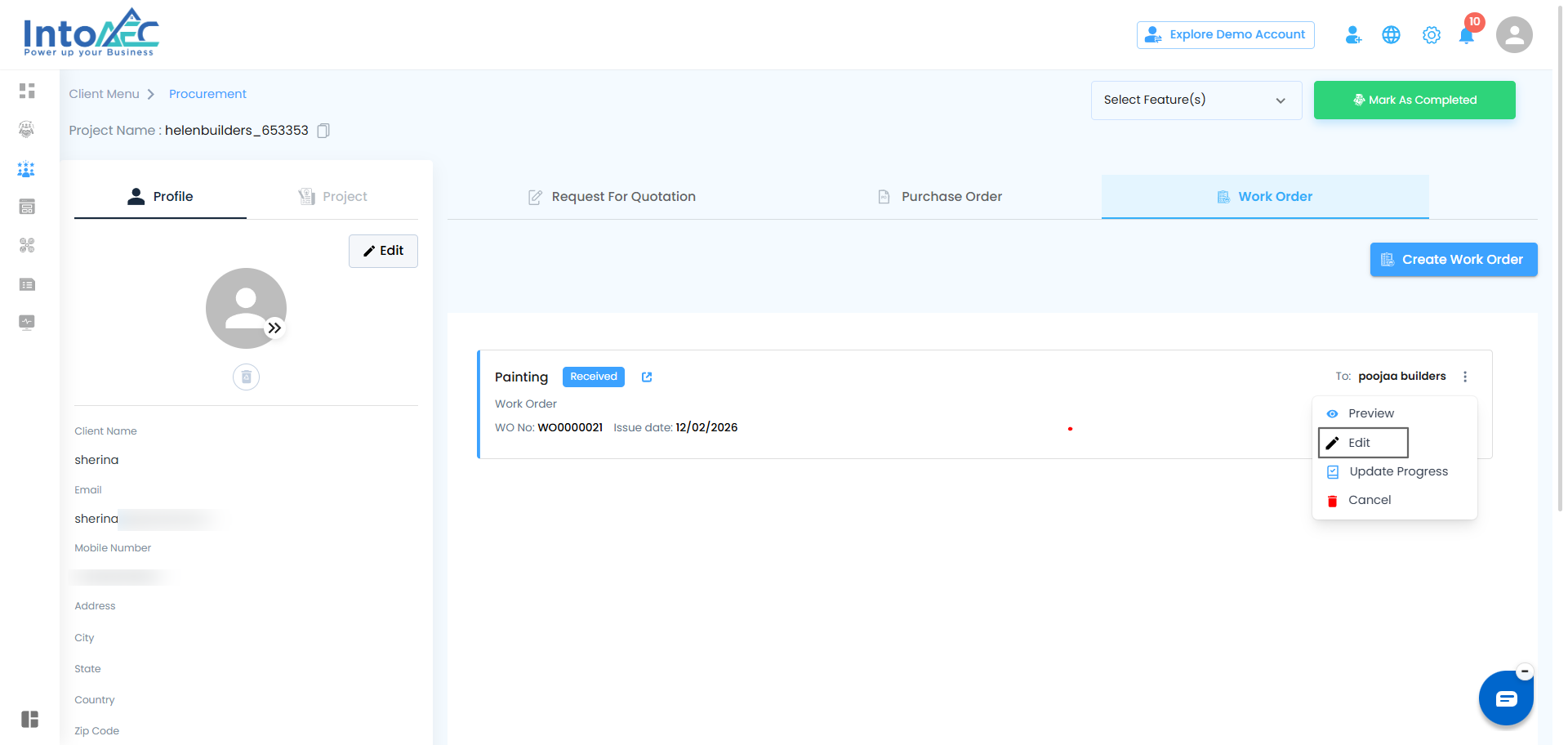
Edit Work Order
Steps
Click the three-dot menu of the Work Order
Select Edit
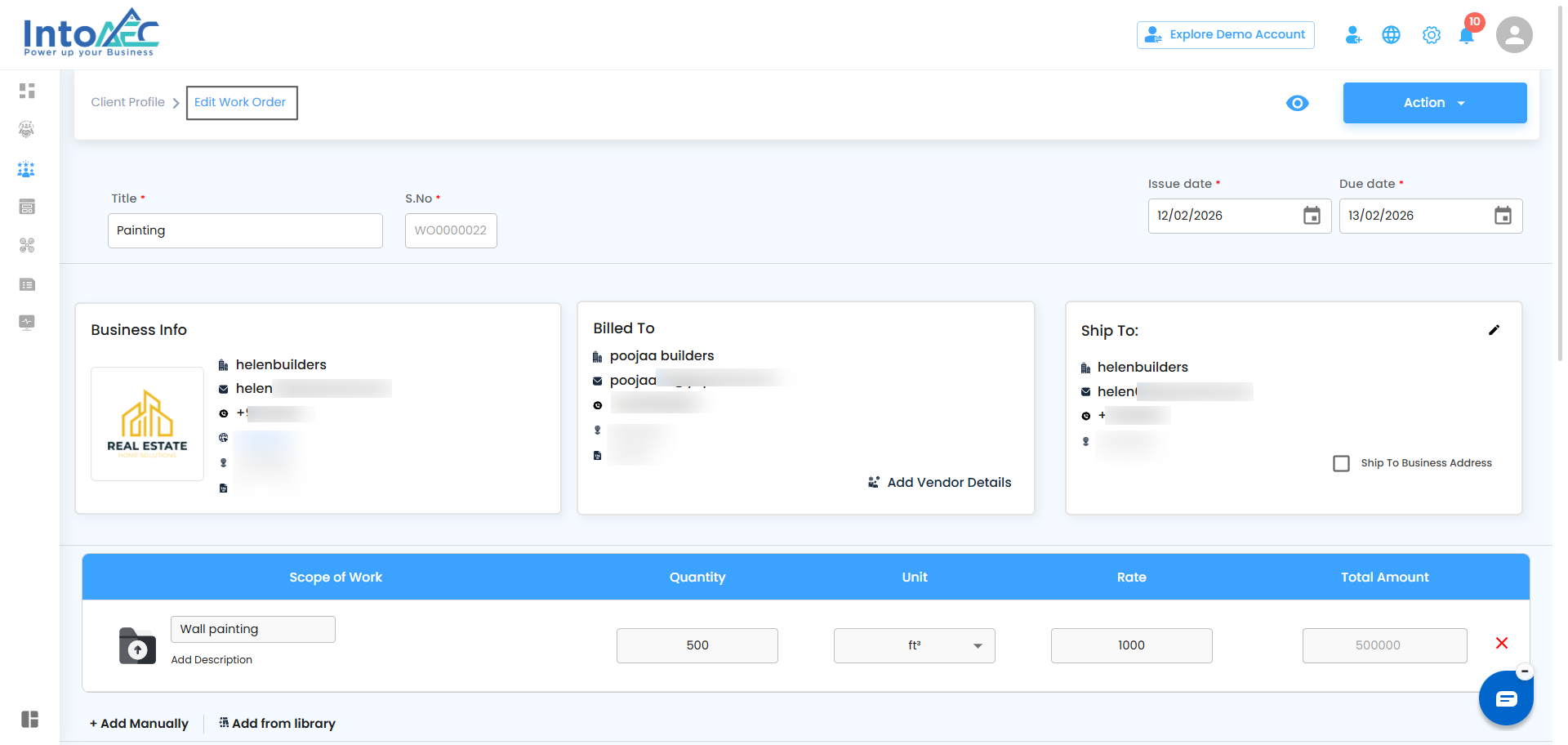
The Work Order Edit page will be displayed
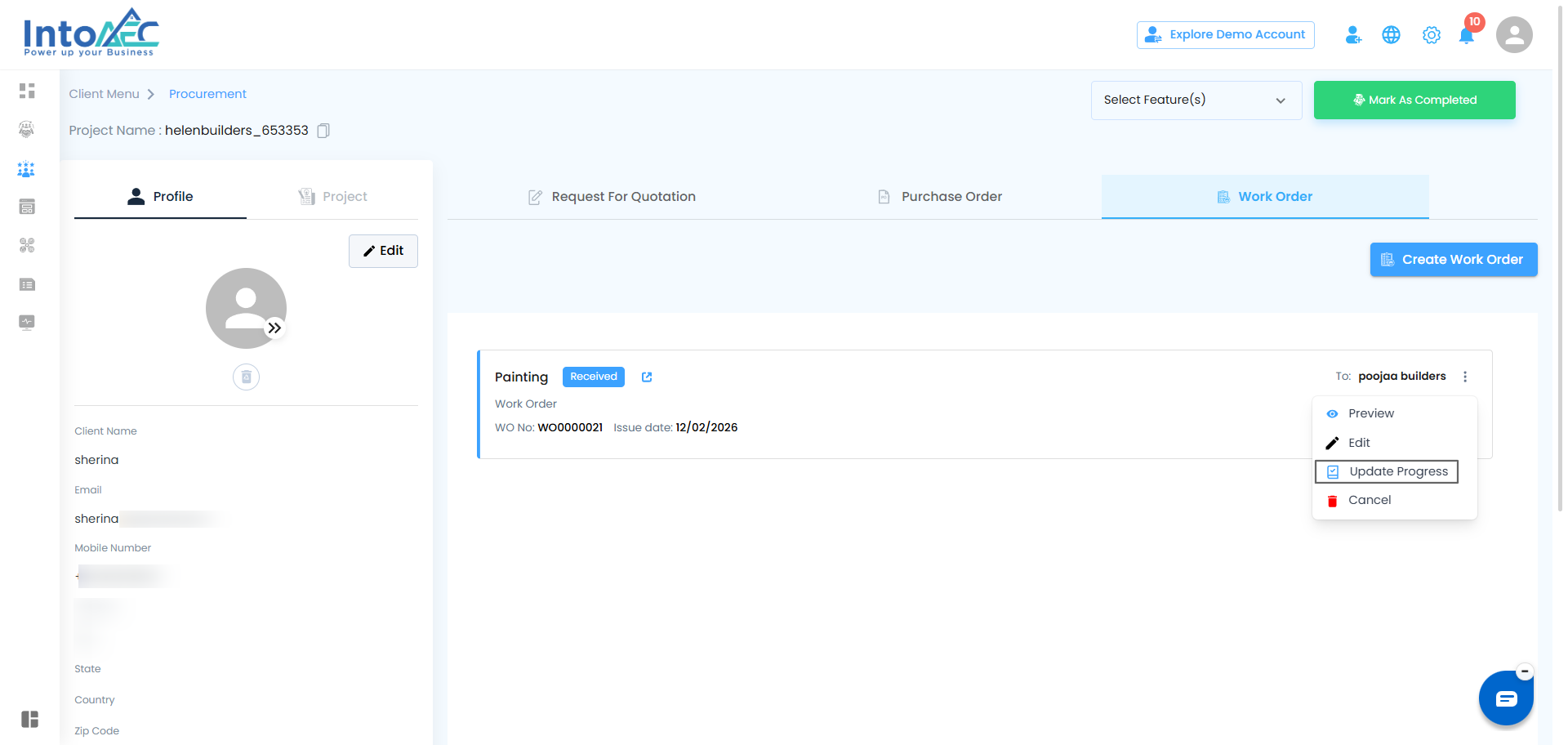
Update Progress
Steps
Click the three-dot menu of the Work Order
Select Update Progress
A Work Order off-canvas panel will open
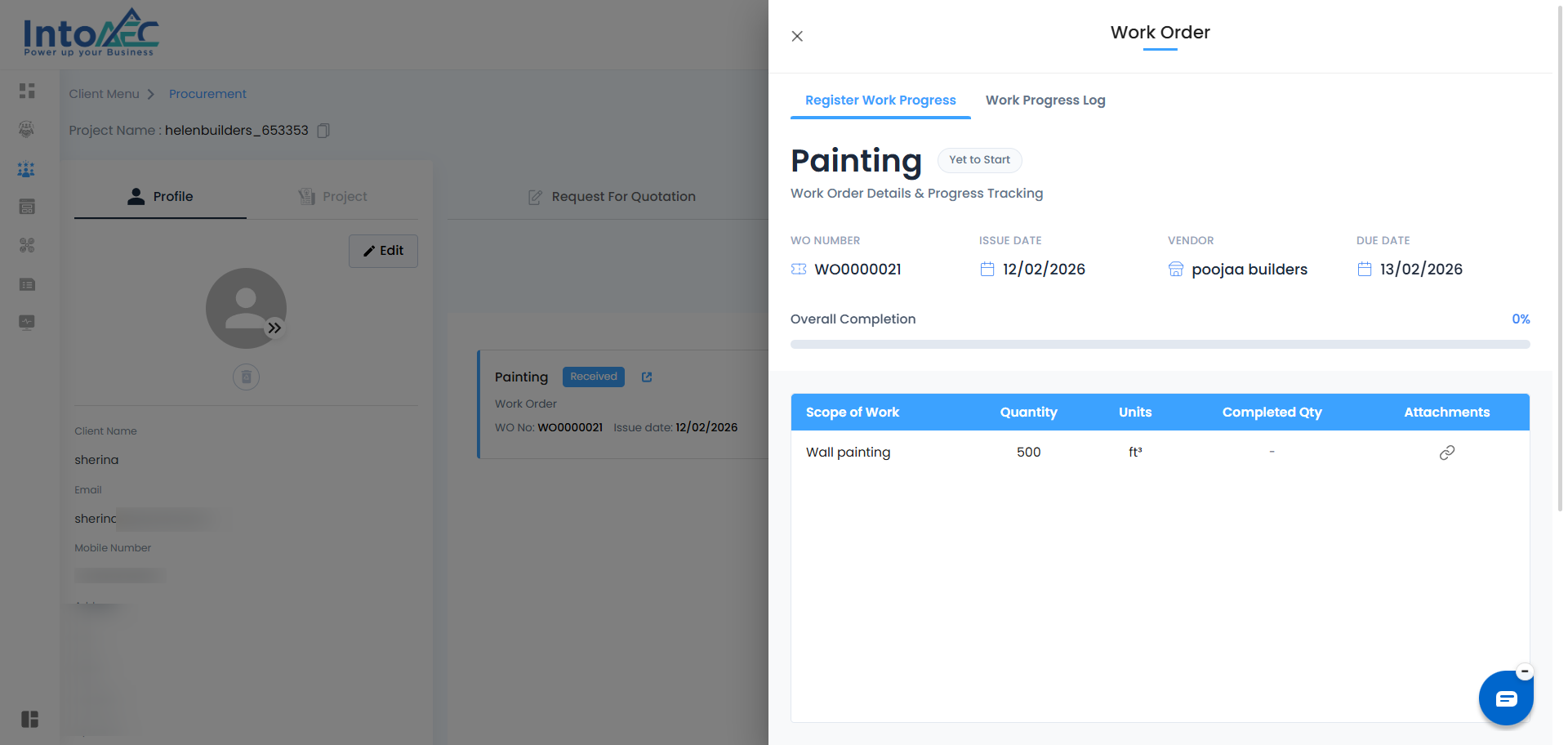
Update Progress – Off-Canvas Page
Inside the off-canvas panel, two switch tabs will be displayed:
Register Work Progress
Work Progress Log
Register Work Progress
This tab is used to record and update progress for each work item.
Items Table Display
Scope of Work
Quantity
Units
Completed By
Attachments
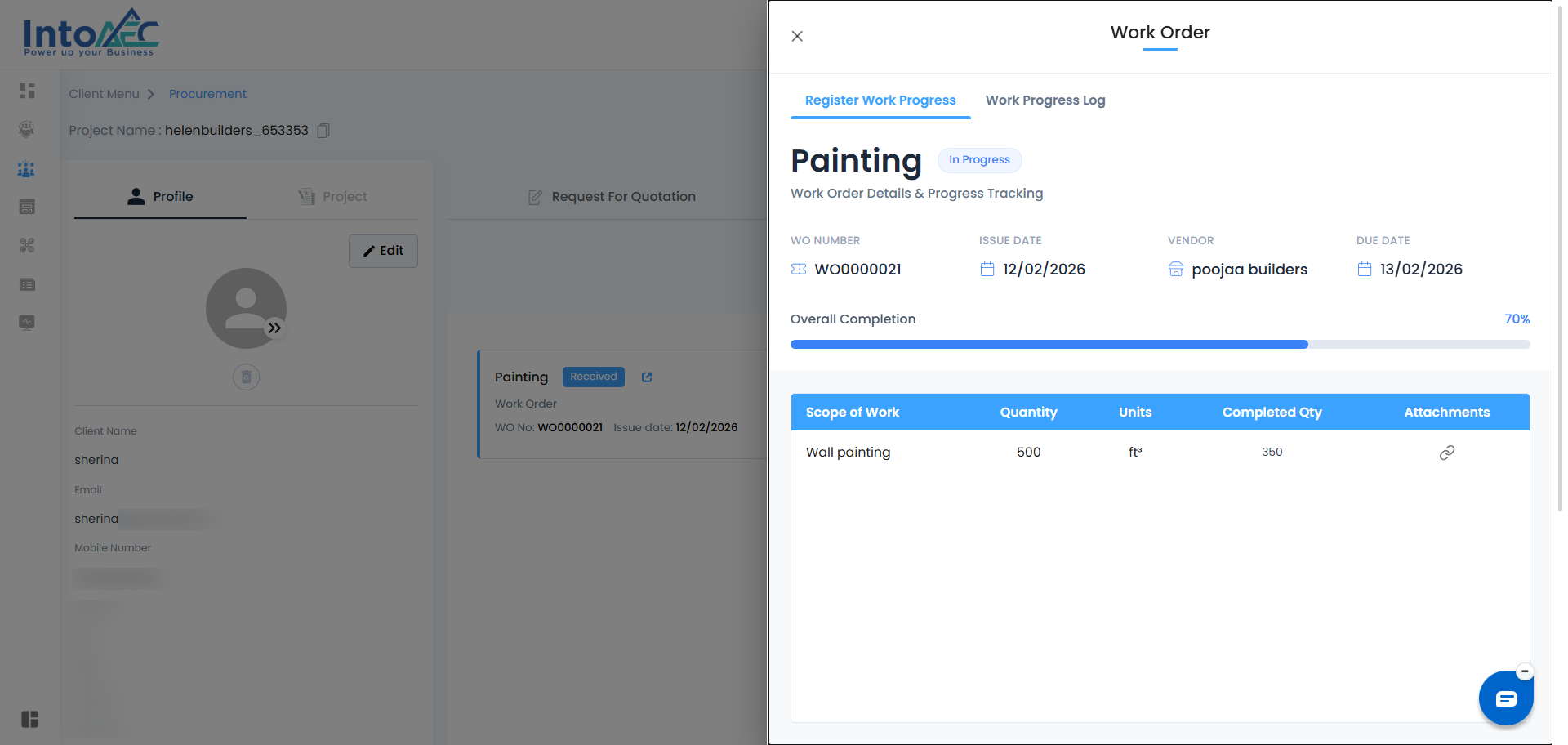
Completed By (Progress Update)
Users can update the completion percentage based on the total quantity
Completion is marked out of the total quantity
As progress is updated, the progress bar increases accordingly
Status transitions:
Yet to Start → In Progress → Completed
Attachments
Users can upload image attachments larger than 5 MB
Multiple attachments can be uploaded
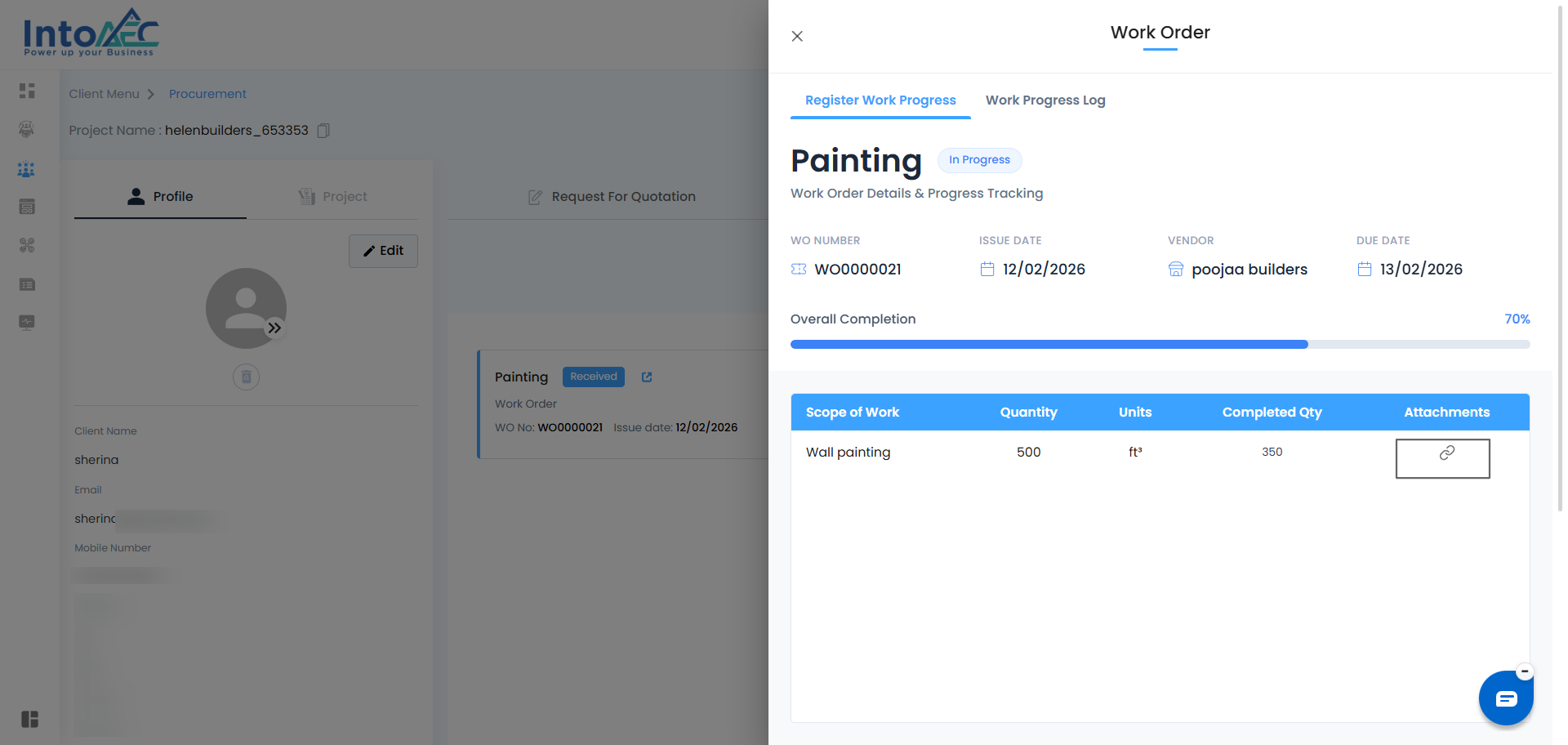
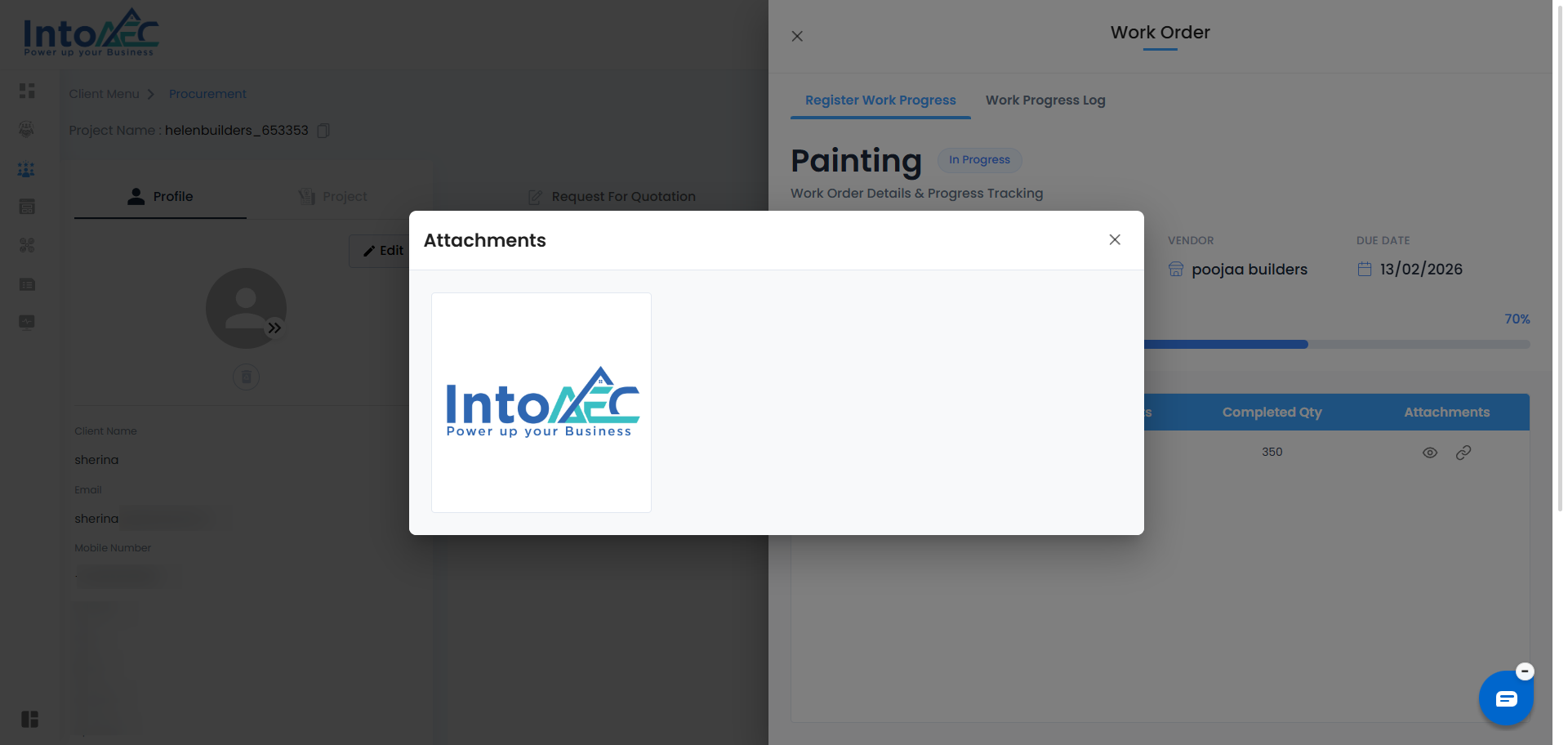
After uploading:
Users can view attachments using the eye icon
Uploaded attachments will be displayed under the respective item
Work Progress Log
This tab displays a complete log of all progress updates.
Status & Progress History
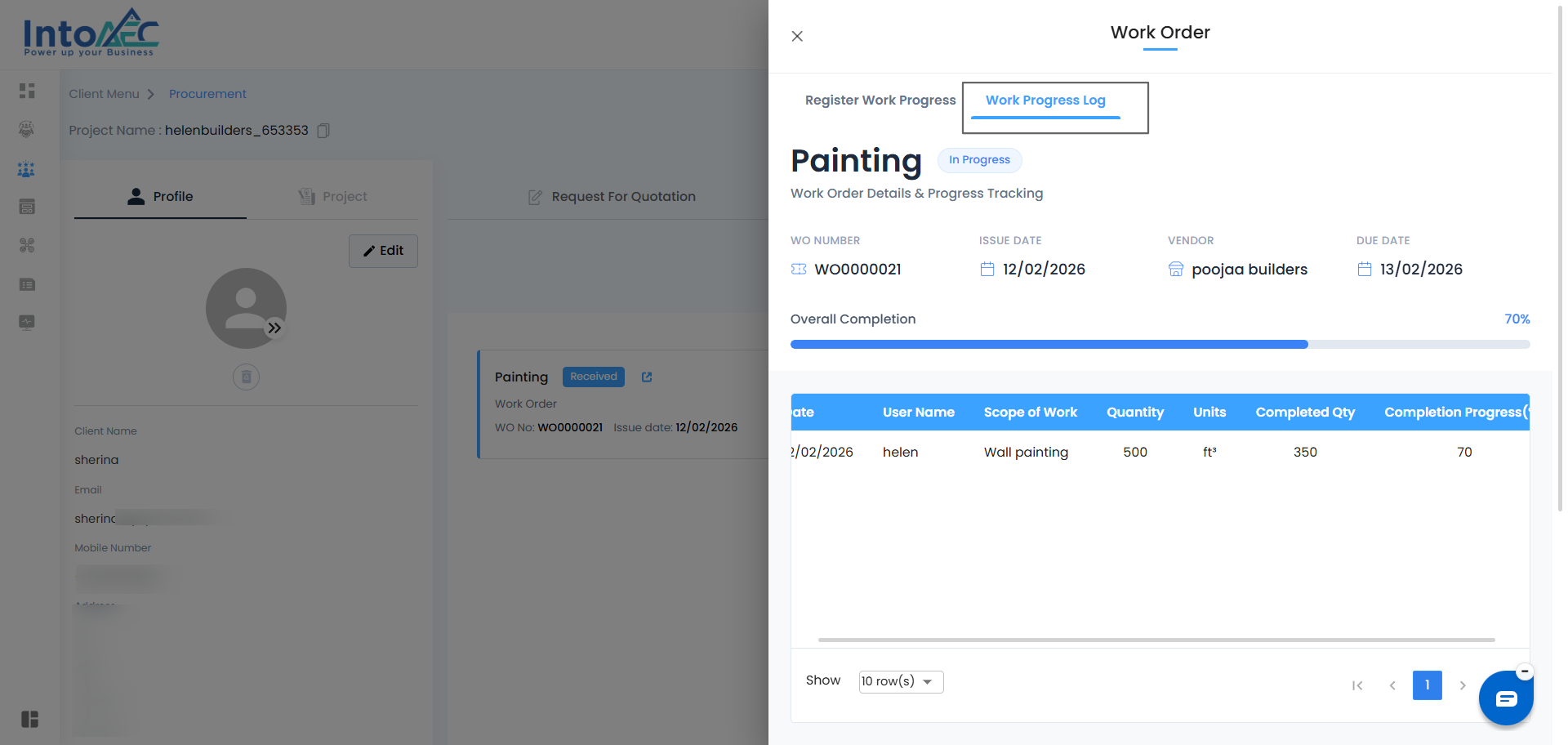
Progress statuses (Yet to Start, In Progress, Completed) are displayed
All updates made in Register Work Progress are reflected
Users can track completion percentage changes and work activity over time
Cancel Work Order
Steps
Click the three-dot menu of the Work Order
Select Cancel
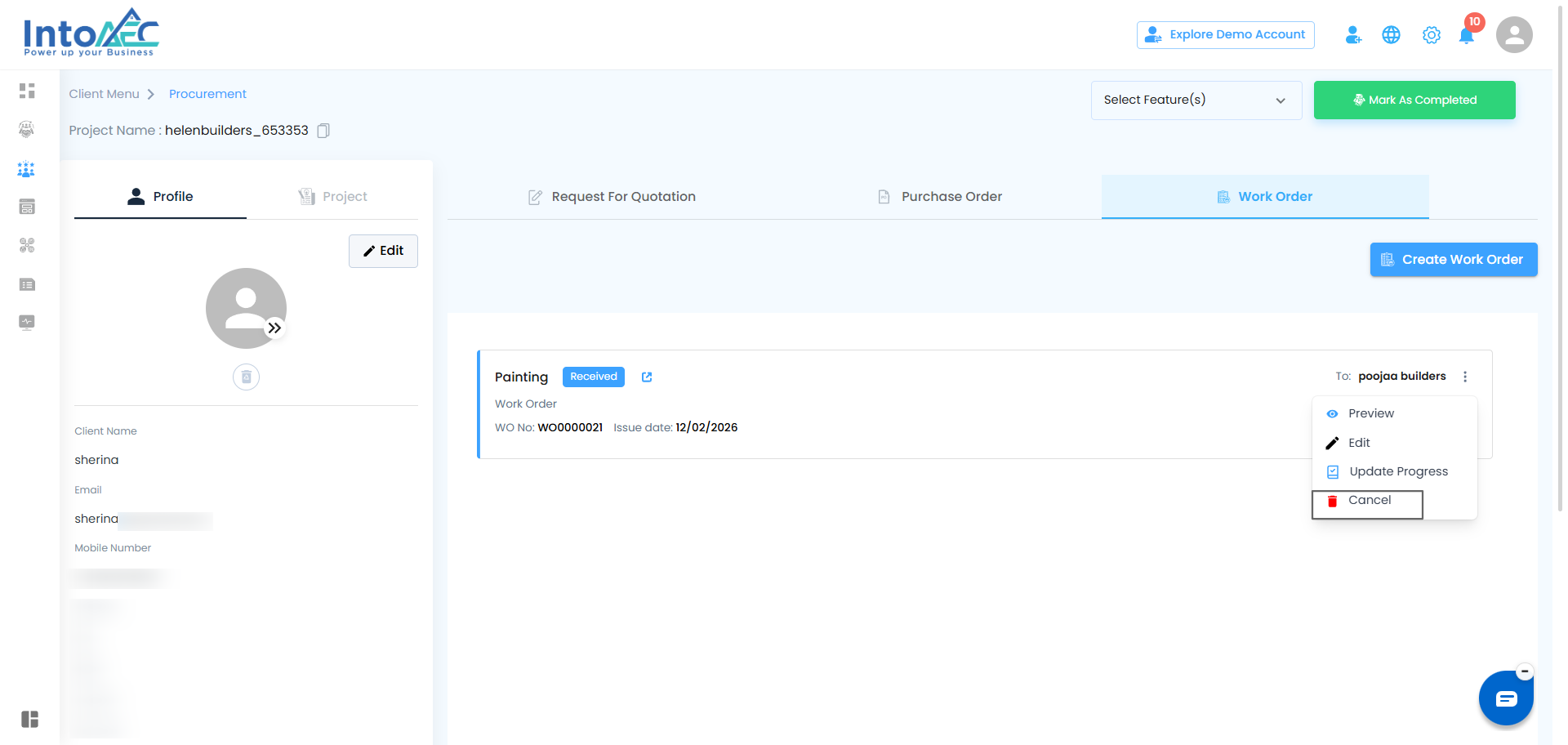
The Work Order will be deleted
Work Order – Creator Flow
Users with Creator permission can create a Work Order but cannot approve it themselves.
Creator Flow:
Creators can enter Work Order details and click on the request for approval.
Request for Approval
After entering details, click the Action button.
Select Request for Approval from the dropdown.
The Work Order will be created only after clicking this option.
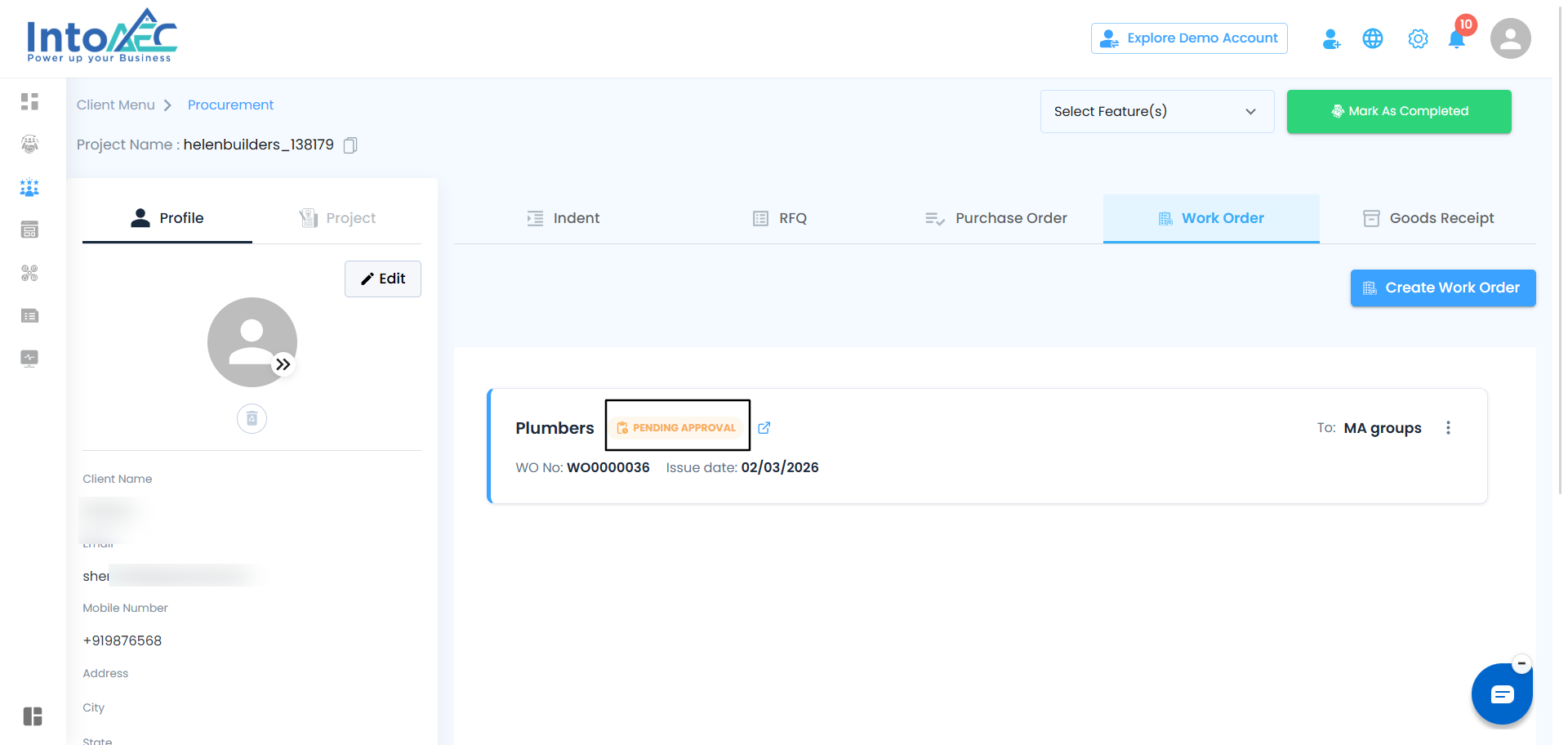
Work Order Status
Once submitted, the Work Order status will be shown as Pending Approval.
The request will be sent to the approver or super admin.
Approval
Approvers will see the Mark as Approved option.
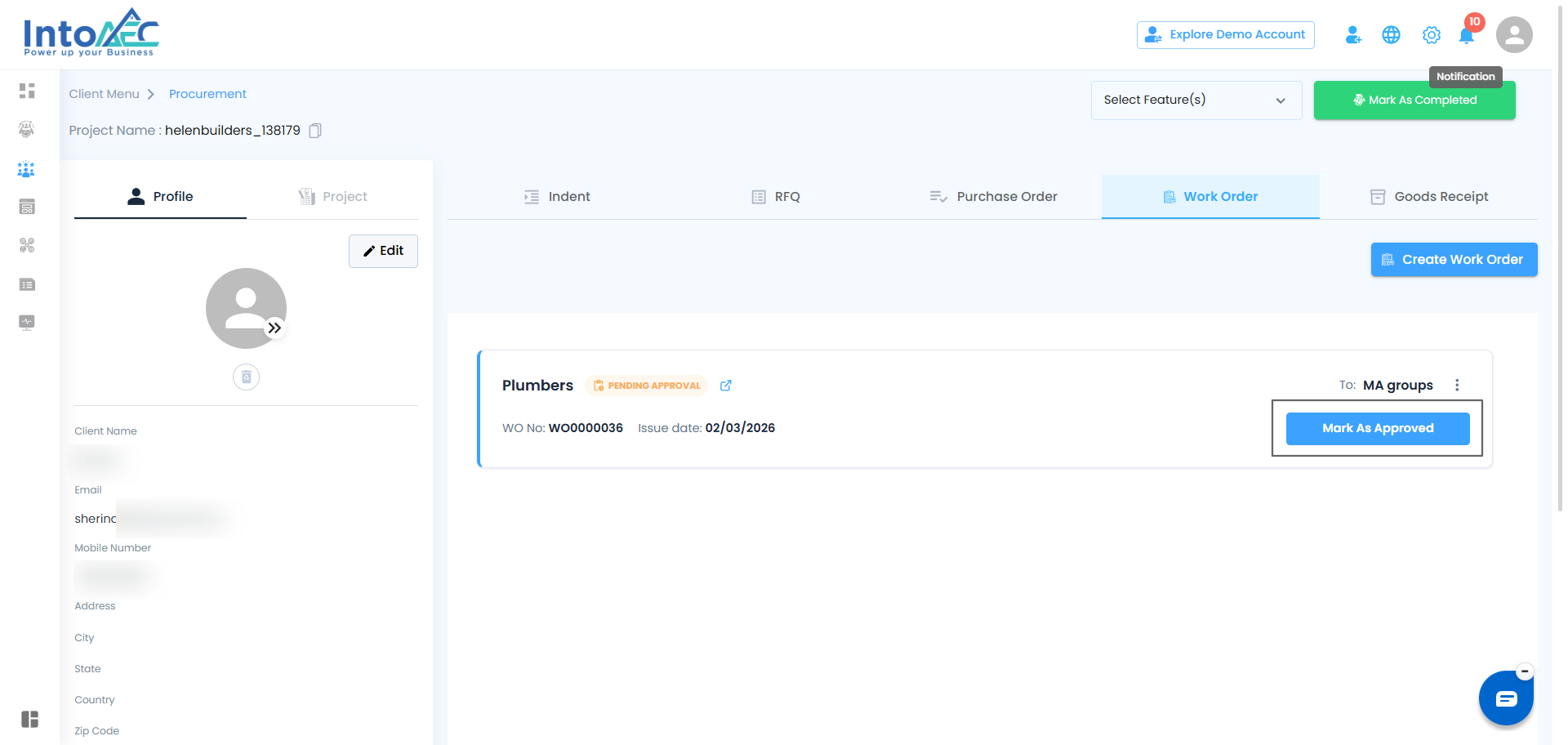
After approval, the status changes to Approved.
Was this article helpful?
That’s Great!
Thank you for your feedback
Sorry! We couldn't be helpful
Thank you for your feedback
Feedback sent
We appreciate your effort and will try to fix the article