Work Order Report – Your Execution Command Center
Think of the Work Order (WO) Report as your project’s execution dashboard—helping you track issued work orders, monitor contractor progress, and oversee work completion across projects. Stay in control of execution without missing a detail.
What You Can Do Here
Track Issued Work Orders – View all work orders created and sent for execution.
Monitor Work Progress – Quickly understand the status of work orders and their progress.
Analyze Work Commitments – Get a clear view of work quantities, completion status, and execution flow across projects.
Accessing the Work Order Report
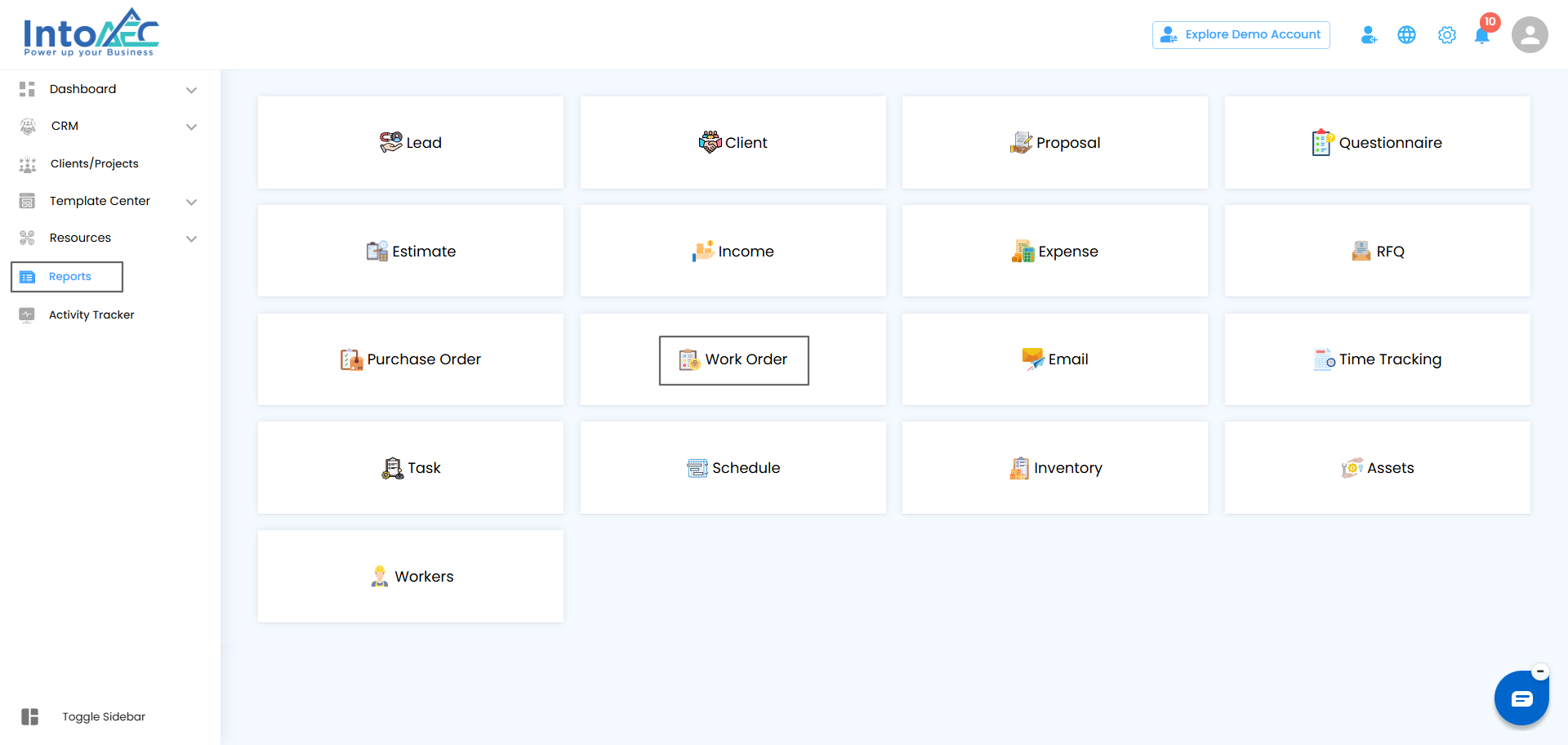
Navigate to Reports from the main menu
Go to the Reports section
Select Work Order to open the Work Order report dashboard and view all work order details
Pro Tip:
Treat this report as your execution control center—review it regularly to keep work progress aligned with project timelines.
Filtering Work Orders – Focus on What Matters
Think of filters as your project’s magnifying glass for work orders—helping you quickly find exactly what you need.
How to Refine Your Work Order Records
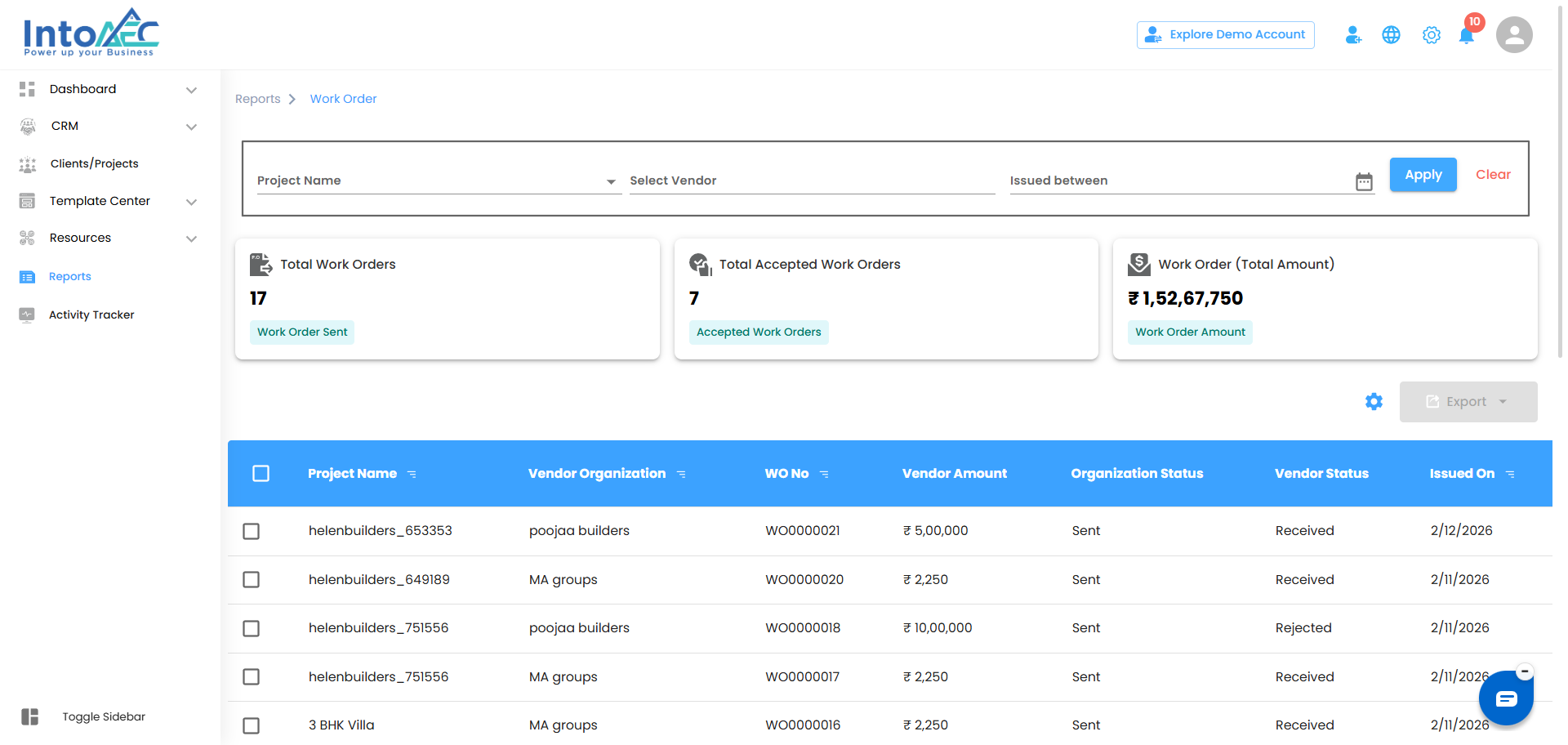
Project Name – Select a specific project to view its related work orders
Select Vendor / Contractor – Filter work orders by assigned vendor or contractor
Issued Between – Narrow results to work orders created within a specific date range
Click Apply to update the dashboard or Clear to reset all filters.
Pro Tip:
Use multiple filters together to track execution progress for specific vendors, projects, or time periods.
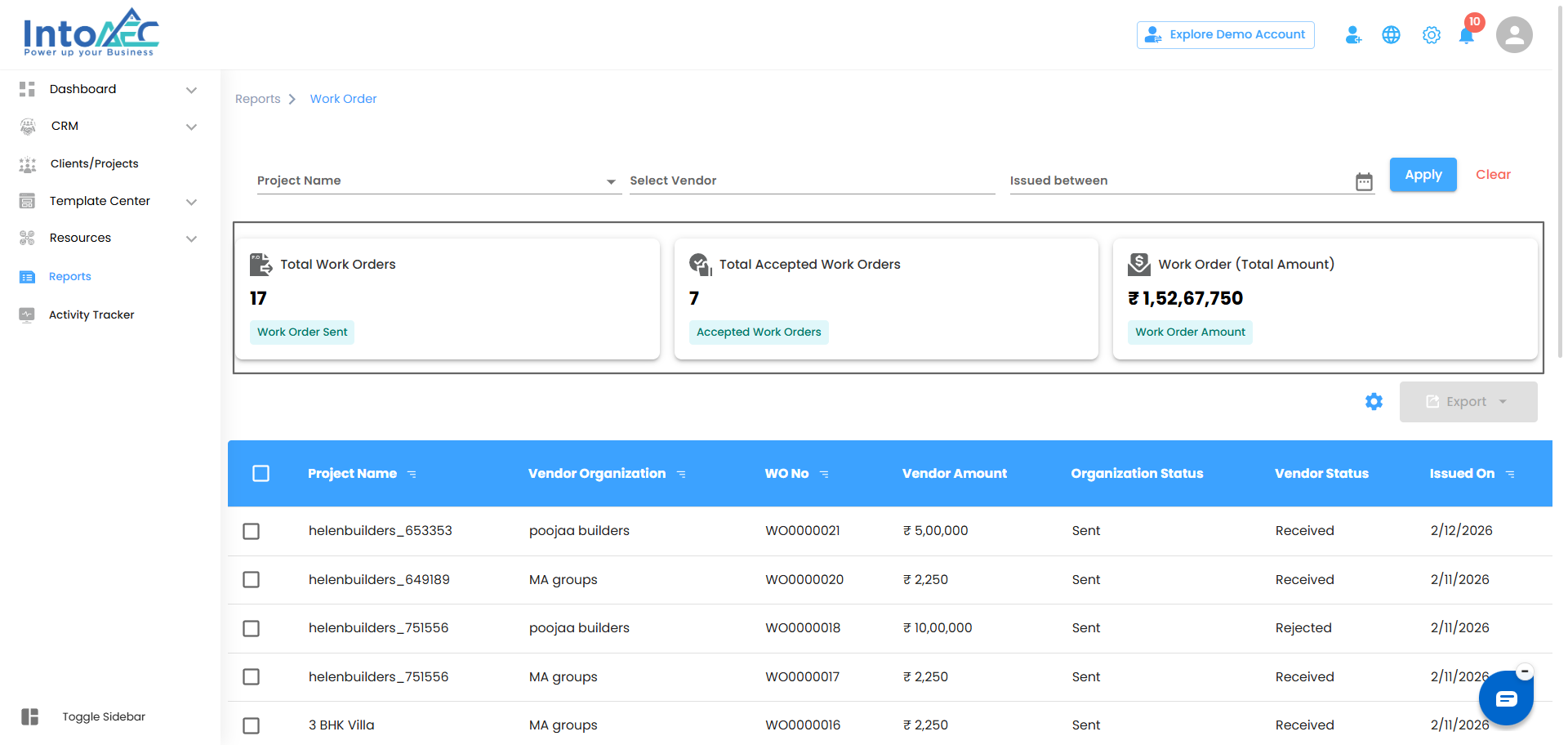
Work Order Dashboard Summary – Execution at a Glance
Think of this dashboard as your quick-view execution cockpit—offering instant insight into issued work orders and progress status.
Key Metrics You’ll See
Total Work Orders – Total number of work orders created
Total In-Progress Work Orders – Work orders currently under execution
Total Completed Work Orders – Work orders that have been fully completed
Pro Tip:
Regularly monitoring these metrics helps you identify execution delays early and maintain delivery timelines.
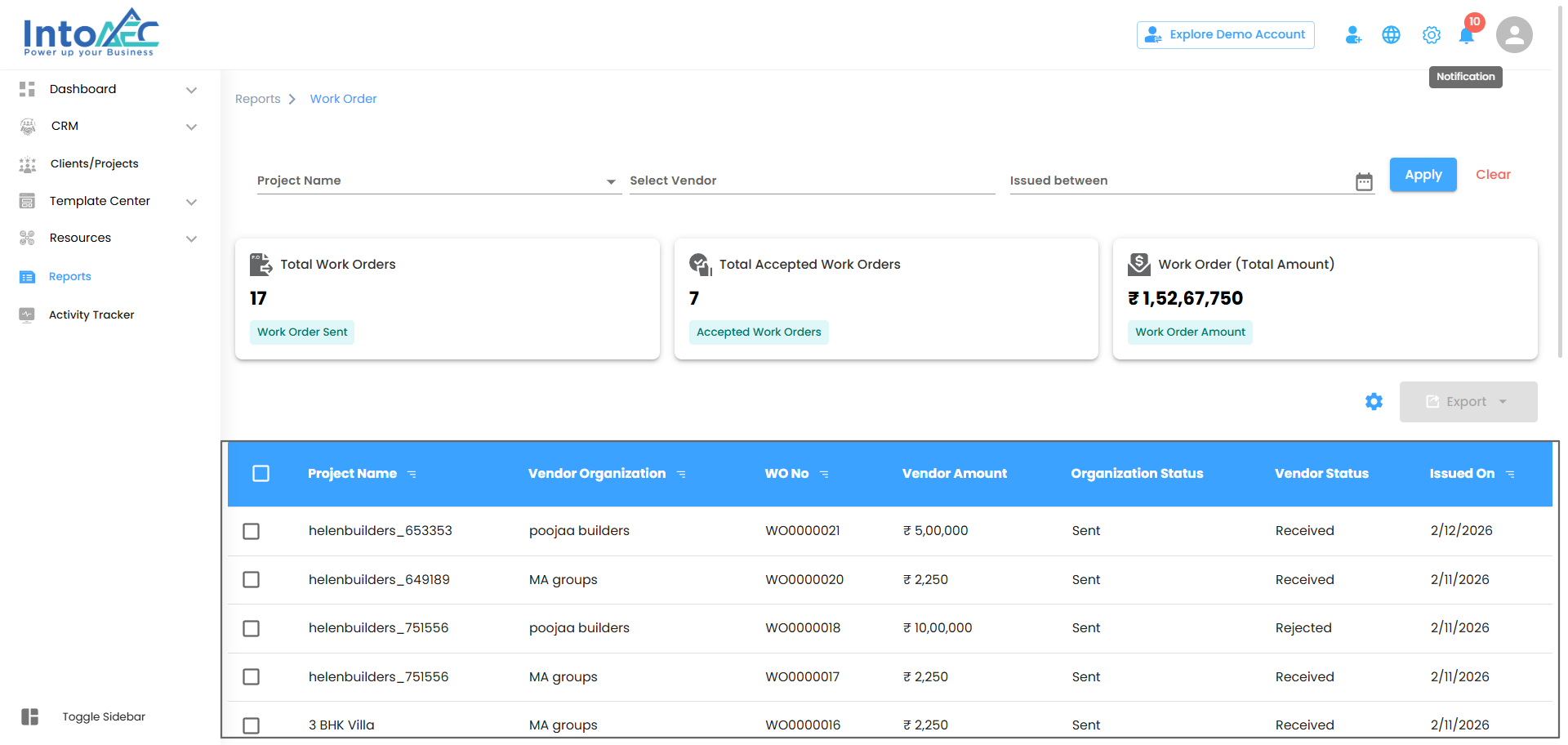
Understanding Work Order Records – Know Every Detail
Each work order entry provides a clear snapshot of execution status and responsibility.
Key Details You’ll Find
Project Name – The project linked to the work order
Vendor / Contractor – The party responsible for execution
Work Order Number – Unique identifier for the work order
Organization Status – Internal status such as Sent or Approved
Execution Status – Progress state like Yet to Start, In Progress, or Completed
Issued On – Date the work order was created
Pro Tip:
Use this table to monitor execution progress, identify bottlenecks, and ensure accountability.
Managing Work Orders – Bulk Selection & Exporting Made Easy
Think of this as your execution multitool—manage multiple work orders together or export data when needed.
Bulk Selection – Work Smarter
Select multiple work orders at once
Manage records efficiently without repetitive actions
Exporting Data – Take Control of Your Records
Export selected work orders in Excel format
Includes project details, vendor information, work order numbers, statuses, and issued dates
Useful for audits, reviews, or internal reporting
Pro Tip:
Apply filters first, then use bulk selection to export only the data you need—fast and organized.
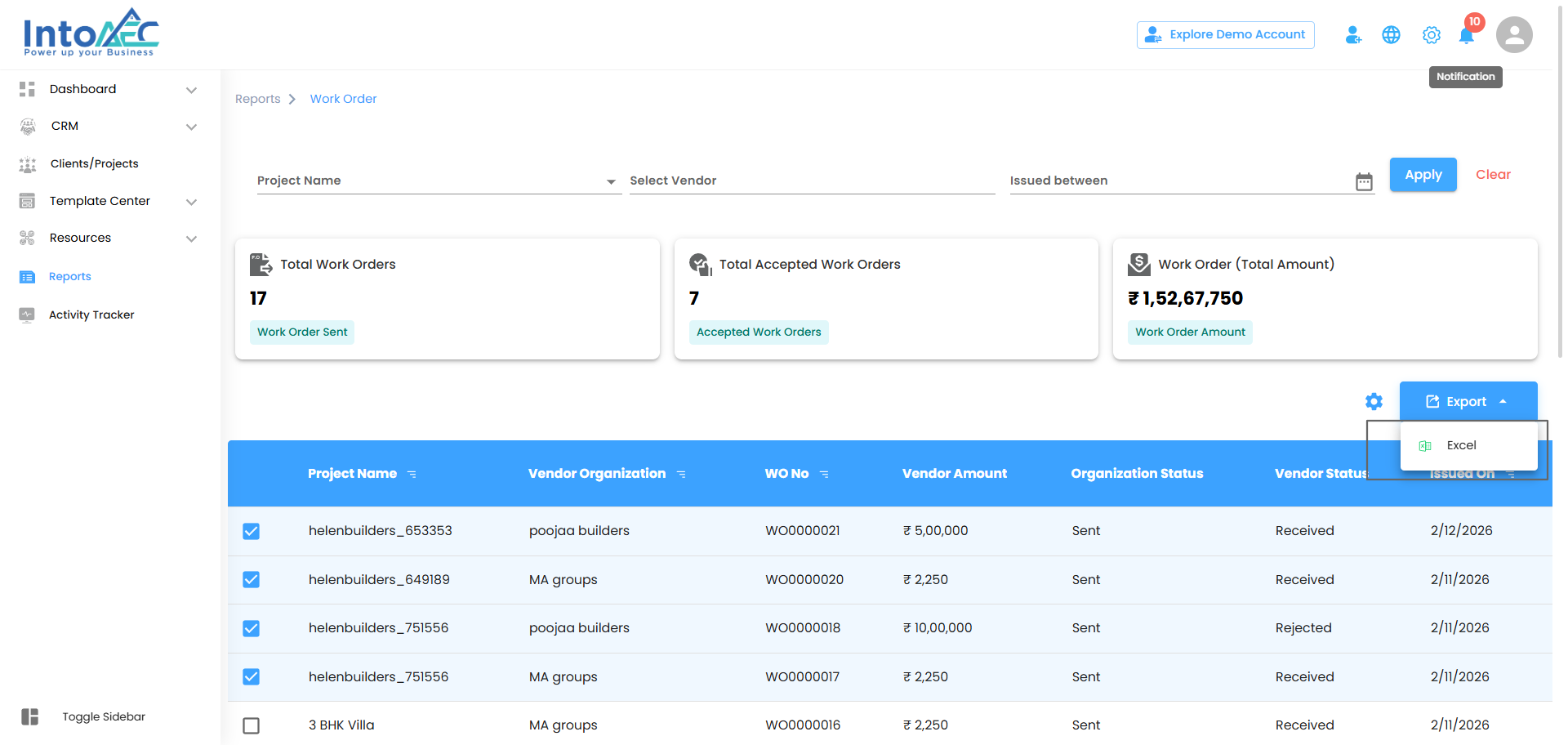
Configure Work Order Report Automation
Why track work orders manually when reports can be delivered automatically? Configure automation once and receive execution insights on schedule.
Step 1: Open the Automation Popup
Click the Configure Report Automation icon
The Work Order Report Automation popup will open
Pro Tip:
This popup is your automation control center—everything related to scheduling is managed here.
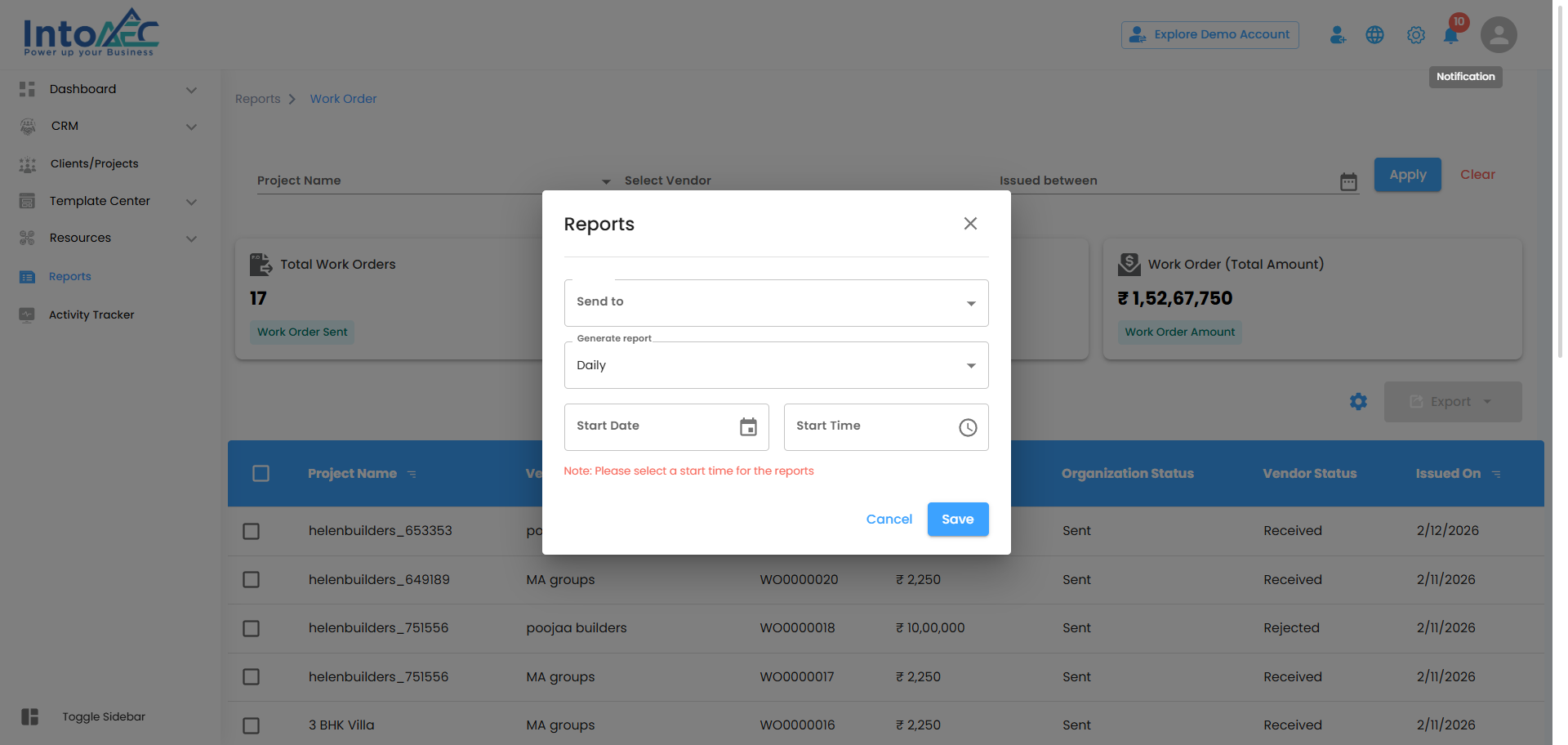
Pick the Reporting Interval – Set the Right Rhythm
Choose how frequently your Work Order reports should be generated using the Generate Report dropdown:
Daily (Default) – Reports generated daily within one hour of the selected time
Weekly – Receive a weekly execution summary on the same day and time
Monthly – Get a monthly overview of work order activity
Pro Tip:
Choose a frequency that matches how often your team reviews execution progress.
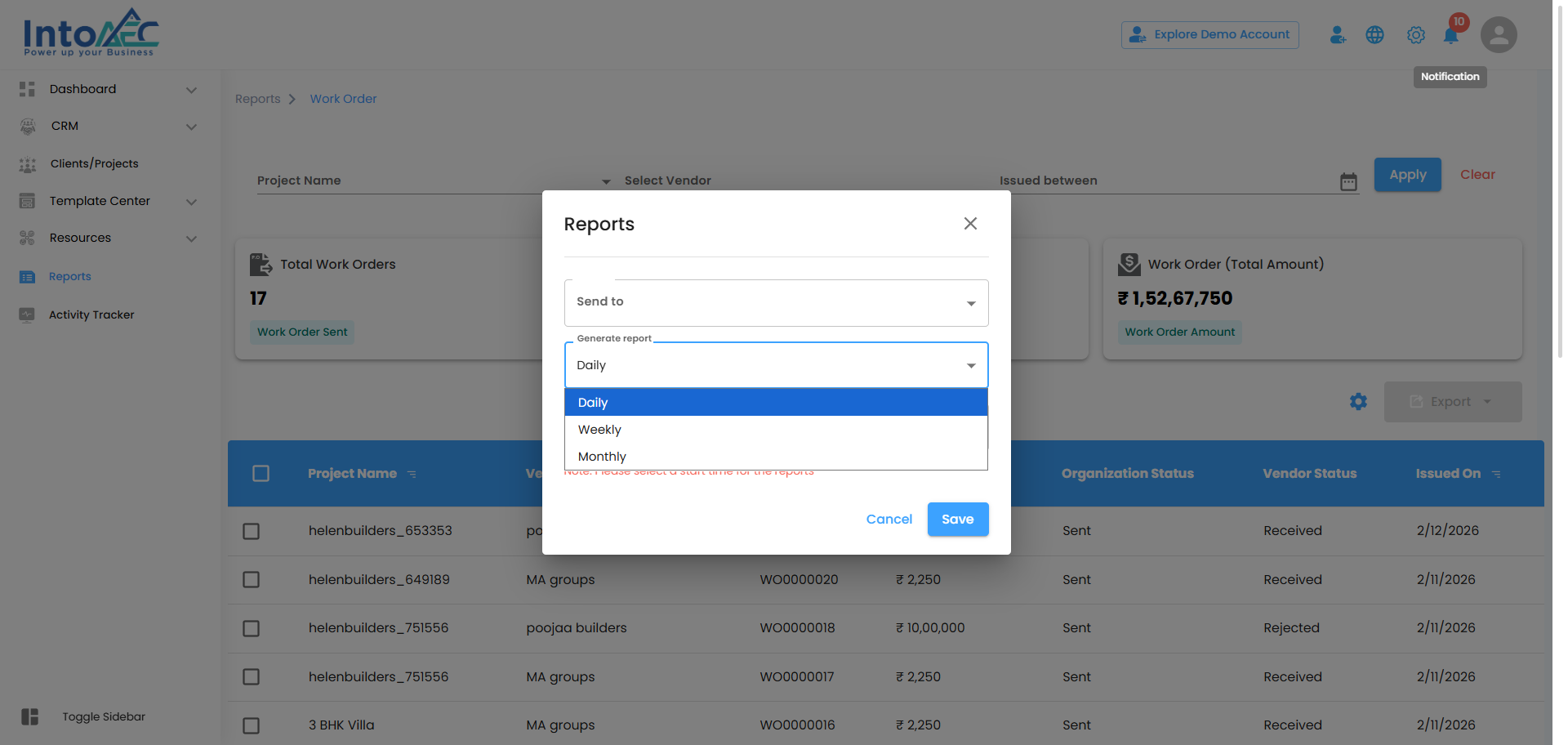
Set the Automation Start Date & Time
Select the Start Date and Start Time to begin automation
Reports will be generated automatically based on your selected interval
Note:
Start Time is mandatory—automation will not run without it.
Save or Cancel – Finalize Your Setup
Save – Activate work order report automation
Cancel – Exit without saving changes
Pro Tip:
Once saved, the system handles reporting automatically—no manual follow-ups needed.
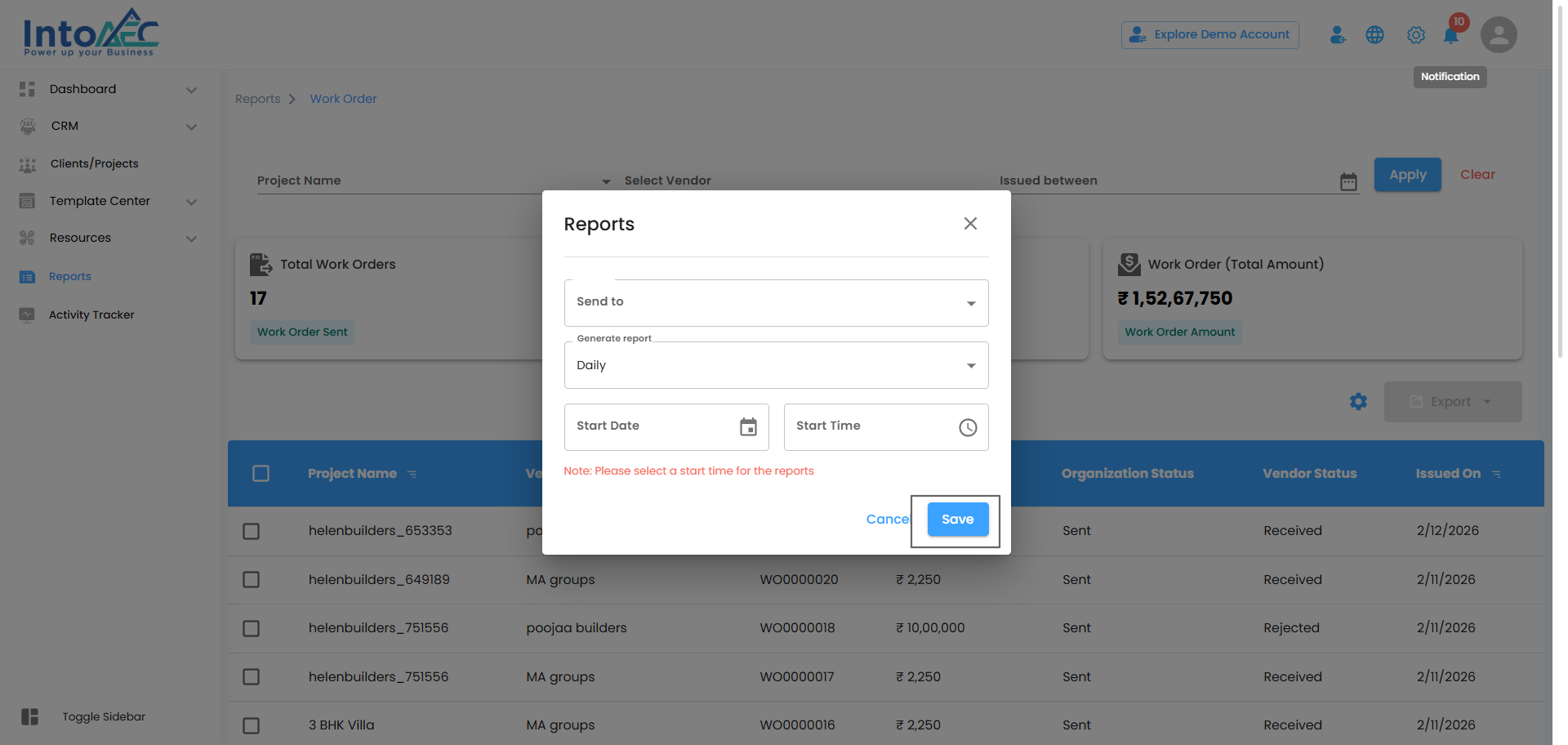
Work Order Report – Your Execution Dashboard
The Work Order Report acts as your centralized execution view—tracking issued work orders, monitoring progress, and supporting informed project decisions.
What This Report Helps You Achieve
Track work orders and execution status
Monitor vendor and contractor performance
Maintain visibility over work progress across projects
Filter, bulk manage, and export data with ease
Pro Tip:
Use this report as your execution compass—regular visibility ensures smoother delivery and better control over on-site work.
Was this article helpful?
That’s Great!
Thank you for your feedback
Sorry! We couldn't be helpful
Thank you for your feedback
Feedback sent
We appreciate your effort and will try to fix the article