Overview
An Indent is the approval request that comes before an RFQ, PO, or Work Order. It makes sure someone gets sign-off from an approver before procurement moves forward - nothing gets ordered without going through this check first.
Getting to Indents
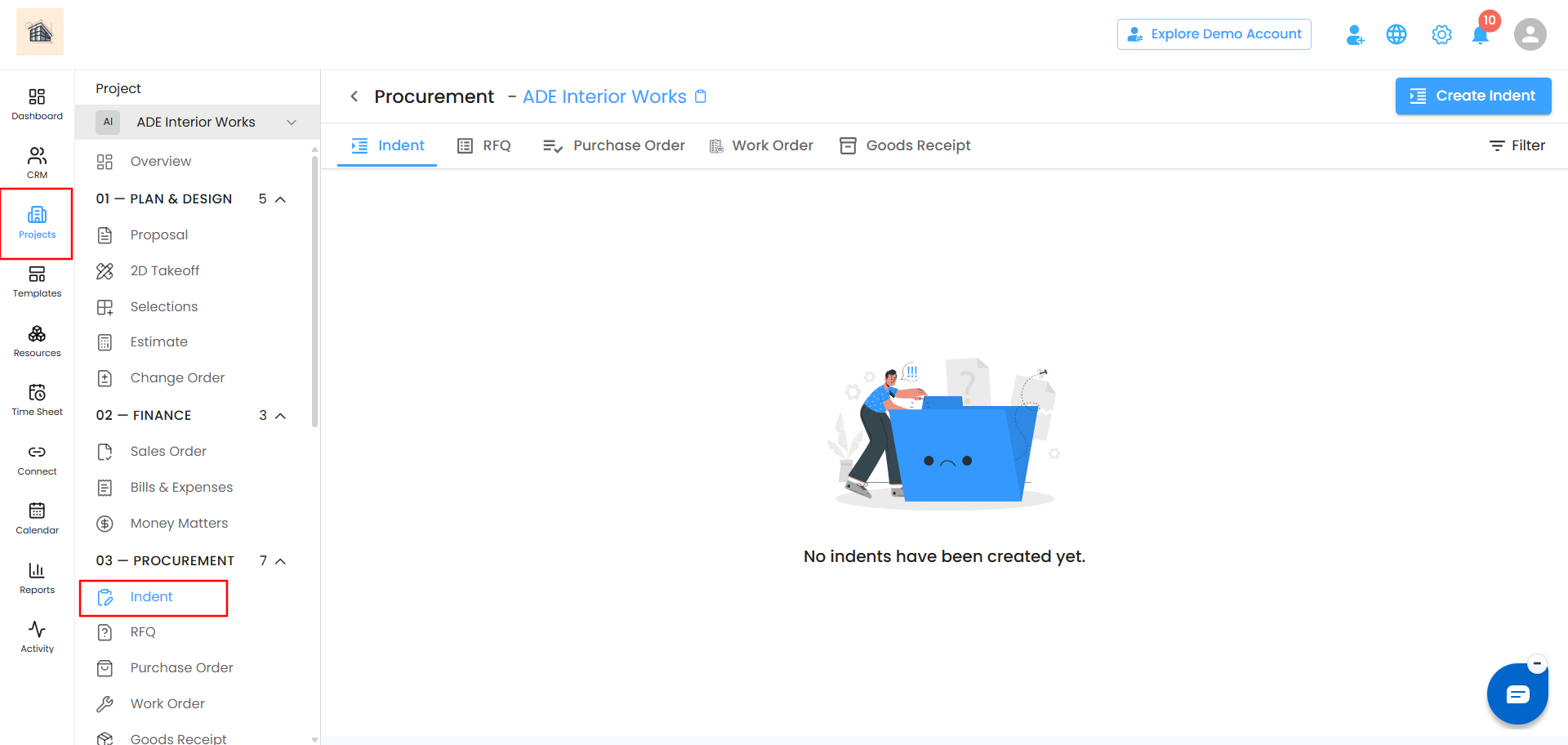
- Click on the client's name to open their details.
- From the cards shown in the client's workspace, select the Procurement card.
- In the Procurement section, click the Indent tab (alongside RFQ, PO, and Work Order).
 Creating a New Indent
- Click Create Indent.
- Choose the type: Material Indent or Work Indent, depending on what you need.
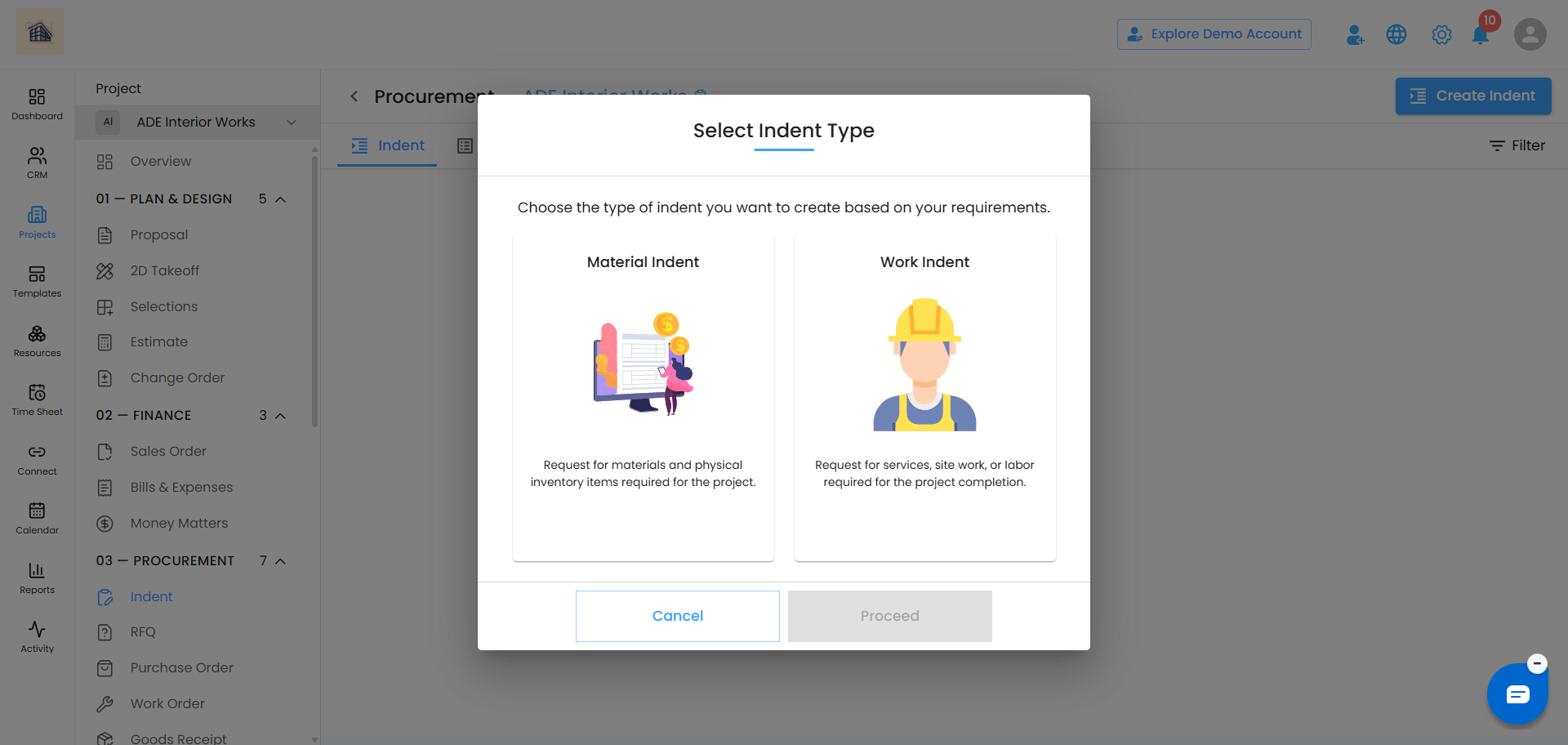
This opens the Create Indent page.
Entering Indent Details
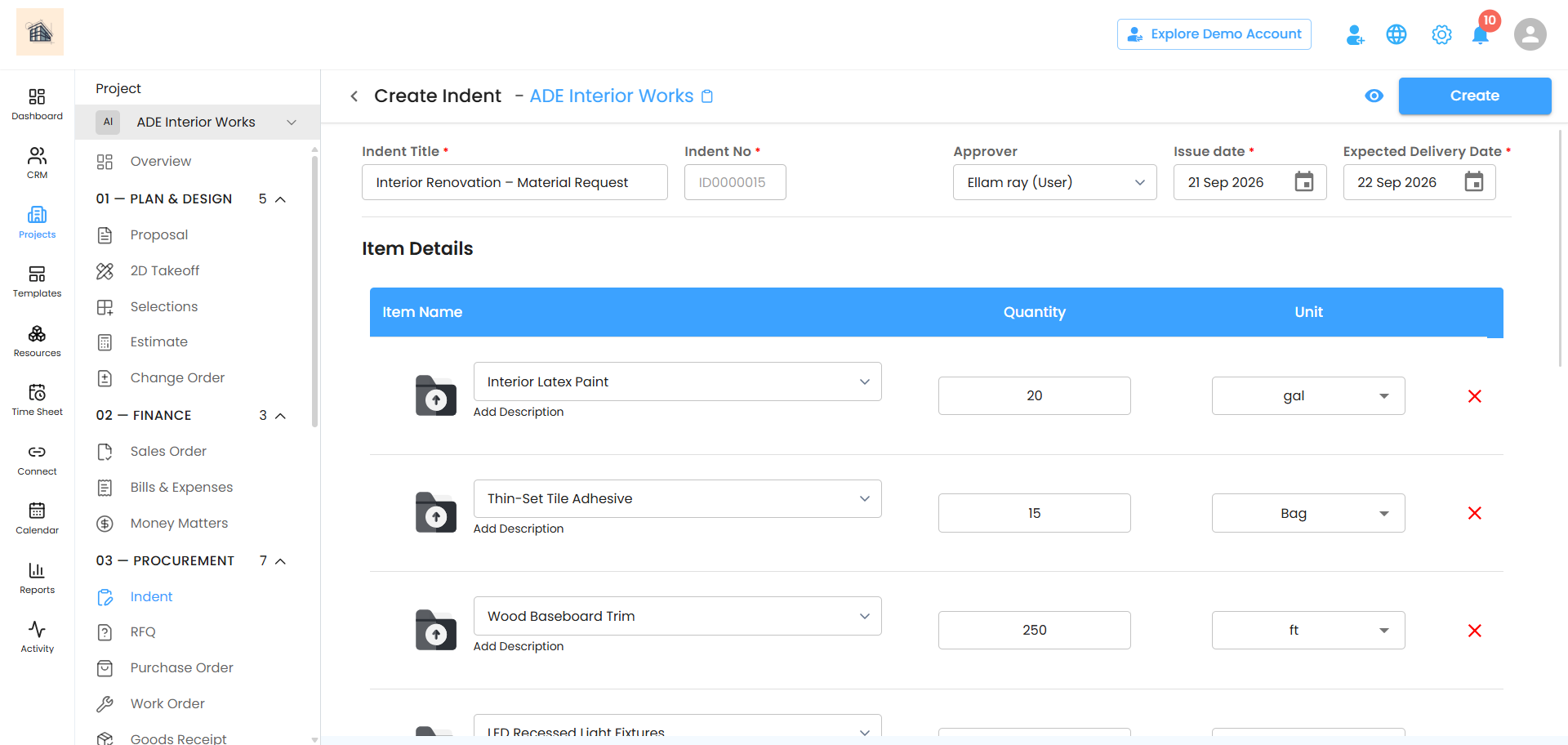
At the top of the page, fill in:
- Indent Title - a name for the Indent
- Indent No - auto-generated, no action needed
- Approver - the "Select Users" dropdown, showing only users with approver permission
- Issue Date - defaults to today's date; adjust if needed
- Expected Delivery Date - defaults to the next day; adjust if needed
 Adding Items
In the Item Details section, add each item with:
- Item Name
- Description (optional - click Add Description under the item)
- Quantity
- Unit (from the dropdown)
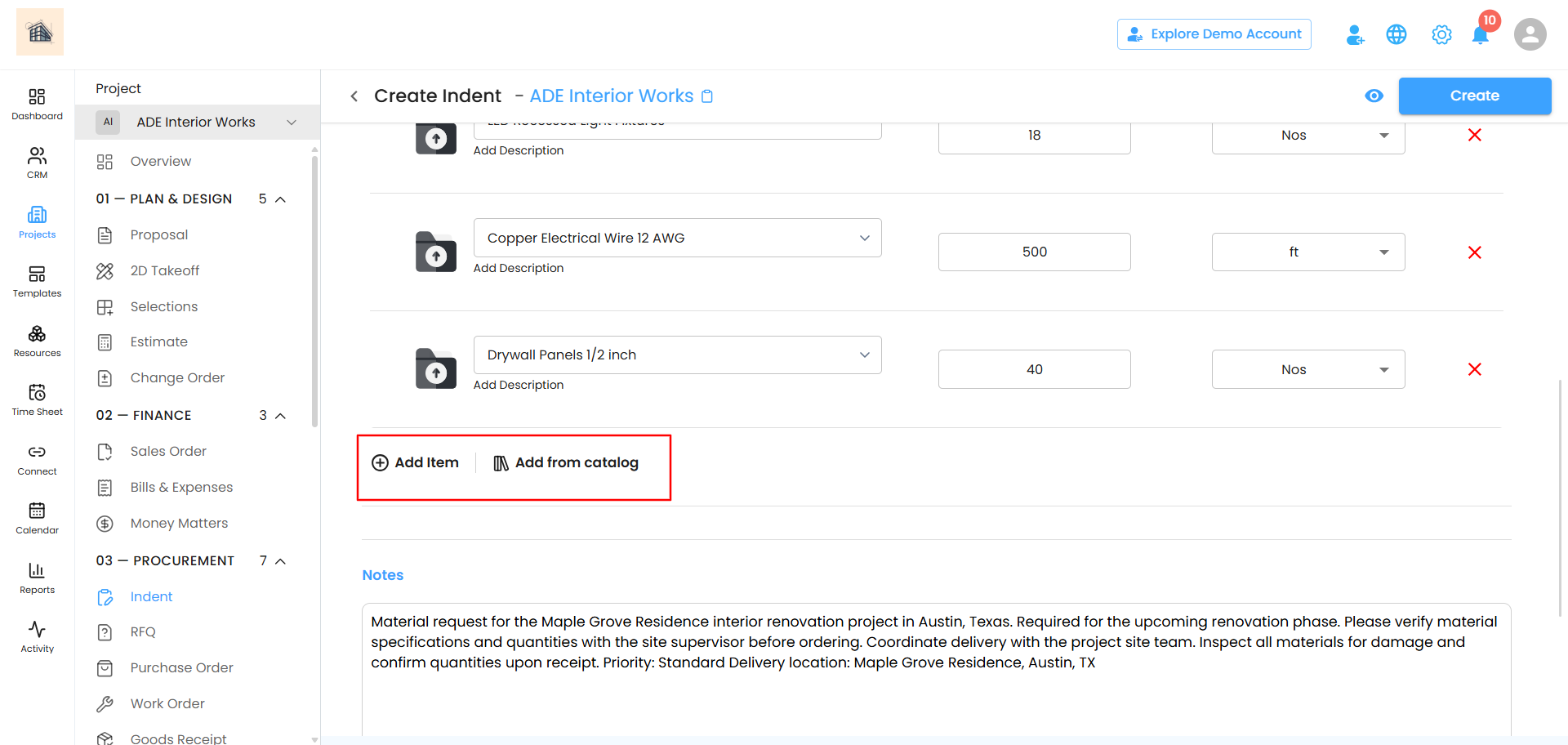
Click Add Item to add another blank row, or click the red X next to a row to remove it.
 Adding Items from the Cost Catalog
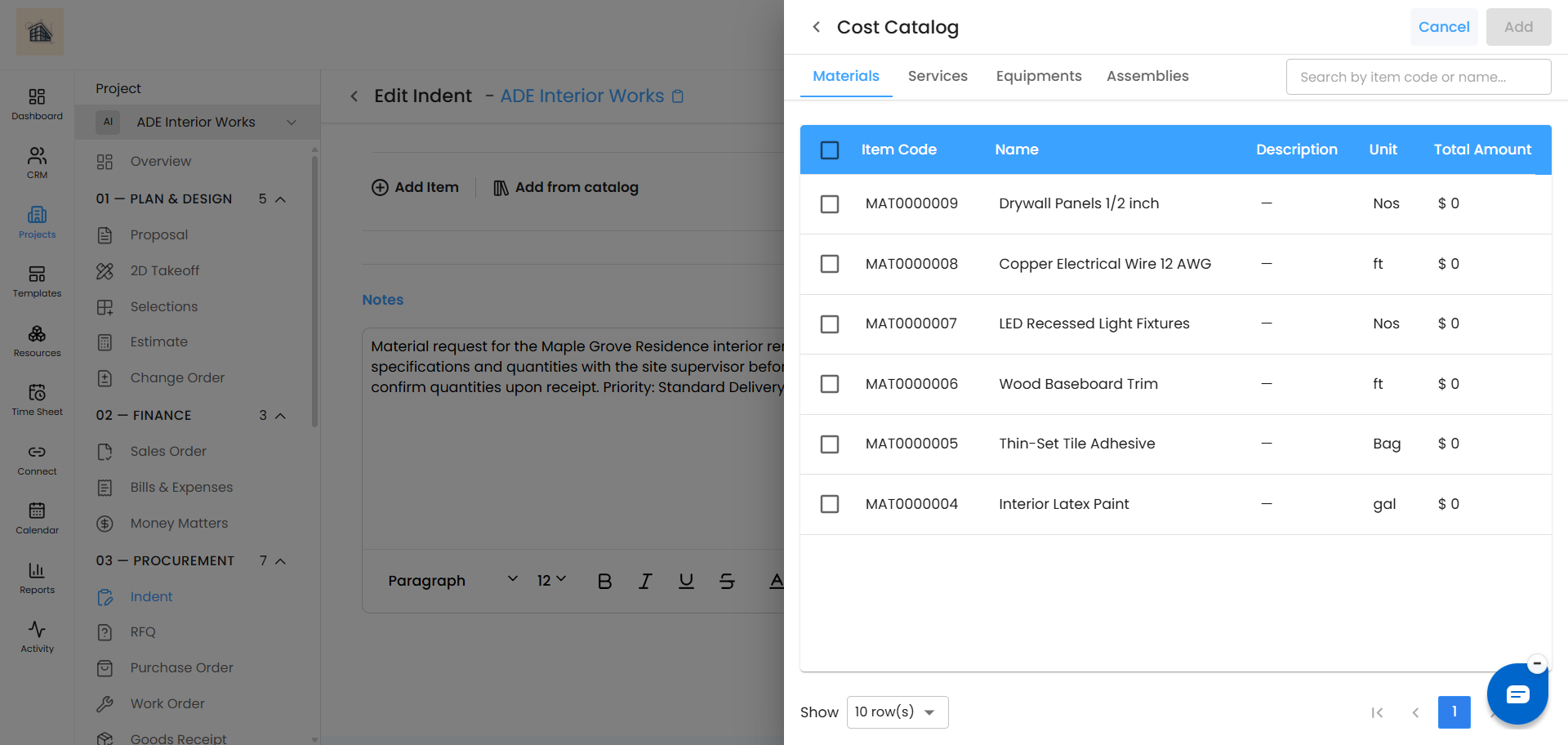
Instead of typing items in manually, click Add from catalog to pull them from your saved Cost Catalog:
- The Cost Catalog panel opens with four tabs: Materials, Services, Equipments, and Assemblies.
- Use the search bar to find an item by code or name, or browse the list.
- Check the box next to each item you want to add.
- Click Add to bring the selected items into your Indent.
Adding Notes (Optional)
Use the Notes box to pass along any extra information to the vendor before creating the Indent.
Creating the Indent
Once all details and items are in place, click Create. The new Indent appears on the main Indent page as its own card.
Was this article helpful?
That’s Great!
Thank you for your feedback
Sorry! We couldn't be helpful
Thank you for your feedback
Feedback sent
We appreciate your effort and will try to fix the article