Overview
A Work Order defines a scope of work to be carried out by a vendor or contractor - the items, timeline, and location all in one place, ready to assign and track.
Getting There
- Click Client in the sidebar and select the client this Work Order is for.
- Open the Procurement section.
- Click Work Order, then Create Work Order to open a blank form.
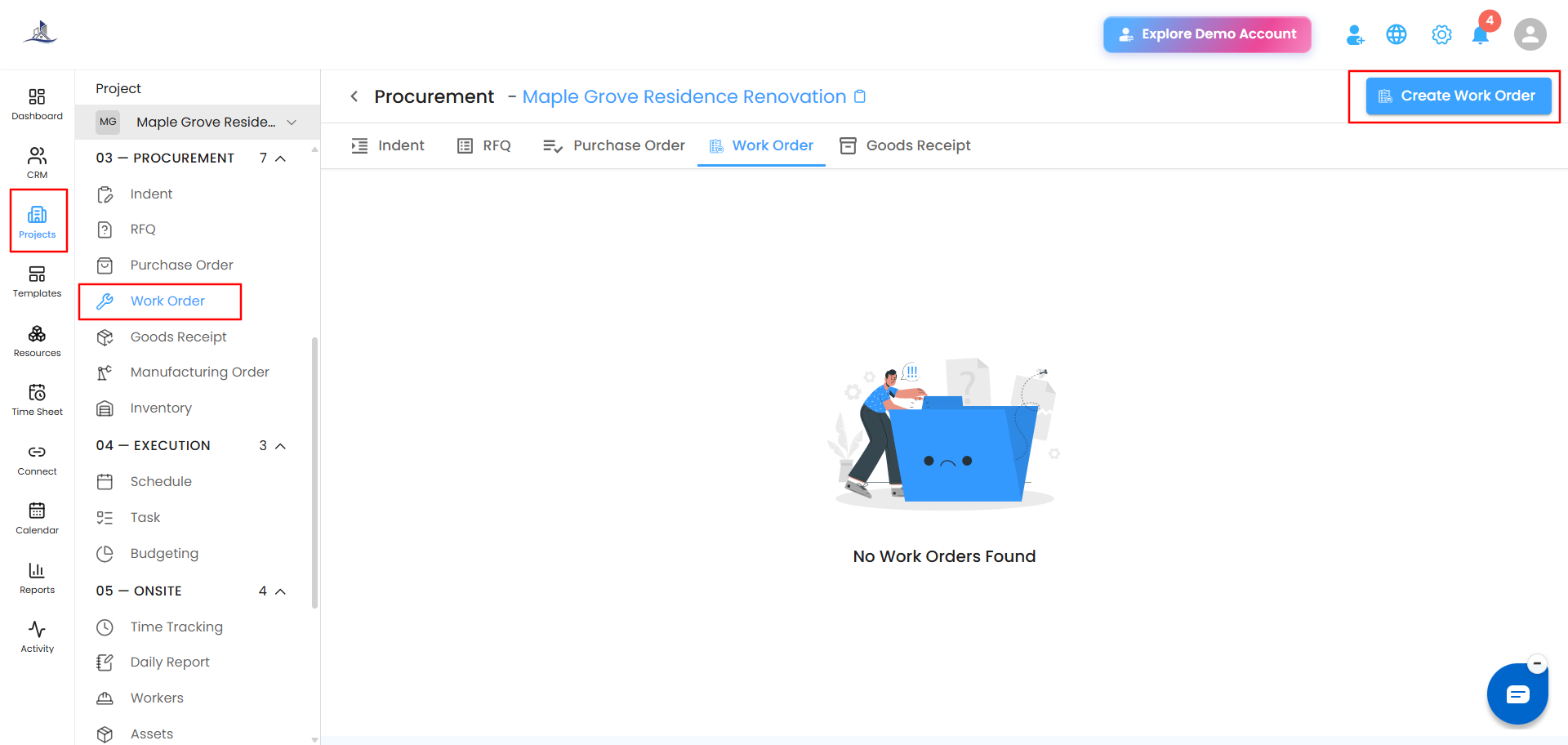
Tip: Double-check you've selected the right client before starting, to keep work records accurate across projects.
Entering Work Order Details
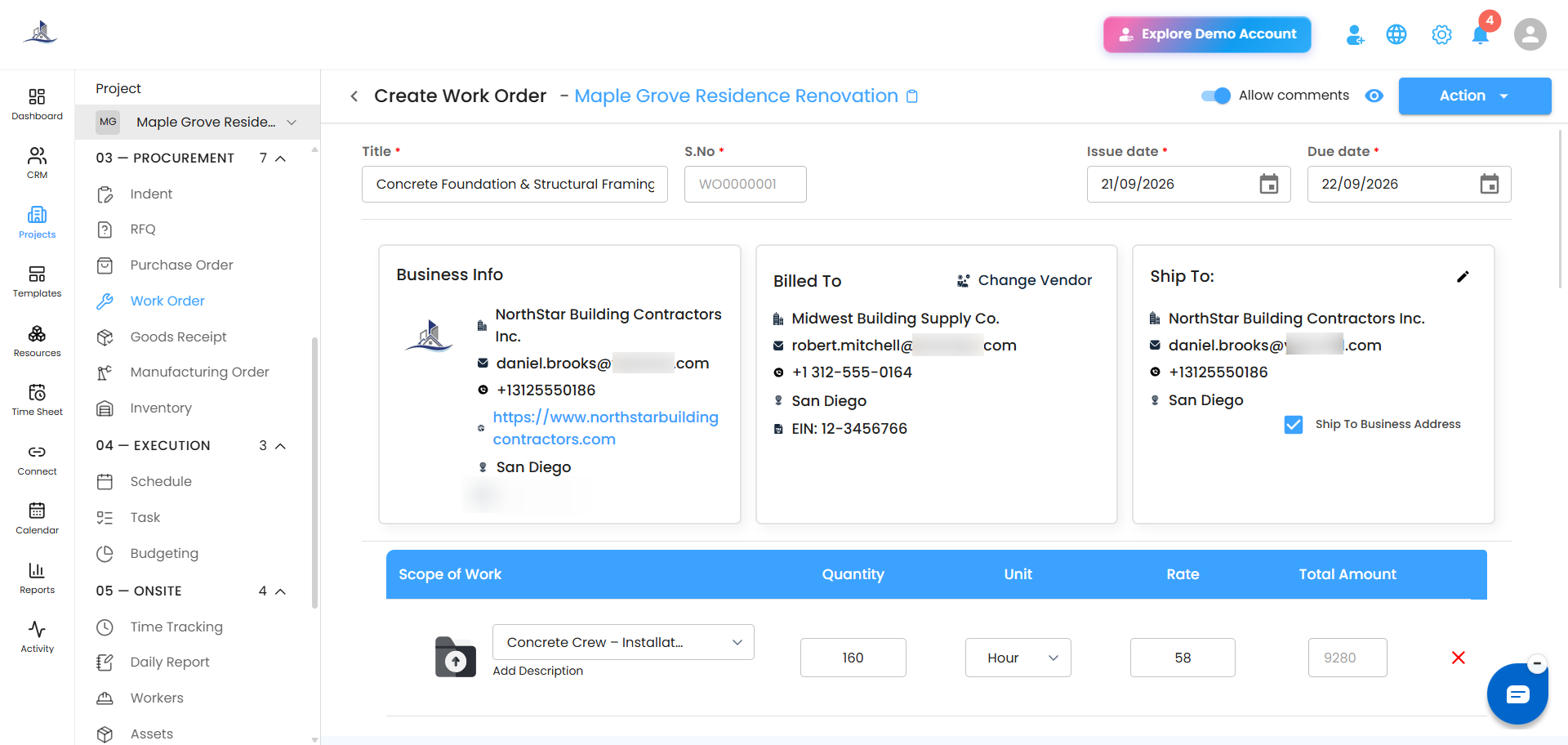
- Title
- Issue Date
- Due Date
Assigning a Vendor or Contractor
- Select the Vendor / Contractor from the list.
- Click Add to include them in the Work Order.
Tip: Double-check your selection - this is who the work gets assigned to.
Choosing the Work Location
Enable Work at Business Address if the work is happening at your business address, or leave it off to specify a different location.
Tip: Verify the address carefully so execution and coordination go smoothly.
Adding Items
Add what needs to be done using either method:
- Add Manually - enter the Scope of Work, Quantity, Unit, Rate, and Total Amount yourself.
- Add from catalog - pick items from your saved Cost Catalog instead of typing them in.
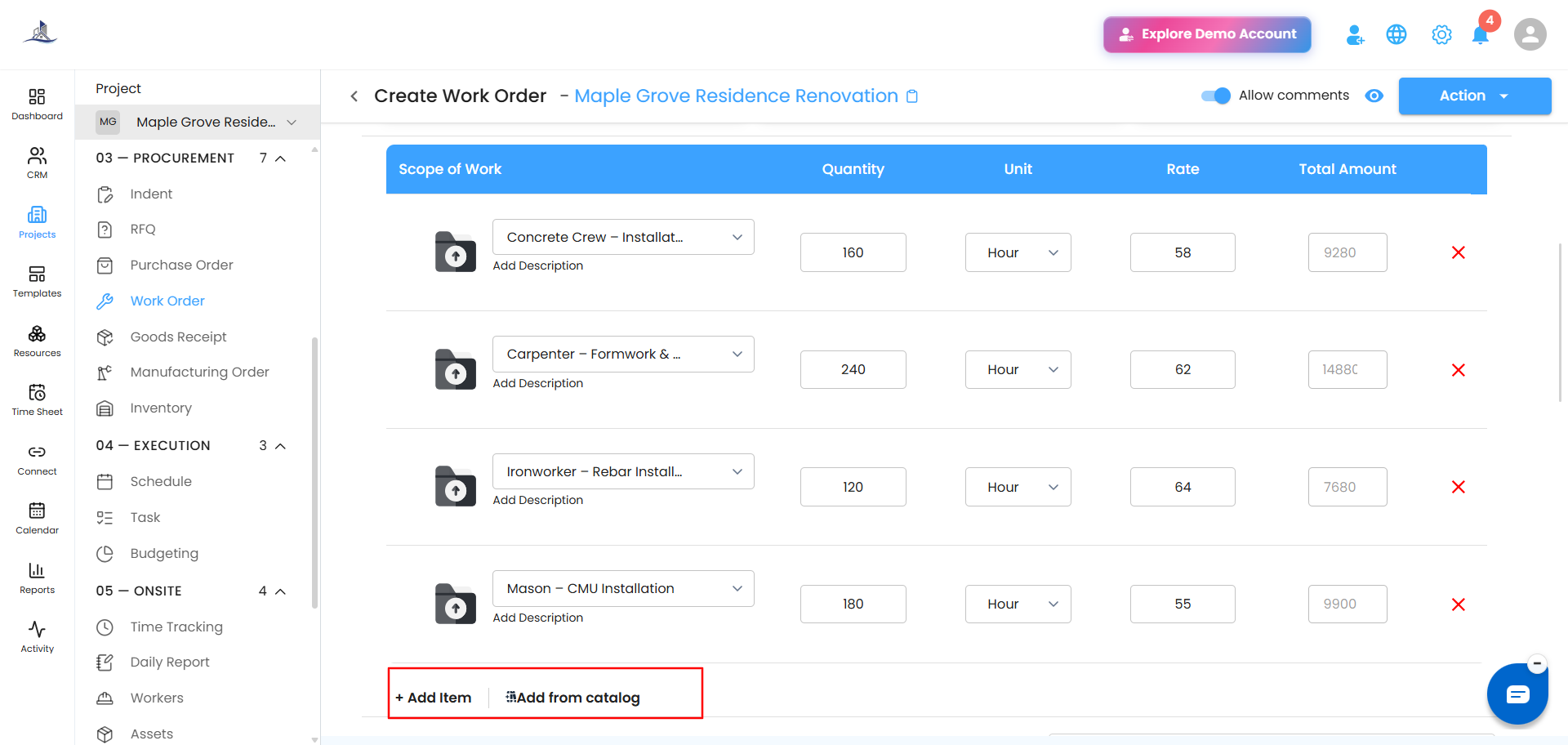
Tip: Using the catalog keeps naming and pricing consistent, especially for work you assign regularly.
Finalizing the Work Order
- Review all items and details.
- Add attachments if needed.
- Click Action.
From here you can:
- Create - saves the Work Order without sending it right away. It appears on the main Work Order page as a card with Approved status, ready to act on later.
- Compose Email - write a note to the vendor, then click Send Email to send it directly.
Tip: Confirm all work details before proceeding - it saves you a revision later.
After Sending
Once sent, the Work Order can be tracked from your organization's Work Order page, including its progress and status.
Was this article helpful?
That’s Great!
Thank you for your feedback
Sorry! We couldn't be helpful
Thank you for your feedback
Feedback sent
We appreciate your effort and will try to fix the article