Overview
The Indent Report gives you one place to see every material request (Indent) across all your projects — from the moment it's created to the moment it's approved or completed. It's how you keep tabs on whether project sites are getting what they need without digging through individual Indents one by one.
What You Can Do Here
- Track request status - see in real time whether Indents are pending, approved, or rejected
- Audit material requests - review what was requested, by whom, and for which project
- Streamline approvals - quickly spot requests waiting on action so procurement doesn't stall
Getting There
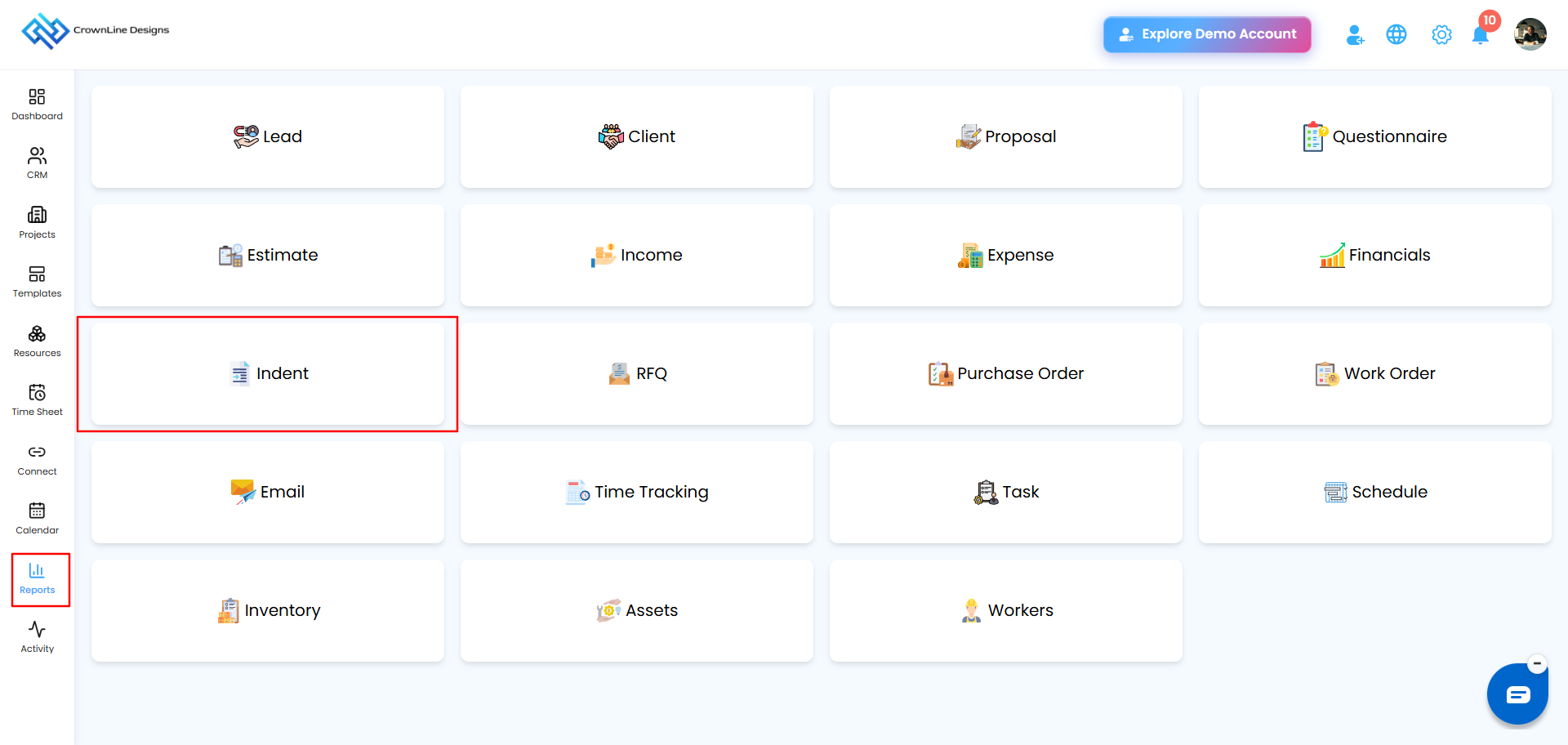
- Go to Reports in the main sidebar.
- Select the Indent icon to open the report.
Dashboard at a Glance
Summary cards at the top give you an immediate read on your request pipeline:
- Total Indents - the total number of material requests created
- Approved Indents - requests that have passed authorization
- Pending Approval - requests currently awaiting approval and needing attention

Filtering Your Results
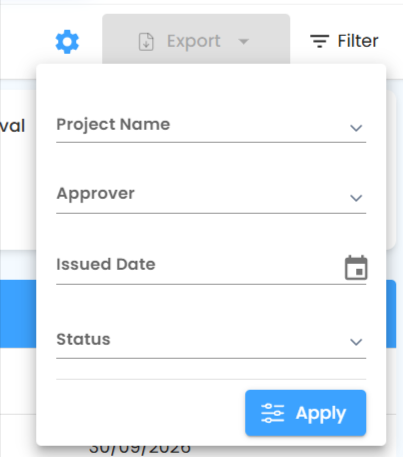
Narrow hundreds of requests down to exactly what you need:
- Project Name - see requests for one specific project
- Issued Date - look up Indents created within a specific timeframe
- Status - Pending, Approved, Rejected, Cancelled, or Completed
- Approver - filter by who's responsible for authorizing the request
Click Apply to run the search, or Clear to reset all filters.
The Indent Report Table
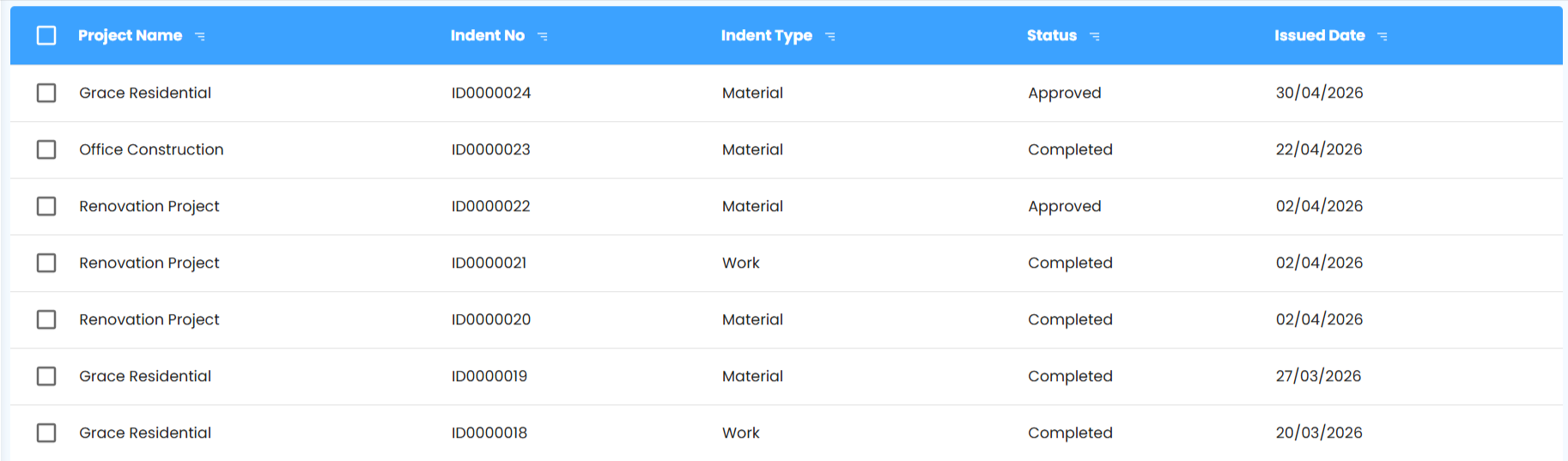
Each row gives you the granular detail behind every request:
| Column | What It Tells You |
|---|---|
| Project Name | The site or project the materials were requested for |
| Indent No | The request's unique ID (e.g., ID0000001) |
| Indent Type | The category of request, such as Material |
| Status | Its current stage (e.g., Pending) |
| Issued Date | When the request was officially submitted |
Bulk Actions and Exporting
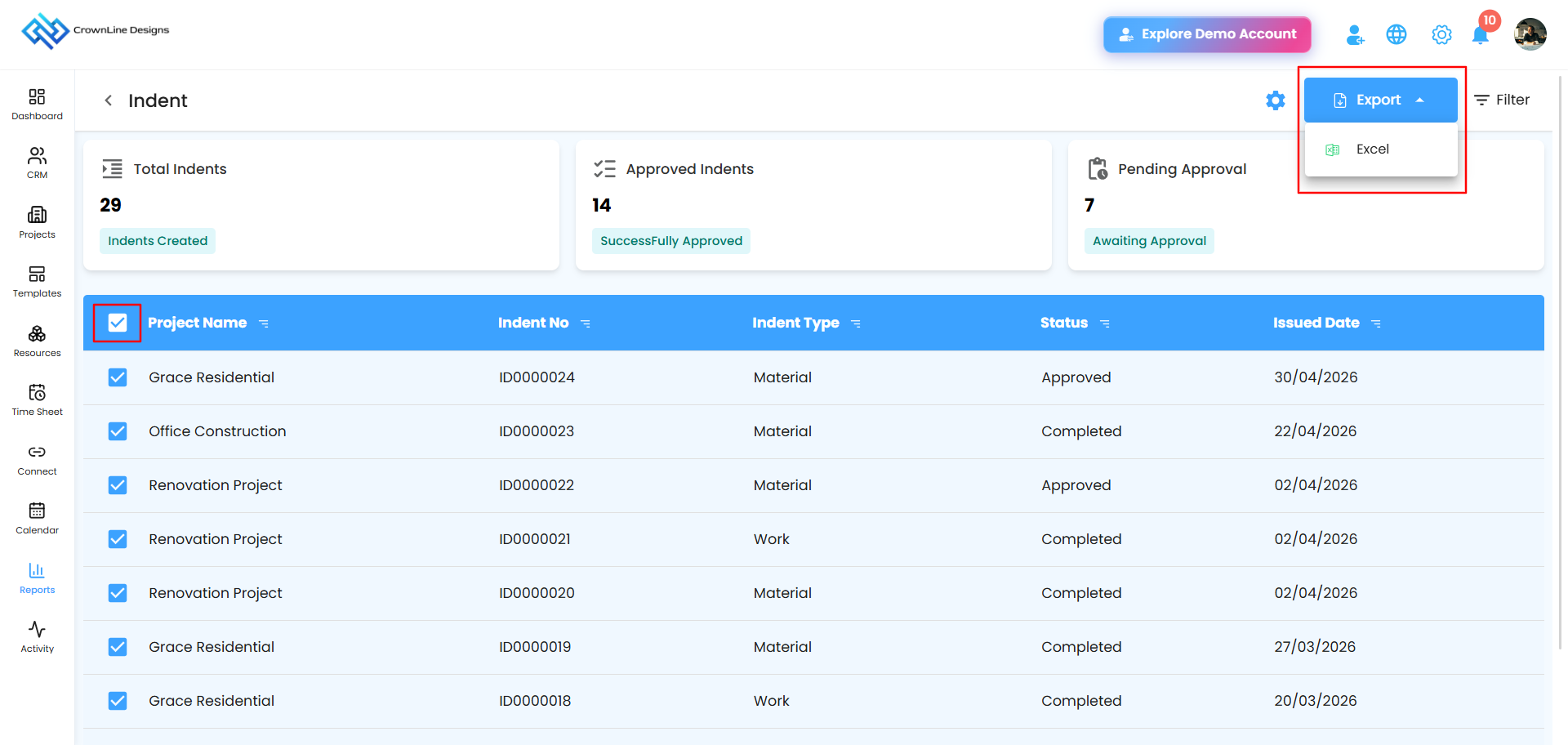
Use the checkboxes on the left to select specific rows - or all of them - then click Export to download your filtered data as a spreadsheet, ready for external reporting or auditing.
Automating Your Reports
Have Indent summaries delivered straight to the right inboxes, on a schedule you set once.
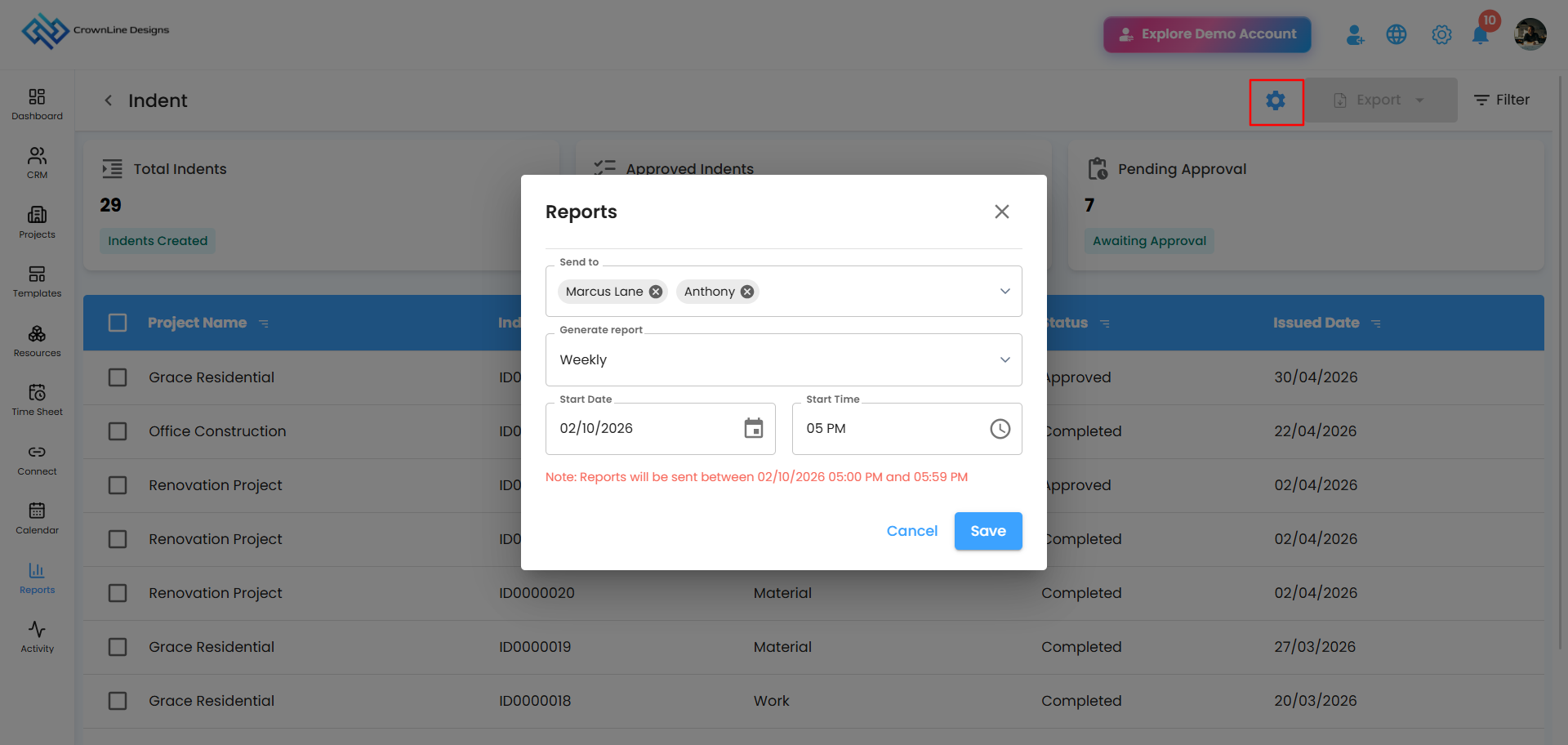
- Click the gear icon (Configure reports automation) above the table.
- Choose your recipients - e.g., Project Managers or Admins.
- Set the Frequency - Daily, Weekly, or Monthly.
- Set the Start Date and Time, then click Save to activate it.
Related Articles
Was this article helpful?
That’s Great!
Thank you for your feedback
Sorry! We couldn't be helpful
Thank you for your feedback
Feedback sent
We appreciate your effort and will try to fix the article