Generating Project Schedules Using Zyra AI
IntoAEC’s Zyra AI simplifies project planning by automatically generating structured schedules based on project descriptions. Instead of manually creating activities, phases, and timelines from scratch, users can leverage AI-assisted scheduling to quickly prepare project plans with intelligent task breakdowns and estimated durations.
Zyra AI helps teams accelerate schedule preparation, improve planning consistency, and reduce manual effort across construction, engineering, architecture, and infrastructure projects.
Accessing the Schedule Module
Opening a Project
To generate schedules using Zyra AI:
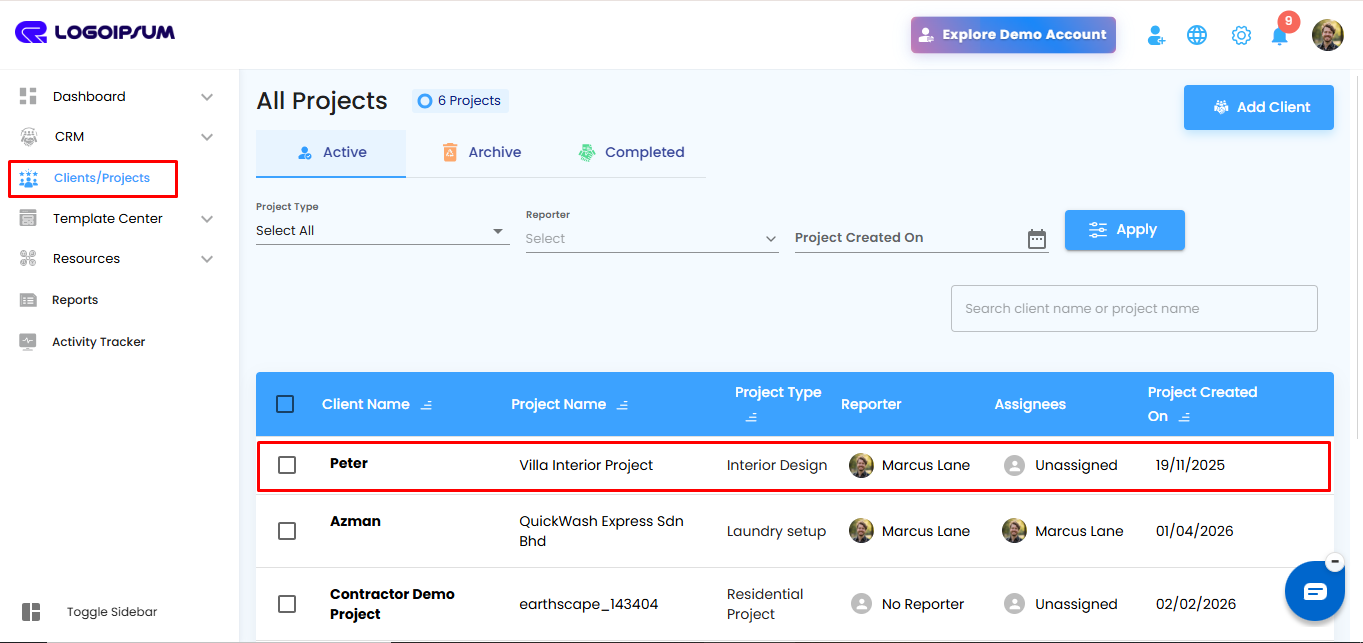
- Navigate to the left-side menu.
- Click Clients/Projects.
- Select the required project from the project list.
If a project does not exist, create a new project before proceeding.
Opening the Schedule Feature
Once the project dashboard opens:
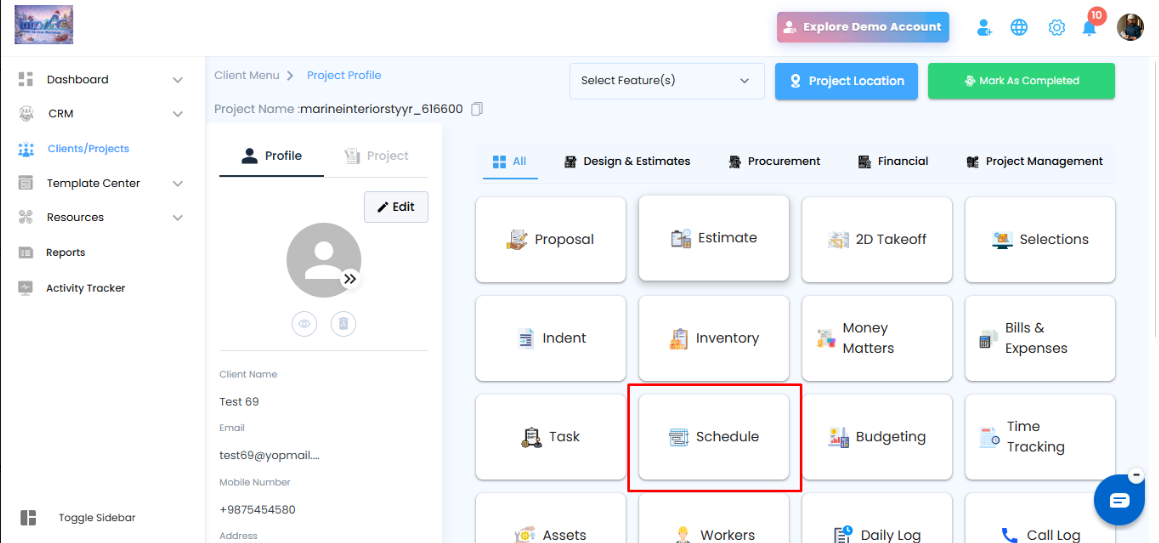
- Navigate to the project features section.
- Click the Schedule module.
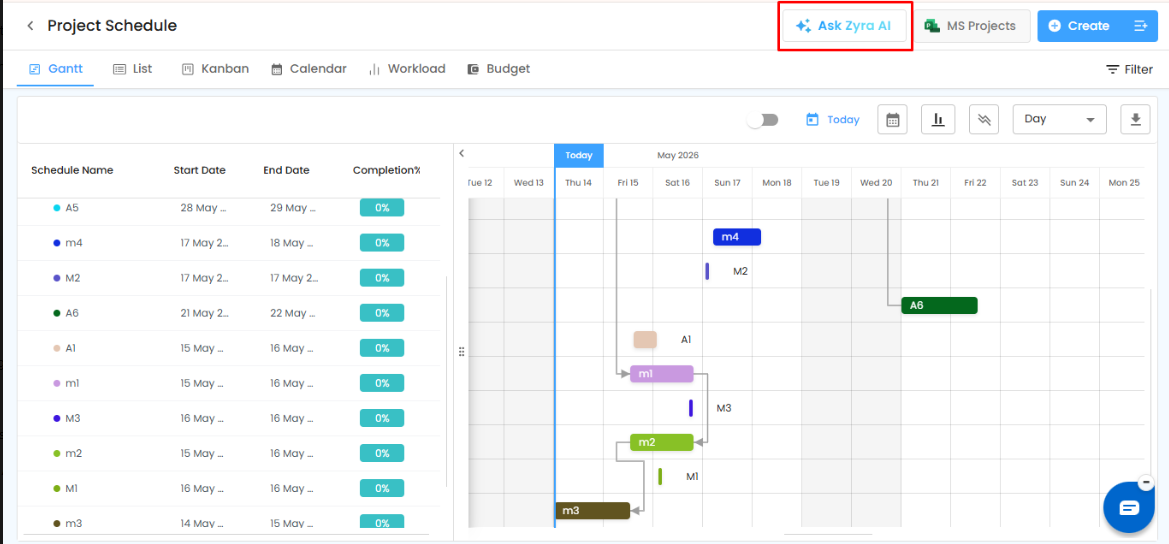
The Project Schedule screen will open with the default Gantt View.
Accessing Zyra AI
Inside the Project Schedule screen:
- Locate the Ask Zyra AI button at the top-right section of the scheduling toolbar.
- Click the button to open the Schedule AI Agent panel.
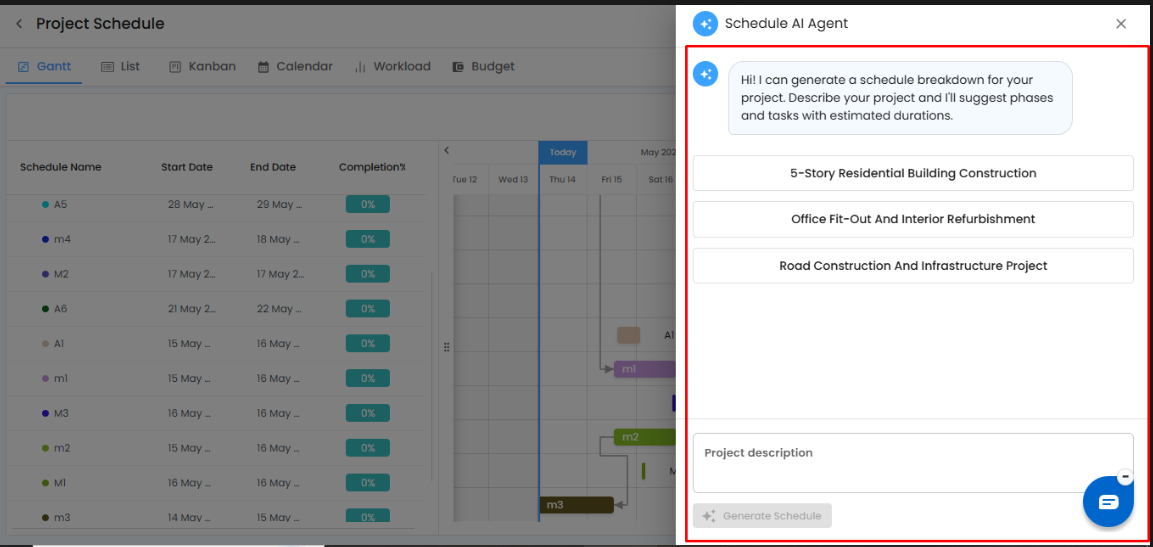
The Zyra AI scheduling assistant panel will appear on the right side of the screen.
Understanding the Zyra AI Panel
The Schedule AI Agent helps users generate project schedules intelligently using AI-generated task suggestions and activity breakdowns.
The panel includes:
- Predefined project suggestions
- Project description input area
- AI-based schedule generation
- Automatic task and phase recommendations
Using Predefined Project Templates
Zyra AI provides quick-start project suggestions such as:
- 5-Story Residential Building Construction
- Office Fit-Out and Interior Refurbishment
- Road Construction and Infrastructure Project
Users can select any predefined option to quickly generate a structured project schedule template.
Pro Tip:
Use predefined templates for faster schedule generation when working on standard or repetitive project types.
Creating a Custom AI Schedule
Generate a Schedule Using Project Description
Users can also create fully customized schedules by describing the project requirements.
Steps to Generate a Schedule
- Open the Schedule AI Agent panel.
- Enter the project scope or description in the Project Description field.
- Describe:
- Project type
- Scope of work
- Major activities
- Construction phases
- Timeline expectations
- Click Generate Schedule.
Zyra AI will automatically analyze the input and generate:
- Schedule phases
- Activities
- Task hierarchy
- Suggested durations
- Logical sequencing
Was this article helpful?
That’s Great!
Thank you for your feedback
Sorry! We couldn't be helpful
Thank you for your feedback
Feedback sent
We appreciate your effort and will try to fix the article