2D Material Takeoff with Zyra AI
Overview
2D Material Takeoff with Zyra AI in IntoAEC enables you to upload construction drawings, measure areas directly on plans, and generate complete trade assemblies using AI — all within a single connected workflow.
With Zyra AI, you can:
- Measure areas directly from drawings
- Automatically generate assembly descriptions
- Convert measurements into estimate-ready data
This ensures faster takeoffs, improved accuracy, and seamless integration with your project estimates.
Key Features
- Upload plans in PDF or image formats
- Set accurate drawing scale for real-world measurements
- Measure areas directly on drawings
- Assign trades to measured areas
- Generate assemblies using Zyra AI
- Link takeoff data directly to project estimates
Workflow Overview
The 2D Takeoff process follows these steps:
- Upload Plan
- Set Scale
- Measure Areas
- Assign Trade
- Generate Assembly (AI)
- Add to Estimate
Step-by-Step Guide
Step 1: Upload Your Plan
- Navigate to the 2D Takeoff module
- Click Upload Plan
- Select your drawing file (PDF)
- The plan will load in the drawing canvas
Step 2: Set the Scale
- Click the Scale (Ruler) icon
- Either:
- Enter scale manually (e.g., 1:100), or
- Select two points and enter actual distance
⚠️ Important:
Setting the scale is mandatory for accurate measurements.
Step 3: Measure Areas Using Zyra AI
- Click the Zyra AI tool
- The AI will process and give the measurements for each area in your plan.The area is calculated automatically and appears on the side panel
Step 3: Measure Manually
- Click and drag around the boundary of the area
- Double-click or press Enter to complete
The system will:
- Highlight the area
- Calculate area automatically
- Store it in the side panel
Step 4: Assign a Trade
- Select a measured area and a popup window opens on the right.
- Choose the relevant trade (e.g., Flooring, Painting)
This helps structure your takeoff and improves AI output accuracy.
Step 5: Generate Assembly with Zyra AI
- Click Write with AI
- Zyra generates:
- Assembly description
- Material breakdown
- Scope details
You can:
- Edit the description
- Customize materials or specifications
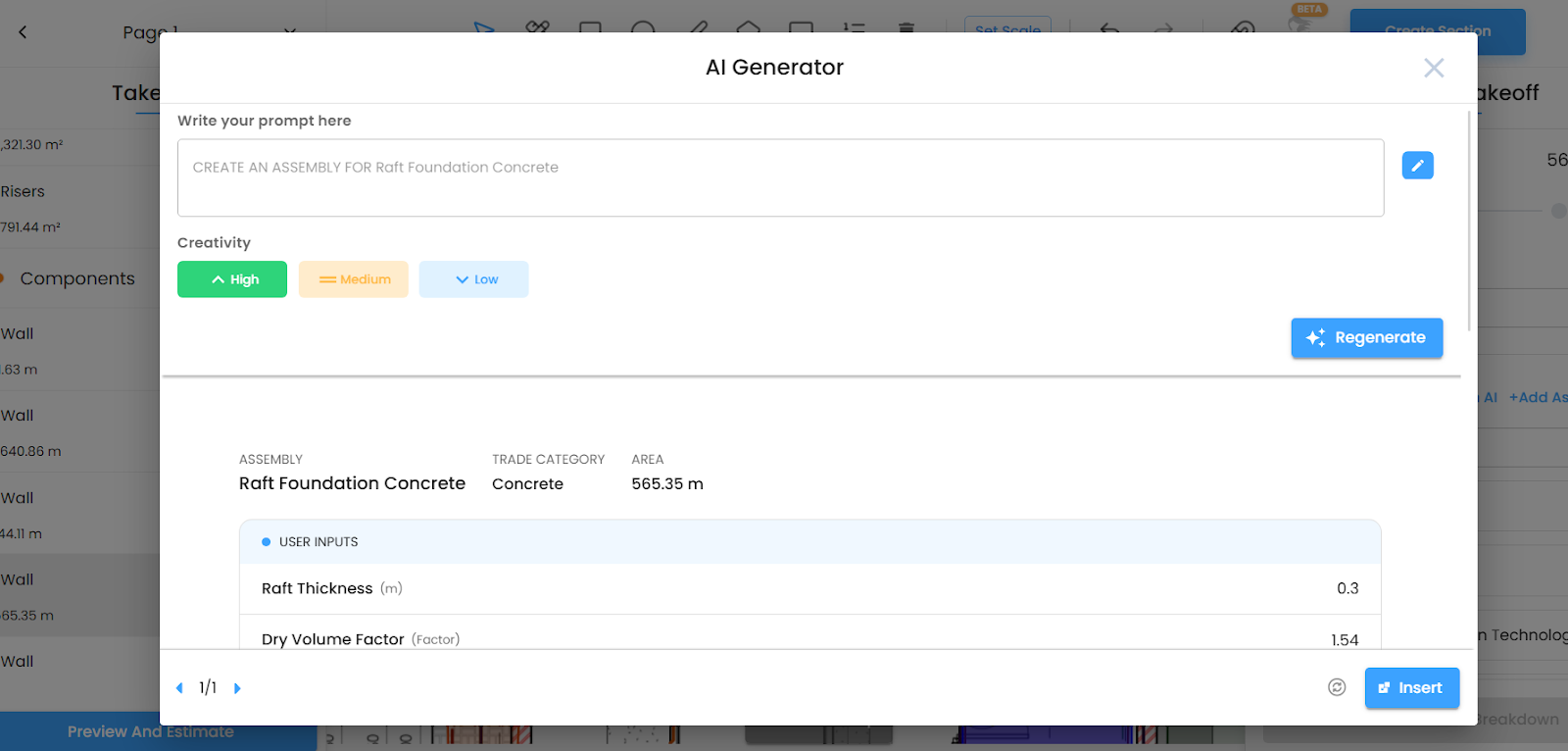
Step 6: Add Assembly & Proceed to Estimate
- Click Add Assembly
- Repeat for multiple areas if needed
- Click Proceed to Estimate
All data is transferred into the Estimate module for pricing.
Output
After completing the workflow, you will have:
- Measured areas linked to drawings
- Trade-wise assemblies
- AI-generated descriptions
- Data ready for estimation
All measurements remain traceable to the original plan.
Best Practices
- Always set scale before measuring
- Use clear, high-resolution drawings
- Assign accurate trades for better AI results
- Review AI-generated assemblies before finalizing
- Label measured areas clearly
Was this article helpful?
That’s Great!
Thank you for your feedback
Sorry! We couldn't be helpful
Thank you for your feedback
Feedback sent
We appreciate your effort and will try to fix the article