Auto-Enable Payment – Simplify Your Lead Transactions
The auto-enable payment feature ensures payments are processed seamlessly for your leads, reducing manual effort and keeping transactions timely.
Where to Enable Auto Payment – Accessing the Settings
Accessing and configuring the auto-payment feature is straightforward:
Accessing the Auto-Payment Setting
Click Settings in the top-right menu.
Select Preferences from the dropdown.
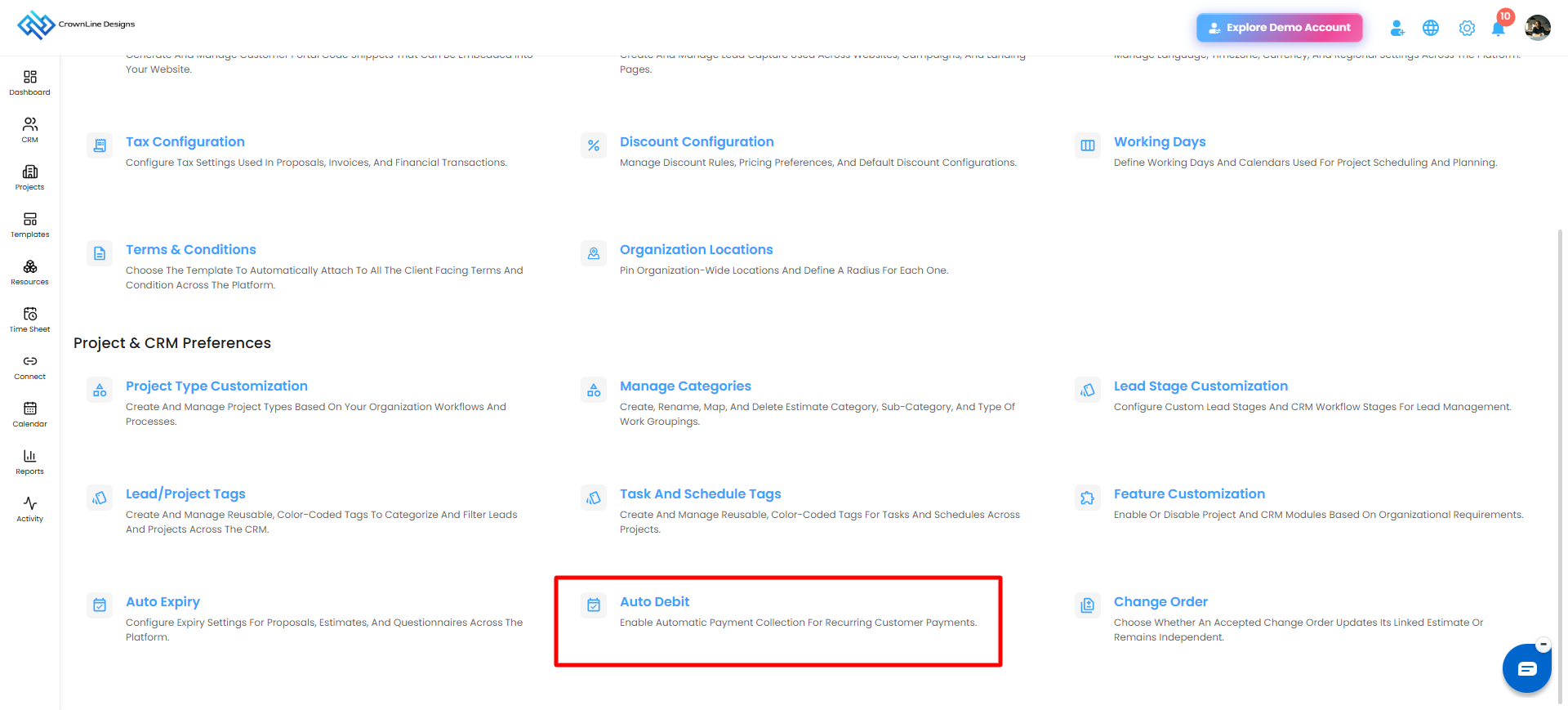
Under Project & CRM Preferences, click Auto Payment.
The Auto Payment settings page will open.
Pro tip: Enabling auto-payment helps streamline your workflows, ensuring leads are processed efficiently without repeated manual steps.
Enable Auto Payment – Set It and Forget It
The portal allows you to automate payments, making transactions seamless and hassle-free.
What You Can Do Here
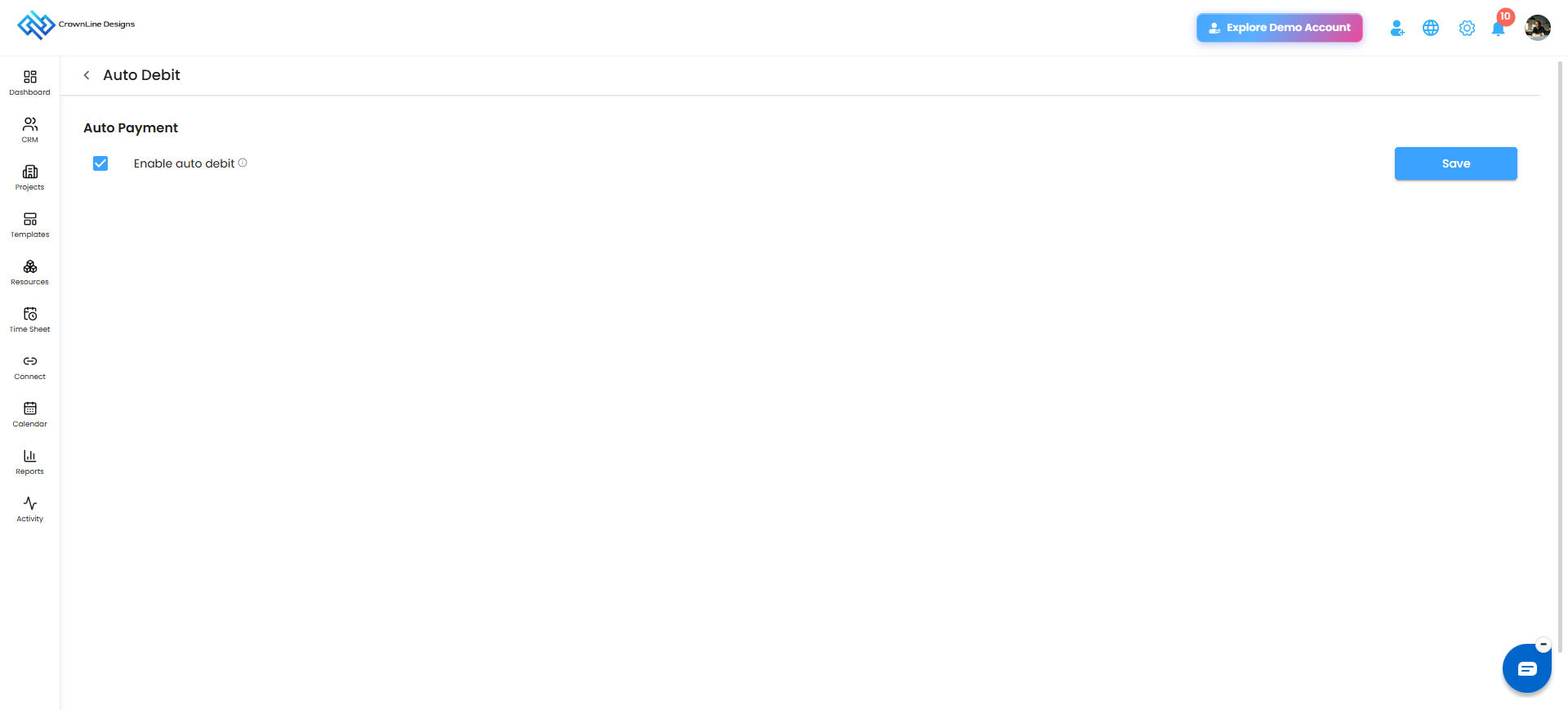
Click the checkbox to enable Auto Payment.
Click the Save button to confirm your selection.
Pro tip: Use auto payment for recurring invoices to save time and avoid missed payments
Was this article helpful?
That’s Great!
Thank you for your feedback
Sorry! We couldn't be helpful
Thank you for your feedback
Feedback sent
We appreciate your effort and will try to fix the article