The Sales Order feature helps users convert an approved estimate into a confirmed order once the client accepts it. This allows the team to lock the approved scope, pricing, and terms in one place and use it as a clear reference for project execution.
What is a Sales Order?
A Sales Order is a confirmed order created after the client approves or accepts an estimate. It helps the team move from estimate approval to confirmed project execution without re-entering the same details again.
Once the client says yes to the estimate, users can convert that accepted estimate into a Sales Order.
When Can an Estimate Be Converted to Sales Order?
An estimate can be converted into a Sales Order after it is accepted by the client.
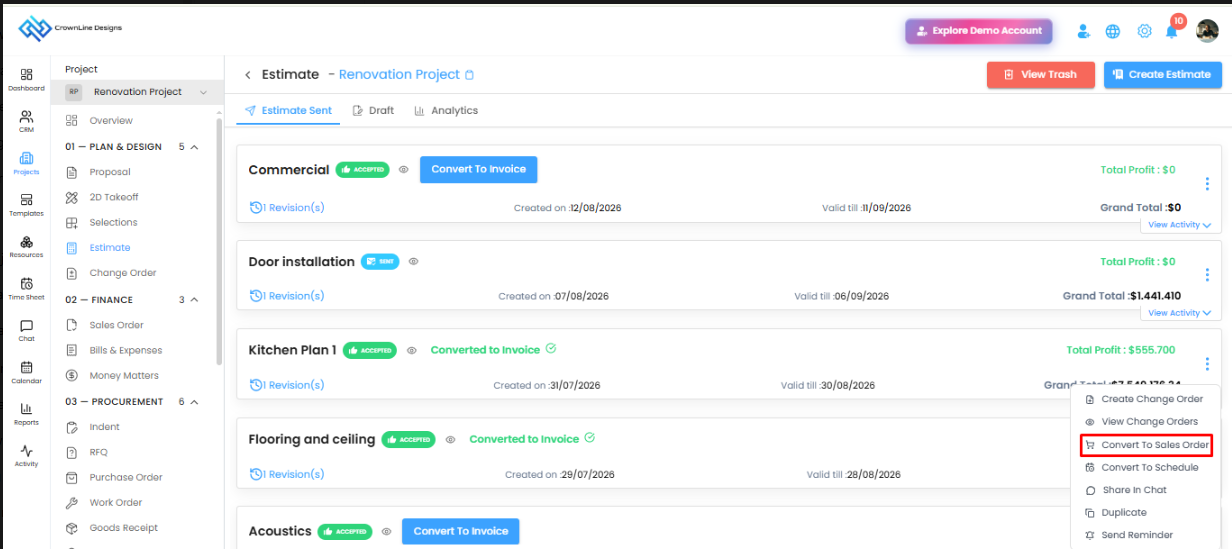
Once the estimate is accepted, the user can open the estimate action menu and select Convert To Sales Order. This will allow the approved estimate details to be used for creating the Sales Order.
How to Convert an Estimate to Sales Order
Go to the required project.
Open the Estimate module.
Select the accepted estimate.
Click the Action menu.
Select Convert To Sales Order.
The estimate details will be used to create the Sales Order.
Review the Sales Order details and continue with the required workflow.
This helps avoid duplicate entry and keeps the accepted estimate information consistent in the Sales Order.
Create Sales Order Manually
Users can also create a Sales Order manually if they do not want to convert it from an estimate.
To create a Sales Order manually:
Go to the required project.
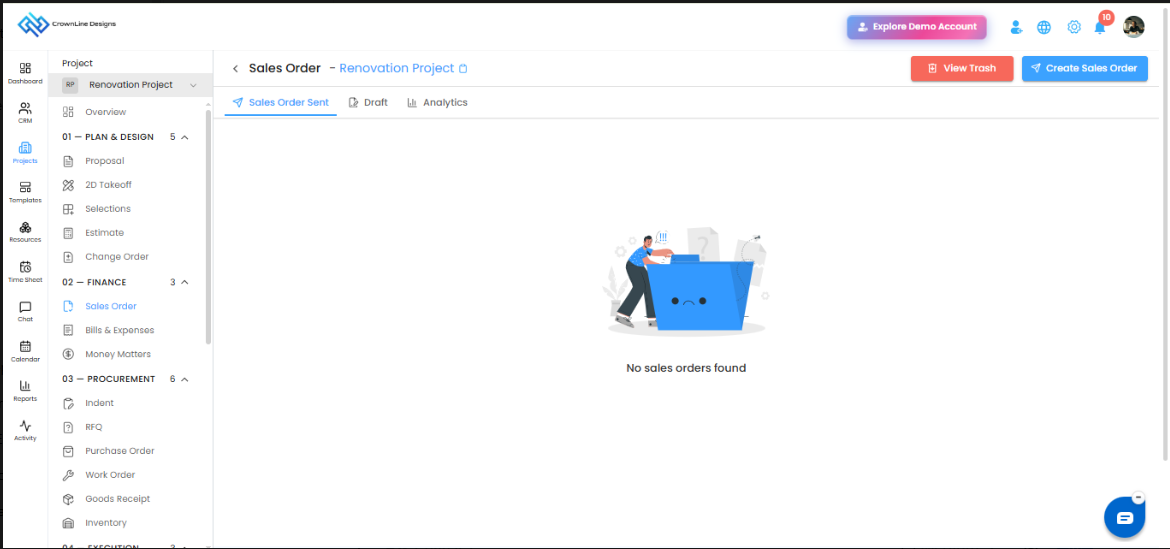
Open the Sales Order module under the Finance section.
Click Create Sales Order.
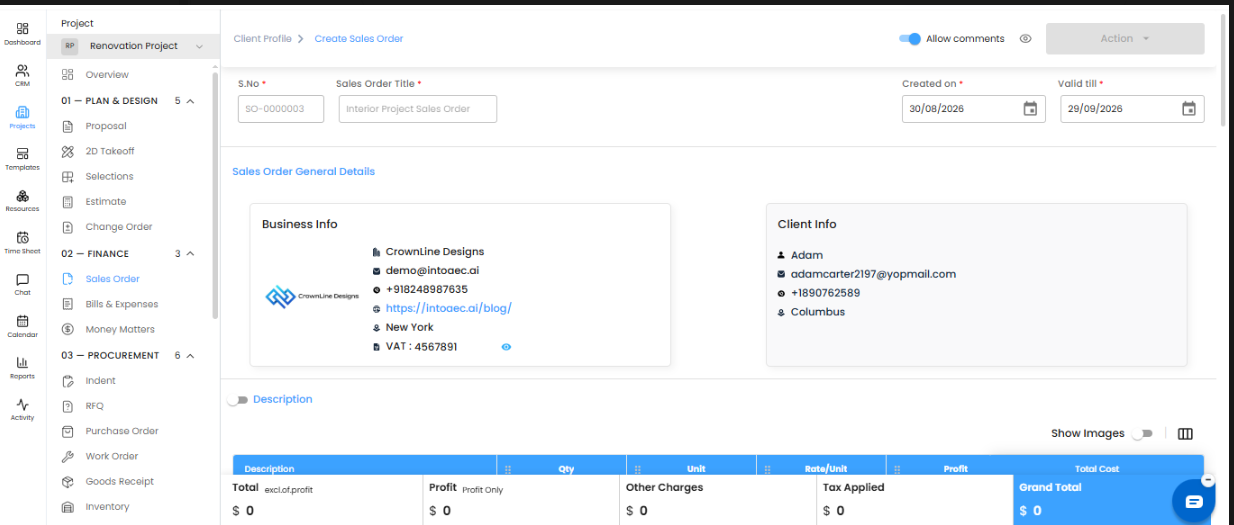
Enter the Sales Order title, created date, and valid till date.
Review the Business Info and Client Info.
Add the required items, pricing, description, and other details.
Save or proceed with the Sales Order workflow.
Why Use Sales Order?
Sales Order helps users confirm and manage approved project scope more clearly. Once created, it acts as a confirmed record of what the client has approved.
It helps teams:
Convert accepted estimates into confirmed orders
Avoid re-entering estimate details manually
Keep approved scope and pricing in sync
Maintain a clear execution reference for the team
Create Sales Orders manually when required
Summary
The Sales Order feature allows users to turn an accepted estimate into a confirmed order in a few steps. Users can also create Sales Orders manually from the Sales Order module. This helps teams manage approved scope, pricing, and terms clearly and use the Sales Order as a reliable reference for project execution.
Was this article helpful?
That’s Great!
Thank you for your feedback
Sorry! We couldn't be helpful
Thank you for your feedback
Feedback sent
We appreciate your effort and will try to fix the article