Overview
Before a Purchase Order reaches a vendor, it goes through an approval step - this keeps orders accurate, avoids duplicate or incorrect POs, and maintains financial control over procurement. Whether you're the one creating the PO or the Super Admin reviewing it, here's how the workflow runs.
When Approval Is Required
- If you're the creator of a PO, you need to submit it for approval to a Super Admin before it can go to the vendor.
- Super Admins can either approve a PO or send it directly to the vendor themselves, skipping the approval step.
Requesting Approval (As a Creator)
- Go to Clients, select the client, then open the PO section in their workspace.
- Click Create PO and fill in the required details, including the vendor the PO is going to.
- Click Action, then select Request for Approval.
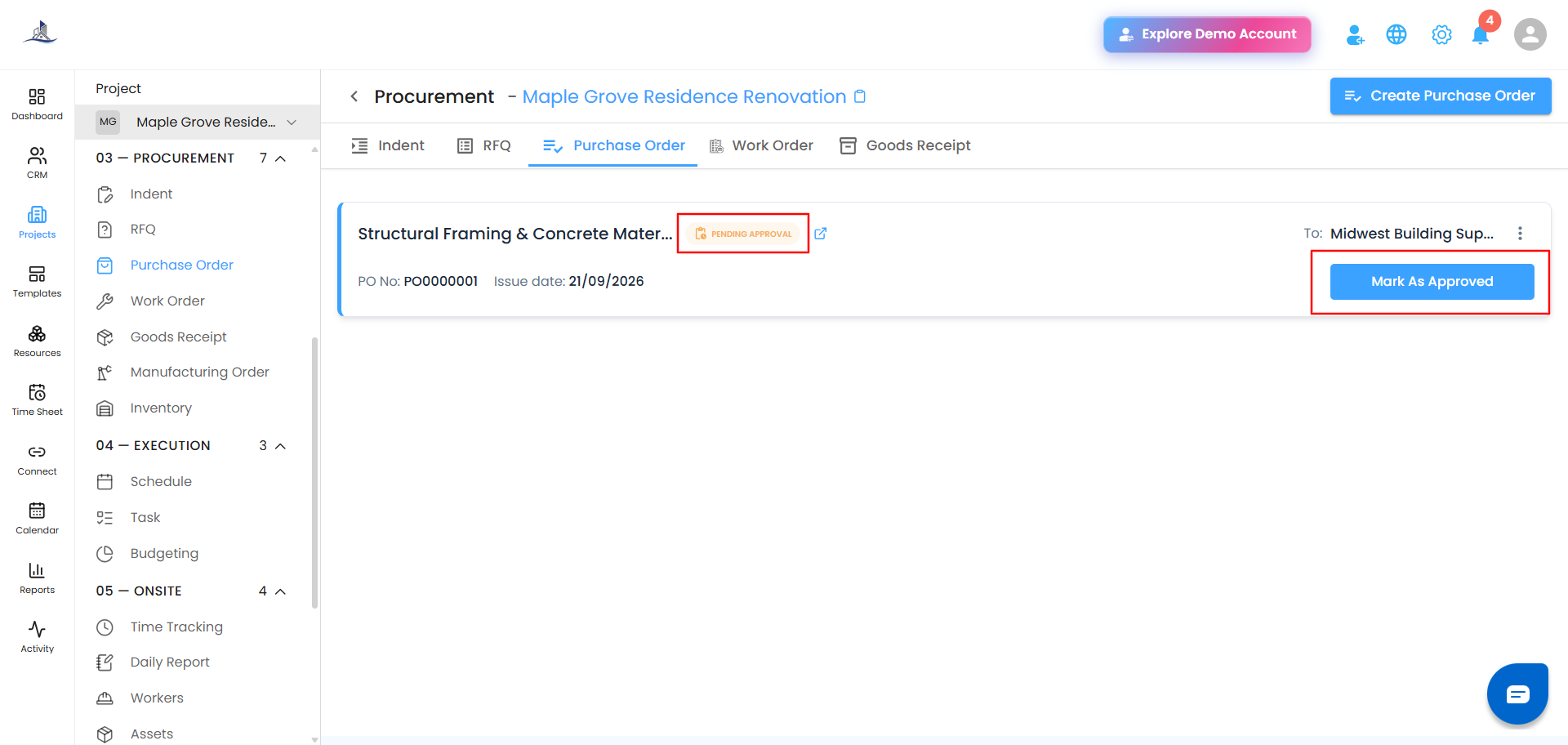
The PO now appears under the PO section with a status of Pending Approval.
Approving or Sending (As a Super Admin)
Approving a PO
- Open the PO from the Pending Approval list.
- Click Mark as Approved.
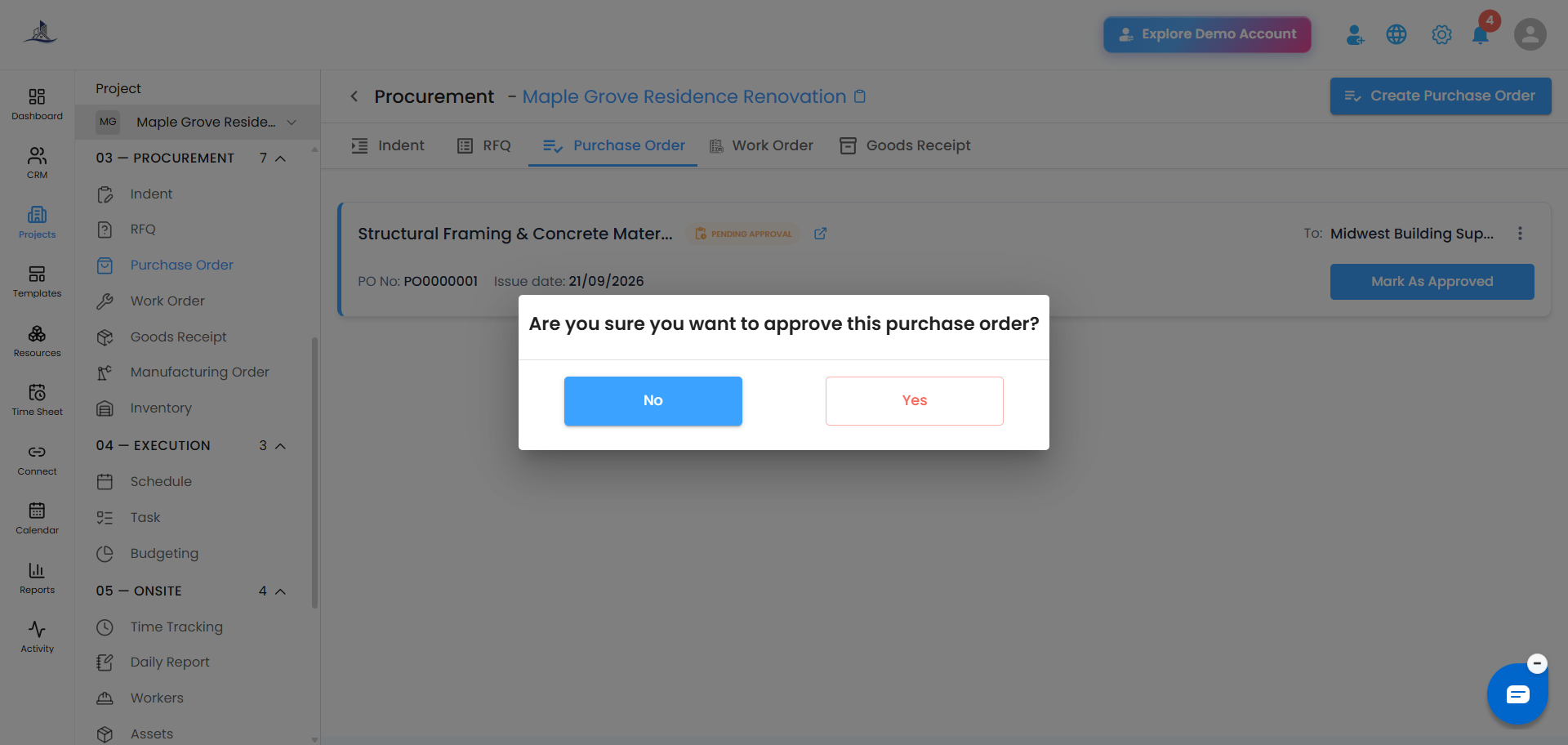
- In the confirmation pop-up, click Yes.
Sending a PO Directly
As a Super Admin, you also have the option to send a PO straight to the vendor without routing it through approval first.
Sending the PO After Approval
Once a PO is approved:
- Open the PO.
- Click Send.
- The PO goes out to the vendor through the selected communication method.
Editing a Pending Approval PO
Need to make a change after you've already submitted for approval? Here's how:
- Go to Clients > select client > PO.
- Click on the PO with Pending Approval status.
- Click the three-dot menu (⋮) and select Edit.
- Make your changes.
- Click Action, then Request for Approval again to resubmit.
The updated PO stays under the same section with the status Pending Approval.
Was this article helpful?
That’s Great!
Thank you for your feedback
Sorry! We couldn't be helpful
Thank you for your feedback
Feedback sent
We appreciate your effort and will try to fix the article