Overview
The Assets tab inside a project gives you a real-time view of every resource tied to that project - what's in use, what's available, and what's already been returned. No more chasing down who has the drill; everything's tracked in one place.
Getting There
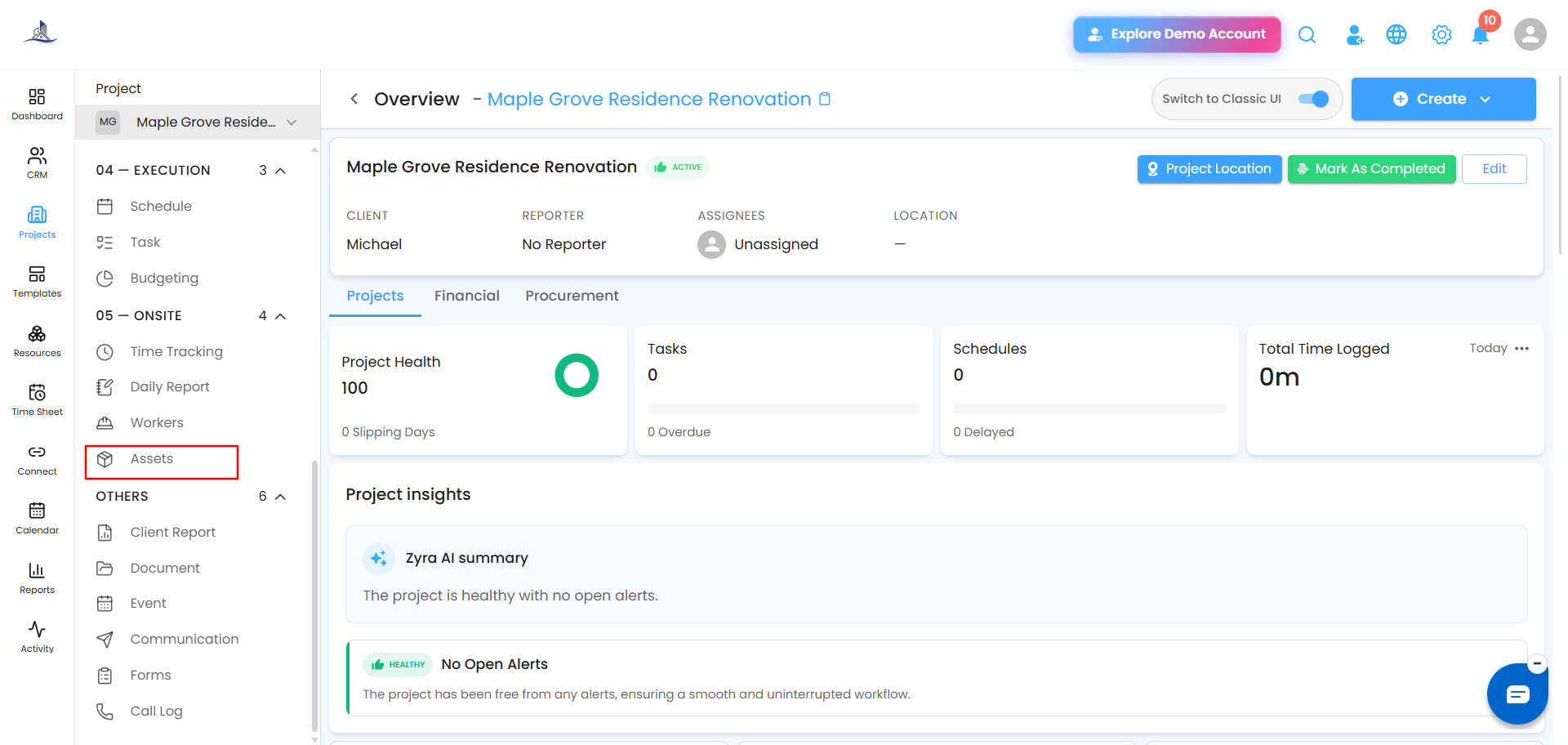
- Click Client in the sidebar to view your project list.
- From the Project Mastergrid, select the project you want to manage assets for.
- Open the Assets tab inside the project workspace.
What You Can Do Here
- View & Track Assets - see the full list of resources tied to the project
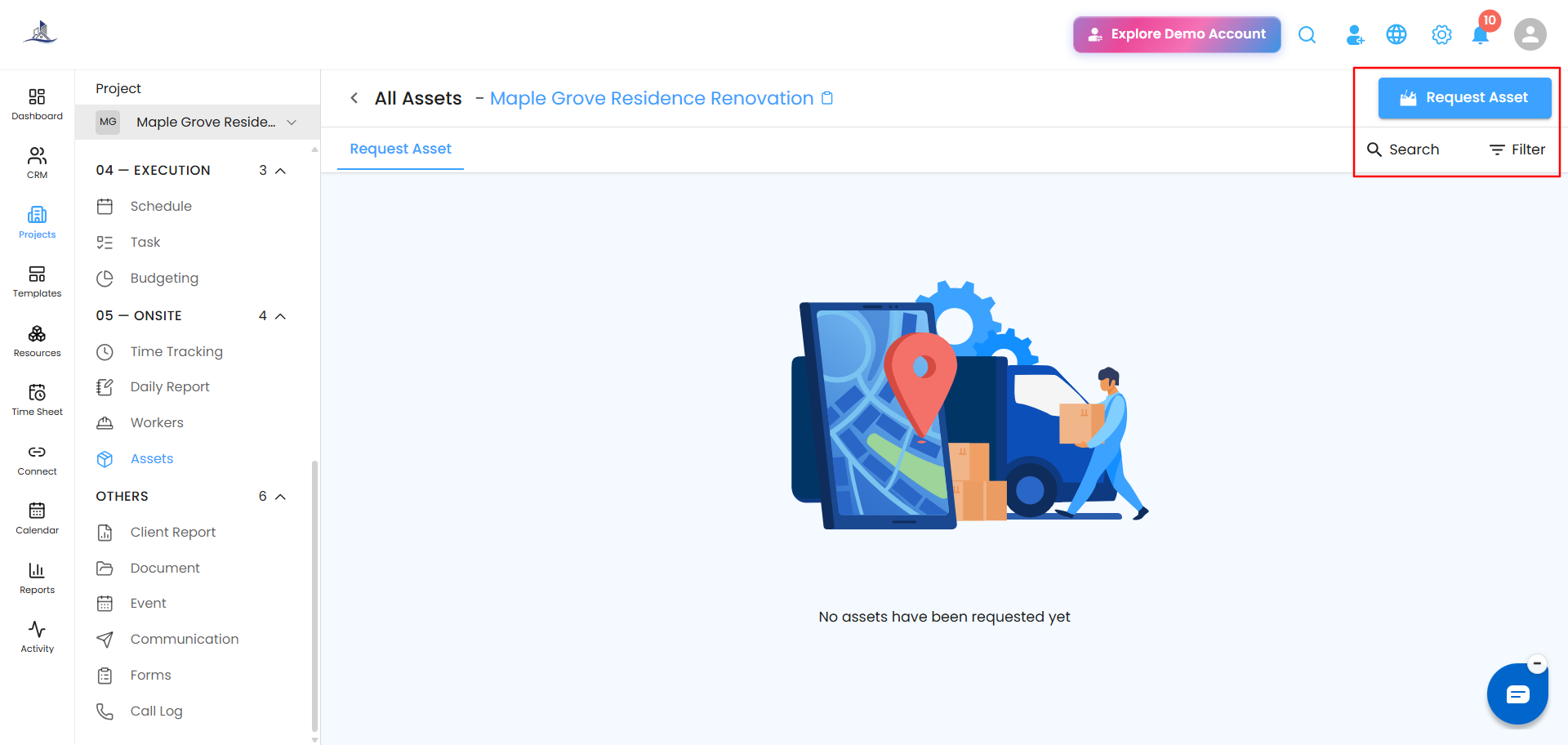
- Request Assets - need scaffolding, power tools, or safety gear? Start a request right from here
- Filter & Search - narrow the list by status, type, or ownership, or search by name
- Live Status Updates - track each asset's journey: Requested → Issued → Returned
Filters Available
- Status Filter - Requested, Issued, Returned, etc.
- Asset Type Filter - Individual items or Bulk sets
- Ownership Filter - Company-owned vs. Rented
- Search Bar - find any asset instantly by name
 Viewing Assets (or Starting Fresh)
- If assets have already been requested, you'll see them in a table with their details, status, and assigned team members.
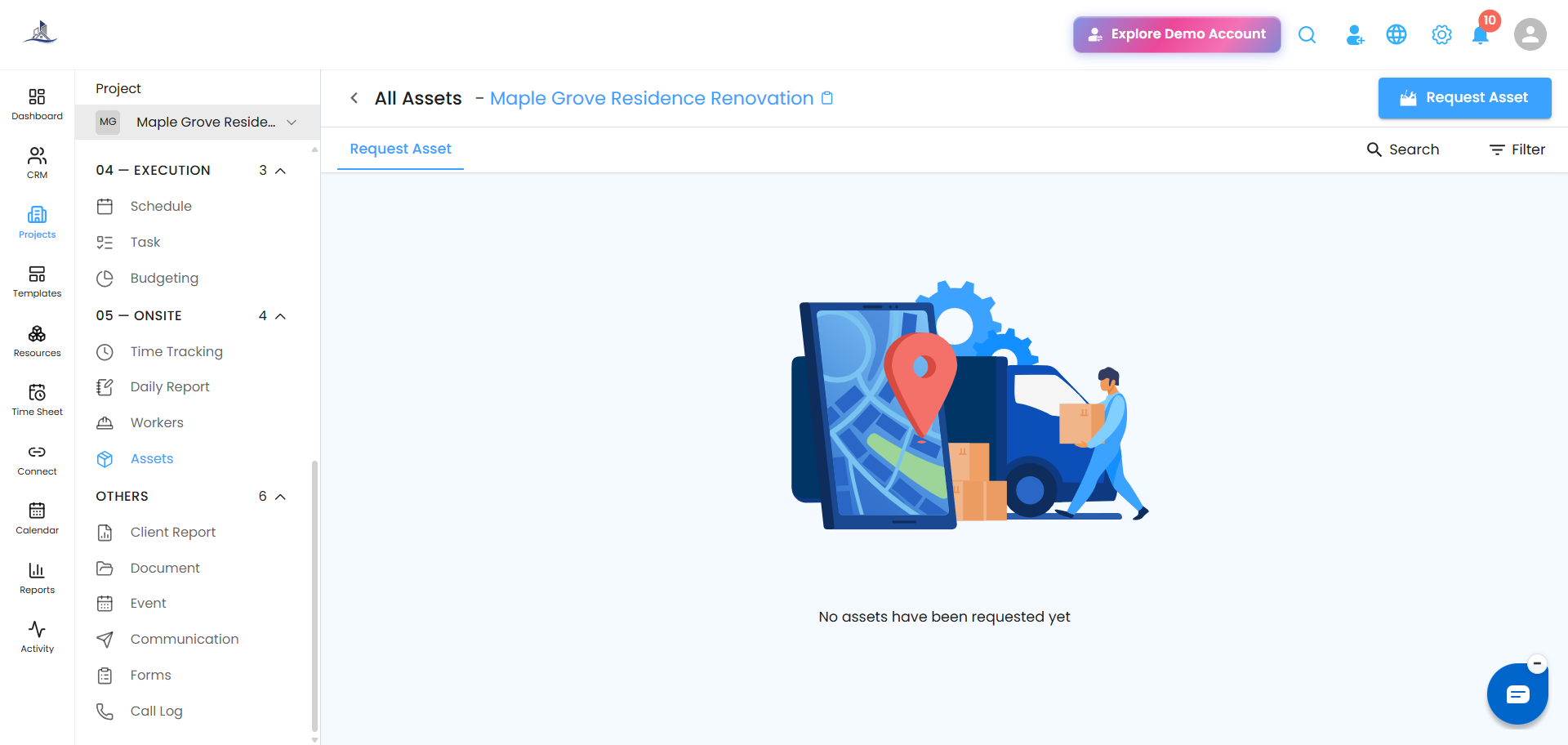
- If nothing's been requested yet, you'll see a "No Assets Have Been Requested Yet" message - your cue to make the first request.
Tip: The more up to date this section stays, the easier it is to plan around what's actually available on-site.
Was this article helpful?
That’s Great!
Thank you for your feedback
Sorry! We couldn't be helpful
Thank you for your feedback
Feedback sent
We appreciate your effort and will try to fix the article