Overview
Need scaffolding, a power tool, or safety gear for your project? The Request Asset feature lets you request it and track it through to return, right from your project's Assets tab.
Opening the Asset Request Page
- Go to the Project Mastergrid and select your project.
- Open the Assets tab.
- Click Request Asset in the top right.
A half-canvas panel slides in, showing every asset currently available to request.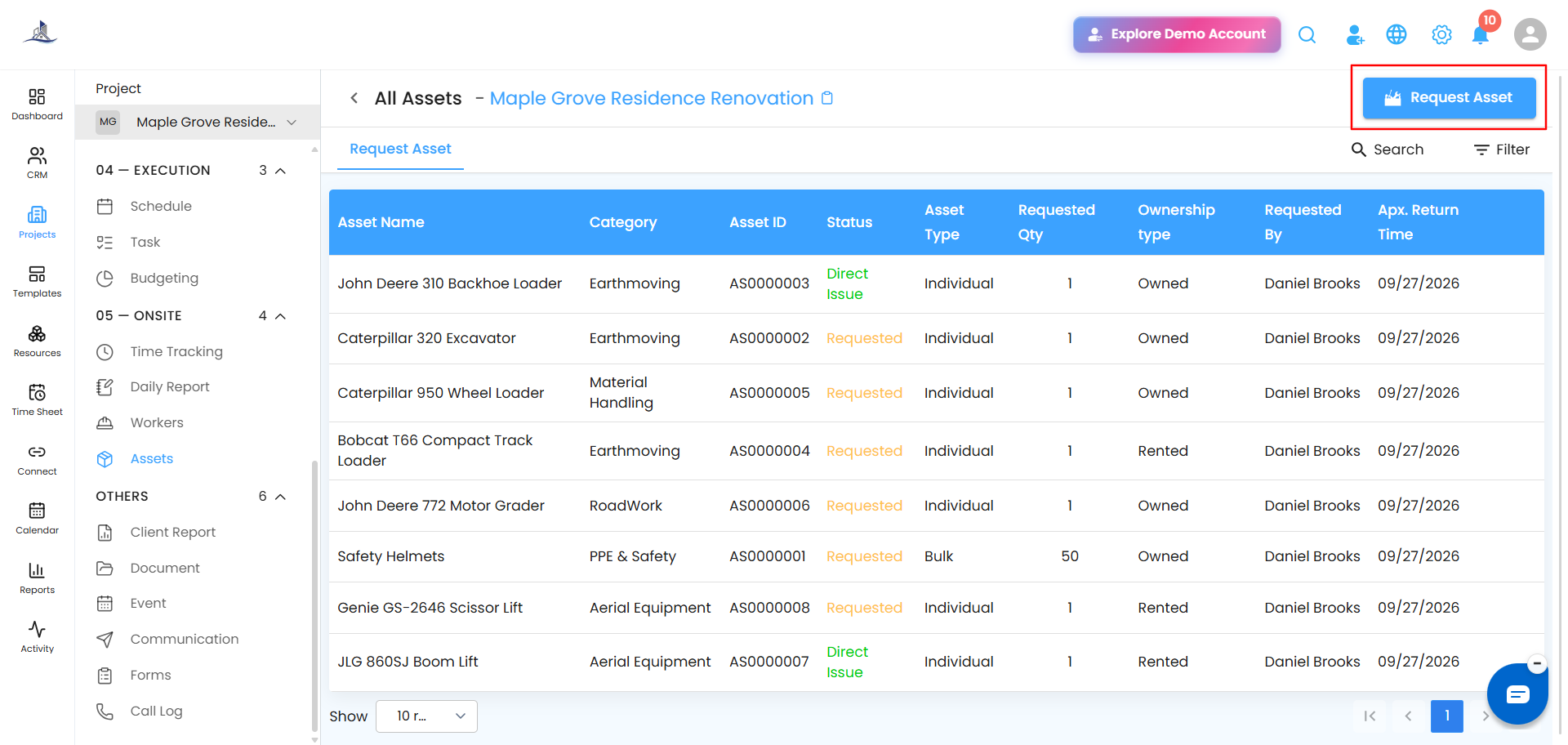
Finding What You Need
- Search Bar - already know what you need? Type it in directly.
- Quick Selection - browsing instead? Check the boxes next to whatever you need.
For each asset in the list, you can see:
- Asset Name
- Category - the type or group it belongs to (e.g., Site Equipment, Power Tool)
- Asset ID - its unique identification number
- Asset Type - Bulk or Individual
- Available Quantity - how many units are currently in stock
- Ownership Type - Owned or Rented
- Cost - the estimated cost of the asset
Once you've made your picks, click Select Asset to move forward.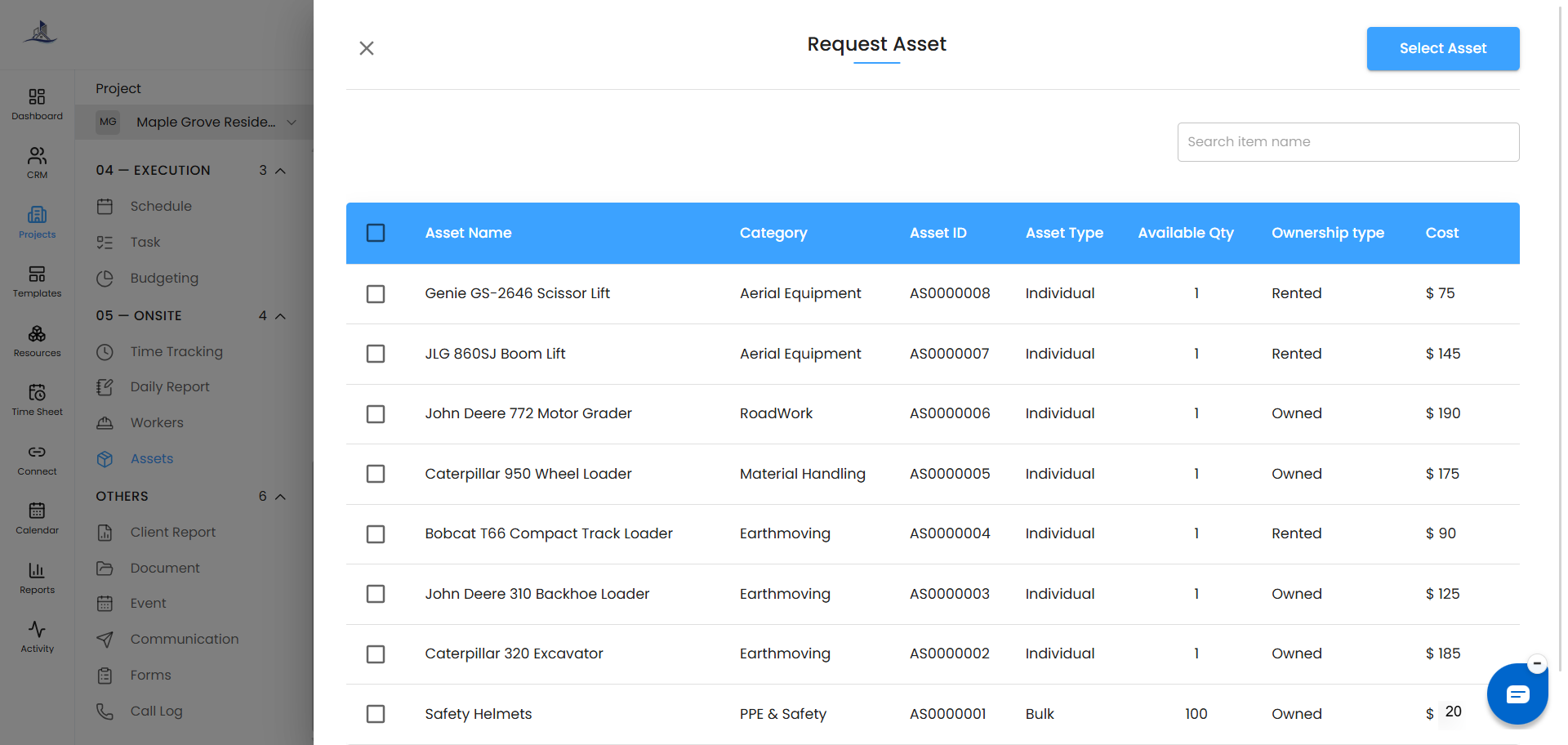
Reviewing and Configuring Your Request
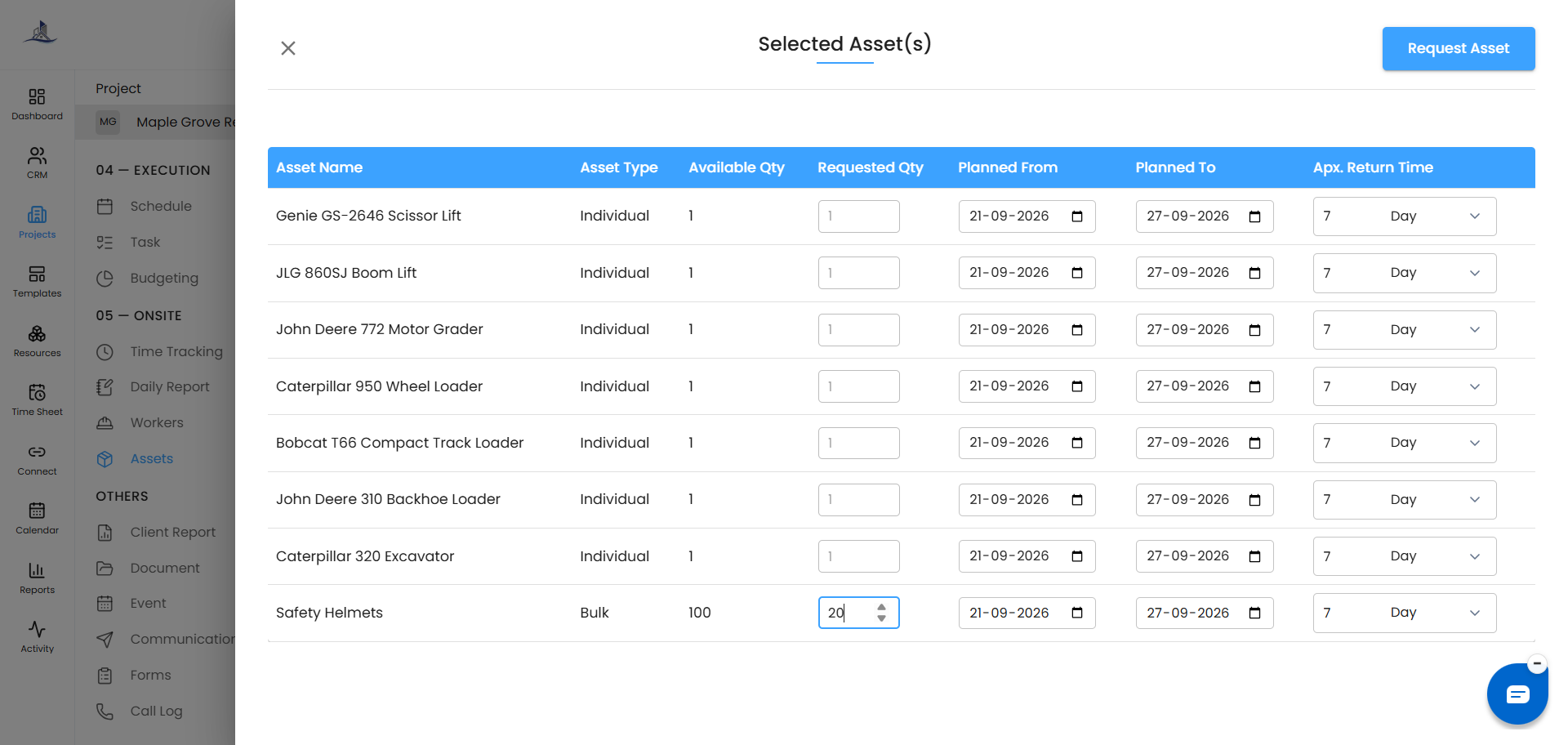
After selecting, a Selected Asset panel opens where you can confirm and adjust details before submitting:
- Asset Name - the item you're requesting (e.g., Concrete Mixer)
- Asset Type - Individual item or part of a Bulk group
- Available Quantity - how many units are currently available
- Requested Quantity - how many you actually need
- Approximate Return Time - enter a value and choose the unit: Hours, Weeks, or Months
Tip: Set your return time around your project milestones - it keeps expectations realistic and easy to plan around.
Submitting Your Request
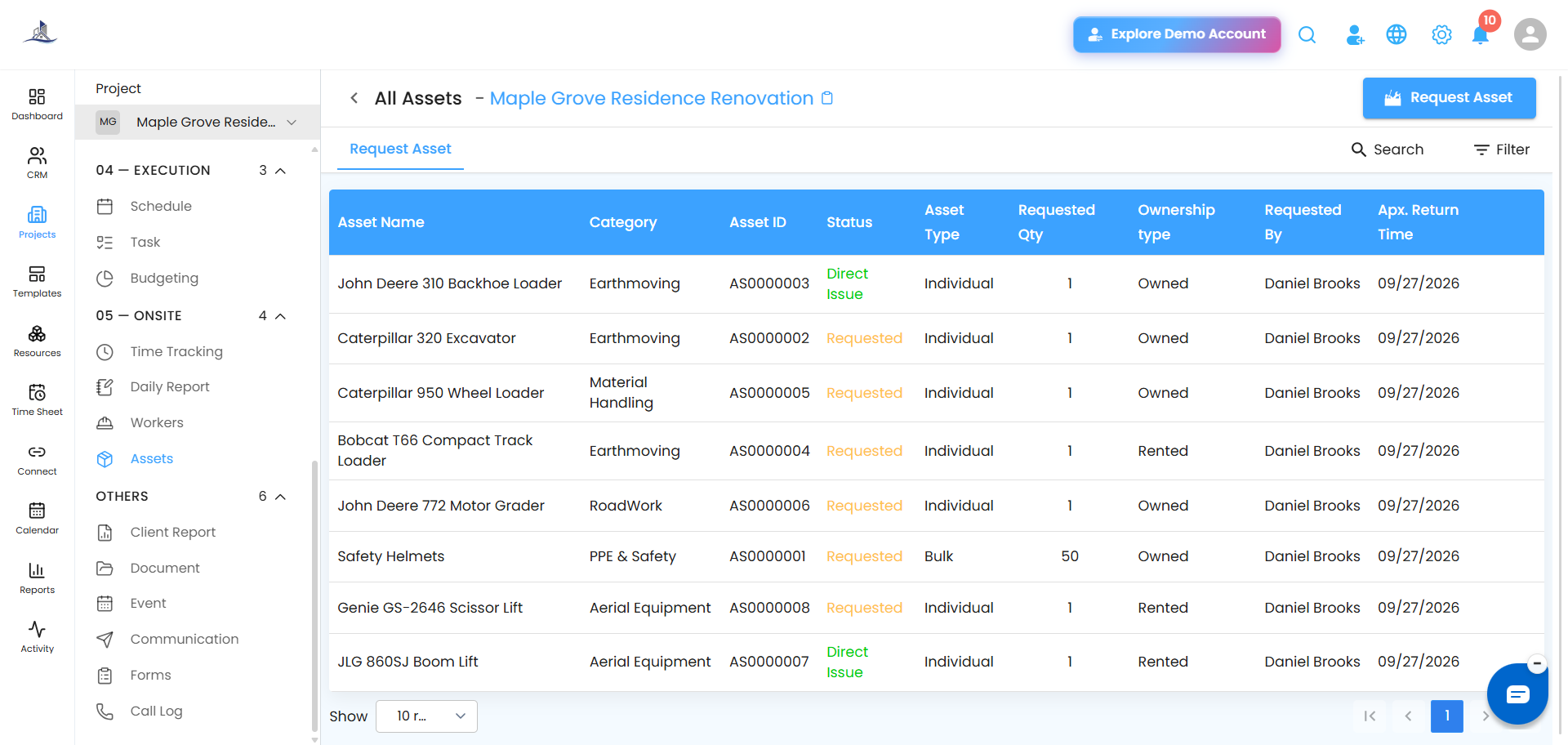
Click Request Asset to log it. Your request now includes:
- Asset Name
- Asset Category - e.g., PPE, Machinery
- Asset ID - the asset's unique system code
- Status - e.g., Requested, Approved
- Asset Type - Individual or Bulk
- Requested Quantity
- Ownership Type - Owned or Rented
- Requested By
- Approximate Return Time
What Happens Next
- The Asset Manager reviews your request.
- Based on availability, it's Approved or declined.
- You can track the status anytime from the asset list in your project.
Tip: The earlier and clearer your request, the smoother things move - treat it a bit like booking ahead rather than requesting last minute.
Was this article helpful?
That’s Great!
Thank you for your feedback
Sorry! We couldn't be helpful
Thank you for your feedback
Feedback sent
We appreciate your effort and will try to fix the article