Overview
As the Site Manager, you handle the physical side of things - confirming what actually arrives on-site, and sending it back when it's no longer needed. The Asset Manager handles approval and final confirmation from the office side (covered in Asset Manager Actions: Approve, Decline, and Confirm Returns).
Where You Fit in the Journey
| Stage | Action | Performed By |
|---|---|---|
| 1 | Approve or Decline the request | Asset Manager |
| 2 | Receive the asset on-site | Site Manager |
| 3 | Return the asset when no longer needed | Site Manager |
| 4 | Confirm the return | Asset Manager |
Stage 2: Receiving the Asset
There are three ways this can happen, depending on the situation:
If the request was approved
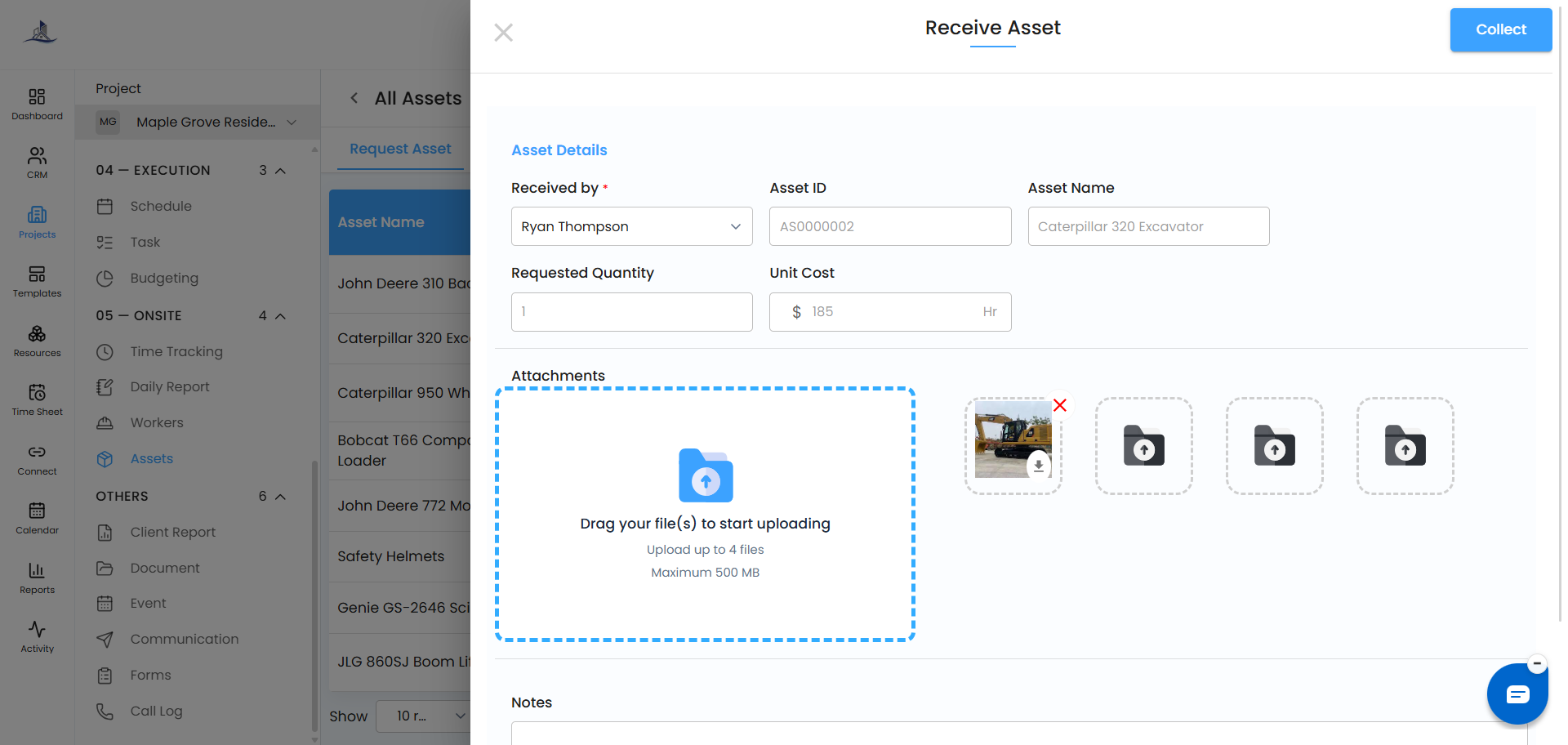
Click the three-dot menu and select Mark as Received. The Receive Asset panel opens:
- Select who's responsible in the Received By field.
- Asset ID, Asset Name, Requested Quantity, and Unit are pre-filled for you.
- Optionally add attachments (like photos) and notes.
Click Collect to confirm. The status changes to Issued.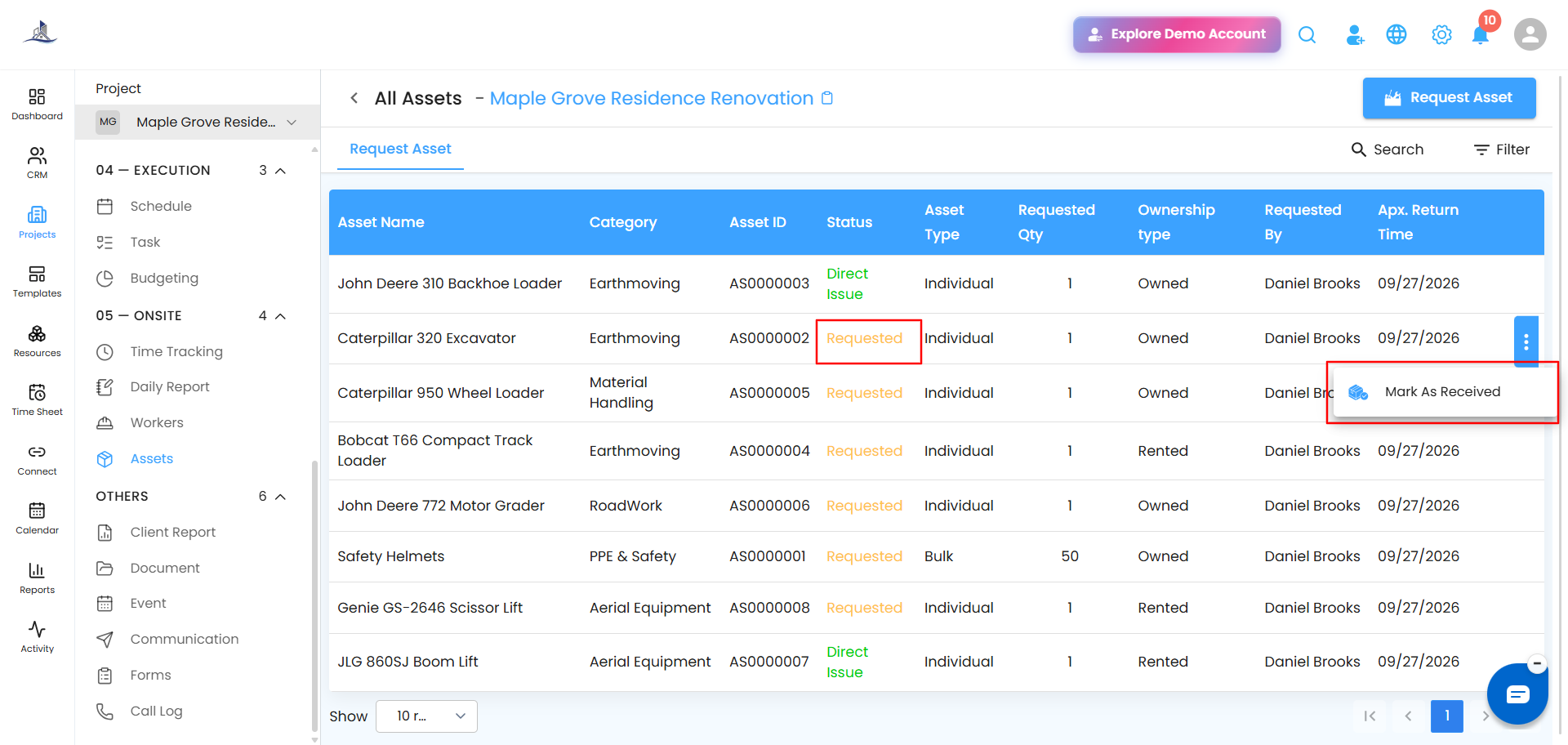
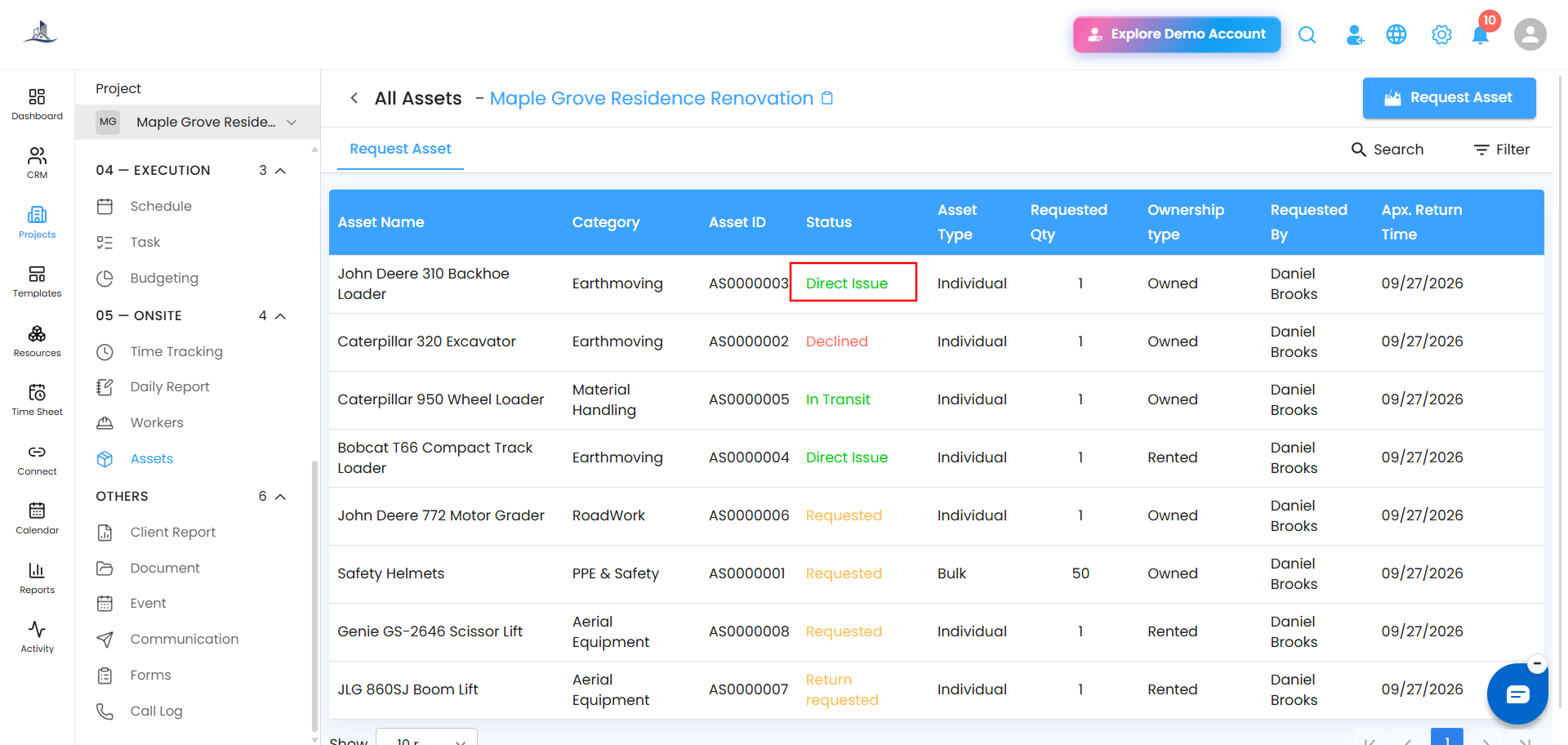
 If approval is still pending
If the asset shows up before the Asset Manager has approved it, you can still mark it as received the same way. The status changes to Direct Issue instead of Issued, so work doesn't stall on a pending approval.
 If the request was declined
Even if it was declined in the system, you can still mark it as received if it's genuinely available on-site. The status changes to Direct Issue, covering real-world situations that don't perfectly match the digital record.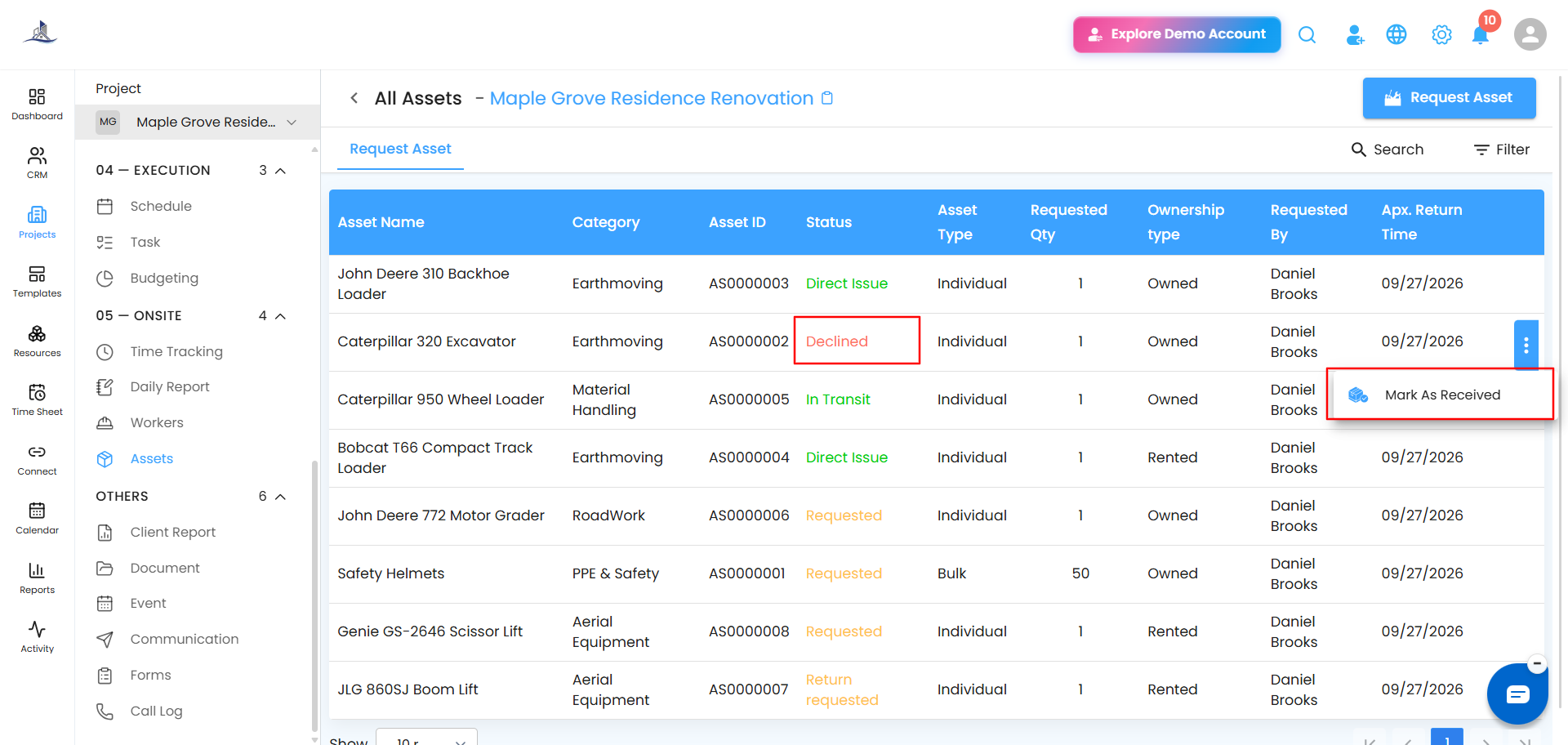
Stage 3: Returning the Asset
When the asset is no longer needed, click the three-dot menu and select Return Asset. The Return Asset panel opens:
- Asset ID, Asset Name, Requested Quantity, and Unit are pre-filled for you.
- Optionally add attachments and notes.
Click Return to confirm. The status changes to Return Initiated.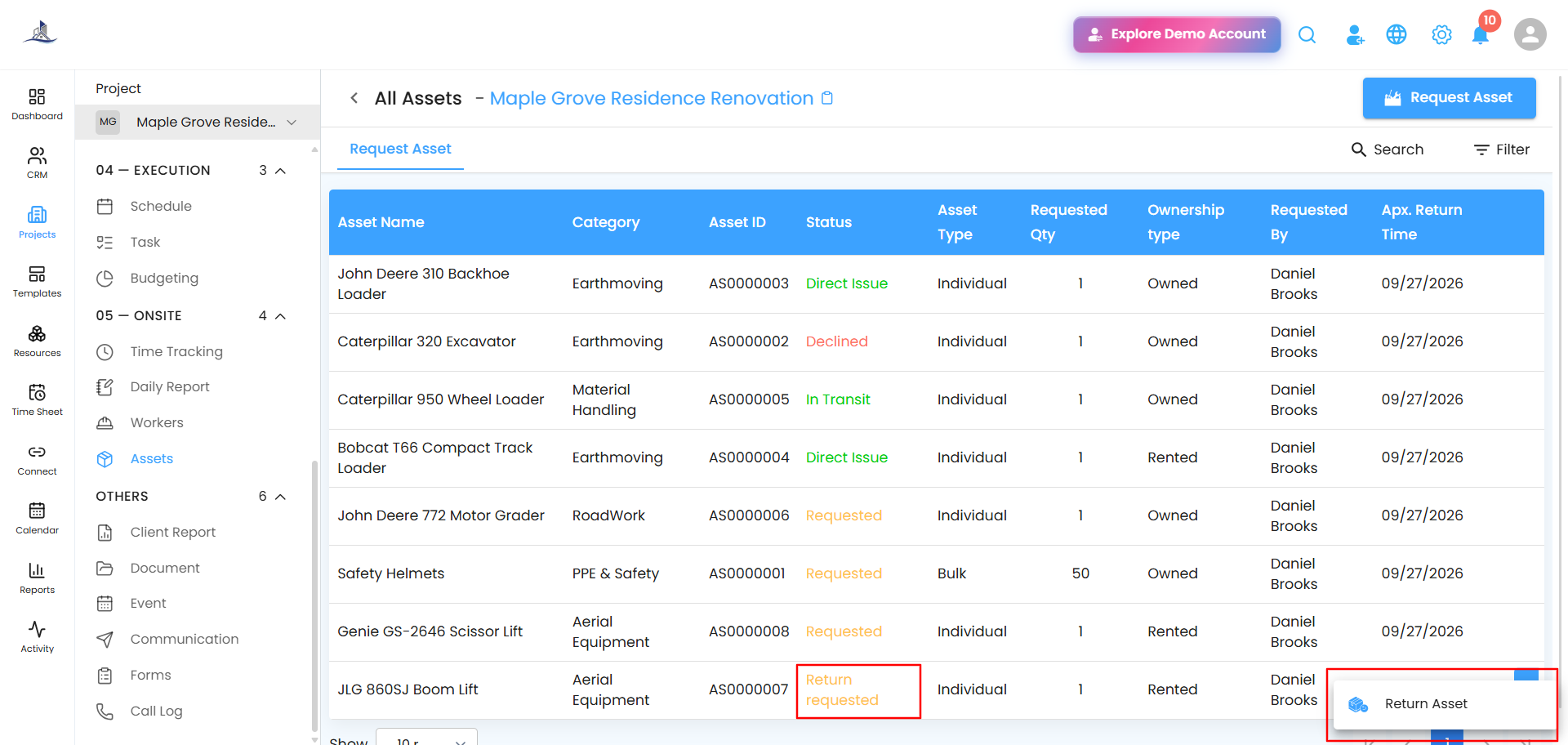
Was this article helpful?
That’s Great!
Thank you for your feedback
Sorry! We couldn't be helpful
Thank you for your feedback
Feedback sent
We appreciate your effort and will try to fix the article