Set up access once and apply it to many people. Roles decide what a user can do. Teams group users inside your organization.
How roles work
Each role comes with its own set of module permissions.
- When you assign a role to a user, they get that role's permissions.
- When you change a user's role, their permissions change to match the new role.
This keeps access consistent: everyone in the same role sees and does the same things.
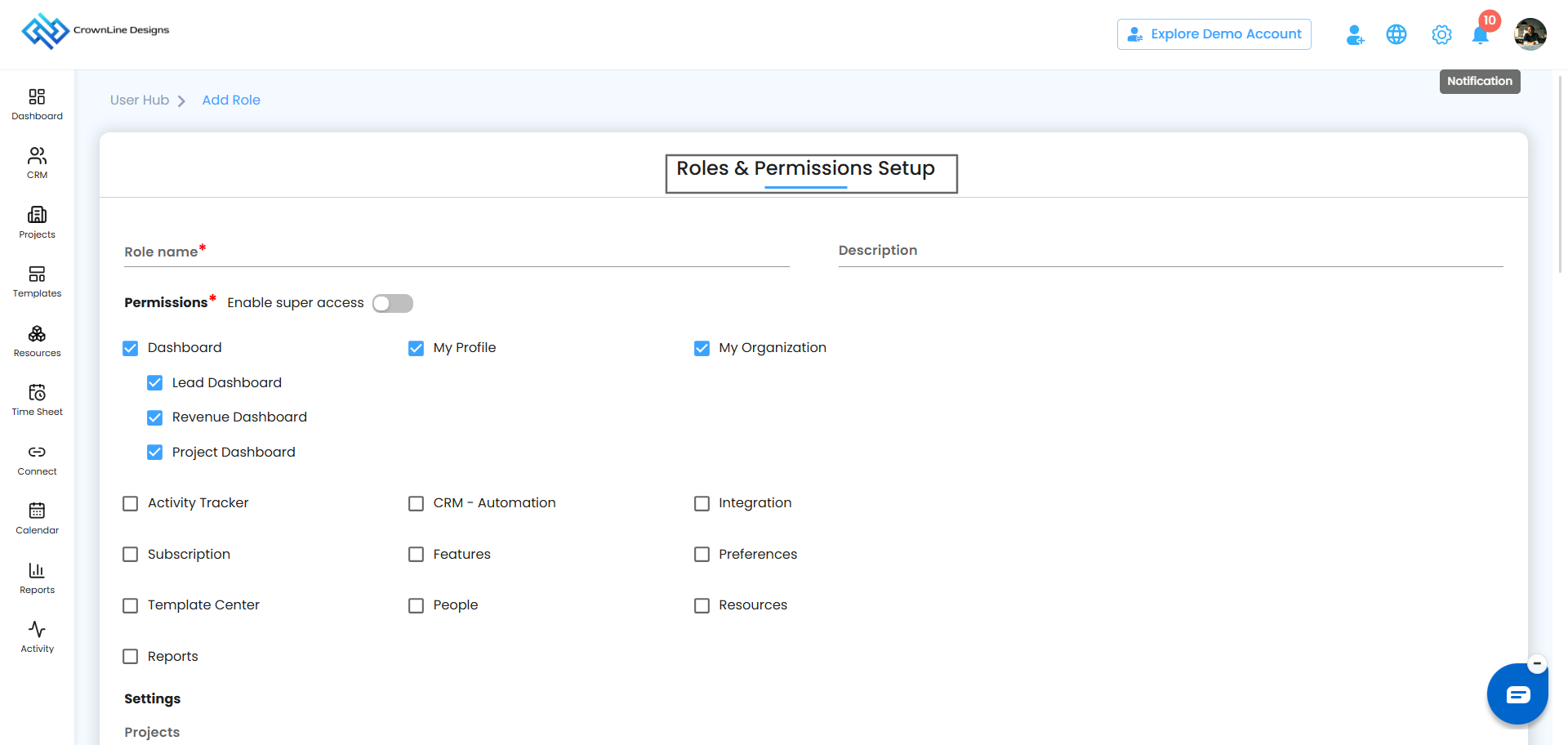
Create a role
- Go to User Hub and open Roles.
- Click to add a new role and give it a name.
- Tick the module permissions this role should have.
- Save the role.
Pro tip: Name roles after real job titles, such as Site Engineer or Accounts, so they're easy to pick when inviting.
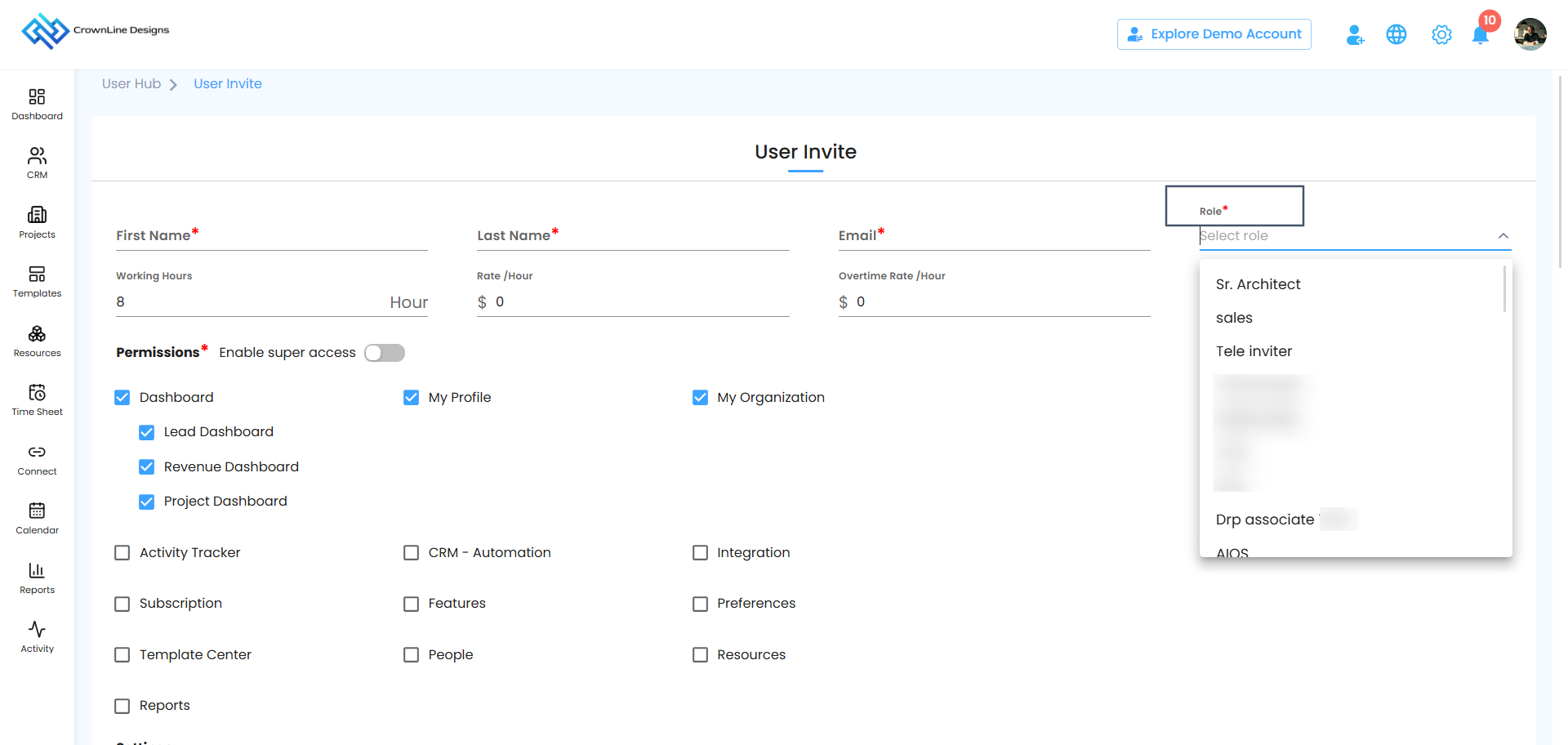
Assign or change a user's role
- Open the User Invite form, or Edit an existing user.
- Choose a role from the Role dropdown.
- Click Send Invite or Update.
The user's permissions update automatically to match the role.
How teams work
Teams split your organization into smaller groups, such as by department, site or region, so people work alongside the right colleagues.
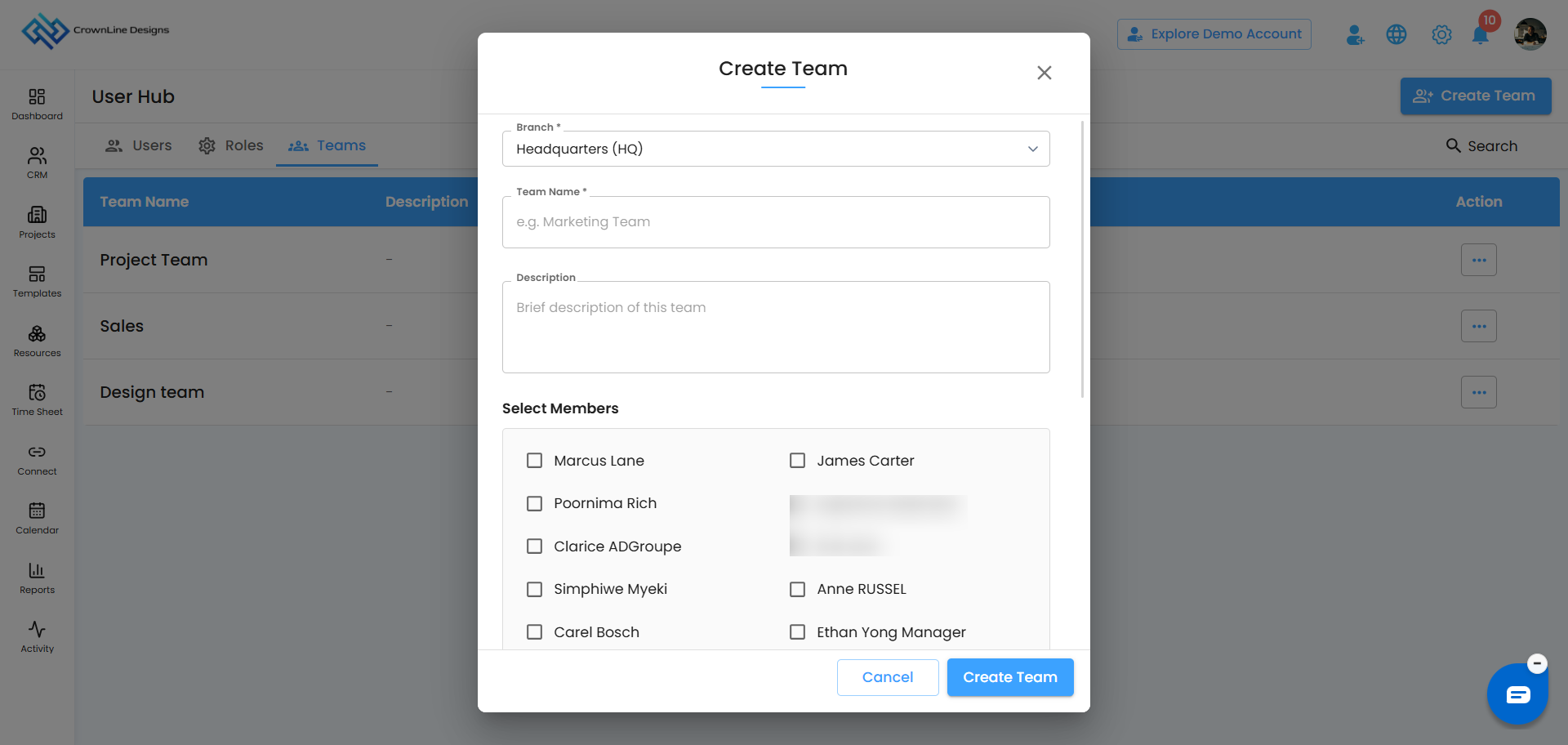
Create a team
- Go to User Hub and open Teams.
- Click to add a new team and give it a name.
- Add the users who belong to this team.
- Save the team.
Pro tip: Use roles for what people can do and teams for who they work with.
Was this article helpful?
That’s Great!
Thank you for your feedback
Sorry! We couldn't be helpful
Thank you for your feedback
Feedback sent
We appreciate your effort and will try to fix the article