Overview
When a task is linked to a schedule, you can see that connection directly from the project's Task section. This helps you trace tasks back to their schedules and understand how they fit the project timeline.
Step 1: Open the Task Section
- From the main menu, open Clients/Projects and select the client.
- Click the Task section to see all tasks for the project.
Step 2: Find the Linked Task
- Locate the task you want to check.
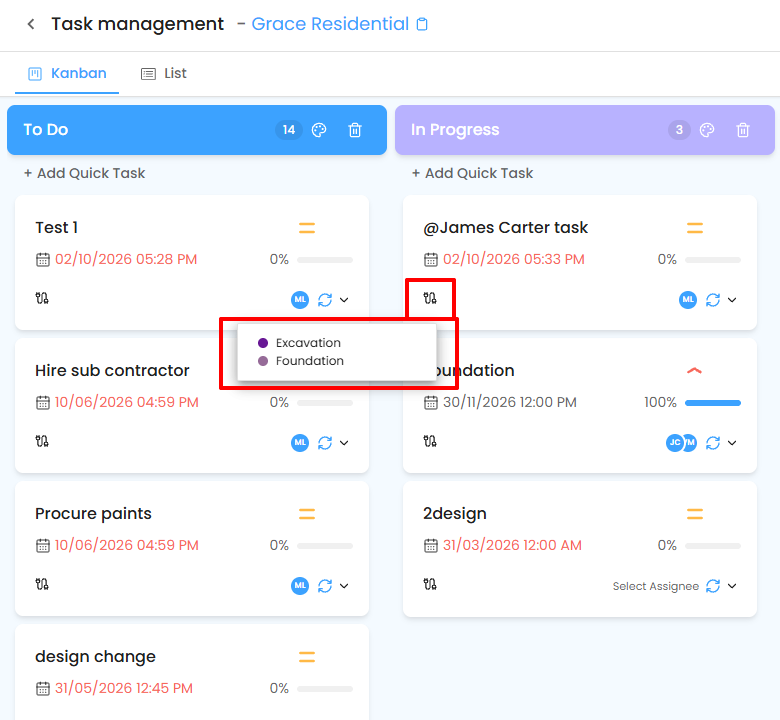
- On each task card, look for the schedule link icon. It indicates the task is connected to a schedule.
Step 3: View the Schedule Details
Click the schedule link icon.
| If the task is... | You will see... |
|---|---|
| Linked to a schedule | The schedule name and its key details. |
| Not linked | A message clearly indicating that no schedule is associated. |
Pro Tips
- Keep tasks linked to schedules wherever possible for better tracking and visibility.
- Review linked schedules regularly to prevent delays and keep dependencies clear.
Related Articles
- How to Create a Schedule (see Add Task under Additional Details)
- Gantt View
Need Further Assistance?
Contact your organization administrator or the IntoAEC support team.
Was this article helpful?
That’s Great!
Thank you for your feedback
Sorry! We couldn't be helpful
Thank you for your feedback
Feedback sent
We appreciate your effort and will try to fix the article