Overview
Zyra AI creates a structured schedule from a project description, so you don't have to build every activity, phase, and timeline by hand. It helps you prepare plans faster, keep planning consistent, and reduce manual effort on construction, engineering, architecture, and infrastructure projects.
Open the Schedule AI Agent
- From the left-side menu, click Clients/Projects and select the project. (Create the project first if it doesn't exist.)
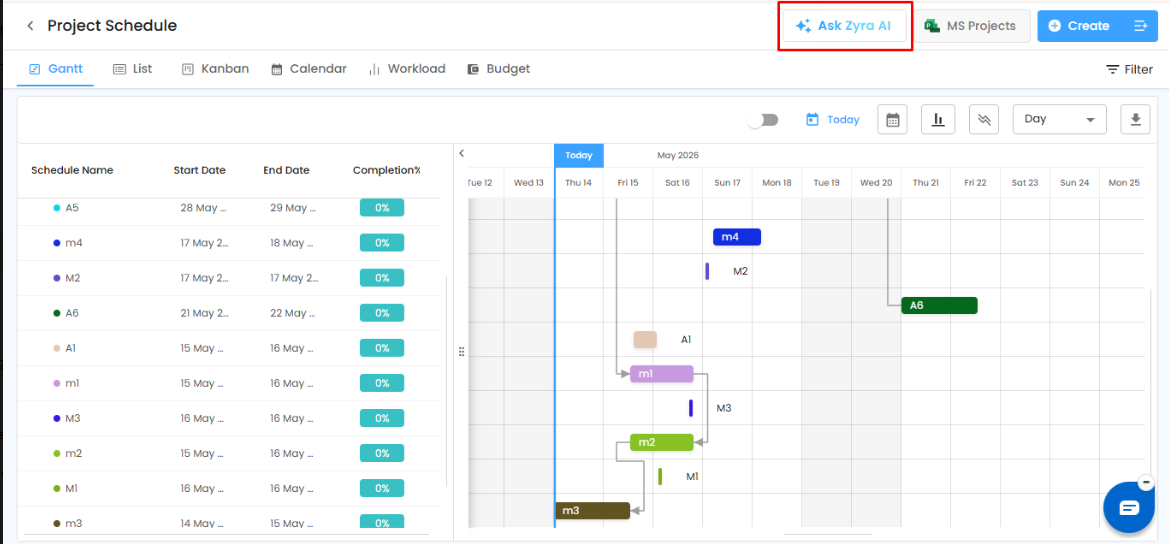
- Click the Schedule module. The Project Schedule screen opens in Gantt View.
- In the top-right of the scheduling toolbar, click Ask Zyra AI.
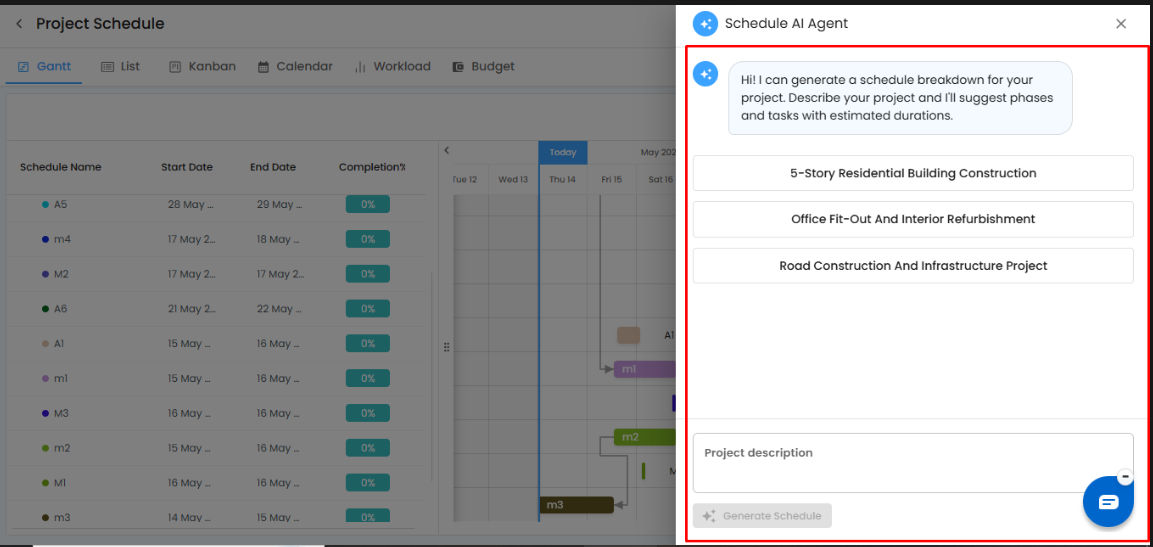
- The Schedule AI Agent panel opens on the right side of the screen.
The panel includes predefined project suggestions, a Project Description input, and AI-based schedule generation with automatic phase and task recommendations.
Option 1: Start from a Predefined Project
Select one of the quick-start suggestions to generate a structured schedule template, for example:
- 5-Story Residential Building Construction
- Office Fit-Out and Interior Refurbishment
- Road Construction and Infrastructure Project
Pro Tip: Predefined templates are fastest for standard or repetitive project types.
Option 2: Create a Custom Schedule from a Description
- Open the Schedule AI Agent panel.
- In Project Description, describe your project, including:
- Project type
- Scope of work
- Major activities
- Construction phases
- Timeline expectations
- Click Generate Schedule.
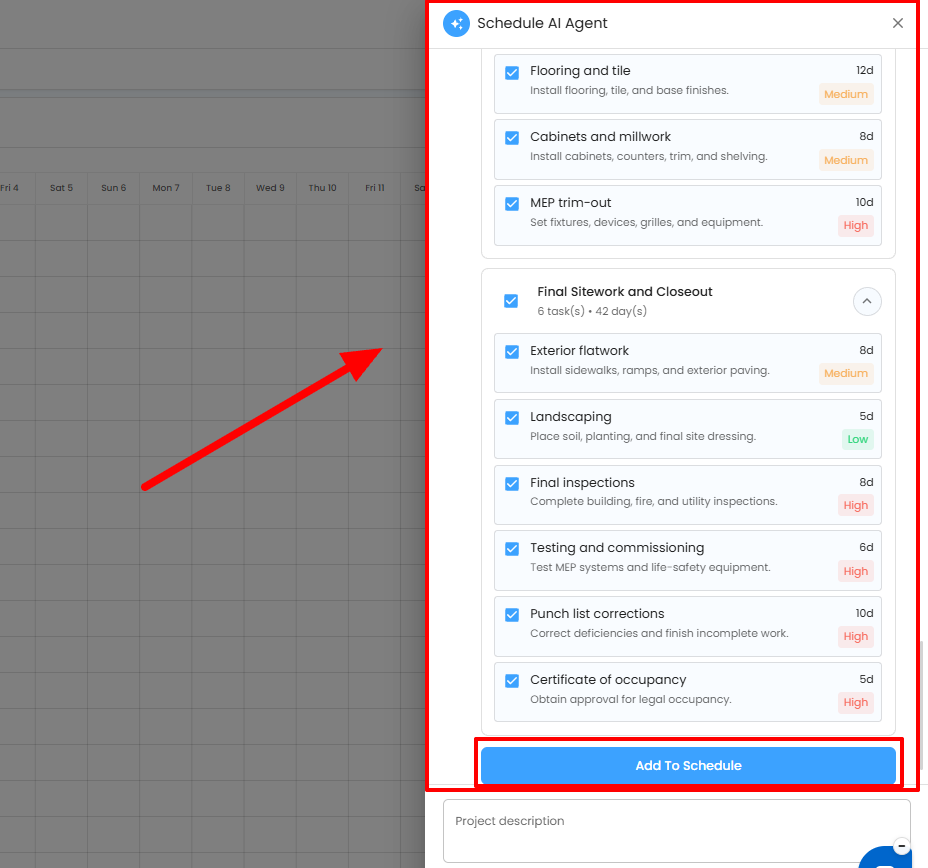
Zyra AI analyzes your input and generates:
- Schedule phases
- Activities
- Task hierarchy
- Suggested durations
- Logical sequencing
Tips for Better Results
- Be specific about scope and major activities rather than writing one short line.
- Mention the phases you expect and your target timeline.
- Review the generated schedule and adjust dates, durations, and dependencies to match your project.
Related Articles
- Gantt View
- How to Create a Schedule
- Setting Off-Days & Working Hours
Need Further Assistance?
Contact your organization administrator or the IntoAEC support team.
Was this article helpful?
That’s Great!
Thank you for your feedback
Sorry! We couldn't be helpful
Thank you for your feedback
Feedback sent
We appreciate your effort and will try to fix the article