Admin Preferences – Manage Availability and Onboarding Details
Admin preferences centralize key settings, ensuring that onboarding details are accurately reflected and architects can conveniently manage their availability for leads.
Custom Project Types
IntoAEC now lets you create and manage your own project types, so your workspace reflects the way your team actually works.
How to Add a Project Type
Click the Add button at the top right of the Project Type section. Enter the name of your project type in the field provided, then click Save. You'll see a success message: "Project type created successfully."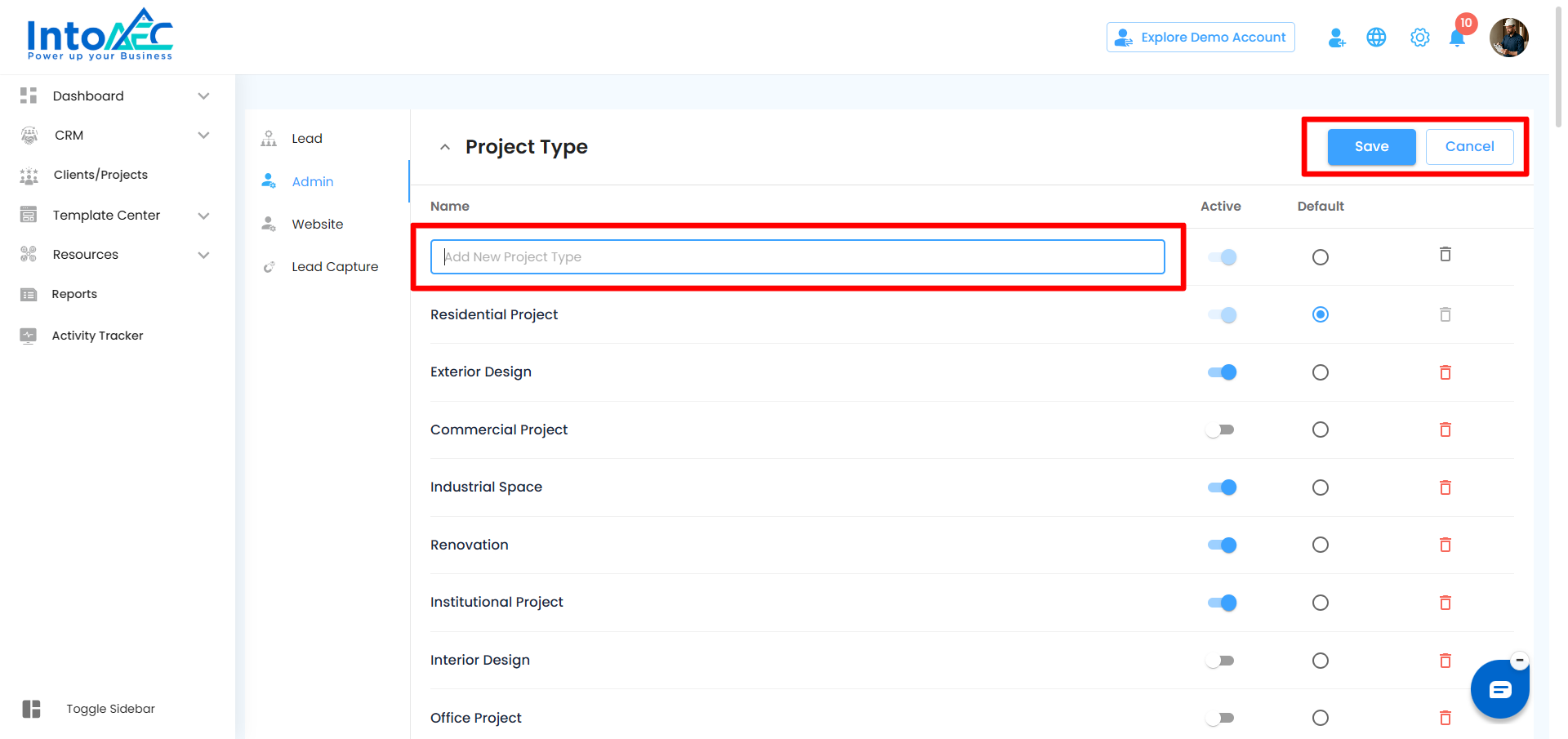
Editing a Project Type
Make changes to any existing project type name and click Save. You'll see: "Project updated successfully."
⚠️ Remember — changes only take effect after clicking Save.
Activating / Deactivating a Project Type
Use the Active toggle next to each project type to show or hide it across the application. Inactive project types won't appear in the project type list when creating leads or clients.
Default Project Type
The project type marked as Default cannot be deactivated or deleted. This is intentional — more features tied to the default option are coming in future updates.
Deleting a Project Type
Click the delete icon next to a project type to remove it. If the project type is not used anywhere, it will be deleted immediately after clicking Save.
Reassigning a Project Type Before Deletion
If the project type is already used in existing projects, you cannot delete it directly. You'll be prompted to reassign those projects to another project type first.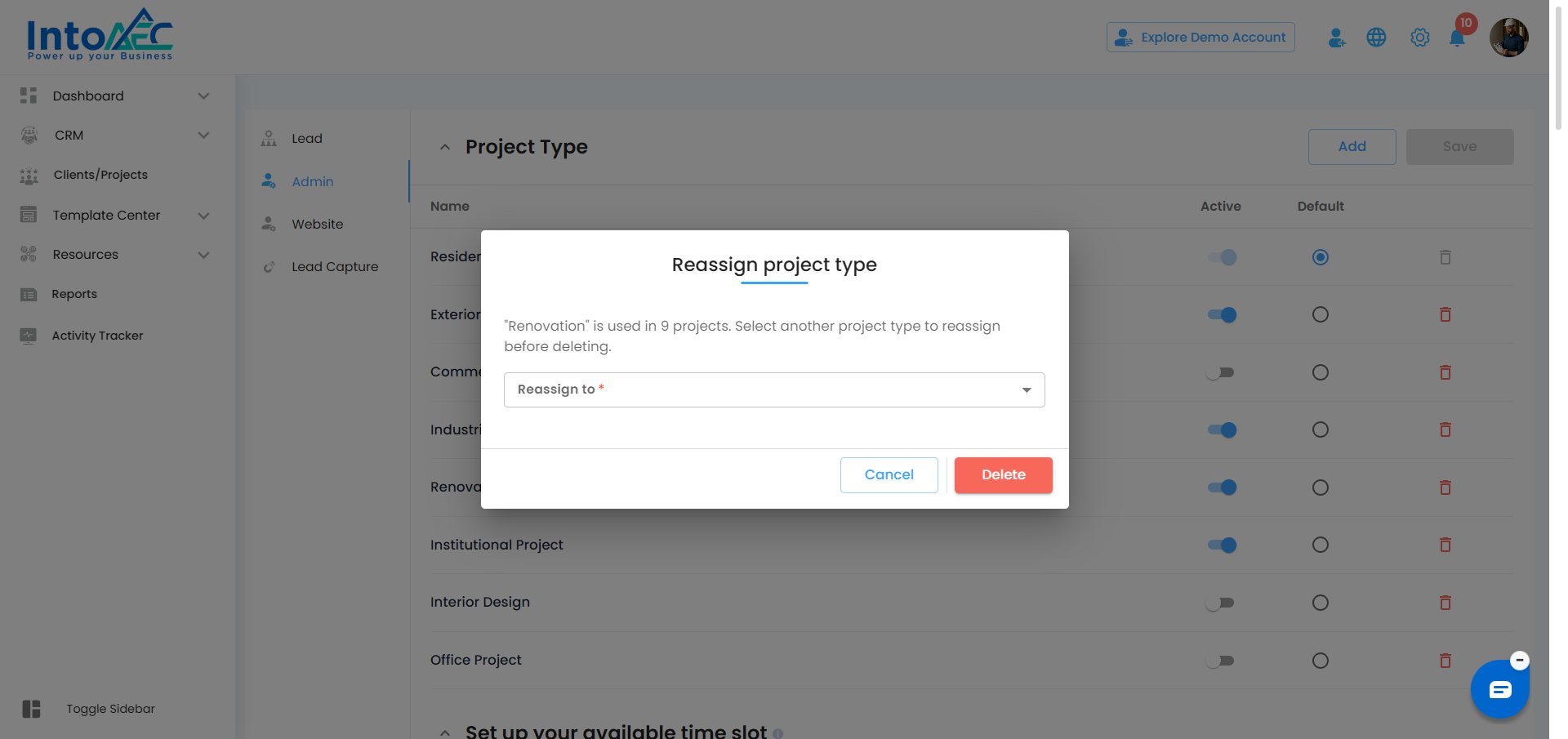
Select the replacement type from the dropdown and confirm. The original type will then be deleted.
Where Project Types Are Used
The project types you configure here appear when creating a Lead or a Client in IntoAEC.
Architect Availability – Easy Scheduling
- Architects can set their available slots from Sunday to Saturday, allowing leads to select meeting times that fit both schedules.
Accessing the Availability Link
- Click Settings in the top-right menu.
- Select Preferences from the dropdown.
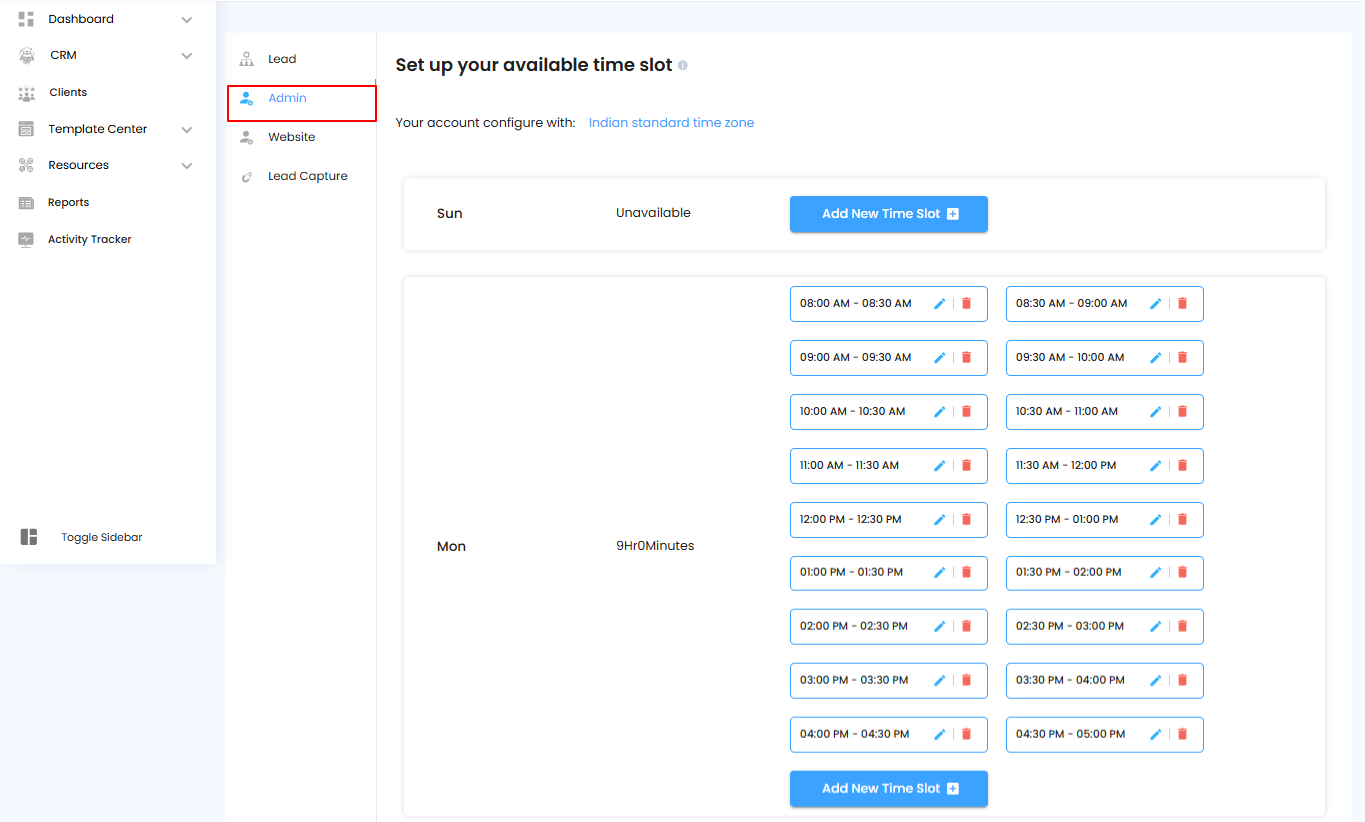
- Navigate to Admin in the left panel to access availability settings.
Managing Time Slots
- By default, slots are available for all days from Sunday to Saturday.
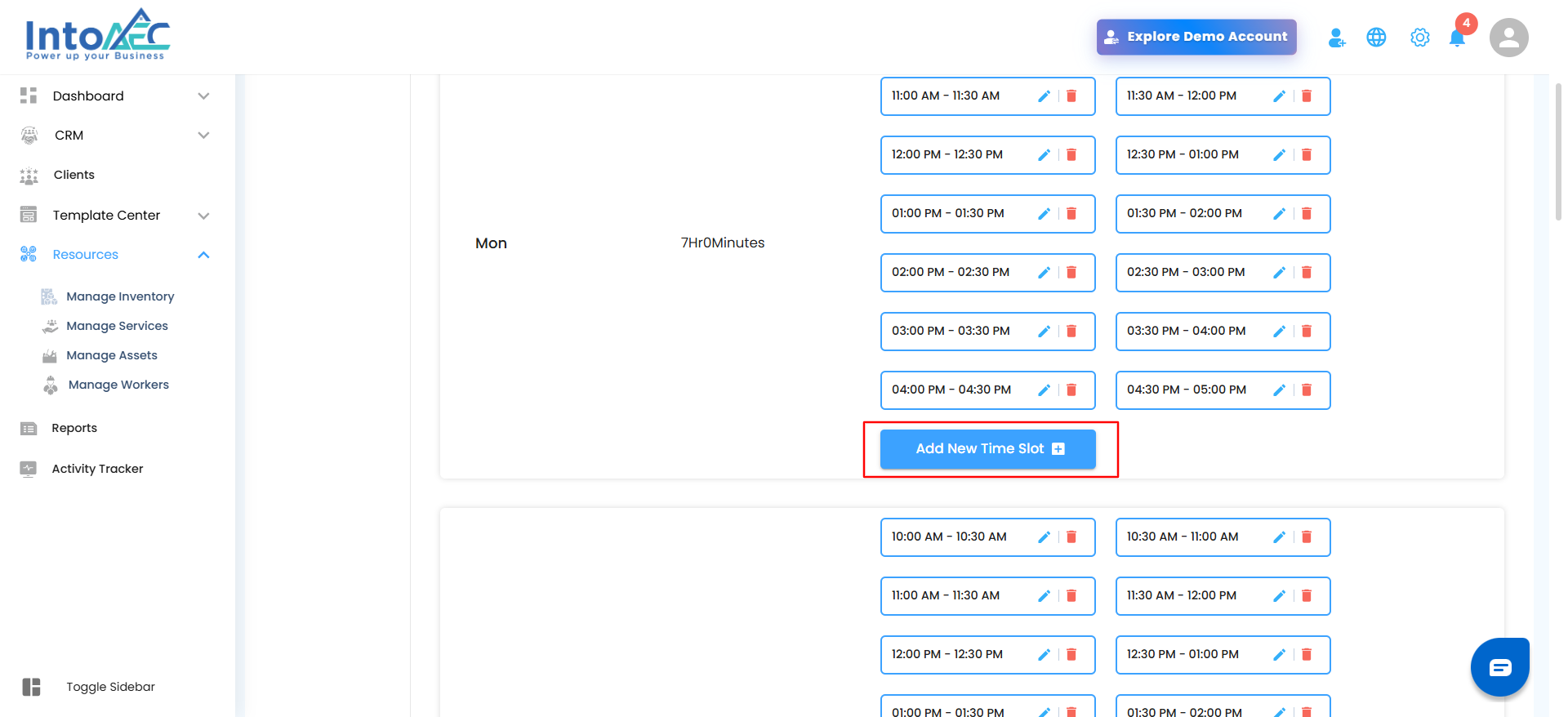
- To add or adjust time slots for a specific day, click here and specify the desired time range.
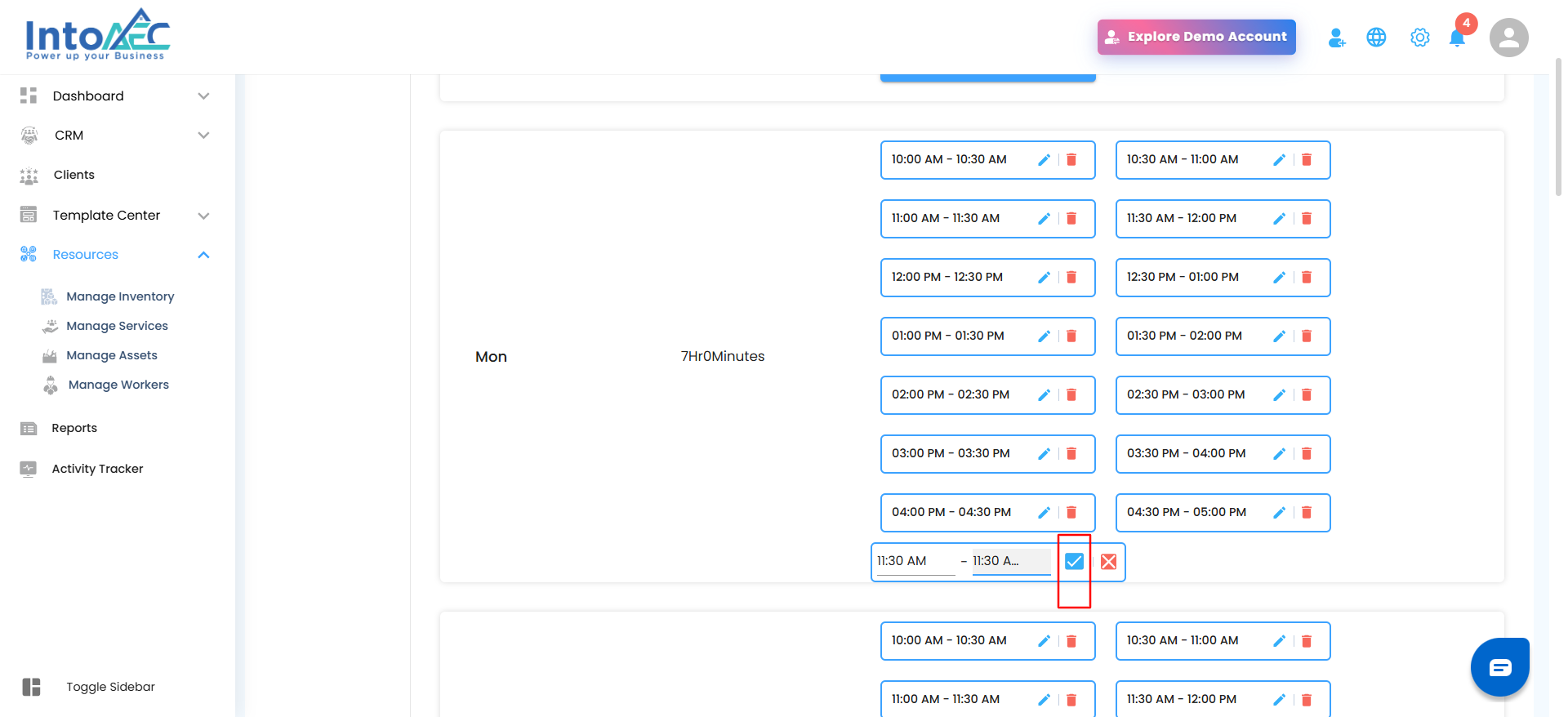
- Click the tick to save the slot.
Pro tip: Regularly updating time slots ensures leads always see the most accurate availability, improving scheduling efficiency.
Editing Time Slots – Manage Availability with Ease
- Click on the Edit option to modify existing time slots.
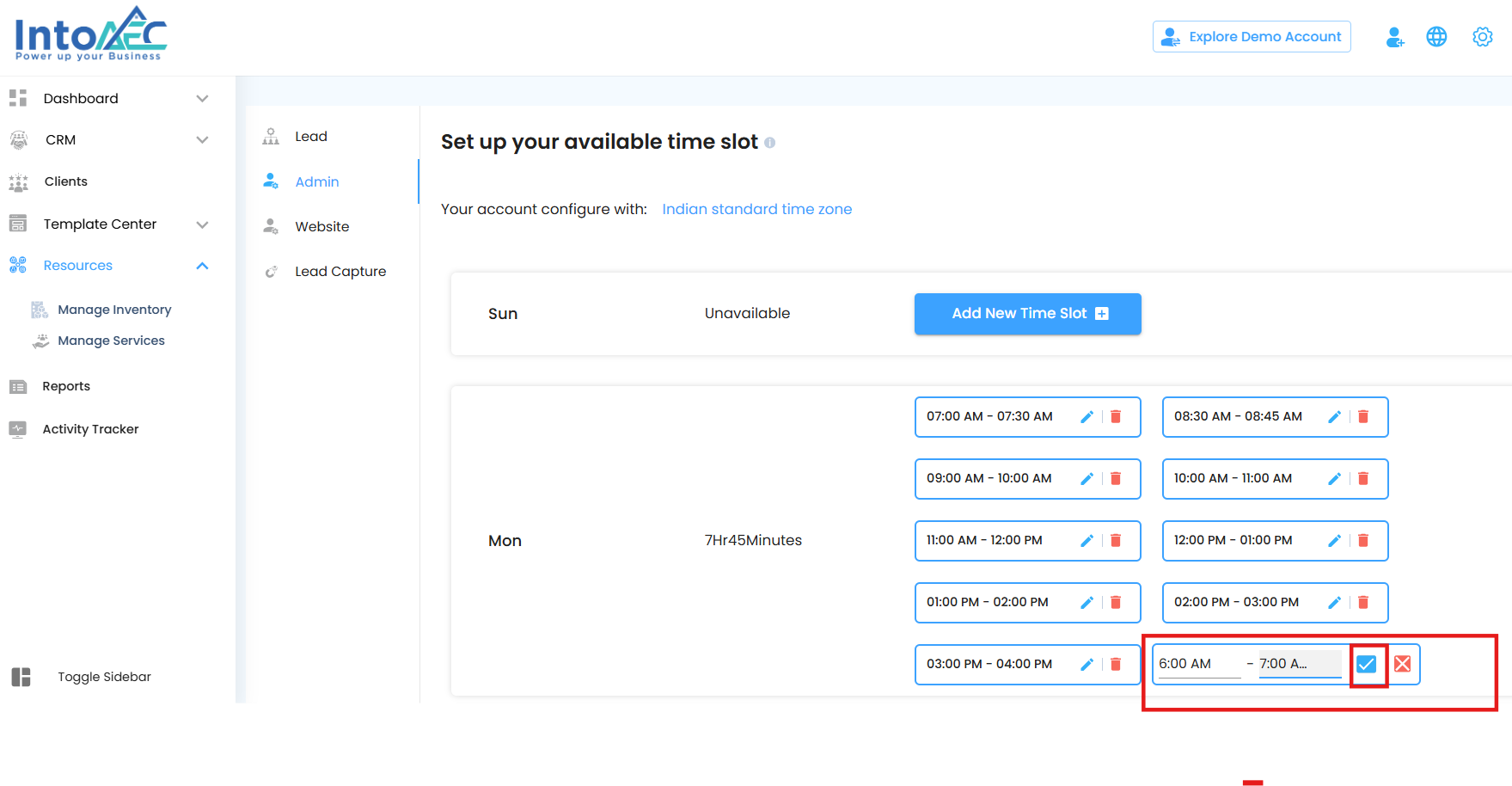
- Make the necessary changes and click Save to apply updates.
Date-Specific Time Slots
- Select any date and confirm its unavailability.
- Dates marked as unavailable will not appear as available slots in links or lead capture forms.
Set Availability
- Restrict or adjust availability for a specific day, even if general slots are already set.
- When a link is sent to a lead, the updated availability will be reflected based on these settings.
Meeting Preference
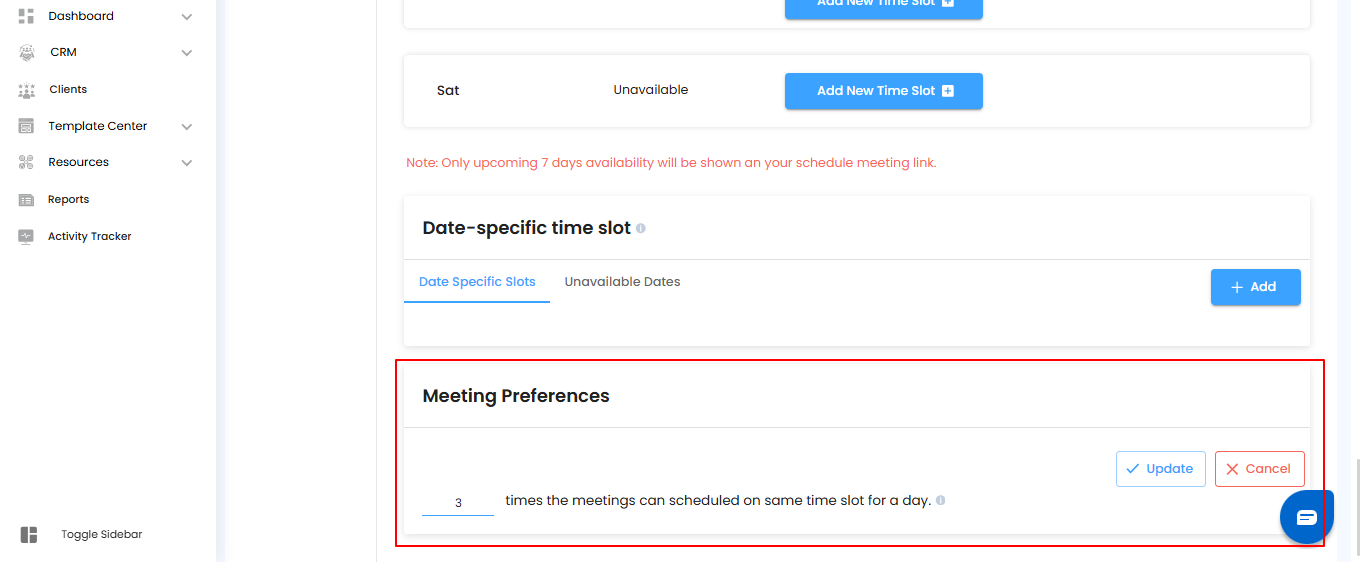
- By default, only one lead can book a time slot.
- To allow multiple leads to book the same slot, specify the number of available slots.
- Click to set the number and Save the changes.
- Edit preferences anytime by clicking and saving the updates.
Viewing Architect Availability
- Go to the Top-Right Settings > Preferences > Admin to view current availability.
Pro tip: Regularly update time slots and meeting preferences to prevent double bookings and provide accurate availability to leads.
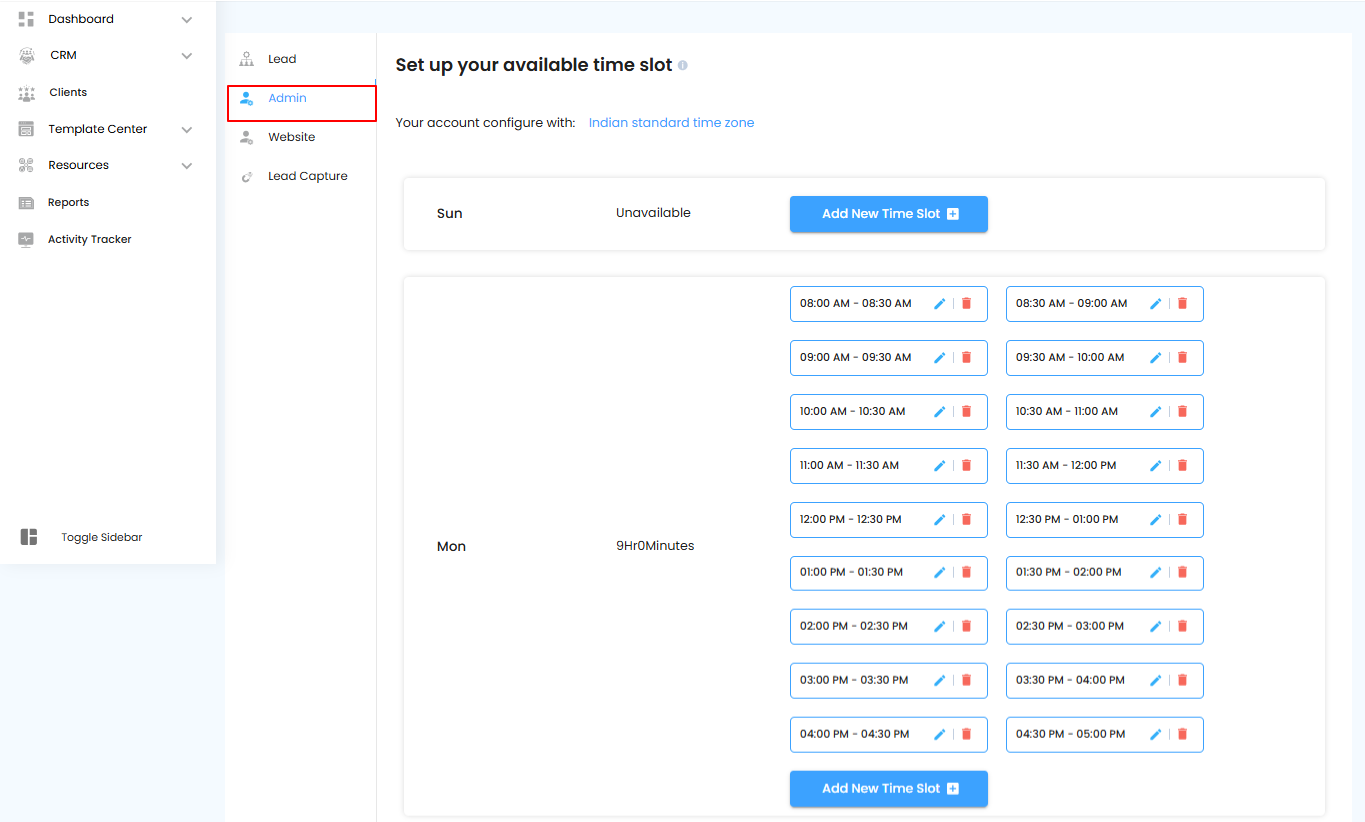
Edit Admin Availability
You can edit the admin’s availability directly from the Preferences > Admin section.
Make the necessary changes to time slots or meeting preferences and click Save to apply.
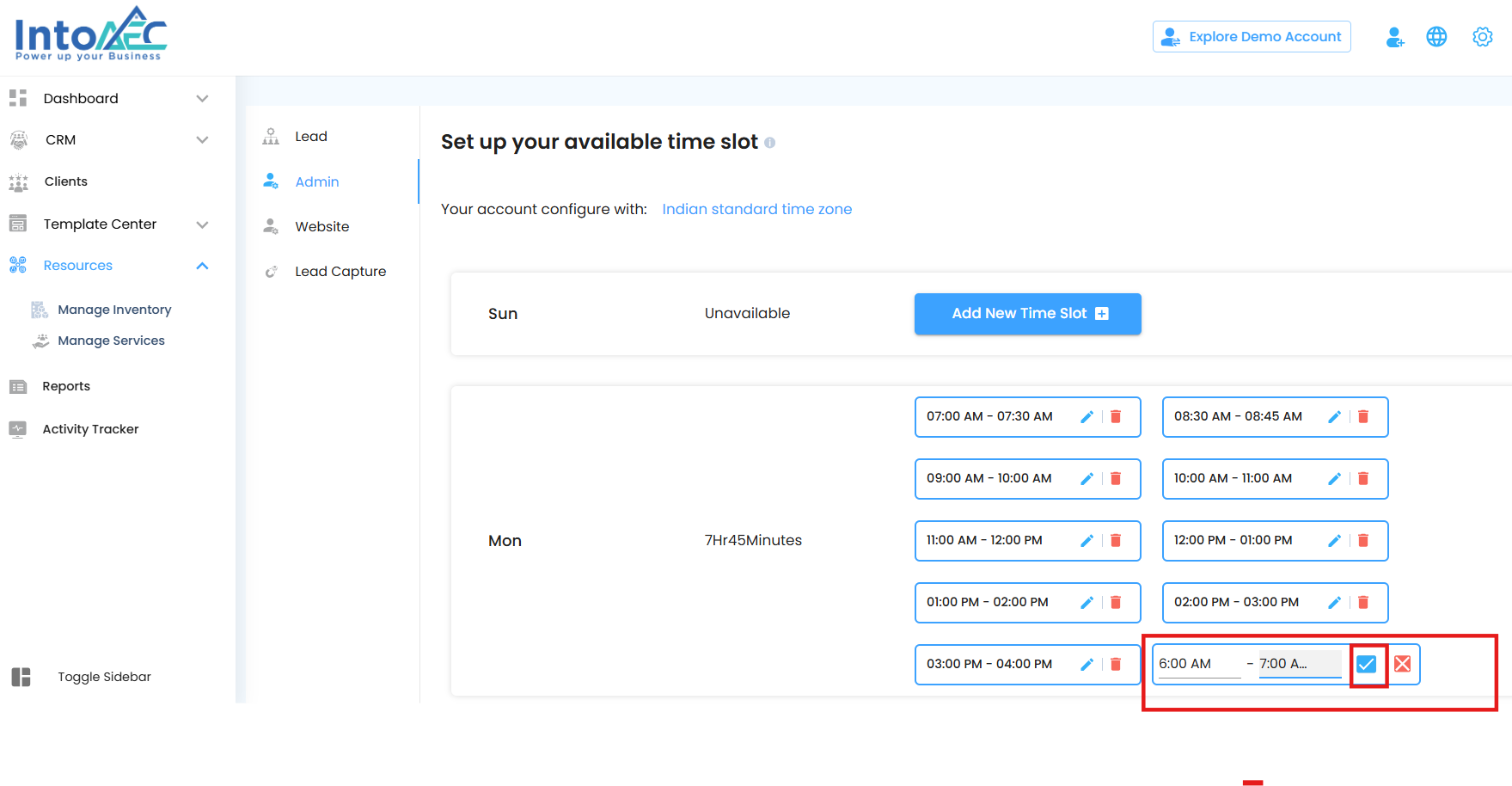 You can mark a date as unavailable, even if you have already scheduled some slots.
Deleting a Time Slot – Quick Access
- To remove a time slot, follow these steps:
Accessing Admin Preferences
Click Settings in the top-right menu.
Select Preferences from the dropdown.
Navigate to Admin to manage and delete time slots.
Pro tip: Double-check the slot before deleting to avoid accidentally removing availability for leads.
2. Click on "delete" button.
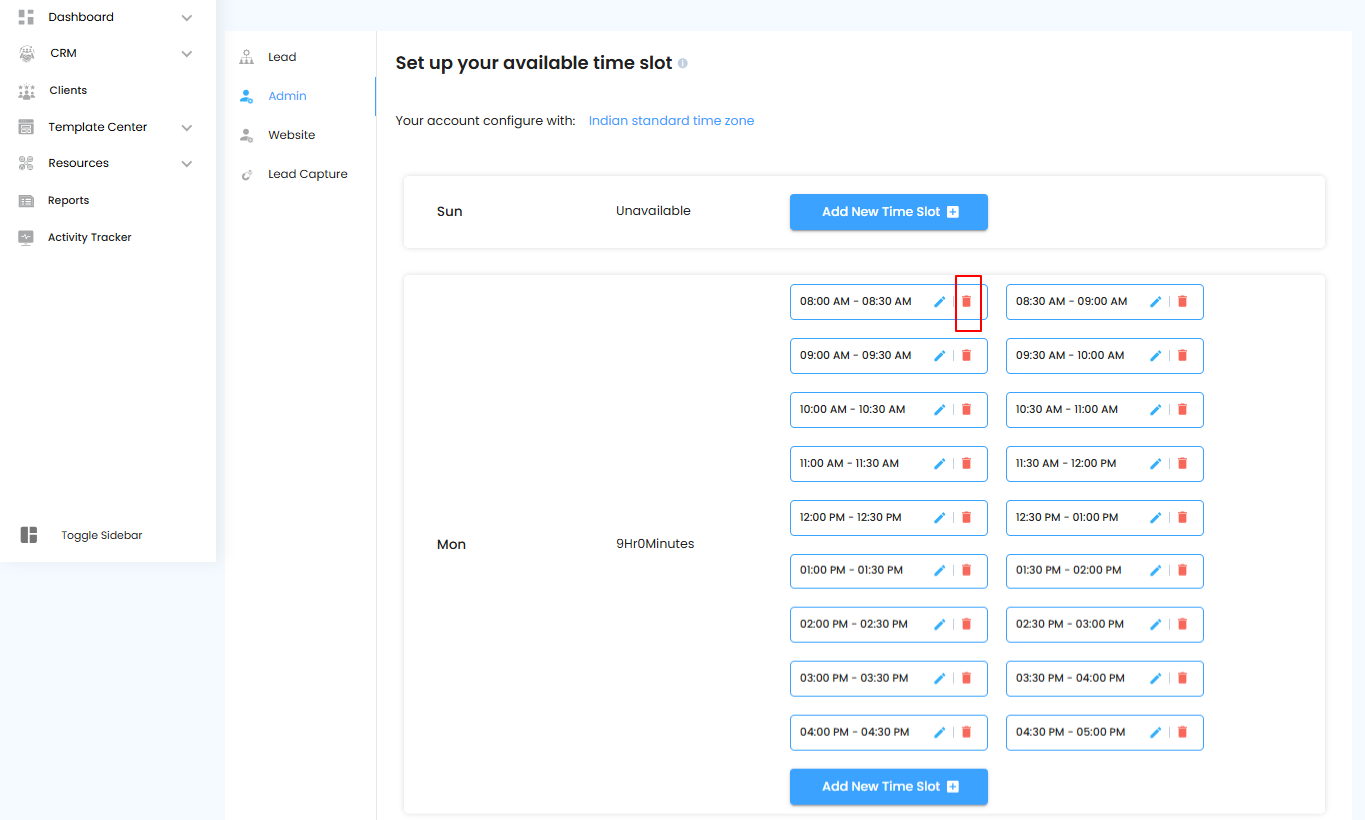
- In the pop-up that appears, enter the reason for deleting the time slot.
- Click Yes to confirm and remove the slot.
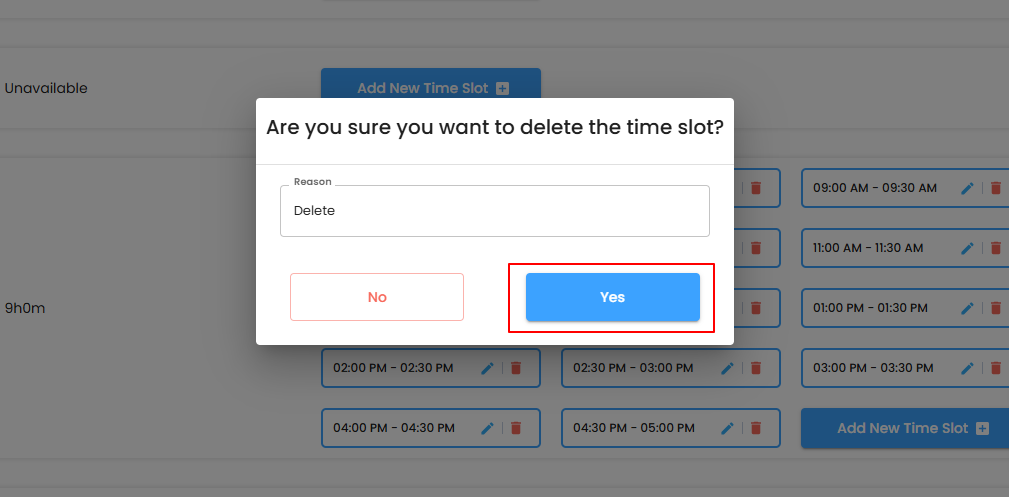
Pro tip: Providing a reason helps keep a record of changes and ensures transparency in scheduling management.
Accessing Admin Preferences
- Click Settings in the top-right menu.
- Select Preferences from the dropdown.
- Navigate to Admin to set or adjust meeting preferences.
Pro tip: Defining clear meeting preferences helps leads to scheduling appointments smoothly and according to your availability.
Meeting Preferences – Completing the Action
- Enter your desired meeting preference.
- Click Update to save the changes.
Pro tip: Keeping your meeting preferences up to date ensures that leads can schedule appointments efficiently and according to your preferred settings.
Was this article helpful?
That’s Great!
Thank you for your feedback
Sorry! We couldn't be helpful
Thank you for your feedback
Feedback sent
We appreciate your effort and will try to fix the article