Calendar Availability - Setting Up Your Bookable Time Slots
Overview
Calendar Availability controls which time slots leads and clients can pick from when booking a meeting with you. Set your weekly schedule once, fine-tune specific dates when needed, and the system takes care of showing only the open, valid slots on your booking link.
Getting to Calendar Availability
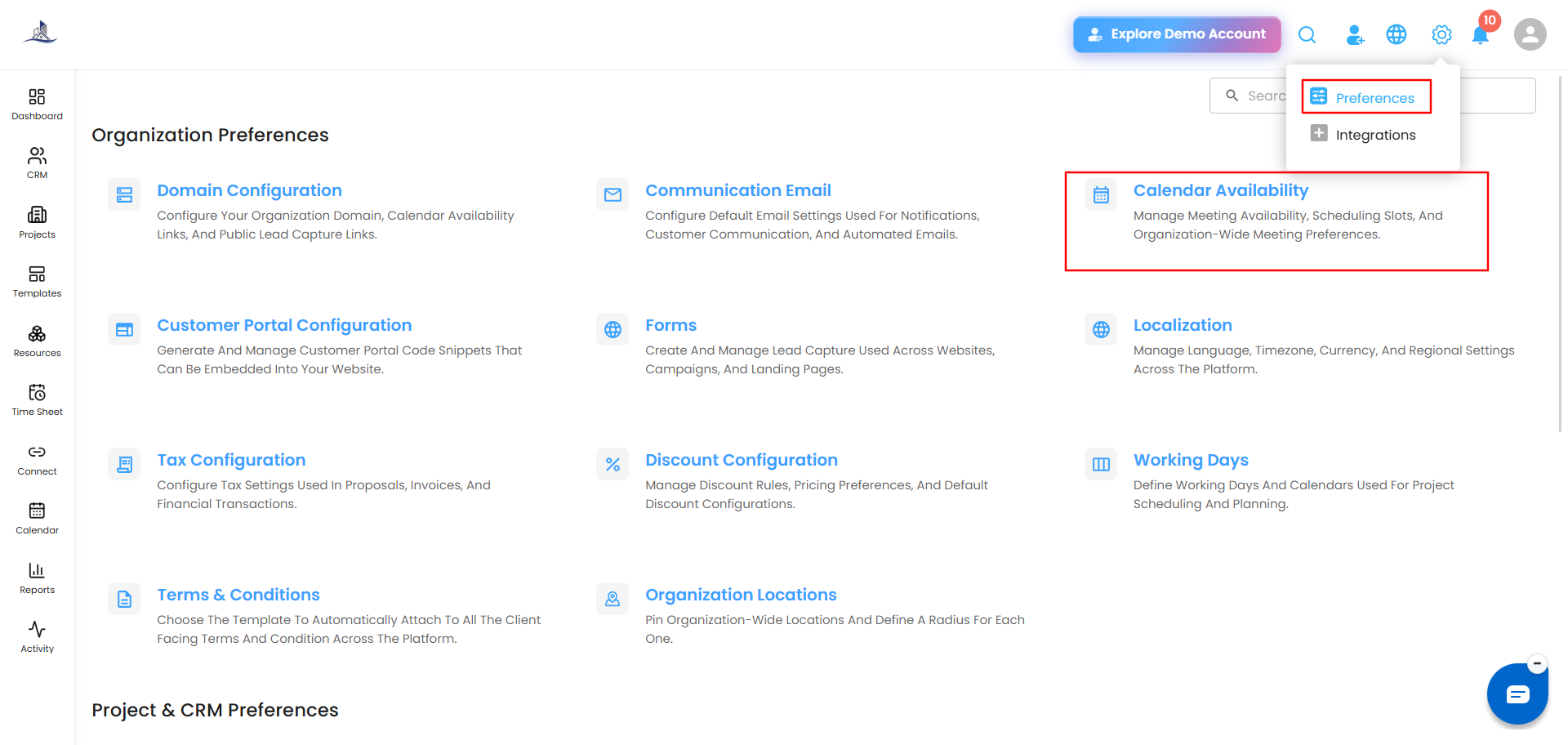
Click Settings in the top right, select Preferences, then go to Calendar Availability.
At the top of the page, you'll see the time zone your account is configured with (e.g., Asia/Kolkata). All the time slots you set below are based on this time zone.
Setting Your Weekly Availability
Your week is broken down by day, Sunday through Saturday. A day with no slots set shows as Unavailable; once you add slots, the day shows the total hours available (e.g., "14 Hr 0 Minutes").
Adding a Time Slot
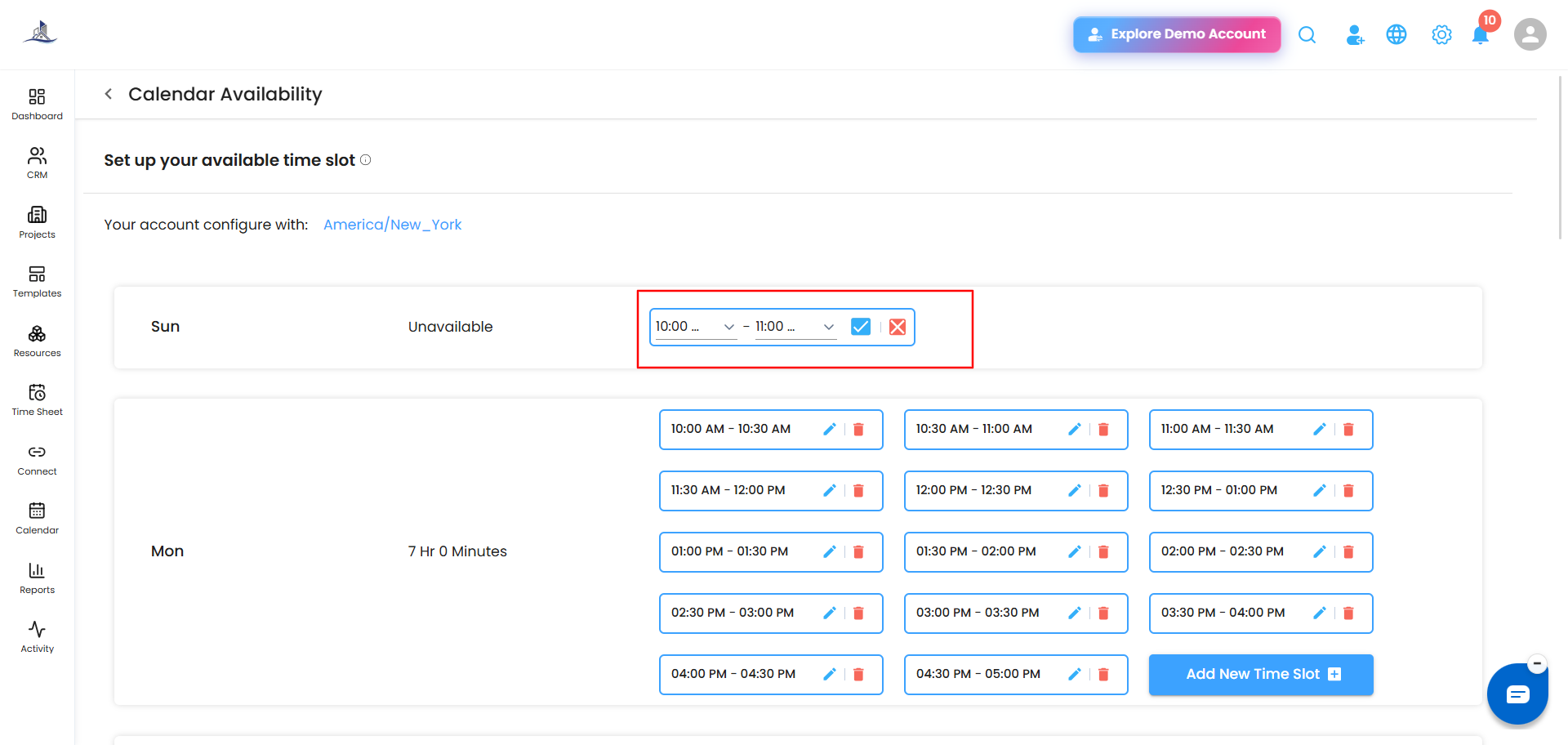
- Under the day you want to set up, click Add New Time Slot.
- Enter the time range for the slot.
- Click the tick/checkmark to save it.
Editing a Time Slot
Click the pencil icon on any slot, adjust the time range, and save your changes.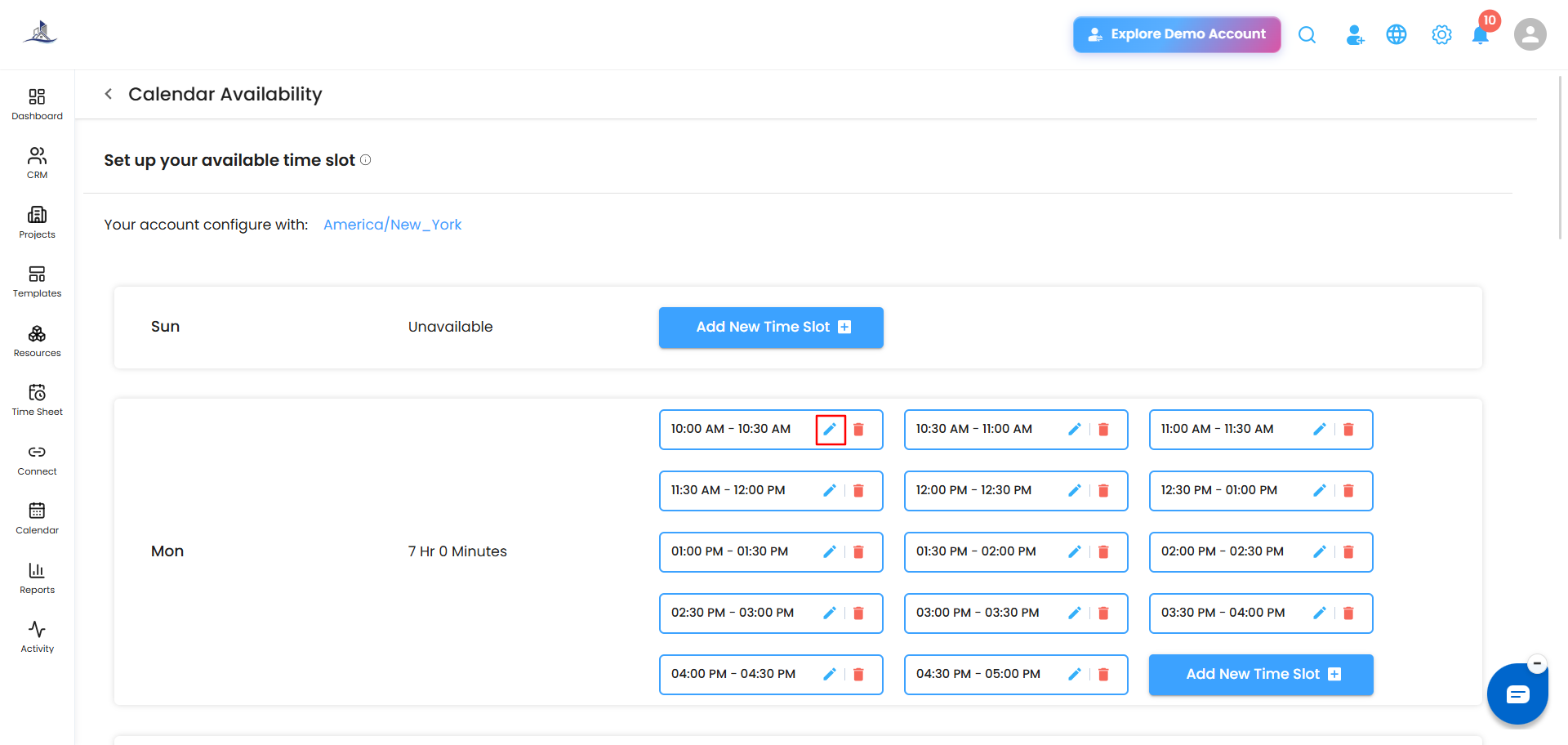
Deleting a Time Slot
Click the trash icon on any slot to remove it.
Date-Specific Time Slots
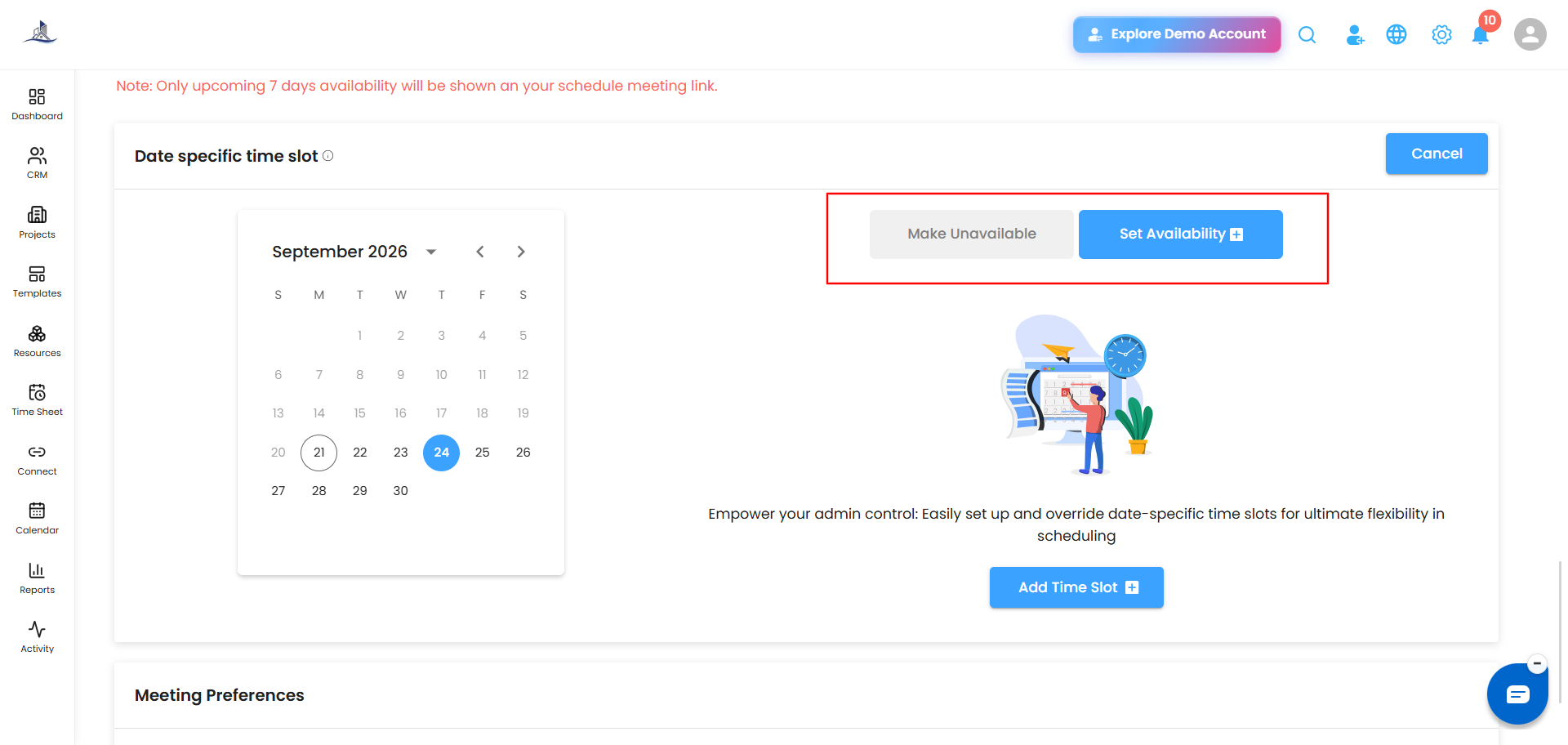
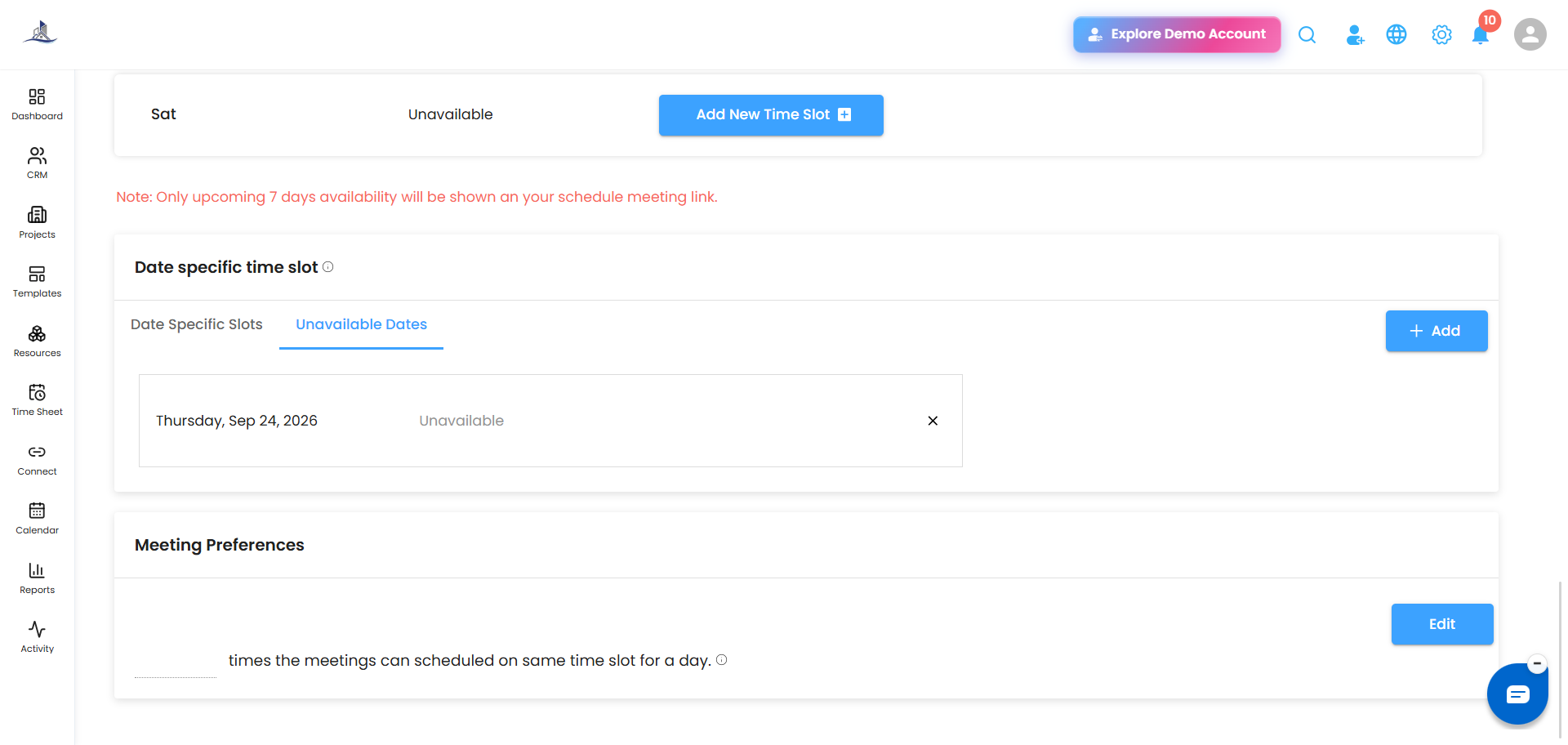
Need to override your regular weekly schedule for a particular date — block off a day entirely, or open up extra time? Use the Date specific time slot section below your weekly schedule.
- Click + Add to mark a specific date as unavailable, or to set custom slots just for that date.
- Dates marked unavailable won't show up as bookable on your links or lead capture forms, regardless of your regular weekly settings.
Meeting Preferences
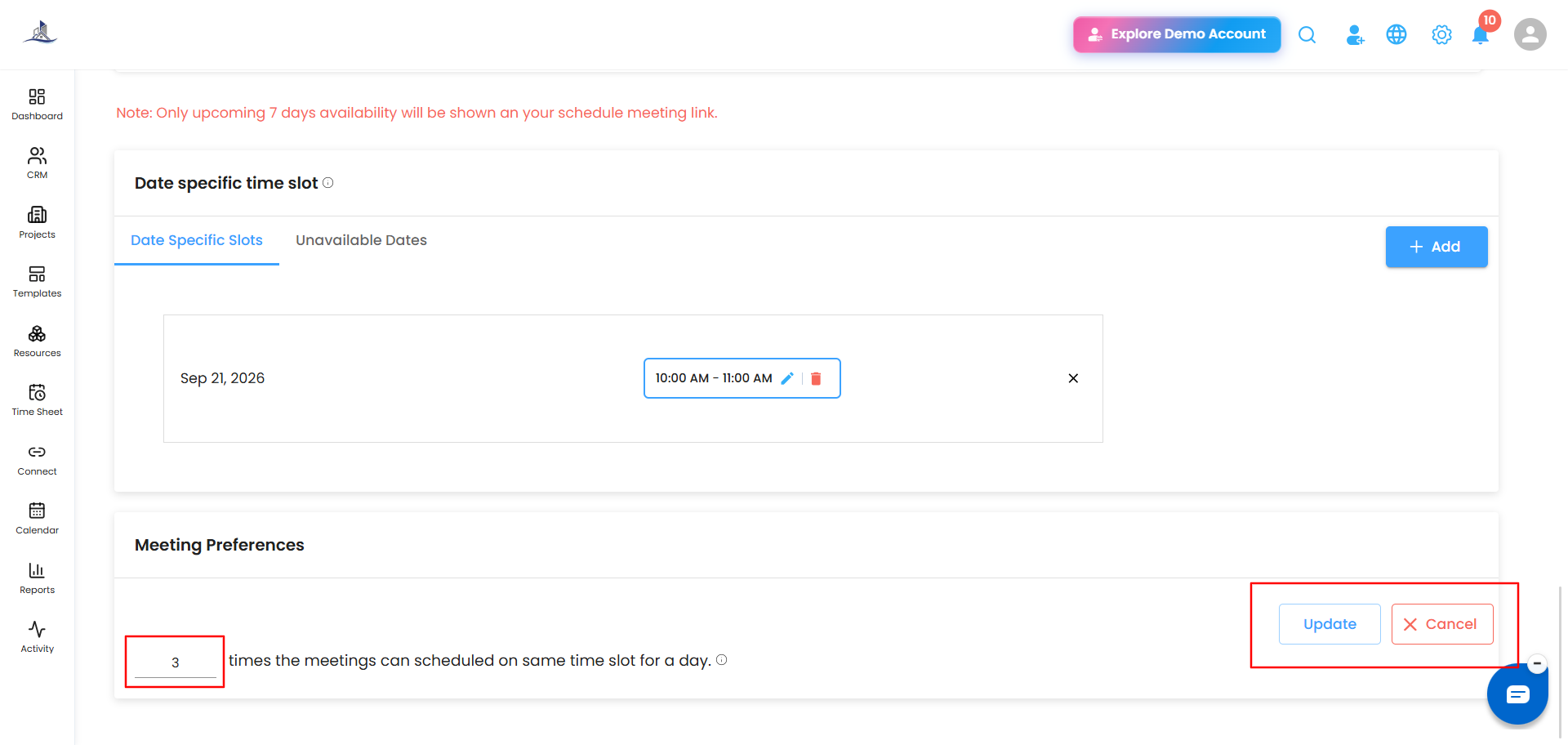
By default, only one lead can book a given time slot. If you'd rather allow multiple people to book the same slot (e.g., for group sessions or overlapping availability), you can change that here.
- Click Edit next to Meeting Preferences.
- Set the number of times a slot can be booked on the same day.
- Save your changes.
Was this article helpful?
That’s Great!
Thank you for your feedback
Sorry! We couldn't be helpful
Thank you for your feedback
Feedback sent
We appreciate your effort and will try to fix the article