Your project's cash flow at a glance. See what you've invoiced, what's been paid, and what's still to come in, all in one place.
What you can do here
- Track invoices, payments received and outstanding balances
- Filter by project, dates or status to focus on what matters
- Spot overdue and partially paid invoices before they slip
- Export your income data for audits, forecasting or sharing
Pro tip: Check this report regularly. It's the quickest way to stay on top of client payments.
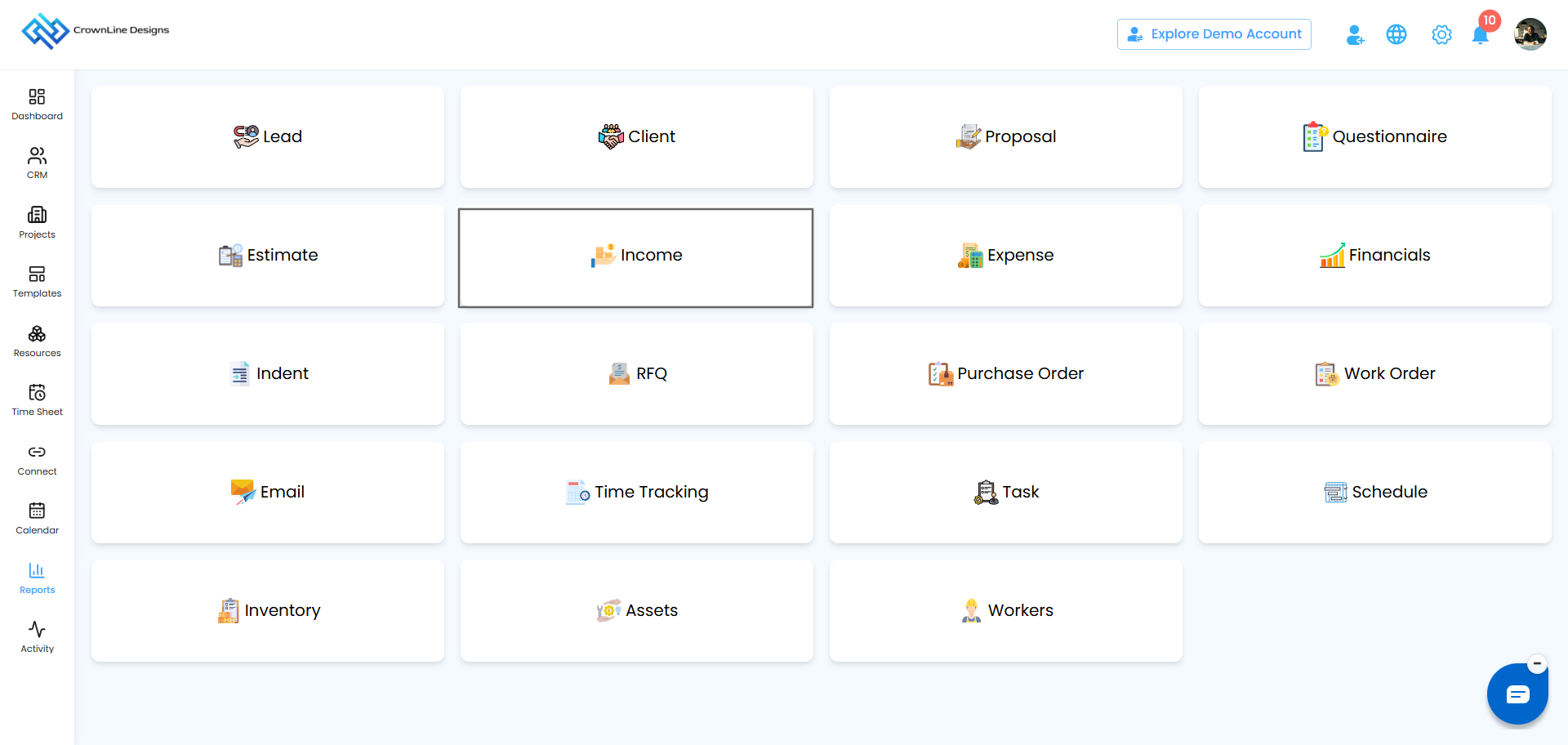
Open the Income Report
- Go to Reports in the main menu.
- Click Income Report.
Dashboard metrics
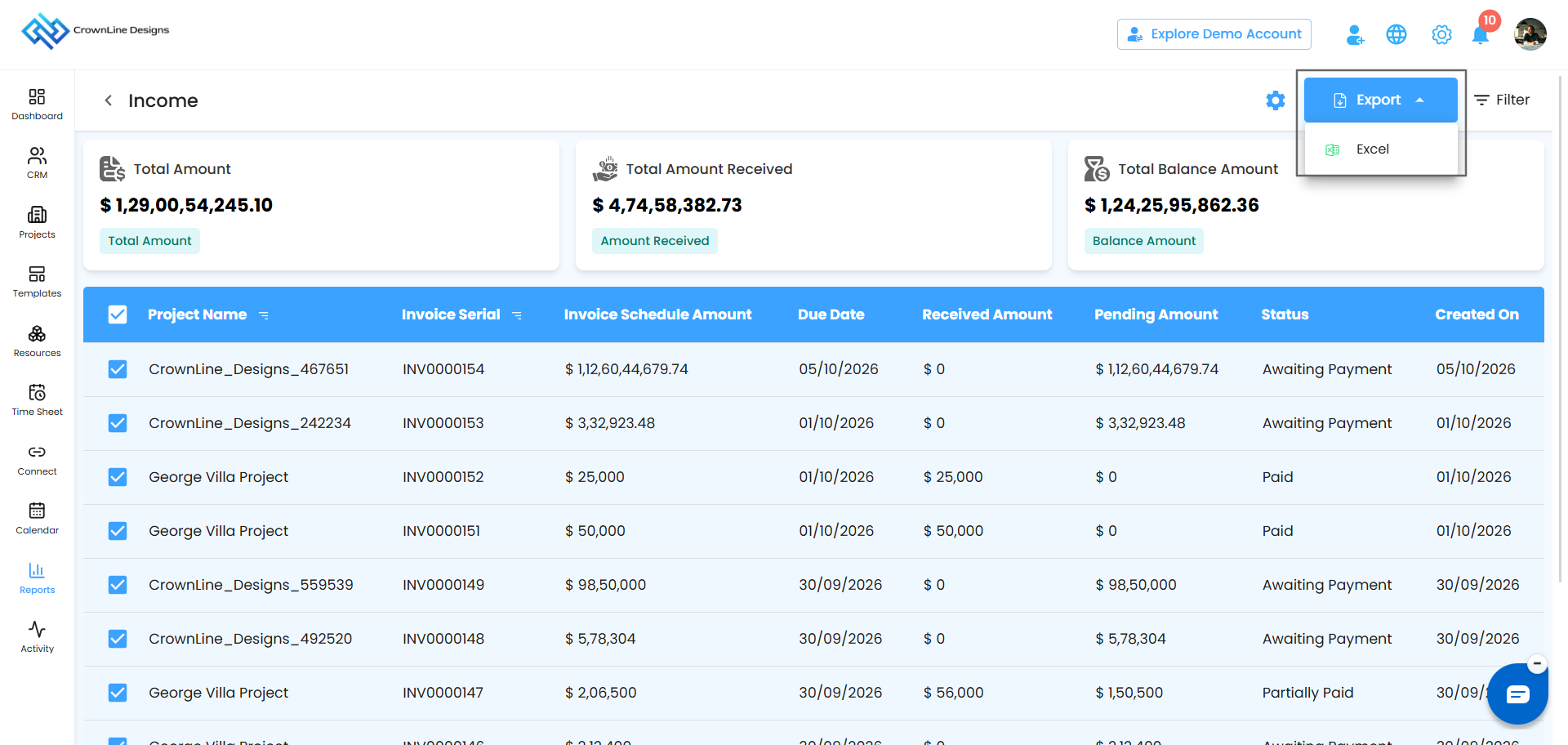
Three cards at the top give you an instant financial snapshot.
| Metric | Shows |
|---|---|
| Total Amount | Everything you've invoiced |
| Total Amount Received | Payments collected so far |
| Total Balance Amount | What's still pending |
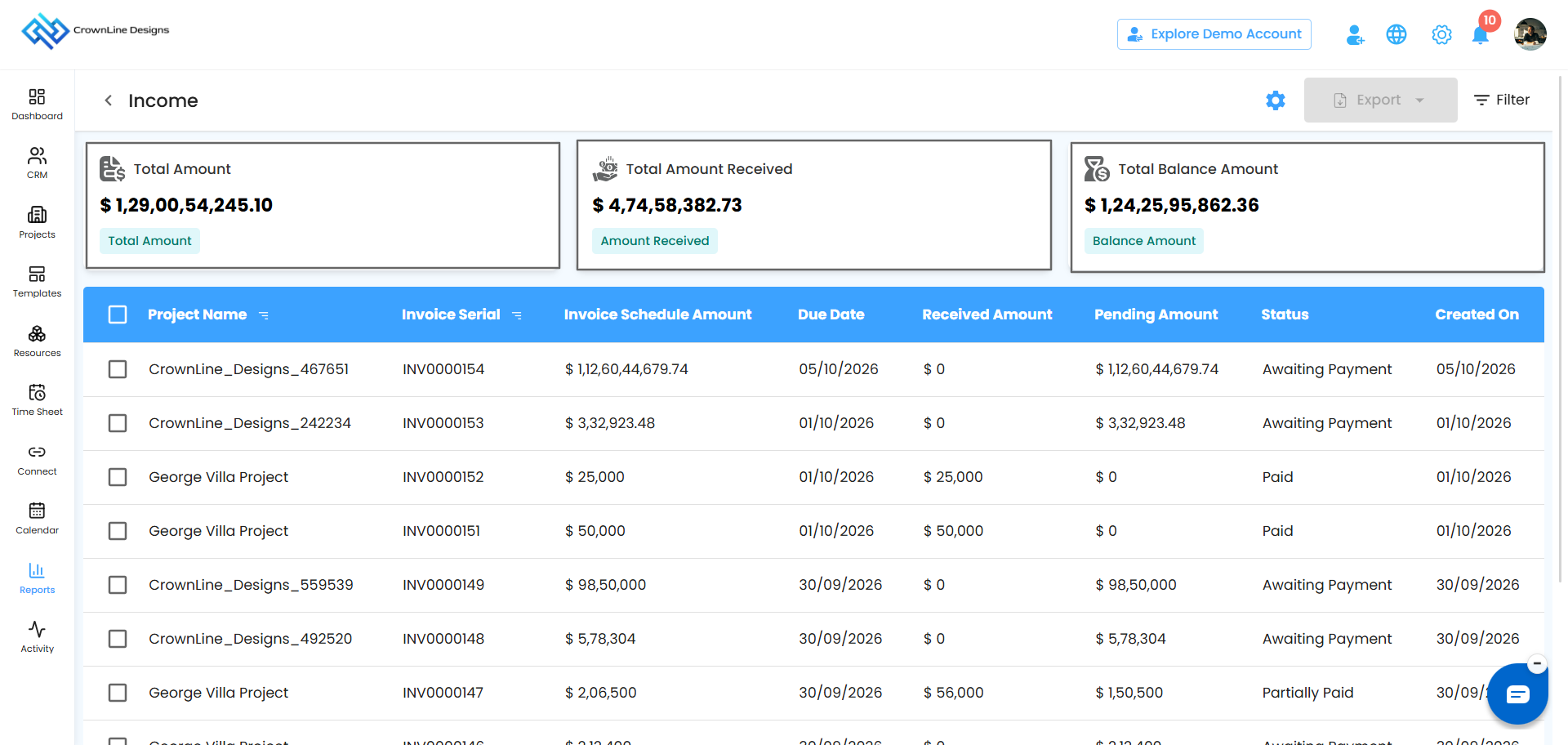
Pro tip: A growing Balance Amount is an early signal to start follow-ups.
Filter your income records
- Click Filter in the top-right corner of the page.
- Set any of these:
- Project Name: show invoices for one project
- Created Between: invoices created within a date range
- Due Between: invoices due within a date range
- Status: Paid, Partially Paid or Awaiting Payment
- Click Apply to update the report, or Clear to see all records again.
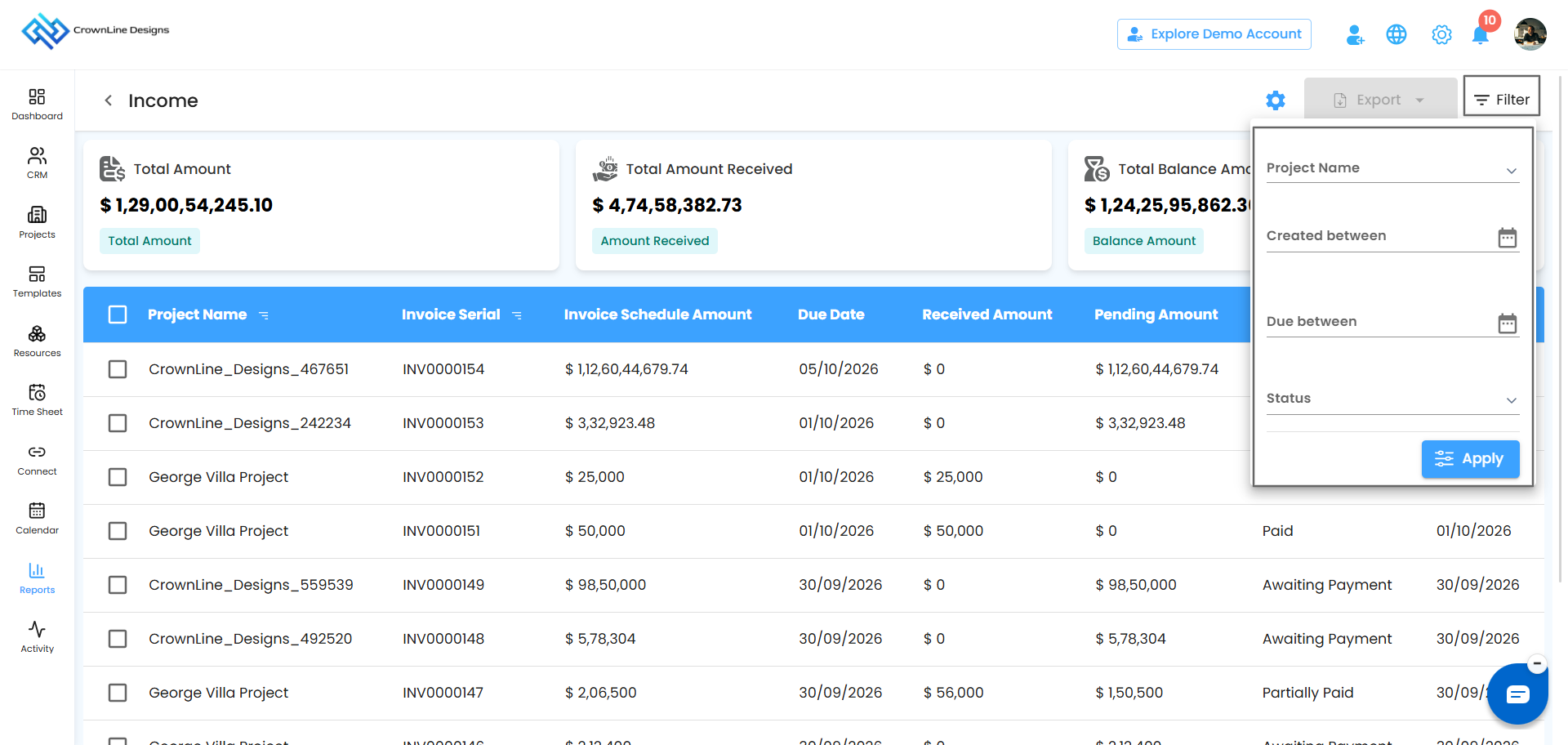
Pro tip: Combine Due Between with Awaiting Payment to build this week's follow-up list in seconds.
The income table
Every invoice, every payment, in one ledger.
| Column | Shows |
|---|---|
| Project Name | The project the invoice belongs to |
| Invoice Serial | The invoice number, e.g. INV0000154 |
| Invoice Schedule Amount | The total amount invoiced |
| Due Date | When payment is expected |
| Received Amount | How much has been paid |
| Pending Amount | How much is still outstanding |
| Status | Paid, Partially Paid or Awaiting Payment |
| Created On | When the invoice was created |
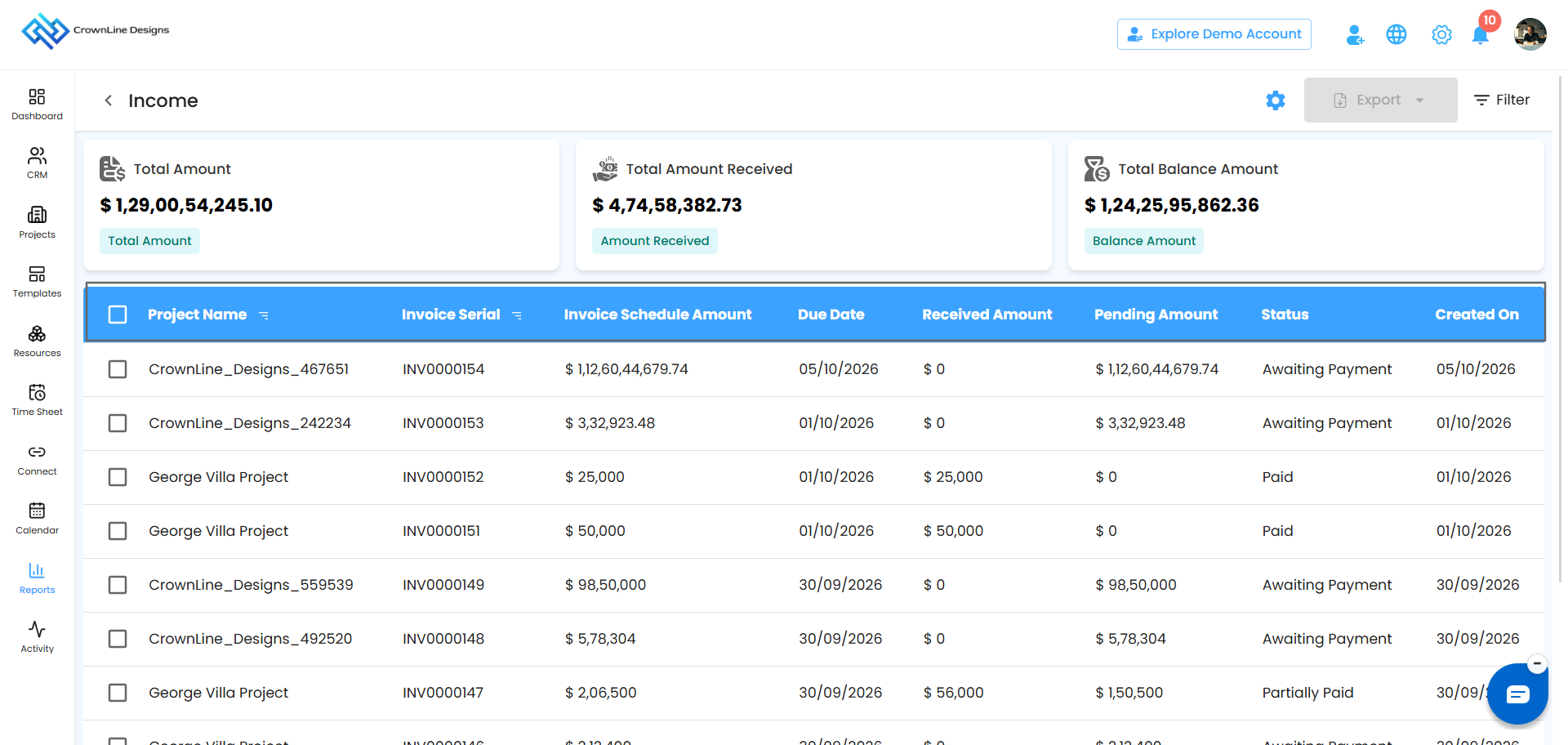
Pro tip: Sort by Project Name or Invoice Serial using the icon next to each column heading.
Select and export
- Tick the invoices you want, or tick the box in the header to select all.
- Click Export.
- The data downloads as an Excel file.
Pro tip: Filter first, then select and export. You get a clean, focused report every time.
Automate the report
Set it up once and income updates land in your team's inbox on schedule.
Click the Configure Report Automation icon (the gear icon next to Export).
In the popup, choose recipients from Send To.
Pick a frequency from Generate Report:
- Daily (default): sent within an hour of your chosen time. If you set 6:00 PM, it arrives between 6:00 and 6:59 PM.
- Weekly: covers the week and is sent at the same day and time the following week.
- Monthly: covers the month and is sent on the same day and time next month.
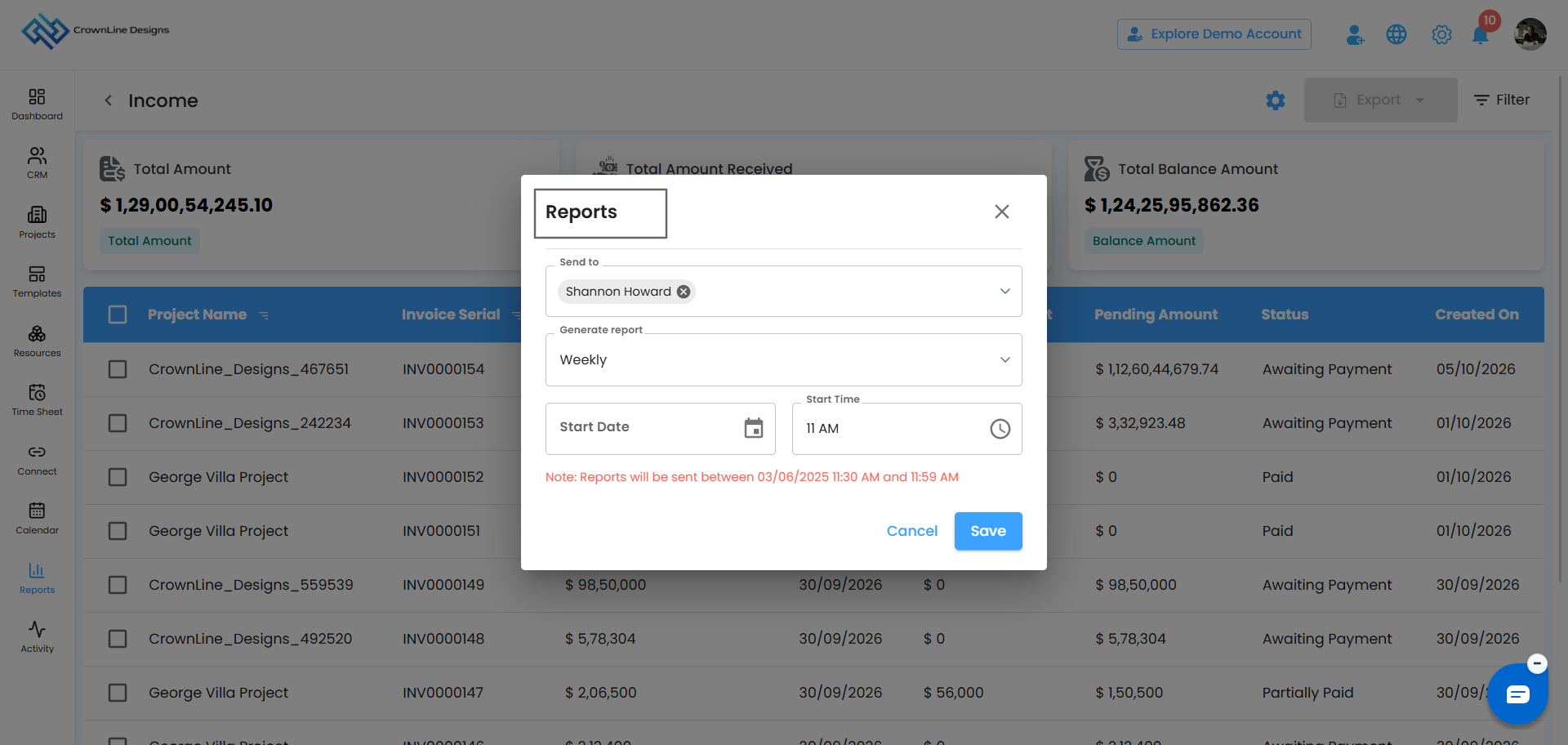
Set the Start Date and Start Time. The start time is required, so reports won't go out without it.
Click Save to activate, or Cancel to discard.
Pro tip: Weekly works well for cash flow reviews, and monthly suits leadership summaries.
In short: The Income Report shows what's invoiced, what's received and what's outstanding, with filters, export and automation to keep your cash flow under control.
Was this article helpful?
That’s Great!
Thank you for your feedback
Sorry! We couldn't be helpful
Thank you for your feedback
Feedback sent
We appreciate your effort and will try to fix the article