Zyra builds estimates with you. Describe the job in plain language and Zyra puts together the sections, line items and materials for you to review. Zyra also sits beside every section, line item and material once the estimate exists, ready to check a rate, suggest an alternative or find you a cheaper option.
Where Zyra appears
Zyra is available in four places on the estimate page:
- At the top of the table — to build the whole estimate
- On every section — to work on that part of the job
- On every line item — to work on that single item
- On every material — to work on that material
This works whether Zyra created the item or you added it by hand.
Building a whole estimate with Zyra
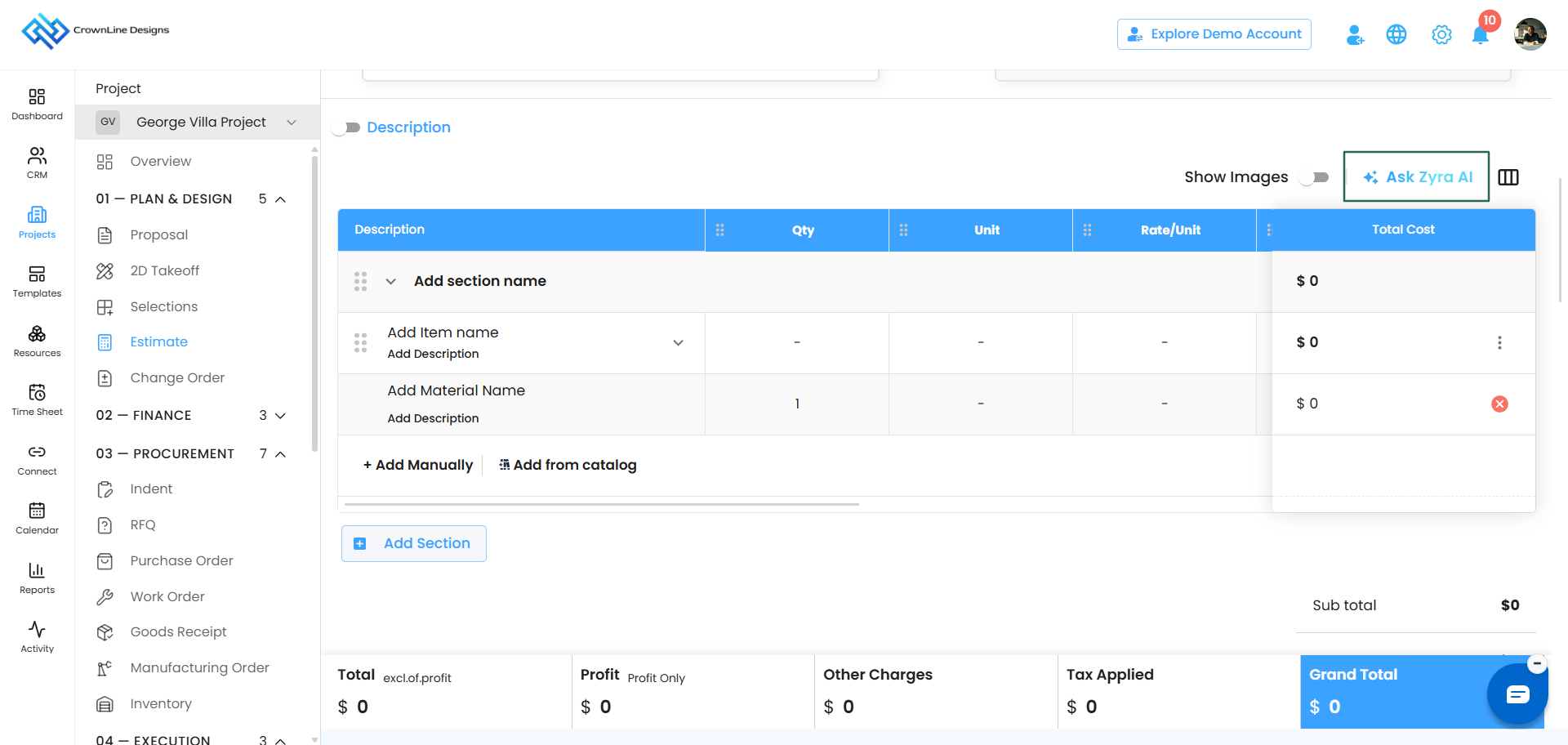
Step 1 — Open Zyra
Click Zyra at the top of the estimate table. Zyra greets you with:
"I'm Zyra. Let's do your estimate together. What would you like to include?"
Step 2 — Describe the job
Type what you are estimating in your own words. For example: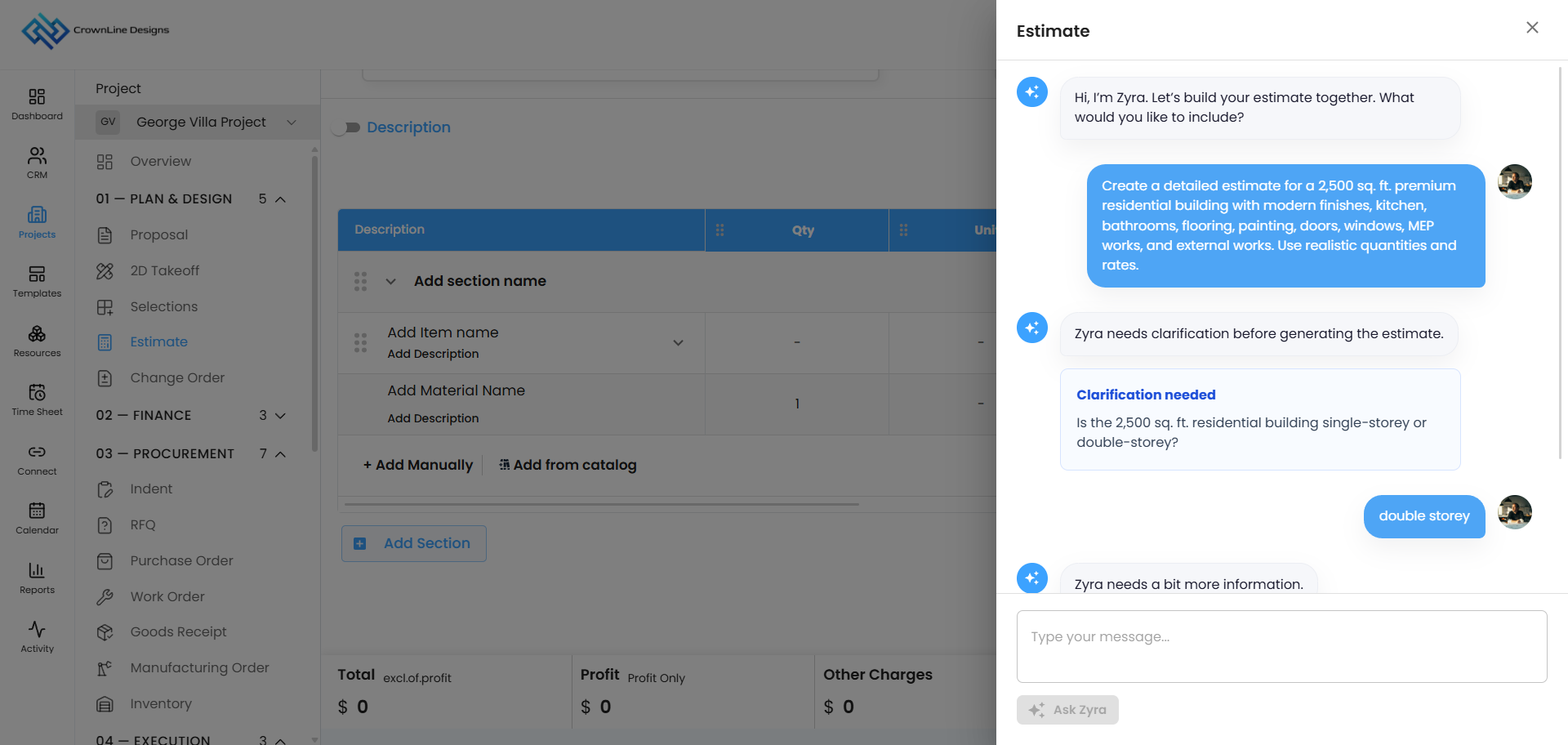
- Create an estimate for a residential building
- Create an estimate for a restaurant fit-out
- Create an estimate for an industrial building
Step 3 — Answer Zyra's questions
Zyra will come back with questions to get the estimate right, such as:
- How many square feet?
- Which tier are you working to — Basic, Standard or Premium?
Answer them and Zyra keeps going. You will see Zyra thinking as it works.
Step 4 — Review what Zyra built
Zyra generates the full structure: sections, line items underneath them, and materials under the line items.
Read it through before you accept it. You know the job and the local rates better than any suggestion does.
Step 5 — Add it to your estimate
When you are happy, add it to the estimate and it fills your create page.
From there it behaves like any other estimate. Rename sections, change quantities and rates, add more line items manually or from the Cost Catalog, set your payment terms, and send it.
Using Zyra on a single item
Click Zyra beside any section, line item or material and a popup opens showing the item you selected, with four options.
Rate Analysis
Zyra breaks down the going rate for that item.
Example: your line item is a specific brand of paint. Choose Rate Analysis and Zyra comes back with comparable paint brands and what they cost, so you can see whether the rate you have entered is fair.
Alternate Items
Use this when you want something different from what is on the line. Zyra suggests other items that do the same job.
Budget-Friendly Options
Use this when your client is pushing on price. Zyra finds cheaper ways to achieve the same result.
Ask Something Specific
For anything the other three do not cover. Type your question and Zyra answers it.
Follow-up suggestions
After Zyra responds, it offers a few next steps you can click straight away:
- Find alternative materials
- Compare market prices
- Budget-friendly options
You can also just keep typing if you want to ask something else.
Getting good results from Zyra
- Be specific about the building type. "Residential building" gets you further than "building".
- Have your square footage ready. Zyra will ask for it.
- Know your tier. Basic, Standard and Premium produce very different estimates.
- Always review the rates. Zyra gives you a well-structured starting point, not a final price. Local rates and your own supplier pricing are yours to apply.
Was this article helpful?
That’s Great!
Thank you for your feedback
Sorry! We couldn't be helpful
Thank you for your feedback
Feedback sent
We appreciate your effort and will try to fix the article