Previewing Your Takeoff and Creating an Estimate
Once you have drawn all your measurement shapes, added materials to your areas, and organised your sections, IntoAEC allows you to preview the full takeoff summary and convert it directly into an estimate — without leaving the project or re-entering any data.
The Preview Summary
Before creating an estimate, you can review everything that has been measured and calculated across your entire plan from a single summary screen.
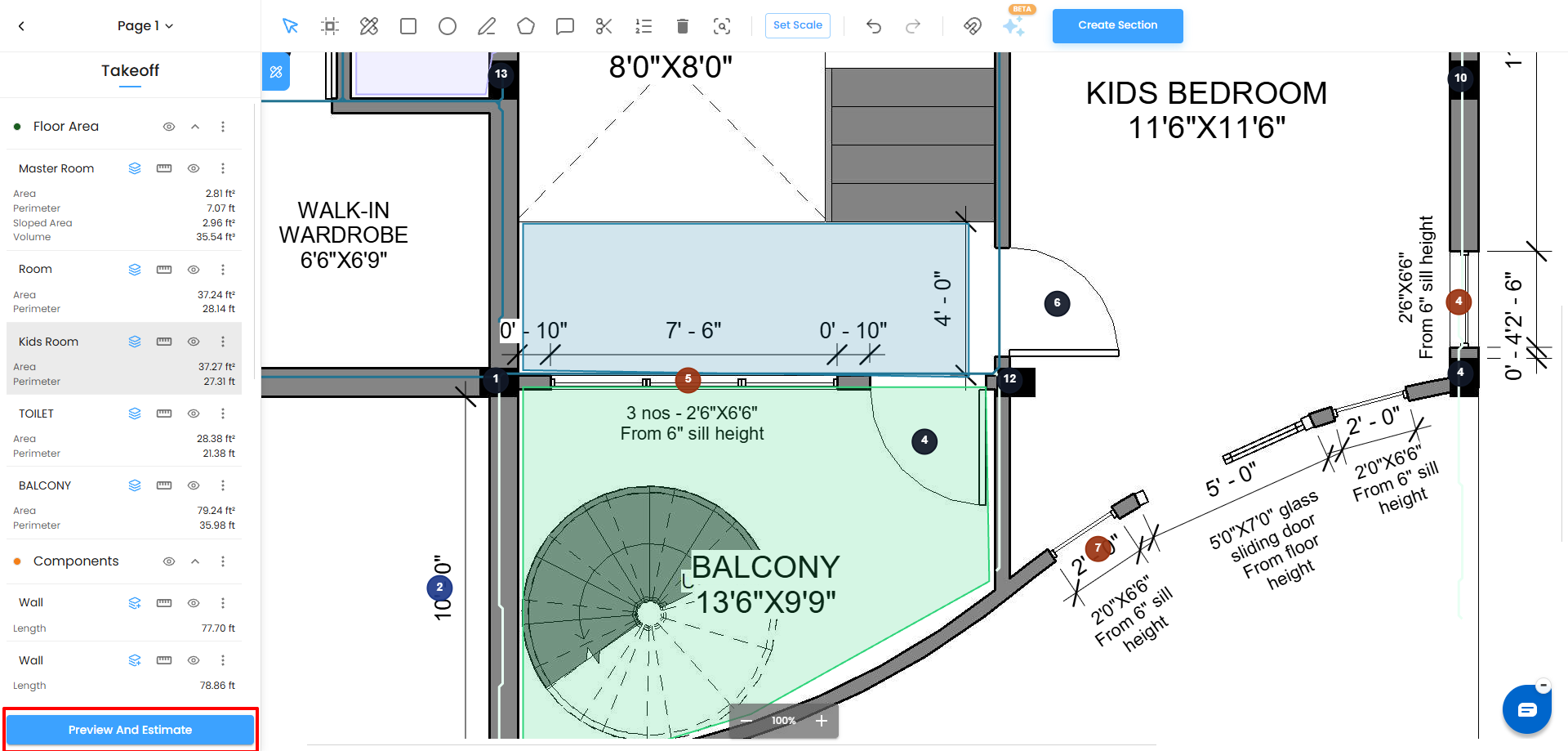
At the bottom of the takeoff canvas, a button labelled Preview and Estimate is visible. Clicking it opens the Summary screen for the current plan.
What the Summary Shows
The Summary screen is titled with the plan name at the top — for example Ground floor — and displays a full breakdown table with four columns:
- Description
- Qty
- Unit
- Total Price
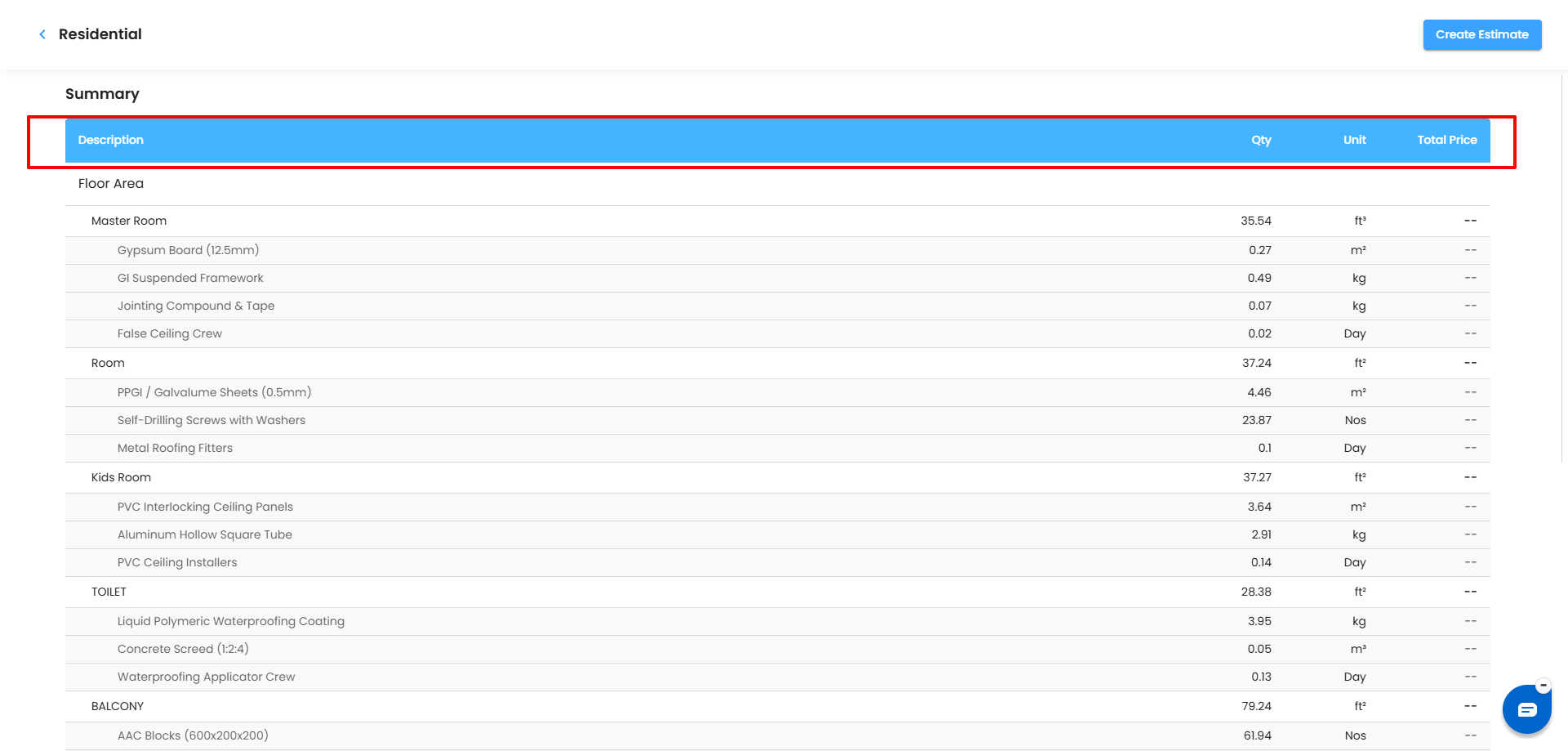
The table is organised by your sections, mirroring how your Takeoff panel is structured.
Uncategorized Section
The Uncategorized section lists any shapes that were not moved into a named section.
Each item shows its description, measured quantity, unit, and applicable total price.
Floor Area Section
The Floor Area section lists every named measurement area.
Each area shows:
- Description – The name of the measured area.
- Qty – The measured quantity.
- Unit – The measurement unit, such as m², m, or Nos.
- Total Price – The total calculated price for the item.
Below each area, its material breakdown lines are listed as sub-items. These sub-items show the corresponding material quantity, unit, and total price.
Components Section
The Components section lists linear measurements such as walls with their lengths in meters, followed by count items.
Each item displays its applicable quantity, unit, and total price.
This gives you a complete bird's-eye view of every measurement, material quantity, and calculated price across the entire plan before proceeding to the estimate.
Understanding Total Price
The Total Price column shows the calculated total cost associated with each applicable takeoff or material item.
The displayed price is based on the pricing configured for the material and its calculated quantity.
This allows you to review both what quantity is required and its corresponding cost directly from the takeoff summary before creating the estimate.
Editing from the Summary
An Edit icon sits next to the plan name at the top of the Summary screen.
Click it if you need to go back and make changes to the plan name before creating the estimate.
Creating the Estimate
Once you are satisfied with the summary, click the Create Estimate button in the top-right corner of the Summary screen.
This opens IntoAEC's full estimate creation form directly, with your takeoff quantities pre-loaded.
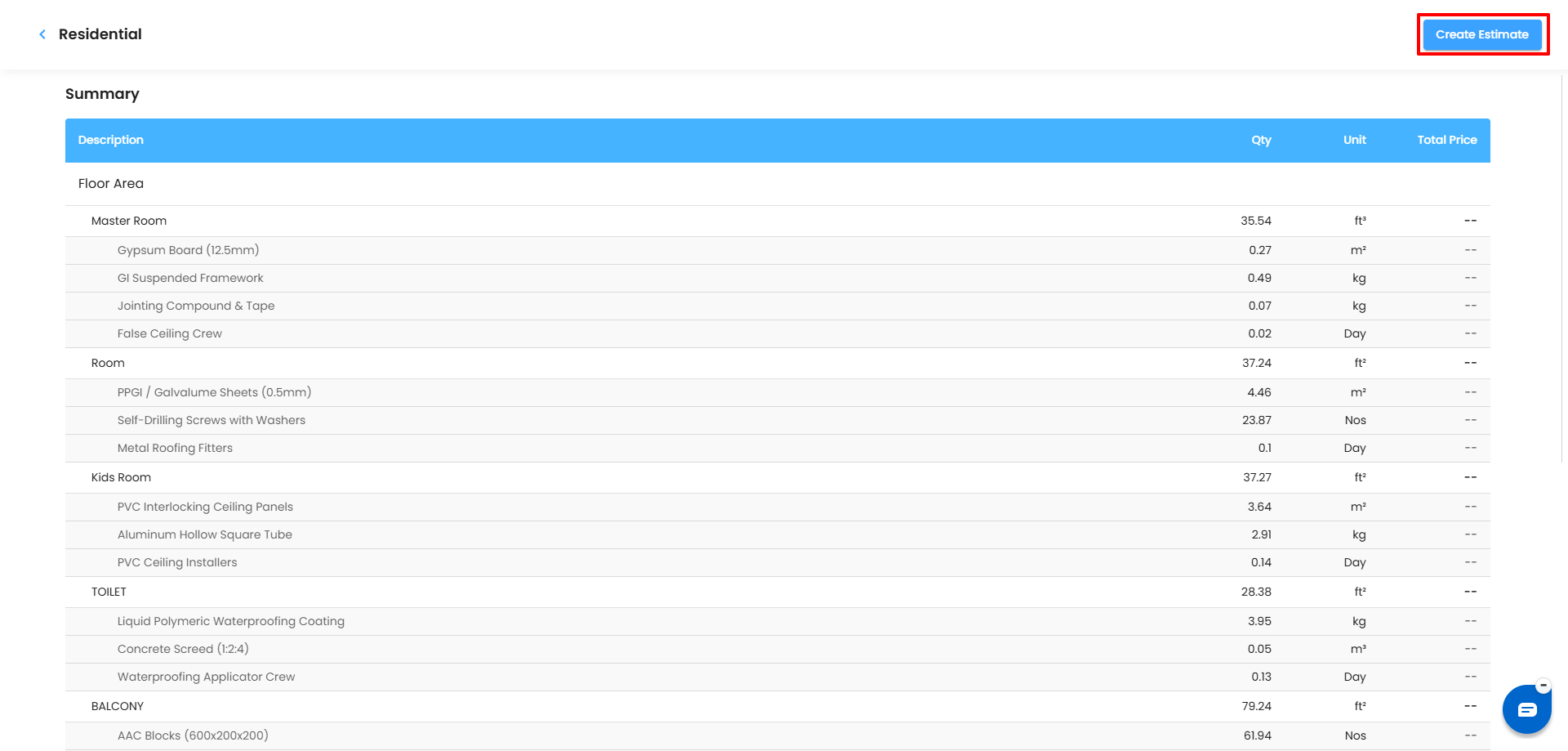
The estimate opens populated with the data from your takeoff, so you do not need to manually re-enter the measured quantities.
Saving and Actioning the Estimate
Once you have entered or reviewed rates for all line items, use the Action button in the top-right corner of the screen to:
- Save as Draft
- Compose Email
- Manage the Estimate
Use the appropriate action depending on what you want to do with the estimate.
Tips
- Review Total Price before creating the estimate. Use the Summary screen to verify the calculated cost for each applicable item.
- Enter rates for all items before sharing. The estimate will show 0 total for any line where no rate has been entered — always complete the rate column before sending to a client.
- Use Write With AI to save time on descriptions. Rather than typing descriptions for every material line, let the AI generate professional wording based on what is already in the table.
- The Grand Total updates live. As you type each rate, watch the Grand Total at the bottom update immediately. This makes it easy to sense-check the overall estimate value as you go.
- Expand sub-items using the › arrow to see the full material breakdown for any area and enter rates at the individual material level rather than at the area level.
Was this article helpful?
That’s Great!
Thank you for your feedback
Sorry! We couldn't be helpful
Thank you for your feedback
Feedback sent
We appreciate your effort and will try to fix the article