Analytics tells you what your client actually did with the estimate you sent. It answers the questions you would otherwise be guessing at — did they open it, how long did they spend on it, did they download it, and have they come back to it since.
Where to find it
Go to Clients, select your client, open the Estimate card, and click the Analytics tab.
Every estimate has its own analytics.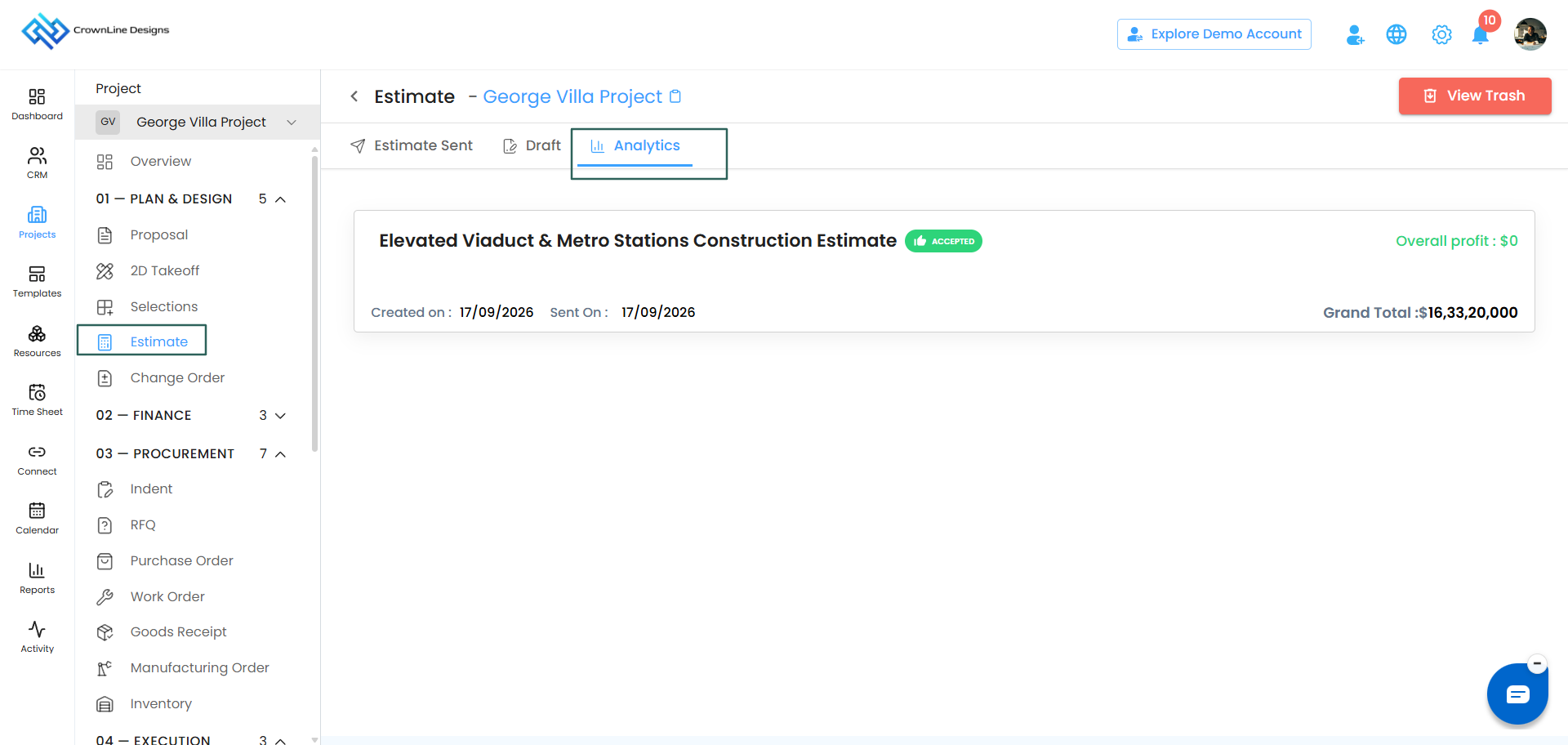
What analytics shows you
| What you see | What it tells you |
|---|---|
| Sent On | The date the estimate went out |
| Valid Till | The date it expires |
| Profit | The profit built into this estimate |
| Accepted | Whether your client has accepted it or not |
| Viewed Count | How many times your client has opened it |
| Total Time Spent | How long they have spent looking at it altogether |
| Edited | How many times the estimate has been edited |
| Downloaded | How many times it has been downloaded |
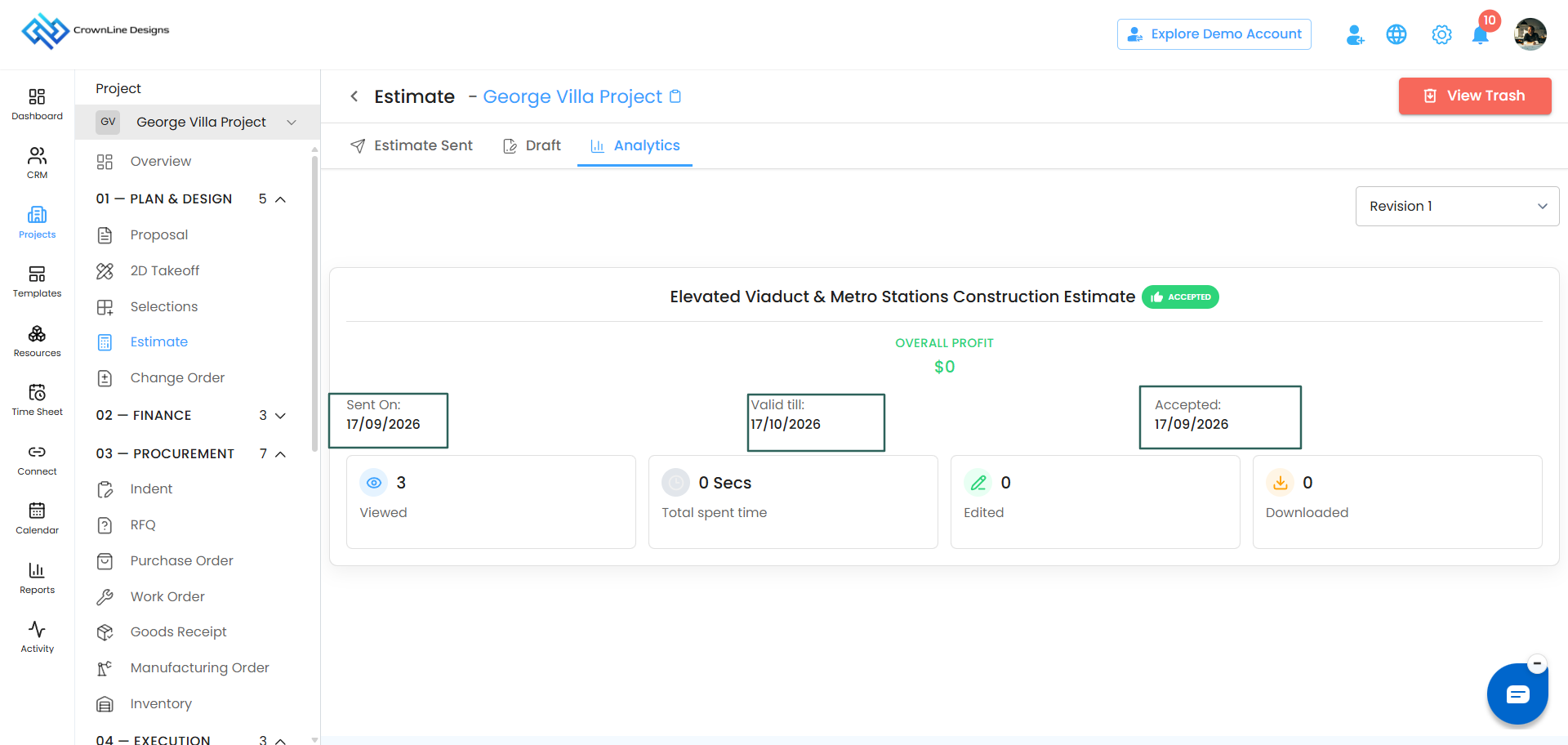
Analytics for each revision
If you have edited and resent an estimate, each revision has its own analytics.
This is useful when you want to know whether your client actually looked at the version you resent, or whether they are still working from the original.
Open the revision list and check the analytics against each one.
How to read the numbers
- High view count, no response. Your client is interested but stuck on something. A reminder or a quick call usually moves it.
- Never opened. Check the email address and consider resending, or reach out another way.
- Opened once, briefly. The estimate may not have landed with the right person.
- Downloaded. Your client is sharing it internally or filing it for approval on their side.
Was this article helpful?
That’s Great!
Thank you for your feedback
Sorry! We couldn't be helpful
Thank you for your feedback
Feedback sent
We appreciate your effort and will try to fix the article