Describe Your Project. Let Zyra Build the Rest.
Building a proposal template from an empty page is slow work. You know roughly what it should say, but you still have to lay out every section, write every heading, and put the pricing structure together before you can start on the part that actually matters.
Zyra shortens that. Describe your project in your own words, and Zyra builds a complete proposal template for you — structure, sections, layout and pricing — in a couple of minutes. From there it’s yours to edit like any other template.
What You Can Do Here
Start From a Single Prompt – Describe your project in plain language — no forms to fill in, no template to pick.
Add Detail If You Want It – Project type and scope are optional. Use them when they help, skip them when they don’t.
Set Your Colours – Choose a primary and secondary colour so the result already looks like your work.
Edit Everything Afterwards – What Zyra builds is a normal template. Change anything using blocks and variables.
How to Get There
Open Template Center – From the side navigation menu, go to Template Center.
Select Proposal – Open the proposal templates section.
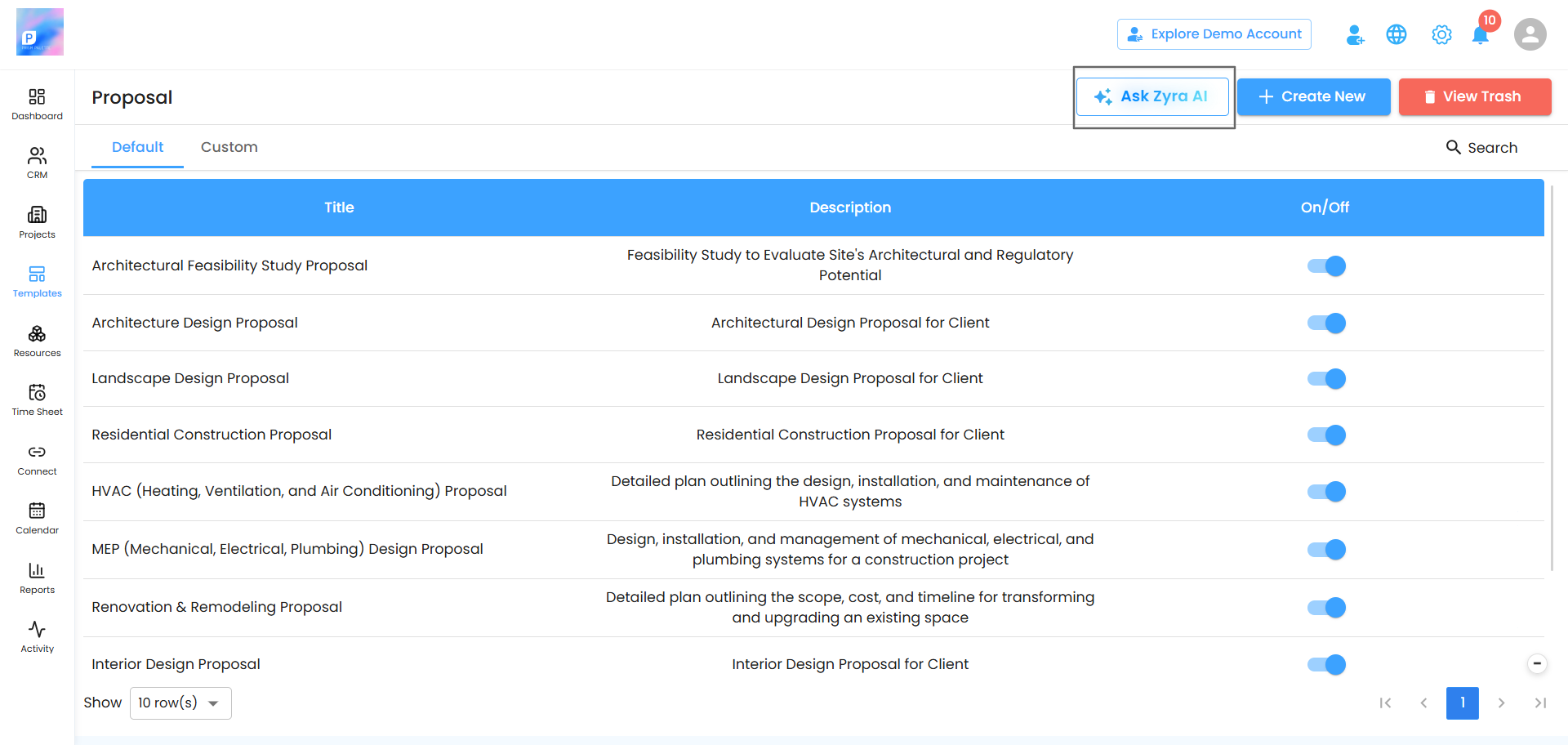
Click the Zyra button – You’ll find it on the proposal template page.
A panel slides out from the side of the screen where you’ll describe what you need.
Telling Zyra What You Need
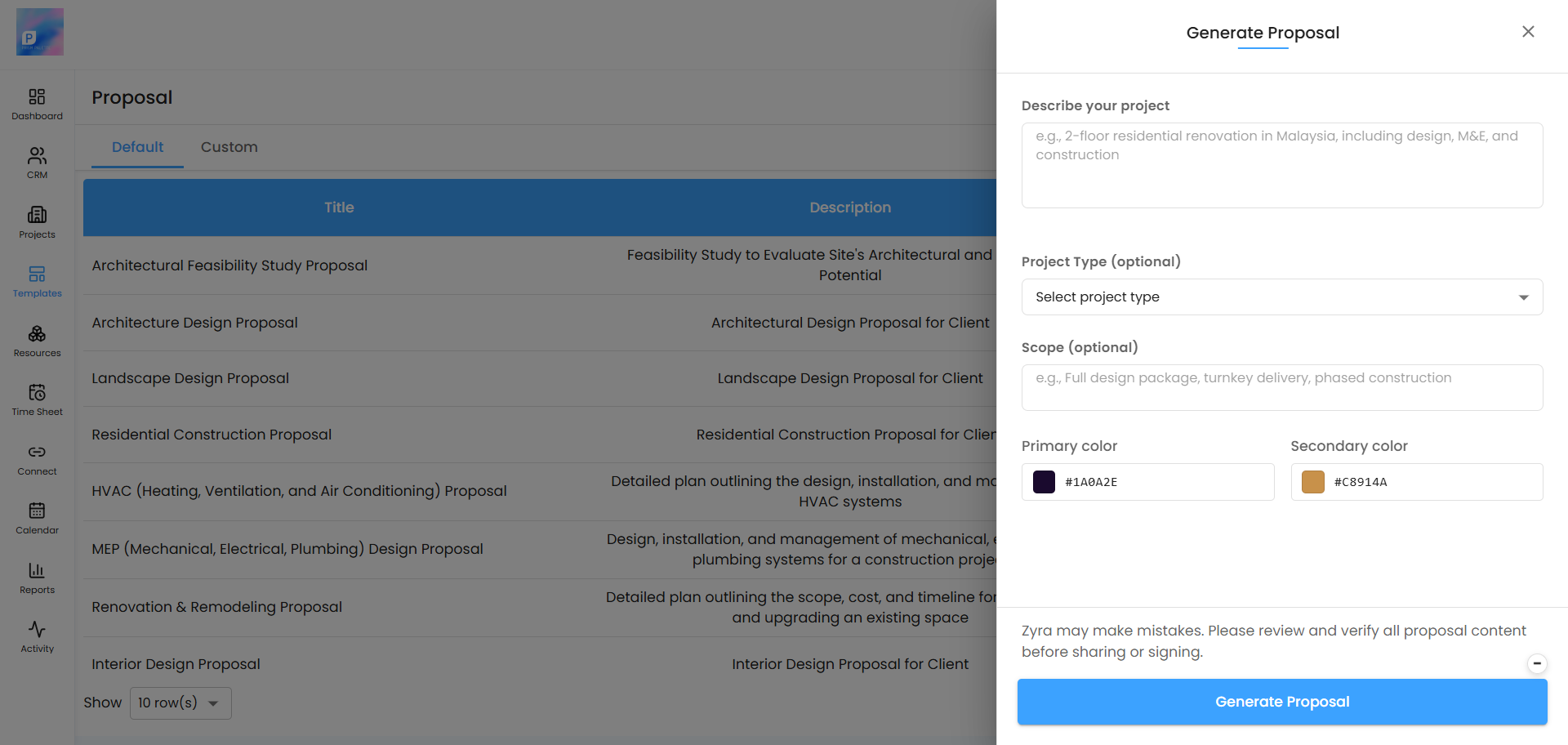
The panel has four things to fill in. Only the first one is required.
Describe Your Project
This is the important one, and it’s just a text box. Write what the proposal is for in your own words — the kind of thing you’d say to a colleague who asked what the job was.
The more you give Zyra here, the closer the result will be to what you wanted. A single line produces something generic. Two or three sentences about the client, the work and the deliverables produce something you can actually use.
Project Type
Optional. A default project type is already selected, so you can leave it exactly as it is. If your project is a different type, change it here and Zyra will build accordingly.
Scope
Optional. If there are specific inclusions, exclusions or stages you want reflected, add them. If not, leave it empty — Zyra will work from your description alone.
Proposal Colours
Choose a primary colour and a secondary colour. These carry through the template Zyra builds, so the result already looks like it belongs to your business rather than something you’ll need to restyle afterwards.
Generating Your Proposal
Click Generate Proposal – Once you’ve described your project.
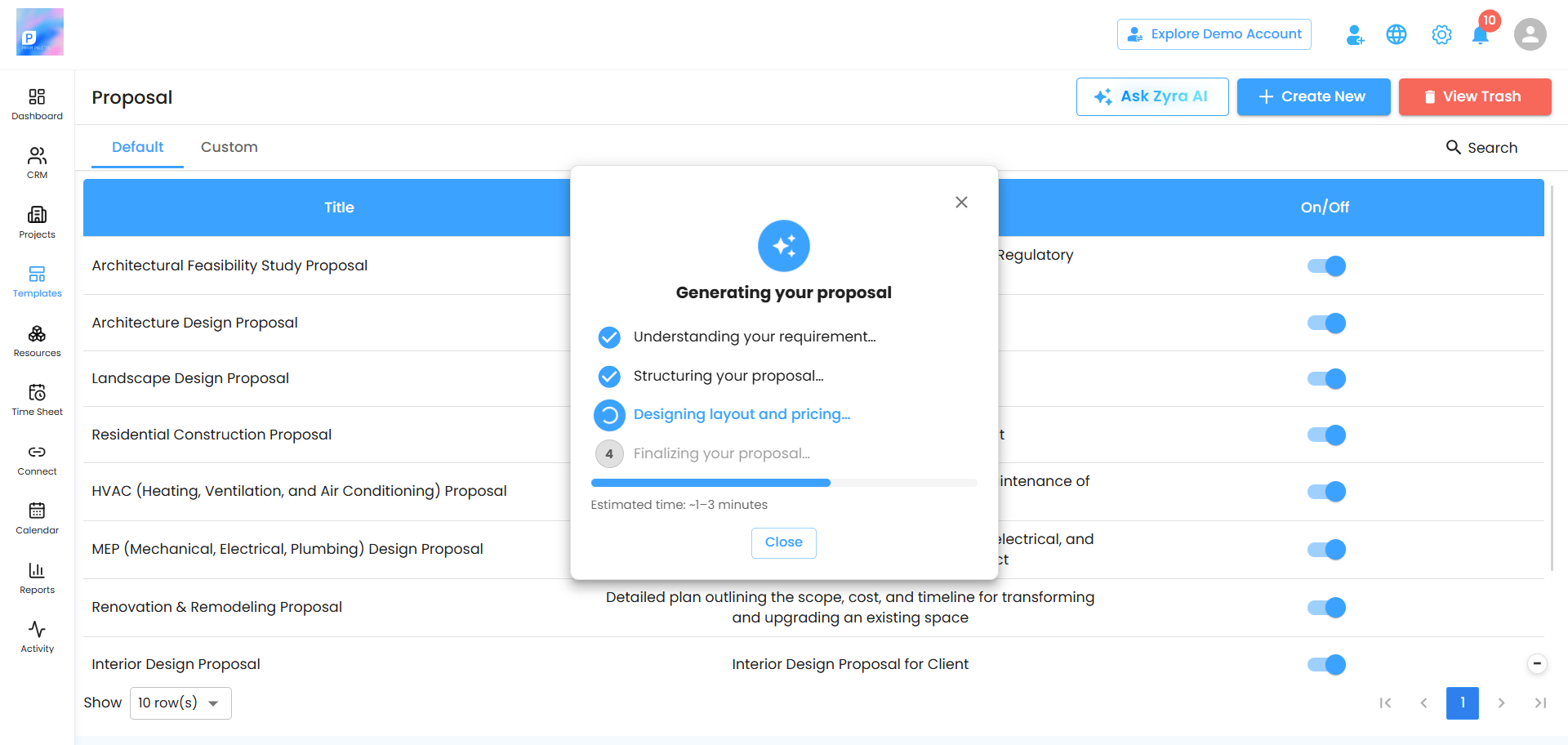
Wait while Zyra works – A progress window opens in the centre of the screen. It usually takes one to three minutes.
Watch the stages – You’ll see it move through building the layout, working out the pricing, and finalising the proposal, so you always know where it’s up to.
Changing Your Mind Partway
If you decide you’d rather start again, you don’t have to wait for it to finish. Close the progress window using the cancel icon or the close button and the generation stops. Nothing is created, and you can go back and describe your project differently.
Note: Give it the full one to three minutes before assuming something has gone wrong. Building a complete proposal takes longer than a search, and the progress stages will keep you posted.
When It’s Done
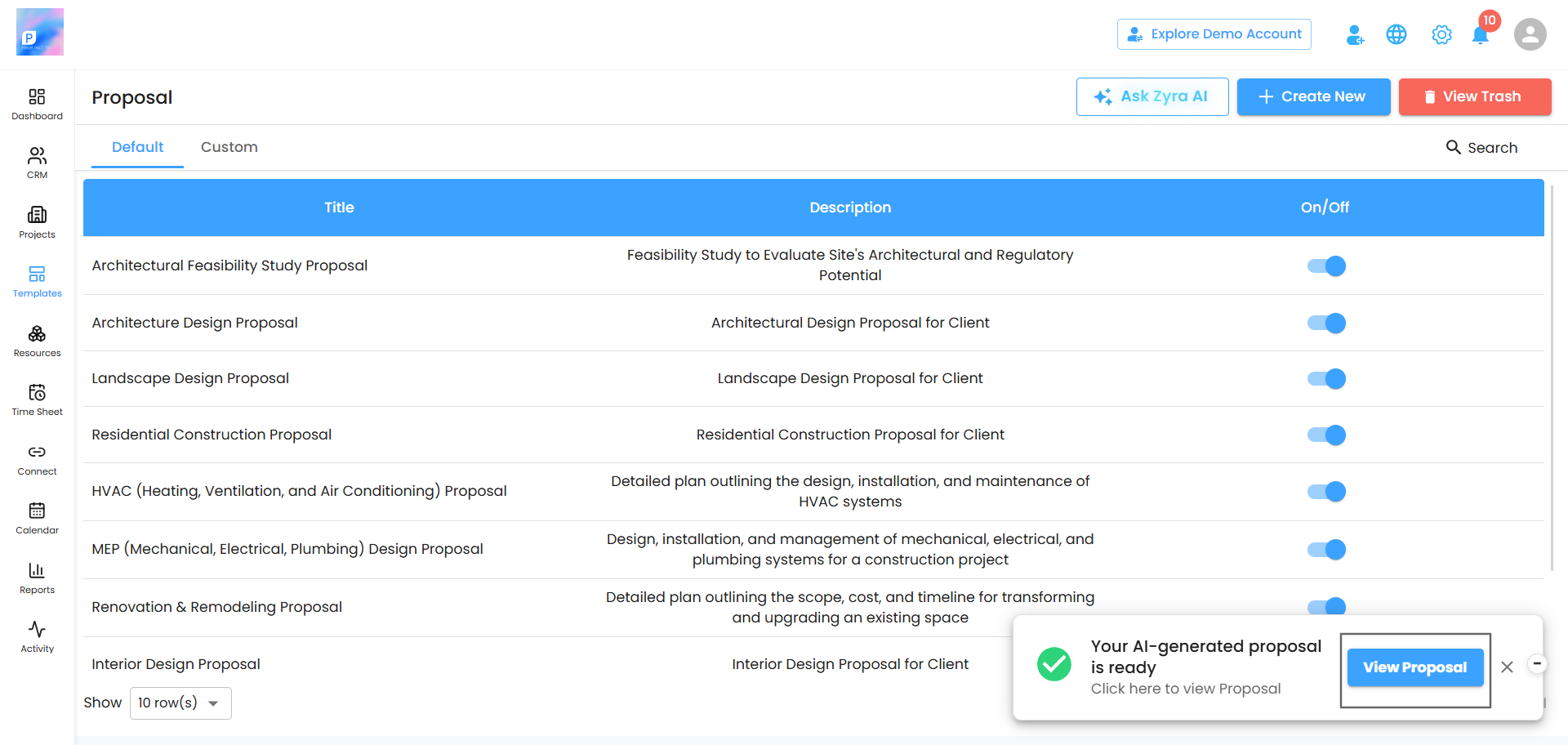
Once Zyra finishes, you’ll see a confirmation that your proposal has been created, with two choices:
View Proposal – Opens the generated proposal in a side panel so you can read it in full.
Cancel – Discards it if it isn’t what you were after.
Open it and read it properly before doing anything else. This is the moment to decide whether the structure is right — it’s much easier to regenerate with a better description now than to rebuild half the template by hand later.
Making It Yours
What Zyra produces is an ordinary proposal template. Everything you’d normally do to a template, you can do to this one:
Edit with Blocks – Change text, swap images, adjust the pricing table, add or remove sections.
Add Variables – Drop in macros so the template fills itself with the right organization, user and lead details every time it’s used.
Adjust the Pages – Add a cover page, reorder pages, delete anything you don’t need.
When you’re happy with it, update the template. From then on it works like any other — it appears under Custom when you create a proposal, ready to use again and again.
Pro Tip: Check the pricing carefully before you use the template with a real client. Zyra gives you a structure to work from, and the numbers are a starting point — they still need your judgement applied to them.
Pro Tip: Treat your first prompt as a draft. If the result isn’t quite right, the fix is almost always a better description rather than hours of manual editing. Regenerating costs you two minutes.
Was this article helpful?
That’s Great!
Thank you for your feedback
Sorry! We couldn't be helpful
Thank you for your feedback
Feedback sent
We appreciate your effort and will try to fix the article