Localization - Time Zone, Currency, and Format Settings
Overview
Localization controls how dates, times, numbers, and currency show up throughout the portal. Get this set correctly once, and every schedule, timestamp, invoice, and report will reflect your location and preferences automatically.
Getting There
Step 1. Click Settings (the gear icon) in the top right, then select Preferences.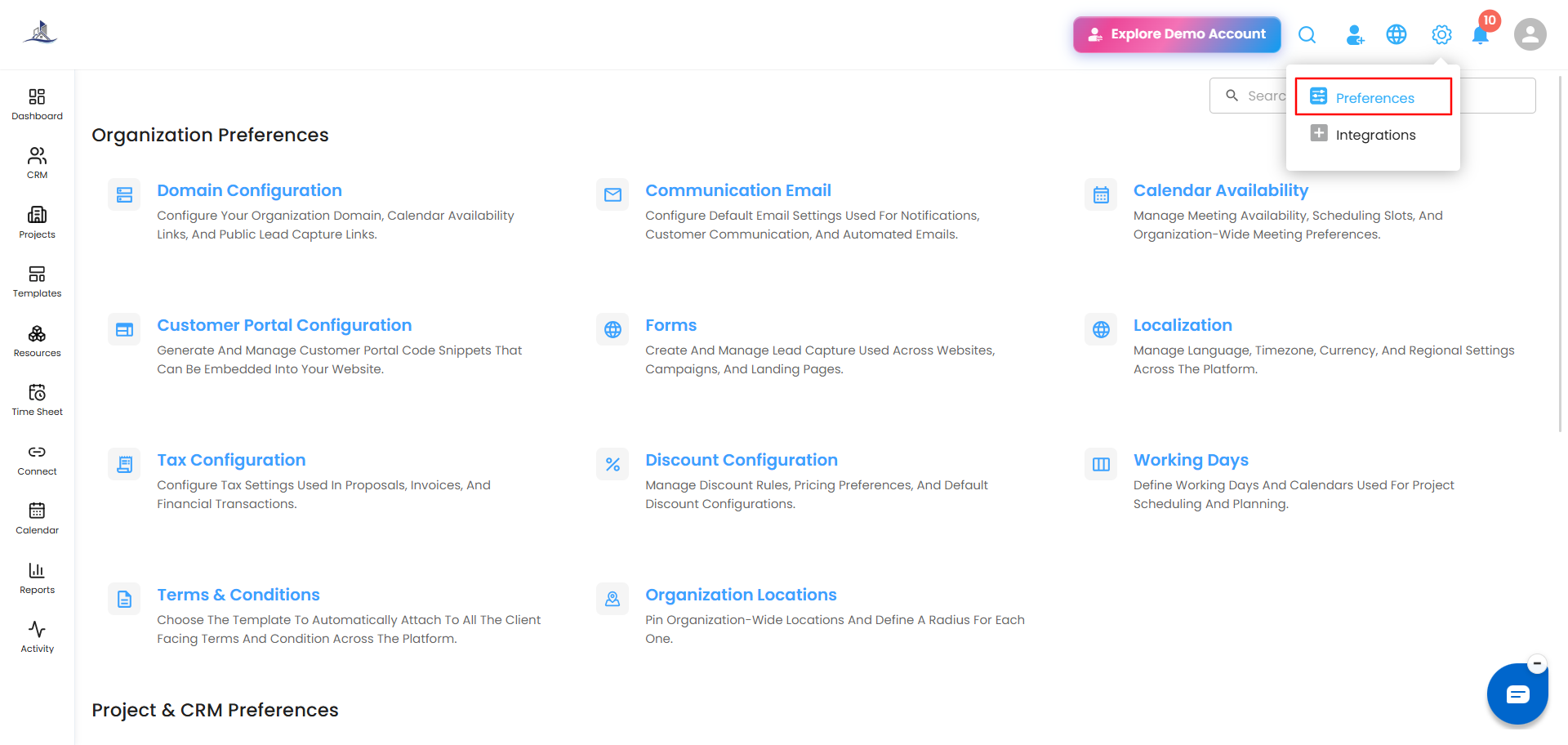
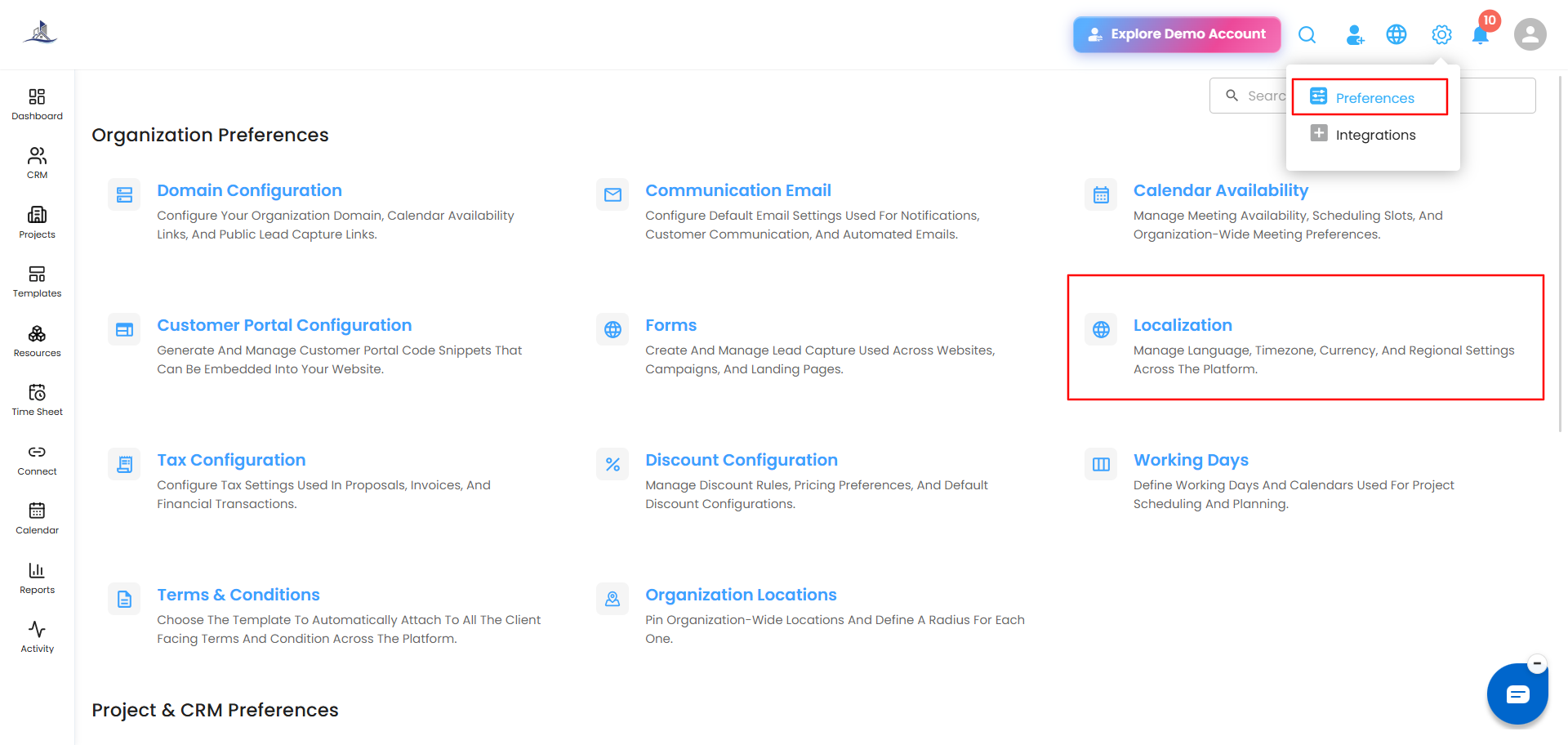
Step 2. From Preferences, select Localization.
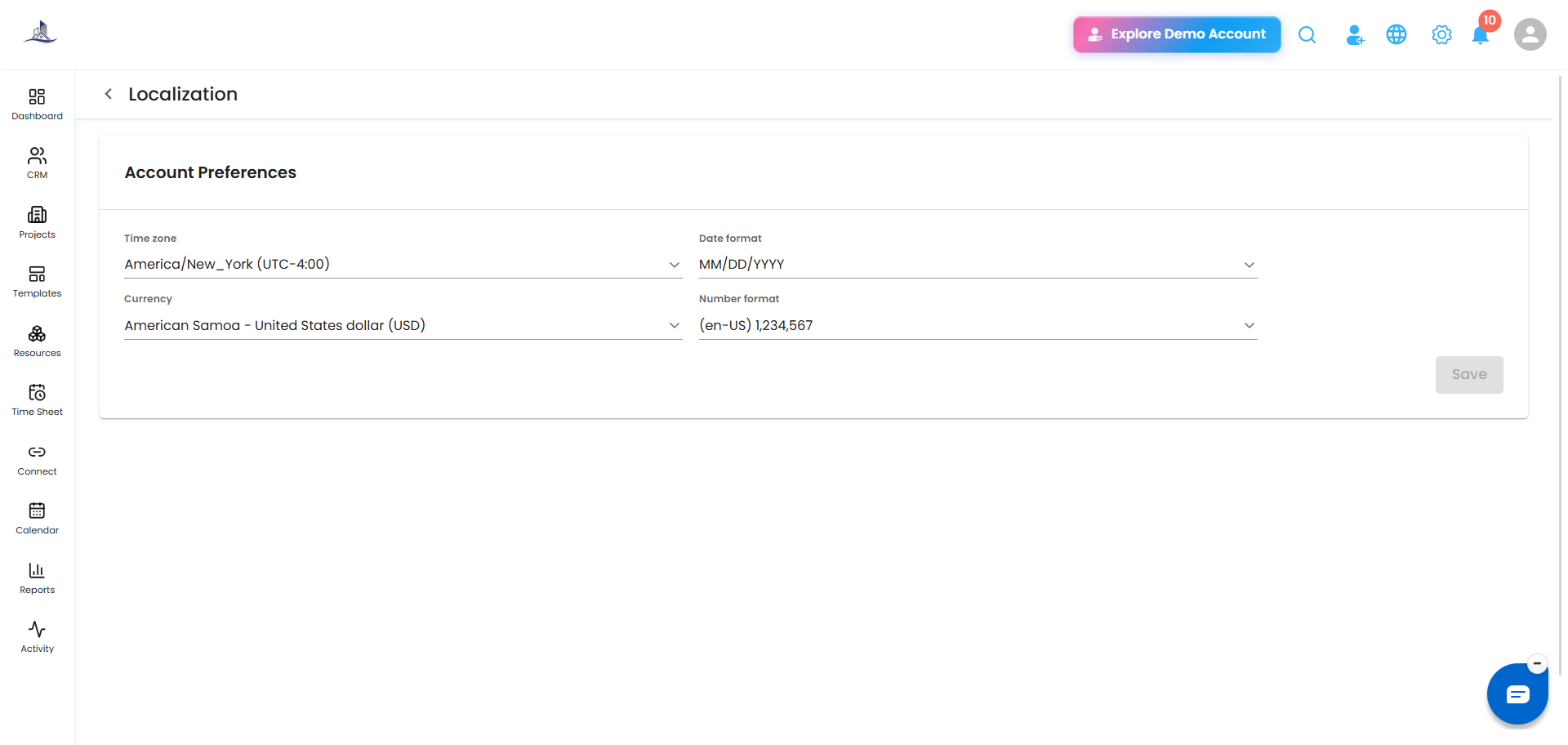
 Step 3. This opens the Localization page.
Updating Your Preferences
Under Account Preferences, you can set:
- Time zone - e.g., Asia/Kolkata (UTC+5:30)
- Date format - e.g., DD MMM YYYY
- Currency - e.g., India - Indian Rupee (INR)
- Number format - e.g., (et-EE) 1 234 567
Pick the option you want from each dropdown, then click Save.
Note: Once saved, these settings apply immediately across the portal - schedules, timestamps, invoices, and reports will all reflect the new time zone, currency, and formats right away.
Tip: After updating, it's worth checking a couple of key screens (like an invoice or your calendar) to confirm everything is displaying the way you expect.
Was this article helpful?
That’s Great!
Thank you for your feedback
Sorry! We couldn't be helpful
Thank you for your feedback
Feedback sent
We appreciate your effort and will try to fix the article