Overview
Forms lets you build digital forms for collecting information from leads, customers, employees, and partners - capturing new leads, generating instant proposals, gathering feedback, handling complaints, or running your own custom workflow. Everything you design, publish, and collect lives in one place, so data comes in consistently no matter which website, campaign, or channel it's coming from.
Getting to Forms
Click Settings in the top right, select Preferences, then go to Forms.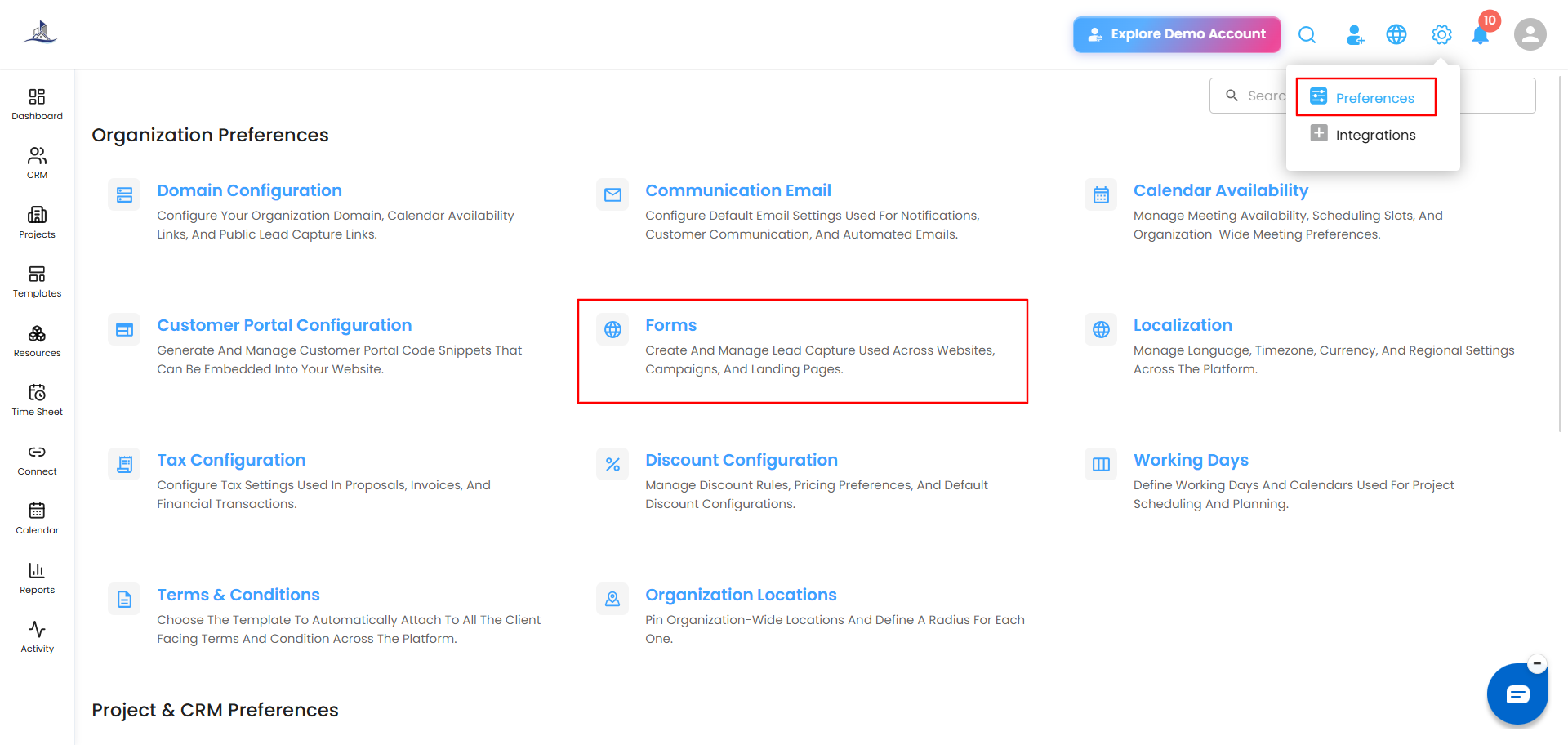
The Forms Dashboard
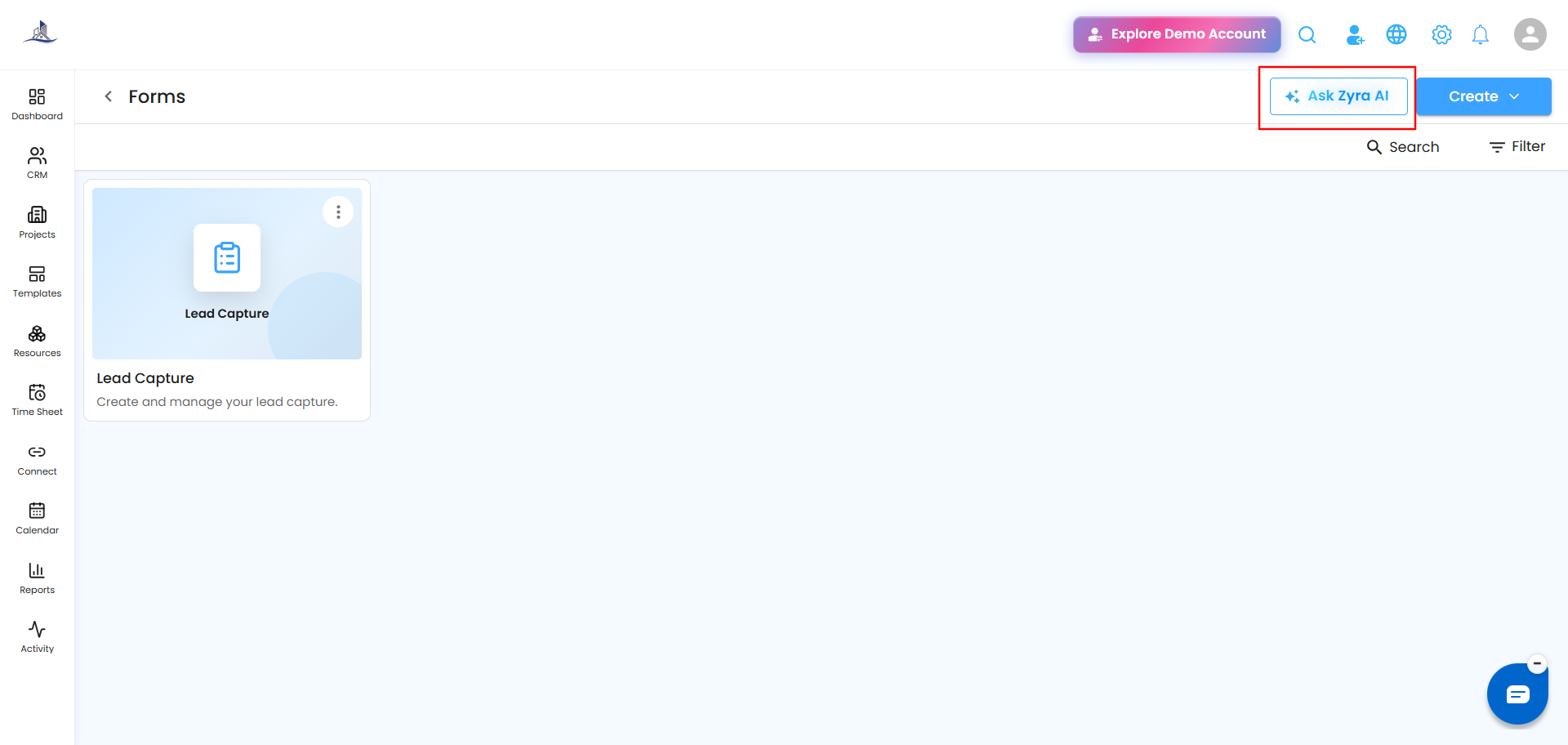
Every form you've built shows up here as a card. From this screen you can:
- Search for a form by name
- Filter the list of forms
- Create a new form
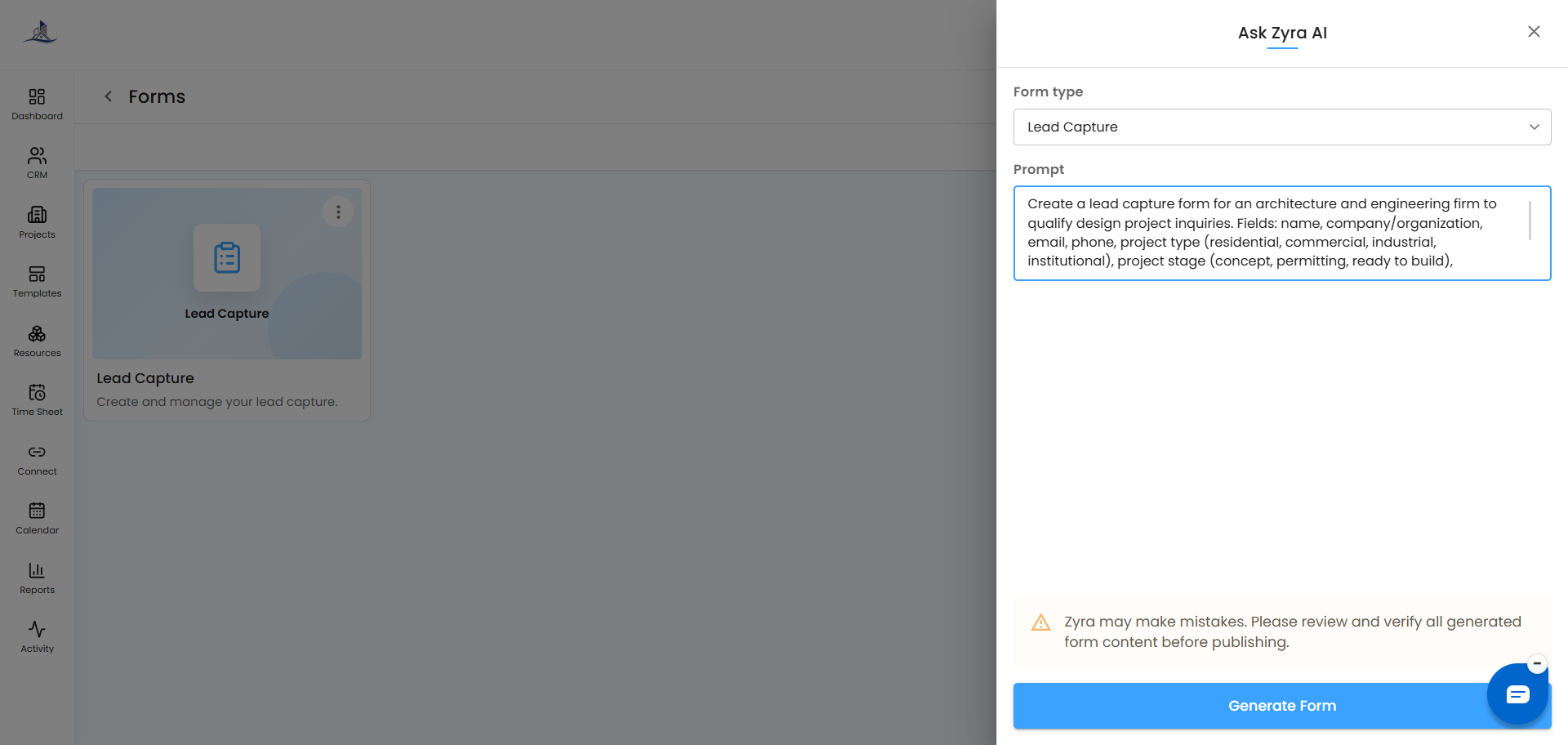
- Get help from Ask Zyra AI while building a form
- Open any existing form to edit it
Creating a New Form
Click Create in the top right. A dropdown shows the available form types:
| Form Type | Purpose |
|---|---|
| Lead Capture | Collect lead information from prospects |
| Instant Proposal | Generate proposals based on customer requirements |
| Feedback Form | Gather customer opinions and satisfaction ratings |
| Complaint Form | Let customers submit complaints and issues |
| Custom Form | Build a fully custom form for any business process |
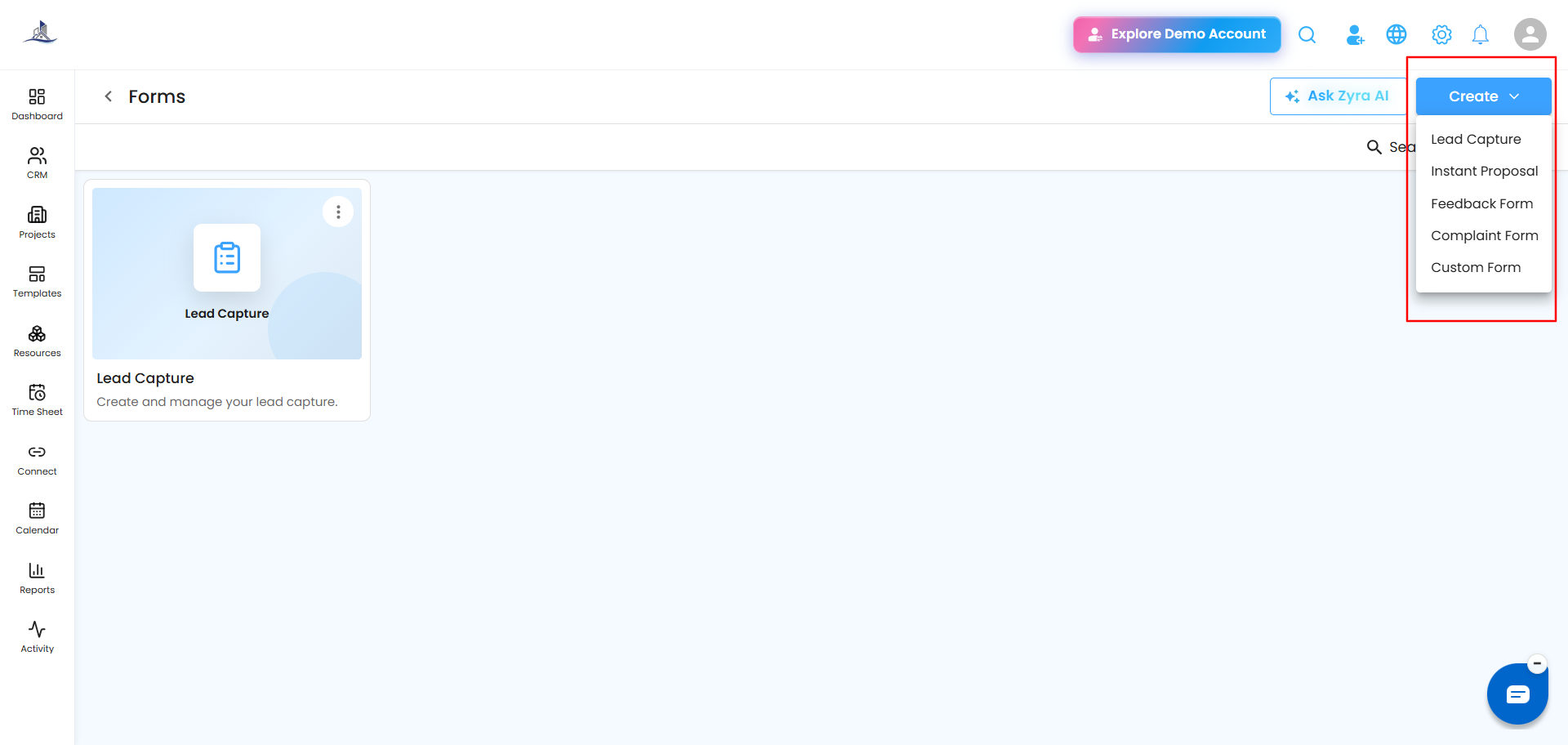
Select the type you want to set it up. Each form type has its own dedicated walkthrough:
- Creating a Lead Capture Form
- Creating an Instant Proposal Form
- Creating a Feedback Form
- Creating a Complaint Form
- Creating a Custom Form
Managing Any Form: Common Actions
These actions are available no matter which type of form you're working with:
- Preview - see the form exactly as end users will, before you publish it
- Submissions - review every response that's come in through the form
- Save - store your changes and publish updates
- Enable/Disable Steps - use the toggle to turn a step on or off
- Reorder Steps - drag and drop steps using the drag handle to change the sequence
- Collapse Setup Panel - hide the configuration panel for more room while you design
Sharing a Form
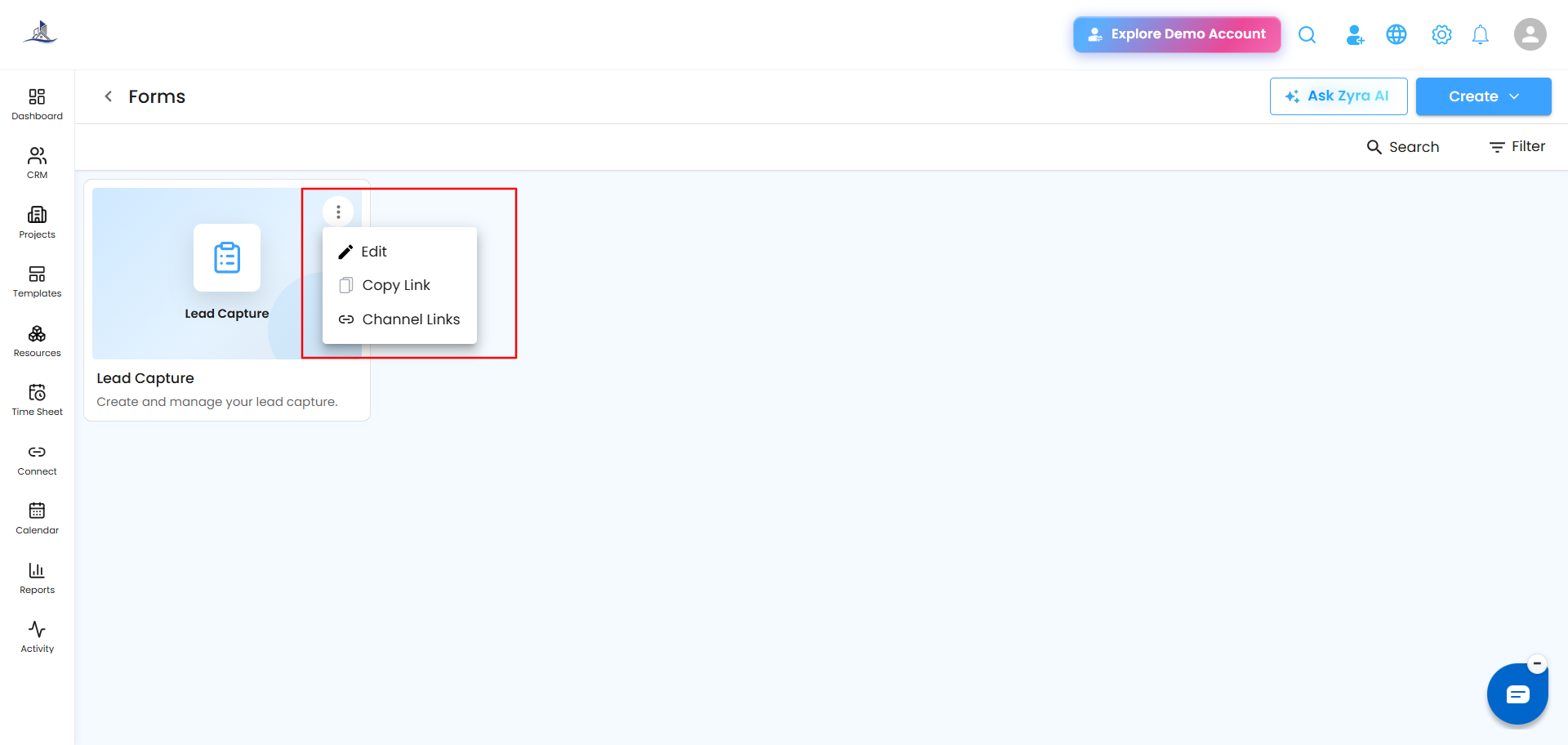
Click the three-dot menu on any form card to:
- Edit - open the form to make changes
- Copy Link - copy the form's general shareable link
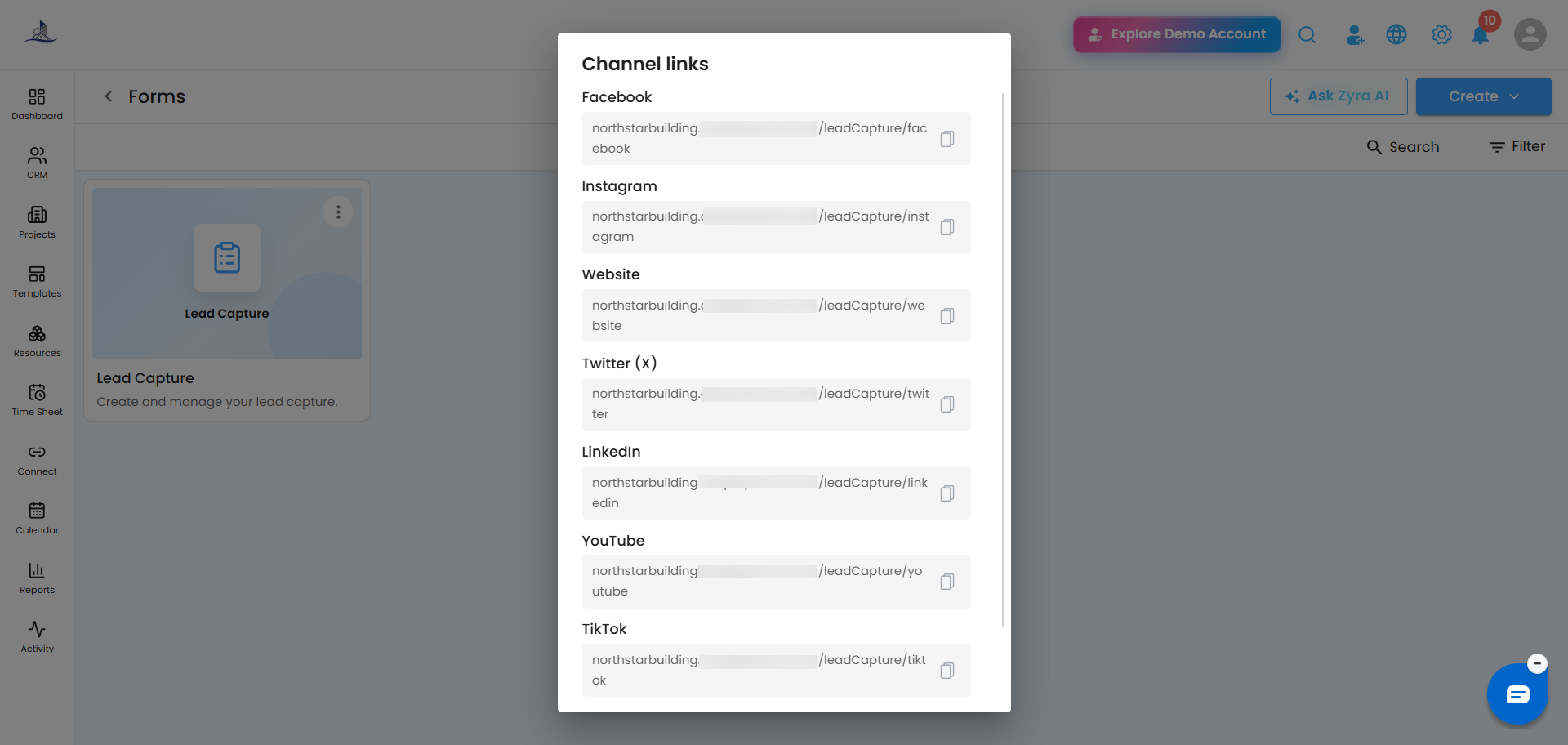
- Channel Links - get a separate link for each platform: Facebook, Instagram, Website, Twitter (X), LinkedIn, YouTube, TikTok, and WhatsApp
 Use Channel Links when you want to post or embed the form on a specific platform - paste the matching link into that platform (e.g., your Instagram bio, or your website) so submissions from that source are captured correctly.
 Form Design Best Practices
- Keep forms simple - only ask for what you actually need
- Use clear titles and descriptions - help users understand the form's purpose upfront
- Preview before publishing - always test the experience before sharing it externally
- Review submissions regularly - so you can follow up in time
- Optimize for user experience - arrange fields logically and avoid unnecessary steps
- Use Ask Zyra AI - for help writing questions, descriptions, or structuring the whole form
Was this article helpful?
That’s Great!
Thank you for your feedback
Sorry! We couldn't be helpful
Thank you for your feedback
Feedback sent
We appreciate your effort and will try to fix the article