Overview
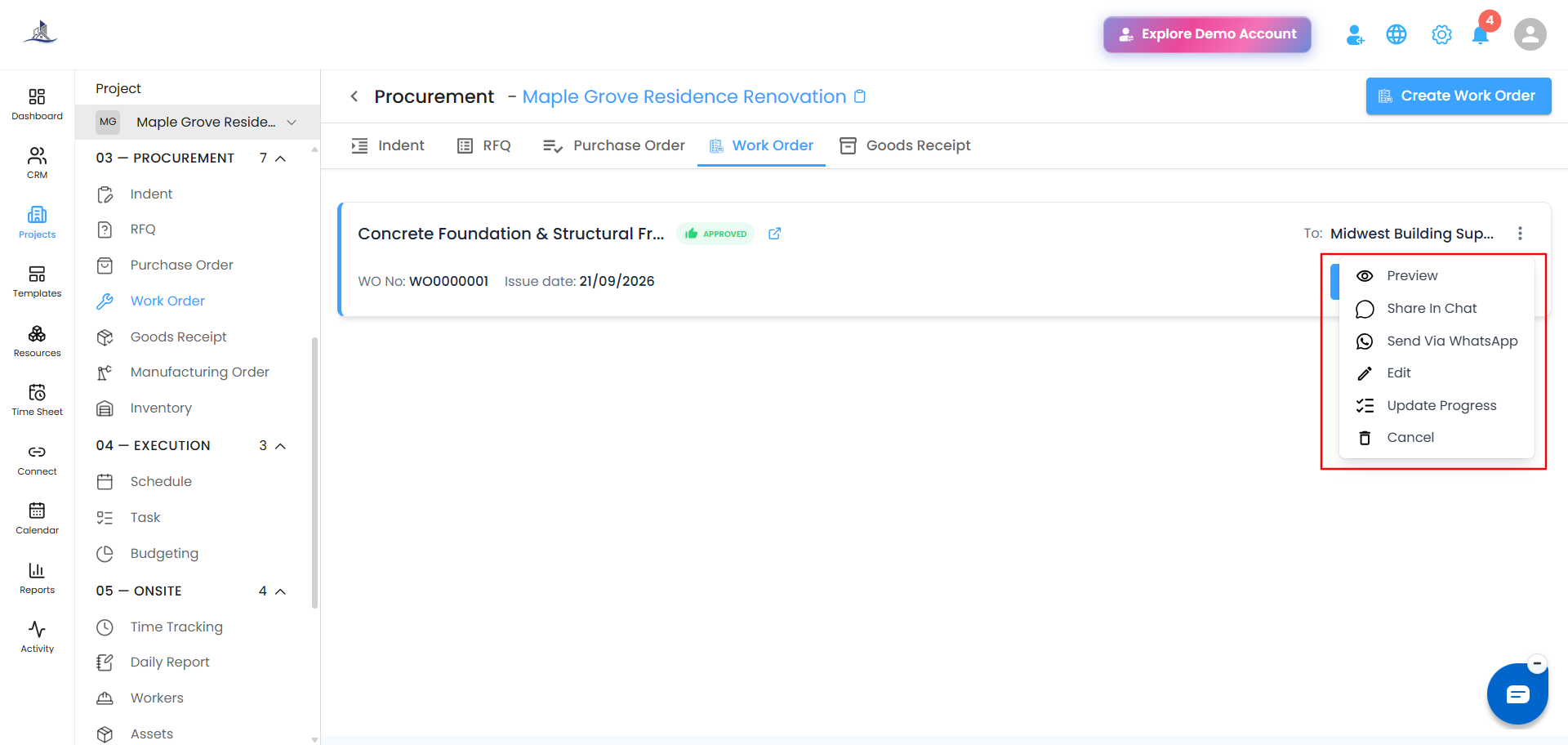
Once a Work Order is created, the three-dot menu on its row gives you everything you need to track and manage it - from checking its details to logging how much of the work is actually done.
Preview
Click the three-dot menu and select Preview to see the Work Order exactly as it was created.
Edit
Click the three-dot menu and select Edit to open the Work Order Edit page and make changes.
Update Progress
Click the three-dot menu and select Update Progress to open an off-canvas panel with two tabs: Register Work Progress and Work Progress Log.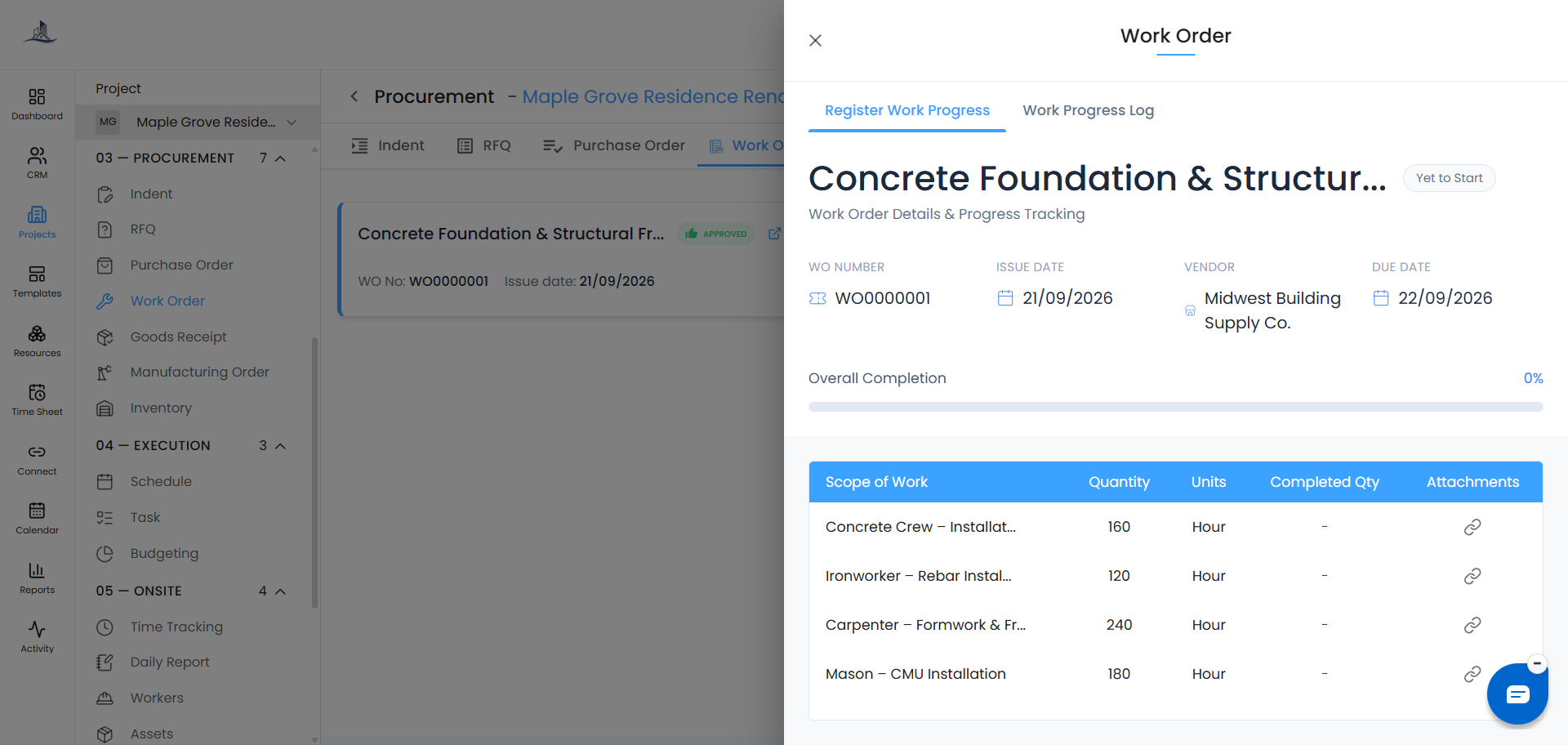
Register Work Progress
This is where you record how much of each work item has been completed. For each item, you'll see:
- Scope of Work
- Quantity
- Units
- Completed By
- Attachments
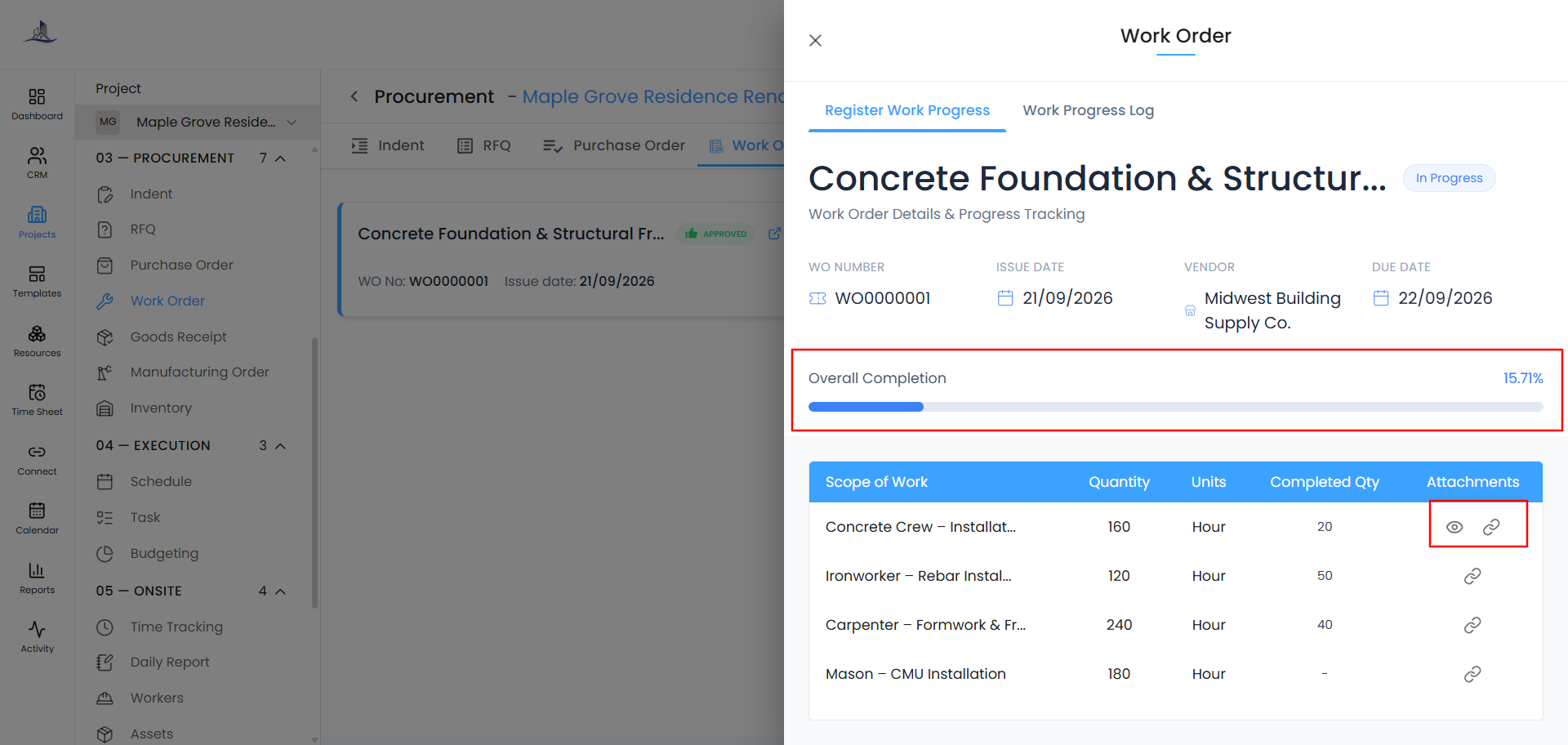
Update Completed By to mark progress as a percentage of the total quantity — the progress bar updates as you go, and the status moves through:
Yet to Start → In Progress → Completed
You can also upload image attachments (larger than 5 MB) for each item - multiple images are supported, and uploaded files can be viewed later using the eye icon.
Work Progress Log
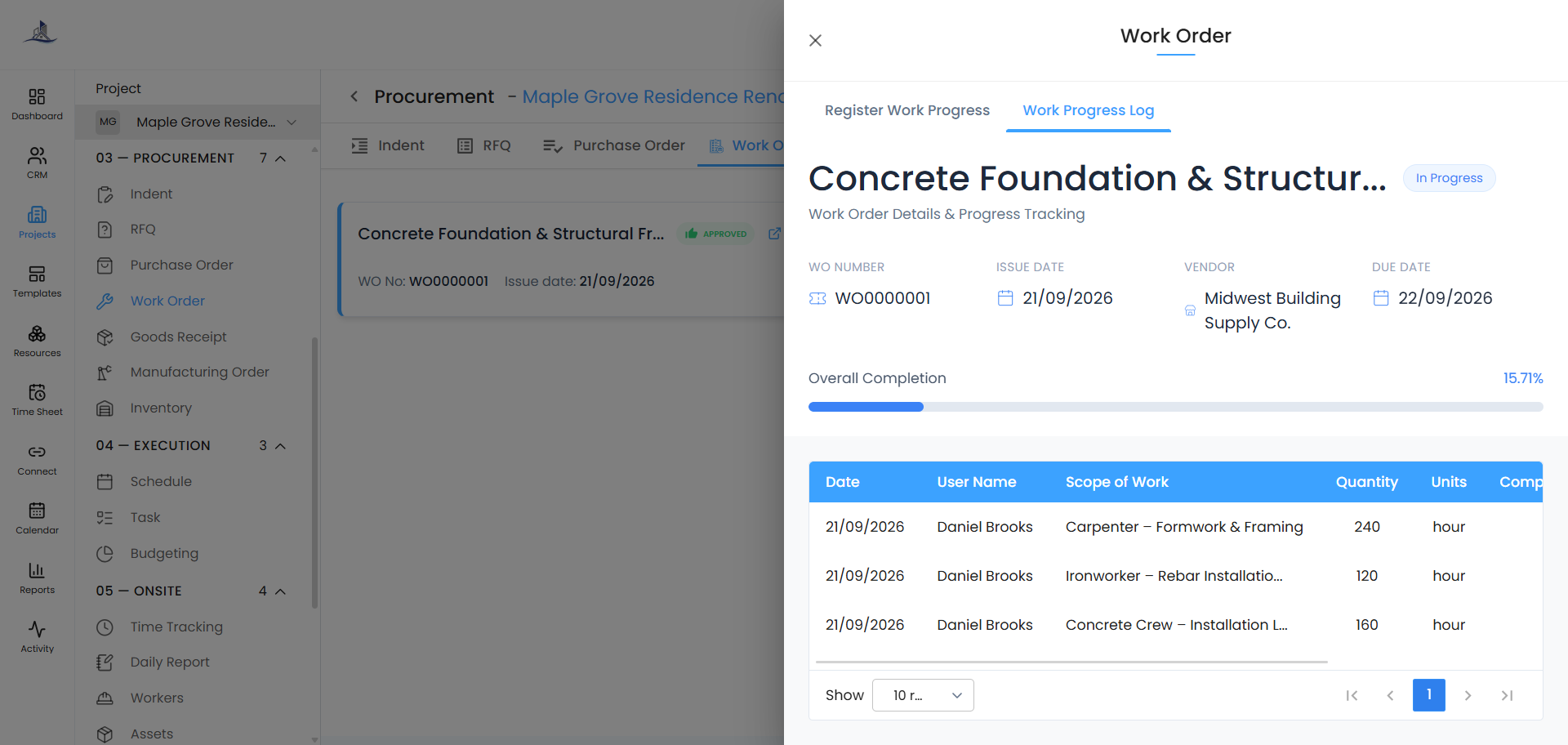
This tab shows the full history of progress updates - every status change and completion percentage recorded in Register Work Progress, so you can track how the work has moved along over time.
Cancel
Click the three-dot menu and select Cancel to remove the Work Order.
Was this article helpful?
That’s Great!
Thank you for your feedback
Sorry! We couldn't be helpful
Thank you for your feedback
Feedback sent
We appreciate your effort and will try to fix the article