Once your client has accepted the estimate, converting it to an invoice is how you start billing. Everything you priced carries straight across, so there is nothing to re-enter.
Before you start
The estimate must be accepted. The Convert to Invoice button only appears on accepted estimates.
How to convert
Step 1 — Click Convert to Invoice
Open the accepted estimate. The Convert to Invoice button is available on it.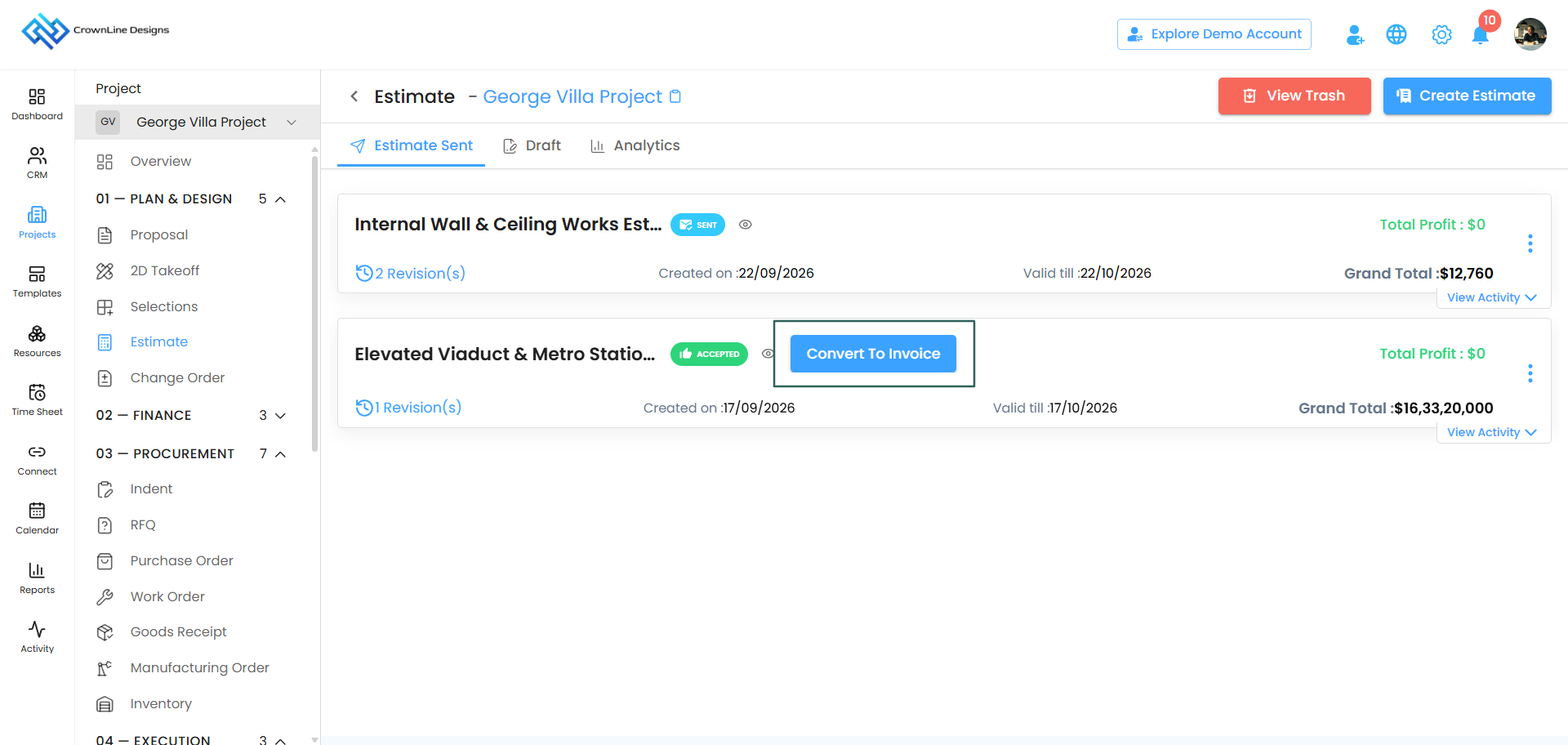
Step 2 — Confirm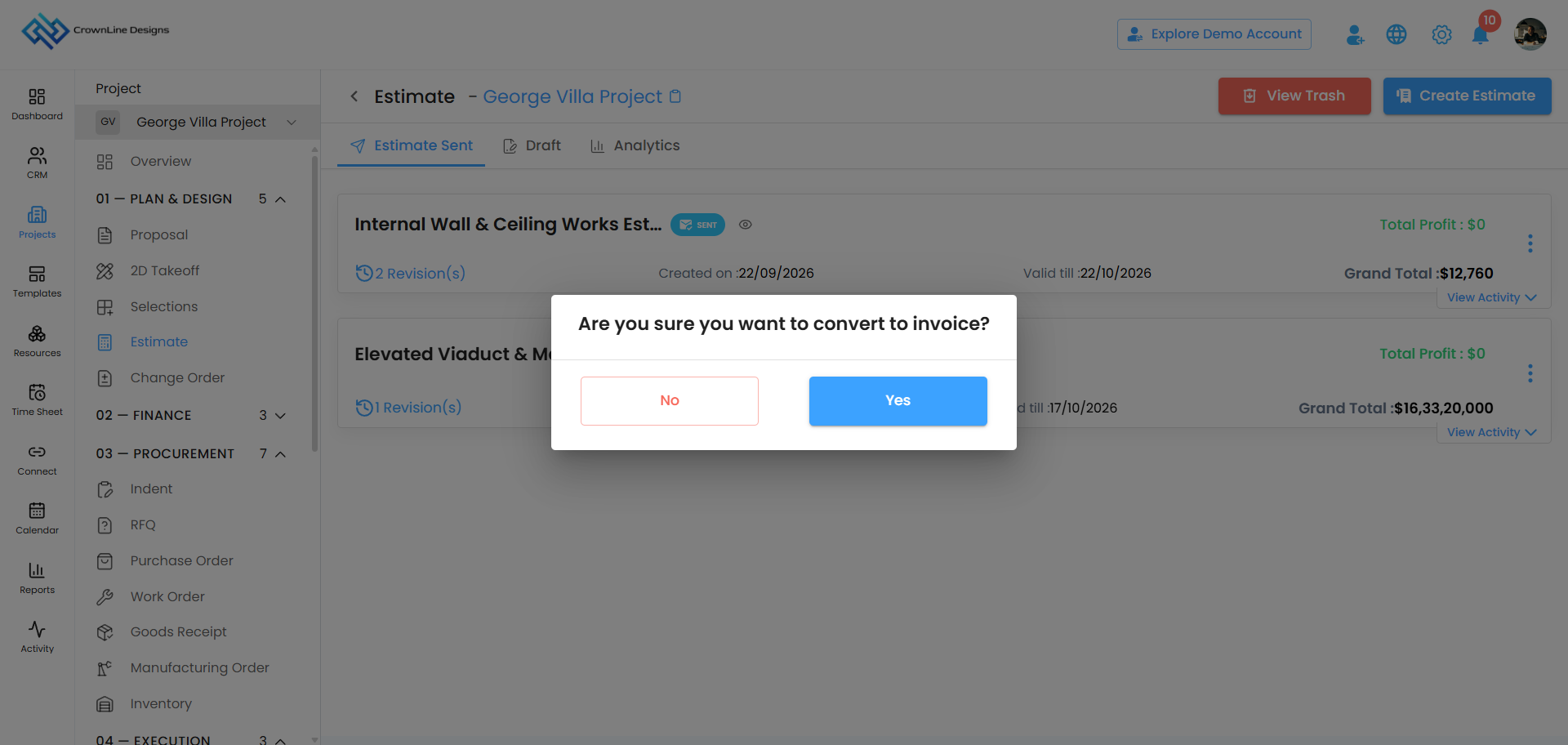
A popup asks you to confirm that you want to convert this estimate to an invoice.
Click Yes to continue, or close the popup if you are not ready.
Step 3 — Review the invoice
You are taken to the invoice page with your estimate's line items already filled in.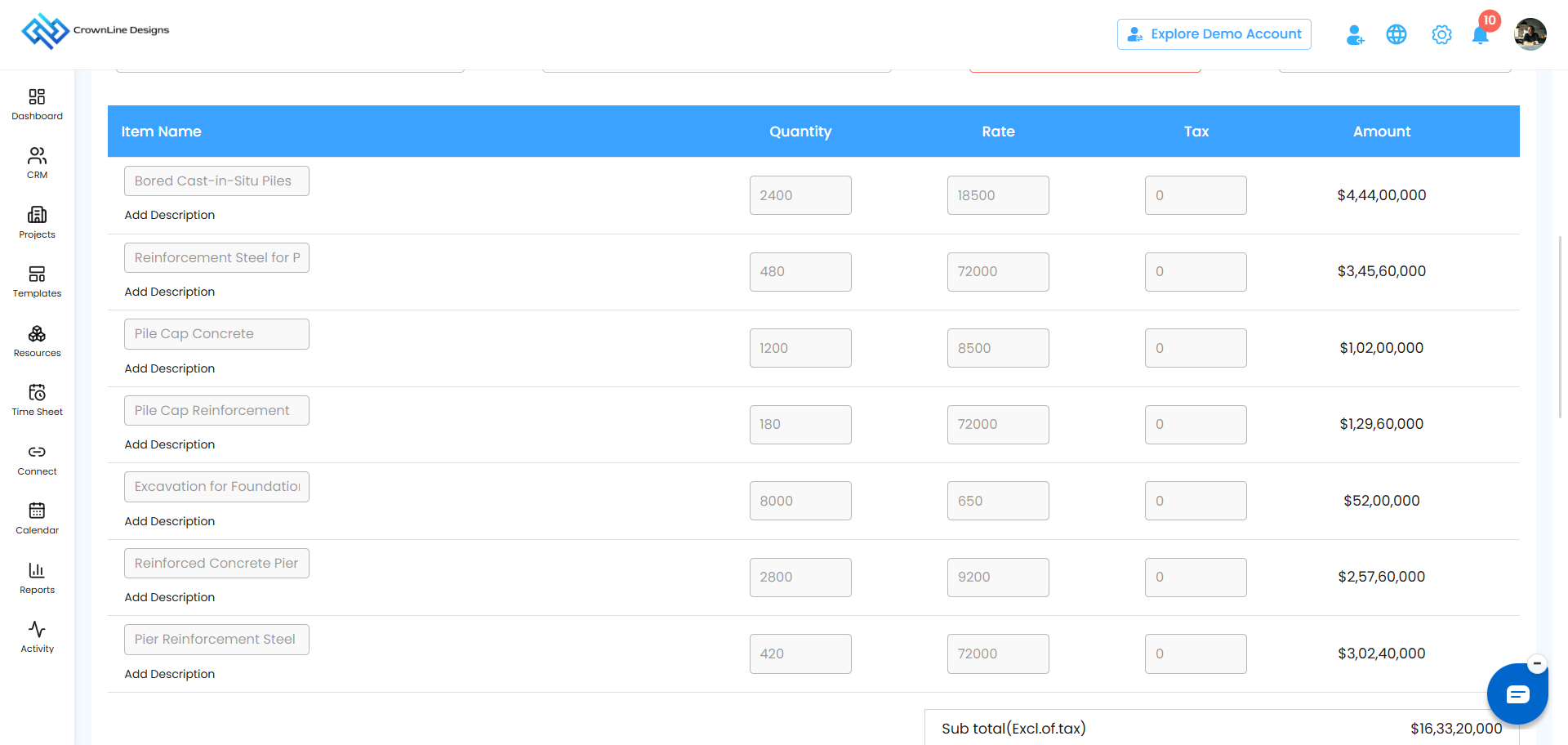
You cannot add new line items here. The invoice reflects what your client accepted, so the line items are fixed at what the estimate agreed. If work needs to be added or changed, that is what a change order is for — see Accepted Estimate Flow and Change Orders.
Step 4 — Create it
Complete the invoice and create it. It is generated for you.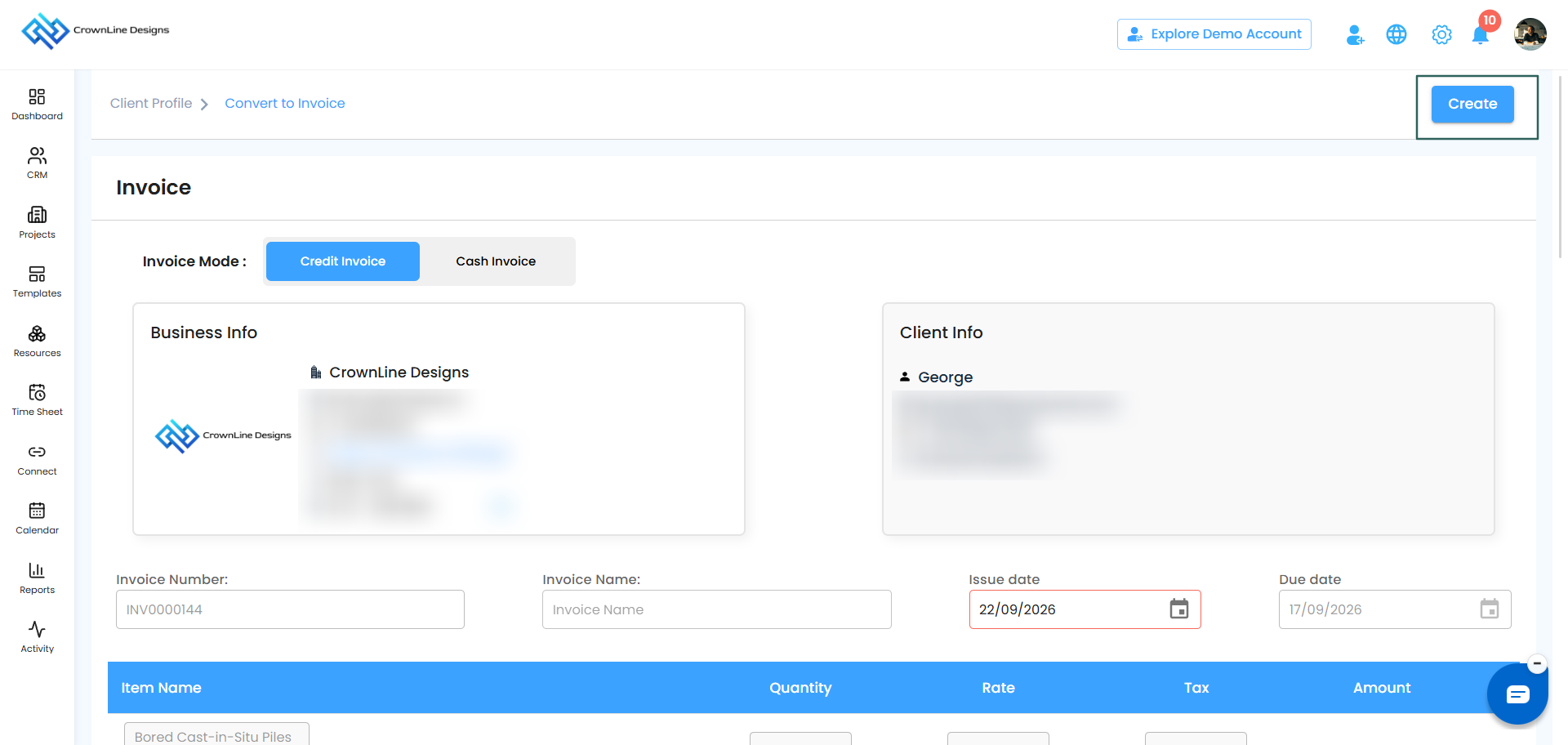
What happens on the estimate
Once the conversion is done, the estimate card shows a tick icon marked as converted to invoice.
This gives you a clear visual record that billing has started for that estimate, so nobody on your team accidentally raises a second invoice against the same job.
Good to know
- Converting to an invoice does not change the estimate itself. It stays accepted and locked.
- You can still convert the same estimate to a schedule and a sales order, and still raise change orders against it.
Was this article helpful?
That’s Great!
Thank you for your feedback
Sorry! We couldn't be helpful
Thank you for your feedback
Feedback sent
We appreciate your effort and will try to fix the article