How to Create a Task Directly from an Email
Turn important emails into actionable work with Create Task in IntoAEC Mail.
When an email contains a request, follow-up, or action item, you can create a task directly from that email instead of manually entering the email details into a new task.
Open the Email
Go to Connect → Mail.
Open the relevant email from the Inbox.
Click Create Task.
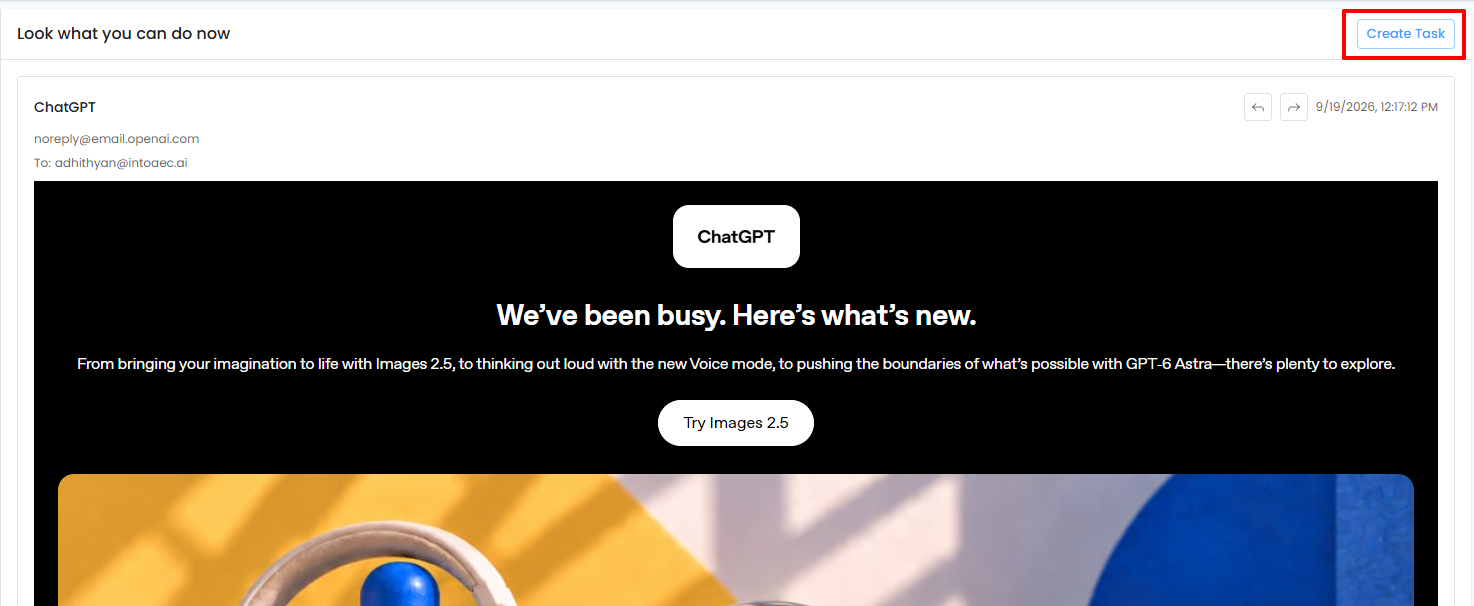
The Create Task popup opens.
Select the Project
In the Create Task popup:
Select the required Project Name from the project dropdown.
The task will be created under the selected project.
AI-Generated Task Details
IntoAEC automatically generates the task's:
Title
Description
The AI uses the email subject and email content to generate these details.
Review the generated information and make any required changes before creating the task.
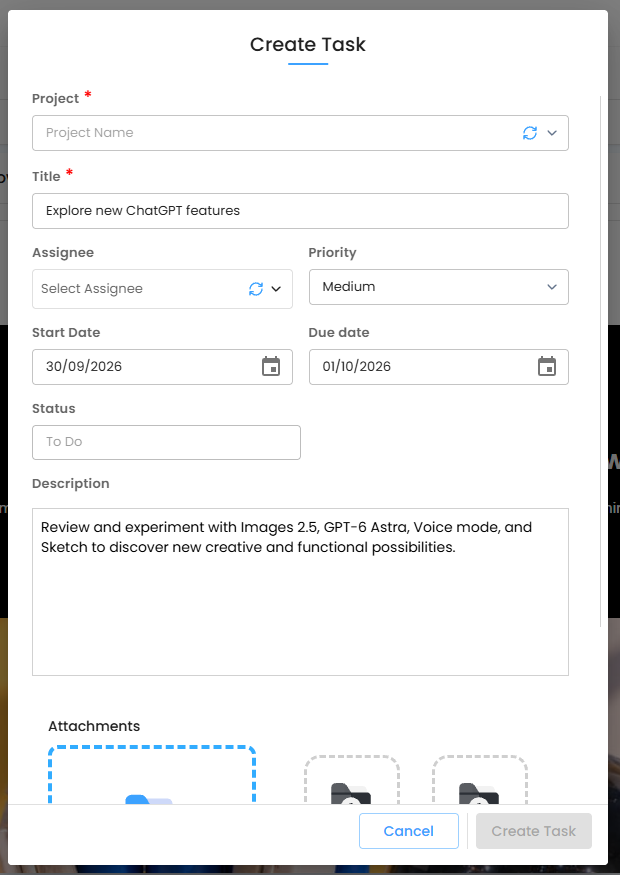
Set Task Details
You can configure the task using the available fields:
Project Name – Select the project where the task should be created.
Title – Review or update the AI-generated task title.
Description – Review or update the AI-generated task description.
Assignee – Select the team member responsible for the task.
Priority – Set the task priority.
Start Date – Select when the task should begin.
End Date – Select when the task should end.
Status – Select the current task status.
Email Attachments Are Automatically Added
If the email contains attachments, IntoAEC automatically fetches those attachments when creating the task.
The email attachments are added to the newly created task, so you don't need to download and upload them manually.
Create the Task
After reviewing the project, AI-generated details, task information, and attachments:
Select the required Project Name.
Review the Title and Description.
Select the Assignee.
Set the Priority.
Set the Start Date and End Date.
Select the Status.
Review the automatically fetched email attachments.
Create the task.
The email is converted into an actionable task with the relevant information from the original message.
Why Create Tasks from Emails?
Creating tasks directly from emails helps you move from communication to action without manually copying information.
The email's subject, content, and attachments can be carried into the task, while you can define the project, assignee, priority, dates, and status before creating it.
Was this article helpful?
That’s Great!
Thank you for your feedback
Sorry! We couldn't be helpful
Thank you for your feedback
Feedback sent
We appreciate your effort and will try to fix the article