Overview
Bring your numbers and your projects under one roof. Connecting Bukku to IntoAEC links your accounting with the project work it belongs to, so your finance team and your project team stop working in separate worlds.
Setup takes just two things from your Bukku account: an Authorization Key and your Subdomain. Once connected, your invoices, credit notes, receipts, and refunds from each project's Money Matters module can be synced to Bukku, with no re-typing and no copy-paste.
Connecting Your Bukku Account
- Go to Settings > Integration and find Bukku.
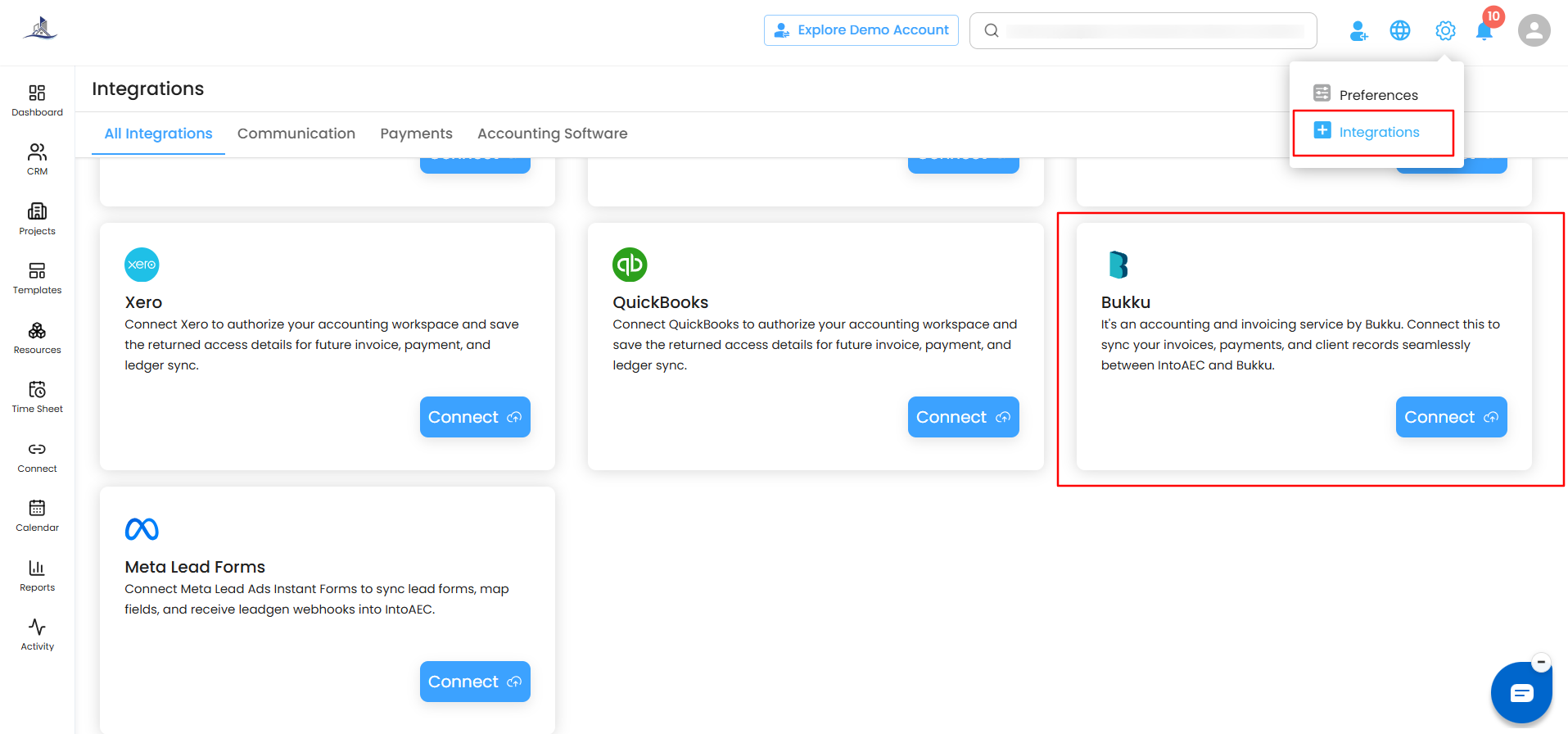
- Click Connect.
- The Configure Bukku window opens. Enter your Authorization Key.
- Enter your Subdomain.
- Click Configure.
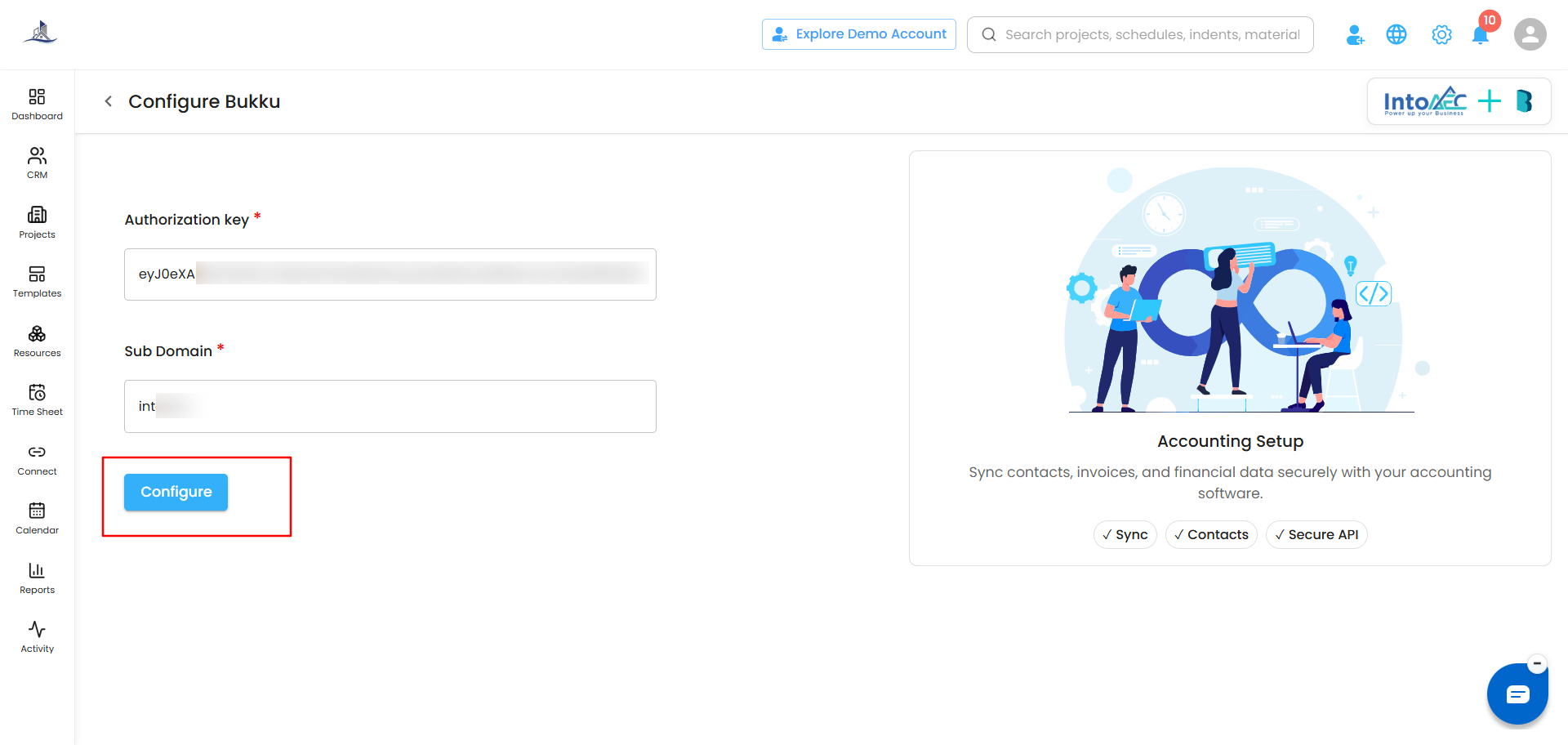
Not sure where to find these two details? The next section shows you exactly where they are in Bukku.
Finding Your Authorization Key and Subdomain in Bukku
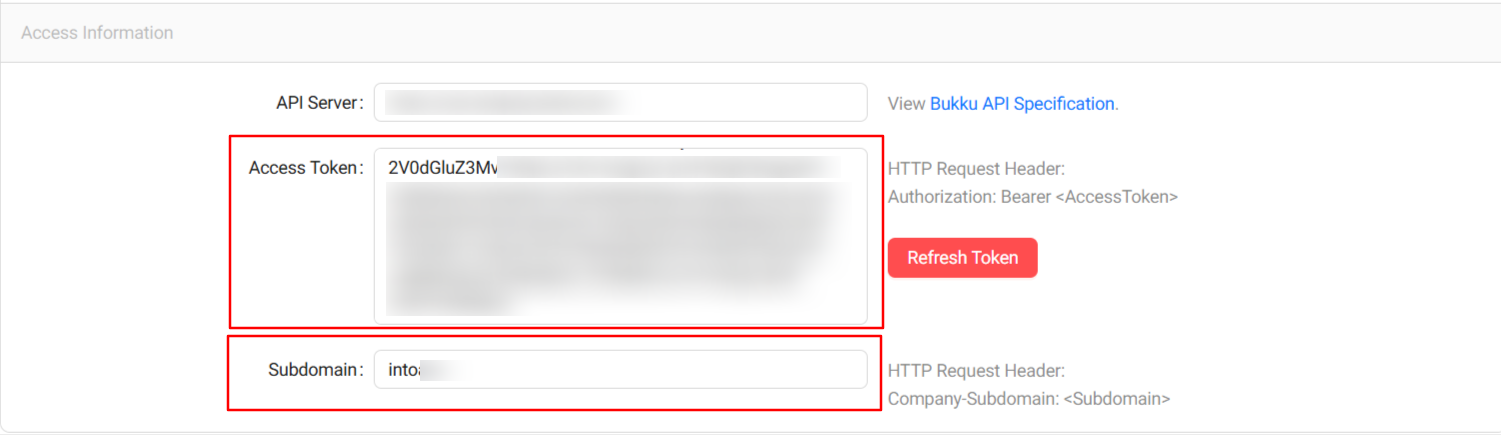
Authorization Key (API Key)
- Log in to your Bukku account.
- Go to Settings (top-right or sidebar).
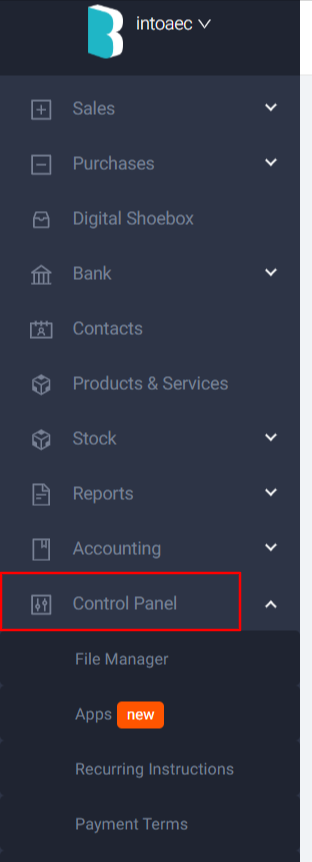
- Open API / Developer Settings / Integrations.
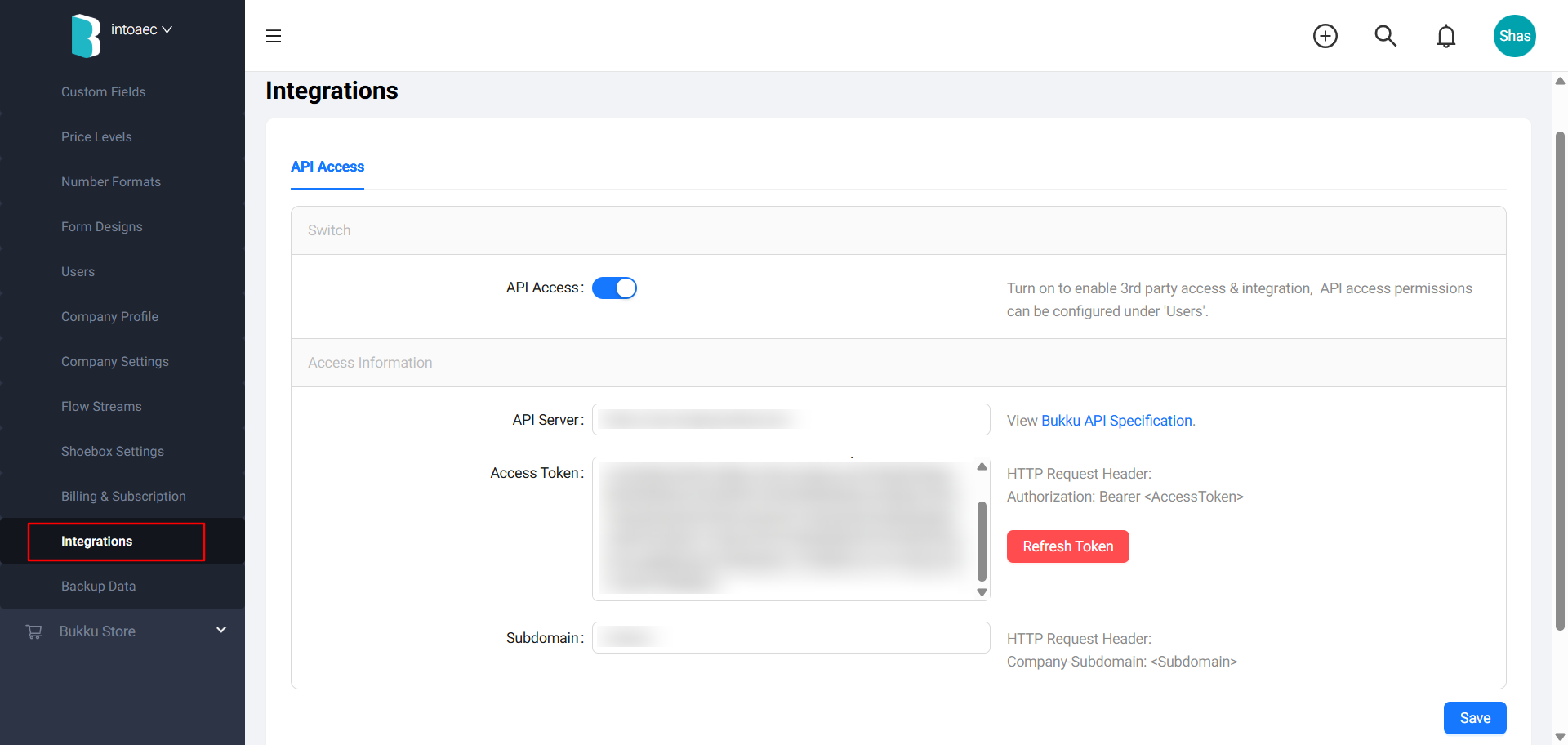
- Generate a new Authorization Key, or copy your existing one.
Subdomain
Your subdomain is the first part of your Bukku web address. For example, if your Bukku URL is https://yourcompany.bukku.my, your subdomain is yourcompany (the part before .bukku.my).
Confirming the Currency
After you click Configure, a confirmation popup appears:
"The currency set in localization will be used. Make sure the localization currency matches the one in Bukku. Are you sure you want to continue?"
Check that the currency in your IntoAEC localization settings is the same as the currency in your Bukku account, then click Yes to continue.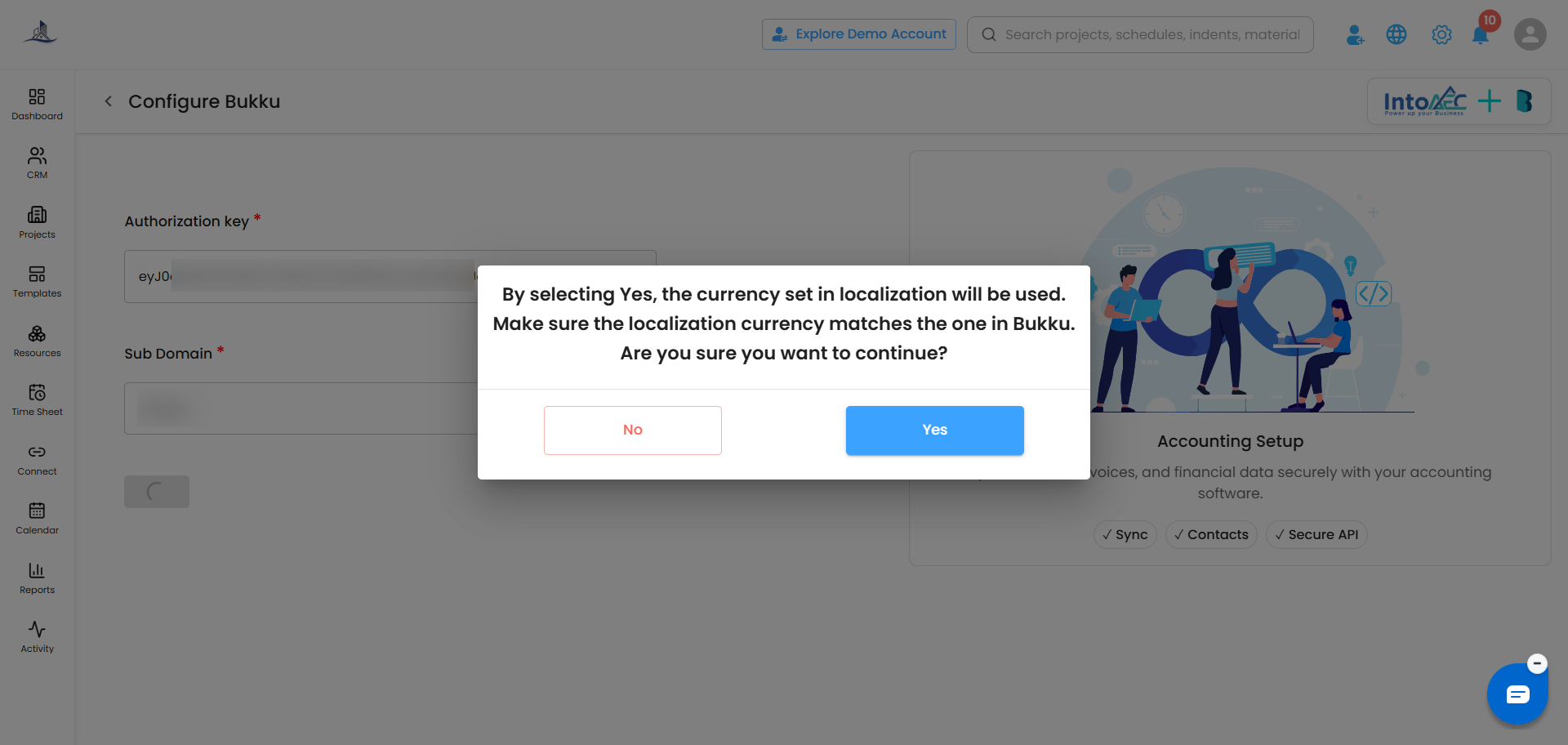
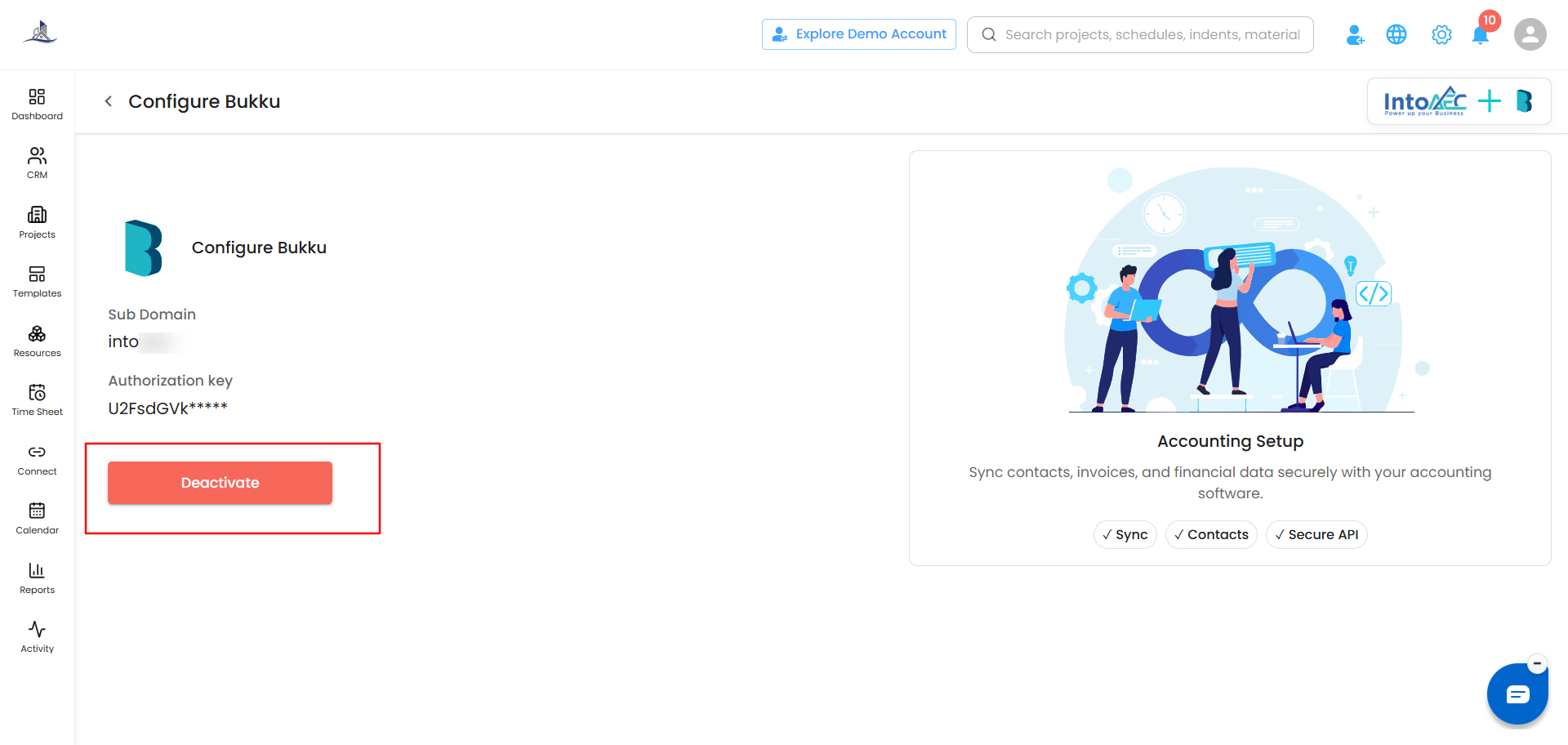 Checking the Connection
Go back to the Integration page. The Bukku status now shows Connected.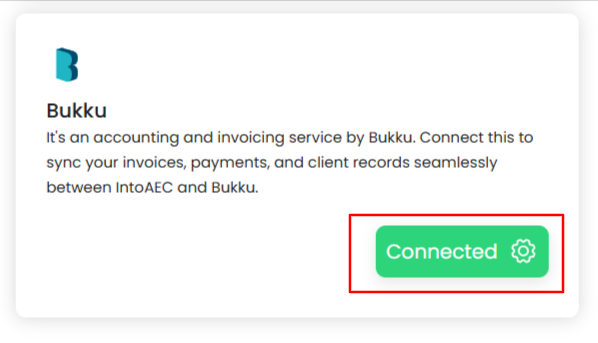
Syncing Records to Bukku
You sync records to Bukku from within each project, in the Money Matters module. The same steps work for all four record types: Invoice, Credit Note, Receipt, and Refund.
- Open the project and go to Money Matters.
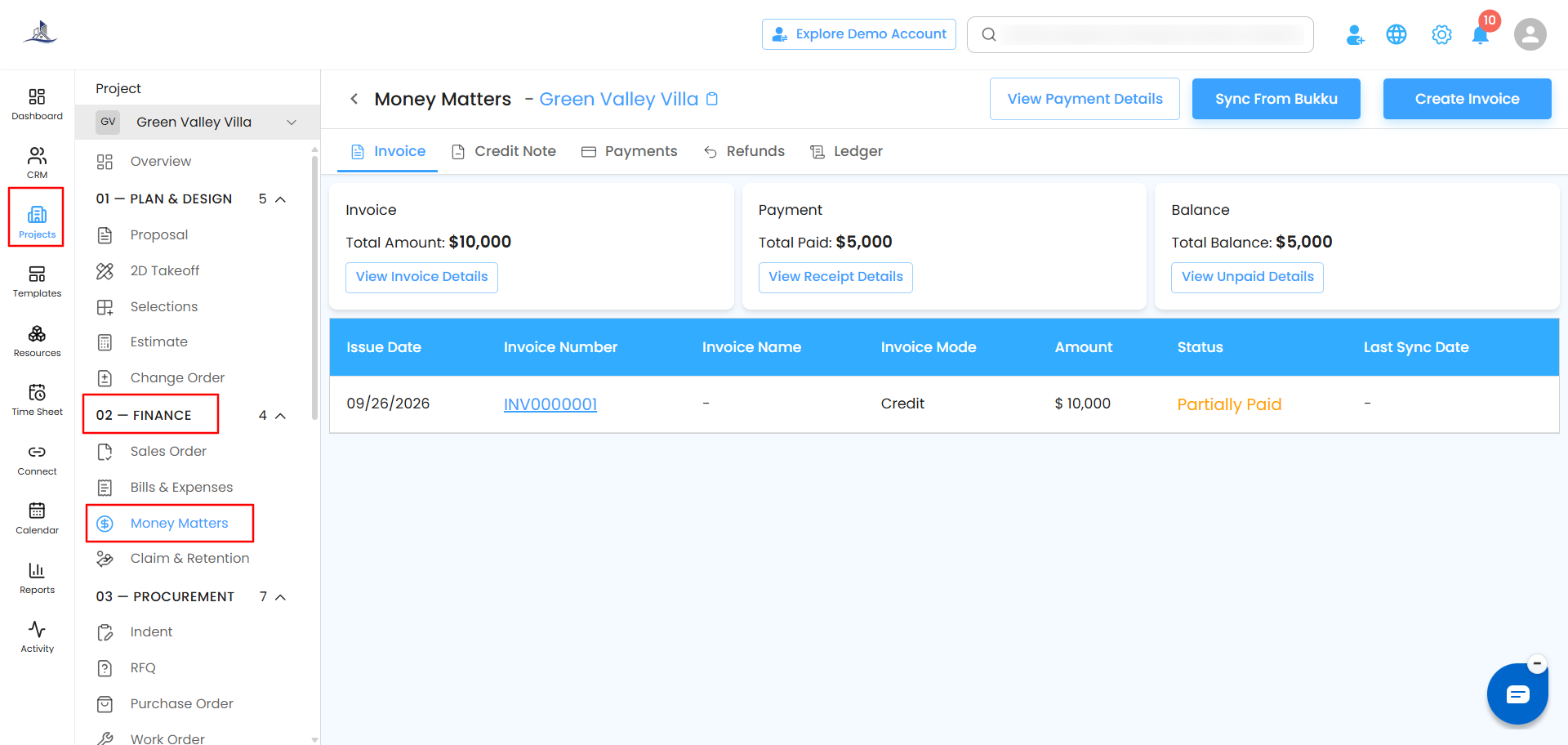
- Select the tab you need: Invoice, Credit Note, Receipt, or Refund.
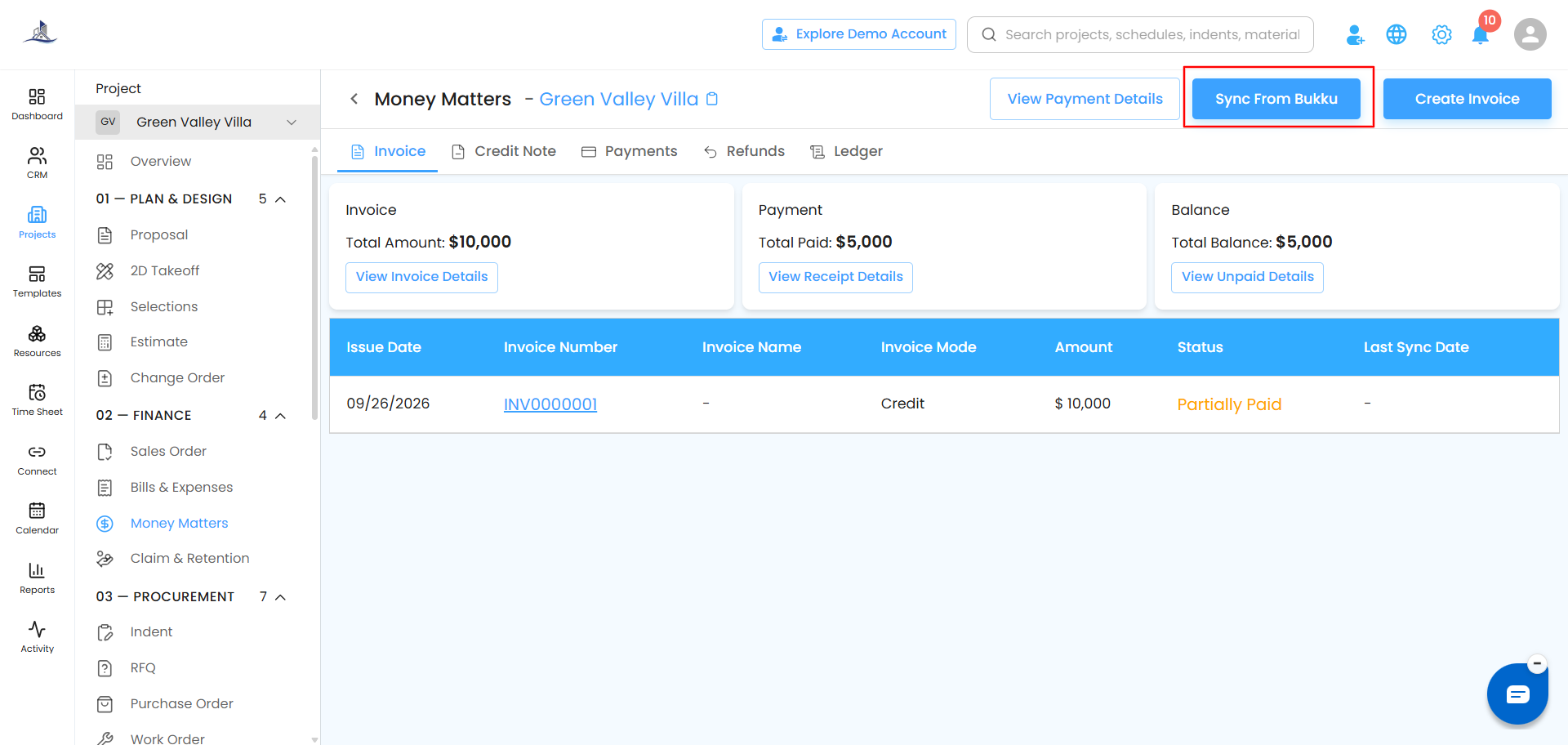
- Click Sync Bukku.
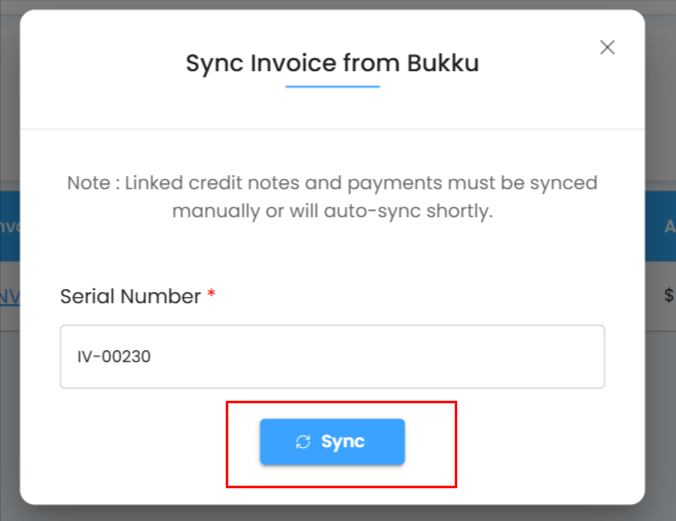
- In the Bukku popup, enter the Serial No. and confirm to sync right away.
Need Help?
If the connection does not complete or a record does not sync, please contact the IntoAEC Support Team and we will be happy to help.
Was this article helpful?
That’s Great!
Thank you for your feedback
Sorry! We couldn't be helpful
Thank you for your feedback
Feedback sent
We appreciate your effort and will try to fix the article